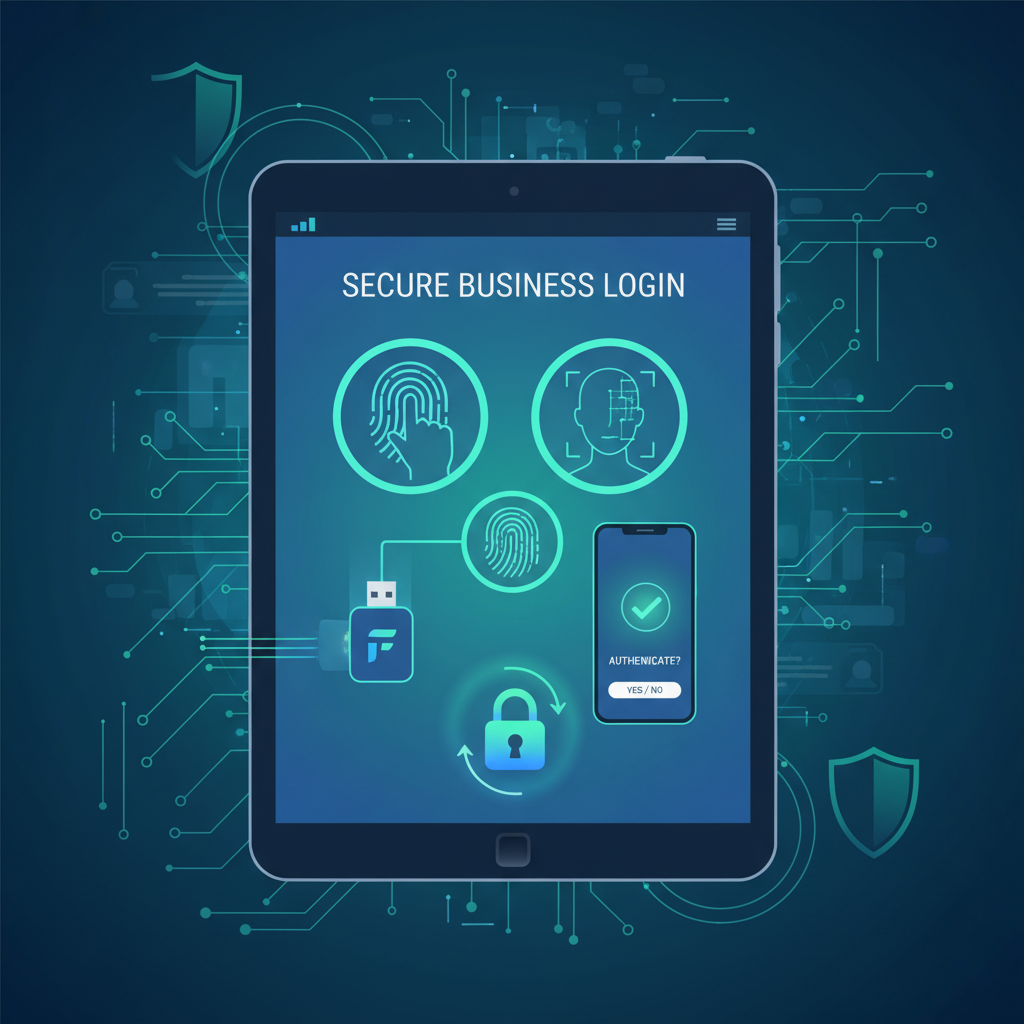
Why Passwords Are Failing Your Business - The Case for Going Passwordless
Passwords have been the cornerstone of digital security for decades, yet they have become one of the greatest vulnerabilities facing modern businesses. From credential stuffing and phishing attacks to password reuse and brute-force campaigns, the traditional username-and-password model is fundamentally broken. For UK businesses navigating an increasingly hostile threat landscape, the question is no longer whether to adopt passwordless authentication - it’s how quickly you can make the transition.
This comprehensive guide walks you through everything you need to know about implementing passwordless authentication in a business environment. We cover the underlying standards - FIDO2 and WebAuthn - the leading solutions from Microsoft and third-party vendors, deployment strategies for Azure AD, user adoption best practices, and a detailed cost-benefit analysis tailored for UK organisations. Whether you’re a 20-person firm or a 500-seat enterprise, this guide provides the practical roadmap you need to eliminate passwords and strengthen your security posture.
Understanding the Standards - FIDO2 and WebAuthn Explained
Before evaluating specific products or planning a deployment, it’s essential to understand the open standards that underpin modern passwordless authentication. Two acronyms dominate this space: FIDO2 and WebAuthn. Together, they form the technical foundation upon which all major passwordless solutions are built.
What Is FIDO2?
FIDO2 is an open authentication standard developed by the FIDO Alliance (Fast Identity Online) in collaboration with the World Wide Web Consortium (W3C). It was designed from the ground up to replace passwords with stronger, phishing-resistant authentication methods. FIDO2 encompasses two core components: the Web Authentication API (WebAuthn) and the Client-to-Authenticator Protocol (CTAP2).
The fundamental principle behind FIDO2 is asymmetric cryptography. When a user registers with a service, a unique public-private key pair is generated. The private key remains securely stored on the user’s device - whether that’s a laptop, smartphone, or hardware security key - and never leaves it. The public key is shared with the service. During authentication, the service issues a cryptographic challenge that can only be answered by the holder of the private key, verified through a local gesture such as a fingerprint scan, facial recognition, or PIN entry.
This approach eliminates the shared secret problem that plagues passwords. There is no password to steal from a server-side database, no credential to intercept during transmission, and no secret to phish from an unsuspecting user. Even if an attacker compromises the server, they obtain only public keys - which are useless for authentication.
What Is WebAuthn?
WebAuthn is the web-facing component of FIDO2. It is a JavaScript API built into modern web browsers that allows websites and web applications to register and authenticate users using FIDO2-compatible authenticators. Every major browser - Chrome, Edge, Firefox, and Safari - supports WebAuthn, as do all major operating systems including Windows, macOS, iOS, Android, and Linux.
For businesses, WebAuthn’s significance lies in its universality. It is not a proprietary protocol tied to a single vendor. Any application that implements WebAuthn can accept authentication from any FIDO2-compatible authenticator, whether that’s a YubiKey hardware token, a Windows Hello biometric sensor, an Apple Face ID scan, or an Android fingerprint reader. This interoperability gives organisations flexibility in choosing their authenticator strategy without being locked into a single ecosystem.
How CTAP2 Completes the Picture
The Client-to-Authenticator Protocol version 2 (CTAP2) is the second component of FIDO2. While WebAuthn handles communication between the browser and the server, CTAP2 manages communication between the browser (or operating system) and the external authenticator. This is what enables a USB security key or a Bluetooth-connected smartphone to communicate with your laptop during the authentication process. CTAP2 supports USB, NFC, and Bluetooth Low Energy (BLE) transport protocols, covering virtually every connection method a user might encounter.
Passwordless Solutions for Business - A Comprehensive Comparison
The passwordless market has matured significantly, with several enterprise-grade solutions now available. For UK businesses - particularly those already invested in the Microsoft ecosystem - the primary options include Windows Hello for Business, Microsoft Authenticator passwordless sign-in, hardware security keys (most notably YubiKey), and the emerging passkeys standard. Each has distinct strengths, deployment requirements, and cost profiles.
| Solution | Authentication Method | FIDO2 Certified | Phishing Resistant | Approximate Cost | Best For |
|---|---|---|---|---|---|
| Windows Hello for Business | Biometrics (face/fingerprint) or PIN | Yes | Yes | Included with Windows 10/11 Pro+ | Windows-centric organisations |
| Microsoft Authenticator | Push notification + biometric/PIN | Partial (phone sign-in) | Yes (with number matching) | Free (requires Azure AD P1+) | Mobile-first and BYOD environments |
| YubiKey 5 Series | Hardware token (USB/NFC) | Yes | Yes | £40–£60 per key | High-security roles, shared workstations |
| YubiKey Bio Series | Hardware token with fingerprint | Yes | Yes | £75–£95 per key | Executives, privileged access |
| Passkeys (cross-platform) | Device biometrics synced via cloud | Yes (FIDO2-based) | Yes | Free (platform-native) | Consumer-facing apps, modern workforce |
| Feitian BioPass FIDO2 | Hardware token with fingerprint | Yes | Yes | £50–£70 per key | Budget-conscious, high-security needs |
Windows Hello for Business
Windows Hello for Business is Microsoft’s flagship passwordless solution for enterprise environments. Unlike consumer Windows Hello - which provides convenient local device sign-in - Windows Hello for Business integrates directly with Azure Active Directory (now Microsoft Entra ID) and on-premises Active Directory to provide cryptographic, phishing-resistant authentication across your entire identity infrastructure.
When a user enrols in Windows Hello for Business, a cryptographic key pair is generated and bound to their device. The private key is protected by the device’s Trusted Platform Module (TPM) - a dedicated hardware security chip present in virtually all modern business laptops and desktops. Authentication requires a local gesture: either a biometric scan (facial recognition via the infrared camera or fingerprint via a compatible reader) or a device-specific PIN. Crucially, the PIN is not a password - it is bound to the specific device and protected by the TPM, meaning it cannot be used from any other machine even if intercepted.
For UK businesses running Windows 10 or 11 Professional, Enterprise, or Education editions, Windows Hello for Business is included at no additional licensing cost. The primary requirements are compatible hardware (most business laptops manufactured since 2018 include both TPM 2.0 and infrared cameras), Azure AD Premium P1 or P2 licensing (included in Microsoft 365 Business Premium at £18.70 per user per month), and either cloud-only or hybrid Azure AD join configuration.
The key advantage of Windows Hello for Business is its seamless integration with the Windows desktop experience. Users authenticate once at sign-in using their face or fingerprint, and that credential flows through to Azure AD, Microsoft 365, and any application integrated with your identity provider. There is no additional app to install, no separate token to carry, and no change to the user’s daily workflow beyond the initial enrolment.
Microsoft Authenticator - Passwordless Phone Sign-In
Microsoft Authenticator has evolved far beyond its origins as a simple TOTP (time-based one-time password) generator. The app now supports fully passwordless sign-in to Azure AD, where users approve authentication requests by matching a number displayed on screen, then confirming with a biometric gesture (fingerprint or face) or device PIN on their smartphone.
This approach - known as phone sign-in - works across platforms. Users can sign in to Windows, macOS, web applications, and mobile apps using their Authenticator-equipped smartphone as the primary credential. With the introduction of number matching and additional context (showing the application name and geographic location of the sign-in request), Microsoft has significantly strengthened the phishing resistance of Authenticator-based authentication.
Authenticator passwordless sign-in is particularly well-suited to organisations with significant BYOD (Bring Your Own Device) populations or mobile workforces. It requires no additional hardware investment - users simply install the free Authenticator app on their existing iOS or Android smartphone. However, it does require Azure AD Premium P1 licensing and the configuration of authentication methods policies in the Entra admin centre.
One consideration for UK businesses is the dependency on the user’s personal smartphone. Organisations must address scenarios where employees lose their phone, forget to bring it, or run out of battery. A robust deployment should always include a secondary authentication method - such as a FIDO2 security key or Temporary Access Pass - to ensure users are never locked out of their accounts.
Hardware Security Keys - YubiKey and Beyond
Hardware security keys represent the gold standard for phishing-resistant authentication. These small physical devices - typically connecting via USB-A, USB-C, or NFC - store FIDO2 credentials in tamper-resistant hardware and require physical possession plus a deliberate gesture (touch or biometric) to authenticate. They cannot be phished, cannot be cloned, and do not depend on batteries, network connectivity, or smartphone availability.
The YubiKey 5 Series from Yubico is the most widely deployed FIDO2 security key in enterprise environments. Available in USB-A, USB-C, and nano form factors (all with NFC support), the YubiKey 5 supports FIDO2, FIDO U2F, smart card (PIV), OpenPGP, and OTP protocols. At approximately £40–£60 per key (with volume discounts available for enterprise purchases), the YubiKey 5 offers exceptional versatility and durability. Yubico rates the keys for water resistance and crush resistance, with no batteries or moving parts to fail.
For organisations requiring biometric verification on the key itself, the YubiKey Bio Series adds an integrated fingerprint reader. This means the biometric check happens on the hardware token rather than on the host device, providing an additional layer of assurance. At £75–£95 per key, the Bio Series commands a premium but is ideal for privileged access roles, executives, and high-security environments.
Alternative FIDO2 key manufacturers include Feitian, whose BioPass and ePass ranges offer competitive pricing (from approximately £25 for basic models), and Google’s Titan Security Key. When selecting a hardware key vendor, prioritise FIDO2 certification, build quality, and the availability of UK-based support and procurement channels.
Biometric Authentication - Face, Fingerprint, and Beyond
Biometric authentication leverages unique physical characteristics - most commonly facial geometry and fingerprints - to verify a user’s identity. In the context of passwordless enterprise authentication, biometrics serve as the “something you are” factor that unlocks the cryptographic credential stored on the device or security key.
Windows Hello for Business uses infrared-based facial recognition that works in varying lighting conditions and is resistant to spoofing with photographs or masks. The infrared camera captures a depth map of the user’s face, which is compared against an enrolled template stored locally in the TPM. This process happens entirely on-device - no biometric data is transmitted to Microsoft or stored in the cloud.
Fingerprint authentication is supported across Windows Hello, YubiKey Bio, and smartphone-based authenticators. Modern capacitive and ultrasonic fingerprint sensors offer fast, reliable recognition with low false-acceptance rates. For organisations deploying fingerprint-based authentication, consider the environmental factors that can affect reliability: users in manufacturing, healthcare, or construction environments may have worn or damaged fingerprints that reduce sensor accuracy. In these cases, facial recognition or a PIN fallback should be available as alternatives.
Looking ahead, additional biometric modalities are emerging. Palm vein recognition, iris scanning, and behavioural biometrics (analysing typing patterns, mouse movements, and device handling) are all under active development for enterprise use. However, for most UK businesses today, the combination of facial recognition and fingerprint scanning provides a mature, well-supported foundation for passwordless authentication.
Passkeys - The Future of Passwordless
Passkeys represent the next evolution of FIDO2 credentials, designed to bring passwordless authentication to the mainstream. Developed collaboratively by Apple, Google, and Microsoft through the FIDO Alliance, passkeys are essentially FIDO2 credentials that can be synchronised across a user’s devices via cloud backup - eliminating the device-binding limitation that has historically complicated FIDO2 adoption.
With traditional FIDO2 credentials, if a user enrolls on their laptop and then tries to sign in on a new tablet, they must go through the enrolment process again on the new device. Passkeys solve this by synchronising credentials through the platform’s cloud keychain - iCloud Keychain for Apple devices, Google Password Manager for Android and Chrome, and the Microsoft account for Windows devices. The private key is end-to-end encrypted during synchronisation, meaning the cloud provider cannot access it.
For UK businesses, passkeys offer a compelling path toward passwordless authentication for consumer-facing applications and modern workforce scenarios. However, enterprise adoption requires careful consideration. Synchronised passkeys - while convenient - may not meet the security requirements of organisations that need device-bound credentials for regulatory compliance. Microsoft’s implementation in Azure AD supports both synchronised passkeys (via Authenticator) and device-bound passkeys (via Windows Hello for Business and FIDO2 security keys), giving organisations flexibility to choose the appropriate level of binding for different user populations and risk profiles.
Phishing-Resistant MFA - Why It Matters
The term “phishing-resistant” has become a critical differentiator in the authentication market, and for good reason. Traditional multi-factor authentication (MFA) methods - including SMS codes, email OTPs, and even standard push notifications - are increasingly vulnerable to sophisticated phishing and adversary-in-the-middle (AitM) attacks.
In an AitM attack, the attacker positions a proxy server between the user and the legitimate service. When the user enters their credentials and MFA code on the phishing site, the proxy relays them in real-time to the genuine service, capturing the authenticated session token. This technique effectively bypasses traditional MFA, and toolkits like Evilginx2 have made it accessible to even moderately skilled attackers.
Phishing-resistant authentication methods - specifically FIDO2/WebAuthn-based solutions - are immune to these attacks because the authentication is cryptographically bound to the origin (the legitimate domain). The authenticator checks the domain of the requesting site as part of the cryptographic challenge-response process. If a user is directed to a lookalike phishing domain, the authenticator will refuse to respond because the domain does not match the registered origin. No amount of social engineering can override this cryptographic verification.
The US Cybersecurity and Infrastructure Security Agency (CISA) and the UK’s National Cyber Security Centre (NCSC) both recommend phishing-resistant MFA as the highest-priority security improvement organisations can make. For UK businesses pursuing Cyber Essentials Plus certification or ISO 27001 compliance, deploying phishing-resistant authentication demonstrates a commitment to best-practice security that assessors and auditors recognise.
Password-Based Authentication
- Credentials stored as hashes on servers - vulnerable to database breaches
- Susceptible to phishing, credential stuffing, and brute-force attacks
- Users reuse passwords across services, creating cascading risk
- Password reset processes are costly and time-consuming
- SMS and email MFA codes can be intercepted or phished
- Average IT helpdesk spends 20–30% of time on password resets
- Compliance frameworks increasingly flag password-only access as insufficient
Passwordless Authentication
- Asymmetric cryptography - no shared secrets to steal from servers
- Phishing-resistant by design (origin-bound cryptographic verification)
- Unique key pairs per service eliminate credential reuse risk
- No passwords to forget, reset, or rotate
- Biometric and hardware-bound factors cannot be intercepted remotely
- Eliminates password-related helpdesk tickets entirely
- Exceeds requirements for Cyber Essentials, ISO 27001, and GDPR technical measures
Deploying Passwordless Authentication in Azure AD (Microsoft Entra ID)
For the majority of UK businesses using Microsoft 365, Azure Active Directory - now officially rebranded as Microsoft Entra ID - serves as the central identity provider. Azure AD offers native support for all three primary passwordless methods: Windows Hello for Business, Microsoft Authenticator, and FIDO2 security keys. Deploying passwordless authentication is a configuration-driven process that can be rolled out incrementally without disrupting existing access.
Prerequisites and Licensing
Before beginning a passwordless deployment, ensure the following prerequisites are in place:
Azure AD Premium P1 or P2 licensing is required for conditional access policies and authentication methods management. Azure AD P1 is included in Microsoft 365 Business Premium (£18.70/user/month), Microsoft 365 E3, and as a standalone add-on (£4.50/user/month). Most UK SMEs on Business Premium already have the necessary licensing.
Devices must be Azure AD joined or hybrid Azure AD joined for Windows Hello for Business. Cloud-only Azure AD join is the simpler configuration and is recommended for new deployments. Hybrid join is necessary for organisations that still rely on on-premises Active Directory for some resources.
Windows 10 version 1903 or later (or Windows 11) is required for FIDO2 security key sign-in on the Windows desktop. For web-based sign-in, any modern browser on any operating system will work.
Compatible hardware - for Windows Hello for Business with facial recognition, devices need an infrared camera (standard on most business laptops since 2018). For fingerprint authentication, a compatible fingerprint reader is required. For FIDO2 security keys, ensure devices have the appropriate USB port type or NFC capability.
Step-by-Step Azure AD Configuration
Step 1: Enable authentication methods. Navigate to the Microsoft Entra admin centre, then to Protection > Authentication Methods. Enable the passwordless methods you plan to deploy - Microsoft Authenticator, FIDO2 Security Keys, and/or Windows Hello for Business. For each method, configure the target group (start with a pilot group rather than all users). For FIDO2 keys, you can optionally restrict to specific key AAGUIDs to enforce the use of approved hardware vendors.
Step 2: Configure Windows Hello for Business. If deploying Windows Hello for Business, navigate to Devices > Windows > Windows Enrolment > Windows Hello for Business. Configure the policy to enable Windows Hello for your target group, set the minimum PIN length (6 digits recommended), and configure biometric settings. For cloud-only deployments, this is sufficient. For hybrid environments, additional configuration of the Kerberos cloud trust model or certificate trust model is required.
Step 3: Set up conditional access policies. Create conditional access policies that require authentication strength of “Phishing-resistant MFA” for your pilot group. This built-in authentication strength in Azure AD ensures that only FIDO2, Windows Hello for Business, and certificate-based authentication satisfy the MFA requirement - explicitly excluding weaker methods like SMS and voice calls. Apply this policy initially to a pilot group, then expand as user enrolment progresses.
Step 4: Configure Temporary Access Pass (TAP). Enable Temporary Access Pass as a time-limited credential that administrators can issue to users who need to set up their passwordless methods for the first time, or who have lost their primary authenticator. TAP provides a bridge between the password world and the passwordless world, allowing users to bootstrap their new credentials without needing a traditional password. Set a reasonable lifetime (1–8 hours) and single-use or multi-use based on your requirements.
Step 5: User enrolment and registration. Direct users to mysignins.microsoft.com/security-info to register their passwordless credentials. For Windows Hello for Business, enrolment happens automatically at the next Windows sign-in if the policy is configured. For FIDO2 security keys, users follow a guided registration process in the browser. For Authenticator, users add their account in the app and enable phone sign-in.
Step 6: Monitor and expand. Use the Azure AD Authentication Methods Activity report to track registration and usage of passwordless methods. Monitor sign-in logs for any issues, gather feedback from the pilot group, and gradually expand the target audience until the entire organisation is enrolled. Once all users have registered passwordless methods, you can configure conditional access to block password-based authentication entirely.
Authentication Method Adoption - Where the Market Is Heading
Understanding current adoption trends helps organisations make informed decisions about which passwordless methods to prioritise. Industry research from Microsoft, Gartner, and the FIDO Alliance reveals clear momentum toward passwordless authentication, with significant growth projected through 2027.
Several trends are worth noting for UK decision-makers. First, while passwords with SMS MFA remain the most common configuration, adoption is declining as organisations recognise the phishing vulnerability. Second, Windows Hello for Business has seen rapid growth, driven by its zero-cost inclusion in Windows and seamless user experience. Third, passkeys are the fastest-growing category, with adoption expected to triple by 2027 as Apple, Google, and Microsoft continue embedding passkey support into their platforms. Fourth, only 11% of organisations have achieved fully passwordless status - meaning the account has no password set at all - indicating that most organisations are still in the transition phase, using passwordless methods alongside existing passwords rather than eliminating passwords entirely.
User Adoption Strategies - Making the Transition Smooth
Technology alone does not guarantee a successful passwordless deployment. The greatest challenge most organisations face is not the technical configuration but the human element: persuading users to adopt new authentication methods and abandon the familiar (if insecure) password. A well-planned user adoption strategy is essential to avoid resistance, confusion, and helpdesk overload.
Start with Champions, Not Mandates
Resist the temptation to mandate passwordless authentication for the entire organisation on day one. Instead, begin with a voluntary pilot group of enthusiastic early adopters - typically 5–10% of the workforce. Choose individuals from different departments and technical skill levels to ensure the pilot group is representative. These champions will become advocates for the new system, providing peer-to-peer support and demonstrating that passwordless sign-in is faster, easier, and more reliable than passwords.
Communicate the “Why” Before the “How”
Users are more receptive to change when they understand the reasoning behind it. Before deploying passwordless methods, communicate clearly why the organisation is making the change. Frame it in terms that resonate with non-technical staff: no more forgotten passwords, no more mandatory password changes every 90 days, faster sign-in, and stronger protection against the phishing emails that everyone has seen in their inbox. Avoid jargon - terms like “FIDO2” and “asymmetric cryptography” mean nothing to most users. Focus on the benefits they will experience daily.
Provide Multiple Enrolment Paths
Different users have different preferences and comfort levels. Offer multiple enrolment options: self-service registration via the My Security Info portal, scheduled enrolment sessions with IT support available, and drop-in clinics for users who want hands-on guidance. For hardware security key deployments, organise distribution events where users receive their keys and complete enrolment with IT staff on hand to assist.
Plan for Edge Cases
Every organisation has scenarios that complicate passwordless deployment. Shared workstations in reception areas or factory floors may not suit biometric authentication tied to individual users. Conference room devices may need a different access model. Contractors and temporary staff may not justify hardware key investment. Users with accessibility requirements may find certain biometric methods difficult. Address these edge cases proactively during the planning phase, identifying alternative authentication methods for each scenario rather than discovering them as blockers during rollout.
Maintain a Safety Net During Transition
During the migration period, allow users to fall back to password-based authentication if they encounter issues with their passwordless credentials. This safety net reduces anxiety and prevents productivity loss. As adoption stabilises and users become comfortable, gradually tighten conditional access policies to restrict password-based sign-in - first for low-risk applications, then for higher-risk resources, and ultimately for all access. A phased restriction is far more effective than a sudden cutoff.
Cost-Benefit Analysis for UK Businesses
UK business leaders rightly demand a clear financial case before investing in any security initiative. Passwordless authentication is one of the rare security investments that delivers measurable cost savings alongside improved protection - a genuine win-win that makes the business case straightforward to articulate.
The True Cost of Passwords
Most organisations significantly underestimate the total cost of maintaining password-based authentication. The visible costs - password management tools, MFA token licensing - represent only a fraction of the true expense. The hidden costs are far more significant:
Helpdesk password resets account for 20–30% of all IT helpdesk interactions. Gartner estimates the average cost of a single password reset at £50–£55 when accounting for helpdesk staff time, user downtime, and administrative overhead. For a 200-person UK organisation experiencing an average of 0.7 password resets per user per month, this equates to approximately £84,000–£92,400 per year in password reset costs alone.
Productivity loss from password friction - time spent typing passwords, waiting for MFA codes, dealing with lockouts, and navigating password change screens - averages 11 minutes per user per day according to research by the Ponemon Institute. For a 200-person organisation, this represents over 600 hours of lost productivity per month.
Breach risk - with 80% of breaches involving compromised credentials, the expected annual cost of a password-related breach (probability multiplied by impact) adds a significant risk premium. For a UK SME, the average breach cost of £3.4 million, even at a modest 2% annual probability, represents an expected annual cost of £68,000.
The Investment in Passwordless
The cost of deploying passwordless authentication varies depending on the chosen method and organisation size. For a typical 200-person UK business already on Microsoft 365 Business Premium:
Windows Hello for Business only: Essentially zero incremental cost if devices already have compatible hardware (TPM 2.0 and infrared camera or fingerprint reader). The licensing is included in Business Premium. The primary investment is IT staff time for configuration and user enrolment - typically 40–60 hours for a 200-person deployment, equating to approximately £2,000–£3,600 in internal labour costs.
FIDO2 security keys (YubiKey 5 NFC): At approximately £45 per key with two keys per user (primary + backup), the hardware cost for 200 users is £18,000. Add £3,000–£5,000 for IT configuration, distribution, and enrolment labour. Total: approximately £21,000–£23,000 as a one-time investment (keys have no batteries or subscription fees and typically last 5+ years).
Microsoft Authenticator passwordless: Zero hardware cost if users have existing smartphones. The licensing (Azure AD P1) is included in Business Premium. IT configuration and user enrolment labour: approximately £1,500–£2,500 for a 200-person organisation.
Combined approach (recommended): Most organisations benefit from deploying Windows Hello for Business as the primary method, Microsoft Authenticator as a secondary/mobile option, and FIDO2 security keys for high-security roles and shared workstation scenarios. Total investment for a 200-person organisation: approximately £8,000–£15,000, depending on the number of security keys required.
Return on Investment
When comparing annual password costs against the one-time and minimal recurring investment in passwordless authentication, the ROI is compelling:
Eliminating password reset helpdesk costs saves £84,000–£92,000 per year. Reducing productivity loss from password friction recovers hundreds of hours monthly. Lowering breach risk through phishing-resistant authentication reduces the expected annual breach cost. Eliminating password management tool subscriptions (typically £2–£5 per user per month) saves an additional £4,800–£12,000 annually.
For most UK organisations, the passwordless investment pays for itself within 2–4 months of deployment. By the end of the first year, cumulative savings typically exceed the initial investment by a factor of 5–10x. This makes passwordless authentication not just a security improvement but a genuine cost-reduction initiative - a message that resonates strongly with finance directors and business owners.
Addressing Common Objections and Concerns
“What if someone’s biometric data is stolen?” Unlike passwords, biometric templates used by Windows Hello for Business and FIDO2 authenticators are stored locally on the device hardware (TPM or secure enclave) and never transmitted to a server. Even if an attacker somehow extracted the template from the TPM - an extremely difficult feat requiring physical access and specialised equipment - the template is device-specific and cannot be used on any other device or service.
“Our legacy applications require passwords.” This is a common and valid concern. Not every application supports modern authentication protocols. The solution is a phased approach: deploy passwordless for Azure AD and Microsoft 365 first (which most businesses use daily), then extend to other applications as they are modernised or replaced. For legacy applications that genuinely cannot support passwordless authentication, use Azure AD Application Proxy or a reverse proxy to front them with modern authentication, or maintain password-based access exclusively for those specific applications whilst protecting them behind conditional access policies.
“Our staff are not tech-savvy enough.” Passwordless authentication is actually simpler than password-based authentication from the user’s perspective. Looking at a camera or touching a fingerprint reader is far more intuitive than remembering a complex password, typing it correctly, waiting for an SMS code, and entering that within a time limit. Organisations that have completed passwordless deployments consistently report that the least technical users are often the most enthusiastic adopters, because the new system removes the frustration they experienced with passwords.
“The upfront hardware cost is too high.” As the cost-benefit analysis above demonstrates, the upfront investment in hardware security keys is recovered within months through helpdesk cost reduction alone. Moreover, Windows Hello for Business and Microsoft Authenticator require zero additional hardware investment for most organisations. A phased approach that starts with these zero-cost methods and adds security keys only for specific use cases minimises the initial outlay.
A Practical Deployment Roadmap for UK Businesses
Transitioning to passwordless authentication is a journey, not a single event. The following roadmap provides a practical, phased approach suitable for UK businesses of all sizes.
Phase 1 (Weeks 1–4): Assessment and planning. Audit your current authentication landscape. Identify which users, devices, and applications will be in scope. Verify licensing (Azure AD P1 or above). Assess device hardware compatibility for Windows Hello. Select your primary and secondary authentication methods. Define your pilot group. Establish success metrics.
Phase 2 (Weeks 5–8): Technical configuration and pilot. Configure authentication methods policies in Azure AD. Enable Windows Hello for Business and Authenticator passwordless sign-in for the pilot group. Distribute FIDO2 security keys to pilot participants who require them. Configure conditional access policies to encourage (but not mandate) passwordless sign-in. Configure Temporary Access Pass for account recovery scenarios.
Phase 3 (Weeks 9–16): Phased rollout. Expand passwordless enrolment to the broader organisation in waves (by department or location). Conduct training sessions and provide self-service resources. Monitor enrolment rates and sign-in success through Azure AD reporting. Address issues and edge cases as they arise. Gather user feedback and refine the experience.
Phase 4 (Weeks 17–24): Enforcement and optimisation. Once the majority of users have enrolled, begin restricting password-based authentication through conditional access. Start with low-risk applications and expand to all resources. Implement conditional access policies requiring phishing-resistant MFA for privileged roles (global admins, finance staff, executives). Monitor for remaining password usage and address holdout users individually.
Phase 5 (Ongoing): Maintenance and evolution. Regularly review authentication methods activity reports. Replace lost or damaged security keys promptly. Onboard new starters with passwordless credentials from day one (no password ever issued). Evaluate emerging technologies such as passkeys as they mature. Pursue Cyber Essentials Plus certification to validate your improved security posture.
Each phase of the passwordless deployment roadmap demands a different level of effort and resource commitment from your IT team:
Looking Ahead - The Passwordless Future
The trajectory of the authentication industry is unambiguous: passwords are being phased out. Microsoft has announced that new consumer accounts can now be created without a password, and enterprise features for removing passwords entirely from Azure AD accounts are in general availability. Google has made passkeys the default sign-in method for consumer accounts. Apple has integrated passkeys deeply into iOS, iPadOS, and macOS, with enterprise management controls maturing rapidly.
For UK businesses, the window of competitive advantage from early passwordless adoption is narrowing. As more organisations eliminate passwords, those that continue to rely on them will face increasing insurance premiums (cyber insurers are beginning to require MFA and favour phishing-resistant methods), compliance challenges (frameworks are tightening requirements around authentication strength), recruitment difficulties (technical staff increasingly expect modern, frictionless security), and elevated breach risk as attackers concentrate their efforts on the diminishing pool of password-dependent targets.
The technology is mature, the standards are open, the tools are available, and the financial case is overwhelming. The only remaining question is how quickly your organisation will act.

CloudSwitched
London-based managed IT services provider offering support, cloud solutions and cybersecurity for SMEs.


