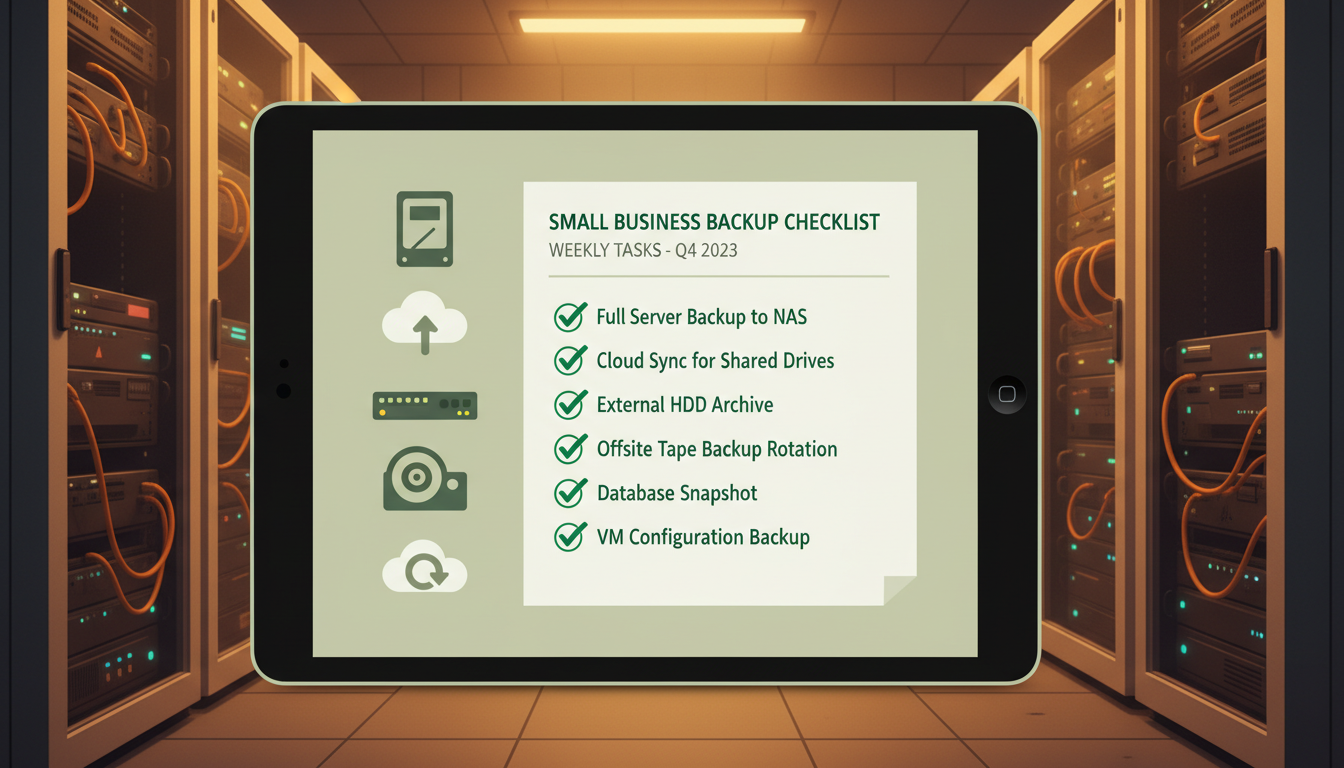
Data loss is not a matter of if but when. Whether it comes from a ransomware attack, hardware failure, accidental deletion, or a disgruntled employee, the consequences for a small business can be devastating. Research from the UK Federation of Small Businesses suggests that 60 percent of small businesses that suffer a significant data loss close within six months. Yet despite these alarming statistics, a startling number of UK small businesses still operate without a proper backup strategy.
This complete backup checklist has been designed specifically for small businesses with five to fifty employees. It covers everything from choosing the right backup approach to testing your recovery process, ensuring that when disaster strikes, your business can bounce back quickly and with minimal disruption.
Why Small Businesses Are Particularly Vulnerable
Small businesses face a unique set of challenges when it comes to data protection. Unlike enterprises with dedicated IT departments and substantial budgets, small businesses typically have limited technical expertise, tighter budgets, and less formal processes. This combination makes them both more likely to experience data loss and less prepared to recover from it.
The threats are numerous and growing. Ransomware attacks targeting UK small businesses increased by 47 percent in 2025, with the average ransom demand reaching over fifteen thousand pounds. Hardware failures remain a constant risk, with hard drives having a measurable annual failure rate. Human error, including accidental deletion and misconfiguration, accounts for roughly a quarter of all data loss incidents. Natural disasters, power surges, and theft round out the threat landscape.
Phase 1: Audit Your Data
Before you can protect your data, you need to understand exactly what you have and where it lives. This audit phase is the foundation of your entire backup strategy.
Identify All Data Locations
Start by mapping every location where your business stores data. This is rarely as straightforward as it sounds. Data tends to scatter across multiple locations over time, and without a thorough audit, critical information can slip through the gaps.
Check the following locations systematically. Local computers and laptops often hold documents, spreadsheets, and project files on their desktops or in local folders. Network drives or NAS devices may store shared files that multiple team members access. Cloud services such as Microsoft 365, Google Workspace, and Dropbox hold emails, documents, and collaborative files. Line-of-business applications like your accounting software, CRM, and project management tools contain operational data. Email accounts hold communications that may include contracts, invoices, and client correspondence. Websites and databases contain your online presence and customer data. Mobile devices may hold contacts, photos, and app data relevant to the business.
Classify Your Data by Priority
Not all data is equally critical. Classify your data into three tiers to prioritise your backup efforts and budget.
Tier 1: Mission Critical. This is data without which your business cannot function. It includes financial records, customer databases, active project files, contracts, and any data required for regulatory compliance. Tier 1 data needs the most robust backup protection with the fastest recovery times.
Tier 2: Important. This data is valuable but your business could survive short-term without it. Email archives, historical project files, marketing materials, and internal documentation fall into this category. Tier 2 data should be backed up regularly but does not require the same urgency of recovery.
Tier 3: Non-Essential. This includes data that would be inconvenient to lose but would not impact operations significantly. Temporary files, outdated archives, and duplicate copies belong here. Tier 3 data can be backed up less frequently.
Create a simple spreadsheet listing every data source, its location, the data tier, approximate size, and who is responsible for it. This document becomes your backup planning master reference and should be reviewed quarterly.
Phase 2: Choose Your Backup Strategy
With your data audit complete, you can now select the right backup approach. The gold standard for small businesses is the 3-2-1 backup rule, and we strongly recommend building your strategy around it.
The 3-2-1 Rule Explained
The 3-2-1 rule states that you should maintain three copies of your data, stored on two different types of media, with one copy kept offsite. This approach provides resilience against virtually every type of data loss scenario.
Your first copy is your live working data, the files and databases your team uses every day. Your second copy should be a local backup, perhaps on a NAS device or external drive, which provides fast recovery for common issues like accidental deletion. Your third copy should be an offsite or cloud backup, which protects against physical threats like fire, flood, or theft that could destroy both your working data and local backup simultaneously.
Backup Types and When to Use Each
Full backups capture a complete copy of all your data every time they run. They provide the simplest and fastest recovery but consume the most storage space and take the longest to complete. For most small businesses, running a full backup weekly is appropriate.
Incremental backups only capture data that has changed since the last backup of any type. They are fast and storage-efficient but recovery requires the last full backup plus every incremental backup since. These are ideal for daily backups between your weekly full backups.
Differential backups capture all data that has changed since the last full backup. They strike a balance between full and incremental, being faster to restore than incrementals but using more storage. Some small businesses prefer daily differentials for their simpler recovery process.
Cloud Backup
Local NAS Backup
Phase 3: Set Up Your Backups
With your strategy defined, it is time to implement it. This phase involves selecting the right tools and configuring them correctly for your environment.
Cloud Backup Solutions for Small Businesses
For most UK small businesses, a cloud-first backup approach makes the most sense. Cloud backup services handle the complexity of scheduling, encryption, and offsite storage automatically, reducing the technical burden on your team.
When evaluating cloud backup providers, look for UK or EU data residency options to ensure GDPR compliance, end-to-end encryption both in transit and at rest, support for all your data sources including Microsoft 365 and Google Workspace, granular recovery options that let you restore individual files or entire systems, and clear pricing with no hidden egress fees.
Popular options for UK small businesses include Acronis Cyber Protect, which offers comprehensive backup and security in a single platform. Veeam Backup for Microsoft 365 is excellent if your primary concern is protecting your Microsoft 365 data. Datto provides business continuity solutions with built-in disaster recovery. Backblaze offers affordable cloud storage that pairs well with third-party backup tools.
Local Backup Configuration
Your local backup provides fast recovery for everyday issues. A network-attached storage (NAS) device from Synology or QNAP is the most popular choice for small businesses. When setting up your NAS backup, configure it to run incremental backups hourly during business hours for Tier 1 data, run daily incremental backups for Tier 2 data, perform a full backup every weekend, and retain at least 30 days of backup history.
Ensure the NAS itself is secured with a strong admin password, up-to-date firmware, and access restricted to your local network only. An unsecured NAS can become a target for ransomware, defeating its purpose entirely.
Microsoft 365 and Google Workspace Backup
A critical misconception is that Microsoft and Google automatically back up your data. They do not. Both providers offer limited retention and recoverability, but they explicitly state in their terms of service that protecting your data is your responsibility.
Microsoft 365 retention policies, for example, keep deleted items in the recycle bin for 93 days for SharePoint and OneDrive, and deleted emails are recoverable for only 30 days by default. If an employee permanently deletes files or if data is corrupted, Microsoft will not recover it for you. A dedicated third-party backup solution for your cloud productivity suite is essential.
Microsoft and Google do NOT back up your data. Their recycle bin retention is limited, and they explicitly state that data protection is your responsibility. A dedicated backup solution for Microsoft 365 or Google Workspace is not optional; it is essential.
Phase 4: Implement Your Backup Schedule
A backup is only as good as its schedule. Configure your backups to run automatically and consistently, removing human reliability from the equation.
Recommended Backup Schedule for Small Businesses
For Tier 1 mission-critical data, run cloud backups every four hours during business hours, local NAS incremental backups hourly, and a full weekly backup on Saturday night. For Tier 2 important data, run cloud backups daily at midnight, local NAS incremental backups daily, and a full weekly backup on Sunday night. For Tier 3 non-essential data, run cloud backups weekly and local NAS backups weekly, with a full monthly backup.
This tiered approach ensures your most critical data has the shortest recovery point objective (RPO), meaning you lose at most four hours of work, while less critical data has a longer but still acceptable RPO.
| Data Tier | Cloud Backup | Local NAS Backup | Full Backup |
|---|---|---|---|
| Tier 1 – Mission Critical | Every 4 hours | Hourly incremental | Weekly (Saturday) |
| Tier 2 – Important | Daily at midnight | Daily incremental | Weekly (Sunday) |
| Tier 3 – Non-Essential | Weekly | Weekly | Monthly |
Retention Policies
Decide how long to keep backup copies. A common retention policy for small businesses is to keep daily backups for 30 days, weekly backups for 12 weeks, monthly backups for 12 months, and annual backups for seven years (required for some financial records under UK law). Storage costs increase with longer retention, so balance compliance requirements against budget when setting your policies.
Phase 5: Secure Your Backups
Backups that are not properly secured can become a liability rather than an asset. Ransomware operators specifically target backup systems because destroying your ability to recover forces you to pay the ransom.
Encryption
All backups should be encrypted both in transit and at rest. Use AES-256 encryption as a minimum standard. Store encryption keys separately from the backups themselves. If an attacker gains access to your backup storage, encryption ensures they cannot read or tamper with your data.
Immutable Backups
Immutable backups cannot be modified or deleted for a specified period, even by administrators. This is your strongest defence against ransomware. Many cloud backup providers now offer immutability as a feature. Enable it for at least your Tier 1 data with a minimum immutability period of 30 days.
Access Controls
Limit access to backup systems to the absolute minimum number of people. Use separate credentials for backup administration that are not shared with everyday user accounts. Enable multi-factor authentication on all backup management interfaces. Document who has access and review it quarterly.
Air-Gapped Backups
For maximum protection, maintain at least one backup copy that is completely disconnected from your network. This could be an external hard drive that is physically disconnected after each backup, or a cloud backup account with credentials that are not stored on any networked system. An air-gapped backup cannot be reached by ransomware that spreads through your network.
Phase 6: Test Your Recovery
This is the phase that most small businesses skip, and it is arguably the most important. A backup that you have never tested is a backup that may not work when you need it most.
Monthly Recovery Tests
Every month, select a random sample of files from each data tier and attempt to restore them. Verify that the files are complete, uncorrupted, and match the originals. Record the time it takes to complete the restoration, as this establishes your recovery time baseline.
Quarterly System Recovery Tests
Every quarter, perform a more comprehensive test. Restore an entire server or workstation from backup to verify that system-level recovery works correctly. This tests not just your data but your operating system configuration, applications, and settings.
Annual Disaster Recovery Drill
Once a year, simulate a complete disaster scenario. Assume your office has been destroyed and attempt to recover your entire business operation using only your offsite backups. This exercise reveals gaps in your backup coverage, tests your team's knowledge of recovery procedures, and validates your recovery time objectives.
Document the results of every test, including any issues encountered and the time taken. Use these records to continuously improve your backup and recovery process.
Phase 7: Document and Maintain
Your backup strategy is a living document that needs regular attention to remain effective.
Create a Backup Policy Document
Write a formal backup policy that covers what is backed up and how often, where backups are stored, who is responsible for monitoring and testing, retention periods for each data tier, and the recovery process for different scenarios including individual file loss, server failure, ransomware attack, and complete site disaster.
Keep this document accessible to all key staff, not just IT personnel. In a disaster, the person who needs it might not be the person who usually manages backups.
Monitor Backup Health
Configure alerts for backup failures so you know immediately when something goes wrong. Check backup logs weekly to confirm that all scheduled backups completed successfully. Monitor storage utilisation to ensure you do not run out of space unexpectedly.
Review and Update Quarterly
Every quarter, review your backup strategy against any changes in your business. New software, new cloud services, staff changes, and business growth all affect your backup requirements. Update your data audit, backup schedules, and documentation accordingly.
The Complete Backup Checklist
Use this checklist to verify your backup strategy covers all essential areas.
Data Audit: All data sources identified and documented. Data classified into priority tiers. Data owners assigned for each source. Shadow IT and cloud services included.
Backup Configuration: 3-2-1 rule implemented with three copies on two media types with one offsite. Cloud backup configured for all Tier 1 and Tier 2 data. Local backup configured on NAS or similar device. Microsoft 365 or Google Workspace backed up with dedicated tool. Backup schedules aligned with data priorities.
Security: All backups encrypted with AES-256 at rest and in transit. Immutable backups enabled for Tier 1 data. Backup admin access restricted with MFA enabled. At least one air-gapped backup copy maintained. Backup credentials stored separately from everyday credentials.
Testing: Monthly file-level recovery tests scheduled and conducted. Quarterly system-level recovery tests conducted. Annual disaster recovery drill planned and executed. All test results documented with issues and timings recorded.
Documentation: Backup policy document created and distributed. Recovery procedures documented for each scenario. Contact details for backup support providers recorded. Backup monitoring alerts configured. Quarterly review dates scheduled in the calendar.
Common Backup Mistakes to Avoid
Even with the best intentions, small businesses frequently make backup mistakes that only become apparent during a crisis. Backing up to the same physical device as your live data provides no protection against hardware failure or theft. Failing to back up cloud services because you assume Microsoft or Google handles it leads to devastating gaps. Never testing your backups means you may discover corruption or configuration errors at the worst possible time. Keeping all backups on the same network leaves them vulnerable to ransomware that spreads laterally. Using the same admin credentials for backups and everyday systems means a compromised account exposes everything. Backing up data but not application configurations means restoring a server requires manual reconfiguration of every application.
GDPR Considerations for UK Backup Strategies
Under UK GDPR, your backup strategy has specific legal implications. Personal data in backups is still subject to data protection regulations. If an individual exercises their right to erasure, you need to consider how this applies to backup copies. Most organisations handle this by documenting that backup copies are retained for a defined period and that deletion requests will be fully actioned when backup copies naturally expire under the retention policy.
Ensure your backup storage locations comply with UK GDPR data residency requirements. If using cloud backup, confirm that your data is stored within the UK or within jurisdictions that have adequacy agreements with the UK. Document these locations in your backup policy.
Need Help Building Your Backup Strategy?
Our team specialises in designing and implementing backup solutions for UK small businesses. From initial data audit through to ongoing monitoring and testing, we ensure your business data is properly protected against every threat.
GET IN TOUCHFrequently Asked Questions
How much should a small business spend on backups? As a general guideline, budget between two and five percent of your IT spend on backup and recovery. For a typical 20-person business, this translates to roughly two hundred to five hundred pounds per month for a comprehensive cloud-based backup solution.
How quickly should we be able to recover? This depends on your business. Define your Recovery Time Objective (RTO) for each data tier. For Tier 1 data, aim for recovery within four hours. For Tier 2, within 24 hours is typically acceptable. Tier 3 data can have an RTO of several days.
Is cloud backup alone sufficient? Cloud backup provides excellent offsite protection but can be slow for large-scale recoveries due to internet bandwidth limitations. For the fastest recovery times, combine cloud backup with a local backup solution. The cloud copy protects against physical disasters while the local copy enables rapid day-to-day recovery.
What about tape backup? Tape backup is still used by some organisations for long-term archival storage due to its low cost per gigabyte. However, for most small businesses, the complexity of managing tape media outweighs the cost savings. Cloud archive storage (such as AWS Glacier or Azure Archive) offers similar economics with far less management overhead.
Do we need backup if everything is in the cloud? Absolutely. Cloud services can experience outages, data corruption, and accidental deletion just like on-premise systems. More importantly, cloud services do not protect against user error or malicious actions by authenticated users. A separate backup of your cloud data is essential.

CloudSwitched
London-based managed IT services provider offering support, cloud solutions and cybersecurity for SMEs.


