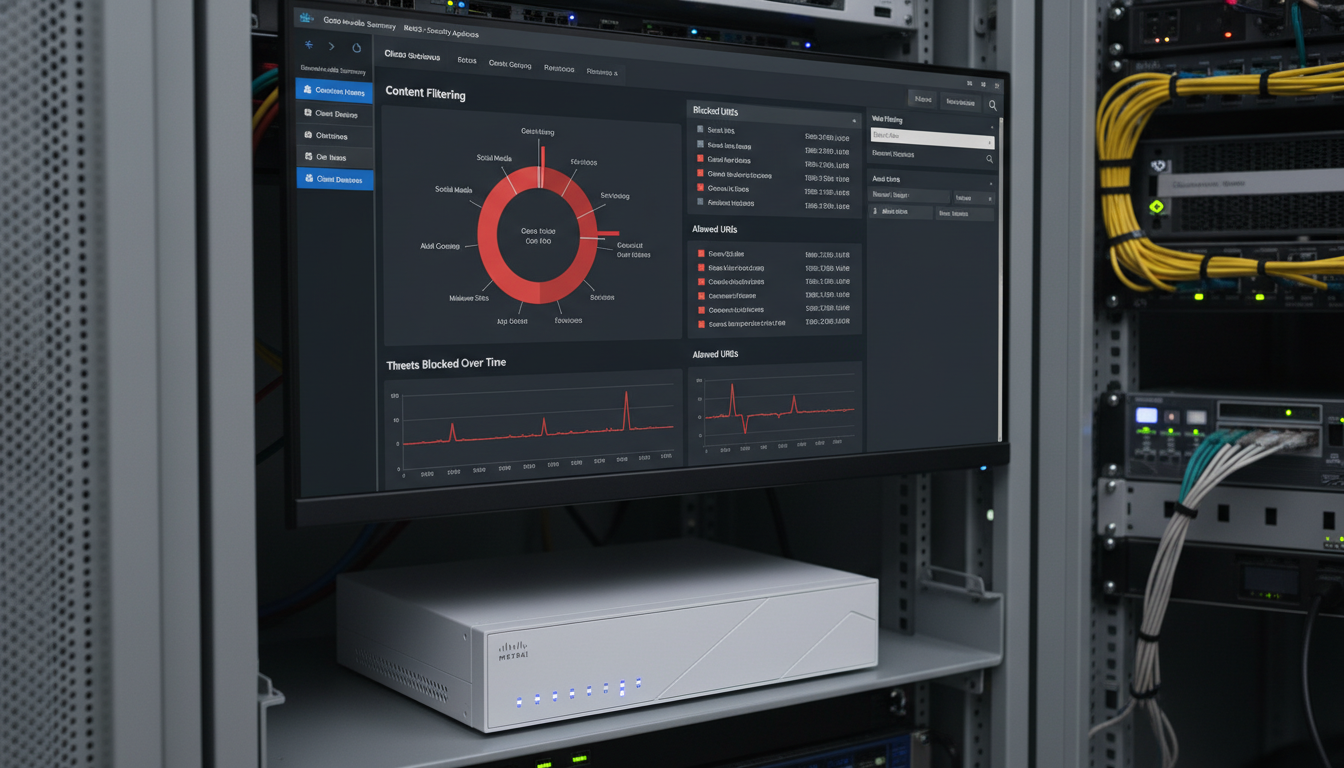
Content filtering is a fundamental security control that every UK business should implement, yet it remains surprisingly underutilised. At its core, content filtering controls which websites and online content your employees can access through your business network. It blocks access to malicious websites that distribute malware, prevents visits to phishing sites designed to steal credentials, restricts access to inappropriate or non-productive content, and helps your organisation meet its duty of care and regulatory obligations.
For businesses using Cisco Meraki MX security appliances - one of the most popular cloud-managed firewall platforms for UK SMEs - content filtering is built directly into the appliance and managed through the intuitive Meraki Dashboard. No additional hardware, software, or licences are required beyond your existing Meraki MX subscription. Despite this accessibility, many businesses either do not enable content filtering at all or configure it poorly, leaving significant gaps in their security posture.
This guide walks through the complete process of setting up content filtering on a Meraki MX appliance, from initial planning through to ongoing management, with specific guidance relevant to UK business environments.
Why Content Filtering Matters for UK Businesses
Content filtering serves multiple purposes simultaneously, making it one of the highest-value security controls available to UK businesses.
Malware and Phishing Protection
The majority of malware infections begin with a user visiting a compromised or malicious website. Content filtering blocks access to known malicious domains before the connection is even established, preventing drive-by downloads, exploit kit attacks, and phishing credential harvesting. This operates as a first line of defence - even if a phishing email bypasses your email filter, the content filter can block the user from reaching the malicious website linked within it.
Legal and Regulatory Compliance
UK businesses have a duty of care to their employees and, in some cases, legal obligations to filter internet content. Businesses that provide internet access to the public (cafes, hotels, retail venues) should filter content to prevent access to illegal material. Businesses in regulated sectors may have specific content filtering requirements. Under UK employment law, providing an unfiltered internet connection that facilitates access to illegal or inappropriate content can create legal liability for the employer.
Productivity Management
Whilst productivity monitoring must be balanced with employee privacy and trust, content filtering provides a reasonable baseline control. Blocking access to categories such as gambling, adult content, and social media during working hours is a common and generally accepted practice in UK workplaces, provided employees are informed of the policy.
The UK Government's Cyber Essentials scheme - increasingly required for public sector contracts - includes requirements around secure configuration and malware protection. Whilst content filtering is not explicitly mandated in the Cyber Essentials basic scheme, it is recommended as a supporting control. For Cyber Essentials Plus certification, which involves a hands-on technical audit, having content filtering in place demonstrates a mature security posture and supports compliance with multiple control areas.
Understanding Meraki MX Content Filtering
The Meraki MX appliance provides content filtering through two complementary mechanisms: category-based filtering and URL-based filtering. Understanding both is essential for effective configuration.
Category-Based Filtering
Meraki uses a comprehensive website categorisation database maintained by Cisco Talos, one of the world's largest commercial threat intelligence organisations. Every website is classified into one or more categories - such as "Adult Content," "Gambling," "Malware," "Phishing," "Social Networking," "Streaming Media," and dozens more. You configure your content filter by selecting which categories to block, and the Meraki MX automatically blocks access to any website classified under those categories.
URL-Based Filtering
In addition to category-based filtering, you can create custom lists of specific URLs or domains to block or allow. This is useful for blocking specific sites that are not categorised as you would like, or for whitelisting specific sites that fall within a blocked category but are required for legitimate business purposes. For example, you might block the "Social Networking" category but whitelist LinkedIn because your marketing team needs it for business development.
| Category | Recommended Action | Rationale |
|---|---|---|
| Malware / Phishing | Block (always) | Direct security threat - no legitimate business use |
| Adult Content | Block (always) | Legal liability, workplace appropriateness |
| Gambling | Block | Productivity, potential legal issues |
| Proxy / Anonymiser | Block (always) | Used to bypass content filters - security risk |
| Social Networking | Consider blocking | Productivity - whitelist specific sites if needed |
| Streaming Media | Consider blocking | Bandwidth consumption - may need for business use |
| Online Shopping | Monitor / allow | Low risk, blocking may feel overly restrictive |
| News / Media | Allow | Legitimate business awareness - low risk |
Step-by-Step Configuration Guide
Here is the complete process for configuring content filtering on your Meraki MX appliance through the Meraki Dashboard.
Step 1: Access the Content Filtering Settings
Log into the Meraki Dashboard at dashboard.meraki.com. Navigate to Security & SD-WAN, then select Content Filtering from the left-hand menu. This page displays all content filtering settings for your MX appliance.
Step 2: Configure Category Blocking
The category list displays all available website categories with toggles to block or allow each one. We recommend starting with a conservative approach - block the clearly inappropriate and dangerous categories first (malware, phishing, adult content, gambling, proxy/anonymiser), then gradually expand based on your organisation's policies and needs. Each blocked category takes effect immediately across your entire network.
Step 3: Set Up URL Allow and Block Lists
Below the category settings, you will find fields for custom URL lists. Add any specific domains you wish to block regardless of their category (the block list) and any specific domains you wish to allow despite falling within a blocked category (the allow list). Use domain-level entries rather than full URLs - for example, enter "linkedin.com" rather than "https://www.linkedin.com/feed/".
Step 4: Configure Group Policies
For more granular control, Meraki supports group policies that apply different content filtering rules to different sets of users or devices. For example, your marketing department might need access to social media platforms that are blocked for the rest of the organisation. Create a group policy with the appropriate permissions and assign it to the relevant devices or VLAN.
Step 5: Enable HTTPS Inspection (Optional)
Modern websites overwhelmingly use HTTPS encryption, which can limit the effectiveness of content filtering if inspection is not enabled. Meraki MX supports SSL/TLS inspection, which decrypts HTTPS traffic for inspection before re-encrypting it. This significantly improves filtering accuracy but requires deploying a trusted certificate to all managed devices. For UK businesses, be aware that SSL inspection has privacy implications and should be covered in your acceptable use policy.
Monitoring and Reporting
One of the major advantages of Meraki MX content filtering is the comprehensive reporting available through the Meraki Dashboard. The Security Centre provides visibility into blocked threats, showing which users attempted to access blocked content, which categories were most frequently triggered, and which specific URLs were blocked.
Review these reports regularly - at least monthly. They provide valuable intelligence about your network's security posture and your users' browsing patterns. Frequent blocks in the malware or phishing categories may indicate that your email filtering needs strengthening. Frequent blocks of legitimate business sites suggest your filtering rules need refinement. A sudden spike in proxy/anonymiser blocks may indicate a user attempting to circumvent your filtering - which itself is a security concern worth investigating.
Best Practices for UK Businesses
Based on our experience deploying Meraki content filtering for UK businesses, here are the practices that deliver the best results.
Communicate your policy clearly. Before enabling content filtering, inform all employees about what is being filtered and why. Transparency builds trust and reduces complaints. Include content filtering in your acceptable use policy and ensure all staff acknowledge it.
Start restrictive, then relax. It is easier to whitelist specific sites that users need than to chase down every inappropriate site after deploying a permissive policy. Start by blocking broadly, then create exceptions for legitimate business needs as they arise.
Use group policies wisely. Different departments have different needs. Marketing needs social media access. Finance needs banking sites. IT needs access to technical resources that might fall within blocked categories. Group policies allow you to tailor filtering without compromising security for the wider organisation.
Review and refine regularly. Content filtering is not a set-and-forget control. New websites appear daily, categories evolve, and business needs change. Schedule monthly reviews of your filtering configuration, blocked site reports, and user feedback to keep the system effective and appropriate.
Combine with DNS filtering. For businesses with remote workers connecting outside the office network, consider complementing Meraki MX content filtering with a DNS-based filtering solution like Cisco Umbrella. This extends your content filtering protection to users regardless of their location - critical in the era of hybrid working.
Cloud-Managed vs Traditional Content Filtering
Many UK businesses still rely on legacy, on-premises content filtering solutions - dedicated proxy servers, standalone appliance-based filters, or software installed on individual endpoints. Whilst these approaches were standard a decade ago, the cloud-managed model that the Meraki MX provides offers significant operational advantages that are particularly relevant as businesses grow, add remote locations, and support hybrid workforces. The comparison below highlights the key differences between the Meraki MX cloud-managed approach and traditional on-premises filtering methods, helping you evaluate whether your current setup is keeping pace with modern requirements.
Meraki MX Cloud-Managed
Traditional On-Premises Filtering
Content Filtering for Remote and Hybrid Workforces
One of the most significant limitations of any appliance-based content filter, including the Meraki MX, is that it only protects users whilst they are connected to the network where the appliance is deployed. When employees work from home, connect to public Wi-Fi, or use mobile data, they bypass the Meraki MX entirely - and your content filtering policies no longer apply. For UK businesses where hybrid working is now the established norm, this creates a meaningful gap in your security posture that must be addressed.
The UK Office for National Statistics reports that 28% of workers now follow a hybrid working pattern, and in sectors such as technology, professional services, and finance, this figure is considerably higher. These remote employees are often at greater risk of encountering malicious websites precisely because they lack the layered network security controls present in the office environment. A phishing email opened at home connects to the malicious site directly through the employee's residential broadband, entirely bypassing the Meraki MX sitting in the office.
Cisco addresses this limitation through the integration between Meraki MX and Cisco Umbrella, a cloud-delivered DNS security platform. Umbrella extends content filtering and threat protection to any device, regardless of location. The Umbrella roaming client, deployed to managed devices, intercepts DNS queries and applies your content filtering policies before the connection is established. This means an employee working from their kitchen table in Bristol receives the same protection as one sitting at their desk in the London office.
Deploying Umbrella alongside the Meraki MX is straightforward. From the Meraki Dashboard, navigate to Security & SD-WAN and enable the Umbrella integration. The roaming client can be pushed to devices through your existing device management solution, or through Meraki Systems Manager if you use it. For UK businesses that have not yet invested in Umbrella, a practical interim step is to configure managed devices to use Cisco's public DNS filtering service, which provides basic protection against known malicious domains at no additional cost.
When planning your content filtering strategy for hybrid workers, also consider the bandwidth implications. Employees on residential broadband connections in rural parts of the UK may experience significantly slower connections than those in the office. Content filtering policies that block bandwidth-heavy streaming services can actually improve remote workers' productivity by reducing competition for limited bandwidth on home networks shared with other household members.
Common Configuration Mistakes to Avoid
Having deployed Meraki MX content filtering for numerous UK businesses across a range of industries and sizes, we consistently observe the same configuration mistakes that reduce filtering effectiveness or create unnecessary friction for users. Avoiding these pitfalls from the outset will save your IT team considerable time and prevent employee frustration.
Over-blocking without business review. The single most common mistake is blocking broad content categories without consulting the teams that rely on specific websites for their work. Blocking the "File Sharing" category sounds prudent from a security perspective, but it also blocks access to Dropbox, Google Drive, and WeTransfer - tools that many UK businesses use daily for legitimate client file exchange. Similarly, blocking "Web Hosting" prevents access to malicious sites but also blocks legitimate business websites hosted on shared platforms such as Squarespace or Wix. Always circulate a list of proposed blocked categories to department heads before deployment and build your exceptions list proactively rather than reactively.
Skipping HTTPS inspection. With over 95% of web traffic now encrypted via HTTPS, a content filter that does not inspect encrypted traffic is severely limited in what it can detect and block. Without SSL inspection, the Meraki MX can only filter based on the domain name visible in the TLS handshake, not the full URL path or page content. Many UK businesses skip this configuration step because it requires deploying a trusted root certificate to all managed devices, which adds complexity. However, the security improvement is substantial and the certificate deployment can be automated through Active Directory Group Policy or your mobile device management platform.
Applying a single policy to all users. Every organisation has departments with different web access requirements. A blanket content filtering policy that blocks social media prevents the marketing team from managing the company's LinkedIn presence. A policy that blocks online banking prevents the finance team from making payments. Take the time during planning to identify at least three to four user groups with distinct filtering requirements and configure Meraki group policies accordingly. The additional setup time is modest and the reduction in helpdesk tickets and exception requests is significant.
Ignoring the block page experience. When a user hits a blocked website, the default Meraki block page displays a technical message that provides little useful information. Customise this page to clearly explain why the site was blocked, provide a link or email address for requesting an exception, and include your IT support contact details. A well-designed block page reduces frustration, decreases the volume of support calls, and demonstrates that the filtering is a considered business decision rather than an arbitrary restriction.
Setting and forgetting. Content filtering requires ongoing attention. New websites launch daily, categorisation databases update, and business requirements evolve. Schedule a monthly fifteen-minute review of your Meraki content filtering reports. Look for patterns: are legitimate business sites being blocked? Are there spikes in proxy or anonymiser usage that suggest someone is trying to bypass the filter? Are the blocked categories still aligned with your current acceptable use policy? This small investment of time keeps your filtering effective and appropriate as your business evolves.
Measuring the Impact of Content Filtering
To justify the ongoing investment in content filtering and to refine your configuration over time, it is essential to measure its impact with clear, quantifiable metrics. The Meraki Dashboard provides the raw data; your role is to translate this into business outcomes that stakeholders understand.
Security incident reduction. Track malware and phishing incidents before and after deploying content filtering. UK businesses that implement comprehensive content filtering on the Meraki MX typically report a 40% to 60% reduction in web-based malware incidents within the first six months. Cross-reference this with your email filtering logs - a reduction in successful phishing attacks that rely on users clicking malicious links directly demonstrates the value of your content filtering investment. The UK Government's Cyber Security Breaches Survey provides benchmark figures you can use to compare your organisation's incident rate against the national average.
Bandwidth reclamation. Content filtering that blocks streaming media, large file-sharing sites, and video platforms during working hours can produce a measurable improvement in network performance. In a typical UK office with 50 users sharing a 100 Mbps connection, blocking recreational streaming can reclaim 15% to 25% of available bandwidth during peak hours. Monitor your Meraki MX traffic analytics before and after policy changes to quantify the improvement - this is particularly compelling evidence for businesses that have been considering an expensive bandwidth upgrade that may not actually be necessary.
Helpdesk and exception metrics. Track the volume of content filtering-related support tickets over time. A well-configured deployment should see an initial spike as users encounter blocks, followed by a rapid decline as exceptions are processed and users adjust their habits. If exception requests remain persistently high after the first month, your filtering policies are likely too aggressive and need refinement. Aim for a steady state where filtering-related tickets represent less than 5% of total IT support volume.
Compliance evidence. For UK businesses pursuing Cyber Essentials, ISO 27001, or sector-specific certifications, document your content filtering configuration as part of your security controls evidence. The Meraki Dashboard's ability to export filtering reports provides ready-made audit evidence that demonstrates active web security controls. Several UK businesses we work with have cited their Meraki content filtering deployment as a contributing factor in successfully achieving Cyber Essentials Plus certification, where the hands-on technical audit specifically examines how the organisation controls access to malicious websites.
Optimise Your Meraki Network Security
Cloudswitched is a Cisco Meraki partner providing deployment, configuration, and ongoing management for UK businesses. From content filtering and security policies to SD-WAN and multi-site networking, our Meraki-certified engineers ensure your network is secure, compliant, and performing at its best.

CloudSwitched
London-based managed IT services provider offering support, cloud solutions and cybersecurity for SMEs.


