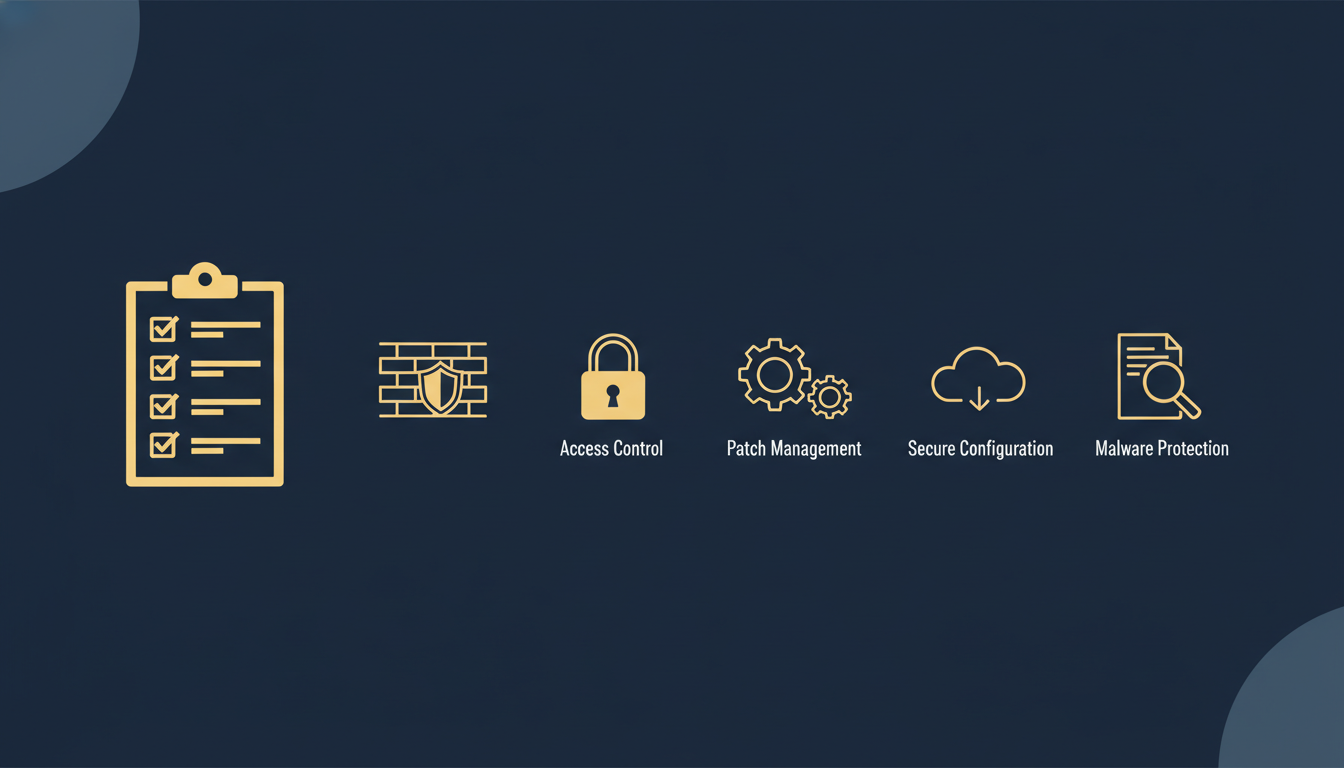
Achieving Cyber Essentials certification is no longer optional for UK organisations that want to demonstrate baseline cybersecurity hygiene. Whether you are bidding on government contracts, reassuring clients, or simply protecting your business from the most common internet-borne attacks, meeting the cyber essentials requirements is the essential first step. This comprehensive cyber essentials checklist for 2026 walks you through every technical control, every assessor expectation, and every pitfall that trips organisations up - so you can certify with confidence.
What Is Cyber Essentials & Why Does It Matter in 2026?
Cyber Essentials is a UK Government–backed scheme, overseen by the National Cyber Security Centre (NCSC), that sets out a clear framework of five technical controls every organisation should implement. It exists in two tiers: Cyber Essentials (self-assessment questionnaire verified by an external Certification Body) and Cyber Essentials Plus (hands-on technical audit by a qualified assessor). Since June 2014, it has been mandatory for suppliers bidding on certain government contracts involving the handling of sensitive or personal data.
In 2026, the scheme continues to evolve. The NCSC’s latest updates have tightened requirements around cloud services, home working, thin clients, and bring-your-own-device (BYOD) policies - areas that barely featured when the scheme launched. Understanding the current cyber essentials requirements is therefore critical, because guidance that was accurate two years ago may no longer pass muster with assessors today.
The Cyber Essentials question set is updated annually by the IASME Consortium on behalf of the NCSC. Always download the latest version of the requirements document from the IASME or NCSC website before starting your self-assessment - using an outdated version is the single most avoidable reason for certification failure.
Cyber Essentials vs Cyber Essentials Plus: Which Do You Need?
Before diving into the cyber essentials checklist, it is important to understand the distinction between the two certification levels, as the cyber essentials plus requirements go meaningfully further than the baseline.
Cyber Essentials
Cyber Essentials Plus
For organisations seeking the strongest assurance - or those whose clients or sector regulators expect it - the cyber essentials plus requirements are the gold standard. The Plus audit verifies that you have not merely documented your controls but have actually implemented them effectively. Assessors will run external vulnerability scans, test your email and browser defences against simulated malware, and check a sample of devices for patch levels and configuration compliance.
Defining Your Scope: What’s In and What’s Out
One of the most misunderstood aspects of the cyber essentials requirements is scoping. Get it wrong and you will either certify a meaninglessly narrow slice of your estate or struggle to bring every device into compliance.
The Scope Rules for 2026
The scope of Cyber Essentials is defined as all devices, software, and network components that can access the internet or internet-accessible services - including cloud platforms. Under the current rules:
| In Scope | Out of Scope |
|---|---|
| All end-user devices (desktops, laptops, tablets, phones) | Devices on isolated networks with no internet access |
| Servers accessible from the internet | Industrial control systems on air-gapped networks |
| Cloud services (IaaS, PaaS, SaaS) where you manage configuration | SaaS where the vendor manages all security controls |
| Firewalls and routers at the network boundary | Internal-only switches and cabling |
| BYOD devices that access organisational data or services | Personal devices with no organisational access |
| Home workers’ devices and routers (where company-managed) | Home routers where the ISP manages firmware |
| Thin clients and virtual desktops | Peripherals that cannot run software (e.g., monitors) |
If your organisation has BYOD devices, you must either bring them into scope (ensuring they meet all five controls) or use a mobile device management (MDM) solution that creates a managed container. The NCSC now expects organisations to document exactly how BYOD devices are controlled, and “we trust our staff” is not an acceptable answer.
Cloud Services and the Shared Responsibility Model
A key update in recent years is how cloud services are treated. For IaaS (e.g., AWS EC2, Azure VMs), you are responsible for operating system configuration, patching, and access control. For PaaS, you are responsible for application-level configuration. For SaaS (e.g., Microsoft 365, Google Workspace), you are responsible for user access control and configuration settings - even though you do not manage the underlying infrastructure.
Assessors now routinely ask about cloud admin account security, MFA on SaaS platforms, and whether you have reviewed the default configuration of your cloud services. Ignoring your cloud estate is a guaranteed route to failure.
The Five Technical Controls: Your Complete Cyber Essentials Checklist
The heart of the cyber essentials checklist is the five technical controls. Every requirement, every assessor check, and every common failure clusters around these five areas. We will examine each in detail.
Control 1: Firewalls and Internet Gateways
The cyber essentials firewall requirements are the first line of defence. Firewalls control the traffic entering and leaving your network boundary, and the scheme demands that every internet-facing connection is protected by a correctly configured firewall or equivalent boundary device.
What the Requirements State
Under the current cyber essentials firewall requirements, you must demonstrate that:
- Every device that connects to the internet is protected by a correctly configured firewall (hardware or software).
- All inbound firewall rules are documented and approved by an authorised individual.
- Unapproved or unnecessary firewall rules are removed or disabled.
- The firewall blocks all inbound connections by default and only allows those that have been explicitly documented and authorised.
- Default firewall administrative passwords have been changed to strong, unique alternatives.
- Software firewalls are enabled on all devices, particularly those that connect to untrusted networks (e.g., home broadband, public Wi-Fi, mobile hotspots).
- For home workers, either a company-managed hardware firewall, the device’s built-in software firewall, or a managed router with a correctly configured firewall must be in place.
What Assessors Check
| Check | CE (Self-Assessment) | CE Plus (Technical Audit) |
|---|---|---|
| Default deny on inbound traffic | Questionnaire declaration | Port scan of external IP addresses |
| Documented firewall rules | Questionnaire declaration | Rule-set review with evidence |
| Default passwords changed | Questionnaire declaration | Attempted login with known defaults |
| Software firewall on endpoints | Questionnaire declaration | Device sampling and configuration check |
| Open ports justified | Questionnaire declaration | External vulnerability scan results |
| Admin interface not exposed to internet | Questionnaire declaration | Scan for exposed management ports |
Common Failures
Exposed admin interfaces: Many organisations leave firewall or router administration panels accessible from the internet on default ports (e.g., port 443 or 8080). Assessors for Cyber Essentials Plus will specifically scan for these. Ensure management interfaces are only accessible from trusted internal IP addresses or via VPN.
Other frequent failures include:
- Undocumented port forwarding rules - often legacy rules set up years ago and forgotten.
- Disabled Windows Firewall on endpoints because “we have a hardware firewall at the office” - this fails because home workers and mobile users leave the office network.
- ISP-provided routers with default credentials left unchanged, especially for home workers.
- Split tunnelling on VPN configurations that allow direct internet access bypassing the corporate firewall without adequate endpoint firewall protection.
Implementation Guidance
To meet the cyber essentials firewall requirements confidently:
- Audit your boundary: Identify every point where your network connects to the internet. This includes office firewalls, cloud virtual networks, and home worker connections.
- Document every inbound rule: Create a spreadsheet or use your firewall’s management console to list every inbound rule with a justification, an owner, and a review date.
- Enforce default-deny inbound: Configure your firewall to block all inbound connections except those explicitly permitted.
- Enable host-based firewalls: Ensure Windows Firewall, macOS Application Firewall, or equivalent is enabled and cannot be disabled by standard users on every endpoint device.
- Change all default credentials: On every firewall, router, and managed network device, replace factory default usernames and passwords with strong, unique credentials.
- Restrict management access: Firewall and router admin interfaces should only be accessible from specific, trusted IP addresses or subnets - never from the public internet.
- Review rules quarterly: Schedule periodic reviews to remove stale rules and verify that all permitted services are still required.
Control 2: Secure Configuration
Secure configuration is about ensuring that computers and network devices are configured to reduce vulnerabilities and provide only the services required to fulfil their role. This is one of the broadest controls in the cyber essentials requirements and one of the most commonly failed.
What the Requirements State
- Computers and network devices must be configured to reduce unnecessary functionality and known vulnerabilities.
- Default passwords on all devices and software must be changed before deployment or upon first use.
- Unnecessary user accounts (including guest accounts) must be removed or disabled.
- Auto-run and auto-play features must be disabled.
- Password policies must enforce a minimum length of 12 characters (the 2026 requirement, increased from the previous 8-character minimum).
- Alternatively, technical controls such as MFA, throttling, or account lockout must be implemented alongside password policies.
- Biometric authentication is acceptable where supported by the device.
Password Policy Requirements for 2026
| Scenario | Minimum Length | Additional Controls Required |
|---|---|---|
| Password only (no MFA) | 12 characters | Automatic account lockout after no more than 10 failed attempts |
| Password + MFA | 8 characters | MFA on all internet-facing services |
| Password + throttling | 8 characters | Throttle to no more than 10 guesses in 5 minutes |
| Biometric + device PIN | N/A | Device must be configured to wipe or lock after failed attempts |
The NCSC strongly recommends using three random words as a password strategy (e.g., “coffeetrampolinewindow”). This approach creates passwords that are long enough to meet the 12-character requirement, memorable for users, and resistant to brute-force attacks. Combine this with MFA for the strongest posture.
What Assessors Check
For Cyber Essentials, the questionnaire asks about your password policy, default account management, and secure configuration processes. For cyber essentials plus requirements, assessors will:
- Sample devices and check password policy settings in Active Directory, Entra ID, or local group policy.
- Attempt to log in with known default credentials on sampled devices and services.
- Check for unnecessary services running on sampled devices (e.g., Telnet, FTP, remote desktop services that are not required).
- Verify that auto-run is disabled.
- Check that guest accounts are disabled.
- Review cloud service configuration (e.g., Microsoft 365 security defaults, Google Workspace admin settings).
Common Failures
- Legacy password policies: Many organisations still enforce 8-character passwords without MFA. Under the 2026 requirements, this is a fail.
- Guest accounts enabled on Windows devices: These are disabled by default on modern Windows but may have been re-enabled.
- Default admin credentials on printers, switches, and network appliances: These are easy to overlook but are in scope.
- Auto-run still enabled: Particularly on older Windows machines or machines rebuilt from old images.
- Cloud services with default configurations: Microsoft 365 tenants with security defaults not enabled, or Google Workspace with no password policy enforcement.
- No account lockout policy: Leaving accounts vulnerable to unlimited brute-force attempts.
Implementation Guidance
- Enforce password policy via Group Policy or MDM: Set minimum length to 12 characters (or 8 with MFA). Enable account lockout after 10 failed attempts.
- Deploy MFA everywhere: On all cloud services, VPN connections, remote desktop, and any internet-facing login. The NCSC recommends MFA as the single most impactful security improvement.
- Disable unnecessary features: Turn off auto-run, auto-play, Bluetooth where not needed, and unnecessary network services.
- Create a baseline configuration: Document a secure build standard for each device type (desktop, laptop, server, mobile) and deploy from this baseline.
- Audit default credentials: Systematically check every network device, printer, access point, and managed appliance for default passwords.
- Review cloud configurations: Ensure security defaults are enabled in Microsoft 365, enforce MFA for all admin accounts, and review conditional access policies.
Control 3: User Access Control
The cyber essentials access control requirements ensure that user accounts are managed properly and that administrative privileges are limited to those who genuinely need them. This control is fundamental to the principle of least privilege and is a cornerstone of the entire scheme.
What the Requirements State
- User accounts must be assigned to authorised individuals only.
- User accounts must authenticate before accessing applications, devices, or data.
- Administrative accounts must only be used for administrative tasks - not for day-to-day activities like web browsing or email.
- Administrative privileges must be removed or restricted when no longer required.
- MFA must be enabled on all administrator accounts that access internet-facing services (including cloud admin consoles).
- A process must be in place to remove or disable user accounts when individuals leave the organisation or change role.
- Standard user accounts must not have the ability to install software unless specifically authorised through an approved process.
The Admin vs Standard User Divide
This is where many organisations struggle with the cyber essentials access control requirements. The scheme is explicit: administrative accounts and standard user accounts must be separate. If your IT staff use their admin accounts to check email or browse the web, you will fail.
| Activity | Standard User Account | Admin Account |
|---|---|---|
| Email and web browsing | ✓ Use this | ✗ Never |
| Office applications | ✓ Use this | ✗ Never |
| Installing software | ✗ Restricted | ✓ Use this |
| Changing system settings | ✗ Restricted | ✓ Use this |
| Managing user accounts | ✗ Restricted | ✓ Use this |
| Cloud service administration | ✗ Restricted | ✓ Use this |
What Assessors Check
For the standard Cyber Essentials assessment, the questionnaire probes your account management policies and administrative access practices. For the cyber essentials plus requirements, assessors will:
- Review a sample of user accounts in Active Directory or Entra ID to confirm that admin accounts are separate from standard accounts.
- Check that admin accounts have MFA enabled for cloud services.
- Verify that standard users cannot install software on sampled devices.
- Look for shared or generic accounts (e.g., “reception”, “admin”, “test”) that are not tied to an individual.
- Check the leavers process - request evidence that accounts are disabled or removed promptly when someone leaves.
Common Failures
Users with local admin rights: Many small businesses give all users local administrator privileges “to avoid support tickets.” This is one of the most frequently cited reasons for Cyber Essentials failure. Standard users must not be able to install software or change system settings without going through an approved process.
- No separate admin accounts: IT staff using a single account for both administrative tasks and daily work.
- Stale accounts: Ex-employee accounts still active months or years after departure.
- Shared accounts: Generic “admin@company.com” or “reception” accounts used by multiple people without individual accountability.
- No MFA on cloud admin accounts: Particularly Microsoft 365 Global Admin or Google Workspace Super Admin accounts without MFA.
- Excessive admin privileges: Granting Domain Admin or Global Admin to users who only need limited administrative access.
Implementation Guidance
- Separate admin and standard accounts: Every user who needs administrative access should have two accounts - one for daily work and one for administrative tasks. Name them clearly (e.g., “j.smith” for standard, “admin-j.smith” for admin).
- Remove local admin rights: Use Group Policy to remove users from the local Administrators group. Implement a solution like LAPS (Local Administrator Password Solution) for break-glass scenarios.
- Implement MFA on all admin accounts: Use hardware security keys, authenticator apps, or push notifications - not SMS where possible.
- Establish a joiners/movers/leavers process: Integrate account creation, modification, and deletion with HR processes. Automate where possible.
- Audit accounts quarterly: Review all user accounts, remove those no longer needed, and verify that admin privileges are still justified.
- Use role-based access: Rather than granting broad admin rights, use delegated administration and role-based access control to give users only the permissions they need.
Control 4: Malware Protection
Malware protection is the fourth of the five technical controls in the cyber essentials requirements. The scheme requires that all devices in scope are protected against malware through one or more of the approved approaches.
What the Requirements State
The scheme now offers three approved approaches to malware protection, and you must implement at least one on every in-scope device:
- Approach 1: Anti-malware software. Install anti-malware software on all in-scope devices. It must be kept up to date (definitions updated at least daily), configured to scan files on access (real-time protection), and configured to scan web pages accessed through a browser.
- Approach 2: Application allow-listing. Only pre-approved applications can execute. All other software is blocked by default. This must be managed centrally and cannot be overridden by standard users.
- Approach 3: Sandboxing / application isolation. Applications run in a sandboxed environment that prevents malware from accessing the wider device or network. This approach is less common but acceptable where properly implemented.
What Assessors Check
| Check | CE (Self-Assessment) | CE Plus (Technical Audit) |
|---|---|---|
| Anti-malware installed on all devices | Questionnaire declaration | Device sampling to verify installation |
| Real-time protection enabled | Questionnaire declaration | Configuration review on sampled devices |
| Definitions up to date (within 24 hours) | Questionnaire declaration | Check definition date on sampled devices |
| Web browsing protection | Questionnaire declaration | Attempt to download EICAR test file via browser |
| Email malware protection | Questionnaire declaration | Send test email with EICAR attachment |
| Users cannot disable protection | Questionnaire declaration | Attempt to disable on sampled device |
For the Cyber Essentials Plus assessment, assessors will typically use the EICAR test file - a harmless file that all anti-malware products should detect. They will attempt to download it through the browser and send it as an email attachment. If your defences do not block it, you will fail. Test this yourself before your assessment by downloading the EICAR test file from eicar.org.
Common Failures
- Windows Defender disabled: Often disabled by users or by conflicting third-party software installations that did not fully install their own protection.
- Out-of-date definitions: Devices that have been offline for extended periods or that have firewall rules blocking update servers.
- No email filtering: Relying solely on endpoint protection without any email-level scanning. While not strictly required for basic CE, it is tested in CE Plus.
- macOS and Linux devices unprotected: Many organisations assume these platforms do not need malware protection. Under Cyber Essentials, all in-scope devices must be protected.
- Mobile devices without protection: Smartphones and tablets in scope must also have malware protection (particularly Android devices; iOS is considered sandboxed by design).
Implementation Guidance
- Enable Microsoft Defender or equivalent: For most Windows environments, Microsoft Defender Antivirus (included with Windows 10 and 11) is fully adequate for Cyber Essentials. Ensure it is enabled, real-time protection is on, and cloud-delivered protection is active.
- Deploy protection on all platforms: Install anti-malware on macOS and Linux devices. Options include Microsoft Defender for Endpoint, CrowdStrike, or SentinelOne for cross-platform coverage.
- Enable email filtering: Configure your email platform to scan attachments and links. Microsoft 365 includes Exchange Online Protection by default; consider upgrading to Defender for Office 365 for enhanced protection.
- Prevent users from disabling protection: Use Group Policy or MDM to prevent standard users from turning off anti-malware or real-time scanning.
- Monitor update status: Use a centralised management console to verify that all devices have current definitions. Flag any device that has not updated within 24 hours.
Control 5: Patch Management (Security Update Management)
Patch management - officially called “security update management” in the Cyber Essentials documentation - is the final and arguably most impactful of the five controls. It is also, according to assessor data, the control with the highest failure rate.
What the Requirements State
The cyber essentials requirements for patch management are clear and strict:
- All software must be licensed and supported by the vendor. Unsupported software (e.g., Windows 7, Office 2016 after end of support) must be removed from scope or isolated.
- All high-risk and critical security patches must be applied within 14 days of release.
- Automatic updates must be enabled where possible.
- Software that cannot be patched must be removed, replaced, or isolated from the network.
- This applies to operating systems, applications, firmware on network devices, and browser plugins.
The 14-Day Rule
The 14-day patching window is one of the most critical elements of the cyber essentials checklist. It applies to:
| Software Type | Patch Window | Examples |
|---|---|---|
| Operating systems | 14 days from release | Windows Update, macOS updates, Linux kernel patches |
| Web browsers | 14 days from release | Chrome, Edge, Firefox, Safari |
| Office applications | 14 days from release | Microsoft 365 Apps, LibreOffice |
| Browser plugins | 14 days from release (or remove) | Java, PDF readers, Flash (should be removed) |
| Firmware | 14 days from release | Router firmware, firewall firmware, printer firmware |
| Third-party applications | 14 days from release | Zoom, Slack, Adobe products, VPN clients |
The 14-day window applies from the date the vendor releases the patch, not from the date you become aware of it. For organisations using Windows, Microsoft’s “Patch Tuesday” (second Tuesday of each month) sets the clock. If your assessment falls more than 14 days after Patch Tuesday and your devices are not patched, you will fail.
What Assessors Check
For Cyber Essentials, the questionnaire asks about your patching process, timescales, and handling of unsupported software. For the cyber essentials plus requirements, assessors will:
- Sample devices and check that the operating system is fully patched (within the 14-day window).
- Check that web browsers on sampled devices are at the latest version.
- Verify that no unsupported software is installed (e.g., Windows 10 versions that have reached end of servicing).
- Run a vulnerability scan against external IP addresses to identify unpatched services.
- Check firmware versions on sampled network devices against the vendor’s latest release.
Common Failures
- Unsupported operating systems: Windows 10 feature versions that have passed end of service, or macOS versions no longer receiving security updates.
- Unpatched third-party software: Applications like Adobe Reader, Java, Zoom, or specialist line-of-business software that is not automatically updated.
- Firmware neglected: Router and firewall firmware often goes unpatched for years. Assessors now routinely check this.
- Browser plugins and extensions: Outdated browser extensions with known vulnerabilities.
- Deferred Windows updates: Group Policy or WSUS configurations that defer updates beyond the 14-day window.
- Assessment timing: Scheduling the Plus assessment immediately after Patch Tuesday, leaving no time to apply the latest patches.
Implementation Guidance
- Enable automatic updates: Configure Windows Update for automatic installation of security updates. For managed environments, use Microsoft Intune or WSUS with a deployment deadline within 14 days.
- Manage third-party patching: Use a patch management solution (e.g., Intune, PDQ Deploy, Ninite Pro, or ManageEngine) to keep third-party applications updated.
- Track browser versions: Modern browsers auto-update, but this can fail if the browser has not been restarted. Implement a policy requiring users to restart browsers regularly, or use a management tool to monitor versions.
- Schedule firmware reviews: Add firewall and router firmware checks to your monthly maintenance schedule. Subscribe to vendor security advisories.
- Remove unsupported software: Audit all devices for end-of-life operating systems and applications. Create a plan to upgrade or replace before certification.
- Time your assessment wisely: For CE Plus, schedule the assessment at least one week after Patch Tuesday to allow time for patches to deploy and devices to restart.
BYOD Considerations for Cyber Essentials
Bring Your Own Device policies have become one of the most challenging areas of the cyber essentials requirements. With the shift to hybrid and remote working, many organisations allow staff to use personal devices for work purposes - but the scheme has clear expectations.
BYOD Scope Rules
If a personal device accesses organisational data, email, applications, or network resources, it is in scope for Cyber Essentials. This means:
- The device must have a firewall enabled (Control 1).
- The device must be securely configured with appropriate password policies (Control 2).
- The user account on the device must not have unnecessary admin privileges for organisational access (Control 3).
- The device must have anti-malware protection (Control 4).
- The device’s operating system and applications must be supported and patched within 14 days (Control 5).
Managing BYOD Compliance
You have several options for bringing BYOD devices into compliance:
| Approach | Complexity | User Impact | Compliance Assurance |
|---|---|---|---|
| Full MDM enrolment | Medium | High (company manages entire device) | Highest |
| MAM / containerisation | Medium | Low (only work apps managed) | High |
| Virtual desktop (VDI/DaaS) | High | Low (work happens in a virtual session) | High (shifts scope to VDI) |
| Web-only access (browser) | Low | Low | Medium (device still in scope) |
| Ban BYOD entirely | Low | High (must use company devices) | Highest (removes from scope) |
If you use Microsoft Intune, you can enrol BYOD devices with “Mobile Application Management without enrolment” (MAM-WE). This creates a managed container for work apps (Outlook, Teams, OneDrive) without giving you control over the entire personal device - a good balance between compliance and user privacy.
Home Working Requirements
The NCSC has significantly updated the Cyber Essentials scheme to reflect the reality of home and hybrid working. These requirements are now firmly embedded in the cyber essentials checklist and cannot be ignored.
Home Worker Device Requirements
- Firewall: The device’s built-in software firewall must be enabled. If the home router is company-managed, its firewall configuration is also in scope.
- Router: If the home router is ISP-managed (i.e., the ISP controls firmware updates), it is out of scope but the device’s own firewall must compensate. If the company provides or manages the router, it is in scope and must meet all firewall requirements.
- VPN: If employees connect via VPN, the VPN client must be supported and patched. Split-tunnel VPN configurations must ensure that the device’s own firewall is adequately configured for direct internet traffic.
- All five controls apply: Home worker devices must meet the same standards as office devices for secure configuration, access control, malware protection, and patching.
Multi-Factor Authentication for Remote Access
MFA is now a central element of the cyber essentials access control requirements, particularly for remote workers. All cloud services accessed from outside the office - including email, file storage, collaboration tools, and admin consoles - must have MFA enabled for user authentication.
Your Certification Timeline: Step by Step
Preparing for Cyber Essentials certification does not happen overnight, but with proper planning, most organisations can be ready within four to eight weeks. Here is a practical timeline based on our experience supporting hundreds of certifications.
Week 1–2: Scoping and Gap Analysis
Define your scope. Identify all in-scope devices, cloud services, and network boundaries. Conduct a gap analysis against the five technical controls. Document your current state and identify areas requiring remediation.
Week 2–3: Firewall and Network Remediation
Audit and document all firewall rules. Remove unnecessary rules. Change default passwords on all network devices. Enable host-based firewalls on all endpoints. Restrict management interface access.
Week 3–4: Secure Configuration and Access Control
Implement password policies (12 characters or 8 + MFA). Remove local admin rights from standard users. Create separate admin accounts. Disable guest accounts. Enable MFA on all cloud services. Establish joiners/movers/leavers process.
Week 4–5: Malware Protection and Patching
Verify anti-malware is installed and current on all devices. Enable real-time scanning. Remove or replace all unsupported software. Apply all outstanding security patches. Update firmware on network devices.
Week 5–6: BYOD and Home Working Compliance
Implement MDM or MAM for BYOD devices. Verify home worker device compliance. Document BYOD policies. Ensure VPN clients are patched and MFA is enforced for all remote access.
Week 6–7: Pre-Assessment Testing
Conduct an internal vulnerability scan. Test EICAR file download and email detection. Verify patch levels on a sample of devices. Review all documentation. Complete a dry run of the self-assessment questionnaire.
Week 7–8: Certification Assessment
Submit the self-assessment questionnaire for Cyber Essentials. If pursuing CE Plus, schedule the technical audit. Address any assessor queries promptly. Receive your certificate.
Comprehensive Requirements Summary Table
Use this master table as your definitive cyber essentials checklist when preparing for certification. Each row maps to a specific requirement that assessors will verify.
| Control | Requirement | Evidence Needed | Priority |
|---|---|---|---|
| Firewalls | Default deny on all inbound traffic | Firewall rule export showing deny-all default | Critical |
| Firewalls | All inbound rules documented and approved | Documented rule list with business justification | Critical |
| Firewalls | Default passwords changed on all boundary devices | Confirmation of password change process | Critical |
| Firewalls | Software firewall enabled on all endpoints | Group Policy or MDM configuration showing enforcement | High |
| Firewalls | Admin interfaces not exposed to internet | Scan results showing no exposed management ports | Critical |
| Secure Config | Password minimum 12 chars (or 8 + MFA) | AD/Entra ID password policy screenshot | Critical |
| Secure Config | Default accounts removed or disabled | Account audit showing no default/guest accounts active | High |
| Secure Config | Auto-run disabled | Group Policy setting or MDM configuration | Medium |
| Secure Config | Account lockout after 10 failed attempts | AD/Entra ID lockout policy configuration | High |
| Secure Config | Default passwords changed on all devices and software | Documented credential audit | Critical |
| Access Control | Admin accounts separate from standard accounts | AD account listing showing separate admin accounts | Critical |
| Access Control | MFA on all admin accounts for internet-facing services | MFA enrolment status for admin accounts | Critical |
| Access Control | Standard users cannot install software | Group Policy or MDM restricting installations | High |
| Access Control | Leavers process documented and followed | Recent leaver examples showing account disabled promptly | High |
| Access Control | No shared or generic accounts | Account audit showing individual accountability | High |
| Malware | Anti-malware on all in-scope devices | Management console showing coverage | Critical |
| Malware | Real-time scanning enabled | Configuration screenshot from sample device | Critical |
| Malware | Definitions updated within 24 hours | Definition date from management console | High |
| Malware | Users cannot disable protection | GPO/MDM policy preventing user override | High |
| Patching | All software supported by vendor | Software inventory showing no end-of-life products | Critical |
| Patching | Critical patches applied within 14 days | Patch compliance report from management tool | Critical |
| Patching | Automatic updates enabled where possible | Windows Update / MDM policy configuration | High |
| Patching | Firmware on network devices up to date | Firmware version comparison with vendor latest | High |
| Patching | Browsers at latest version | Browser version report from management tool | High |
Cloud Services: Detailed Requirements
Cloud services have become a major focus of the cyber essentials requirements as more organisations move infrastructure, applications, and data to the cloud. The scheme applies the shared responsibility model, meaning your obligations depend on the service type.
Your Responsibilities by Cloud Service Type
| Responsibility | IaaS (e.g., AWS EC2, Azure VM) | PaaS (e.g., Azure App Service) | SaaS (e.g., Microsoft 365) |
|---|---|---|---|
| Operating system patching | Your responsibility | Provider manages | Provider manages |
| Application patching | Your responsibility | Your responsibility | Provider manages |
| Firewall configuration | Your responsibility | Shared | Provider manages |
| User access control | Your responsibility | Your responsibility | Your responsibility |
| Secure configuration | Your responsibility | Your responsibility | Your responsibility |
| MFA enforcement | Your responsibility | Your responsibility | Your responsibility |
Notice that user cyber essentials access control, secure configuration, and MFA are always your responsibility regardless of cloud service type. This is a key point that assessors will verify.
For Microsoft 365 tenants, enable Security Defaults at minimum (free with all licences). Better still, implement Conditional Access policies if you have Entra ID P1 or P2 licences. Assessors will check that MFA is enforced for all users, not just admins, and that legacy authentication protocols are blocked.
Preparing for the Cyber Essentials Plus Technical Audit
If you are pursuing Cyber Essentials Plus, the cyber essentials plus requirements introduce a hands-on technical audit that goes beyond the self-assessment questionnaire. Understanding what happens during this audit is crucial for passing first time.
What Happens During a CE Plus Assessment
- External vulnerability scan: The assessor scans your external IP addresses and domain names for vulnerabilities. Any high-risk or critical vulnerability will result in a fail.
- Device sampling: The assessor selects a representative sample of your in-scope devices (typically covering each operating system type and device category). They will check patch levels, configuration settings, and malware protection on each sampled device.
- Malware resilience test: The assessor will attempt to download the EICAR test file through a web browser and send it via email to verify that your defences detect and block it.
- Account and configuration review: The assessor reviews user accounts, admin privilege separation, password policies, and MFA configuration on sampled devices and cloud services.
- Evidence review: The assessor may request documentation such as firewall rule lists, leavers process records, and patch management reports.
CE Plus Pre-Assessment Checklist
| Pre-Assessment Check | Action | Status |
|---|---|---|
| Run your own external vulnerability scan | Use a tool like Qualys FreeScan or Nmap to identify issues before the assessor does | Complete before scheduling |
| Test EICAR download blocking | Download EICAR test file from eicar.org and verify it is blocked | Complete before scheduling |
| Test EICAR email blocking | Send an email with EICAR attachment to verify email filtering | Complete before scheduling |
| Verify patch levels on all device types | Check a sample of Windows, macOS, Linux, and mobile devices | Within 14 days of assessment |
| Confirm MFA on all admin accounts | Log into each admin account and verify MFA prompt | Complete before scheduling |
| Review firewall rules for stale entries | Remove any rules that are no longer required | Complete before scheduling |
| Verify no default credentials remain | Test login with factory defaults on all network devices | Complete before scheduling |
| Confirm users cannot disable antivirus | Attempt to disable on a sample device as a standard user | Complete before scheduling |
| Schedule assessment timing | Allow at least 7 days after Patch Tuesday for Windows updates to deploy | When scheduling with assessor |
Organisational Readiness by Control Area
Based on our experience supporting UK businesses through Cyber Essentials certification, here is how the average organisation scores across each control area when they first approach certification. These readiness levels are typical and should not be cause for alarm - they simply show where most remediation effort is needed.
Frequently Asked Questions
How long does Cyber Essentials certification last?
Cyber Essentials certificates are valid for 12 months from the date of issue. You must recertify annually. The NCSC updates the requirements periodically, so each recertification may involve meeting new or updated standards.
Can I certify only part of my organisation?
Yes, but the scope must make logical sense and must include all devices and services within the defined boundary. You cannot cherry-pick individual devices. The scope must cover a complete sub-set of your organisation (e.g., a specific office, a specific business unit) and you must clearly define and justify the boundary.
What happens if I fail the assessment?
For Cyber Essentials (self-assessment), the Certification Body will identify the areas of non-compliance and give you an opportunity to remediate and resubmit. For Cyber Essentials Plus, you typically have a remediation window (often 30 days) to fix identified issues before a rescan or retest. If you cannot remediate within the window, you may need to pay for a new assessment.
Do mobile phones need to be in scope?
If a mobile phone accesses organisational email, data, or applications, it is in scope. This includes access via native mail apps, Microsoft Outlook, Teams, or any other work-related application. iOS devices are considered inherently sandboxed for malware protection purposes, but they still need to meet requirements for patching (running a supported iOS version), access control (device passcode, MFA), and secure configuration.
What about thin clients and virtual desktops?
Thin clients are in scope. The thin client device itself must meet firewall and secure configuration requirements. If the virtual desktop is hosted in the cloud, the virtual desktop image must also meet all five controls (patching, malware protection, access control, etc.). The important point is that both the access device and the virtual environment are in scope.
Is Cyber Essentials mandatory?
Cyber Essentials is mandatory for UK Government contracts that involve the handling of certain sensitive and personal information. Beyond government contracts, it is increasingly expected by larger private-sector organisations in their supply chains. Many cyber insurance providers also require or incentivise Cyber Essentials certification.
Top 10 Mistakes That Cause Certification Failure
Drawing on our extensive experience supporting UK organisations through Cyber Essentials certification, here are the ten most common mistakes we see - and how to avoid them.
| # | Mistake | How to Avoid It |
|---|---|---|
| 1 | Using outdated requirements document | Always download the latest version from IASME before starting |
| 2 | Scoping too narrowly to avoid compliance work | Include all internet-connected devices and services honestly |
| 3 | Leaving users with local admin rights | Remove via Group Policy; use LAPS for emergency access |
| 4 | Not separating admin and standard accounts | Create dedicated admin accounts for all IT staff |
| 5 | Ignoring firmware updates on routers and firewalls | Add firmware checks to your monthly maintenance routine |
| 6 | Running unsupported software | Audit all software and create upgrade/replacement plans |
| 7 | No MFA on cloud admin accounts | Enable MFA on every account with administrative privileges |
| 8 | Scheduling CE Plus too close to Patch Tuesday | Allow at least 7 days for patches to deploy and devices to restart |
| 9 | Forgetting to test EICAR before CE Plus | Download and email the EICAR test file to verify defences work |
| 10 | Not documenting firewall rules | Maintain a living document of all inbound rules with justifications |
The Business Case for Cyber Essentials in 2026
Beyond compliance, there are compelling business reasons to pursue Cyber Essentials certification. The scheme delivers tangible benefits that extend well beyond the certificate itself.
How Cloudswitched Supports Your Cyber Essentials Journey
As a London-based IT managed service provider with deep expertise in cybersecurity, Cloudswitched has guided hundreds of UK organisations through the Cyber Essentials certification process. Our approach combines technical implementation with practical guidance, ensuring you not only pass the assessment but genuinely improve your security posture.
Our Cyber Essentials support includes:
- Gap analysis: We assess your current state against all five controls and provide a clear remediation roadmap with priorities.
- Technical remediation: We implement the required changes - firewall configuration, Group Policy updates, MFA deployment, patch management setup, and BYOD compliance.
- Pre-assessment testing: We run the same checks assessors use (vulnerability scanning, EICAR testing, device sampling) to identify and fix issues before your official assessment.
- Assessment support: We guide you through the questionnaire (CE) or prepare you for the technical audit (CE Plus), ensuring accurate and complete responses.
- Ongoing compliance: We provide continuous monitoring and maintenance to ensure you remain compliant throughout the 12-month certificate period, making recertification straightforward.
Whether you are pursuing Cyber Essentials for the first time or preparing for Cyber Essentials Plus, our team handles the technical complexity so you can focus on running your business.
Summary: Your Complete Cyber Essentials Checklist for 2026
The cyber essentials requirements are not complex, but they demand thoroughness. Every control matters, every device in scope must comply, and every requirement must be verifiable. Here is your final pre-submission checklist:
- Scope defined: All internet-connected devices, cloud services, and BYOD devices identified and documented.
- Firewalls: Default deny on inbound, all rules documented, default passwords changed, host firewalls enabled, admin interfaces restricted.
- Secure configuration: 12-character passwords (or 8 + MFA), auto-run disabled, default accounts removed, account lockout enabled.
- Access control: Separate admin accounts, MFA on all admin accounts, standard users cannot install software, leavers process active.
- Malware protection: Anti-malware on all devices, real-time scanning enabled, definitions current, users cannot disable protection.
- Patch management: All software supported, critical patches within 14 days, firmware updated, no unsupported software in scope.
- Home working: Device firewalls enabled, all five controls applied to home devices, MFA on all remote access.
- Cloud services: MFA enforced, security defaults enabled, user access reviewed, configuration hardened.
- BYOD: Either managed via MDM/MAM, excluded from scope, or fully compliant with all five controls.
Cyber Essentials certification is achievable for any organisation willing to take baseline cybersecurity seriously. The five technical controls are straightforward, well-documented by the NCSC, and entirely within reach - particularly with expert support. Do not view it as a box-ticking exercise. View it as the foundation of a security posture that genuinely protects your business, your data, and your reputation.
Ready to Get Cyber Essentials Certified?
Cloudswitched helps London and UK businesses achieve Cyber Essentials and Cyber Essentials Plus certification quickly and confidently. From gap analysis to technical remediation to assessment support, we handle the complexity so you can focus on your business. Get in touch today for a free, no-obligation consultation.

Cloudswitched
London-based managed IT services provider offering support, cloud solutions and cybersecurity for SMEs.


