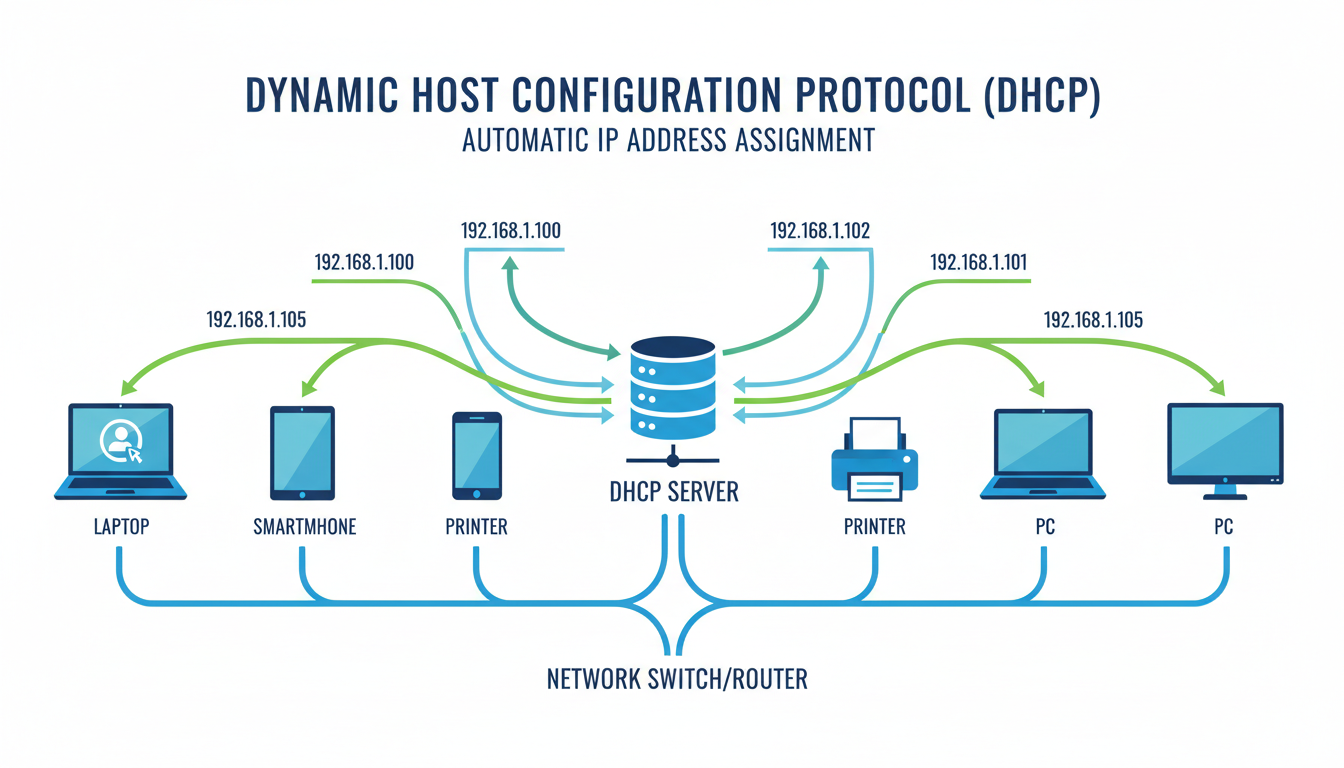
Every device on your business network - every laptop, desktop, printer, phone, and server - needs an IP address to communicate. Without an IP address, a device simply cannot participate in the network. It cannot access the internet, connect to shared drives, print documents, or send emails. Yet despite this fundamental importance, most business owners and many office workers have never considered how their devices actually obtain these addresses. The answer, in the vast majority of cases, is a protocol called DHCP.
Dynamic Host Configuration Protocol, universally known as DHCP, is one of those invisible technologies that works silently in the background of every business network across the United Kingdom. When it is working correctly, nobody notices it. When it fails, everything stops. Understanding how DHCP works, why it matters, and how to manage it properly is essential knowledge for anyone responsible for a business network.
This guide explains DHCP in plain, practical terms - what it does, how it works step by step, why it is configured the way it is, and what can go wrong when it is misconfigured or fails.
What Is an IP Address and Why Does Every Device Need One?
An IP address is a unique numerical identifier assigned to every device on a network, much like a postal address identifies a specific building on a street. Just as the Royal Mail needs a precise address to deliver a letter, network traffic needs a precise IP address to reach the correct device. Without an IP address, data packets have no destination, and the device is effectively invisible on the network.
In most business networks, IP addresses follow the IPv4 format - four numbers separated by dots, such as 192.168.1.45. Each number ranges from 0 to 255, giving the system its familiar appearance. Private networks (those not directly exposed to the internet) typically use address ranges defined by international standards: 10.0.0.0 to 10.255.255.255, 172.16.0.0 to 172.31.255.255, or 192.168.0.0 to 192.168.255.255. The 192.168 range is by far the most common in small and medium-sized business networks in the UK.
Static vs Dynamic IP Addresses
There are two fundamental ways a device can obtain an IP address: statically or dynamically. A static IP address is manually configured on the device itself - someone physically types in the IP address, subnet mask, default gateway, and DNS server addresses. A dynamic IP address is automatically assigned by a DHCP server when the device connects to the network.
For most business devices - laptops, desktops, phones, and tablets - dynamic addressing via DHCP is the standard approach. Static addresses are typically reserved for infrastructure devices such as servers, printers, network switches, and access points, where a fixed, predictable address is important for management and accessibility.
The Role of Private Addressing and Network Address Translation
The private IP address ranges used by DHCP in business networks exist because the global pool of public IPv4 addresses - those routable on the open internet - is effectively exhausted. With only approximately 4.3 billion possible IPv4 addresses and billions of devices worldwide, there simply are not enough public addresses for every device to have its own. Private addressing, combined with Network Address Translation (NAT), solves this problem elegantly. Your entire office of 200 devices shares a single public IP address for internet access, whilst each device uses a unique private address internally.
DHCP is the mechanism that makes this private addressing practical at scale. Without DHCP, an IT administrator would need to manually assign, track, and reclaim private IP addresses across every device in the organisation. In environments where employees bring their own devices, where laptops move between meeting rooms and desks, and where guest devices come and go throughout the day, manual management would be entirely unsustainable. DHCP transforms what would be a full-time administrative burden into an automated, invisible process.
It is also worth noting that the choice of private address range has practical implications for your DHCP configuration. The 192.168.x.x range provides 65,536 possible addresses across 256 subnets, which is sufficient for most small businesses. The 10.x.x.x range, however, provides over 16 million addresses and is better suited to larger organisations that need multiple subnets with room for growth. Your DHCP scope should be planned within whichever range your network uses, ensuring adequate room for expansion without requiring a disruptive renumbering exercise later.
Consider a typical UK office with 50 employees. Each person might have a laptop, a desk phone, and a mobile phone connected to the office Wi-Fi. Add in printers, meeting room displays, IoT sensors, and guest devices, and you could easily have 200 or more devices needing IP addresses. Manually configuring each of these devices with a unique IP address - and keeping track of which addresses are in use - would be an administrative nightmare. DHCP automates this entire process, assigning addresses instantly and reclaiming them when devices disconnect.
How DHCP Works: The DORA Process
The DHCP process follows a precise four-step sequence that network engineers refer to as DORA - Discover, Offer, Request, Acknowledge. This elegant handshake happens every time a device joins your network, typically completing in milliseconds. Understanding each step helps demystify what happens when you plug in a network cable or connect to the office Wi-Fi.
Step 1: Discover
When a device first connects to the network, it has no IP address and no knowledge of the network's configuration. It sends a DHCP Discover message - essentially a broadcast shout across the entire local network saying "Is there a DHCP server out there? I need an IP address." Because the device does not yet have an IP address, this message is sent from the source address 0.0.0.0 to the broadcast address 255.255.255.255, ensuring every device on the local network segment receives it.
Step 2: Offer
The DHCP server receives the Discover message and responds with a DHCP Offer. This offer includes a proposed IP address from the server's available pool, along with configuration details such as the subnet mask, default gateway (the router address), DNS server addresses, and the lease duration. If multiple DHCP servers exist on the network, each may send an offer, but the client typically accepts the first one it receives.
Step 3: Request
The device receives the offer and sends a DHCP Request message back to the server, formally requesting the offered IP address. This message is also broadcast, which serves an important purpose when multiple DHCP servers exist - it informs all servers which offer was accepted, allowing the others to withdraw their offers and return the proposed addresses to their available pools.
Step 4: Acknowledge
The DHCP server confirms the assignment by sending a DHCP Acknowledge (ACK) message. The device now has a valid IP address and all the network configuration it needs to communicate. The entire DORA process typically takes less than a second, and the user is completely unaware it has happened.
DHCP Relay Agents in Multi-Subnet Networks
The DORA process works seamlessly within a single network segment, but larger business networks often span multiple subnets or VLANs. Because the initial Discover message is a broadcast, it does not cross router boundaries by default. This presents a practical challenge: does your organisation need a separate DHCP server on every subnet? The answer is no, thanks to DHCP relay agents.
A DHCP relay agent is a feature configured on your router or Layer 3 switch that listens for DHCP broadcast messages on one subnet and forwards them as unicast packets to a DHCP server on a different subnet. The DHCP server processes the request, determines which subnet the device is on based on the relay agent's address, and sends the appropriate configuration back through the relay. This allows a single, centralised DHCP server to serve IP addresses to devices across dozens of subnets without needing a physical presence on each one.
For UK businesses operating across multiple floors or buildings - particularly common in London offices where companies may occupy several floors of a single building - DHCP relay is essential. It centralises your IP address management onto one or two servers while supporting a segmented network design that separates departments, guest access, and IoT devices onto their own VLANs. Without relay agents, each VLAN would require its own DHCP server or service, dramatically increasing management complexity and the potential for configuration inconsistencies across the network.
DHCP Options: Delivering More Than Just an Address
Whilst the IP address is the most visible piece of configuration delivered by DHCP, the protocol actually transmits a comprehensive set of network parameters to each client device through what are known as DHCP options. Option 1 delivers the subnet mask, telling the device which portion of the IP address identifies the network versus the individual host. Option 3 provides the default gateway - the router address the device should use to reach other networks, including the internet. Option 6 specifies the DNS server addresses, without which the device cannot resolve domain names like www.google.co.uk into IP addresses.
Additional options serve specialised purposes that are particularly relevant in business environments. Option 15 tells the device which DNS domain suffix to use, enabling it to find internal resources by short name rather than fully qualified domain name. Options 66 and 67 specify the TFTP server and boot file, which are essential for VoIP phone provisioning - Cisco, Yealink, and Polycom handsets all use these DHCP options to automatically locate their configuration server when powered on. Getting these options right can mean the difference between a phone system that deploys effortlessly and one that requires hours of manual configuration per handset.
DHCP (Dynamic Addressing)
- Automatic IP address assignment
- Zero manual configuration per device
- Centralised management and visibility
- Automatic address reclamation via leases
- Easy to scale as business grows
- Reduces human error in IP conflicts
- Supports roaming devices and guests
- Configuration changes applied centrally
Static Addressing Only
- Manual configuration on every device
- Spreadsheet tracking of IP assignments
- High risk of duplicate IP conflicts
- Time-consuming for new devices and moves
- Difficult to scale beyond small networks
- No automatic reclamation of unused addresses
- Guest devices require manual setup
- Configuration changes needed per device
DHCP Lease Duration and Renewal
When a DHCP server assigns an IP address, it does so for a specific period called a lease. Think of it like renting a parking space - the device has the right to use that IP address for the lease duration, after which it must either renew the lease or give up the address. This leasing mechanism ensures that IP addresses are efficiently recycled when devices leave the network.
Typical lease durations in business environments range from 4 to 24 hours. A shorter lease means addresses are reclaimed more quickly when devices disconnect, which is useful in environments with many transient devices such as guest Wi-Fi networks. A longer lease reduces the amount of DHCP traffic on the network and ensures devices maintain consistent addresses for longer periods, which can simplify troubleshooting and logging.
Devices do not wait until the lease expires to renew. At the 50% mark of the lease duration, the device automatically sends a renewal request to the DHCP server. If the server is available, it extends the lease, and the device continues with the same IP address. If the renewal fails (perhaps the server is temporarily unreachable), the device tries again at the 87.5% mark. Only if both renewal attempts fail does the device release the address and go through the full DORA process again.
Choosing the Right Lease Duration for Your Environment
Selecting the correct lease duration is a balancing act that depends on the nature of your business environment. Offices with fixed workstations and a stable workforce benefit from longer leases - 12 to 24 hours - because devices rarely change and longer leases reduce DHCP traffic overhead. Co-working spaces, conference centres, and retail environments with high device turnover need shorter leases - one to four hours - to ensure addresses are reclaimed promptly and the address pool does not become exhausted during busy periods.
A common mistake in UK business networks is leaving the default lease duration unchanged from the manufacturer's settings, which may be anywhere from one hour to seven days depending on the DHCP server software or router firmware. Reviewing and deliberately setting your lease duration based on your actual network usage patterns is a simple but important step in proper DHCP management. Consider also that different VLANs may warrant different lease durations - a two-hour lease on your guest Wi-Fi network and an eight-hour lease on your corporate network is a perfectly reasonable and widely used configuration.
It is equally important to understand how lease renewal interacts with DNS registration. In many business networks, the DHCP server automatically registers the device's hostname in the company's internal DNS server when a lease is granted or renewed. If leases expire frequently and the DNS records are not properly scavenged, you can accumulate stale DNS entries that point to devices no longer on the network, which causes confusion during troubleshooting and may result in name resolution delays or failures when applications attempt to connect to decommissioned systems.
DHCP Reservations: The Best of Both Worlds
DHCP reservations combine the convenience of automatic addressing with the predictability of static IP addresses. A reservation tells the DHCP server to always assign a specific IP address to a specific device, identified by its MAC address (a unique hardware identifier burned into every network interface). The device still uses the DHCP process to obtain its address, but the server always offers the same one.
This is the recommended approach for devices that need a consistent IP address - printers, servers, network-attached storage, VoIP phones, and other infrastructure devices. Using DHCP reservations rather than true static addresses means all IP address management remains centralised on the DHCP server, making it far easier to track, audit, and modify the network's addressing scheme.
Managing DHCP Reservations Effectively
In practice, a well-managed business network may have dozens or even hundreds of DHCP reservations. Printers are the most common example - every networked printer should have a reservation so that print queues, which reference the printer by IP address, continue to work reliably regardless of when the printer is restarted. VoIP phones often need reservations for quality-of-service configurations and call management system integrations. Access points, network-attached storage, CCTV cameras, and building management controllers all benefit from reserved addresses as well.
The key to managing reservations at scale is rigorous documentation and consistent naming conventions. Every reservation should include a descriptive name that identifies the device - for example, "HP-4th-Floor-Printer" or "Reception-VoIP-01" - along with the device's MAC address, reserved IP address, and physical location. Most DHCP server interfaces, including Windows Server DHCP and those built into firewalls from Cisco, Sophos, and Fortinet, allow you to add descriptions to each reservation. Use this field consistently, and maintain a separate register if your organisation requires it for audit purposes or compliance documentation.
Be aware that MAC addresses can change when a device's network interface is replaced, or when a laptop dock is used that presents its own MAC address rather than the laptop's built-in one. Wireless and wired interfaces on the same device have different MAC addresses, so a laptop may need two reservations if it connects via both methods. Periodically auditing your reservation list against your asset register helps identify orphaned reservations for devices that have been decommissioned, freeing up addresses and keeping your DHCP configuration tidy and accurate.
IP Address Management and Addressing Plans
For businesses managing more than a single subnet, dedicated IP Address Management (IPAM) becomes increasingly important. IPAM encompasses the planning, tracking, and administration of all IP address space across the organisation. At its simplest, IPAM might involve a well-maintained spreadsheet. For larger environments, dedicated IPAM software such as Infoblox, BlueCat, or the IPAM features built into Windows Server provide automated tracking, conflict detection, and integration with DHCP and DNS services that eliminate much of the manual overhead.
A comprehensive addressing plan allocates specific IP ranges to specific purposes within each subnet. For example, addresses 192.168.1.1 to 192.168.1.20 might be reserved for network infrastructure (routers, switches, firewalls), 192.168.1.21 to 192.168.1.50 for servers, 192.168.1.51 to 192.168.1.99 for DHCP reservations (printers, phones, access points), and 192.168.1.100 to 192.168.1.250 for the general DHCP pool. This structured approach makes the network far easier to understand at a glance, simplifies troubleshooting by making device types identifiable from their IP address, and provides clear room for expansion within each category.
Common DHCP Problems and How to Resolve Them
When DHCP fails, the symptoms are usually immediate and obvious: devices cannot connect to the network, users see "no internet" warnings, and productivity grinds to a halt. Understanding the most common DHCP failures helps you diagnose and resolve issues quickly.
DHCP Scope Exhaustion
If the DHCP server runs out of available IP addresses - because the pool is too small for the number of devices, or because leases are too long - new devices will be unable to obtain an address. The solution is either to expand the DHCP scope (add more addresses to the pool), reduce the lease duration so addresses are reclaimed faster, or identify and remove unused reservations that are consuming addresses unnecessarily.
Rogue DHCP Servers
A rogue DHCP server is an unauthorised device on the network that responds to DHCP Discover messages with incorrect configuration. This can happen when someone connects a personal router to the office network, or when a misconfigured device starts advertising DHCP services. The result is devices receiving wrong IP addresses, wrong gateway addresses, or wrong DNS servers - causing intermittent connectivity failures that can be extremely difficult to diagnose without proper network monitoring tools.
APIPA and Self-Assigned Addresses
When a device fails to obtain an address from a DHCP server - whether because the server is unreachable, the scope is exhausted, or a network fault prevents the DORA messages from completing - Windows and macOS devices will assign themselves an Automatic Private IP Addressing (APIPA) address from the 169.254.x.x range. If you see a device with an IP address beginning with 169.254, it is a clear indicator that DHCP has failed for that device.
APIPA addresses allow limited communication between devices on the same physical network segment that have also self-assigned addresses, but they do not provide internet access, DNS resolution, or access to any services on other subnets. In a business context, an APIPA address effectively means the device is offline for all practical purposes. Recognising this address pattern is one of the quickest ways to diagnose DHCP failures - a simple check of the device's IP configuration using the command ipconfig on Windows or ifconfig on macOS and Linux will immediately reveal whether the device has a valid DHCP-assigned address or has fallen back to APIPA.
A Systematic Approach to DHCP Troubleshooting
Effective DHCP troubleshooting follows a structured methodology. Start by confirming whether the affected device has received a valid address. If it has an APIPA address, the issue lies between the device and the DHCP server - check network connectivity, DHCP server status, and scope availability. If the device has a valid IP address but cannot access resources, the problem is likely elsewhere - DNS misconfiguration, firewall rules, or routing issues. This simple first step can save considerable time and prevent you from investigating the wrong component of your network infrastructure.
The Windows command ipconfig /all displays the full DHCP configuration of a device, including the DHCP server that issued the lease, the lease obtained and expiry dates, and all options received such as DNS servers and default gateway. The command ipconfig /release followed by ipconfig /renew forces the device to release its current lease and request a new one, which is often sufficient to resolve transient DHCP issues. On the server side, checking the DHCP server event logs and lease database confirms whether the server is operational and whether the scope has available addresses to offer.
| Problem | Symptoms | Common Cause | Resolution |
|---|---|---|---|
| Scope Exhaustion | New devices cannot connect | Too many devices, small pool | Expand scope, reduce lease time |
| Rogue DHCP Server | Intermittent connectivity, wrong settings | Unauthorised router on network | Enable DHCP snooping, locate rogue device |
| Server Unreachable | All devices lose connectivity at lease expiry | DHCP server crash or network fault | Restart server, check network path |
| IP Conflict | Two devices intermittently offline | Static IP overlapping DHCP range | Exclude static IPs from DHCP scope |
| Wrong DNS Settings | Websites not loading, name resolution fails | Incorrect DNS in DHCP options | Correct DNS server addresses in DHCP config |
DHCP Best Practices for Business Networks
Proper DHCP configuration is a hallmark of a well-managed network. For UK businesses, the following best practices ensure reliable and secure IP address management across the organisation.
Always document your DHCP configuration, including the scope range, exclusions, reservations, and lease durations. Implement DHCP failover or redundancy so that a single server failure does not take down the entire network's addressing. Use DHCP reservations for all infrastructure devices rather than static assignments. Separate your DHCP scopes by VLAN to maintain logical network segmentation - for example, separate scopes for the corporate network, guest Wi-Fi, VoIP phones, and IoT devices.
Monitor your DHCP utilisation regularly. If your scope is consistently more than 80% utilised, it is time to plan for expansion before you experience scope exhaustion during peak periods. Enable DHCP snooping on your network switches to prevent rogue DHCP servers from distributing incorrect configuration to your devices.
DHCP Logging and Security Auditing
DHCP servers maintain detailed logs of every address assignment, renewal, and release. These logs are an invaluable resource for both network troubleshooting and security investigations. When a security incident occurs, DHCP logs allow you to determine which device held a particular IP address at a specific time - connecting an IP address seen in firewall or proxy logs to a specific physical device identified by its MAC address and hostname, and ultimately to a specific user or department.
Windows Server DHCP logs are stored in the system directory by default, with a new log file created each day of the week. These logs record the date and time of every DHCP transaction, the MAC address of the client device, the IP address assigned, and the hostname reported by the device. For UK businesses subject to regulatory requirements, retaining these logs for a defined period is often a compliance obligation. Organisations processing payment card data under PCI DSS, for example, must retain logs for at least 12 months. Firewall-based DHCP servers, such as those in Sophos, Fortinet, and WatchGuard appliances, typically integrate their DHCP logs into the central logging framework, making it straightforward to correlate DHCP assignments with firewall events, web filtering logs, and intrusion detection alerts during incident response.
Planning for IPv6 and the Future of Address Management
Whilst IPv4 and traditional DHCP remain the standard for internal business networks across the United Kingdom, the gradual adoption of IPv6 is something forward-thinking network administrators should keep in mind. IPv6 uses 128-bit addresses compared to IPv4's 32-bit addresses, providing a virtually unlimited address space. In IPv6 networks, devices can obtain their addresses through Stateless Address Autoconfiguration (SLAAC), which allows devices to generate their own addresses without a DHCP server, or through DHCPv6, which operates similarly to traditional DHCP but assigns IPv6 addresses and configuration parameters.
For most UK businesses today, IPv6 on the internal network is not an immediate priority - your private IPv4 address space, managed by DHCP, will serve you well for the foreseeable future. However, when purchasing new network equipment such as switches, firewalls, and routers, ensuring it supports dual-stack operation (simultaneous IPv4 and IPv6) is a sensible precaution that avoids costly hardware replacements later. Your internet service provider may already be providing you with an IPv6 prefix, even if your internal network is not yet configured to use it.
DHCP in Hybrid and Cloud-Connected Environments
As UK businesses increasingly adopt cloud services and hybrid architectures, the relationship between on-premises DHCP and cloud networking becomes an important consideration for IT teams. Devices connecting via VPN to cloud-hosted resources such as Azure or AWS still rely on local DHCP for their on-premises IP address, but may also receive additional routing information via the VPN client that directs certain traffic through the encrypted tunnel. Ensuring that your DHCP configuration does not conflict with VPN-assigned addresses or cloud virtual network ranges requires careful planning of your overall IP address scheme, particularly when site-to-site VPN tunnels connect your office network directly to cloud infrastructure where address overlap would cause routing failures and connectivity issues.
Need Help With Your Network Configuration?
Cloudswitched designs, implements, and manages business networks for organisations across the United Kingdom. From DHCP configuration and VLAN segmentation to complete network infrastructure projects, we ensure your network is reliable, secure, and properly documented. Contact us to discuss your networking needs.
GET IN TOUCH
CloudSwitched
London-based managed IT services provider offering support, cloud solutions and cybersecurity for SMEs.


