Guest access in Microsoft Teams has become one of the most important collaboration features for UK businesses. Whether you're working with external consultants, partnering with another organisation, or coordinating with freelance contractors, the ability to bring outside participants into your Teams environment is essential for modern business operations.
Yet many organisations either avoid guest access entirely due to security concerns or enable it without proper governance, creating significant risks. This guide walks you through everything you need to know about configuring, managing, and securing guest access in Microsoft Teams for your UK business.
1. Understanding Guest Access in Teams
Guest access allows people outside your organisation to join Teams channels, participate in chats, share files, and collaborate on projects - all without needing a licence from your tenant. Guests sign in using their existing email address, whether that's a Microsoft 365 account, a personal Microsoft account, or even a Gmail address.
Microsoft distinguishes between several types of external collaboration. Guest access provides the richest experience, giving external users a presence within your Teams environment. External access (federation), by contrast, only allows basic chat and calling between organisations without giving users access to your teams and channels. Understanding this distinction is crucial for choosing the right approach.
Guest access adds external users to your Teams environment with access to channels, files, and apps. External access (federation) only enables chat and calling between organisations. For project collaboration, guest access is almost always the better choice.
When a guest is added to a team, they receive an email invitation and, upon acceptance, can see the team's channels, files, and conversation history (from the point they were added). They appear in the team roster with a "(Guest)" label, making it easy for internal members to identify external participants.
2. The Business Case for Guest Access
British businesses increasingly operate within complex ecosystems of partners, suppliers, and contractors. Research from the Chartered Institute of Personnel and Development (CIPD) shows that the average UK business regularly collaborates with between 5 and 15 external organisations. Without a structured collaboration platform, these interactions often default to email chains, which are slow, difficult to search, and prone to version control issues.
Guest access centralises external collaboration. Instead of scattered email threads and shared drives with inconsistent permissions, everything related to a project lives within a single team. Files are co-authored in real time, conversations are threaded and searchable, and meetings can be scheduled directly within the channel.
For regulated industries - including financial services, healthcare, and legal - guest access also provides better audit trails than email. Every message, file share, and meeting is logged, making compliance reporting considerably simpler.
3. Enabling and Configuring Guest Access
Guest access is controlled at multiple levels within your Microsoft 365 environment. Getting the configuration right requires changes in Azure Active Directory (Entra ID), the Teams admin centre, SharePoint, and potentially Microsoft 365 Groups settings.
The first step is ensuring guest access is enabled at the Azure AD level. Navigate to the Azure portal, then to External Identities, and review your external collaboration settings. Here you can control which domains are allowed or blocked, whether guests can be invited by members or only admins, and what permissions guests have in your directory.
| Configuration Area | Setting | Recommended Value | Why It Matters |
|---|---|---|---|
| Azure AD External Identities | Guest invite restrictions | Members can invite | Balances convenience with control |
| Azure AD External Identities | Collaboration restrictions | Allow specific domains | Prevents invitations to unknown organisations |
| Teams Admin Centre | Guest access | Enabled | Master switch for Teams guest features |
| Teams Admin Centre | Guest calling | Enabled (private calls off) | Allows meeting participation without direct calling |
| SharePoint Admin | External sharing | New and existing guests | Controls file sharing with guests |
| M365 Groups | Guest access to groups | Enabled | Underlying permission for Teams guest access |
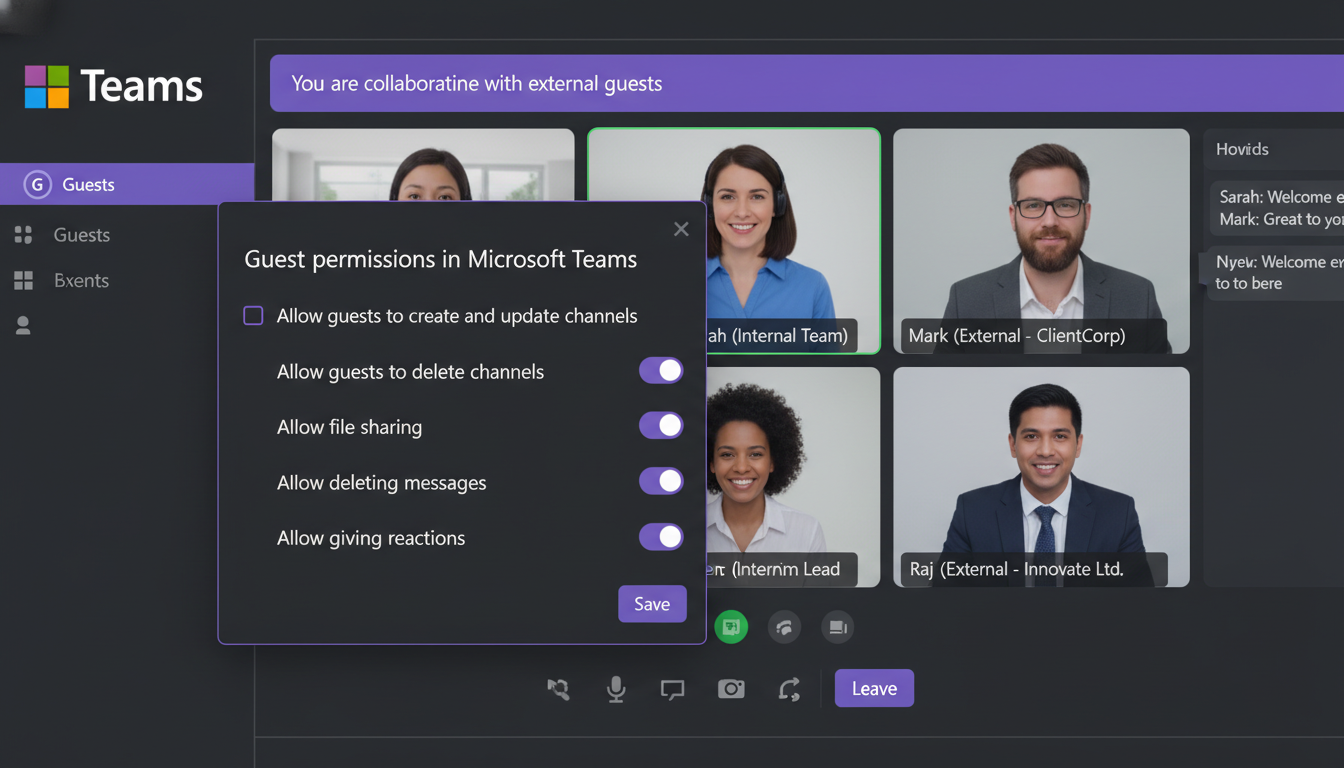
In the Teams admin centre, you can fine-tune what guests are permitted to do. This includes whether they can make private calls, use video in meetings, share their screen, and whether they can create, update, or delete channels. For most UK businesses, we recommend enabling meeting participation features whilst restricting channel management to internal members.
4. Guest Permissions: What Can They See and Do?
One of the most common concerns we hear from UK businesses is about over-sharing. What exactly can guests access once they're added to a team? The answer depends on your configuration, but the defaults provide a reasonable starting point.
Guests can access all channels they're added to within a team, participate in conversations, share files, and join meetings. They cannot see your organisational directory, other teams they're not members of, or any private channels unless specifically invited. They also cannot create teams, discover teams, or access the Teams admin centre.
What Guests CAN Do
What Guests CANNOT Do
It's worth noting that guests can see the names and profile photos of other team members within the teams they belong to. If this is a concern - for example, if you're running separate teams for competing clients - consider creating isolated teams with minimal member overlap.
5. Security Best Practices for Guest Access
Enabling guest access without proper security controls is a recipe for data leakage. UK businesses, particularly those subject to UK GDPR, need to implement appropriate safeguards. Here are the essential security measures every organisation should put in place.
Conditional Access Policies: Azure AD Conditional Access allows you to require multi-factor authentication (MFA) for guest users, block access from untrusted locations, and require compliant devices. At minimum, we recommend enforcing MFA for all guest sign-ins. This single control dramatically reduces the risk of compromised guest accounts being used to access your data.
Sensitivity Labels: Microsoft Purview sensitivity labels can be applied to teams to control guest access at a granular level. You might label some teams as "Internal Only" to prevent any guest additions, whilst others are labelled "External Collaboration" with appropriate protections such as encryption and access restrictions on shared files.
Access Reviews: Azure AD access reviews allow you to periodically audit guest access. You can configure automatic reviews that ask team owners to confirm whether each guest still needs access. Guests who aren't confirmed are automatically removed. We recommend quarterly reviews as a minimum.
When granting guest access to external users, you may be sharing personal data with individuals outside your organisation. Ensure your privacy notices cover this scenario and that you have appropriate data processing agreements in place with partner organisations. The ICO expects organisations to maintain records of processing activities that include external collaboration.
Data Loss Prevention (DLP): DLP policies can prevent guests from sharing sensitive information outside the organisation. You can create policies that detect financial data, personal information, or custom sensitive information types and either warn users or block sharing entirely.
Session Timeouts: Configure session timeout policies for guest users that are shorter than those for internal users. This limits the window of exposure if a guest's device is left unattended or compromised.
6. Lifecycle Management: Adding and Removing Guests
One of the biggest challenges with guest access is lifecycle management. Guests are added for specific projects but often linger long after the project ends. Without proper processes, your Azure AD can accumulate hundreds of stale guest accounts, each representing a potential security risk.
Establish a clear process for guest onboarding. When a team owner adds a guest, they should document the business justification and expected duration of access. Many organisations use a simple SharePoint list or a Microsoft Form to capture this information, creating an audit trail that satisfies compliance requirements.
For offboarding, leverage Azure AD access reviews as described above. Additionally, consider implementing guest expiration policies. Azure AD allows you to set expiration periods for guest accounts, after which they're automatically disabled unless renewed. A 90-day expiration period works well for most project-based collaboration.
PowerShell scripts can help automate guest management at scale. You can schedule scripts to identify guest accounts that haven't signed in for a specified period, generate reports for IT administrators, and even automatically disable or remove inactive accounts.
7. Common Challenges and Solutions
Even with a well-configured environment, organisations frequently encounter challenges with guest access. Here are the most common issues we see among our UK clients and how to resolve them.
Guests can't access files: This is almost always a SharePoint external sharing configuration issue. Even if Teams guest access is enabled, SharePoint must also allow external sharing for the associated site. Check the SharePoint admin centre and ensure the site collection's sharing settings align with your Teams configuration.
Guests don't receive invitation emails: Invitation emails can be caught by the guest's spam filters. Advise guests to check their junk mail folders. If the problem persists, you can resend the invitation from the Teams admin centre or use the Azure portal to send a direct invitation link.
Guests see a "You don't have access" error: This typically occurs when the guest account exists in Azure AD but hasn't been properly added to the specific team. Remove the guest from the team and re-add them, ensuring the invitation is accepted.
Too many guest accounts accumulating: Implement the lifecycle management practices described above. Additionally, use Azure AD reports to identify guest accounts that have never redeemed their invitations - these should be cleaned up regularly.
Guests accessing content they shouldn't: Review your team structure. If you're using a single team for multiple projects with different confidentiality levels, consider splitting into separate teams. Private channels can also help, but remember that guests must be explicitly added to private channels.
8. Guest Access Policies for Regulated Industries
UK businesses operating in regulated sectors face additional requirements. Financial services firms regulated by the FCA must ensure that guest access doesn't compromise record-keeping obligations. Healthcare organisations need to consider NHS Data Security and Protection Toolkit requirements. Legal firms must maintain client confidentiality across matters.
For these organisations, we recommend a tiered approach to guest access. Create team templates with pre-configured security settings appropriate to different sensitivity levels. A "Standard Collaboration" template might allow guest access with basic controls, whilst a "Regulated Project" template enforces stricter DLP policies, mandatory sensitivity labels, and enhanced audit logging.
Use Azure AD Entitlement Management to create access packages for guest users. Instead of ad-hoc invitations, guests request access through a self-service portal, with automatic approval workflows and time-limited access. This approach satisfies most regulatory audit requirements whilst reducing the administrative burden on IT teams.
Audit logging is particularly important for regulated industries. Microsoft 365 audit logs capture all guest activities, including sign-ins, file access, message sends, and meeting attendance. These logs can be exported to your SIEM solution or retained in Microsoft Purview for the required retention period - typically seven years for financial services.
9. Optimising the Guest Experience
A poor guest experience reflects badly on your organisation. When external partners struggle to access Teams, find documents, or join meetings, it creates friction that undermines the productivity benefits of collaboration.
Start by creating a welcome message for each team that includes guest-specific guidance. Explain how to navigate the Teams interface, where to find key documents, and who to contact for help. Pin this message to the General channel so new guests see it immediately.
Consider creating a dedicated "Getting Started" channel within project teams. This channel can contain onboarding documents, team protocols, and frequently asked questions. It serves as a self-service resource that reduces the support burden on your internal team.
For organisations that regularly onboard guests, a standardised welcome pack - including a brief video walkthrough and a one-page PDF guide - can significantly smooth the experience. Remember that not all guests will be familiar with Microsoft Teams; some may use Slack, Google Workspace, or other platforms in their own organisations.
10. Monitoring and Reporting
Ongoing monitoring is essential for maintaining a secure and well-governed guest access environment. Microsoft provides several built-in reporting tools that help you stay on top of guest activity.
The Azure AD sign-in logs show every guest authentication, including the IP address, device, and location. Use these logs to identify unusual access patterns - for example, a guest signing in from an unexpected country or at unusual hours. Conditional Access policies can automate responses to these anomalies.
The Teams admin centre provides usage reports that include guest participation metrics. You can see which teams have the most guest activity, which guests are most active, and which teams have guests who haven't participated recently. These reports inform your lifecycle management decisions and help you identify teams that may no longer need guest access.
For organisations using Microsoft Sentinel or a third-party SIEM, configure data connectors to stream Azure AD and Teams audit logs for advanced threat detection. Custom analytics rules can alert you to suspicious guest behaviours, such as bulk file downloads or rapid channel switching.
Guest Access Governance Maturity
Evaluating your organisation's guest access governance against industry benchmarks helps identify areas that require improvement and investment. The maturity scores below reflect typical findings from assessments of UK businesses using Microsoft Teams for external collaboration, based on research conducted across multiple sectors including financial services, professional services, and technology organisations of varying sizes.
The scores highlight a persistent governance gap in most organisations. Whilst authentication controls tend to score reasonably well - largely because Microsoft makes MFA enforcement straightforward through conditional access policies - lifecycle management remains the weakest area by a considerable margin. Many businesses lack automated processes for reviewing and removing stale guest accounts, relying instead on ad-hoc manual reviews that inevitably fall behind as the number of external collaborators grows. Similarly, audit and compliance reporting scores lag because organisations often fail to configure the necessary log retention and alerting rules until prompted by a regulatory inquiry or security incident. Closing these gaps requires a deliberate combination of policy, automation, and regular review cycles built into your operational rhythm.
Moving Forward with Confidence
Guest access in Microsoft Teams is a powerful feature that, when properly configured and governed, enables secure and productive collaboration with external partners. The key is finding the right balance between openness and control - making it easy enough for teams to collaborate effectively whilst maintaining the security and compliance standards your organisation requires.
Start by auditing your current guest access configuration against the best practices outlined in this guide. Identify gaps in your security controls, lifecycle management, and monitoring capabilities. Then prioritise improvements based on your organisation's risk profile and regulatory requirements.
Remember that guest access governance is not a one-time project. It requires ongoing attention as your collaboration patterns evolve, new security threats emerge, and Microsoft continues to enhance the platform's capabilities. Regular reviews - at least quarterly - ensure your configuration remains aligned with your business needs and security posture.
Need Help Configuring Guest Access?
Our Microsoft 365 specialists help UK businesses implement secure, well-governed guest access in Teams. From initial configuration to ongoing management, we ensure your external collaboration is both productive and compliant.
EXPLORE CLOUD EMAIL SOLUTIONS
CloudSwitched
London-based managed IT services provider offering support, cloud solutions and cybersecurity for SMEs.


