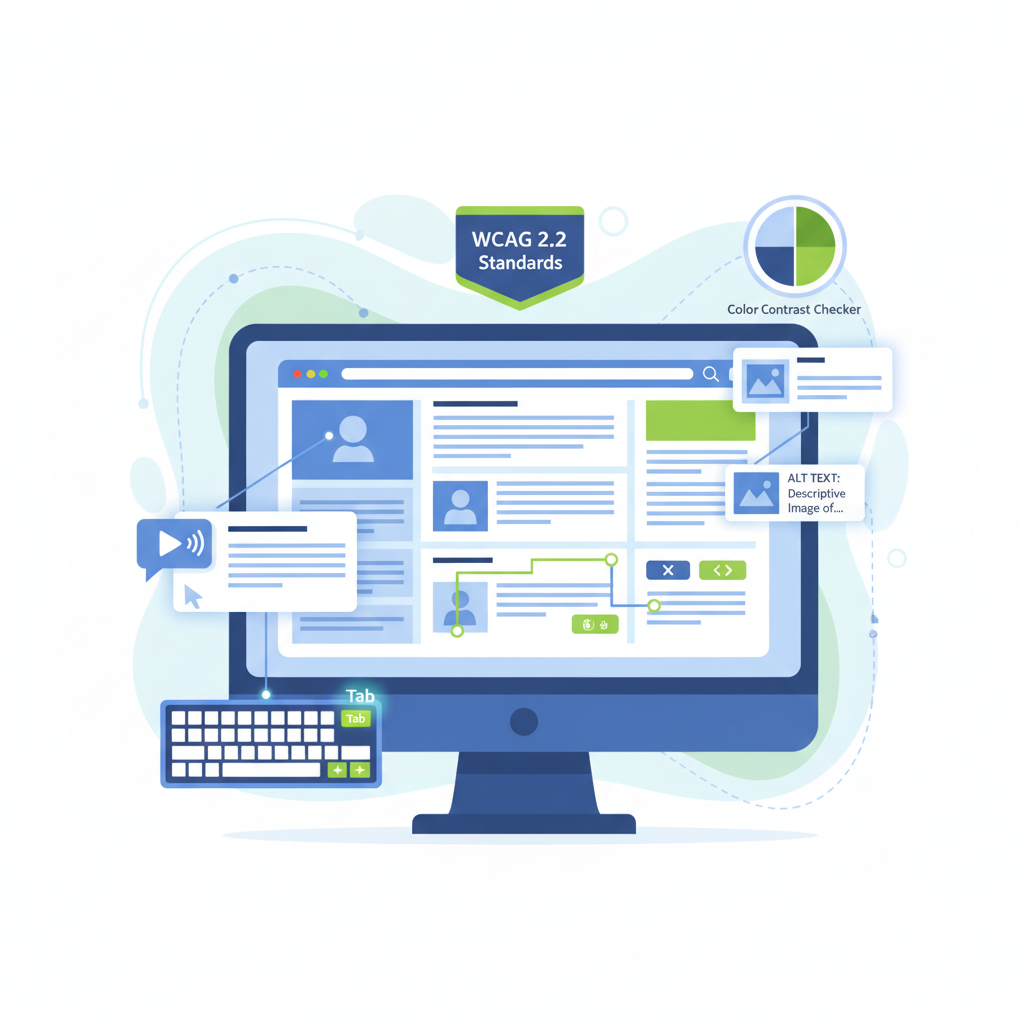
Making your website accessible is not optional - it is a legal obligation under UK law, a competitive advantage, and fundamentally the right thing to do. Over 16 million people in the United Kingdom live with some form of disability, and millions more experience temporary or situational impairments that affect how they use the web. When your site fails to meet accessibility standards, you are shutting the door on a significant portion of your potential audience.
The Web Content Accessibility Guidelines (WCAG), published by the World Wide Web Consortium (W3C), provide the internationally recognised framework for building accessible digital experiences. WCAG 2.1, released in 2018, and its successor WCAG 2.2, released in October 2023, define specific, testable criteria that every website should meet. In the UK, meeting WCAG 2.1 Level AA is effectively a legal requirement under the Equality Act 2010, and public sector organisations face even stricter obligations under the Public Sector Bodies (Websites and Mobile Applications) Accessibility Regulations 2018.
This comprehensive guide walks you through everything you need to know about implementing WCAG accessibility standards on your website - from understanding the core principles and legal requirements, to practical implementation techniques and audit tools that will help you achieve and maintain compliance.
Understanding WCAG: Versions 2.1 and 2.2
WCAG is not a single document that remains static. It evolves as technology changes and our understanding of accessibility deepens. To implement these standards effectively, you need to understand what each version covers and how they build upon one another.
WCAG 2.1 – The Current Baseline
WCAG 2.1 was published in June 2018 and extended the original WCAG 2.0 guidelines with 17 additional success criteria. These additions focused heavily on three areas that WCAG 2.0 had not addressed adequately: mobile accessibility, low-vision user needs, and cognitive accessibility. Key additions in WCAG 2.1 include requirements for pointer gestures (ensuring that complex gestures have single-pointer alternatives), text spacing (allowing users to adjust line height, paragraph spacing, and letter spacing without loss of content), and reflow (ensuring content works at 400% zoom without horizontal scrolling).
WCAG 2.1 Level AA is the standard referenced by most UK accessibility legislation and is the level that the vast majority of organisations should target. It strikes a practical balance between comprehensive accessibility coverage and implementation feasibility.
WCAG 2.2 – The Latest Standard
WCAG 2.2, published in October 2023, added nine new success criteria focused on improving the experience for users with cognitive and learning disabilities, users with low vision, and users of mobile devices. Notable additions include focus appearance requirements (ensuring keyboard focus indicators are clearly visible), dragging movements (providing alternatives to drag-and-drop interactions), and consistent help (ensuring help mechanisms appear in the same location across pages).
One significant change in WCAG 2.2 is the removal of Success Criterion 4.1.1 (Parsing), which had become obsolete as modern browsers handle HTML parsing errors gracefully. If you are starting a new accessibility project today, targeting WCAG 2.2 Level AA is the recommended approach, as it represents the most current understanding of what accessible web design requires.
You do not need to overhaul your entire website at once. Start with these high-impact improvements:
- Add alt text to every image – Describe the purpose and content of each image in clear, concise language
- Ensure colour contrast ratios meet 4.5:1 – Use a contrast checker tool to verify all text against its background
- Make all interactive elements keyboard-accessible – Test your entire site using only the Tab, Enter, and arrow keys
- Add visible focus indicators – Never remove the browser’s default focus outline without providing a clear alternative
- Use proper heading hierarchy – Structure your content with h2, h3, and h4 tags in logical order
- Label all form fields – Associate every input with a descriptive label element
UK Legal Requirements: The Equality Act 2010
In the United Kingdom, website accessibility is not merely a best practice - it is a legal requirement. The Equality Act 2010 prohibits discrimination against disabled people in the provision of services, and this extends explicitly to digital services including websites, web applications, and mobile apps.
What the Law Requires
Under the Equality Act 2010, service providers have a duty to make “reasonable adjustments” to ensure that disabled people are not placed at a substantial disadvantage when accessing their services. For websites, this means you must take proactive steps to ensure your digital content is accessible. You cannot wait for someone to complain before acting – the duty is anticipatory, meaning you should identify and remove barriers before they cause problems.
While the Equality Act does not explicitly name WCAG as the required standard, the courts and the Equality and Human Rights Commission (EHRC) regard WCAG 2.1 Level AA as the benchmark for what constitutes a “reasonable adjustment” in the digital context. Failing to meet this standard puts your organisation at risk of legal action.
Public Sector Obligations
Public sector organisations face additional, more prescriptive requirements under the Public Sector Bodies (Websites and Mobile Applications) Accessibility Regulations 2018. These regulations explicitly require compliance with WCAG 2.1 Level AA and mandate the publication of an accessibility statement that details the organisation’s current level of compliance, any known issues, and how users can report accessibility problems.
Consequences of Non-Compliance
The financial and reputational consequences of failing to meet accessibility requirements are significant and growing. Organisations can face legal claims under the Equality Act, with compensation awards and legal costs that can run into tens of thousands of pounds. Beyond direct legal costs, the reputational damage of being publicly identified as failing disabled users can be severe, particularly for consumer-facing brands.
Failing to make your website accessible exposes your organisation to serious legal and financial risks:
- Equality Act claims – Individuals can bring legal claims for discrimination, with no cap on compensation awards
- EHRC enforcement – The Equality and Human Rights Commission can issue compliance notices and take enforcement action
- Public sector penalties – Government bodies face monitoring by the Government Digital Service (GDS) with published compliance reports
- Reputational damage – Accessibility failures are increasingly reported in mainstream media, causing lasting brand damage
- Lost revenue – The “Purple Pound” – the spending power of disabled consumers – is worth £274 billion annually in the UK
- Procurement exclusion – Many public and private sector procurement processes now require evidence of accessibility compliance
The POUR Principles: The Foundation of WCAG
Every WCAG success criterion falls under one of four foundational principles, known collectively as POUR. Understanding these principles is essential for implementing accessibility effectively, because they provide the conceptual framework that guides every specific technical requirement.
Perceivable
Information and user interface components must be presentable to users in ways they can perceive. This means that content cannot rely solely on a single sense – if information is visual, there must be a text alternative; if content is audio, there must be captions or transcripts. Perceivable requirements include providing text alternatives for non-text content, offering captions for video and audio content, ensuring content can be presented in different ways without losing meaning, and making it easy for users to see and hear content.
Operable
User interface components and navigation must be operable by all users, regardless of how they interact with their device. This principle requires that all functionality is available from a keyboard, that users have enough time to read and interact with content, that content does not cause seizures or physical reactions, that users can navigate and find content easily, and that input modalities beyond keyboard are supported.
Understandable
Information and the operation of the user interface must be understandable. This means text content must be readable and comprehensible, web pages must appear and operate in predictable ways, and users must be helped to avoid and correct mistakes. Understandable requirements address language identification, consistent navigation, clear error messages, and input assistance.
Robust
Content must be robust enough to be interpreted reliably by a wide variety of user agents, including assistive technologies. This principle ensures that your content works correctly with screen readers, voice recognition software, switch devices, and other assistive technologies both now and as these technologies evolve. Robust requirements focus on proper HTML semantics, valid code, and the correct use of ARIA attributes.
Colour Contrast Requirements
Colour contrast is one of the most common accessibility failures on the web, and also one of the simplest to fix. WCAG defines specific contrast ratios that text and interactive elements must meet to ensure readability for users with low vision, colour blindness, or those viewing screens in challenging lighting conditions.
Understanding Contrast Ratios
WCAG measures contrast as a ratio between the luminance of the foreground colour and the background colour. The scale runs from 1:1 (no contrast, identical colours) to 21:1 (maximum contrast, black on white). For Level AA compliance, normal text (under 18pt or 14pt bold) must have a contrast ratio of at least 4.5:1, while large text (18pt and above, or 14pt bold and above) must have a ratio of at least 3:1. Non-text elements such as form field borders, icons, and graphical objects that convey information must have a contrast ratio of at least 3:1 against their adjacent colours.
Level AAA Contrast Requirements
If you are targeting Level AAA, the requirements are stricter: normal text must meet a 7:1 ratio and large text must meet a 4.5:1 ratio. While full Level AAA compliance across an entire site is rare, aiming for AAA contrast ratios is a straightforward way to improve readability for all users.
Common Contrast Pitfalls
The most frequent contrast failures involve light grey text on white backgrounds, white text on bright coloured backgrounds, placeholder text in form fields (which often fails to meet minimum ratios), and text over images where the contrast varies across the image. When placing text over images, always use a solid or semi-transparent background overlay to guarantee consistent contrast.
- Light grey text on white backgrounds (2.5:1 contrast ratio)
- No alt text on images – screen readers announce “image” with no context
- Navigation only works with a mouse – keyboard users are trapped
- Form fields have placeholder text but no visible labels
- Videos autoplay with no captions or transcript available
- Error messages appear in red text only with no descriptive explanation
- Custom dropdown menus are invisible to assistive technology
- Focus indicators have been removed for “cleaner” design
- High-contrast text meeting 4.5:1 ratio across all colour combinations
- Descriptive alt text on every image conveying meaning and context
- Full keyboard navigation with logical tab order throughout
- Visible, persistent labels on all form fields with clear instructions
- Videos include synchronised captions and downloadable transcripts
- Error messages use icons, colour, and descriptive text together
- ARIA roles and states make all custom components fully accessible
- Clearly visible focus indicators on every interactive element
Keyboard Navigation
Keyboard accessibility is arguably the single most important technical aspect of WCAG compliance, because so many other accessibility requirements depend on it. Users who cannot operate a mouse – whether due to motor impairments, visual impairments (screen reader users navigate by keyboard), or temporary injuries – rely entirely on keyboard navigation to interact with websites.
Core Keyboard Requirements
Every interactive element on your website must be reachable and operable using only a keyboard. This means users must be able to navigate to all links, buttons, form fields, and interactive components using the Tab key, activate them using Enter or Space, and navigate away without becoming trapped. The tab order must follow a logical sequence that matches the visual layout, and users must always be able to see which element currently has focus.
Focus Management
Focus management is critical for single-page applications and dynamic content. When a modal dialogue opens, focus should move into the dialogue and be trapped within it until the user closes it. When new content appears dynamically (such as search results or error messages), focus should be directed to the new content or an appropriate announcement should be made. When content is removed, focus should move to a logical location rather than resetting to the top of the page.
Skip Navigation Links
A “skip to main content” link should be the first focusable element on every page. This allows keyboard users and screen reader users to bypass repetitive navigation menus and jump directly to the primary content. The skip link can be visually hidden until it receives focus, at which point it should become visible to sighted keyboard users.
Custom Interactive Components
If you build custom interactive components (dropdown menus, tabs, accordions, carousels, date pickers), you must implement the expected keyboard interaction patterns. The WAI-ARIA Authoring Practices Guide provides detailed keyboard interaction patterns for common widget types. A custom dropdown, for example, should support arrow keys for navigating options, Enter or Space for selecting, and Escape for closing.
Screen Reader Compatibility
Screen readers are assistive technologies that convert on-screen content into synthesised speech or Braille output. They are used primarily by blind and visually impaired users, but also by some users with cognitive or learning disabilities. Building screen reader-compatible websites requires a thorough understanding of how these tools interpret HTML and how to provide the semantic information they need.
Semantic HTML First
The foundation of screen reader compatibility is semantic HTML. When you use the correct HTML elements for their intended purpose – <nav> for navigation, <main> for primary content, <button> for clickable actions, <h2> through <h6> for headings – screen readers can automatically convey the structure and purpose of your content to users. A <div> with a click handler is meaningless to a screen reader; a <button> element is announced as a button with its label and state.
Meaningful Content Order
Screen readers traverse the DOM in source order, not visual order. Ensure that the order of elements in your HTML makes logical sense when read sequentially, regardless of how CSS positions them visually. Avoid using CSS to radically reorder content, as this creates a disconnect between what sighted users see and what screen reader users hear.
Alt Text Best Practices
Every image must have an alt attribute. Informative images need descriptive alt text that conveys the same information a sighted user would gain. Decorative images should have empty alt text (alt="") so screen readers skip them entirely. Complex images like charts or infographics need both brief alt text and a longer description, either in surrounding text or via an aria-describedby reference.
ARIA Landmarks and Roles
Accessible Rich Internet Applications (ARIA) is a set of attributes that extend HTML semantics to improve accessibility, particularly for dynamic content and custom interface components. ARIA should be used as a supplement to semantic HTML, not a replacement for it – the first rule of ARIA is “do not use ARIA if you can use a native HTML element or attribute with the semantics and behaviour you require.”
Landmark Roles
ARIA landmark roles identify distinct regions of a page, enabling screen reader users to navigate quickly between them. The key landmarks are banner (the site header), navigation (navigation menus), main (primary content), complementary (sidebar content), contentinfo (the site footer), and search (search functionality). In modern HTML, these landmarks are automatically associated with semantic elements: <header> maps to banner, <nav> to navigation, <main> to main, <aside> to complementary, and <footer> to contentinfo.
Widget Roles and States
For custom interactive components, ARIA provides widget roles (such as role="tablist", role="tab", role="dialog", and role="menu") and states/properties (such as aria-expanded, aria-selected, aria-hidden, and aria-live). These attributes tell assistive technologies what a component is, what state it is in, and how it should be interacted with.
Live Regions
ARIA live regions (aria-live="polite" or aria-live="assertive") are essential for dynamic content that updates without a page reload. When content within a live region changes, screen readers announce the change to users. Use polite for non-urgent updates (like search result counts) and assertive for urgent messages (like error alerts). Status messages, such as “Item added to basket” or “Form submitted successfully,” should be announced via live regions so screen reader users are aware of the outcome of their actions.
Form Accessibility
Forms are critical interaction points on most websites, and they are also where accessibility failures most directly impact users’ ability to complete tasks. An inaccessible form can prevent someone from making a purchase, submitting an enquiry, creating an account, or accessing essential services.
Labels and Instructions
Every form input must have an associated <label> element, connected via the for attribute matching the input’s id. Placeholders are not labels – they disappear when the user starts typing, leaving no indication of what the field requires. Provide clear instructions for fields that need specific formats (such as date fields or phone numbers), and group related fields using <fieldset> and <legend> elements.
Error Handling
When a form submission fails validation, identify the errors clearly and specifically. Each error message should describe what went wrong and how to fix it. Errors should be associated with their respective fields using aria-describedby or aria-errormessage, and the error state should be communicated using aria-invalid="true". Never rely solely on colour to indicate errors – always include text descriptions and, ideally, icons.
Required Fields
Mark required fields clearly, both visually and programmatically. Use aria-required="true" or the HTML required attribute. Do not rely on an asterisk alone to indicate required fields – explain the convention at the beginning of the form (for example, “Fields marked with * are required”).
Autocomplete and Input Types
Use the autocomplete attribute on form fields for common data types (name, email, address, telephone, credit card details). This enables browsers and assistive technologies to help users complete forms more quickly and accurately. Use appropriate input types (type="email", type="tel", type="url") to trigger the correct on-screen keyboards on mobile devices and enable browser-level validation.
Video Captions and Transcripts
Multimedia content creates significant accessibility barriers unless proper alternatives are provided. WCAG requires that audio content has text alternatives and that video content provides both captions and audio descriptions where needed.
Captions
Synchronised captions are required for all pre-recorded video content that includes audio (WCAG 1.2.2, Level A). Captions must include all spoken dialogue, identify speakers when multiple people are talking, and describe relevant sound effects and music. Auto-generated captions (such as those provided by YouTube) are a starting point but are never sufficient on their own – they must be reviewed and corrected for accuracy, as automated captioning typically achieves only 60–80% accuracy.
Transcripts
Full transcripts are required for pre-recorded audio-only content (WCAG 1.2.1, Level A) and are recommended as a supplement to captions for video content. A transcript should include all spoken content, identification of speakers, descriptions of relevant visual information (for video transcripts), and descriptions of significant sound effects. Transcripts also benefit users who prefer to read rather than watch, users in noisy or quiet environments, and search engine indexing.
Audio Descriptions
For pre-recorded video content where important visual information is not conveyed by the audio track alone, audio descriptions are required at Level AA (WCAG 1.2.5). Audio descriptions provide a narrated description of visual elements during natural pauses in dialogue, enabling blind users to understand what is happening on screen.
WCAG Conformance Levels Explained
WCAG defines three levels of conformance, each building upon the previous level. Understanding these levels is essential for setting realistic accessibility goals and communicating your compliance status to stakeholders.
| Aspect | Level A (Minimum) | Level AA (Recommended) | Level AAA (Highest) |
|---|---|---|---|
| Purpose | Removes the most severe barriers to access | Addresses the widest range of barriers for the broadest group of users | Provides the highest level of accessibility for all user groups |
| Colour Contrast (Text) | No specific requirement | 4.5:1 for normal text, 3:1 for large text | 7:1 for normal text, 4.5:1 for large text |
| Captions | Captions for pre-recorded audio in video | Captions for live audio in video | Sign language interpretation for pre-recorded audio |
| Navigation | Keyboard operable, no keyboard traps | Multiple ways to find pages, visible focus indicators | Location within site always indicated |
| Text Readability | Page language identified | Language of parts identified | Reading level accommodated, abbreviations explained, pronunciation provided |
| Error Handling | Errors identified and described | Error suggestions provided, submissions can be reviewed | Context-sensitive help available on all pages |
| Legal Relevance (UK) | Below minimum acceptable standard | Required standard under Equality Act 2010 and Public Sector Regulations | Aspirational – not required by law, often impractical for entire sites |
| Typical Cost to Achieve | £1,500 – £5,000 for remediation | £5,000 – £25,000 depending on site complexity | £25,000+ and requires ongoing specialist input |
Accessibility Audit Tools
Testing for accessibility requires a combination of automated tools, manual testing, and assistive technology testing. No single tool can detect all accessibility issues – automated testing typically identifies only 30–40% of WCAG failures – but tools provide an essential starting point for identifying and tracking issues.
axe by Deque Systems
axe is widely regarded as the gold standard for automated accessibility testing. Available as a browser extension (axe DevTools), a command-line tool, and an API for integration into CI/CD pipelines, axe tests against WCAG 2.1 and 2.2 criteria and produces detailed, actionable results. The axe-core library is open source and powers many other accessibility testing tools. axe is particularly valued for its zero false-positive guarantee – every issue it reports is a genuine accessibility failure. The free browser extension is sufficient for manual testing, while the paid axe DevTools Pro version offers guided manual testing, intelligent guided tests, and integration with project management tools. Pricing for axe DevTools Pro starts from approximately £400 per year per user.
WAVE by WebAIM
WAVE (Web Accessibility Evaluation Tool) provides a visual overlay that highlights accessibility issues directly on the page you are testing. This visual approach makes it particularly useful for designers and content creators who are not deeply technical. WAVE identifies errors, alerts (potential issues that require human judgment), and structural features like headings, landmarks, and ARIA attributes. The WAVE browser extension is free, and the WAVE API for automated testing is available from approximately £80 per year for 100,000 page credits.
Google Lighthouse
Lighthouse is built into Chrome DevTools and includes an accessibility audit section powered by axe-core. While its coverage is not as comprehensive as standalone axe testing, Lighthouse provides a convenient accessibility score alongside performance, SEO, and best practices audits. It is an excellent tool for quick checks and for raising accessibility awareness among development teams who already use Lighthouse for performance monitoring. Lighthouse is completely free and requires no installation beyond using the Chrome browser.
Additional Tools
Beyond these three primary tools, several other tools are valuable for specific accessibility testing tasks. Colour contrast checkers like the WebAIM Contrast Checker and Colour Contrast Analyser (CCA) help verify contrast ratios during the design phase. Screen reader testing with NVDA (free, Windows), VoiceOver (built into macOS and iOS), and JAWS (£700+ per licence) provides essential real-world accessibility verification. The Accessibility Insights tool from Microsoft offers both automated checks and guided manual testing procedures for WCAG compliance.
Remediation Roadmap for Existing Websites
If your existing website has accessibility issues – and statistically, it almost certainly does – a structured remediation approach is essential. Trying to fix everything at once is neither practical nor cost-effective. Instead, follow a phased approach that prioritises the most impactful improvements first.
Phase 1: Audit and Assessment (Weeks 1–2)
Begin with a comprehensive accessibility audit that combines automated testing (using axe, WAVE, and Lighthouse across your key pages), manual keyboard testing (navigating your entire site using only a keyboard), and screen reader testing (using NVDA or VoiceOver to complete key user journeys). Document every issue found, categorise by WCAG success criterion, severity, and effort to fix. Prioritise issues that completely block access to content or functionality (Level A failures) above those that create difficulties but do not prevent access (Level AA failures).
Phase 2: Quick Wins (Weeks 2–4)
Address the issues that affect the most users with the least development effort. This typically includes adding missing alt text to images, fixing colour contrast failures, adding missing form labels, ensuring all pages have a language attribute, fixing empty links and buttons, and adding skip navigation links. These changes often resolve 40–60% of identified issues and can usually be completed by content editors and front-end developers without major architectural changes.
Phase 3: Structural Improvements (Weeks 4–8)
Address issues that require changes to the site’s HTML structure and JavaScript behaviour. This phase typically includes implementing proper heading hierarchies, adding ARIA landmarks and roles to custom components, implementing keyboard navigation for interactive widgets, adding focus management for modal dialogues and dynamic content, implementing error handling improvements for forms, and adding ARIA live regions for dynamic content updates.
Phase 4: Multimedia and Content (Weeks 6–10)
Address multimedia accessibility requirements, which are often the most time-consuming to resolve. This includes creating or correcting captions for all video content, producing transcripts for audio and video content, adding audio descriptions where required, ensuring all PDFs and downloadable documents are accessible, and reviewing and improving the readability of content across the site.
Phase 5: Testing and Validation (Weeks 10–12)
Conduct thorough re-testing using the same tools and methods from Phase 1. Perform user testing with disabled users to validate that the improvements genuinely work in practice, not just in theory. Produce an accessibility statement documenting your current compliance level, any known remaining issues, and how users can report problems. Establish ongoing monitoring and maintenance processes to ensure accessibility is maintained as the site evolves.
Phase 6: Ongoing Maintenance
Accessibility is not a one-time project – it is an ongoing commitment. Integrate accessibility testing into your development workflow by adding axe-core to your CI/CD pipeline, conducting accessibility reviews as part of your design process, testing new features for accessibility before deployment, providing accessibility training for content editors, and scheduling quarterly accessibility audits to catch regressions.
The Business Case for Accessibility
Beyond legal compliance, accessibility delivers tangible business benefits that justify the investment many times over.
Expanded market reach: With 16 million disabled people in the UK and their £274 billion annual spending power, accessibility opens your business to a substantial market segment that your competitors may be neglecting. Disabled consumers and their families are fiercely loyal to brands that provide accessible experiences.
Improved SEO: Many accessibility practices directly improve search engine optimisation. Proper heading structures, descriptive alt text, transcript content, semantic HTML, and fast-loading pages all contribute to better search rankings. Google has explicitly stated that accessibility is a factor in its ranking algorithms.
Better user experience for everyone: Accessibility improvements benefit all users, not just those with disabilities. Captions help users in noisy environments, keyboard navigation benefits power users, clear form labels reduce errors for everyone, and high contrast text is easier to read on mobile devices in bright sunlight.
Reduced legal risk: Proactive accessibility compliance eliminates the risk of costly legal claims, enforcement actions, and the associated reputational damage. The cost of remediation is invariably lower than the cost of defending a discrimination claim.
Enhanced brand reputation: Demonstrating a genuine commitment to accessibility enhances your brand’s reputation as an inclusive, responsible organisation. This resonates with consumers, employees, and partners who increasingly value corporate social responsibility.
Getting Started Today
Implementing WCAG accessibility standards on your website is a journey, not a destination. The key is to start now, prioritise effectively, and build accessibility into your ongoing processes rather than treating it as a one-off project.
Begin by running a free automated audit using axe DevTools or WAVE on your most important pages. Identify your most critical failures – typically colour contrast, missing alt text, and missing form labels – and fix those first. Then work through the remediation roadmap above, moving from quick wins to structural improvements to multimedia accessibility.
If your organisation lacks in-house accessibility expertise, consider partnering with an accessibility specialist who can conduct a thorough audit, provide a prioritised remediation plan, and train your team to maintain accessibility as your site evolves. The investment is modest compared to the legal, commercial, and ethical costs of maintaining an inaccessible website.
Every improvement you make, no matter how small, removes a barrier for someone who currently cannot use your website. That is reason enough to start.

CloudSwitched
London-based managed IT services provider offering support, cloud solutions and cybersecurity for SMEs.


