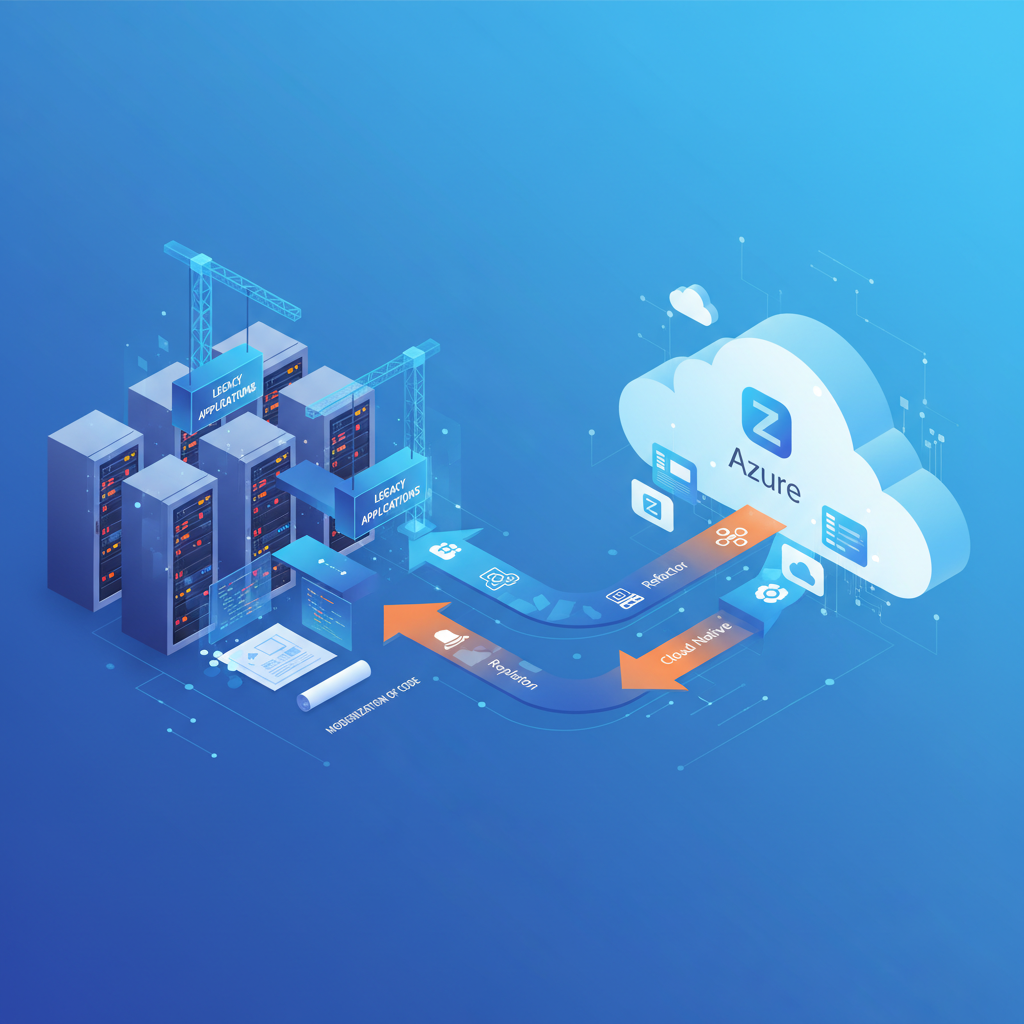
Every business has them - ageing applications running on hardware that was last refreshed during the London Olympics, patched together with scripts nobody fully understands, and maintained by a dwindling pool of specialists who remember how to configure them. These legacy applications are not curiosities; they are often the systems that process orders, manage stock, calculate payroll, and keep the lights on. The trouble is, they are also the systems most likely to fail catastrophically, most expensive to maintain, and most resistant to change.
Migrating legacy applications to Microsoft Azure is not merely a technology project - it is a strategic transformation that can reduce infrastructure costs by 30–50%, improve resilience, unlock modern capabilities like AI and advanced analytics, and free your IT team from the relentless grind of hardware maintenance. But it must be done properly. A botched migration can cause extended downtime, data loss, and user revolt that sets your cloud ambitions back by years.
This guide walks through the entire process: identifying which applications to migrate, choosing the right migration strategy for each, executing the move safely, and optimising performance and costs once you are running in Azure. It is written for UK businesses of all sizes, with practical advice, real-world cost comparisons, and the phased approach that minimises risk at every stage.
What Counts as a Legacy Application?
Before you can migrate anything, you need to know what you are dealing with. A legacy application is not simply “old software” - it is any application that meets one or more of the following criteria:
- Running on unsupported operating systems - Windows Server 2012 R2, Windows Server 2008, or even Windows Server 2003 are still disturbingly common in UK businesses
- Dependent on end-of-life frameworks - .NET Framework 3.5, classic ASP, PHP 5.x, Java 6/7, or Visual Basic 6 applications that cannot be updated without significant rework
- Tied to specific hardware - applications that only run on a particular server because of licensing dongles, specific driver requirements, or hard-coded IP addresses
- Lacking vendor support - the original developer has gone out of business, the software is no longer sold, or you have fallen so far behind on versions that the vendor will not assist
- Poorly documented - nobody currently in the business fully understands how the application works, how it connects to other systems, or what will break if it is changed
- Delivering diminishing value - the application still works but has become a bottleneck, unable to integrate with modern systems, scale to current demand, or support mobile and remote workers
Most UK businesses we work with have between three and fifteen applications that qualify as legacy. Many are surprised by the number - particularly when line-of-business applications that “just work” turn out to be running on infrastructure that is one hardware failure away from catastrophe.
Mapping Application Dependencies
The single biggest cause of migration failure is not understanding how applications connect to each other. A payroll system that feeds data to an accounting package, which in turn generates reports consumed by a management dashboard, creates a dependency chain. Migrate the payroll system without accounting for these connections and you break the entire flow.
How to Map Dependencies
Dependency mapping should be done systematically, combining automated discovery with manual validation:
- Azure Migrate dependency analysis - install the Azure Migrate appliance on your network and enable agentless or agent-based dependency mapping to visualise which servers communicate with which, on which ports, and how frequently
- Network flow analysis - review firewall logs and NetFlow data to identify traffic patterns between servers, databases, and external services
- Application interviews - speak to the people who actually use each application daily; they will know about integrations, scheduled jobs, file shares, and manual processes that no automated tool can detect
- Database connection auditing - check SQL Server connection logs to identify every application and service account connecting to each database
- DNS and hostname references - search configuration files, connection strings, and scripts for hard-coded server names and IP addresses that will need updating post-migration
Using Azure Migrate for Assessment
Microsoft provides a free, purpose-built tool for planning your migration: Azure Migrate. It is the starting point for any serious migration project and provides capabilities that would cost tens of thousands of pounds from a third-party consultancy.
What Azure Migrate Does
Azure Migrate discovers and assesses your on-premises servers, databases, and web applications, then provides recommendations for the most suitable Azure target for each workload. It can:
- Discover servers - scan your VMware, Hyper-V, or physical server estate to catalogue every machine, its configuration, installed software, and resource utilisation
- Assess readiness - evaluate each server against Azure compatibility criteria, flagging potential issues like unsupported operating systems, incompatible drivers, or licensing constraints
- Right-size recommendations - analyse CPU, memory, and storage utilisation over time to recommend the optimal Azure VM size, avoiding the common mistake of over-provisioning cloud resources based on peak on-premises specifications
- Cost estimation - calculate monthly Azure costs for each workload, including compute, storage, networking, and licensing, with options to model Reserved Instance and Azure Hybrid Benefit savings
- Dependency visualisation - map server-to-server communications to help you plan migration waves that keep dependent systems together
The 5 Rs: Choosing the Right Migration Strategy
Not every application should be migrated the same way. Microsoft and the broader cloud industry use a framework known as the “5 Rs” to categorise migration strategies. Choosing the right strategy for each application is critical - it determines the cost, complexity, risk, and long-term benefit of the migration.
| Strategy | What It Means | Best For | Complexity | Cloud Benefit |
|---|---|---|---|---|
| Rehost (Lift & Shift) | Move the application as-is to Azure VMs with no code changes | Stable applications with no immediate need for modernisation | Low | Moderate |
| Refactor | Make minimal code changes to take advantage of Azure PaaS services | Applications that would benefit from managed databases or App Service | Medium | High |
| Rearchitect | Significantly redesign the application to use cloud-native patterns | Applications that need to scale, integrate with modern services, or support new capabilities | High | Very High |
| Rebuild | Rewrite the application from scratch using cloud-native technologies | Applications where the existing codebase is beyond salvage or the requirements have fundamentally changed | Very High | Maximum |
| Replace | Retire the custom application and adopt a SaaS alternative | Applications where a commercial off-the-shelf SaaS product now meets the business need | Medium | Maximum |
In practice, most migration programmes use a blend of all five strategies. Your customer-facing web application might be rearchitected for scalability, your ERP rehosted while you plan a longer-term modernisation, your bespoke reporting tool replaced with Power BI, and your ancient fax server mercifully retired entirely.
Rehosting: Lift and Shift to Azure Virtual Machines
Rehosting is the fastest, lowest-risk migration strategy. You take your existing application - operating system, middleware, application code, configuration, and all - and move it onto an Azure Virtual Machine. Nothing changes except the hardware it runs on.
When Rehosting Makes Sense
- You need to vacate a data centre or decommission on-premises hardware quickly
- The application is stable, rarely updated, and does not need modernisation in the short term
- The application has complex dependencies that make code changes risky
- You want to move to Azure now and modernise later, once the immediate pressure of ageing hardware is resolved
How It Works
Azure Migrate includes a server migration tool that can replicate your on-premises VMs (from VMware, Hyper-V, or physical servers) directly to Azure. The process involves initial replication (which runs in the background without affecting production), a test migration to validate everything works, and then a final cutover during a planned maintenance window. The cutover itself typically takes less than an hour per server.
Considerations
Rehosting does not optimise your application for the cloud. You still manage the operating system, patching, and scaling manually. You do not benefit from PaaS features like auto-scaling, managed backups, or built-in high availability. Think of rehosting as moving house - you have a better location, but you have brought all the same furniture.
Containerisation with Azure Kubernetes Service (AKS)
For applications that need to scale dynamically, run across multiple environments, or form part of a microservices architecture, containerisation with Azure Kubernetes Service is a powerful option. Containerising a legacy application involves packaging it - along with its runtime, libraries, and configuration - into a Docker container that runs identically anywhere.
Benefits of Containerisation
- Consistency - the application runs the same way in development, testing, and production, eliminating “it works on my machine” problems
- Scalability - AKS can automatically scale the number of container instances based on demand, handling traffic spikes without manual intervention
- Resource efficiency - containers share the host operating system kernel, using far less overhead than full virtual machines
- Portability - containerised applications are not locked into Azure; they can run on any Kubernetes platform, providing strategic flexibility
- Isolation - each container is isolated from others, reducing the blast radius of failures and simplifying updates
When to Consider AKS
AKS is not the right choice for every legacy application. It works best when the application can be broken into discrete services, when you need horizontal scaling, or when you are modernising a portfolio of applications that will benefit from a shared container platform. For a single monolithic application with modest scaling needs, Azure App Service or a simple VM may be more appropriate and far less complex to manage.
Migrating to Azure App Service
Azure App Service is a fully managed platform for hosting web applications, APIs, and mobile backends. For legacy web applications built on .NET, Java, PHP, Node.js, or Python, migrating to App Service can eliminate virtually all infrastructure management while providing built-in scaling, SSL, authentication, and deployment slots.
Migration Process
Microsoft provides the Azure App Service Migration Assistant, a free tool that assesses your existing IIS-hosted web applications for App Service compatibility. It checks for unsupported features (such as Windows authentication relying on Active Directory, non-standard IIS modules, or specific registry dependencies) and provides a readiness report with remediation guidance.
For compatible applications, the migration assistant can perform the actual migration - deploying your application to App Service with minimal manual steps. For applications that need minor modifications, the readiness report guides you through the specific changes required.
Database Migration: SQL Server to Azure SQL
The database is the heart of most legacy applications, and migrating it incorrectly can corrupt data, break application logic, and cause performance regressions that are extremely difficult to diagnose. Azure provides several database hosting options, each suited to different scenarios.
Azure SQL Database Options
- Azure SQL Database - a fully managed PaaS database with built-in high availability, automated backups, intelligent performance tuning, and automatic patching. Best for applications that use standard SQL Server features.
- Azure SQL Managed Instance - near-100% compatibility with on-premises SQL Server, including support for SQL Agent, cross-database queries, CLR, Service Broker, and other features not available in Azure SQL Database. Best for complex legacy applications that rely on these features.
- SQL Server on Azure VMs - full SQL Server installed on a virtual machine, giving you complete control. Best for applications requiring specific SQL Server versions, configurations, or features not supported by managed options.
Migration Tools and Process
The Azure Database Migration Service (DMS) handles the heavy lifting of database migration. For SQL Server specifically, the Data Migration Assistant (DMA) assesses your existing databases for compatibility issues, and the Azure SQL Migration extension in Azure Data Studio provides a guided migration experience. The process typically follows these steps:
- Assessment - run DMA against your source databases to identify compatibility issues, deprecated features, and breaking changes
- Schema migration - export and apply the database schema (tables, views, stored procedures, functions) to the target Azure SQL instance
- Data migration - use DMS for online (minimal downtime) or offline migration of data from source to target
- Validation - compare row counts, checksums, and application behaviour between source and target databases
- Cutover - redirect application connection strings to the Azure SQL endpoint and decommission the on-premises database
Testing Strategies for Migration
Testing is where migrations succeed or fail. A technically perfect migration that has not been thoroughly tested is a disaster waiting for Monday morning. Your testing strategy should cover multiple layers:
Functional Testing
Verify that every feature of the application works correctly in the Azure environment. This means running through all critical business processes - placing orders, processing payments, generating reports, running batch jobs - and comparing results against the on-premises system. Automated regression test suites are invaluable here; if you do not have them, building them before migration is time well spent.
Performance Testing
Legacy applications often have performance characteristics that are tightly coupled to their original hardware. A database query that runs in 200 milliseconds on a local SSD-backed server might take two seconds when network latency to an Azure SQL Database is introduced. Load testing with realistic data volumes and concurrent user counts is essential to identify and resolve performance bottlenecks before cutover.
Integration Testing
Test every connection point identified during dependency mapping. Can the migrated application still communicate with systems that remain on-premises? Do scheduled jobs trigger correctly? Do file-based integrations still work when file shares are replaced by Azure Blob Storage? Integration failures are subtle and often only manifest under specific conditions.
User Acceptance Testing (UAT)
Your end users must validate that the migrated application meets their needs. Provide a UAT environment that mirrors the production Azure configuration and give users sufficient time and structured test scripts to exercise every part of the system they use daily. Do not treat UAT as a formality - it is your last line of defence against post-migration surprises.
Disaster Recovery Testing
Before going live, test your ability to recover from failure in the Azure environment. Can you restore from backup? Does failover to a secondary region work? What is your actual recovery time, and does it meet your business requirements? These are questions you want answered before you need the answers urgently.
Performance Optimisation in Azure
Moving to Azure does not automatically make your application faster. In many cases, a naive lift-and-shift migration results in worse performance because of increased network latency, different storage characteristics, and suboptimal VM sizing. Proactive performance optimisation is essential.
Key Optimisation Areas
- Right-sizing VMs - Azure Advisor analyses your resource utilisation and recommends VM size changes; many businesses find they are paying for D-series VMs when B-series (burstable) would deliver the same performance at 40% lower cost
- Storage tier selection - choosing between Standard HDD, Standard SSD, Premium SSD, and Ultra Disk based on actual IOPS and throughput requirements rather than defaulting to the most expensive option
- Database performance tuning - Azure SQL provides intelligent performance insights, automatic tuning, and query performance analysis that can identify and resolve bottlenecks without manual intervention
- Caching - implementing Azure Cache for Redis to reduce database load for frequently accessed, rarely changing data
- Content delivery - using Azure CDN to serve static content from edge locations close to your users, reducing latency and offloading traffic from your application servers
- Auto-scaling - configuring Virtual Machine Scale Sets or App Service auto-scaling to add capacity during peak periods and remove it during quiet periods, matching cost to demand
Cost Comparison: On-Premises vs Azure
One of the most compelling reasons to migrate legacy applications to Azure is cost reduction. But the comparison is rarely as simple as “server cost vs VM cost”. A true total cost of ownership (TCO) comparison must account for hardware, software licensing, power, cooling, physical space, staff time, and the opportunity cost of tying up capital in depreciating assets.
- No upfront capital expenditure - pay monthly as an operating expense
- No hardware procurement, racking, or decommissioning
- No power, cooling, or data centre space costs
- Built-in high availability and geo-redundant backup at no extra infrastructure cost
- Automatic security patching for PaaS services
- Scale up or down in minutes to match demand
- Azure Hybrid Benefit: use existing Windows Server and SQL Server licences to save up to 85%
- Reserved Instances: commit to 1 or 3 years for 40–72% savings over pay-as-you-go
- Large upfront capital expenditure every 3–5 years for hardware refresh
- Ongoing costs for power, cooling, UPS, and physical security
- Full-time staff or contractors required for hardware maintenance and patching
- Over-provisioning required to handle peak demand, wasting capacity 90% of the time
- Disaster recovery requires a secondary site with duplicate hardware
- End-of-life hardware creates escalating failure risk and support costs
- Limited scalability - adding capacity requires procurement cycles measured in weeks
- Software licensing tied to physical cores, often more expensive than cloud equivalents
The following cost comparison illustrates a typical UK SME scenario - a business running ten legacy application servers on-premises versus the equivalent workload in Azure.
| Cost Category | On-Premises (5 Years) | Azure with RI + HB (5 Years) |
|---|---|---|
| Server hardware | £120,000 | £0 |
| Windows Server licences | £48,000 | £0 (Hybrid Benefit) |
| SQL Server licences | £65,000 | £0 (Hybrid Benefit) |
| Compute (VMs / Reserved Instances) | - | £108,000 |
| Storage and networking | £15,000 | £22,000 |
| Power, cooling, and rack space | £62,000 | £0 |
| IT staff time (maintenance and patching) | £125,000 | £32,000 |
| Backup and disaster recovery | £50,000 | £12,000 |
| Total | £485,000 | £174,000 |
The £311,000 saving over five years is significant for any business, but the financial case becomes even stronger when you factor in the reduced risk of hardware failure, the elimination of disruptive hardware refresh projects, and the ability to redirect IT staff from infrastructure maintenance to business-value activities.
The Phased Migration Approach
Attempting to migrate every legacy application simultaneously is a recipe for chaos. A phased approach reduces risk, allows your team to build confidence and skills, and ensures that lessons learned from early migrations improve the process for subsequent ones.
Phase 1: Discovery and Assessment (Weeks 1–6)
Deploy Azure Migrate, catalogue your application estate, map dependencies, and classify each application by migration strategy. Produce a prioritised migration backlog based on business value, risk, and complexity.
Phase 2: Foundation (Weeks 4–8)
Establish your Azure landing zone - the networking, identity, security, and governance framework that all migrated workloads will sit within. This includes configuring Azure Active Directory (Entra ID), setting up a hub-and-spoke virtual network with connectivity back to your on-premises environment via VPN or ExpressRoute, implementing Azure Policy for compliance, and configuring Azure Monitor and Microsoft Defender for Cloud.
Phase 3: Pilot Migration (Weeks 8–12)
Migrate one or two low-risk, well-understood applications as pilots. These should be applications where a rollback would have minimal business impact. Use the pilot to validate your migration process, test connectivity between Azure and on-premises systems, refine your testing procedures, and build your team’s confidence.
Phase 4: Wave Migrations (Weeks 12–30+)
Migrate the remaining applications in planned waves, grouping applications with shared dependencies together. Each wave follows a consistent process: prepare, replicate, test, cutover, validate, and decommission the on-premises source. Typical waves contain three to five applications and are executed at two to four week intervals.
Phase 5: Optimisation (Ongoing)
Once applications are running in Azure, continuously monitor performance, right-size resources, implement cost management policies, and plan further modernisation for applications that were initially rehosted. This is not a one-time activity - it is an ongoing discipline that ensures you are getting maximum value from your Azure investment.
Rollback Planning: Your Safety Net
Every migration must have a documented, tested rollback plan. Hope is not a strategy, and “we will figure it out if something goes wrong” is a guarantee that something will go wrong at the worst possible moment.
Rollback Essentials
- Keep on-premises systems running - do not decommission source servers until the migrated application has been running successfully in Azure for an agreed stabilisation period (typically two to four weeks)
- Maintain data synchronisation - for databases, keep replication running from Azure back to on-premises during the stabilisation period so that a rollback does not mean losing data created after cutover
- DNS-based cutover - use DNS changes rather than IP address changes to redirect users to the Azure-hosted application; DNS changes can be reverted in minutes, while IP changes often require application reconfiguration
- Defined rollback triggers - agree in advance what constitutes a failed migration (e.g., greater than 10% performance degradation, data integrity errors, or critical functionality failures) and who has the authority to initiate a rollback
- Tested rollback procedure - actually test the rollback process during your pilot migration; a rollback plan that has never been tested is just a document
Common Migration Pitfalls and How to Avoid Them
Having helped numerous UK businesses migrate legacy applications to Azure, we have seen the same mistakes repeated across industries. Here are the most common pitfalls and how to avoid them:
| Pitfall | Impact | Prevention |
|---|---|---|
| Skipping dependency mapping | Broken integrations, failed batch jobs, data inconsistencies | Use Azure Migrate dependency analysis and validate with application owners |
| Over-provisioning Azure resources | Cloud costs that match or exceed on-premises, undermining the business case | Right-size based on actual utilisation data, not on-premises specifications |
| Ignoring network latency | Application performance degradation, especially for database-heavy workloads | Migrate applications and their databases together; use ExpressRoute for hybrid connectivity |
| Insufficient testing | Production failures discovered by end users on Monday morning | Structured test plans covering functional, performance, integration, and UAT |
| No rollback plan | Extended outages when problems are discovered post-cutover | Documented, tested rollback procedure for every migration wave |
| Treating migration as purely an IT project | Lack of business engagement, inadequate UAT, resistance to change | Involve business stakeholders from day one; communicate benefits and timelines clearly |
| Forgetting about licensing | Unexpected costs for Windows Server, SQL Server, or third-party software in Azure | Audit all licences before migration; apply Azure Hybrid Benefit where eligible |
Security Considerations During Migration
Migration is a period of elevated security risk. Data is being copied between environments, new network connections are being established, temporary access is being granted, and teams are under pressure to meet deadlines. Maintaining a strong security posture throughout the migration process is non-negotiable.
- Encrypt data in transit - all replication traffic between on-premises and Azure must be encrypted; Azure Migrate handles this by default, but verify any custom migration scripts or tools
- Principle of least privilege - grant migration tools and service accounts only the permissions they need, and revoke them immediately after migration is complete
- Network security - use Network Security Groups (NSGs) and Azure Firewall to restrict traffic to and from migrated workloads; do not leave default-allow rules in place
- Identity and access - integrate Azure Active Directory (Entra ID) from the start; configure conditional access policies, MFA, and Privileged Identity Management (PIM) for administrative access
- Monitoring and alerting - enable Microsoft Defender for Cloud across all migrated resources and configure alerts for suspicious activity, configuration drift, and compliance violations
- Decommission securely - when decommissioning on-premises servers post-migration, securely wipe storage media and revoke all credentials and certificates associated with those systems
Post-Migration: What Happens Next
Migration is not the end of the journey - it is the beginning of a new one. Once your legacy applications are running in Azure, a world of possibilities opens up that simply was not available on ageing on-premises infrastructure.
Modernisation Opportunities
- Move from IaaS to PaaS - applications initially rehosted to VMs can be progressively refactored to use Azure App Service, Azure Functions, or Azure Container Apps, reducing management overhead and improving scalability
- Data and analytics - connect your Azure-hosted databases to Power BI, Azure Synapse Analytics, or Azure Machine Learning to unlock insights that were impractical with on-premises tools
- Integration - use Azure Logic Apps and API Management to build integrations between your applications and modern SaaS services, partners, and customers
- AI and automation - leverage Azure AI Services (formerly Cognitive Services) to add intelligent document processing, natural language understanding, or predictive capabilities to your existing applications
- DevOps and CI/CD - implement Azure DevOps or GitHub Actions pipelines to automate testing and deployment, reducing the risk and effort of future application updates
Ongoing Cost Management
Cloud costs can grow silently if not actively managed. Implement Azure Cost Management and Billing from day one, set budgets and alerts, regularly review Azure Advisor recommendations, and conduct monthly cost reviews. Consider appointing a FinOps champion - someone responsible for optimising cloud spending across the organisation - to ensure that the cost savings promised in the business case are actually realised and sustained.
Why Work with a Migration Partner?
Migrating legacy applications to Azure is achievable for any business, but the complexity, risk, and sheer volume of decisions involved mean that most UK SMEs benefit enormously from working with an experienced migration partner. A good partner brings:
- Battle-tested methodology - a proven, repeatable process refined across dozens of migration projects, not a first attempt assembled from blog posts and Microsoft documentation
- Deep Azure expertise - knowledge of which services to use, which to avoid, and how to configure them for optimal performance, security, and cost
- Risk mitigation - experience with the pitfalls, edge cases, and unexpected complications that derail DIY migrations
- Accelerated timeline - what might take an internal team six months to achieve, a specialist partner can deliver in six to twelve weeks
- Knowledge transfer - building your internal team’s capability to manage and optimise the Azure environment long after the migration is complete

CloudSwitched
London-based managed IT services provider offering support, cloud solutions and cybersecurity for SMEs.


