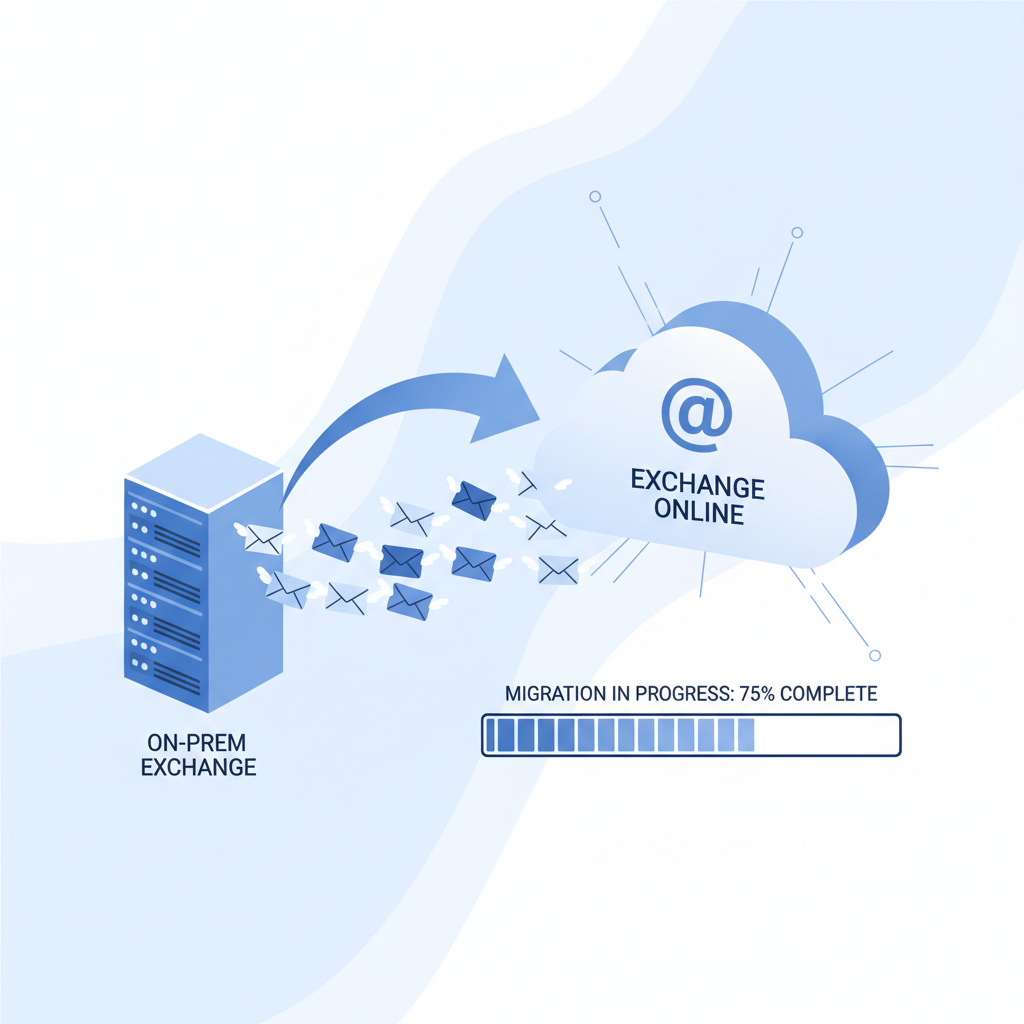
For thousands of UK businesses, on-premise Microsoft Exchange has been the backbone of corporate email for the best part of two decades. It has been reliable, familiar, and - until recently - the obvious choice for organisations that wanted full control over their messaging infrastructure. But the landscape has shifted dramatically. Maintaining ageing Exchange servers now costs more in hardware refreshes, security patching, and specialist administration than most SMEs can justify. Meanwhile, Exchange Online, delivered through Microsoft 365, offers enterprise-grade email with none of the on-premise overhead.
The question is no longer whether to migrate - it’s how to migrate without losing data, disrupting your workforce, or creating a security gap in the process. A poorly planned Exchange migration can result in missing emails, broken calendar entries, authentication failures, and days of lost productivity. A well-planned migration, by contrast, can be completed with zero data loss and minimal user disruption - often over a weekend.
This guide walks you through every stage of migrating from on-premise Exchange to Exchange Online: choosing the right migration method, preparing your environment, executing the move, and handling the post-migration tasks that many organisations overlook. Whether you’re running Exchange 2013, 2016, or 2019, this is the definitive UK-focused guide to getting your email into the cloud safely.
Why Migrate from On-Premise Exchange to Exchange Online?
Before diving into the technical detail, it’s worth understanding the business drivers. Many organisations cling to on-premise Exchange out of habit or a misplaced belief that keeping servers in-house is inherently more secure. In reality, the opposite is increasingly true.
Cost reduction is the most immediate driver. An on-premise Exchange deployment requires server hardware (typically refreshed every 4–5 years at a cost of £5,000–£15,000), Windows Server licences, Exchange Server licences, backup infrastructure, UPS systems, and a specialist administrator who understands Exchange at a deep level. For a 50-user organisation, the fully loaded annual cost of running Exchange on-premise comfortably exceeds £18,000 - before factoring in the IT staff time spent on patching, monitoring, and troubleshooting.
Security is the second major driver. Microsoft invests over £800 million per year in cybersecurity research and employs more than 3,500 security professionals dedicated to protecting its cloud services. Your on-premise Exchange server, by contrast, is only as secure as your last patch cycle. The March 2021 Hafnium attack - which exploited zero-day vulnerabilities in on-premise Exchange servers worldwide - demonstrated just how exposed self-hosted email infrastructure can be. Organisations running Exchange Online were entirely unaffected.
Resilience and availability round out the case. Microsoft operates Exchange Online across geographically distributed data centres with automatic failover, geo-redundant backups, and a financially backed 99.9% uptime SLA. Replicating even a fraction of this resilience on-premise would cost more than most UK SMEs spend on their entire IT budget.
Understanding the Migration Types
Microsoft provides four primary methods for migrating mailboxes from on-premise Exchange to Exchange Online. Choosing the right one depends on your Exchange version, number of mailboxes, coexistence requirements, and how much disruption you can tolerate.
Cutover Migration
A cutover migration moves all mailboxes, distribution groups, and contacts to Exchange Online in a single batch. It’s the simplest method and is suitable for small organisations with fewer than 150 mailboxes running Exchange 2007 or later. The entire migration typically completes over a weekend. The downside is that there’s no coexistence period - once the cutover begins, you’re committed. If something goes wrong mid-migration, rolling back is complex.
Staged Migration
A staged migration moves mailboxes in batches over a period of weeks. It’s designed for larger organisations (150+ mailboxes) running Exchange 2003 or Exchange 2007. Each batch is migrated separately, allowing you to verify that each group of users is working correctly before moving on. However, staged migrations are not supported for Exchange 2010 or later - for those versions, Microsoft recommends hybrid migration instead.
Hybrid Migration (Recommended)
A hybrid migration establishes a formal coexistence between your on-premise Exchange environment and Exchange Online. This is the gold standard for organisations running Exchange 2010, 2013, 2016, or 2019. It provides a seamless user experience during the transition: the global address list is shared, free/busy calendar information works across both environments, and users can be moved in controlled batches with minimal disruption. The Hybrid Configuration Wizard automates most of the complex setup.
IMAP Migration
An IMAP migration is used when migrating from non-Exchange email systems (such as Gmail, Zimbra, or generic IMAP servers) to Exchange Online. It migrates email messages only - no calendar items, contacts, or tasks. For Exchange-to-Exchange Online migrations, this is almost never the right choice, but it’s included here for completeness.
| Migration Type | Best For | Exchange Versions | Mailbox Limit | Coexistence |
|---|---|---|---|---|
| Cutover | Small organisations, quick migration | 2007, 2010, 2013, 2016, 2019 | Up to 150 | No |
| Staged | Larger orgs on older Exchange | 2003, 2007 | Unlimited (batched) | Limited |
| Hybrid | Most organisations (recommended) | 2010, 2013, 2016, 2019 | Unlimited (batched) | Full |
| IMAP | Non-Exchange source systems | Any IMAP-compatible | Unlimited | No |
Pre-Migration Assessment
Rushing into an Exchange migration without a thorough assessment is the single biggest cause of migration failures. Before touching a single mailbox, you need a clear picture of your current environment and any issues that could derail the process.
Environment Audit
Start by documenting your current Exchange infrastructure in detail. This includes the Exchange version and cumulative update level, the number of mailbox databases and their sizes, the total number of mailboxes (including shared, room, and equipment mailboxes), public folder structure and usage, any third-party add-ins or connectors (e.g., email archiving, CRM integration, fax-to-email), send and receive connector configurations, transport rules, accepted domains, and email address policies.
Mailbox Size Analysis
Large mailboxes take longer to migrate and are more prone to synchronisation errors. Identify any mailboxes exceeding 50 GB and plan to either archive historical mail or schedule these for dedicated migration windows. Exchange Online supports mailboxes up to 100 GB with most plans (50 GB standard, with auto-expanding archive providing virtually unlimited archive storage), but migrating a 90 GB mailbox in a single pass will take considerably longer than a 5 GB one.
Licensing Review
Every user who will have a mailbox in Exchange Online needs an appropriate Microsoft 365 licence. For most UK businesses, this means either Microsoft 365 Business Basic (from £4.50/user/month), Business Standard (from £9.40/user/month), or one of the Enterprise E-plans. Shared mailboxes under 50 GB do not require a licence. Room and equipment mailboxes do not require a licence. Ensure your licensing is in place before beginning migration - you cannot move a mailbox to Exchange Online without a target licence.
Preparing Active Directory
Active Directory (AD) is the foundation of both your on-premise Exchange environment and the identity synchronisation with Microsoft 365. If your AD is messy - and after years of user account changes, departures, and ad hoc modifications, most are - it will cause problems during migration.
Directory Cleanup
Before configuring Azure AD Connect (the tool that synchronises your on-premise directory with Microsoft Entra ID, formerly Azure AD), you must clean up your Active Directory:
- Remove stale accounts - disable or delete accounts for users who have left the organisation; these will otherwise synchronise to the cloud and consume licences
- Fix UPN suffixes - every user’s User Principal Name (UPN) must match a verified domain in Microsoft 365; if your internal AD domain is something like
company.local, you’ll need to add an alternative UPN suffix matching your email domain (e.g.,company.co.uk) - Resolve duplicate proxy addresses - two users cannot share the same email address or alias; the IdFix tool flags these
- Standardise display names - inconsistent naming conventions (e.g., “Smith, John” vs “John Smith”) will carry over to Exchange Online and the global address list
- Verify email address policies - ensure all users have the correct primary SMTP address and any required secondary addresses
Azure AD Connect Configuration
Azure AD Connect synchronises your on-premise AD objects (users, groups, contacts) with Microsoft Entra ID, creating the cloud-side identities needed for Exchange Online mailboxes. Key decisions include:
- Password Hash Synchronisation vs Pass-Through Authentication vs ADFS - for most UK SMEs, Password Hash Sync is the simplest and most resilient option; it synchronises a hash of user passwords to the cloud, enabling seamless sign-in without dependency on your on-premise infrastructure
- Filtering - decide whether to synchronise all AD objects or only specific OUs (organisational units); most organisations filter out service accounts, test accounts, and admin accounts that don’t need cloud mailboxes
- Hybrid Exchange configuration - if running a hybrid migration, Azure AD Connect must be configured with the Exchange hybrid writeback feature enabled
Running the Hybrid Configuration Wizard
The Hybrid Configuration Wizard (HCW) is a Microsoft tool that automates the complex setup required for hybrid coexistence between on-premise Exchange and Exchange Online. It configures OAuth authentication, federation trusts, send/receive connectors, organisation relationships for free/busy sharing, and mail flow between the two environments.
Prerequisites
- Exchange 2010 SP3, Exchange 2013 CU21+, Exchange 2016 CU10+, or Exchange 2019 CU1+ (always apply the latest cumulative update before running HCW)
- Azure AD Connect installed and synchronising successfully
- A valid third-party SSL certificate with Subject Alternative Names for your Autodiscover and mail flow endpoints (self-signed certificates are not supported)
- Ports 25 (SMTP) and 443 (HTTPS) open between your on-premise Exchange server and Office 365 endpoints
- A Microsoft 365 Global Administrator account and an on-premise Exchange Organisation Administrator account
What the Wizard Configures
The HCW sets up bidirectional mail flow between on-premise and Exchange Online using dedicated connectors secured with TLS. It configures OAuth authentication so that features like cross-premise free/busy lookups, MailTips, and message tracking work seamlessly. It creates the organisation relationship that allows users in both environments to see each other’s calendar availability. And it sets the migration endpoint that defines how mailbox move requests are routed.
For most organisations, the wizard completes successfully in 15–30 minutes. If it fails, the most common causes are certificate issues, firewall rules blocking required ports, or DNS records that haven’t propagated. The wizard generates a detailed log file that pinpoints exactly where the failure occurred.
Migrating Mailboxes in Batches
With hybrid coexistence established, you can begin moving mailboxes from on-premise Exchange to Exchange Online. The key principle is controlled, batched migration - never attempt to move all users at once.
Planning Your Batches
Divide your users into logical migration batches based on business function, department, or location. A typical approach for a 100-user organisation might look like this:
- Batch 1 (Pilot): 5–10 IT-savvy users - these are your testers; they understand technology, can provide detailed feedback, and won’t panic if something looks different
- Batch 2: 15–20 users from a single department - migrating an entire department together ensures internal collaboration (shared calendars, delegate access) works correctly
- Batch 3–5: remaining users in department-based groups - continue moving departments, validating after each batch
- Final batch: VIPs and executives - migrate these last, once the process is proven and any issues have been resolved
Executing a Migration Batch
Migration batches are created and managed through the Exchange Admin Centre (EAC) in Microsoft 365 or via PowerShell. Each batch creates a “move request” for every mailbox in the batch. The process works as follows:
- Initial sync - Exchange Online copies the entire contents of each mailbox from the on-premise server; this runs in the background and does not affect user access
- Incremental sync - after the initial copy, Exchange Online continues to synchronise any new or changed items; this keeps the cloud copy up to date while users continue working on-premise
- Finalisation (switchover) - when you’re ready to complete the batch, the system performs a final sync, locks the on-premise mailbox for a brief period (typically 2–5 minutes), copies the last changes, and switches the user’s mailbox location to Exchange Online
The beauty of this approach is that the bulk data transfer happens over days or weeks in the background, and the actual user-facing switchover takes only minutes. Users simply restart Outlook and it reconnects to their new Exchange Online mailbox automatically.
DNS Changes: MX Records and Autodiscover
DNS changes are arguably the most critical step in the migration process. Getting them wrong means email stops flowing to the right place, Outlook clients can’t find their mailbox, and mobile devices stop syncing. Getting them right is straightforward - it just requires careful planning and an understanding of DNS propagation.
MX Record Update
Your MX (Mail Exchanger) record tells the internet where to deliver email for your domain. Before migration, it points to your on-premise Exchange server (or your spam filter, which then relays to Exchange). After migration, it must point to Exchange Online. Microsoft provides the specific MX record value in the Microsoft 365 admin centre - typically something like yourdomain-co-uk.mail.protection.outlook.com.
The timing of this change matters. For a hybrid migration, you should update the MX record after all mailboxes have been moved. During the coexistence period, Exchange Online routes mail for on-premise mailboxes back to your on-premise server automatically, so the MX record can point to either location. However, switching it to Exchange Online once all mailboxes are migrated ensures the cleanest mail flow and allows you to decommission on-premise connectors.
Autodiscover Record
Autodiscover is the mechanism Outlook uses to find a user’s mailbox settings automatically. For Exchange Online, the Autodiscover CNAME record must point to autodiscover.outlook.com. If you’re running a hybrid environment, the Hybrid Configuration Wizard typically handles this, but you should verify the record is correct after migration. An incorrect Autodiscover record is the number one cause of “Outlook keeps asking for my password” complaints after migration.
SPF, DKIM, and DMARC
Don’t forget to update your email authentication DNS records. Your SPF record must include include:spf.protection.outlook.com to authorise Exchange Online to send email on behalf of your domain. DKIM signing should be enabled in the Microsoft 365 admin centre (Microsoft generates the required CNAME records). And your DMARC policy should be reviewed to ensure it doesn’t reject legitimate email from Exchange Online during the transition.
Public Folder Migration
Public folders are the often-forgotten complication of Exchange migrations. Many organisations have accumulated years of data in public folders - shared calendars, contact lists, departmental document repositories, and legacy email archives. Exchange Online supports public folders, but migrating them requires a separate process from mailbox migration.
Assessment
Before migrating public folders, audit their usage. In many organisations, 80% of public folders haven’t been accessed in years. There’s little point migrating data nobody uses. Run the public folder statistics scripts provided by Microsoft to identify folder sizes, item counts, and last access dates. Consider whether SharePoint Online or Microsoft Teams might be a better long-term home for some of this data.
Migration Process
Public folder migration to Exchange Online follows a batch process similar to mailbox migration. You create a CSV file mapping source public folders to target public folder mailboxes in Exchange Online, initiate the migration batch, allow the initial sync to complete, and then finalise when ready. The process is well-documented by Microsoft but requires careful planning, particularly around folder hierarchy and permissions.
Archive Mailbox Considerations
If your organisation uses Exchange In-Place Archives (also known as online archives or personal archives), these require special attention during migration. In-Place Archives are secondary mailboxes attached to a user’s primary mailbox, typically used for storing older email to keep the primary mailbox size manageable.
When migrating a mailbox with an In-Place Archive, both the primary mailbox and the archive are migrated together as a single operation. You cannot migrate them separately. This means the total data transferred for that user is the combined size of both mailboxes, which affects migration speed and scheduling.
Exchange Online provides auto-expanding archiving with E3 and E5 licences (and as an add-on for other plans), which eliminates the need to manage archive mailbox sizes - they grow automatically up to 1.5 TB. This is a significant improvement over on-premise archives, which require manual database management and storage provisioning.
- No hardware to purchase, maintain, or refresh every 4–5 years
- Automatic security patches and feature updates managed by Microsoft
- 99.9% financially backed uptime SLA with geo-redundant data centres
- Built-in advanced threat protection (Safe Links, Safe Attachments)
- Auto-expanding archives up to 1.5 TB with E3/E5 licences
- Seamless integration with Teams, SharePoint, and the full Microsoft 365 suite
- Accessible from anywhere - no VPN required for email access
- Compliance features (Litigation Hold, eDiscovery, DLP) included in higher-tier plans
- Full control over data residency - data stays on your physical servers
- No dependency on internet connectivity for internal email
- Complete customisation of transport rules and mail flow
- No per-user monthly subscription costs (but significant CapEx)
- Requires dedicated server hardware (£5,000–£15,000 per refresh cycle)
- Security patching is your responsibility - delays create vulnerabilities
- Limited built-in threat protection compared to Exchange Online
- Backup, disaster recovery, and high availability must be designed and funded separately
Post-Migration Tasks
Completing the mailbox migration is not the end of the project. Several critical tasks must be addressed in the days and weeks following the final batch migration to ensure everything is working correctly and your environment is fully optimised.
Verify Mail Flow
Send test emails to and from external addresses (Gmail, Yahoo, client domains) to confirm that inbound and outbound mail flow is working correctly. Check that emails are not being marked as spam by recipient systems - this can happen if SPF, DKIM, or DMARC records are not correctly configured for Exchange Online.
Reconfigure Email Clients
Most Outlook desktop clients will automatically detect the mailbox move via Autodiscover and reconnect without user intervention. However, older Outlook versions, Outlook for Mac, and mobile devices (particularly those using ActiveSync profiles) may need to be reconfigured. Prepare clear, step-by-step instructions for your users and have your helpdesk ready for an increased volume of tickets in the first 48 hours.
Update Third-Party Integrations
Any system that connects to your Exchange environment - CRM platforms, helpdesk ticketing systems, fax-to-email gateways, multifunction printers that scan to email, line-of-business applications - will need its SMTP relay configuration updated. These systems typically send email through your on-premise Exchange server using an internal relay connector. After migration, they must be reconfigured to relay through Exchange Online (using SMTP AUTH, a connector, or a direct send configuration).
Decommission On-Premise Infrastructure
Don’t rush to decommission your on-premise Exchange server. In a hybrid environment, at least one Exchange server must remain on-premise for as long as you’re using Azure AD Connect to manage recipient objects (mailboxes, groups, contacts). Microsoft refers to this as the “management server.” It handles attribute writeback and recipient management. You can, however, remove the mailbox databases, reduce the server specifications, or virtualise it to minimise running costs.
Enable Security Features
Exchange Online includes security features that most on-premise environments lack. Take the opportunity to enable them:
- Multi-Factor Authentication (MFA) - require MFA for all users, at minimum for admin accounts
- Safe Links and Safe Attachments - available with Microsoft Defender for Office 365 (included with E5 or available as an add-on)
- Data Loss Prevention (DLP) - create policies to prevent sensitive data (financial information, personal data, NHS numbers) from being emailed externally
- Unified Audit Logging - enable audit logging to track mailbox access, permission changes, and administrative actions
- Conditional Access policies - restrict email access to compliant devices, approved locations, or managed applications
Common Issues and Troubleshooting
Even well-planned migrations encounter issues. Here are the most common problems and their solutions.
| Issue | Cause | Resolution |
|---|---|---|
| Outlook keeps prompting for password | Incorrect Autodiscover record or cached credentials | Verify Autodiscover CNAME points to autodiscover.outlook.com; clear Windows Credential Manager entries for Outlook |
| Emails from external senders going to junk | SPF record not updated to include Exchange Online | Add include:spf.protection.outlook.com to your domain’s SPF TXT record |
| Migration batch stuck at “Syncing” | Large mailbox, network throttling, or corrupted items | Check move request report for specific errors; increase bad item limit if corrupted items are blocking sync; ensure sufficient bandwidth |
| Free/busy not working across environments | OAuth configuration issue or organisation relationship misconfigured | Re-run the Hybrid Configuration Wizard; verify OAuth certificates haven’t expired |
| Mobile devices not syncing after migration | ActiveSync profile pointing to old server | Remove and recreate the email account on the mobile device; Autodiscover will point to Exchange Online |
| Distribution groups not receiving email | Group not synchronised or mail-enabled correctly in the cloud | Verify the group exists in Exchange Online admin centre; check Azure AD Connect sync status for the group object |
| Shared mailbox access lost after migration | Permissions not migrated with the mailbox | Re-assign Full Access and Send As permissions in Exchange Online; these must be granted in the cloud environment post-migration |
Timeline Planning
A realistic timeline is essential for managing expectations across the business. Rushing an Exchange migration to meet an arbitrary deadline is the fastest route to data loss and user frustration. Here’s a realistic timeline for a 100-mailbox hybrid migration:
- Weeks 1–2: Pre-migration assessment, environment audit, licensing procurement, AD cleanup, IdFix remediation
- Week 3: Azure AD Connect installation and configuration, hybrid configuration wizard, SSL certificate provisioning
- Week 4: Pilot migration batch (5–10 users), validation, user feedback collection
- Weeks 5–7: Main migration batches, department by department, with validation after each batch
- Week 7: Final batch migration, DNS cutover (MX, Autodiscover, SPF), third-party integration updates
- Week 8: Post-migration monitoring, helpdesk support surge, security feature enablement, documentation
For smaller organisations (under 30 mailboxes) using a cutover migration, the entire process can be compressed to 2–3 weeks. For larger enterprises (500+ mailboxes), plan for 3–6 months including the extended coexistence period.
Coexistence Period Management
During a hybrid migration, you will have a period where some users are on Exchange Online and others remain on-premise. Managing this coexistence period effectively is critical to maintaining productivity and avoiding user confusion.
Key Coexistence Considerations
- Free/busy lookups - the hybrid configuration ensures that users in both environments can see each other’s calendar availability; test this thoroughly after the first batch migration
- Cross-premise email flow - email between on-premise and cloud users routes through the hybrid connectors; this is transparent to users but must be monitored for delivery delays
- Shared mailbox access - if a shared mailbox and its users are split across environments, access may not work correctly; migrate shared mailboxes in the same batch as their primary users
- Distribution groups - groups continue to work across both environments, but membership changes should be made on-premise (via AD) and synchronised to the cloud
- Delegate access - manager/assistant delegate relationships work best when both users are in the same environment; plan batches accordingly
- Room and equipment mailboxes - migrate these early in the process so that booking functionality works for all users regardless of their mailbox location
Cost Considerations for UK Businesses
Understanding the full cost picture helps build the business case for migration and avoids surprises during the project.
The on-premise figure of £18,500 includes amortised server hardware (£3,000/year based on a 5-year refresh), Windows Server and Exchange Server licensing (£2,500/year), backup infrastructure and offsite storage (£2,000/year), a proportion of IT administrator time for Exchange management (£8,000/year), electricity, cooling, and rack space (£1,500/year), and SSL certificate renewal and third-party security tools (£1,500/year). The one-off migration cost typically ranges from £2,000–£8,000 depending on complexity, but this is recouped within the first year through reduced operational expenditure.
Security Hardening After Migration
Moving to Exchange Online is not a security project in itself - but it creates the opportunity to dramatically improve your email security posture. Many organisations treat the migration as a chance to implement security measures that were impractical or unavailable on-premise.
Priority Security Actions
- Enable MFA for all accounts - this single step prevents over 99% of account compromise attacks; use the Microsoft Authenticator app or FIDO2 security keys
- Disable legacy authentication protocols - protocols like POP3, IMAP, and Basic Authentication bypass MFA and are actively exploited; disable them via Conditional Access policies
- Configure anti-phishing policies - Exchange Online Protection (EOP) provides baseline protection, but organisations should configure custom anti-phishing policies to protect against impersonation of executives and key suppliers
- Implement email encryption - Microsoft Purview Message Encryption allows users to send encrypted emails to external recipients who don’t have Microsoft 365
- Review mailbox audit settings - ensure audit logging captures login events, permission changes, and data access for compliance and incident investigation purposes
Final Checklist
Before declaring your migration complete, run through this final checklist to ensure nothing has been overlooked:
- All mailboxes migrated and accessible in Exchange Online
- MX records pointing to Exchange Online
- Autodiscover CNAME pointing to
autodiscover.outlook.com - SPF record updated with
include:spf.protection.outlook.com - DKIM enabled and DMARC policy reviewed
- Public folders migrated (if applicable)
- Archive mailboxes migrated and accessible
- Shared mailbox permissions re-applied in Exchange Online
- Room and equipment mailboxes functional
- Distribution groups working correctly
- Third-party integrations (CRM, helpdesk, printers) reconfigured for SMTP relay
- Mobile devices reconnected
- MFA enabled for all users
- Legacy authentication protocols disabled
- Anti-phishing and DLP policies configured
- Backup/retention policies reviewed and appropriate for Exchange Online
- User training completed on new features (Teams integration, Outlook Web App, mobile apps)
- Helpdesk briefed and support documentation updated
- On-premise Exchange server retained for hybrid management (or decommission plan documented)

CloudSwitched
London-based managed IT services provider offering support, cloud solutions and cybersecurity for SMEs.


