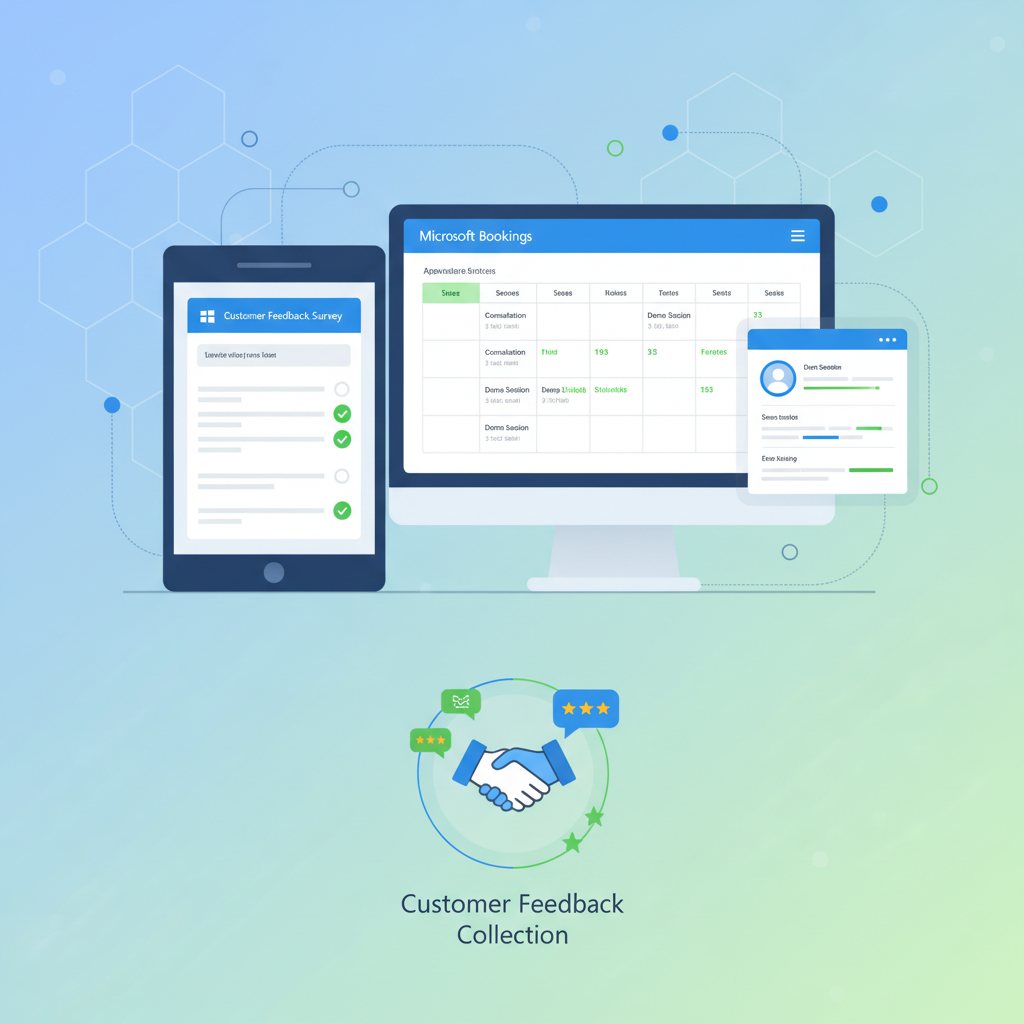
Microsoft 365 is far more than Word, Excel, and Outlook. Buried within every business subscription are two remarkably powerful tools that most organisations either overlook entirely or barely scratch the surface of: Microsoft Forms and Microsoft Bookings. Together, they solve two of the most common operational headaches in any business - collecting structured information from people, and letting people schedule time with you - without the need for expensive third-party software or complex integrations.
For UK businesses already paying for Microsoft 365 Business Basic, Business Standard, Business Premium, or any Enterprise E-plan, Forms and Bookings are included at no extra cost. Yet research consistently shows that fewer than one in three organisations actively use them. That represents an enormous amount of untapped value sitting in your existing subscription, waiting to be unlocked.
This guide walks through everything you need to know about both tools: what they do, how to set them up, how to brand them to match your organisation, how they integrate with Teams, Outlook, and Power Automate, and how to use them across a range of real-world business scenarios. Whether you’re running a ten-person consultancy or managing operations across multiple UK offices, you’ll find practical, actionable advice to start getting more from your Microsoft 365 investment today.
Microsoft Forms: Surveys, Feedback, and Quizzes Made Simple
Microsoft Forms is a lightweight, browser-based tool for creating surveys, questionnaires, polls, and quizzes. If you’ve ever used Google Forms or SurveyMonkey, the concept will be familiar - but Forms has the advantage of sitting natively inside the Microsoft 365 ecosystem, meaning your data stays within your tenant, your responses flow directly into Excel and Power Automate, and your forms respect your organisation’s security and compliance policies by default.
At its core, Forms lets you build structured data collection instruments quickly. You create a form, add questions of various types, share a link (or embed the form in a Teams channel, SharePoint page, or email), and responses stream into a real-time dashboard. There is no software to install, no server to configure, and no per-response fees - unlike many third-party survey tools that charge based on volume.
Question Types and Capabilities
Forms supports a comprehensive range of question types that cover the vast majority of data collection scenarios:
- Choice - single or multiple selection from a list of options, with an optional “Other” free-text field
- Text - short answer or long answer, with optional validation for numbers, email addresses, or custom patterns
- Rating - star ratings or number scales (e.g., 1–10) for satisfaction and NPS-style questions
- Date - date picker for collecting dates without ambiguous formatting
- Ranking - drag-and-drop ranking of items in order of preference
- Likert - matrix-style questions with rows of statements and columns of agreement levels (Strongly Agree to Strongly Disagree)
- File upload - respondents can upload documents, images, or other files directly into your SharePoint or OneDrive
- Net Promoter Score - dedicated NPS question type with automatic score calculation
- Section - divide longer forms into logical pages with progress indicators
Branching Logic
One of the most powerful features in Forms is branching (also called conditional logic or skip logic). This allows you to create dynamic forms that show different questions based on previous answers. For example, if a customer rates your service below 3 out of 5, you can branch to a follow-up question asking what went wrong. If they rate it 5 out of 5, you can branch to a question asking whether they’d be willing to leave a review.
Branching keeps forms short and relevant for each respondent, which dramatically improves completion rates. Research from the Baymard Institute found that forms with branching logic achieve 28% higher completion rates than linear forms of equivalent depth.
Use the Quizzes mode in Forms for staff training and onboarding assessments. You can assign point values to each question, set correct answers, and provide automated feedback. Results are graded instantly, saving managers hours of manual marking. It also integrates neatly with Teams Assignments for organisations using Teams as a training platform.
Creating Your First Form: Step by Step
Getting started with Forms is straightforward. Navigate to forms.office.com or open Forms from the Microsoft 365 app launcher (the waffle icon in the top-left corner of any Microsoft 365 page). From there:
- Click “New Form” or “New Quiz” - choose a form for surveys and feedback, or a quiz for assessments with scoring
- Add a title and description - keep the title concise and the description informative enough that respondents understand the purpose
- Add questions - click “Add new” and select the question type. Each question can be marked as required or optional
- Configure settings - under the settings cog, choose who can respond (anyone, people in your organisation, or specific people), set start and end dates, enable email notifications for new responses, and configure a custom thank-you message
- Apply a theme - choose from built-in colour themes or upload your own header image for brand consistency
- Preview and test - use the preview button to see exactly what respondents will experience on both desktop and mobile
- Share - copy the link, generate a QR code, embed in a webpage, or send directly via email or Teams
Forms for Feedback Collection
Customer and employee feedback is one of the highest-value use cases for Forms. Unlike standalone survey platforms that charge £20–£80 per month, Forms delivers the same core functionality within your existing Microsoft 365 licence. Common feedback scenarios include:
- Post-service satisfaction surveys - sent automatically via Power Automate after a support ticket closes
- Employee pulse surveys - short, regular check-ins on morale, workload, and engagement
- Event feedback - distributed at the end of training sessions, conferences, or webinars
- Onboarding feedback - collecting new joiner impressions at 30, 60, and 90 days
- 360-degree feedback - peer and manager reviews using branching and Likert scales
Microsoft Bookings: Appointment Scheduling Without the Hassle
Microsoft Bookings is an online scheduling tool that lets customers, clients, and colleagues book appointments with you or your team directly from a branded self-service page. Think of it as your own booking system - similar to Calendly, Acuity, or SimplyBook - but built into Microsoft 365 and deeply integrated with Outlook calendars and Microsoft Teams.
When someone books through your Bookings page, the appointment is automatically added to the relevant staff member’s Outlook calendar, a Teams meeting link is optionally generated, and both parties receive confirmation and reminder emails. There is no manual scheduling, no back-and-forth emails, and no double bookings - because Bookings reads your real-time calendar availability.
How Bookings Works
The architecture of Bookings is built around three core concepts:
- Booking page - the customer-facing webpage where people browse your services and select a time slot. This page can be branded with your logo, colours, and custom text
- Services - the types of appointments you offer, each with its own duration, price (optional), description, staff assignment, and buffer time between appointments
- Staff - the team members who can be booked. Each staff member’s Outlook calendar is checked in real time, so only genuinely available slots are shown to customers
Bookings creates a shared mailbox and calendar in Exchange Online for each booking calendar you set up. This means all appointment data lives within your Microsoft 365 tenant and is covered by your existing data protection and compliance configurations.
Setting Up Bookings and Branding Your Page
Setting up a professional Bookings page takes approximately 15–30 minutes. Here is the process:
- Open Bookings - find it in the Microsoft 365 app launcher, or navigate to outlook.office.com/bookings
- Create a booking calendar - give it a business name, select the relevant business type, and set your default working hours
- Brand your page - upload your logo, choose a colour theme that matches your brand, and write a welcome message. The URL can be customised to something memorable (e.g., outlook.office365.com/owa/calendar/YourBusinessName@yourdomain.com/bookings)
- Add services - create each type of appointment with a name, duration, price, description, and any custom questions you need answered before the booking
- Add staff - assign team members to services, set individual working hours if they differ from the business default, and configure whether customers can choose a specific staff member or accept anyone available
- Configure notifications - set up confirmation emails, reminder emails (sent a configurable period before the appointment), and optional SMS notifications
- Publish - share the booking page link on your website, in email signatures, on social media, or embed it directly into a webpage using the provided embed code
Bookings respects your Outlook calendar availability, but only if staff members keep their calendars up to date. If a team member blocks out annual leave, personal appointments, or focus time in Outlook, those slots are automatically excluded from Bookings. However, if they forget to block time, customers may book into occupied slots. Establish a clear policy that all staff maintain accurate Outlook calendars, and consider enabling the “Use Scheduling Assistant” option to cross-reference multiple calendars before confirming availability.
Custom Fields and Pre-Booking Questions
Each service in Bookings can include custom questions that the customer must answer at the time of booking. This is invaluable for collecting the information you need to prepare for the appointment. Examples include:
- A medical practice asking for symptoms or reason for visit
- A consulting firm asking for a brief description of the project or challenge
- A salon asking about specific service preferences or allergies
- A legal firm asking for the nature of the enquiry and any relevant reference numbers
These answers appear in the booking confirmation email and calendar entry, ensuring staff are prepared before the appointment begins.
Forms vs Bookings: When to Use Which
Both tools collect information from people, but they serve fundamentally different purposes. Understanding when to use each one - and when to combine them - is key to getting maximum value from your Microsoft 365 subscription.
Microsoft Forms
Microsoft Bookings
In many real-world workflows, the two tools complement each other beautifully. A customer books a consultation through Bookings, then receives a pre-appointment Form via Power Automate to fill in background information. After the appointment, another Form is automatically sent to collect satisfaction feedback. This creates a seamless, fully automated client journey without any manual intervention.
Integrating with Microsoft Teams
Both Forms and Bookings become significantly more powerful when combined with Microsoft Teams - and given that Teams is the default collaboration hub for most UK businesses running Microsoft 365, integration is straightforward.
Forms in Teams
There are several ways to use Forms within Teams:
- Quick Polls - the Forms app in Teams lets you create instant polls directly in a channel or group chat conversation. Team members vote without leaving the chat, and results update in real time. This is ideal for quick decisions: choosing a lunch venue, picking a meeting time, or voting on project priorities
- Tab integration - pin a full Form as a tab in any Teams channel. This is excellent for ongoing data collection, such as a bug reporting form in a development channel or a daily standup check-in form in a project channel
- Meeting polls - add polls to Teams meetings before, during, or after the session. Use them for icebreakers, understanding questions, or post-meeting feedback. Responses are recorded and available for review in the meeting recap
- Approvals integration - combine Forms with the Approvals app in Teams to create structured request workflows. An employee submits a request via a Form, which triggers an approval flow in Teams
Bookings in Teams
The Bookings app is available directly within Teams, enabling staff to manage their appointment calendar without switching applications:
- Bookings tab - add a Bookings calendar as a tab in a Teams channel, giving the whole team visibility of upcoming appointments
- Virtual appointments - when a customer books an appointment, a Teams meeting link is automatically generated and included in the confirmation email. At the scheduled time, both parties join via Teams - no additional software required
- Queue view - the Teams Bookings experience includes a real-time queue showing who is waiting, who is being seen, and who has been seen. This is especially valuable for virtual clinics, customer service desks, and walk-in appointment models
- SMS notifications - for appointments created through Teams, SMS reminders can be enabled to reduce no-shows (available in supported regions with a Teams Phone licence)
Enable the “Virtual Visits” experience in Teams if your business conducts consultations, assessments, or customer meetings remotely. It provides a lobby experience for the customer, a structured waiting room, and post-appointment follow-up actions - all within Teams. This feature is included with Microsoft 365 Business Premium and Enterprise plans at no extra charge.
Integrating with Outlook
The Outlook integration is where Bookings truly shines for day-to-day scheduling efficiency.
Calendar Synchronisation
Every booking created through the Bookings page automatically appears in the assigned staff member’s Outlook calendar as a standard calendar event. This means:
- Staff see all their appointments - both manually scheduled and customer-booked - in a single calendar view
- Free/busy status is updated automatically, preventing conflicts
- Calendar events include all booking details: customer name, contact information, service type, answers to custom questions, and a Teams meeting link if applicable
- Staff can accept, decline, or propose new times using standard Outlook functionality
Embedding in Email Signatures
One of the most effective ways to drive Bookings adoption is to include your booking page link in every employee’s email signature. Instead of the usual “Let me know when you’re free” back-and-forth, staff can write: “Book a time that works for you: [booking link]”. This single change can eliminate dozens of scheduling emails per week per employee.
Bookings in Outlook on the Web
From Outlook on the web, users can access Bookings directly from the calendar view. A “Bookings” option appears in the left navigation, allowing staff to view, create, and manage appointments without leaving their inbox. This tight integration means scheduling is no longer a separate activity - it is woven into the natural rhythm of email and calendar management.
Power Automate Workflows: Unlocking the Real Power
If Forms and Bookings are useful on their own, they become transformational when connected to Power Automate (formerly Microsoft Flow). Power Automate lets you create automated workflows - called flows - that trigger when something happens in Forms or Bookings and perform actions in other systems automatically.
Forms + Power Automate Workflows
The “When a new response is submitted” trigger in Power Automate opens up a vast range of possibilities:
- Auto-notification - send a Teams message or email to a manager whenever a customer satisfaction score drops below a threshold
- Data routing - write form responses directly into a SharePoint list, Excel spreadsheet, Dynamics 365, or a third-party CRM
- Approval workflows - when an employee submits a request (holiday, purchase, access), automatically route it to the correct approver based on department or value
- Document generation - use form responses to auto-populate a Word template (using the “Populate a Microsoft Word template” action), generating contracts, proposals, or certificates
- Conditional follow-up - if a respondent indicates they want a callback, automatically create a task in Planner or a lead in your CRM
Bookings + Power Automate Workflows
Bookings also integrates with Power Automate, enabling automated actions around the appointment lifecycle:
- Pre-appointment preparation - when a booking is created, automatically send a Form to the customer collecting additional information, pull their record from your CRM, or create a preparation checklist in Planner
- Post-appointment follow-up - after an appointment is completed, automatically send a satisfaction survey (via Forms), update a SharePoint list, or trigger an invoicing workflow
- No-show management - if an appointment is marked as a no-show, automatically send a rebooking link and update the customer’s record
- Reporting - aggregate booking data into a Power BI dashboard showing appointment volumes, popular time slots, cancellation rates, and staff utilisation
Start with simple, high-impact flows rather than trying to automate everything at once. The three flows that deliver the most immediate value are: (1) email notification when a new booking is created, (2) satisfaction survey sent 24 hours after an appointment, and (3) weekly summary of form responses sent to a Teams channel. Each takes under 10 minutes to set up in Power Automate.
Adoption of Microsoft 365 Productivity Tools in UK Businesses (2026)
The adoption gap is striking. While virtually every UK business with Microsoft 365 uses Outlook, and the majority have adopted Teams, the tools that drive operational automation - Forms, Bookings, and Power Automate - remain significantly underutilised. This represents a substantial opportunity for organisations willing to invest even modest time in learning and deploying these capabilities.
Use Cases by Department and Industry
Forms and Bookings are versatile tools that serve every department and sector. Here is a breakdown of the most impactful use cases across different business functions.
| Department / Sector | Microsoft Forms Use Cases | Microsoft Bookings Use Cases |
|---|---|---|
| HR & People | Employee engagement surveys, onboarding checklists, exit interviews, training assessments | Interview scheduling, one-to-one meetings, HR consultations, benefits enrolment slots |
| Sales & Marketing | Lead capture forms, event registrations, campaign feedback, NPS surveys | Demo bookings, discovery calls, client review meetings, consultation slots |
| Customer Service | Post-interaction surveys, complaint forms, product feedback, feature requests | Callback scheduling, technical support slots, account review bookings |
| IT & Operations | Incident reporting, change request forms, asset audit checklists, security assessments | IT support sessions, system training bookings, vendor meeting scheduling |
| Finance | Expense pre-approval forms, budget request submissions, audit questionnaires | Financial review meetings, tax consultation slots, invoice query appointments |
| Healthcare | Patient intake forms, symptom questionnaires, consent forms, satisfaction surveys | Patient appointments, telehealth consultations, vaccination booking, follow-up scheduling |
| Education | Student assessments, course evaluations, enrolment forms, parent feedback | Parent-teacher meetings, tutorial bookings, careers advice sessions, open day slots |
| Professional Services | Client onboarding questionnaires, project briefs, scope of work approvals | Initial consultations, review meetings, contract signing appointments |
Analytics and Reporting
Both Forms and Bookings provide built-in analytics that help you understand how these tools are performing and where improvements can be made.
Forms Analytics
Every form includes a Responses tab that provides real-time analytics:
- Response summary - visual charts showing the distribution of answers for each question, with automatic calculation of averages, counts, and percentages
- Individual responses - drill down into each submission to see the complete response from a single person
- Export to Excel - one-click export of all response data into an Excel workbook for deeper analysis, pivot tables, or reporting
- Ideas panel - Microsoft’s AI-powered insights that identify patterns and highlight notable findings in your response data
- Completion metrics - see how many people started the form versus how many completed it, helping you identify questions that cause drop-offs
For organisations that need richer reporting, Form responses can be piped into Power BI via Power Automate, enabling live dashboards that visualise trends over time, compare results across departments or locations, and alert stakeholders when metrics move outside acceptable ranges.
Bookings Analytics
Bookings provides operational metrics that help you understand scheduling patterns and optimise resource allocation:
- Appointment volume - track the number of bookings created, completed, cancelled, and missed over any time period
- Staff utilisation - see how each team member’s bookable time compares to their actual booked time, identifying under- or over-utilised staff
- Popular time slots - understand when customers prefer to book, helping you adjust working hours or add capacity during peak periods
- Service demand - identify which services are most frequently booked, informing decisions about pricing, staffing, and service development
- Cancellation and no-show rates - monitor cancellations and no-shows by service, staff member, and time period to identify patterns and implement reduction strategies
Bookings analytics are more limited than Forms analytics out of the box. For comprehensive appointment reporting, export your booking data to Power BI or create a Power Automate flow that logs every booking event to a SharePoint list. This gives you the ability to build custom dashboards showing trends, staff performance, and customer behaviour over time - far beyond what the built-in Bookings reports provide.
When UK organisations fully deploy Forms and Bookings across their key processes, the reduction in manual effort is substantial:
Driving Adoption: Getting Your Team to Actually Use These Tools
Having Forms and Bookings available in your Microsoft 365 subscription is one thing. Getting your team to actually adopt them is another challenge entirely. Here are proven strategies for driving adoption across your organisation.
1. Start with a Specific Pain Point
The fastest route to adoption is solving a problem that people already recognise. Identify a process that currently involves manual effort, spreadsheets, or email back-and-forth, and replace it with a Form or Bookings page. When people see the time savings firsthand, they become advocates who bring the tool to their own workflows.
2. Lead from the Top
When senior leadership visibly uses Forms for team feedback and Bookings for scheduling meetings, it signals that these tools are legitimate and expected. If the managing director’s office hours are booked through Bookings, the rest of the organisation will follow.
3. Provide Templates, Not Training
Rather than running generic training sessions, create a library of ready-to-use templates tailored to your organisation. A pre-built employee satisfaction survey template, a client onboarding questionnaire template, and a standard meeting booking page template will be used far more readily than a blank canvas. Microsoft also provides a template gallery within Forms that you can customise.
4. Integrate into Existing Workflows
People resist new tools when they feel like extra work. The key is embedding Forms and Bookings into workflows that already exist. Pin a Forms tab in a Teams channel where people already collaborate. Add a Bookings link to email signatures that people already send. Replace an existing spreadsheet-based process with a Form that feeds the same spreadsheet automatically.
5. Celebrate and Share Wins
When a department saves three hours a week by switching from manual scheduling to Bookings, share that story in your company newsletter or Teams announcement channel. Concrete, quantified success stories are far more persuasive than feature demonstrations.
6. Appoint Champions
Identify one or two enthusiastic users in each department and designate them as Microsoft 365 champions. Give them early access to new features, invite them to share their best workflows, and empower them to help colleagues with setup. Peer-to-peer guidance is often more effective than top-down training programmes.
Security, Compliance, and Data Protection
For UK businesses, data protection is a non-negotiable consideration when adopting any new tool. The good news is that Forms and Bookings inherit the security and compliance infrastructure of your Microsoft 365 tenant.
- Data residency - for UK tenants, Microsoft stores data in UK-based data centres, satisfying data sovereignty requirements
- GDPR compliance - both tools support GDPR requirements including data subject access requests, data portability, and the right to erasure. Form responses and booking data can be exported or deleted as needed
- Conditional access - apply your organisation’s conditional access policies to Forms and Bookings, requiring MFA, device compliance, or specific network locations for access
- Data Loss Prevention (DLP) - Microsoft Purview DLP policies can be applied to Forms content, preventing sensitive information from being collected or shared inappropriately
- Audit logging - all Forms and Bookings activity is logged in the Microsoft 365 compliance centre, providing a full audit trail for regulatory purposes
- Retention policies - apply Microsoft 365 retention policies to Form responses and Bookings data to meet your organisation’s data retention and disposal requirements
Licensing and Costs
Understanding exactly what you get with your existing Microsoft 365 licence - and where premium features require an upgrade - helps you plan effectively.
| Feature | M365 Business Basic (£4.50/user/mo) | M365 Business Standard (£9.40/user/mo) | M365 Business Premium (£16.60/user/mo) |
|---|---|---|---|
| Microsoft Forms (full) | ✓ | ✓ | ✓ |
| Microsoft Bookings (full) | ✓ | ✓ | ✓ |
| Power Automate (standard connectors) | ✓ | ✓ | ✓ |
| Teams meeting integration | ✓ | ✓ | ✓ |
| Bookings SMS notifications | ✗ | ✗ | ✓ |
| Advanced security & compliance | ✗ | ✗ | ✓ |
| Power Automate (premium connectors) | ✗ | ✗ | Add-on (£12.30/user/mo) |
The key takeaway is that both Forms and Bookings are fully available on every Microsoft 365 business plan, including the most affordable Business Basic tier at £4.50 per user per month. There is genuinely no cost barrier to getting started. The premium features that require higher tiers - such as SMS notifications, advanced security policies, and premium Power Automate connectors - are enhancements rather than necessities for most organisations.
Getting the Most from Your Microsoft 365 Investment
Microsoft Forms and Bookings represent precisely the kind of low-effort, high-impact tools that smart UK businesses are leveraging to streamline operations and improve customer experience in 2026. They require no additional budget, no complex implementation, and no specialist technical skills. The biggest barrier is simply awareness and initiative.
If you’re currently using a third-party survey tool when Forms is sitting unused in your Microsoft 365 subscription, you’re paying twice for the same capability. If your team is spending hours each week coordinating meeting times over email when Bookings can automate the entire process, that is time and money being wasted unnecessarily.
Start small. Pick one Form and one Bookings page. Solve one real problem in your organisation this week. Once you see the results, expanding to more use cases and connecting with Power Automate becomes a natural next step. And if you need help designing workflows, configuring your Microsoft 365 environment, or training your team, Cloudswitched is here to help you extract maximum value from the tools you already own.
Want More from Microsoft 365?
Most businesses use less than 30% of the Microsoft 365 tools they’re already paying for. At Cloudswitched, we help UK organisations unlock the full potential of their Microsoft 365 subscription - from Forms and Bookings to Teams, Power Automate, SharePoint, and beyond. Whether you need a one-off setup, ongoing support, or a complete Microsoft 365 optimisation review, our team is ready to help.
Get in Touch Explore Our Solutions
CloudSwitched
London-based managed IT services provider offering support, cloud solutions and cybersecurity for SMEs.


