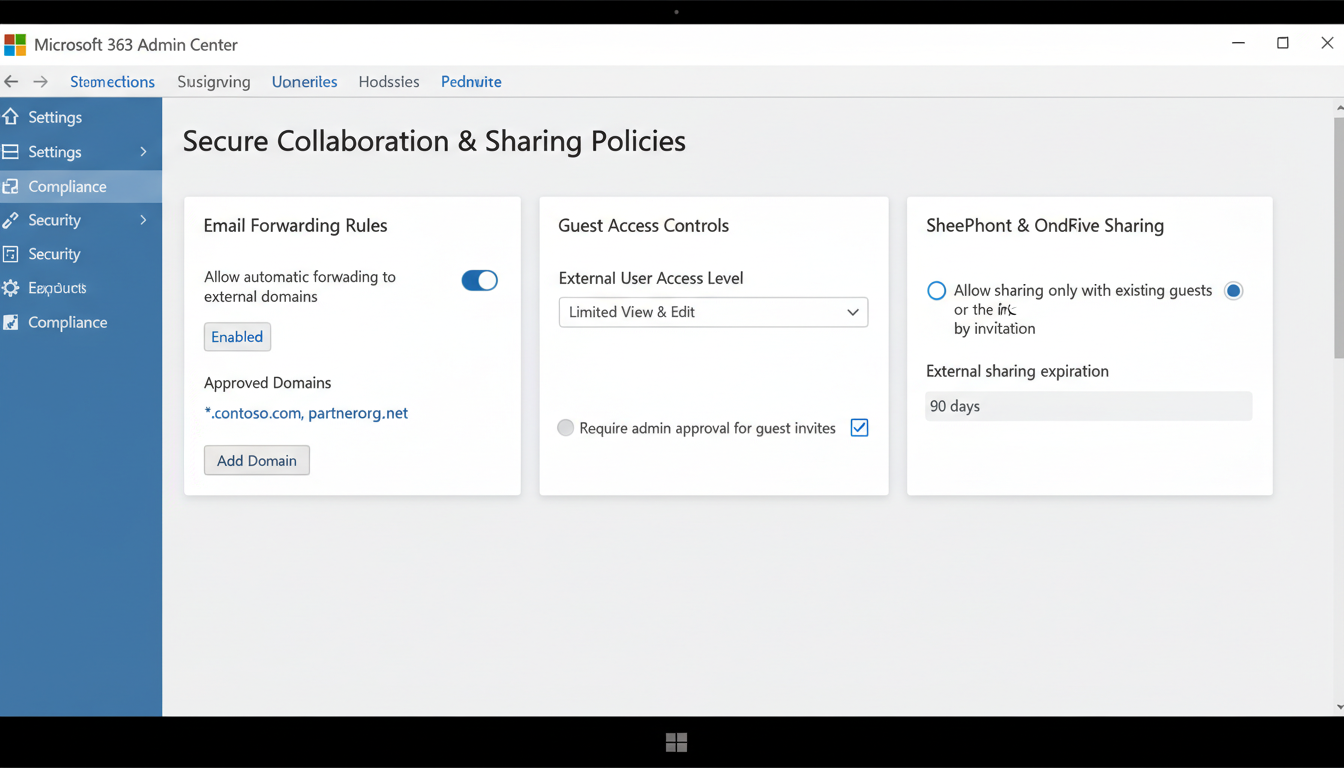
Microsoft 365 has become the dominant productivity platform for UK businesses, with adoption rates exceeding 80% among small and medium-sized enterprises. Its email, calendar, file sharing, and collaboration tools are deeply integrated into daily business operations. Yet this very integration creates a significant security challenge: the ease with which information can be shared externally. A single misconfigured sharing policy, an accidental email to the wrong recipient, or an overly permissive external sharing setting can expose sensitive business data to unauthorised parties - with potentially devastating consequences for your business, your clients, and your compliance standing.
Managing external email sharing in Microsoft 365 is not about preventing all external communication - that would be impractical and counterproductive. Businesses need to communicate with clients, partners, suppliers, and regulators. The goal is to establish appropriate controls that allow legitimate external sharing whilst preventing accidental data leakage and deliberate exfiltration. This requires a combination of technical configuration, policy development, and user education.
This comprehensive guide walks you through the key areas of external sharing management in Microsoft 365, covering email, calendars, files, and collaboration spaces. Whether you are a business owner, IT manager, or compliance officer, you will find practical, actionable guidance for tightening your external sharing controls without impeding legitimate business communication.
Understanding the External Sharing Landscape in Microsoft 365
Before configuring controls, it is important to understand the multiple channels through which external sharing occurs in Microsoft 365. Email is the most obvious, but it is far from the only pathway. SharePoint and OneDrive allow files and folders to be shared with external users via links. Microsoft Teams allows external guests to be added to channels and conversations. Power Automate flows can send data to external services. Forms can collect data from external respondents. Each of these channels needs to be considered in your sharing strategy.
The Real-World Cost of Uncontrolled External Sharing
The consequences of inadequate external sharing controls are not hypothetical. In recent years, numerous UK organisations have suffered significant financial and reputational damage due to external sharing failures in Microsoft 365. A prominent law firm inadvertently shared confidential case files with opposing counsel through a misconfigured SharePoint link. A financial services company exposed client portfolio data when an employee used an 'Anyone' sharing link to send a quarterly report. A healthcare provider faced ICO enforcement action after patient records were emailed to a personal email address without encryption.
These incidents share common characteristics: the sharing was accidental rather than malicious, the technical controls to prevent it were available but not configured, and the organisation only discovered the breach after the damage was done. Proactive configuration of external sharing controls would have prevented every one of these incidents. The cost of implementing proper controls is a fraction of the cost of a single data breach, making this one of the highest-return security investments a UK business can make.
Moreover, the reputational impact of a data sharing incident extends far beyond the immediate financial cost. Clients and partners who learn that their data was exposed through careless sharing practices will question whether your organisation can be trusted with sensitive information. In competitive markets, this loss of confidence can be more damaging than any regulatory fine. The cumulative effect of poor sharing controls is an organisation that slowly loses the trust of the very stakeholders it depends upon for revenue and growth.
Exchange Online: Email Controls
Exchange Online provides several mechanisms for controlling external email sharing. Mail flow rules - also known as transport rules - allow you to intercept, modify, redirect, or block emails based on a wide range of conditions. You can create rules that require manager approval before emails containing sensitive information are sent externally, that add disclaimers to outbound emails, that block emails to specific domains, or that encrypt emails containing particular keywords or data patterns.
Data Loss Prevention (DLP) policies provide more sophisticated content-aware controls. DLP policies can scan email content and attachments for sensitive information types - such as National Insurance numbers, credit card numbers, passport numbers, or patterns matching your own classification scheme - and apply appropriate actions. These actions can range from displaying a policy tip warning the user, to requiring justification, to blocking the email entirely.
Under the General Data Protection Regulation, organisations have a legal obligation to implement appropriate technical and organisational measures to protect personal data. Sending personal data via unencrypted email to external recipients without adequate safeguards is a potential GDPR violation. The Information Commissioner's Office has issued enforcement notices and fines to UK organisations for precisely this type of failure. Implementing external sharing controls in Microsoft 365 is not merely a best practice - it is a regulatory requirement for any organisation that processes personal data.
Configuring Email External Sharing Controls
Let us examine the key technical controls available in Exchange Online and how to configure them effectively.
Mail Flow Rules for External Communication
Mail flow rules are configured in the Exchange Admin Centre and operate at the transport layer, meaning they are applied before the email leaves your organisation. Several common configurations are particularly valuable for managing external sharing.
An external email warning banner adds a prominent notice to all emails received from external senders, alerting your staff that the message originated outside the organisation. This simple measure significantly reduces the risk of phishing attacks and impersonation, because users are immediately aware when an email claiming to be from a colleague was actually sent from an external address.
Domain-based restrictions allow you to block or redirect emails to specific domains. If you know that certain domains are frequently used for data exfiltration - such as personal email services like gmail.com, yahoo.co.uk, or outlook.com - you can create rules that require additional approval before emails to these domains are sent, or that block them entirely for users who handle sensitive data.
Attachment-based rules can detect and act on emails containing specific file types. You might choose to block external emails containing database files, configuration files, or other technically sensitive formats, whilst allowing standard document types to pass through.
| Control Type | What It Does | Best For | Licence Required |
|---|---|---|---|
| Mail Flow Rules | Route, modify, or block emails based on conditions | Domain blocking, disclaimers, routing | All M365 plans |
| DLP Policies | Detect and protect sensitive content | Preventing accidental data leakage | Business Premium / E3+ |
| Sensitivity Labels | Classify and encrypt content based on sensitivity | Persistent protection that follows the data | Business Premium / E3+ |
| Conditional Access | Control access based on device, location, risk | Preventing access from untrusted devices or locations | Azure AD P1+ |
| Information Barriers | Prevent communication between specific groups | Chinese wall requirements in financial services | E5 / Compliance add-on |
Combining Controls for Layered Protection
No single control is sufficient to manage external email sharing effectively. The most resilient configurations use multiple overlapping controls that create a layered defence. Mail flow rules provide the first line of defence, catching obvious policy violations at the transport layer. DLP policies add content-aware intelligence, detecting sensitive information that mail flow rules cannot identify. Sensitivity labels provide persistent protection that follows the data wherever it goes, ensuring that even if a document escapes your email controls, it remains encrypted and access-controlled.
When designing your control strategy, consider the principle of defence in depth. Each control should address a different aspect of the sharing risk, so that a failure in one control does not leave your data completely unprotected. For example, a DLP policy might fail to detect a novel format of sensitive data, but a sensitivity label applied by the document author would still prevent unauthorised access. Similarly, a mail flow rule blocking personal email domains might be circumvented by an employee using a lesser-known provider, but the DLP policy scanning for content patterns would still detect and block the sensitive material before it leaves your organisation.
SharePoint and OneDrive External Sharing
SharePoint Online and OneDrive for Business present some of the most significant external sharing risks in Microsoft 365, because they make it extraordinarily easy to share files and folders with anyone - potentially including the entire internet. The default sharing settings in many Microsoft 365 tenants are far more permissive than most organisations realise, and tightening them should be a priority.
Sharing Link Types
Microsoft 365 offers four types of sharing links, each with different security implications. "Anyone" links allow access without authentication - anyone who obtains the link can view or edit the content, and you have no way to control or audit who accesses it. "People in your organisation" links restrict access to authenticated users within your tenant. "People with existing access" links do not grant new permissions but provide a convenient way to share a link with people who already have access. "Specific people" links grant access only to named individuals, who must authenticate to access the content.
For most UK businesses, "Anyone" links should be disabled entirely at the tenant level. They represent an unacceptable security risk for any organisation that handles sensitive or regulated data. The default sharing link type should be set to "Specific people" to ensure that every sharing action is deliberate and auditable.
Recommended Sharing Configuration
- Disable "Anyone" links at the tenant level
- Set default link type to "Specific people"
- Require external guests to authenticate
- Set sharing link expiration (30 days maximum)
- Enable sharing auditing in the compliance centre
- Restrict sharing to approved external domains
- Review and revoke external access quarterly
Risky Default Configuration
- "Anyone" links enabled and unrestricted
- Default link type set to "Anyone" or "Organisation"
- No authentication required for external access
- No expiration on sharing links
- No auditing of sharing activity
- External sharing open to all domains
- No regular review of external access permissions
Managing External Access at the Site Level
SharePoint Online allows sharing settings to be configured at both the tenant level and the individual site level. The tenant-level settings define the maximum sharing capability - individual sites can be more restrictive but not more permissive than the tenant default. This architecture allows you to implement a strict default whilst making targeted exceptions for specific sites that have a legitimate business need for broader external sharing.
For example, you might configure your tenant to allow sharing with authenticated external users only, whilst restricting your finance and HR SharePoint sites to internal-only sharing. A project collaboration site that needs to share documents with a specific client could be configured to allow sharing with named external domains only. This granular approach ensures that each site's sharing capability matches its business requirements, rather than applying a one-size-fits-all policy that is either too restrictive for some teams or too permissive for others.
Regular access reviews are essential for maintaining site-level sharing hygiene. External guest accounts accumulate over time as projects complete and business relationships evolve. Without regular reviews, your SharePoint environment will contain dozens or even hundreds of stale external guest accounts with access to content they no longer need. Schedule quarterly reviews of external access for all SharePoint sites, revoking permissions that are no longer required and documenting the business justification for any ongoing external access arrangements.
Microsoft Teams External Access and Guest Policies
Microsoft Teams introduces its own external sharing considerations. There are two distinct mechanisms: external access and guest access. External access (previously called federation) allows your users to communicate with users in other Microsoft 365 organisations via chat and calling, without those external users being added to your tenant. Guest access allows external users to be added to your Teams channels, where they can participate in conversations, access shared files, and collaborate on documents.
Both mechanisms need to be configured thoughtfully. External access should be restricted to specific trusted domains rather than open to all Microsoft 365 organisations. Guest access should be governed by clear policies specifying who can invite guests, which teams guests can be added to, and what permissions guests receive. Regular reviews of guest accounts should be conducted to remove access that is no longer needed.
Guest Lifecycle Management
One of the most commonly overlooked aspects of Teams external sharing is guest lifecycle management. When an external guest is added to a Team, they typically retain access indefinitely unless someone actively removes them. Over months and years, guest accounts accumulate - many belonging to people who no longer work for the partner organisation, no longer need access to the shared content, or whose original collaboration has long since concluded. Each dormant guest account represents both a security risk and a compliance liability.
Implement a formal guest access review process. Azure Active Directory access reviews can automate this workflow, periodically prompting Team owners to confirm whether each guest still needs access. Guests whose access is not confirmed within the review period are automatically removed. For organisations that cannot use automated access reviews, a quarterly manual review of all guest accounts - documented and signed off by the relevant Team owner - provides a workable alternative. The key principle is that guest access should be time-limited and regularly validated, not open-ended and quietly forgotten.
Data Loss Prevention: Your Safety Net
Data Loss Prevention policies act as an intelligent safety net across your entire Microsoft 365 environment. DLP policies can detect sensitive information in emails, documents, Teams messages, and SharePoint content, and apply protective actions automatically. For UK businesses, the built-in sensitive information types for National Insurance numbers, UK driving licence numbers, NHS numbers, and passport numbers provide a strong starting point.
However, generic sensitive information types are only part of the picture. You should also create custom DLP policies that detect information specific to your business - client account numbers, project codes, financial data patterns, or any other information that should not leave your organisation without appropriate controls. DLP policies can be configured to show policy tips (educating users about sharing risks), require business justification before sending, or block sharing entirely for the most sensitive content.
Building Custom DLP Policies for Your Business
Whilst Microsoft provides dozens of built-in sensitive information types, the most effective DLP deployments also include custom policies tailored to the specific data your organisation handles. A construction firm might create custom information types to detect project tender values, client site addresses, or structural engineering calculations. An accountancy practice might create policies to identify client tax reference numbers, annual accounts data, or payroll information. A legal firm might detect case reference numbers, privileged correspondence markers, or court filing documents.
Custom DLP policies can use keyword lists, regular expressions, or document fingerprinting to detect your organisation's specific sensitive data. Document fingerprinting is particularly powerful - it creates a template from a sample document, such as a blank client contract or a financial report template, and then detects any documents that match the structure of that template. This allows DLP to catch sensitive documents even when the specific content varies, providing far more reliable detection than keyword-based approaches alone. Combined with the built-in UK-specific information types, custom policies create a comprehensive content-aware protection layer across your entire Microsoft 365 environment.
Sensitivity Labels: Classification That Follows Your Data
Sensitivity labels represent the most sophisticated approach to external sharing management in Microsoft 365. A sensitivity label is a classification tag that can be applied to emails, documents, and containers (such as Teams and SharePoint sites). Once applied, the label travels with the content and enforces protection settings regardless of where the content goes.
For example, you might create a "Confidential - External Sharing Prohibited" label that encrypts the document, prevents forwarding or copying, and blocks sharing with anyone outside your organisation. When a user applies this label to a document, those protections are enforced regardless of whether the document is in SharePoint, attached to an email, or downloaded to a local device. Even if the document is accidentally sent to an external recipient, the encryption prevents them from opening it.
Sensitivity labels can also be applied automatically by DLP policies. If a DLP policy detects a document containing sensitive information, it can automatically apply a restrictive sensitivity label - ensuring protection even when users forget to classify their content manually.
Deploying Sensitivity Labels Across Your Organisation
Deploying sensitivity labels effectively requires a phased approach. Begin by defining your label taxonomy - the set of labels that will be available to users. For most UK SMEs, a simple taxonomy of four to five labels is sufficient: Public, Internal, Confidential, and Highly Confidential, with an optional Restricted label for the most sensitive regulatory content. Each label should have a clear definition, specific protection settings, and practical guidance on when to apply it.
Roll out labels in phases, starting with a pilot group of technically confident users who can provide feedback on usability and edge cases. During the pilot phase, configure labels to recommend rather than require classification - this educates users about the system without blocking their work. Once the pilot is successful and feedback has been incorporated, extend the rollout to the wider organisation and consider enabling mandatory labelling for emails and documents in departments that handle particularly sensitive data, such as finance, HR, and legal.
Auto-labelling policies extend the reach of your sensitivity labels by automatically applying labels to content that matches specific conditions. For example, any document containing more than five National Insurance numbers could be automatically labelled as Highly Confidential and encrypted. Any email containing financial data patterns could receive a Confidential label that prevents forwarding to external recipients. Auto-labelling ensures that sensitive content is protected even when users forget or choose not to classify it manually, closing one of the largest gaps in manual classification schemes.
Building an External Sharing Policy
Technical controls are essential, but they must be underpinned by a clear organisational policy that defines what can be shared externally, through which channels, with whose approval, and under what conditions. This policy should be written in plain English, communicated to all staff, and reviewed annually.
Your external sharing policy should cover classification of information into sensitivity tiers, approved channels for each tier, approval requirements for external sharing of sensitive data, acceptable use of personal devices for accessing shared data, incident reporting procedures when sharing goes wrong, and regular audit and review procedures. Without a policy, technical controls operate in a vacuum - users do not understand why restrictions exist, and they find workarounds that bypass your carefully configured protections.
Secure Your Microsoft 365 External Sharing
Cloudswitched helps UK businesses configure and manage external sharing controls in Microsoft 365. From DLP policy design and sensitivity label deployment to tenant hardening and user training, we ensure your data stays protected without impeding legitimate business communication. Our Microsoft 365 security assessments identify gaps in your current configuration and provide a clear remediation roadmap. Get in touch to secure your Microsoft 365 environment.
Explore Cloud Email Solutions
CloudSwitched
London-based managed IT services provider offering support, cloud solutions and cybersecurity for SMEs.


