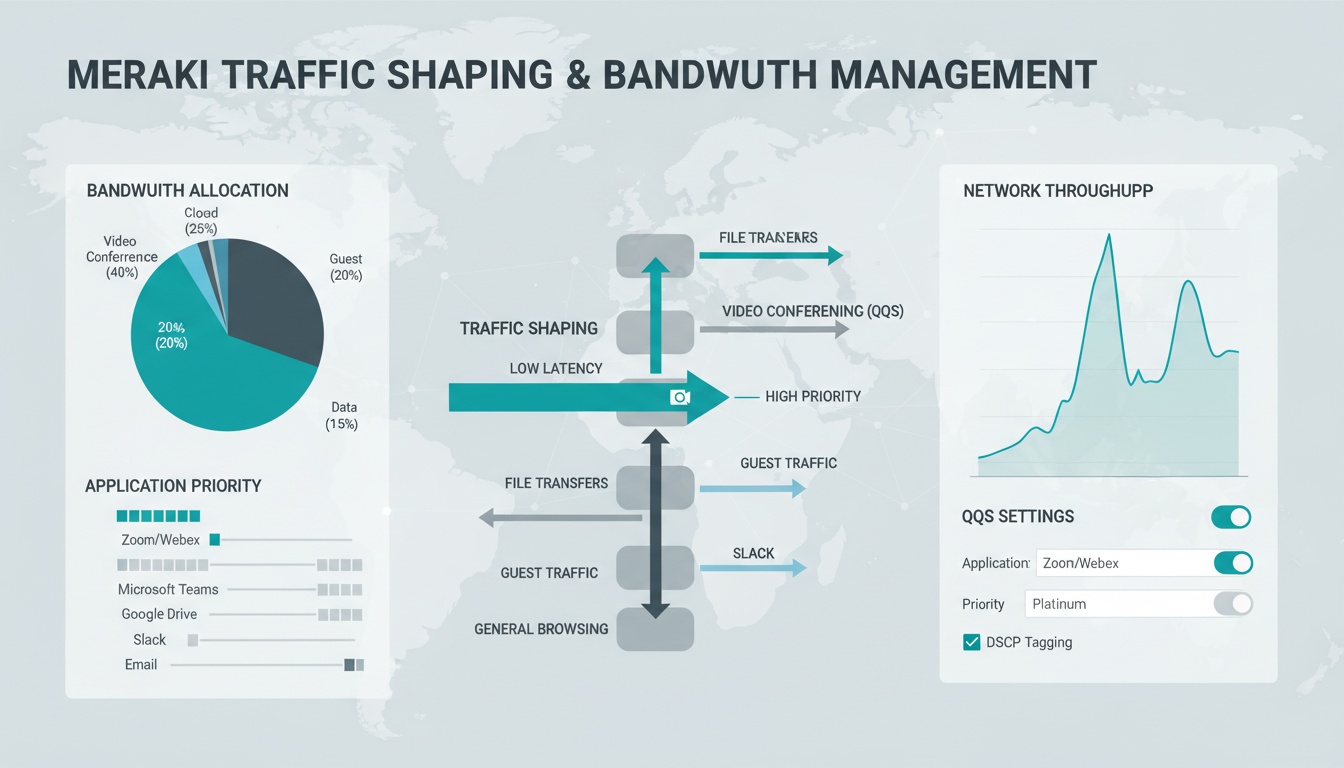
Bandwidth is a finite resource in any business network. No matter how fast your internet connection, there is always a limit to how much data can flow at any given moment. When every employee in your office is simultaneously making video calls, uploading files to SharePoint, streaming training videos, and accessing cloud applications, that finite bandwidth must be shared - and without intelligent management, the most demanding applications can monopolise the connection at the expense of everything else.
This is where traffic shaping comes in. Traffic shaping - sometimes called bandwidth management or Quality of Service (QoS) - is the process of prioritising certain types of network traffic over others, ensuring that business-critical applications always have the bandwidth they need, even during periods of heavy network usage. Cisco Meraki, one of the most widely deployed cloud-managed networking platforms in the UK, provides powerful and remarkably accessible traffic shaping capabilities that can transform the performance experience on a congested network.
This guide explains how Meraki traffic shaping works, how to configure it effectively for a UK business environment, and how to use it to eliminate the frustrating performance issues that plague so many office networks.
For many UK organisations, the shift to hybrid working has only intensified the bandwidth challenge. Meeting rooms now contain video conferencing equipment that runs almost continuously, while employees working from home rely on VPN connections that add overhead to every packet. The result is that a 100 Mbps connection that felt generous five years ago can now feel inadequate for a team of just thirty people. Rather than immediately upgrading to a more expensive circuit - which may not even solve the problem if the wrong traffic is consuming the bandwidth - intelligent traffic shaping offers a far more cost-effective first step.
Understanding the Bandwidth Challenge
The nature of office network traffic has changed dramatically. A decade ago, the primary bandwidth consumers were email, web browsing, and occasional file downloads. Today, the average UK office sees constant streams of video conferencing (Microsoft Teams, Zoom), cloud application traffic (Salesforce, Xero, HubSpot), file synchronisation (OneDrive, SharePoint, Dropbox), VoIP telephony, and an increasing amount of software-as-a-service traffic that was previously handled by local servers.
Not all of this traffic is equal. A Teams video call requires consistent, low-latency bandwidth - any interruption manifests immediately as frozen video, robotic audio, or dropped calls. An email download, by contrast, can tolerate slight delays without any noticeable impact on the user experience. Yet without traffic shaping, the network treats all traffic identically, allocating bandwidth on a first-come, first-served basis. This means a large file upload can easily degrade the quality of every video call in the building.
The Hidden Cost of Network Congestion
The financial impact of poor bandwidth management extends well beyond frustrated employees. When video conferences regularly stutter and drop, staff resort to audio-only calls, losing the collaborative benefits of face-to-face interaction. When cloud applications respond slowly, employees develop workarounds - saving files locally instead of using SharePoint, emailing documents rather than collaborating in real time. These workarounds introduce security risks, version control problems, and inefficiencies that quietly erode productivity across the organisation.
Research from UK business productivity studies suggests that the average knowledge worker loses approximately 30 minutes per day to technology-related interruptions, of which network performance issues represent a significant portion. For a 50-person office, that equates to roughly 25 hours of lost productivity per day - more than three full-time equivalent employees doing nothing. At average UK salary costs, the annual financial impact can easily exceed the cost of proper network infrastructure and traffic shaping configuration combined.
There is also a reputational cost to consider. When clients join a Teams call and experience poor video quality from your end, it reflects on your professionalism. When your sales team cannot reliably demonstrate cloud-based products during client meetings, opportunities are lost. These soft costs are difficult to quantify but very real, and they represent perhaps the most compelling argument for investing in proper bandwidth management rather than simply hoping that upgrading your internet connection will solve everything.
Consider a typical scenario: a 50-person office in Birmingham with a 200 Mbps leased line. At 10am on Monday, 15 people are on Teams calls, 5 people are uploading large files to SharePoint, Windows Update is pushing patches to 30 machines, and someone in marketing is uploading a video to the company website. Total demand easily exceeds 200 Mbps. Without traffic shaping, those Teams calls stutter and freeze while Windows Update consumes disproportionate bandwidth. With Meraki traffic shaping properly configured, Teams traffic is prioritised, Windows Update is throttled to off-peak hours, and the large uploads are rate-limited to prevent them from crowding out interactive applications.
How Meraki Traffic Shaping Works
Meraki traffic shaping operates at multiple levels, providing granular control over how bandwidth is allocated across your network. The system uses deep packet inspection and Layer 7 application identification to recognise traffic types and apply policies accordingly.
Layer 7 Application Identification
Meraki's Layer 7 firewall engine inspects network traffic and identifies the application generating it - not just by port number (which is easily spoofed) but by analysing the actual traffic patterns and signatures. This means Meraki can distinguish between a Microsoft Teams video call, a YouTube stream, a Dropbox sync, and a Windows Update download, even though they might all use the same HTTPS port. This application-level visibility is the foundation of effective traffic shaping.
Traffic Shaping Rules
In the Meraki dashboard, traffic shaping rules are configured under Security & SD-WAN for MX appliances, or under Wireless for MR access points. Rules allow you to set bandwidth limits, prioritisation levels, and throttling policies for specific applications, application categories, or custom traffic definitions. Each rule specifies a per-client bandwidth limit and an overall bandwidth limit, giving you control at both the individual and aggregate level.
Global Bandwidth Limits
Beyond per-application rules, Meraki allows you to set global bandwidth limits per client or per SSID (for wireless networks). This prevents any single device from consuming an unreasonable share of the available bandwidth, regardless of what application it is running. For guest Wi-Fi networks, this is particularly important - you want guests to have internet access, but not at the expense of your business traffic.
DSCP Marking and QoS Integration
Beyond its own traffic shaping capabilities, Meraki integrates with wider Quality of Service frameworks through DSCP (Differentiated Services Code Point) marking. DSCP marking allows Meraki devices to tag packets with priority information that is respected by other network equipment along the path. This is particularly important in environments where traffic passes through multiple network devices - switches, routers, and WAN links - before reaching its destination.
For UK businesses using SIP-based telephony or Microsoft Teams Direct Routing, correct DSCP marking is essential for maintaining voice quality. Meraki can be configured to mark voice traffic with the industry-standard EF (Expedited Forwarding) DSCP value, ensuring that every router and switch in the path gives voice packets the highest priority. Without this end-to-end QoS configuration, traffic shaping at the Meraki appliance level alone may not fully resolve voice quality issues, particularly on complex networks with multiple hops between the user and the internet.
It is worth noting that DSCP marking is only effective on network segments you control. Once traffic leaves your network and enters your ISP's infrastructure, the ISP may strip or ignore DSCP markings. However, many UK business-grade ISPs now offer QoS-enabled circuits that respect DSCP marking across their backbone, and some managed SD-WAN services include end-to-end QoS as a standard feature. When evaluating your overall traffic shaping strategy, discuss DSCP support with your ISP to understand what is possible beyond your own network boundary.
High Priority Traffic (Protect)
- Microsoft Teams and Zoom video/voice
- VoIP telephony (SIP traffic)
- Cloud ERP and CRM applications
- Remote desktop and VDI sessions
- Email (Exchange Online, SMTP)
- Line-of-business web applications
- VPN tunnels to branch offices
Low Priority Traffic (Limit)
- Windows and macOS system updates
- Personal streaming (Netflix, Spotify)
- Social media (Instagram, TikTok, Facebook)
- Large file downloads and P2P
- Software update services (non-critical)
- Backup traffic during business hours
- Guest Wi-Fi traffic
Configuring Traffic Shaping: A Practical Guide
Setting up traffic shaping on Meraki involves several steps, each building on the previous one. The following approach ensures a structured, effective configuration that addresses the most common bandwidth challenges in UK business environments.
Step 1: Baseline Your Traffic
Before creating rules, use Meraki's built-in traffic analytics to understand your current bandwidth usage patterns. The Meraki dashboard provides detailed visibility into which applications consume the most bandwidth, which clients are the heaviest users, and when peak usage occurs. Run this analysis for at least a week to capture typical usage patterns, including any weekly variations.
Step 2: Define Your Priorities
Work with your business stakeholders to define which applications are business-critical, which are important but tolerant of slight delays, and which are non-essential. This is a business decision, not a technical one - the finance director may insist that Xero accounting traffic is always prioritised, while the marketing team may argue that their video content uploads are equally important. Reach consensus before configuring rules.
Step 3: Create Traffic Shaping Rules
In the Meraki dashboard, navigate to the traffic shaping section and create rules for each priority tier. For high-priority applications, set the bandwidth limit to "Ignore" (no limit) and the priority to "High." For low-priority traffic, set specific per-client and overall bandwidth limits. For non-essential traffic such as personal streaming, consider setting aggressive limits during business hours with more relaxed policies outside working hours.
Step 4: Testing and Validation
After configuring your traffic shaping rules, thorough testing is essential before considering the implementation complete. Begin by generating controlled test traffic - initiate a Teams video call, start a large file upload, and trigger a Windows Update download simultaneously. Monitor the Meraki dashboard in real time to verify that the traffic shaping rules are being applied correctly: the video call should maintain consistent quality while the file upload and Windows Update are visibly throttled.
Pay particular attention to edge cases. What happens when a user connects to the guest Wi-Fi with a device that generates unusually high traffic? Does the per-client limit on the guest SSID contain the impact effectively? What about scenarios where the total demand from high-priority traffic alone exceeds your available bandwidth? In these situations, even traffic shaping cannot create bandwidth that does not exist - you may need to consider upgrading your internet connection or implementing SD-WAN with multiple links.
Step 5: Document and Communicate
Traffic shaping policies affect every user on the network, so clear communication is important. Document your policies and share them with relevant stakeholders. Staff should understand that personal streaming is intentionally limited during business hours and why. IT support teams need to know how the rules are configured so they can troubleshoot effectively when users report performance issues. A brief internal communication explaining the changes - framed positively as improvements to business application performance - helps set expectations and reduces support tickets.
Maintain a living document that records all traffic shaping rules, the business rationale behind each one, and any changes made over time. This documentation is invaluable when staff changes occur in the IT team, when auditors ask about network security controls, or when you need to revisit rules that were configured months or years ago. Meraki's dashboard provides a configuration history, but a separate policy document that captures the reasoning behind each rule is equally important.
SD-WAN and Traffic Shaping
For organisations with multiple sites - a head office in London with branches in Manchester, Leeds, and Edinburgh, for example - Meraki's SD-WAN capabilities extend traffic shaping beyond a single location. SD-WAN allows you to define application-level routing policies that direct traffic across the most appropriate WAN link, combining traffic shaping with intelligent path selection.
With SD-WAN, you can route Microsoft 365 traffic directly to the internet via a local breakout rather than backhauling it through the head office, reducing latency and improving user experience. VoIP traffic can be routed over the most reliable link with the lowest jitter, while bulk data transfers use a secondary link. This combination of traffic shaping and path selection delivers a significantly better experience than traffic shaping alone, particularly for organisations with bandwidth-constrained branch links.
Multi-Site Policy Consistency
One of the practical challenges of managing traffic shaping across multiple sites is maintaining consistency. Each location may have different internet speeds, different numbers of users, and different application usage patterns. Meraki's template-based configuration helps address this by allowing you to define a set of traffic shaping rules centrally and apply them across all sites, with the option to override specific settings for individual locations where needed.
For example, a UK professional services firm with offices in London, Manchester, and Bristol might set a global policy that prioritises Microsoft Teams and Salesforce across all locations. However, the Bristol office, which houses the design team, might need an exception that gives higher bandwidth to Adobe Creative Cloud traffic. Meraki's network templates allow this kind of flexible, hierarchical policy management without the complexity of configuring each site independently.
Failover and Redundancy Considerations
Traffic shaping becomes even more critical when your network includes failover links. Many UK businesses maintain a primary leased line alongside a secondary broadband or 4G/5G backup connection. When the primary link fails and traffic shifts to the lower-bandwidth backup, your existing traffic shaping rules may no longer be appropriate - bandwidth limits that were generous on a 200 Mbps leased line could be excessively permissive on a 40 Mbps backup link.
Meraki's SD-WAN capabilities can dynamically adjust traffic shaping policies based on the available WAN link. When a failover occurs, the system can automatically apply a more restrictive set of rules that further limits non-essential traffic and ensures that only business-critical applications consume the limited backup bandwidth. This automatic adjustment is far more reliable than expecting an IT administrator to manually reconfigure traffic shaping rules during what is already a stressful network outage scenario. For organisations where network availability is business-critical, this failover-aware traffic shaping capability alone justifies the investment in Meraki's SD-WAN feature set.
Monitoring and Ongoing Optimisation
Traffic shaping is not a set-and-forget configuration. Network usage patterns change as new applications are adopted, team sizes fluctuate, and business processes evolve. Regular review of your traffic shaping policies - at least quarterly - ensures they remain aligned with your actual traffic patterns and business priorities.
Meraki's dashboard provides real-time visibility into how traffic shaping rules are being applied, which applications are being throttled, and whether any high-priority traffic is being impacted by bandwidth constraints. Use this data to fine-tune your rules over time, adjusting limits as your internet connection is upgraded or as application usage patterns shift.
Seasonal Adjustments and Capacity Planning
Many UK businesses experience significant seasonal variations in network demand. Accountancy firms face intense bandwidth pressure during the January self-assessment deadline period and again during year-end audit season. Retailers see spikes during Christmas and sale periods. Educational institutions experience dramatic changes between term time and holidays. Your traffic shaping policies should account for these variations, and Meraki's ease of configuration makes seasonal adjustments straightforward.
Capacity planning should incorporate traffic shaping data as a key input. When your Meraki dashboard consistently shows that high-priority traffic is being constrained despite aggressive throttling of low-priority applications, this is a clear signal that a bandwidth upgrade is needed. Conversely, if your traffic shaping rules are rarely triggered because utilisation never approaches your total bandwidth, you may be over-provisioned - a less common but equally important finding that could reduce your connectivity costs.
Alerting and Proactive Management
Meraki's alerting capabilities allow you to set thresholds that notify your IT team when bandwidth utilisation exceeds defined levels. Configure alerts for sustained high utilisation (for example, above 80% of total bandwidth for more than 15 minutes) so your team can investigate and take action before users begin to notice performance degradation. These alerts can be sent via email or integrated with IT service management platforms through Meraki's API and webhook capabilities.
Proactive management also means regularly reviewing the list of applications identified by Meraki's Layer 7 engine. As employees adopt new cloud services - often without formal IT approval - new applications will appear in your traffic analytics. Some of these may be legitimate business tools that should be added to your high-priority list. Others may be shadow IT applications that introduce security risks and consume bandwidth unnecessarily. Regular traffic review sessions, conducted monthly or quarterly, keep your traffic shaping policies current and your network secure.
| Traffic Category | Recommended Priority | Per-Client Limit | Overall Limit |
|---|---|---|---|
| Voice and Video (Teams, Zoom) | High | No limit | No limit |
| Business SaaS (CRM, ERP, Accounting) | High | No limit | No limit |
| Email and Messaging | Normal | No limit | No limit |
| File Sync (OneDrive, SharePoint) | Normal | 10 Mbps | 50 Mbps |
| System Updates | Low | 5 Mbps | 20 Mbps |
| Personal Streaming | Low | 2 Mbps | 10 Mbps |
| Guest Wi-Fi | Low | 5 Mbps | 20 Mbps |
Optimise Your Network Bandwidth
Cloudswitched designs, deploys, and manages Cisco Meraki networks for businesses across the United Kingdom. From traffic shaping and SD-WAN configuration to complete network infrastructure projects, we ensure your bandwidth is allocated intelligently and your critical applications always perform. Get in touch to discuss your network needs.
GET IN TOUCH
CloudSwitched
London-based managed IT services provider offering support, cloud solutions and cybersecurity for SMEs.


