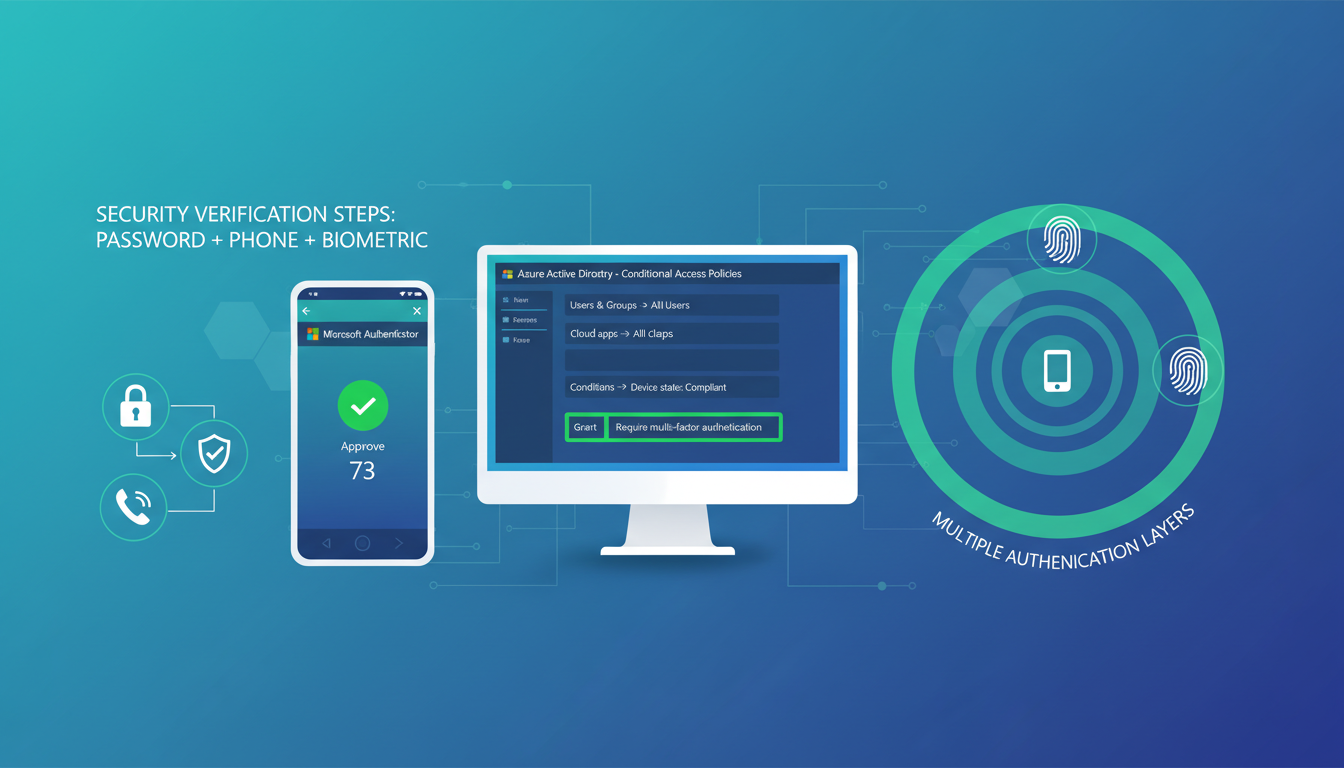
Multi-factor authentication - commonly known as MFA - is one of the single most effective security measures any UK business can implement. According to Microsoft's own research, enabling MFA blocks over 99.9% of account compromise attacks. Yet despite this remarkable effectiveness, a significant proportion of UK businesses still rely on passwords alone to protect their Microsoft 365 accounts, their Azure resources, and their corporate data.
Azure Active Directory - now officially known as Microsoft Entra ID, though the Azure AD name remains in common use - provides built-in MFA capabilities that are included with every Microsoft 365 subscription. For UK businesses using Microsoft 365 Business Basic, Business Standard, Business Premium, or any Enterprise plan, MFA is available at no additional cost. There is genuinely no reason not to enable it.
This guide provides a comprehensive, step-by-step walkthrough of setting up MFA in Azure AD for your UK business. We cover the planning phase, the configuration process, user enrollment, and ongoing management, with practical advice drawn from hundreds of MFA deployments across UK organisations.
Understanding MFA: Why Passwords Are Not Enough
Passwords have been the primary authentication method since the earliest days of computing, but they have become increasingly inadequate as a sole security measure. The problem is not that passwords are inherently insecure - a truly random 20-character password is extremely difficult to crack. The problem is that humans are terrible at creating and managing passwords.
Studies consistently show that people reuse passwords across multiple services, choose weak and predictable passwords, write passwords on sticky notes attached to monitors, share passwords with colleagues, and rarely change them unless forced to. The result is that passwords are routinely compromised through phishing attacks, credential stuffing (using passwords leaked from other breaches), brute force attacks, and social engineering.
MFA addresses this fundamental weakness by requiring a second form of verification beyond the password. Even if an attacker obtains your password through phishing or a data breach, they cannot access your account without also possessing your second factor - typically your mobile phone or a hardware security key. This transforms security from a single point of failure to a layered defence.
The Real-World Threat Landscape for UK Businesses
The scale of credential-based attacks targeting UK organisations is staggering. In recent years, the UK's National Crime Agency has reported a significant increase in business email compromise cases, with losses exceeding hundreds of millions of pounds across British businesses. Many of these attacks began with a single compromised password - often obtained through a phishing email that closely mimicked a Microsoft 365 sign-in page. The attackers behind these campaigns operate at industrial scale, sending millions of phishing emails daily and harvesting credentials from every organisation that falls victim.
Credential stuffing attacks are particularly insidious. When a data breach occurs at any online service, the leaked usernames and passwords are rapidly tested against thousands of other services, including Microsoft 365. Because so many people reuse passwords, attackers frequently gain access to corporate email accounts using credentials leaked from entirely unrelated consumer services. A password leaked from a compromised online retailer can, within hours, be used to access a UK business's financial data in Microsoft 365. Automated tools allow attackers to test millions of credential pairs against Microsoft 365 endpoints in a matter of minutes, making password reuse a critical organisational vulnerability.
Phishing remains the most prevalent attack vector against UK businesses of all sizes. Sophisticated phishing campaigns now use adversary-in-the-middle techniques, where the attacker creates a proxy between the user and the genuine Microsoft sign-in page. The user believes they are signing into Microsoft 365, but the attacker captures both the password and any session tokens in real time. Without MFA - or more specifically, without phishing-resistant MFA methods such as FIDO2 keys - these attacks are remarkably effective even against technically aware users. The rise of phishing-as-a-service platforms has lowered the barrier to entry for attackers, meaning even relatively unsophisticated criminal groups can now mount convincing credential theft campaigns.
For UK businesses subject to regulatory oversight, the consequences of a compromised account extend well beyond the immediate breach. The Information Commissioner's Office can impose significant fines under GDPR for failures to implement appropriate technical measures to protect personal data. MFA is increasingly viewed by regulators as a minimum baseline security control, and organisations that suffer breaches without having MFA in place face difficult questions about their overall security posture and governance practices. Beyond the financial penalties, the reputational damage of a publicised data breach can be devastating for client-facing businesses such as accountancy firms, solicitors, and financial advisers.
The National Cyber Security Centre (NCSC) recommends MFA as one of its core security measures for UK organisations of all sizes. In its guidance for small businesses, the NCSC states: "Set up multi-factor authentication on all your important accounts, even if the service only offers it by text message." Cyber Essentials Plus, the UK Government-backed certification scheme, also requires MFA for cloud service administration. Implementing MFA is not just good practice - it is an increasingly expected baseline.
MFA Methods Available in Azure AD
Azure AD supports several MFA methods, each with different security levels, user experiences, and deployment considerations. Understanding these options helps you choose the right approach for your organisation.
Microsoft Authenticator: The Recommended Choice
For the vast majority of UK businesses, the Microsoft Authenticator app should be your default MFA method. It offers the best balance of security, usability, and manageability available today. The app is free to download, available on both iOS and Android, and integrates seamlessly with Azure AD and the broader Microsoft ecosystem. Once configured, it provides a frictionless authentication experience that most users adapt to within a day or two of initial setup.
The Authenticator app supports three distinct verification modes. Push notifications are the simplest - when you sign in, a notification appears on your phone asking you to approve or deny the request with a single tap. Number matching adds an extra layer of protection by displaying a two-digit number on the sign-in screen that you must enter into the app, which effectively prevents MFA fatigue attacks where users accidentally approve malicious requests out of habit or annoyance. Passwordless phone sign-in eliminates the password entirely, using the app as the primary authentication method combined with biometrics or a device PIN - representing the future of enterprise authentication.
For organisations with heightened security requirements - particularly those in financial services, legal, or defence sectors - FIDO2 hardware security keys offer the strongest protection currently available. These physical devices, manufactured by companies such as Yubico and Feitian, are immune to phishing attacks because the authentication is cryptographically bound to the specific website domain. An attacker cannot intercept or replay a FIDO2 authentication, even with a sophisticated adversary-in-the-middle proxy. The initial investment of £25 to £50 per key is negligible compared to the cost of a single security breach, which the UK Government estimates averages £4,960 for medium-sized businesses.
SMS-based verification, whilst better than no MFA at all, should be considered a fallback rather than a primary method. SMS messages can be intercepted through SIM-swapping attacks, where an attacker convinces a mobile provider to transfer a phone number to a new SIM card. The NCSC and Microsoft both recommend app-based or hardware-based methods over SMS wherever possible. If your organisation currently relies on SMS for MFA, consider planning a migration to the Authenticator app as a near-term security improvement that will strengthen your defences without requiring additional expenditure.
| MFA Method | Security Level | User Experience | Requirements |
|---|---|---|---|
| Microsoft Authenticator (push notification) | High | Excellent - single tap to approve | Smartphone with Authenticator app |
| Microsoft Authenticator (number matching) | Very High | Good - enter displayed number | Smartphone with Authenticator app |
| FIDO2 security key | Very High | Good - tap physical key | FIDO2-compatible hardware key |
| Windows Hello for Business | Very High | Excellent - biometric or PIN | Windows 10/11 with compatible hardware |
| TOTP code (Authenticator or third-party app) | High | Good - enter 6-digit code | Smartphone with authenticator app |
| SMS code | Medium | Familiar - enter texted code | Mobile phone with signal |
| Voice call | Medium | Acceptable - answer and press # | Phone line (mobile or landline) |
Planning Your MFA Deployment
Before enabling MFA, take time to plan the deployment. Rushing MFA activation without preparation leads to confused users, locked-out accounts, and a flood of support requests that can overwhelm your helpdesk.
Identify Your User Groups
Not all users need the same MFA experience. Consider grouping your users by role and risk level. Global administrators and IT staff should use the strongest MFA methods (Authenticator with number matching or FIDO2 keys). Finance and HR users with access to sensitive data should use Authenticator at minimum. General users can start with any supported method, with guidance to use Authenticator where possible.
Handle Exceptions Early
Some users may have legitimate reasons why standard MFA is difficult - for example, warehouse staff without smartphones, field workers with unreliable mobile signal, or shared workstation environments. Identify these cases before deployment and plan alternatives. FIDO2 security keys are an excellent option for users without smartphones, costing between £20 and £50 per key.
Communicate Before You Enable
Send clear communications to all staff at least one week before MFA enrollment begins. Explain what MFA is, why it is being implemented, what users need to do, and where to get help. Provide step-by-step enrollment guides with screenshots. The more prepared your users are, the smoother the rollout will be.
Establishing a Rollout Timeline
A well-structured MFA rollout for a typical UK SME of 50 to 200 users should follow a phased timeline spanning approximately four to six weeks. During the first week, focus on preparing the technical environment - configuring Azure AD settings, choosing your MFA methods, and setting up Conditional Access policies in report-only mode so you can observe their impact without enforcement. The second week should be dedicated to securing administrator accounts, as these represent the highest-risk targets in any organisation and should always be protected first.
Weeks three and four are for the main user rollout, ideally done department by department rather than all at once. Begin with your most technically confident teams - IT, development, or other digitally skilled departments - as they will encounter fewer issues and can serve as internal advocates for the process. Follow with the broader organisation, leaving any departments with known technical challenges (such as field workers or manufacturing floor staff) until last, when your support processes are well practised and your helpdesk team has resolved the most common issues multiple times already.
Break-Glass Emergency Access Accounts
Before enabling MFA across your organisation, you must create at least two break-glass emergency access accounts. These are highly privileged accounts that are deliberately excluded from MFA and Conditional Access policies, providing a guaranteed way to access your Azure AD tenant if all other administrator accounts become locked out. Without break-glass accounts, a widespread MFA issue - such as a Microsoft Authenticator service outage or a misconfigured Conditional Access policy - could leave you completely unable to administer your environment, a scenario that could paralyse your business until Microsoft support intervenes.
Break-glass accounts should use extremely long, complex passwords of at least 30 characters, stored securely in a physical safe or hardware security module accessible only to authorised senior personnel. They should be cloud-only accounts not synchronised from on-premises Active Directory, excluded from all Conditional Access policies, and monitored with alerts that trigger whenever they are used. Microsoft provides detailed guidance on configuring these accounts, and their creation should be one of the very first steps in any MFA deployment. Review and test your break-glass accounts at least quarterly to ensure they remain functional and that the stored passwords are still correct.
Poor MFA Rollout
- Enable MFA for all users at once without warning
- No user communication or training
- No exceptions process for edge cases
- No helpdesk preparation for enrollment queries
- SMS as the only offered method
- No admin accounts protected first
Well-Planned MFA Rollout
- Phased rollout starting with IT and admin accounts
- Clear communications with step-by-step guides
- Exceptions identified and alternatives provided
- Helpdesk briefed and ready for enrollment support
- Microsoft Authenticator as recommended method
- Admin accounts secured with strongest methods first
Step-by-Step: Enabling MFA in Azure AD
There are two primary approaches to enabling MFA in Azure AD: Security Defaults and Conditional Access policies. The right choice depends on your Microsoft 365 licence level and the granularity of control you need.
Option 1: Security Defaults (Free with All Plans)
Security Defaults is Microsoft's recommended baseline for organisations that do not have Azure AD Premium licences. When enabled, Security Defaults requires all users to register for MFA within 14 days, prompts for MFA when signing in from new devices or locations, blocks legacy authentication protocols that cannot support MFA, and requires administrators to perform MFA at every sign-in.
To enable Security Defaults, sign in to the Microsoft Entra admin centre at entra.microsoft.com. Navigate to Identity, then Overview, then Properties. Scroll to the bottom and click "Manage Security Defaults." Toggle the switch to "Enabled" and click Save. Security Defaults will immediately begin enforcing MFA requirements across your tenant.
Option 2: Conditional Access (Requires Azure AD Premium P1)
Conditional Access provides granular control over when and how MFA is required. You can create policies based on user group, application, device platform, location, risk level, and more. This approach is recommended for businesses that need different MFA rules for different user groups, want to exclude specific trusted locations (such as your office IP address), need to support legacy applications that cannot handle MFA prompts, or require integration with device compliance policies.
Configuring Conditional Access: A Practical Walkthrough
Creating an effective Conditional Access policy requires careful consideration of your specific organisational needs. In the Microsoft Entra admin centre, navigate to Protection, then Conditional Access, and create a new policy. Give it a clear, descriptive name that conveys its purpose immediately - for example, one that indicates it requires MFA for all users except break-glass accounts - so that any administrator reviewing your policies in future can understand its function at a glance without needing to open the policy details.
Under Assignments, select the users and groups this policy applies to. Best practice is to target all users and then explicitly exclude your break-glass accounts and any service accounts that cannot support interactive MFA. Under Cloud apps, select all cloud applications to ensure comprehensive coverage. Selecting individual applications creates gaps that attackers can exploit, and new applications added to your tenant in the future would not be covered automatically unless someone remembers to update the policy - a common source of security oversights in growing organisations.
Under Conditions, you can optionally configure location-based exclusions. If your office has a static IP address, you can create a named location and exclude it from the MFA requirement, meaning users in the office authenticate without an MFA challenge whilst remote workers are always prompted. However, this approach has trade-offs - if an attacker gains physical access to your network or compromises your VPN, the location exclusion weakens your security posture. Many security professionals now recommend requiring MFA everywhere, including from trusted locations, as the user experience with modern Authenticator app push notifications is sufficiently seamless that it adds minimal friction to daily workflows and the security benefit of universal MFA enforcement is substantial.
Under Grant controls, select the option to require multi-factor authentication. Before switching the policy on, always set it to report-only mode first. This allows you to monitor which sign-in attempts would be affected by the policy without actually enforcing it. Review the sign-in logs after a few days to identify any users or applications that would be impacted unexpectedly - legacy applications and service accounts are common sources of surprises - then enable the policy once you are confident in its scope and impact. This cautious, staged approach prevents the all-too-common scenario of a new Conditional Access policy locking out an entire department on a Monday morning.
A typical Conditional Access policy for MFA would target all users, require MFA for all cloud applications, exclude trusted office locations (optional), and use the "Require multi-factor authentication" grant control.
User Enrollment: Making It Smooth
Once MFA is enabled, users will be prompted to register their MFA method at their next sign-in. The experience varies slightly depending on the method chosen, but for the recommended Microsoft Authenticator approach, the process is straightforward.
The user signs in to Microsoft 365 as normal. A screen appears stating that their organisation requires additional security information. They click "Next" and are prompted to download the Microsoft Authenticator app from the App Store or Google Play. Once the app is installed, they scan a QR code displayed on screen using the app's built-in camera function. The app registers with their account, and a test notification is sent. The user approves the notification, confirming that MFA is working. The entire process takes approximately five to ten minutes for most users.
For users who encounter difficulties, the most common issues are outdated operating systems on their phones (Authenticator requires relatively recent iOS or Android versions), company firewalls blocking the enrollment process, or users who accidentally close the enrollment wizard before completion. Having your IT team or managed service provider available during the enrollment window significantly reduces frustration.
Troubleshooting Common Enrollment Issues
Despite careful planning, some users will encounter difficulties during MFA enrollment. Understanding the most common issues and their resolutions allows your support team to respond quickly and confidently. If a user reports that the QR code will not scan, ensure they are using the Microsoft Authenticator app's built-in scanner rather than their phone's general camera application. The Authenticator app has a specific scan option within the account setup flow that handles the registration process correctly. If the QR code still fails, the enrollment screen provides an option to enter an activation code manually, which is a reliable fallback.
Users with older smartphones may find that the Authenticator app is not available or will not install on their device. Microsoft Authenticator requires iOS 16 or later, or Android 8.0 or later. For users whose devices do not meet these requirements, consider providing a FIDO2 security key as an alternative, or explore whether the user is eligible for a company-funded device upgrade. In some cases, a third-party TOTP authenticator app with lower system requirements may serve as a workable temporary solution until the device situation is resolved. Keep a record of all users on alternative MFA methods so you can follow up when circumstances change.
Configuring Backup Authentication Methods
Every user should register at least two MFA methods to ensure continuity of access. If their primary method - typically the Authenticator app - becomes unavailable due to a lost phone, a broken device, or simply a flat battery at a critical moment, the backup method ensures they can still access their account without contacting the helpdesk. Encourage all users to add their mobile phone number as a backup SMS verification method during the initial enrollment process, even if SMS is not their primary MFA method. This simple step can prevent significant productivity losses when a user's primary device is temporarily unavailable.
Azure AD allows administrators to configure which authentication methods are available across the organisation through the Authentication Methods policy in the Entra admin centre. Navigate to Protection, then Authentication Methods to review and manage these settings. Here you can enable or disable specific methods, target them to particular user groups, and configure method-specific settings such as requiring number matching for Authenticator push notifications. Reviewing and tightening these settings after initial enrollment helps maintain a strong and consistent security posture as your MFA deployment matures over time. Consider disabling weaker methods such as voice call verification once the majority of users have adopted app-based authentication.
Ongoing Management and Best Practices
Enabling MFA is not a set-and-forget exercise. Ongoing management ensures that your MFA deployment remains effective and does not create unnecessary friction for your users.
Monitor enrollment completion. Use the Azure AD authentication methods activity report to track which users have registered for MFA and which have not. Follow up with users who have not completed enrollment within your defined timeframe.
Review and update Conditional Access policies. As your business changes - new offices, new applications, new user roles - your Conditional Access policies may need updating. Review them quarterly to ensure they still reflect your security requirements.
Plan for lost devices. Users will lose phones, get new phones, or have phones stolen. Ensure your helpdesk has a clear, secure process for resetting MFA registrations. This process should include identity verification to prevent social engineering attacks where an attacker poses as a user to remove their MFA.
Consider passwordless authentication. Once MFA is established, consider moving to passwordless authentication methods such as FIDO2 keys or Windows Hello for Business. These methods are more secure than password-plus-MFA and provide a better user experience. Microsoft is actively encouraging organisations to adopt passwordless as the next evolution of authentication security.
Monitoring and Reporting on MFA Usage
Azure AD provides comprehensive reporting capabilities that allow you to monitor the health and effectiveness of your MFA deployment on an ongoing basis. The Authentication Methods Activity report shows which methods users have registered, how frequently each method is used, and whether registration rates are meeting your organisational targets. The Sign-in logs provide detailed information about every authentication event, including whether MFA was required, which method was used, and whether the authentication succeeded or failed. These reports are invaluable for maintaining visibility over your security posture and identifying areas for improvement.
Establish regular reviews - monthly at minimum - to check for users who have not yet registered for MFA, users relying solely on SMS as their MFA method when stronger alternatives are available, patterns of failed MFA attempts that might indicate an active attack or a user struggling with their chosen authentication method, and any Conditional Access policies that may need updating due to organisational changes such as new office locations or new cloud applications. These reviews should form part of your broader security governance process and be documented for audit and compliance purposes. Many UK managed service providers include MFA health monitoring as part of their standard service, providing regular reports and recommendations.
MFA and Regulatory Compliance in the United Kingdom
For UK businesses operating in regulated sectors, MFA is not merely a recommended best practice - it is increasingly a firm compliance requirement. The Financial Conduct Authority expects regulated firms to implement strong authentication controls as part of their operational resilience obligations. NHS Digital includes multi-factor authentication as a key standard within the Data Security and Protection Toolkit that all health and social care organisations in England must complete. The Solicitors Regulation Authority requires law firms to take appropriate steps to protect client data, and MFA is widely regarded as a fundamental element of meeting that professional obligation.
Even for businesses not subject to sector-specific regulation, the GDPR requirement to implement appropriate technical and organisational measures to protect personal data increasingly encompasses MFA as a baseline expectation. The Information Commissioner has highlighted the importance of MFA in multiple enforcement actions and published guidance documents. Organisations that suffer data breaches without having MFA in place can expect this gap to be a significant aggravating factor in any regulatory investigation, potentially increasing the severity of any fines or enforcement notices issued. Implementing MFA across your Microsoft 365 environment is one of the most straightforward and impactful steps any UK business can take to demonstrate compliance with its data protection obligations and meaningfully reduce its overall cyber risk exposure.
Need Help Setting Up MFA?
Cloudswitched helps UK businesses implement multi-factor authentication across Microsoft 365 and Azure AD. From initial planning and policy configuration to user enrollment support and ongoing management, we ensure your MFA deployment is secure, smooth, and sustainable. Get in touch to protect your business.
GET IN TOUCH
CloudSwitched
London-based managed IT services provider offering support, cloud solutions and cybersecurity for SMEs.


