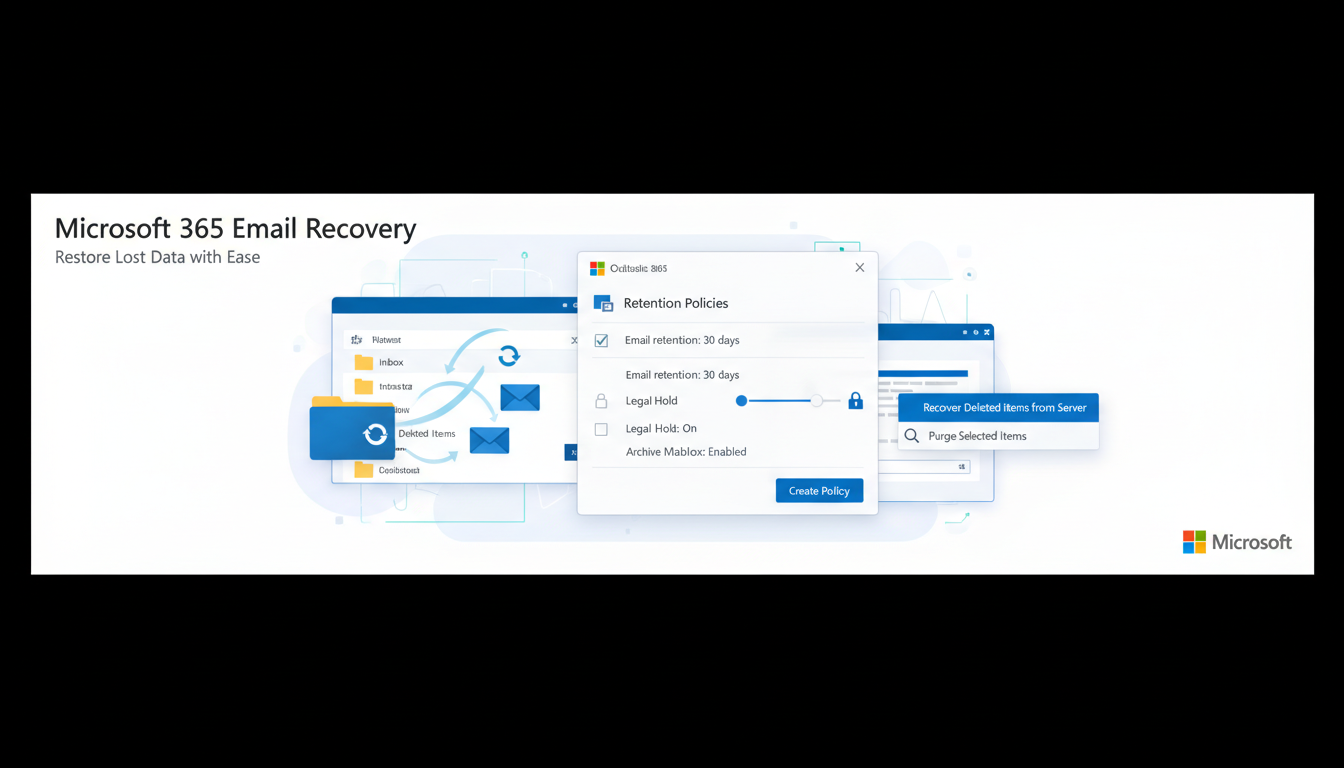
Few things cause as much immediate panic in a UK business as the realisation that important emails have been deleted. Whether a staff member accidentally empties their Deleted Items folder, a departing employee clears their mailbox, or a misconfigured retention policy purges messages prematurely, the need to recover deleted emails in Microsoft 365 is one of the most common IT support requests businesses face.
The good news is that Microsoft 365 provides multiple layers of email recovery - from simple Deleted Items recovery to administrator-level tools that can retrieve messages long after a user believes they are permanently gone. The bad news is that these recovery options are time-limited, and understanding the different retention windows is essential for acting quickly when recovery is needed.
This comprehensive guide walks you through every method of recovering deleted emails in Microsoft 365, from end-user self-service through to administrator recovery tools, and explains how to configure your environment to maximise your ability to recover messages in the future.
Understanding the Microsoft 365 Deletion Process
Before diving into recovery methods, it is essential to understand how email deletion works in Microsoft 365, because the recovery options available depend entirely on where the deleted message currently sits in the deletion pipeline.
When a user deletes an email in Outlook - by pressing the Delete key or moving it to the Deleted Items folder - the message is not actually deleted. It simply moves to the Deleted Items folder, where it remains indefinitely (unless the user or a retention policy removes it). At this stage, recovery is as simple as dragging the message back to the Inbox or another folder.
When a user empties their Deleted Items folder, or deletes a message from within the Deleted Items folder, the email enters what Microsoft calls the Recoverable Items folder. This is a hidden folder that is not visible to users in their normal Outlook view. Messages in Recoverable Items are retained for 14 days by default (configurable up to 30 days by an administrator). During this period, the email can be recovered using Outlook's "Recover Deleted Items" feature.
After the Recoverable Items retention period expires, the email is permanently purged from Microsoft 365 - unless additional protections are in place such as litigation hold, retention policies, or a third-party backup solution. Once purged, the email is gone and cannot be recovered through any Microsoft tool.
The default Recoverable Items retention period is 14 days. This means that if a user permanently deletes an email (or empties their Deleted Items) and nobody notices for two weeks, the email may be unrecoverable. For businesses that handle sensitive correspondence, legal communications, or regulatory data, this default window is dangerously short. We strongly recommend extending this to the maximum 30 days and implementing retention policies or third-party backup for long-term protection.
It is also worth understanding that the Microsoft 365 deletion process behaves slightly differently depending on the client application in use. Outlook desktop, Outlook on the web, and Outlook mobile all handle deletion in the same underlying way at the server level, but the user interface can create confusion. For example, some mobile clients have a swipe-to-delete gesture that may bypass the Deleted Items folder entirely, moving messages straight to Recoverable Items. Similarly, rules that automatically delete messages - such as inbox rules that users create to manage newsletters or notifications - send those messages directly to Deleted Items, where they are subject to any automatic emptying policies in place.
Understanding these nuances is particularly important for organisations with mobile-heavy workforces. If staff primarily access email on smartphones and tablets, the risk of accidental permanent deletion increases because the smaller interface makes it easier to delete messages unintentionally and harder to notice the mistake. Training staff on the specific behaviour of their preferred email client can meaningfully reduce the number of recovery requests your IT team handles.
Method 1: Recovering from the Deleted Items Folder
The simplest recovery scenario is when the email is still in the user's Deleted Items folder. This is the first place to check, and recovery is straightforward.
In Outlook desktop, navigate to the Deleted Items folder in the left-hand folder pane. Browse or search for the required email. Once found, right-click the message and select "Move" then "Other Folder" to move it back to the Inbox or any other folder. Alternatively, simply drag the message from Deleted Items to the desired folder.
In Outlook on the web (OWA), click on the Deleted Items folder, locate the email, right-click it, and select "Move to Inbox" or "Move to" and choose the appropriate folder.
This method works for any email that the user has deleted but has not yet emptied from their Deleted Items. There is no time limit - emails can sit in Deleted Items indefinitely unless the user manually empties the folder or a retention policy automatically clears it.
Method 2: Recovering Permanently Deleted Items (User Self-Service)
If the email has been removed from the Deleted Items folder - either by the user emptying the folder or by individually deleting messages from within it - the email moves to the hidden Recoverable Items folder. Users can recover these messages themselves using the following process.
In Outlook desktop (Microsoft 365 Apps), go to the Deleted Items folder and click "Recover Deleted Items" in the ribbon (under the Folder tab). A window appears showing all recoverable items. Select the required emails and click "Restore Selected Items." The emails are moved back to the Deleted Items folder, from where the user can move them to their desired location.
In Outlook on the web, go to Deleted Items and click "Recover items deleted from this folder" at the top of the message list. Select the messages to recover and click "Restore." The messages return to the Deleted Items folder.
This self-service recovery is available for messages within the Recoverable Items retention window - 14 days by default, or up to 30 days if your administrator has extended the retention period.
User Self-Service Recovery
- No IT admin involvement needed
- Instant recovery via Outlook
- Available in desktop and web clients
- Works within Recoverable Items retention window
- User can browse and select specific messages
- Messages restore to Deleted Items first
Limitations of Self-Service
- Only works within 14-day (or 30-day) window
- Cannot recover items purged past retention
- User must know roughly when email was deleted
- Cannot recover from another user's mailbox
- No recovery after mailbox deletion
- Requires user to have Outlook access
Method 3: Administrator Recovery via Exchange Admin Centre
When self-service recovery is not possible - perhaps because the user cannot find the email, the retention window is about to expire, or the mailbox belongs to a former employee - a Microsoft 365 administrator can intervene using more powerful tools.
In the Exchange Admin Centre, administrators can use Content Search (part of the Microsoft Purview compliance portal) to search across mailboxes for specific emails. This tool can search by sender, recipient, subject, date range, keywords, or any combination of these criteria. Results can be previewed and exported, or individual messages can be restored to the user's mailbox.
For recovering emails from a former employee's mailbox, the administrator should first ensure that the mailbox has not been deleted. When a Microsoft 365 licence is removed from a user, the associated mailbox enters a soft-deleted state and is retained for 30 days. During this period, the administrator can reconnect the mailbox, convert it to a shared mailbox (which does not require a licence), or use Content Search to extract specific emails.
If the administrator needs to recover emails from a mailbox that has been in a soft-deleted state, they can either restore the entire mailbox or use eDiscovery tools to search for and extract specific messages. This is particularly important when recovering emails related to legal proceedings, regulatory investigations, or GDPR subject access requests.
For organisations that regularly need to recover emails - whether due to compliance requirements, legal proceedings, or simply a high volume of accidental deletions - it is worth considering delegated access for the IT team. Granting specific administrators the Application Impersonation role in Exchange Online allows them to search and recover emails across any mailbox without needing individual user credentials. This approach is both more secure and more efficient, as administrators can act immediately without waiting for user involvement. However, it should be carefully controlled through role-based access policies and audit logging to prevent misuse.
Microsoft Purview also offers Advanced eDiscovery capabilities in E5 licences, which go beyond basic Content Search. Advanced eDiscovery includes features such as relevance scoring, threading analysis, and near-duplicate detection - tools primarily designed for legal review but also valuable for complex email recovery scenarios where the administrator needs to locate specific messages among thousands of results. For businesses dealing with regulatory investigations or litigation, these advanced capabilities can significantly reduce the time required to locate and produce relevant communications.
Method 4: Retention Policies and Litigation Hold
The most robust approach to email recovery in Microsoft 365 is to implement proactive retention measures that prevent permanent deletion in the first place. Microsoft 365 offers several mechanisms for this.
Retention Policies: These are configured in the Microsoft Purview compliance portal and can be applied to all mailboxes or specific groups. A retention policy can be configured to retain all email for a specified period - for example, seven years - regardless of user deletion. Even if a user deletes an email and empties their Deleted Items, the retention policy maintains a hidden copy that administrators can access through eDiscovery.
Litigation Hold: When placed on a mailbox, litigation hold preserves all current and future content indefinitely, including items that the user deletes or modifies. This is typically used when legal proceedings are anticipated or underway, but some organisations apply it broadly as a data preservation measure. Litigation hold requires a Microsoft 365 E3 or E5 licence (or the equivalent Exchange Online Plan 2 add-on).
In-Place Hold (Legacy): While Microsoft is phasing out in-place holds in favour of retention policies, some organisations still have them in place. These function similarly to litigation hold but can be scoped to specific date ranges or search criteria.
| Recovery Method | Who Can Perform It | Time Window | Licence Required |
|---|---|---|---|
| Deleted Items folder | End user | Indefinite (until emptied) | Any Microsoft 365 licence |
| Recover Deleted Items (Recoverable Items) | End user | 14 days (default) / 30 days (configured) | Any Microsoft 365 licence |
| Content Search / eDiscovery | Administrator | Within retention policy period | E3 / E5 or compliance add-on |
| Soft-deleted mailbox recovery | Administrator | 30 days after licence removal | Administrator access |
| Litigation Hold recovery | Administrator | Indefinite while hold is active | E3 / E5 or Exchange Online Plan 2 |
| Third-party backup | Administrator | Depends on backup retention (often years) | Third-party backup licence |
Method 5: Third-Party Backup Solutions
Many UK businesses are surprised to learn that Microsoft 365 does not include comprehensive backup. Microsoft's Shared Responsibility Model makes it clear that while Microsoft is responsible for the availability of the service, the customer is responsible for the protection of their data. This means that if data is permanently deleted - whether by user error, malicious action, or a retention policy expiring - Microsoft has no obligation to help you recover it.
Third-party backup solutions such as Veeam Backup for Microsoft 365, Acronis Cyber Protect, Datto SaaS Protection, and Barracuda Cloud-to-Cloud Backup provide independent copies of your Microsoft 365 data, including email, OneDrive, SharePoint, and Teams. These solutions typically back up data multiple times per day and retain it for extended periods - often one, three, or seven years depending on configuration.
With a third-party backup in place, recovering a deleted email is straightforward regardless of how long ago it was deleted or whether it has been purged from Microsoft's Recoverable Items. The backup administrator simply searches the backup, locates the required email, and restores it to the user's mailbox. This provides a safety net that is independent of Microsoft's retention mechanisms.
For UK businesses subject to regulatory requirements - such as financial services firms regulated by the FCA, legal practices under SRA rules, or any organisation handling personal data under GDPR - third-party backup is strongly recommended. The ICO has made clear that relying solely on a cloud provider's built-in retention does not constitute an adequate backup strategy.
Before implementing best practices, it is helpful to understand where most organisations stand today. The following readiness scores reflect typical UK business preparedness across the core areas of Microsoft 365 email recovery, based on industry data and our experience supporting businesses with their email environments. These benchmarks highlight common areas of strength and weakness.
Best Practices for Email Recovery Readiness
Rather than waiting for a deletion crisis and scrambling to recover, proactive preparation ensures you can always recover deleted emails quickly and completely. Implement these best practices in your Microsoft 365 environment.
Extend the Recoverable Items retention period to 30 days. This is a simple PowerShell change that doubles your recovery window at no cost. Your IT administrator can apply this setting across all mailboxes with a single command.
Implement a retention policy for all mailboxes. At minimum, configure a retention policy that preserves all email for 12 months. For regulated industries, consider longer periods aligned with your compliance requirements. This ensures that even permanently deleted emails remain accessible to administrators for the duration of the retention period.
Deploy a third-party backup solution. This is the single most important step for comprehensive email protection. A third-party backup provides independent, long-term retention that is not affected by user actions, administrative errors, or changes to Microsoft's retention mechanisms.
Document your recovery procedures. Ensure that your IT team or provider has documented, tested procedures for each recovery method. When a critical email needs recovering, you do not want to be researching the process for the first time under pressure.
Educate your users. Train staff on how to use the self-service Recover Deleted Items feature in Outlook. Many users do not know this option exists and immediately contact IT support for recoveries they could handle themselves in seconds.
Finally, consider establishing a regular audit cadence for your email retention and recovery configuration. Microsoft frequently updates its compliance and retention tools, and settings that were correct six months ago may need adjustment following a service update or licence change. A quarterly review of your retention policies, backup solution performance, and recovery procedure documentation helps ensure that your email protection remains robust as your Microsoft 365 environment evolves.
Organisations that take a proactive approach to email recovery readiness consistently report lower stress during deletion incidents, faster resolution times, and greater confidence in their compliance posture. The investment in proper configuration and documentation is modest compared to the cost of a failed recovery attempt when a critical email is needed for a regulatory inquiry or legal proceeding.
Need Help with Email Recovery or Microsoft 365 Backup?
Cloudswitched provides comprehensive Microsoft 365 support for businesses across the United Kingdom, including email recovery, backup configuration, retention policy setup, and ongoing management. Whether you need to recover a deleted email right now or want to implement robust backup protection for the future, our team can help. Contact us to discuss your requirements.
Explore Cloud Email Solutions
CloudSwitched
London-based managed IT services provider offering support, cloud solutions and cybersecurity for SMEs.


