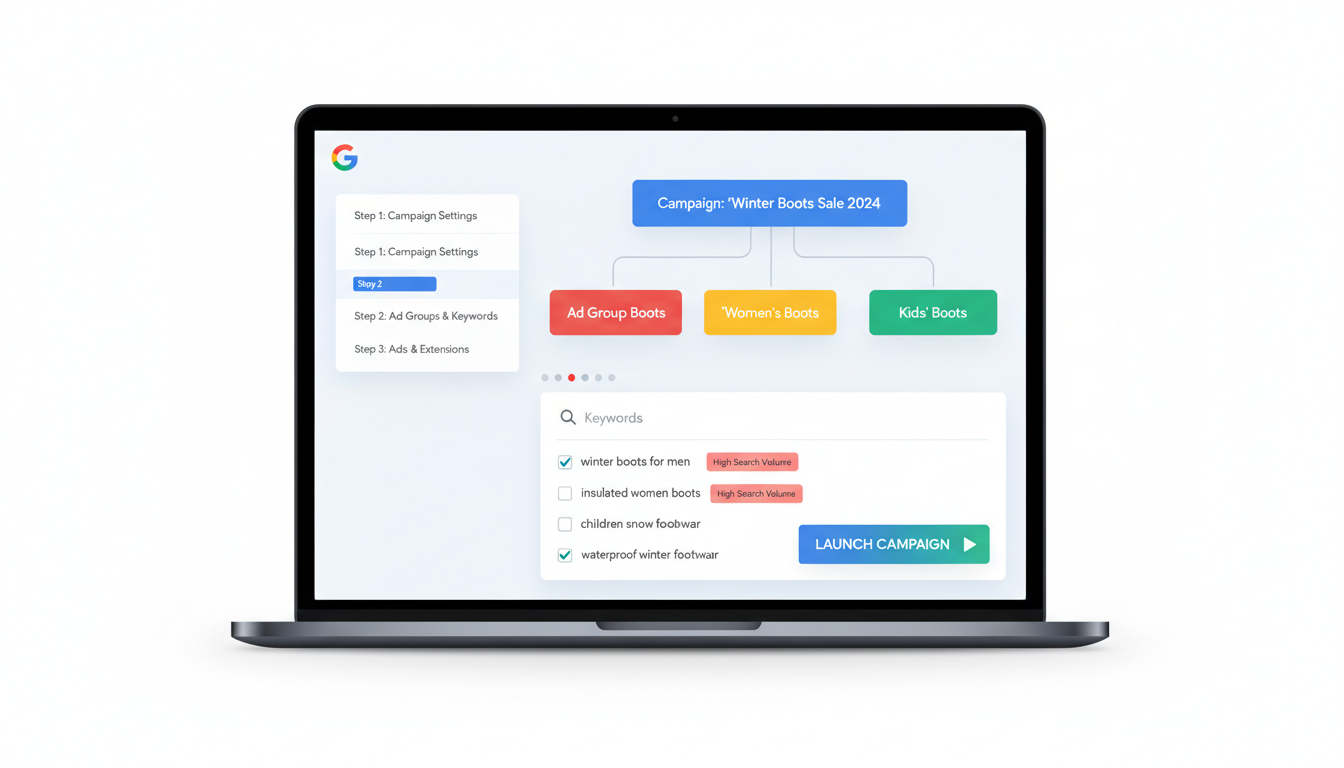
Setting up your first Google Ads campaign can feel daunting, but with a structured approach and clear understanding of the platform, you can have a professionally configured campaign running within a few hours. This step-by-step guide is designed specifically for UK business owners who are new to Google Ads and want to get things right from the start.
Whether you are a sole trader looking to generate local enquiries or an established business ready to scale your online presence, the fundamentals of setting up a Google Ads campaign remain the same. Follow this guide carefully, and you will avoid the costly mistakes that many first-time advertisers make.
Before diving into the setup process, it is worth understanding the scale and impact of Google Ads for UK businesses. The platform reaches millions of searchers every day, and when campaigns are configured correctly, the returns are substantial. These figures illustrate why Google Ads remains the most popular paid advertising channel for businesses of all sizes across the United Kingdom.
These averages vary significantly by industry and competition level, but they demonstrate the potential for a well-structured campaign to deliver meaningful results from the very first month. The key is ensuring your account, tracking, and targeting are set up correctly from day one - which is exactly what the following steps will guide you through.
Step 1: Create Your Google Ads Account
Begin by navigating to ads.google.com. You will need a Google account - ideally one already associated with your business. If you use Google Workspace or have a Gmail account for your business, use that to sign in.
When Google prompts you to create your first campaign immediately, look for the option to switch to Expert Mode. This is critical. The default Smart Campaign setup that Google offers is designed to be simple, but it removes most of the controls you need to run an effective campaign. Expert Mode gives you access to all campaign types, bidding strategies, targeting options, and reporting features.
Google will encourage you to use Smart Campaigns during setup. While they appear simpler, they severely limit your ability to control keywords, write custom ad copy, and optimise performance. Always select Expert Mode for full control over your advertising spend.
Once in Expert Mode, you can skip the campaign creation process temporarily by clicking "Create an account without a campaign." This allows you to configure your account settings properly before committing any budget. Set your country to United Kingdom, your time zone to GMT/BST, and your currency to British Pound Sterling (GBP).
Step 2: Set Up Conversion Tracking
Before you spend a single penny, you must configure conversion tracking. This tells Google Ads when a click on your advert results in a valuable action - a phone call, a form submission, a purchase, or any other goal that matters to your business.
Navigate to the Tools and Settings menu, then select Conversions under the Measurement section. Click the plus button to create a new conversion action. For most UK small businesses, the most common conversion types are:
Website actions: Track when visitors complete a form, make a purchase, or visit a specific page (such as a thank-you page after submitting an enquiry). Google provides a tag (a small piece of code) that you place on the conversion page of your website.
Phone calls: Track calls made directly from your adverts, calls to a phone number on your website, or clicks on a phone number on your mobile site. Phone call tracking is particularly valuable for service businesses where customers prefer to ring rather than fill in forms.
Import from Google Analytics: If you already have Google Analytics 4 set up on your website with goals configured, you can import these directly into Google Ads. This is often the quickest route if your analytics is already properly configured.
Use Google Tag Manager to manage your conversion tracking tags. It allows you to add, edit, and remove tracking codes without modifying your website's source code directly. This is especially useful if you do not have a developer readily available to make website changes.
Step 3: Conduct Keyword Research
With your account set up and conversion tracking in place, it is time to research the keywords you want to target. Open the Keyword Planner tool from the Tools menu. You have two options: "Discover new keywords" and "Get search volume and forecasts."
Start with "Discover new keywords" and enter terms related to your business. If you run a plumbing company in Sheffield, you might start with terms like "plumber Sheffield," "emergency plumber," "boiler repair Sheffield," and "central heating installation." The Keyword Planner will return a list of related keywords along with their average monthly search volumes, competition levels, and estimated costs per click.
Focus on keywords with clear commercial intent. Someone searching "how does a boiler work" is looking for information, not a plumber. Someone searching "boiler repair Sheffield" is far more likely to hire you. Group your keywords by theme - this will help you structure your campaigns and ad groups effectively.
Pay attention to the competition indicator and suggested bid ranges. Keywords with high competition typically cost more per click. For a first campaign with a modest budget, targeting a mix of moderate-competition and long-tail keywords (more specific phrases with lower competition) is a sensible strategy.
| Keyword Type | Example | Search Volume | Competition | Est. CPC |
|---|---|---|---|---|
| Generic | plumber | 22,000 | High | £4.50–£8.00 |
| Local | plumber Sheffield | 1,300 | Medium | £2.50–£5.00 |
| Service-Specific | boiler repair Sheffield | 480 | Medium | £3.00–£6.00 |
| Long-Tail | emergency boiler repair Sheffield 24hr | 90 | Low | £1.50–£3.50 |
| Branded Competitor | [competitor] alternative Sheffield | 40 | Low | £1.00–£2.50 |
Step 4: Plan Your Campaign Structure
A well-structured campaign is far easier to manage and optimise than a disorganised one. Google Ads uses a hierarchy: Account > Campaigns > Ad Groups > Keywords and Ads. Here is how to think about each level.
Your campaign is the top level. It controls your budget, geographic targeting, bidding strategy, and network settings. For most first-time advertisers, a single Search campaign is the right starting point. You can always add more campaigns later as you learn what works.
Within your campaign, you create ad groups. Each ad group should contain a tightly themed set of keywords and corresponding adverts. The tighter the theme, the more relevant your adverts will be to the search queries, which improves your Quality Score and lowers your costs. For our plumber example, you might create separate ad groups for "Boiler Repair," "Emergency Plumber," "Central Heating Installation," and "Bathroom Plumbing."
Each ad group contains your keywords and your adverts. Aim for 5 to 15 keywords per ad group, all closely related to the same theme. Your adverts within each ad group should directly reference those keywords, creating a strong connection between what the user searches for and what they see in your advert.
Step 5: Create Your Campaign
Now it is time to build. In your Google Ads dashboard, click the blue plus button and select "New campaign." Choose your campaign objective - for most businesses, "Leads" or "Sales" is appropriate. Select "Search" as your campaign type.
Campaign Settings:
Networks: Uncheck "Google Display Network" and "Google Search Partners." For your first campaign, you want to focus exclusively on Google Search. The Display Network and Search Partners can dilute your results and make it harder to assess performance clearly.
Locations: Set your geographic targeting precisely. If you serve customers within 30 miles of your business, use radius targeting around your postcode. If you serve all of England, target England specifically rather than the entire United Kingdom - unless you genuinely serve Scotland, Wales, and Northern Ireland too. Under location options, select "Presence: People in or regularly in your targeted locations" rather than "Presence or interest," which can show your adverts to people who are merely researching your area.
Language: Set to English.
Budget: Enter your daily budget. If you plan to spend £600 per month, set your daily budget to £20. Start conservatively - you can always increase your budget once you have data showing a positive return.
Bidding: For your first campaign, select "Maximise Clicks" with a maximum CPC bid limit. This gives Google some flexibility to optimise your bids while preventing any single click from costing more than your limit. Set the maximum CPC bid limit to a figure you are comfortable with based on your keyword research - typically between £2 and £5 for most UK small business sectors.
Step 6: Build Your Ad Groups and Write Your Adverts
Create your first ad group and give it a clear, descriptive name. Add the keywords you researched for this theme, using phrase match (keywords in quotation marks) or exact match (keywords in square brackets) for your first campaign. Avoid broad match initially, as it can trigger your adverts for a wide range of loosely related searches.
Now write your responsive search ads. You need to provide multiple headlines and descriptions that Google will mix and match to find the best combinations. Here are practical tips for each element:
Headlines (up to 15, each max 30 characters): Include your main keyword in at least 2–3 headlines. Add your location in 1–2 headlines. Include a call to action such as "Get a Free Quote" or "Book Today." Mention unique selling points like "5-Star Reviews," "No Call-Out Fee," or "Same Day Service." Pin your most important headline to Position 1 to ensure it always shows.
Descriptions (up to 4, each max 90 characters): Expand on your value proposition. Describe what makes your service different. Include a call to action with a sense of urgency. Mention trust signals such as years of experience, accreditations, or guarantee details.
Here is an example for a boiler repair ad group:
Headlines: "Boiler Repair in Sheffield" | "Expert Boiler Engineers" | "Same Day Repair Service" | "No Call-Out Charge" | "Gas Safe Registered" | "Call Now for Fast Repair" | "5-Star Rated on Google" | "Fixed Price Quotes"
Descriptions: "Professional boiler repair service in Sheffield. Gas Safe registered engineers available 7 days a week. Call now for a free quote." | "Don't suffer without heating. Our qualified engineers can repair any boiler make or model. Same day service available across Sheffield."
Step 7: Add Ad Extensions (Assets)
Ad extensions, now referred to as assets in Google Ads, add extra information to your adverts and significantly increase their visibility on the page. You should add as many relevant extensions as possible. The key types are:
Sitelink Extensions: Additional links to specific pages on your website. Add 4–6 sitelinks such as "Our Services," "About Us," "Pricing," "Customer Reviews," "Contact Us," and "Service Areas." Each sitelink should link to a different, relevant page.
Callout Extensions: Short phrases highlighting key benefits. Examples: "Free Estimates," "24/7 Emergency Service," "Family-Run Business," "Serving South Yorkshire," "10+ Years Experience." Add at least 4 callouts.
Call Extensions: Display your phone number directly in the advert. This is essential for businesses that generate leads via phone calls. Set a schedule so the call extension only shows during your working hours.
Location Extensions: Link your Google Business Profile to show your business address alongside your adverts. This is particularly valuable for local businesses and helps your adverts appear in Google Maps results.
Structured Snippet Extensions: Highlight specific aspects of your services, such as "Services: Boiler Repair, Central Heating, Bathroom Plumbing, Radiator Installation."
Step 8: Set Up Negative Keywords
Before launching your campaign, add a list of negative keywords - terms you do not want your adverts to appear for. This is one of the most important steps that many new advertisers skip, and it can save you hundreds of pounds in wasted spend.
Common negative keywords for UK service businesses include: free, cheap, DIY, jobs, salary, training, course, how to, what is, Wikipedia, reviews (if you do not have a strong review page), and competitor brand names (unless you specifically want to target competitor searches).
Create a shared negative keyword list that you can apply across all campaigns. This saves time and ensures consistency. You can find this option under Tools and Settings > Shared Library > Negative Keyword Lists.
Step 9: Review and Launch
Before clicking the final launch button, review everything carefully. Check that your geographic targeting is correct. Confirm your daily budget is set appropriately. Verify that your conversion tracking is active and recording test conversions correctly. Preview your adverts to see how they will appear in search results.
Double-check your landing pages. Each ad group should ideally point to a dedicated landing page that matches the specific service or product being advertised. The landing page should load quickly, display properly on mobile devices, and have a clear call to action - a prominent phone number, a short contact form, or both.
Once you are satisfied, set your campaign to "Enabled" and it will begin serving adverts. Google typically reviews new adverts within 24 hours. During this review period, your adverts may not show consistently, but once approved, they will begin appearing for your targeted keywords.
Your first week of data will not be representative of long-term performance. Google's algorithms need time to learn which auctions are most relevant for your adverts. Allow at least 2–3 weeks of data before making significant changes to your campaign structure or bidding strategy.
Step 10: Monitor, Learn, and Optimise
The work does not stop at launch. In fact, this is where the real value begins. During your first week, check your campaign daily. Look at which keywords are generating clicks, what search terms are triggering your adverts, and whether your conversion tracking is recording actions correctly.
In the first month, focus on these key optimisation tasks:
Review Search Terms Weekly: Navigate to Keywords > Search Terms to see the actual queries people typed before clicking your advert. Add irrelevant terms as negative keywords immediately. This is the single most impactful thing you can do to improve your campaign's efficiency.
Assess Keyword Performance: After two weeks, look at which keywords are generating clicks and conversions. Pause keywords that are spending money without generating any conversions. Increase bids on keywords that are converting well but are limited by their current bid.
Test Ad Copy: After your responsive search ads have accumulated enough impressions, review the asset performance report to see which headlines and descriptions are rated "Best," "Good," or "Low." Replace underperforming assets with new variations.
Check Quality Scores: Navigate to your keyword list and add the Quality Score column. Keywords with a Quality Score below 5 are costing you more than necessary. Improve them by tightening the relevance between your keywords, ad copy, and landing pages.
Monitor Geographic Performance: Check which locations are generating the most conversions. You may find that certain areas perform significantly better than others. Adjust your location bid modifiers to allocate more budget to high-performing areas.
As you accumulate more data - ideally after 30 or more conversions - consider switching your bidding strategy from Maximise Clicks to a conversion-based strategy such as Maximise Conversions or Target CPA. These automated strategies use Google's machine learning to optimise your bids for the outcomes that matter most to your business.
Budgeting for Your First Campaign
A common question is how much to budget for a first campaign. For most UK small businesses, we recommend starting with £500 to £1,000 for the first month. This provides enough data to learn which keywords, adverts, and landing pages perform best, without committing an excessive amount of money before you have results to guide your decisions.
When allocating your monthly budget, it helps to think about how your spend should be distributed across different activities. The following chart shows a recommended budget allocation for a first-month Google Ads campaign, ensuring you invest in both direct advertising and the testing and optimisation that will improve your results over time.
The majority of your budget should go directly towards your search campaigns, as this is where you will generate clicks and conversions. However, allocating a portion towards testing different landing pages, writing additional ad copy variations, and setting up remarketing campaigns will compound your returns significantly over the first few months. Analytics tools and conversion tracking solutions, while often free at a basic level, may require a small investment if you choose to use premium features or third-party platforms for deeper performance insights.
Remember that your first month is an investment in data as much as it is in leads. The insights you gain from that initial spend will inform your strategy going forward and help you allocate future budgets far more effectively.
When to Seek Professional Help
Managing Google Ads effectively requires time, attention, and a willingness to learn. If you find that you are not able to dedicate at least 2–3 hours per week to monitoring and optimising your campaigns, or if your campaigns are not delivering the results you expected despite following best practices, it may be time to bring in professional help.
The decision between managing your campaigns yourself and partnering with an agency depends on several factors, including your available time, technical aptitude, and the complexity of your market. The following comparison highlights the key differences between the two approaches to help you decide which path is right for your business.
Professional Management
Self-Managed Campaigns
A skilled Google Ads agency can accelerate your results, implement advanced strategies, and ultimately save you money by avoiding the trial-and-error process that self-managing advertisers inevitably go through. The best agencies will work as a transparent partner, giving you full access to your account and providing clear reporting on performance and return on investment.
Need Help Setting Up Your First Campaign?
Our certified Google Ads team has helped hundreds of UK businesses launch their first campaigns and achieve measurable growth. From account setup to ongoing management, we handle everything so you can focus on serving your customers.
Get Started with Google Ads
CloudSwitched
London-based managed IT services provider offering support, cloud solutions and cybersecurity for SMEs.


