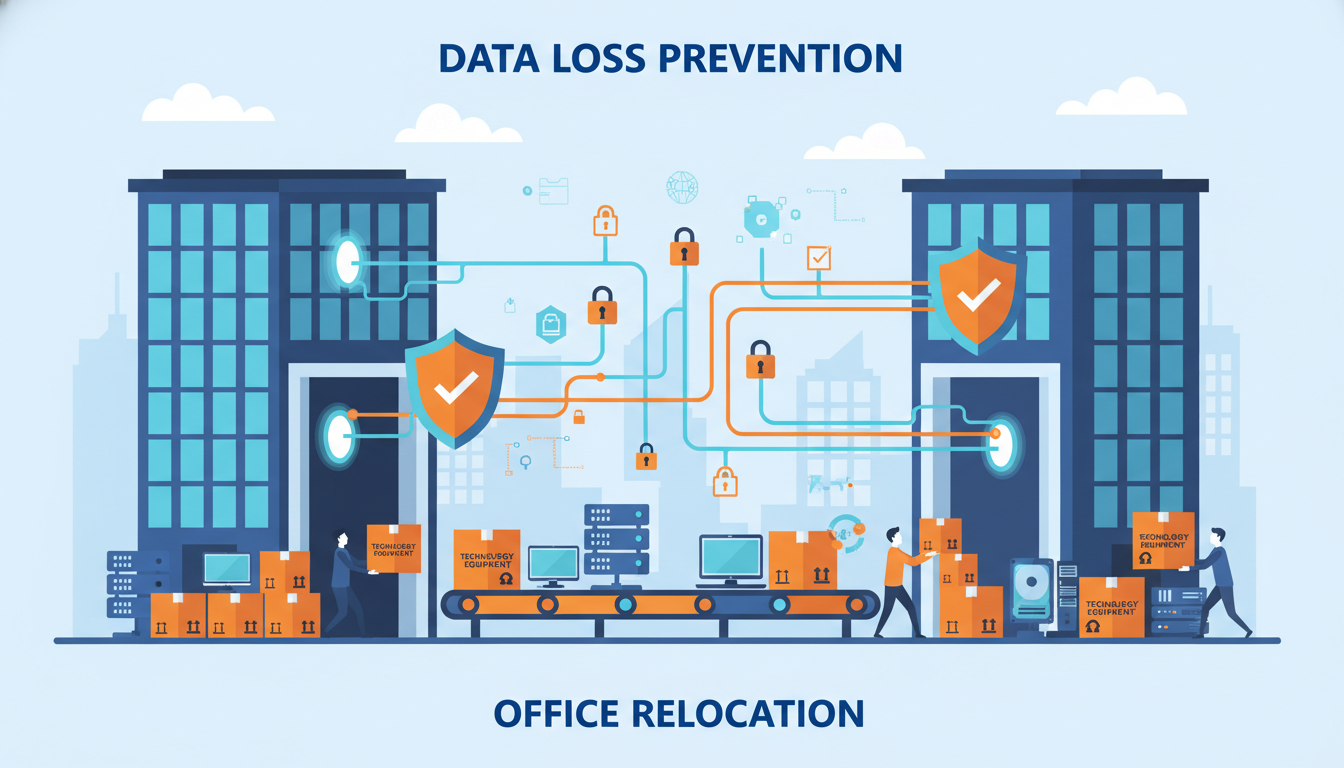
An office relocation is one of the most exciting milestones for a growing business, but it is also one of the most dangerous periods for your data. The combination of physical equipment movement, network reconfiguration, service transitions, and compressed timelines creates a perfect storm of data loss risk. Every year, UK businesses lose critical data during office moves - sometimes permanently - because they underestimated the complexity of safely migrating their technology estate.
Data loss during a relocation can take many forms. Hard drives can be damaged during physical transport. Servers may not restart correctly after being powered down and moved. Cloud service migrations can fail silently, leaving gaps in your data. Email archives can be corrupted. Backup systems may be disconnected during the move and never properly reconnected. The consequences range from inconvenient to catastrophic, depending on the data involved and whether adequate backups exist.
This guide provides a comprehensive, step-by-step approach to protecting your data throughout every phase of an office relocation, from initial planning through to post-move verification.
What makes data loss during a move particularly insidious is that it often goes undetected for weeks or even months. A corrupted database may appear to function normally until a specific record is accessed. A backup that failed silently during the transition period only reveals its inadequacy when a restore is required. An email archive that lost messages during the switchover may not be noticed until someone searches for a critical communication months later. By that point, the window for recovery has long since closed, and the business is left dealing with the consequences of a loss that could have been prevented with proper planning.
The financial impact extends well beyond the immediate cost of data recovery. Regulatory fines under UK GDPR can be substantial if personal data is lost due to inadequate technical measures. Client relationships suffer when projects are delayed because critical files have vanished. Employee productivity plummets when staff must recreate work that was lost in transit. Insurance claims for data loss during an office move are frequently disputed, particularly if the insurer can demonstrate that reasonable precautions were not taken. The true cost of a data loss event during relocation is almost always several multiples of the direct recovery expense.
Phase 1: Pre-Move Data Audit and Inventory
The foundation of data protection during an office move is knowing exactly what data you have, where it lives, and how critical it is to your operations. This audit should begin at least eight weeks before your planned move date, giving you adequate time to address any issues discovered.
A thorough data audit serves a dual purpose during an office relocation. First, it provides the information you need to create an effective data protection plan for the move itself. Second, it frequently uncovers pre-existing vulnerabilities in your data management practices that should be addressed regardless of the move. Many businesses discover during this process that their backup procedures have gaps, that critical data exists in locations they were not aware of, or that their data retention practices do not align with their regulatory obligations. Treating the move as an opportunity to rectify these issues delivers lasting benefits that extend well beyond the relocation itself.
Consider appointing a dedicated data audit lead - ideally someone with both technical knowledge and a detailed understanding of your business operations. This person should work systematically through every department, interviewing key staff about the data they use daily, the systems they rely on, and any local storage habits they have developed. It is remarkably common for individual employees to maintain critical spreadsheets, client databases, or project files on their local machines, outside the reach of centralised backup systems. These shadow data stores represent some of the highest-risk data during an office move because they are the most likely to be overlooked.
Start by creating a comprehensive inventory of every system that stores business data. This includes on-premise servers, NAS devices, individual workstations, external hard drives, USB storage, cloud services, email systems, line-of-business applications, and any legacy systems that may still hold important historical data. For each system, document the type of data stored, the volume of data, the criticality to business operations, and the current backup status.
Many businesses are surprised by what this audit reveals. You may discover critical data stored on a single workstation under someone's desk with no backup. You may find an old server still running in a cupboard that holds archived client files. You may realise that your backup system has not been verified in months and may not be working correctly. It is far better to discover these issues during a planned audit than during the chaos of moving day.
The most dangerous assumption during an office move is that your backups are working. Before moving anything, perform a complete test restore of your most critical data. This means actually restoring files from your backup to a test location and verifying they open correctly. A backup that has never been tested is not a backup - it is a hope. The ICO has specifically noted that untested backups do not constitute adequate technical measures under UK GDPR.
Phase 2: Creating Your Data Protection Plan
Once you know what data you have and where it lives, you can create a specific plan for protecting each data set during the move. This plan should address three layers of protection: pre-move backups, safe physical transport, and post-move verification.
Pre-Move Backup Strategy
Before any equipment is disconnected or moved, create a complete backup of all business data. This should be in addition to your regular backup routine and should follow the 3-2-1 rule: three copies of your data, on two different types of media, with one copy stored off-site. For an office move, this means your regular backups continue running, you create an additional full backup to a separate device, and you ensure your off-site or cloud backup is complete and verified.
For on-premise servers, create a full system image backup using tools such as Veeam, Acronis, or Windows Server Backup. This captures not just your data files but the entire operating system, applications, and configuration - allowing you to restore the complete server to new hardware if necessary. Store this image on a portable drive that will travel separately from the server hardware.
For individual workstations, focus on user data rather than system images. Documents, desktop files, browser bookmarks, email archives, and application data should be backed up. If you use Microsoft 365 with OneDrive, ensure all users have synced their files to the cloud before the move. If you use local file servers, ensure the server backup is complete and verified.
| Data Type | Backup Method | Backup Location | Verification Method |
|---|---|---|---|
| Server operating systems | Full system image | External drive + cloud | Test restore to VM |
| File server data | Incremental + full backup | NAS + off-site cloud | Random file restore test |
| Email (Exchange/365) | Cloud backup service | Third-party cloud | Restore sample mailboxes |
| Database systems | Native database dump | External drive + cloud | Restore to test instance |
| User workstation files | OneDrive sync / manual | Microsoft 365 cloud | Verify sync completion |
| Line-of-business apps | Application-specific export | External drive + cloud | Test import on spare device |
Phase 3: Safe Physical Transport of IT Equipment
The physical movement of IT equipment is where many data losses occur. Hard drives are mechanical devices with spinning platters and read/write heads positioned with microscopic precision. A sharp jolt or drop can cause a head crash that destroys the drive and the data on it. Servers, which often contain multiple drives in RAID arrays, are particularly vulnerable because a transport-related failure of even one drive can compromise the entire array if another drive was already degraded.
Before moving any equipment, ensure all servers and workstations are properly shut down - not just put to sleep. Verify that all drives have spun down completely. For servers with RAID arrays, check and document the RAID status before shutdown. If any drive in the array is showing warnings or degraded status, replace it and rebuild the array before the move, not after.
Use purpose-built IT transport cases or anti-static, shock-absorbing packaging for all equipment. Servers should be transported in their original packaging if available, or in custom flight cases with foam inserts. Hard drives that have been removed from servers should be placed in anti-static bags and transported in padded cases. Never stack heavy items on top of IT equipment, and never transport servers or hard drives in the boot of a car without adequate cushioning.
Safe Transport Practices
- Proper shutdown and RAID verification before moving
- Anti-static, shock-absorbing packaging
- Dedicated IT transport vehicle with suspension
- Equipment inventory with serial numbers
- Separate transport for backup drives
- Climate-controlled vehicle in extreme weather
- Professional IT relocation specialist
- Insurance covering full replacement value
Common Mistakes to Avoid
- Moving servers while still powered on
- Using standard removal boxes without padding
- Letting general movers handle IT equipment
- No inventory or labelling of components
- Transporting backups with source hardware
- Moving equipment in extreme heat or cold
- Disconnecting cables without labelling
- No insurance for IT equipment during transit
Phase 4: Network and Service Transition
Data loss during an office move is not limited to physical damage. Service transitions - particularly internet connectivity, email, and cloud services - can also result in data loss if not managed carefully. When your internet connection at the old office is terminated and the new connection goes live, there is often a gap. During this gap, emails may bounce, cloud sync may fail, and automated processes may error out.
The safest approach is to establish internet connectivity at the new office before terminating the old connection. This overlap period, even if only a few days, allows you to test the new connection, migrate services gradually, and fall back to the old office if problems arise. Most UK business ISPs can arrange this if given adequate notice - typically four to six weeks for a new leased line installation.
For email, ensure your MX records are configured to queue mail during any transition period. If you are using Microsoft 365 or Google Workspace, your email is already cloud-hosted and will be unaffected by the physical move. However, if you are running an on-premise Exchange server, you need to plan carefully to avoid lost emails during the period when the server is being moved and reconnected.
Phase 5: Post-Move Verification
Once all equipment is installed and powered on at the new office, resist the temptation to declare victory and move on. The post-move verification phase is critical for identifying data loss that may not be immediately apparent. Some data corruption only becomes visible when specific files are accessed or specific applications are run.
Begin with hardware health checks on all servers and workstations. Check RAID array status on servers - any degradation that occurred during transport needs to be addressed immediately before a second drive failure causes data loss. Run disk health diagnostics (SMART checks) on all drives. Check that all network-attached storage devices are online and accessible.
Next, verify data integrity. Open a random sample of files from each major data store and confirm they are not corrupted. Run your line-of-business applications and verify they connect to their databases correctly. Check that email is flowing in both directions. Verify that your backup systems are running and completing successfully at the new location.
Finally, confirm that all automated processes are functioning. Backup schedules, monitoring systems, antivirus updates, cloud synchronisation, and any scheduled tasks should all be verified. It is common for scheduled tasks to fail after a move because of changed network addresses, new firewall rules, or altered DNS settings.
GDPR Considerations During an Office Move
Under UK GDPR, your organisation is responsible for the security of personal data at all times - including during an office relocation. The ICO expects organisations to implement appropriate technical and organisational measures to protect personal data, and this obligation does not pause because you are moving office.
Key GDPR considerations during a move include ensuring that any equipment containing personal data is securely transported and never left unattended in a vehicle or loading bay. Any old equipment being disposed of must have its data securely erased using certified data destruction methods - a simple format is not sufficient. If you are using a removals company, consider whether they need to sign a data processing agreement if they will be handling equipment containing personal data.
Document your data protection measures throughout the move. If the worst happens and data is lost, having documented evidence that you took reasonable precautions will be important in demonstrating compliance to the ICO. Conversely, if an investigation reveals that data was lost because of careless handling during a move with no documented protection measures, the ICO is likely to view this as a failure to implement appropriate technical measures.
Data Protection Impact Assessment
For larger moves or organisations handling significant volumes of personal data, consider conducting a Data Protection Impact Assessment (DPIA) specifically for the relocation. Whilst a DPIA is not legally required for every office move, it is a valuable exercise that forces you to identify the specific risks to personal data arising from the relocation, evaluate the likelihood and severity of each risk, document the measures you are implementing to mitigate those risks, and create an accountability trail that demonstrates your commitment to data protection throughout the process. The ICO provides a template and guidance for conducting DPIAs, which can be adapted to the specific circumstances of an office move.
Remember that your obligations under UK GDPR extend to data processed by third parties on your behalf. If you are using a removals company, an IT relocation specialist, or a temporary storage facility during the move, each of these parties may come into contact with personal data stored on your equipment. Review your contracts with these providers to ensure appropriate data processing agreements are in place, and verify that they have adequate security measures for handling equipment containing personal data. If a third-party processor causes a data breach during your move, your organisation remains the data controller and bears primary responsibility for the incident.
Working with Professional IT Relocation Specialists
For businesses with significant on-premise infrastructure, engaging a professional IT relocation specialist is strongly recommended. These firms have the equipment, expertise, and insurance to transport your technology safely. They use purpose-built server transport cases, anti-vibration vehicles, and follow documented procedures for disconnection, transport, and reconnection.
A professional IT relocation firm will typically conduct a pre-move site survey, create a detailed migration plan, label all equipment and cabling, document the existing configuration with photographs, provide specialist packaging and transport, and handle reconnection and testing at the new site. The cost is typically between £2,000 and £10,000 depending on the volume and complexity of equipment, which is a small price compared to the potential cost of data loss.
Selecting the Right Relocation Partner
Not all IT relocation firms are equal, and selecting the right partner requires careful due diligence. Look for firms that hold relevant industry certifications, such as ISO 27001 for information security management, and ask for references from businesses of a similar size and complexity to your own. A firm that specialises in relocating small office setups with a handful of workstations may not have the expertise or equipment to safely handle a server room migration with multiple racks of enterprise hardware.
During the selection process, ask prospective firms about their specific procedures for handling RAID arrays, their approach to chain-of-custody documentation during transport, their insurance coverage limits for data loss (not just equipment damage), and their experience with your specific server and storage hardware. A reputable firm will be able to answer these questions in detail and will proactively raise concerns about any aspect of your infrastructure that requires special handling. Be wary of firms that offer a one-size-fits-all approach or that cannot articulate their specific procedures for protecting data during transit.
It is also worth considering the timing of your engagement with the relocation specialist. The best outcomes are achieved when the specialist is involved from the planning phase, not just the moving day. Early engagement allows them to conduct a thorough site survey, identify potential challenges, recommend infrastructure improvements at the new site before the move, and coordinate with your IT support provider to ensure seamless handover. Engaging a relocation specialist only a week before the move severely limits their ability to plan effectively and increases the risk of complications on the day.
Even if you use a specialist relocation firm for the physical move, your IT support provider should be involved in the planning, backup creation, and post-move verification. The relocation firm handles the physical transport; your IT provider ensures the data is protected throughout and everything works correctly at the other end.
Planning an Office Move? Protect Your Data
Cloudswitched has managed IT relocations for hundreds of UK businesses, ensuring zero data loss through comprehensive backup, professional transport coordination, and thorough post-move verification. Let us take the stress out of your office move.
Explore IT Office Move Services
CloudSwitched
London-based managed IT services provider offering support, cloud solutions and cybersecurity for SMEs.


