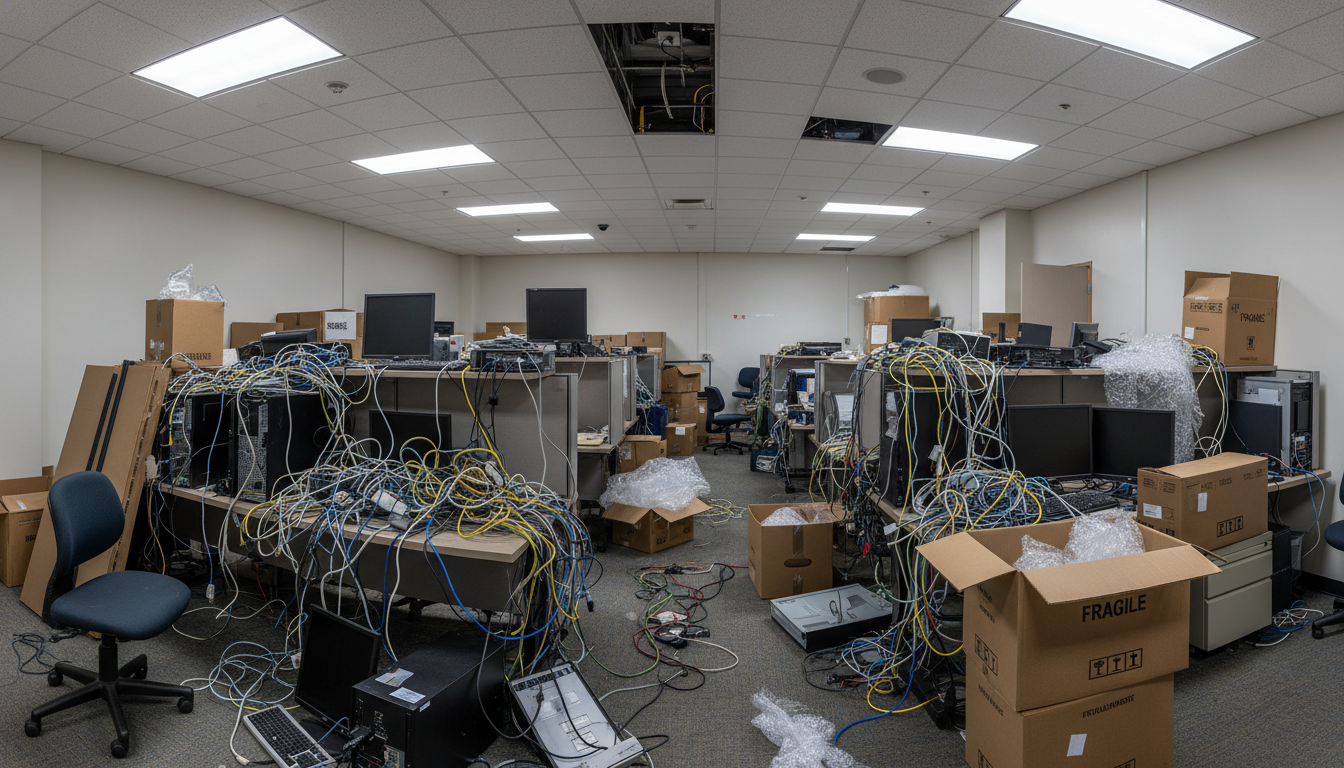
Relocating your office should be an exciting step forward for your business. A bigger space, a better location, room to grow - the future looks bright. But for far too many UK businesses, what should be a well-orchestrated transition turns into weeks of IT chaos: phones that do not work, internet that is not connected, files that cannot be found, and staff who cannot do their jobs.
The frustrating truth is that the vast majority of IT problems during an office move are entirely avoidable. They stem not from bad luck or technical complexity, but from common, predictable mistakes that businesses make over and over again - usually because IT is treated as an afterthought rather than a core pillar of the relocation plan.
This article details the ten most common IT mistakes businesses make when moving office, explains exactly why each one causes problems, and provides practical guidance on how to avoid them. Whether you are a 15-person firm moving across town or a 150-person organisation relocating to a new building, these pitfalls apply to you - and sidestepping them could save you thousands of pounds and days of lost productivity.
Mistake 1: Not Planning Early Enough
This is, without question, the single most damaging mistake businesses make - and the one from which nearly all other problems cascade. IT infrastructure has long lead times, complex dependencies, and zero tolerance for last-minute improvisation. Yet time after time, companies sign a lease, pick a moving date, sort the furniture, brief the removals firm, and only then turn to their IT team and say, "Right, we're moving in six weeks - can you sort the technology?"
Six weeks is nowhere near enough. A properly planned IT office move requires a minimum of three months' lead time, and for larger or more complex environments, six months is far more realistic. During that window, you need to audit your existing estate, design the new network, order connectivity, procure hardware, plan the cabling, coordinate with the fit-out team, arrange the physical move of equipment, and schedule testing time before staff arrive.
If you take only one lesson from this article, let it be this: begin your IT planning at least 90 days before your target move date. For businesses with on-premises servers, leased lines, or complex network environments, extend that to 120–180 days. The earlier you start, the more options you have - and the fewer problems you will face on moving day.
Starting late does not just create stress - it removes options. When you leave connectivity ordering until the last minute, you cannot choose the best provider; you are stuck with whoever can deliver fastest. When you skip the site survey, you discover cabling problems after the walls are already up. When you rush the equipment audit, you move broken hardware to a new location at your own expense. Early planning is not a luxury; it is the foundation upon which everything else depends.
Mistake 2: Forgetting About Internet Lead Times
This mistake deserves its own section because it catches out an astonishing number of UK businesses every year. The assumption is understandable: you ring up an ISP, place an order, and the internet appears. After all, getting broadband at home takes a couple of weeks - how much harder can it be for an office?
The answer is: much harder. Business-grade connectivity - particularly leased lines, which are the gold standard for reliability and performance - involves physical infrastructure work. Fibre may need to be laid from the nearest exchange or street cabinet to your building. Wayleave agreements may be required with landlords or local authorities. Civil engineering works may be needed to dig trenches or install ducting. Each step involves different teams, different timescales, and different points of potential delay.
| Connection Type | Typical UK Lead Time | Factors That Cause Delays |
|---|---|---|
| Standard business broadband (FTTC) | 10–20 working days | Openreach engineer availability, existing line faults |
| FTTP (full fibre broadband) | 15–30 working days | Fibre availability at the premises, wayleave permissions |
| Ethernet leased line | 60–90 working days | Civil works, wayleave disputes, Openreach scheduling |
| Dedicated fibre (CityFibre, neos, etc.) | 45–75 working days | Network proximity, building access agreements |
| 4G/5G backup (temporary solution) | 3–5 working days | Signal strength at the location, hardware availability |
We have seen businesses move into beautiful new offices only to discover they have no internet - and will not have any for another eight weeks. Staff resort to tethering from their mobile phones, cloud systems become unusable, VoIP phones are silent, and operations grind to a crawl. The reputational damage alone can be significant: clients calling and getting no answer, emails bouncing, deadlines missed.
The fix is simple: order your connectivity the moment you sign the lease, not the moment you start packing boxes. Even if your move date shifts, most providers will accommodate rescheduling far more easily than they can compress a 90-day installation into a fortnight.
Mistake 3: Not Auditing Existing Equipment
An office move is one of the few occasions when every single piece of IT equipment is physically handled - disconnected, packed, transported, and reconnected. It is also one of the best opportunities you will ever have to rationalise your estate. Yet most businesses simply move everything from A to B without ever asking, "Do we actually still need all of this?"
The consequences are twofold. First, you pay to move equipment that is end-of-life, out of warranty, or surplus to requirements - wasting money on removals, cabling, and rack space for assets that should have been decommissioned. Second, you arrive at your new premises with a patchwork of ageing hardware that is more likely to fail under the stress of being transported and reconfigured.
The bars above illustrate how commonly businesses actually audit each equipment category before a move - the percentages are strikingly low. A thorough pre-move audit should document every asset, flag anything over three years old for potential replacement, identify leased equipment that needs returning, and create a clear disposition plan: move, replace, or decommission.
Mistake 4: Losing Data During the Move
Data loss during an office move is more common than you might think, and it does not always happen in the dramatic fashion of a server being dropped by a removals company (though that does happen). More frequently, data loss occurs through subtler channels: a hard drive that was already failing finally gives up after being jostled in transit, a backup that was not verified and turns out to be corrupted, or files stored locally on someone's desktop machine that nobody thought to copy before the move.
The risk is particularly acute for businesses that still rely on on-premises servers or network-attached storage. Physical servers are sensitive equipment. They contain spinning hard drives that do not respond well to vibration, shock, or sudden temperature changes. Even when handled carefully, the act of powering down, transporting, and restarting a server that has been running continuously for years can expose latent hardware faults.
Before the Move: Do This
- Take a full, verified backup of all servers, NAS devices, and critical workstations at least 48 hours before the move
- Store backup copies offsite or in the cloud - never transport your only backup alongside the source hardware
- Verify backup integrity by performing a test restore of critical files and databases
- Document the location of all locally stored data across the organisation
- Ensure cloud sync services (OneDrive, SharePoint, Google Drive) have fully synced before equipment is shut down
- Export configurations from firewalls, switches, and routers in case hardware fails during transit
Common Failures: Avoid These
- Assuming your existing backups are working without verifying them
- Transporting servers and their only backup in the same vehicle
- Forgetting that some staff store critical files on local desktops, not the server
- Shutting down servers without a clean shutdown procedure, risking database corruption
- Failing to export network device configurations, requiring complete reconfiguration
- Not documenting IP addresses, DHCP reservations, and DNS records before disconnecting
The golden principle is straightforward: assume that any piece of hardware could fail during the move, and plan accordingly. If you cannot afford to lose the data on a device, that data must exist in at least two other places before the move begins.
Mistake 5: Not Testing Systems Before Go-Live
There is an understandable temptation to get everything reconnected as fast as possible and declare the move complete. Staff are eager to get back to work, management wants normal operations restored, and the IT team is exhausted after working through the weekend. In the rush, testing gets reduced to "Can I ping the server? Yes? Good enough."
This is a costly shortcut. An office move changes so many variables simultaneously - new network infrastructure, different ISP routing, potentially new hardware, reconfigured servers, updated firewall rules - that assumptions about what "should" work are dangerous. Systems that functioned perfectly in the old office may behave differently in the new environment for reasons that are not immediately obvious.
Before declaring your new office operational, systematically test every critical system: internet connectivity (speed, latency, and failover), VoIP telephony (inbound and outbound calls, including to mobiles and landlines), email (sending, receiving, and attachment handling), access to all line-of-business applications, printing from every floor or zone, VPN connectivity for remote workers, Wi-Fi coverage in every room including meeting rooms and breakout areas, backup jobs running to completion, and access control or door entry systems. Allocate a minimum of one full working day for testing - ideally before staff arrive.
The businesses that execute the smoothest moves are those that build a dedicated testing window into their timeline. Ideally, IT equipment is moved and reconnected over a weekend, with Monday reserved for systematic testing before staff return on Tuesday. That buffer day is invaluable - it gives you time to identify and resolve issues without 50 people standing around unable to work.
Mistake 6: Ignoring Security During the Transition
An office move creates a temporary but significant security vulnerability window that many businesses fail to recognise. During the transition period, your normal security controls may be weakened or entirely absent. Firewalls are being reconfigured. Access control lists are being rebuilt. Physical equipment is in transit, potentially passing through unsecured locations. Temporary network connections may lack the protections of your permanent setup.
Cybercriminals are well aware that businesses are vulnerable during relocations. Phishing attacks targeting staff with fake "new office" communications, man-in-the-middle attacks exploiting temporary or poorly configured networks, and even physical theft of equipment during transit are all documented risks.
To mitigate these risks, ensure your firewall configuration is exported, documented, and replicated exactly in the new environment. Use encrypted drives for any data transported physically. Maintain your endpoint protection and monitoring throughout the transition - do not disable security tools "temporarily" during the move. If you are using a temporary internet connection, ensure it is behind a properly configured firewall, not left open. And brief your staff about the increased phishing risk: any unexpected emails about "setting up your new office account" or "updating your login details for the new network" should be treated with extreme suspicion.
Mistake 7: Failing to Update DNS and IP Addresses
This is a technical mistake that often blindsides businesses because its effects are not immediately visible. When you move office, your public IP address changes. If your business hosts any services that rely on static IP addresses - a VPN for remote workers, an on-premises email server, security camera access, FTP services, or web applications - those services will simply stop working when your IP changes, unless you update the relevant DNS records and firewall rules in advance.
DNS changes in particular require careful timing. DNS records have a Time to Live (TTL) value that dictates how long the old record is cached by internet servers around the world. If your TTL is set to 24 hours (a common default), it can take up to a full day after you update the record before all traffic is directed to your new IP address. This means you need to reduce your TTL well in advance of the move - ideally lowering it to 300 seconds (5 minutes) at least 48 hours before the transition - so that when you update the record on moving day, the change propagates quickly.
| Service | What to Update | When to Update |
|---|---|---|
| Remote access VPN | VPN server IP address, DNS A record | Immediately after new IP is live |
| Email (on-premises) | MX records, SPF record, PTR/reverse DNS | Reduce TTL 48h before; update on move day |
| Website (self-hosted) | DNS A record, SSL certificate if IP-bound | Reduce TTL 48h before; update on move day |
| IP-restricted SaaS access | Whitelist new IP in each SaaS provider | Add new IP before move; remove old IP after |
| CCTV/remote monitoring | Dynamic DNS or static IP configuration | Reconfigure once new connection is active |
| Third-party integrations | API endpoints, webhook URLs, IP whitelists | Coordinate with vendors before the move |
Businesses that overlook this step typically discover the problem when remote workers cannot connect to the VPN on Monday morning, or when client emails start bouncing because the MX records still point to an IP address that no longer belongs to you. These are disruptive, embarrassing problems that are entirely preventable with a simple checklist and some advance planning.
Mistake 8: Not Having a Rollback Plan
Every experienced IT professional knows that no matter how thoroughly you plan, things can go wrong. A server might not survive the move. The new internet connection might not be activated on time. A critical application might behave unexpectedly in the new environment. The question is not whether something will go wrong - it is whether you have a plan for what to do when it does.
A rollback plan is your safety net. It defines what happens if the move fails or a critical system cannot be brought online in the new office within an acceptable timeframe. Without one, you are left scrambling to improvise solutions under pressure, which invariably leads to poor decisions and extended downtime.
Your rollback plan should answer these questions: At what point do we decide the move has failed and trigger the rollback? Which systems are critical enough to warrant a rollback, and which can tolerate extended downtime? Can we maintain access to the old office for 48–72 hours after the move as a fallback? Do we have temporary 4G/5G connectivity available if the new leased line is not ready? Are cloud-based alternatives available for critical on-premises systems? Who has the authority to trigger the rollback, and what is the communication chain? A good plan does not mean you expect failure - it means you are prepared for it.
The most common rollback strategy for UK businesses is to retain access to the old office for a short overlap period - typically a week. This gives you a safe harbour to fall back to if the new environment is not ready. Yes, it means paying rent on two premises briefly, but that cost is trivial compared to a week of total business paralysis. Pair this with a 4G/5G backup connection at the new site (which can be provisioned in days, not months) and cloud-hosted versions of your most critical applications, and you have a robust safety net that covers most failure scenarios.
Mistake 9: Underestimating Cabling Needs
In the age of Wi-Fi, it is tempting to assume that physical cabling is an outdated concern. After all, if every device can connect wirelessly, why bother running Ethernet cables through walls and ceilings? This thinking is dangerously flawed, and businesses that embrace it typically regret the decision within months of moving in.
Wi-Fi is excellent for mobility and convenience, but it is not a substitute for structured cabling in a business environment. Wired connections deliver consistently faster speeds, lower latency, greater reliability, and better security than wireless. Devices that stay in one place - desktops, VoIP phones, printers, access points themselves, CCTV cameras, meeting room systems - should always be hardwired. Wi-Fi should complement your wired network, not replace it.
The rule of thumb is to install at least double the number of network points you think you need today. A desk that currently has one user might accommodate two in the future. A meeting room that just needs a screen today might need a video conferencing system, a wireless presentation device, and a VoIP phone tomorrow. Installing additional cable runs during the fit-out costs very little extra, but retrofitting them later - after walls are plastered, ceilings are fitted, and furniture is in place - is disruptive and disproportionately expensive. Use Cat6A cabling as a minimum, as it supports 10 Gigabit Ethernet and will future-proof your infrastructure for years to come.
Mistake 10: Not Communicating with Staff
The final mistake on this list is arguably the most overlooked, and it has nothing to do with technology. It is about people. Your staff are the ones who will be most affected by the IT transition, and if they are not properly informed, briefed, and supported, even a technically perfect move can feel like a disaster from their perspective.
Common communication failures include: not telling staff about expected downtime windows, so they arrive at work and are surprised to find systems offline; not explaining new technologies (a new phone system, a different Wi-Fi network, a new printer setup), so they waste time trying to figure things out; not providing a clear channel for reporting IT issues on the first day, so problems go unreported or get reported to the wrong people; and not setting realistic expectations about the first week, so minor teething problems become major complaints.
Effective Communication Plan
- Send a detailed IT briefing email 1–2 weeks before the move
- Include step-by-step instructions for connecting to the new Wi-Fi, printers, and VPN
- Provide a clear timeline of expected downtime and when systems will be available
- Set up a dedicated IT helpdesk presence on-site for the first 2–3 days
- Create a simple one-page quick-start guide for the new office technology
- Nominate IT champions on each floor or team to handle basic queries
What Happens Without Communication
- Staff arrive unable to log in and with no idea who to contact for help
- Helpdesk is overwhelmed with basic questions that could have been pre-empted
- Frustration and lost productivity as people struggle with unfamiliar systems
- Management receives a flood of complaints, undermining confidence in the move
- Shadow IT emerges as staff create workarounds rather than wait for support
- Morale suffers - the exciting new office becomes associated with IT frustration
The most effective approach is to appoint a single, visible point of contact for all IT matters during the move, communicate proactively and frequently via email and in-person briefings, produce simple written guides for any new systems, and ensure IT support is physically present in the new office for the first few days. Treat your staff as stakeholders in the IT move, not passive recipients of whatever you deliver.
Bringing It All Together: A Timeline for Success
To help you avoid all ten of these mistakes, here is a consolidated timeline showing when each critical IT activity should begin relative to your moving date.
| Timeframe | Critical Actions |
|---|---|
| 6 months before | Begin IT planning; engage your IT provider; conduct initial site survey of new premises |
| 4–5 months before | Order leased line / business connectivity; start equipment audit; define cabling requirements |
| 3 months before | Finalise cabling design; order new hardware; plan DNS changes; begin security review |
| 2 months before | Install cabling and network infrastructure; configure new hardware; develop rollback plan |
| 1 month before | Verify connectivity installation; test new network; prepare staff communications; take verified backups |
| 1 week before | Reduce DNS TTL values; send staff briefing; confirm rollback arrangements; final backup |
| Moving weekend | Disconnect, transport, and reconnect all equipment; update DNS records; configure firewall |
| Day 1 in new office | Systematic testing of all systems; on-site IT support for staff; monitor for issues |
| First week | Resolve teething problems; verify backups running; decommission old office IT; remove old IP whitelists |
The Cost of Getting It Wrong
If the detail above seems like a lot of effort, consider the alternative. A poorly executed IT move does not just cause inconvenience - it costs real money. Lost productivity while staff cannot work. Emergency callout fees for engineers fixing avoidable problems. Expedited shipping charges for replacement hardware. Potential data loss requiring expensive recovery services. Client dissatisfaction from missed deadlines and unreturned calls. And the intangible but very real damage to staff morale when their exciting new office is marred by weeks of IT problems.
Compare that with the cost of doing it properly: engaging your IT support partner early, following a structured plan, investing in proper cabling and equipment, and building in adequate testing time. The marginal cost of proper planning is a fraction of the cost of recovery from a botched move. It is not even close.
Conclusion
Moving office is a major undertaking, but it does not have to be an IT disaster. The ten mistakes outlined in this article - from starting too late and forgetting about ISP lead times, through to underestimating cabling and failing to communicate with staff - are all predictable, preventable, and well within your control to avoid.
The common thread running through every one of these mistakes is a lack of planning. Businesses that treat IT as an afterthought will almost certainly encounter problems. Businesses that put IT at the centre of their relocation plan - giving it the time, budget, and expert attention it deserves - will move smoothly and be fully operational from day one.
The smartest approach is to involve an experienced IT partner from the very beginning. A good managed service provider will have completed dozens of office moves and will know exactly which pitfalls to watch for, which lead times to respect, and which shortcuts to avoid. They will project-manage the IT workstream alongside your move, test everything before your staff arrive, and be on-site to support a seamless first day.
Planning an Office Move? Let Us Handle the IT.
At Cloudswitched, we have helped hundreds of UK businesses relocate their IT infrastructure without disruption. From initial planning and site surveys through to connectivity, cabling, equipment moves, and first-day support - we manage the entire process so you can focus on your business. Get in touch today for a free, no-obligation consultation.
GET IN TOUCH
CloudSwitched
London-based managed IT services provider offering support, cloud solutions and cybersecurity for SMEs.


