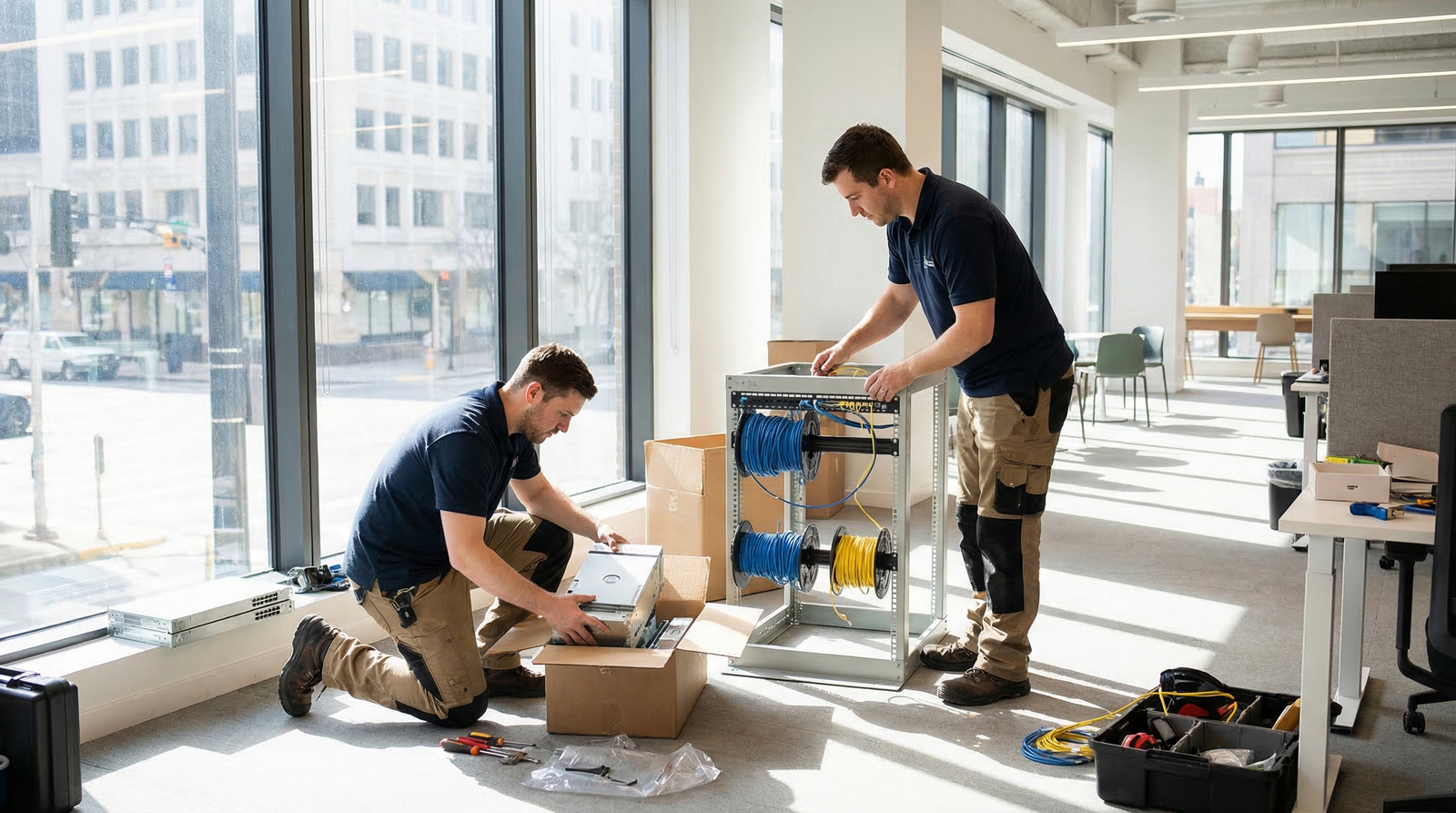
Moving your business to a serviced office should be an exciting milestone - a sign of growth, a fresh start, or a smarter way of working. But for many UK SMEs, the reality is far less glamorous. Between tangled server cables, lost phone numbers, and email outages that stretch into day three, the IT side of an office move is where things most commonly fall apart.
We’ve supported hundreds of office relocations across London and the South East, and the pattern is always the same: businesses that plan their IT move methodically experience minimal disruption. Those that treat IT as an afterthought lose days of productivity - and sometimes clients.
This guide is the definitive IT checklist for your office relocation. Whether you’re moving from a traditional lease to a serviced office in Shoreditch, consolidating two teams into WeWork, or upgrading to a larger managed space in Canary Wharf, every step you need is here.
Why IT Is the Most Critical Part of Your Office Move
You can survive a day without your fancy ergonomic chairs. You can work from a café if the painters haven’t finished. But if your internet isn’t connected, your phones don’t work, and your team can’t access shared drives or cloud applications, your business effectively stops.
For service-based businesses - agencies, consultancies, financial services firms, legal practices - even a single day of IT downtime can mean missed deadlines, lost revenue, and damaged client relationships. A 2025 survey by the British Chambers of Commerce found that 42% of SMEs that experienced significant IT downtime during a move lost at least one client as a direct result.
The challenge is compounded when moving to a serviced office. Unlike a traditional lease where you control the building infrastructure, serviced offices come with their own network, their own switches, and their own rules about what you can and can’t plug in. Understanding these constraints before moving day is absolutely essential.
Serviced office providers like Regus, WeWork, and TOG typically provide a base internet connection, but it may not meet your business requirements for speed, security, or reliability. Always conduct a connectivity assessment at least 8 weeks before your move date.
The Complete IT Relocation Timeline
This timeline has been refined through hundreds of real office moves. Each phase builds on the last, so skipping steps early on creates compounding problems later. Print this out, pin it to your wall, and tick off every item.
12 Weeks Before Moving Day
This is your strategic planning phase. The decisions you make now determine whether your move is smooth or chaotic.
1. Conduct a Full IT Audit
Before you can plan what to move, you need to know exactly what you have. This sounds obvious, but most businesses significantly underestimate the complexity of their IT estate. Your audit should cover:
| Category | Items to Document | Priority |
|---|---|---|
| Hardware | Desktops, laptops, monitors, docking stations, printers, scanners | High |
| Network Equipment | Routers, switches, firewalls, access points, patch panels | Critical |
| Servers | Physical servers, NAS devices, UPS units, rack equipment | Critical |
| Telephony | Handsets, PBX systems, conference phones, headsets | High |
| Cabling | Ethernet runs, fibre connections, power distribution | Medium |
| Software & Licences | On-premise applications, licence dongles, site-specific licences | High |
| Cloud Services | Microsoft 365, Google Workspace, CRM, accounting software | Medium |
| Security | CCTV, access control systems, alarm integration | Medium |
| Contracts | ISP agreements, leased equipment, support contracts | High |
2. Assess Your New Office’s IT Infrastructure
Visit the new serviced office with someone technical - not just the person who liked the décor. You need answers to specific questions:
- What internet speed is included, and what’s the contention ratio?
- Can you install your own firewall or router, or must you use theirs?
- How many Ethernet ports per desk, and where are they located?
- Is there a dedicated server room or comms cupboard you can access?
- What is the building’s Wi-Fi policy - shared or dedicated SSID?
- Are there restrictions on VoIP or SIP traffic?
- What’s the power provision - is there UPS backup?
- Can you bring your own CCTV or must you use the building system?
Many serviced offices in London advertise “1Gbps internet” but this is shared across the entire building. Your actual usable bandwidth during peak hours could be as low as 20-50Mbps. If your business relies on video conferencing, large file transfers, or cloud-based applications, you may need a dedicated leased line - and these take 60-90 days to provision.
3. Engage Your IT Support Partner
If you have an existing IT support provider, they should be involved from day one. If you don’t, now is the time to engage one. At Cloudswitched, we begin every office move project with a detailed site survey and produce a migration plan that covers every aspect of your technology stack.
Your IT partner should provide:
- A detailed project plan with milestones and responsibilities
- A risk assessment identifying potential points of failure
- A rollback plan in case something goes wrong on moving day
- A communication plan so your team knows what to expect
- Post-move support to resolve any teething issues quickly
4. Review and Renegotiate Contracts
Check the notice periods and termination clauses on all IT-related contracts:
- ISP contracts: Most business broadband has a 30-day notice period, but leased lines may require 90 days
- Phone line contracts: ISDN and analogue lines (being phased out by BT by January 2027) need careful handling
- Copier/printer leases: These often have penalty clauses for early termination or relocation
- Software licences: Some on-premise licences are tied to specific hardware or locations
- IT support contracts: Check if your provider covers the new location
8 Weeks Before Moving Day
With strategic planning complete, it’s time to start making things happen.
5. Order New Connectivity
If you need a dedicated internet connection at the new office, order it now. Provisioning times in the UK vary significantly:
Always order a temporary 4G/5G backup connection for your new office. Even if your main line is provisioned on time, having a failover means you can operate from day one regardless. Providers like Three Business and EE offer rolling monthly contracts on business mobile broadband that work brilliantly as interim solutions. Budget around £50-80 per month.
6. Plan Your Phone System Migration
If you’re still using traditional phone lines, an office move is the perfect opportunity to switch to VoIP. The benefits are substantial:
- Keep your existing phone numbers (porting takes 5-10 working days)
- No physical phone lines to install at the new office
- Work from anywhere - calls route to mobiles or laptops seamlessly
- Typically 30-50% cheaper than traditional telephony
- Advanced features: call recording, auto-attendant, call analytics
If you’re already on VoIP, the migration is simpler but still requires planning. You’ll need to ensure your new office’s internet connection has adequate bandwidth and that Quality of Service (QoS) settings are configured correctly on the network.
7. Plan Data Backup & Migration Strategy
This is your safety net. Before anything is disconnected, ensure you have:
- Full backup of all servers and critical data - verified and tested
- Off-site backup copy - cloud-based or physically stored at a different location
- Documentation of all server configurations - IP addresses, DNS settings, Active Directory structure
- Export of email archives if using on-premise Exchange
- Database backups for any line-of-business applications
Never rely on a single backup. We’ve seen cases where businesses assumed their backup was running, only to discover on moving day that it had silently failed weeks ago. Always verify your backups by performing a test restore before the move.
8. Create a Network Design for the New Office
Work with your IT partner to design the network layout for your new space. This should include:
- Floor plan showing every desk position and network point
- Wi-Fi access point placement (accounting for walls, interference, and density)
- Server/comms room layout with rack positions
- VLAN structure for separating voice, data, and guest traffic
- Firewall rules and security policies
- Printer and shared device locations
4 Weeks Before Moving Day
The pace picks up now. Everything should be ordered, and you’re moving into execution mode.
9. Pre-Stage Equipment Where Possible
If your new serviced office is available early (most allow some access before your contract start date), get your IT partner in to pre-install as much as possible:
- Mount and configure network switches and firewall
- Install and test Wi-Fi access points
- Set up the server rack or comms cupboard
- Run any additional cabling that’s needed
- Test the internet connection thoroughly under load
- Configure printers and shared devices
Pre-staging is the single biggest factor in reducing moving-day stress. If 80% of the infrastructure is already in place and tested, the actual move becomes a matter of transporting equipment and plugging it in.
10. Communicate with Your Team
Your employees need clear instructions about what’s happening with their technology. Send a detailed communication covering:
- Exactly when they’ll lose access to systems (and when it will be restored)
- Whether they should take their laptop home the night before
- How to connect to Wi-Fi at the new office
- Any new passwords, login procedures, or security requirements
- Who to contact if they have IT issues on moving day
- Whether personal items on desktops need to be cleared
11. Update DNS & External Services
If your move involves a change of IP address (it almost certainly does), you need to update DNS records and any services that reference your current IP:
- MX records for email delivery
- A records and CNAME records for websites and web applications
- VPN endpoints
- Remote desktop configurations
- Third-party integrations that connect to your servers
- SSL certificates tied to specific IP addresses
Reduce DNS TTL (Time to Live) values to 300 seconds (5 minutes) at least one week before the move. This ensures that when you update your DNS records on moving day, the changes propagate globally within minutes rather than hours. Remember to increase TTL back to normal (3600-86400 seconds) a week after the move.
2 Weeks Before Moving Day
12. Perform Final Backup Verification
Take a complete, verified backup of everything. Test the restore process. Document the backup location and recovery procedures so that anyone on your IT team (or your support provider) can restore from backup if needed.
13. Prepare Equipment for Transport
Create a labelling system for all equipment. Every cable, every device, every component should be tagged with:
- What it is
- Where it came from (desk number/room at old office)
- Where it’s going (desk number/room at new office)
- Any special handling requirements
| Equipment Type | Packing Requirements | Transport Notes |
|---|---|---|
| Servers | Anti-static bags, padded crates, climate control | Dedicated vehicle, no stacking, secure mounting |
| Desktop PCs | Original boxes preferred, bubble wrap minimum | Upright only, avoid vibration |
| Monitors | Screen protectors, foam corners, individual boxing | Upright, screen-face protected |
| Laptops | Laptop bags or padded cases | Staff should carry their own where possible |
| Network Equipment | Anti-static bags, padded containers | Labelled cables bundled with each device |
| Printers/Copiers | Remove toner cartridges, secure moving parts | Keep upright, allow settling time before use |
| UPS Units | Battery may need disconnecting for transport | Heavy - specialist handling required |
14. Confirm Everything with the Serviced Office Provider
Double-check with your building management:
- Loading bay access times and booking requirements
- Lift availability and size restrictions
- Insurance requirements for contractors on site
- Any IT installation work scheduled (is the internet live?)
- Access card or key arrangements for your IT team
- Out-of-hours access for pre-move or weekend work
1 Week Before Moving Day
15. Final Systems Check at the New Office
Your IT partner should visit the new office one final time to confirm:
- Internet connection is live and performing to specification
- All network points are active and tested
- Wi-Fi coverage is adequate throughout the space
- Power sockets are working at every desk position
- The server area is ready to receive equipment
- Phone system is configured and test calls are successful
16. Send Final Staff Communications
A clear, step-by-step email to all staff covering:
- The exact timeline: when to shut down, when systems will be back
- What they need to do with their personal equipment
- Emergency contact numbers (mobile, not office phones)
- First-day procedures at the new office
- Temporary workarounds if systems aren’t immediately available
17. Take a Final Complete Backup
Yes, another one. This is your “golden copy” - the last-known-good state of every system. Store it securely off-site. You should also export and save:
- Current firewall configuration
- Switch configurations and VLAN assignments
- DHCP scope and static IP assignments
- DNS zone files
- Group Policy configurations
- Print server settings and driver packages
Moving Day
This is where preparation meets execution. A well-planned IT move on the day itself is almost anticlimactic - and that’s exactly what you want.
18. Controlled Shutdown Sequence
Systems should be shut down in a specific order to prevent data corruption:
- Notify all users to save work and log off
- Shut down user workstations
- Stop all running services on servers (databases first, then applications)
- Shut down servers (application servers first, domain controllers last)
- Power down network equipment (switches, then firewall, then router)
- Disconnect and label all cables
- Disconnect UPS units last
19. Transport & Setup
Equipment should arrive at the new office and be set up in reverse order:
- Connect UPS units and verify power
- Install and power on network equipment (router, firewall, switches)
- Verify internet connectivity and firewall rules
- Power on servers (domain controllers first, then application servers)
- Verify all services are running and accessible
- Set up and test printers
- Connect and test a sample workstation
- Verify phone system functionality
- Only then - start setting up user desks
20. Testing Checklist for Moving Day
| Test | Expected Result | Pass/Fail |
|---|---|---|
| Internet connectivity | Stable connection at advertised speed | □ |
| Email send/receive | Emails flowing within 5 minutes | □ |
| VPN connectivity | Remote users can connect successfully | □ |
| File server access | All shared drives accessible with correct permissions | □ |
| Printing | All printers discoverable and printing correctly | □ |
| Phone system | Inbound and outbound calls working on all extensions | □ |
| Wi-Fi | All SSIDs visible, authentication working, adequate speed | □ |
| Line-of-business apps | CRM, accounting, and specialist software functioning | □ |
| Backup system | Backup jobs configured and running for new environment | □ |
| Security systems | CCTV, access control, and alarms operational | □ |
Post-Move: First Week
21. Day One Support
Have IT support on-site for the entire first day. Issues will crop up - a monitor that won’t connect, a printer that needs a new driver, a VPN that needs reconfiguring. Having someone there to fix problems immediately prevents frustration from building and keeps productivity high.
22. Days 2-5: Snagging & Optimisation
- Monitor network performance and address any bandwidth issues
- Fine-tune Wi-Fi coverage based on real-world usage patterns
- Resolve any printer or peripheral issues that emerge
- Update any documentation with new IP addresses and configurations
- Ensure all backup systems are running successfully at the new site
- Update your business address across all IT platforms and licences
- Review and update your disaster recovery plan for the new location
23. End of Week One: Post-Move Review
Conduct a formal review meeting with your IT team or provider:
- What went well?
- What caused issues?
- Are there any outstanding technical items?
- Are users happy with their setup?
- Are there any performance concerns?
What Can Go Wrong: Real Examples from Real Moves
These aren’t hypothetical scenarios. They’re actual situations we’ve encountered during office relocations across London.
The Leased Line That Never Arrived
A 40-person marketing agency in Clerkenwell ordered a leased line 6 weeks before their move. The provider quoted 45 working days. On moving day, the circuit wasn’t in - a wayleave issue with the landlord had delayed installation by three weeks, and nobody had informed the customer. The agency operated on a single 4G dongle for 11 working days. They estimated the lost productivity at £35,000.
Lesson: Always have a backup internet solution. Always chase your ISP weekly for installation updates. Always order connectivity as early as physically possible.
The Phone Number That Disappeared
A financial advisory firm in the City moved from a traditional office to a serviced space in Moorgate. They cancelled their old phone lines, assuming the number port to their new VoIP system had completed. It hadn’t. Their main business number - printed on every piece of marketing material, listed on the FCA register, and used by clients for over a decade - was released back to BT Openreach. It took 6 weeks to recover.
Lesson: Never cancel old phone lines until you’ve confirmed the port has completed. Keep old lines running in parallel for at least two weeks after the move.
The Server That Didn’t Survive the Journey
A legal firm in Holborn had their office contents moved by a general removals company. The movers stacked boxes on top of the server during transit. The server’s hard drives failed on startup due to physical shock damage. The firm’s case management system was down for 4 days while data was recovered from backup. Forensic data recovery costs alone exceeded £8,000.
Lesson: IT equipment should always be transported by specialists, or at minimum in a dedicated vehicle with proper protection. General movers don’t understand the fragility of server hardware.
The Wi-Fi That Couldn’t Cope
A 60-person tech startup moved into a shared serviced office in Shoreditch. The building’s shared Wi-Fi was fine during their site visit (when the building was half empty), but completely buckled under the load once all tenants were present. Speeds dropped to 3Mbps during peak hours. Their cloud-based development tools became unusable. They had to install a dedicated connection at emergency prices - costing 40% more than if they’d planned it in advance.
Lesson: Test connectivity under realistic conditions. Ask the building provider for utilisation data, not just headline speeds.
Cost Comparison: DIY vs Managed IT Move
One of the most common questions we hear is “Can’t we just do this ourselves?” For very small businesses (under 5 people, all on laptops, fully cloud-based), the answer might be yes. For everyone else, the numbers tell a compelling story.
| Cost Factor | DIY IT Move | Managed IT Move |
|---|---|---|
| Planning & project management | £0 (your time) | £500 - £1,200 |
| Site survey & network design | £0 (if you know what to check) | £300 - £600 |
| Equipment transport | £200 - £500 (general movers) | £400 - £800 (specialist IT movers) |
| Network setup & configuration | £0 (your time) | £800 - £2,000 |
| Workstation setup (per desk) | £0 (your time) | £50 - £100 |
| Phone system migration | £0 - £500 | £300 - £800 |
| Testing & verification | £0 (if you remember) | £400 - £600 |
| Post-move support (1 week) | £0 (you’re on your own) | £500 - £1,000 |
| Total direct cost (25-person office) | £200 - £1,000 | £4,000 - £8,500 |
| Average downtime | 2-4 days | 1-4 hours |
| Downtime cost (at £5,000/day) | £10,000 - £20,000 | £200 - £800 |
| True total cost | £10,200 - £21,000 | £4,200 - £9,300 |
The table above doesn’t account for the opportunity cost of your team’s time. If your technical staff spend 40+ hours planning and executing the move, that’s 40 hours they’re not spending on revenue-generating work. For most SMEs, the “free” DIY approach actually costs 2-3x more than a professionally managed move.
Downtime Costs by Industry
The financial impact of IT downtime varies dramatically by sector. These figures are based on UK industry averages for a 25-person business:
Professional IT Move vs DIY: Side by Side
Professional IT Move
DIY IT Move
Serviced Office-Specific Considerations
Moving into a serviced office presents unique challenges that don’t apply to traditional leases. Here’s what you need to be aware of:
Shared Infrastructure Limitations
Most serviced offices provide shared internet, shared Wi-Fi, and sometimes shared printing. While this is convenient, it creates several issues for businesses with more sophisticated IT requirements:
- Security: Shared networks mean your traffic is on the same infrastructure as other tenants. Without a VLAN or dedicated connection, your data could theoretically be intercepted.
- Bandwidth: You’re competing with every other tenant. A neighbour running large backups or streaming video eats into your bandwidth.
- Control: You can’t configure firewall rules, set up VPN endpoints, or manage QoS on a shared network.
- Compliance: If you handle sensitive data (financial, legal, healthcare), shared infrastructure may not meet your regulatory requirements under UK GDPR or industry-specific regulations.
The Solution: Hybrid Approach
For most SMEs moving to a serviced office, we recommend a hybrid approach:
- Use the building’s internet for general browsing and guest access
- Install your own firewall (configured as a VPN endpoint) on the building connection or a dedicated line
- Run your own internal Wi-Fi network for company devices
- Keep sensitive traffic separated using VLANs
- Use cloud services wherever possible to reduce reliance on local infrastructure
If your serviced office provider won’t allow you to install your own network equipment, consider using a software-defined WAN (SD-WAN) solution. This creates encrypted tunnels over the shared internet connection, giving you enterprise-grade security without needing physical network changes. Cloudswitched can configure and manage SD-WAN solutions for serviced office environments.
Cloud Migration: The Office Move Opportunity
An office relocation is the ideal time to move remaining on-premise systems to the cloud. Think about it: you’re going to have downtime anyway. You’re going to be reconfiguring systems anyway. Why not take the opportunity to modernise?
Systems to Consider Migrating
| On-Premise System | Cloud Alternative | Typical Savings |
|---|---|---|
| File server | SharePoint / OneDrive / Google Drive | 60-70% over 3 years |
| Exchange server | Microsoft 365 / Google Workspace | 40-50% over 3 years |
| On-premise backup | Cloud backup (Veeam, Datto, Azure) | 30-40% over 3 years |
| Local phone system (PBX) | Cloud VoIP (Teams, 8x8, RingCentral) | 30-50% over 3 years |
| On-premise CRM | Salesforce, HubSpot, Pipedrive | Variable |
| Local Active Directory | Azure AD / Entra ID | 20-30% over 3 years |
By migrating to cloud services before or during your move, you reduce the amount of physical equipment that needs transporting, lower the risk of hardware damage during transit, and potentially eliminate the need for a server room at your new office entirely. For businesses moving to serviced offices, this is particularly attractive as server room space is often limited or unavailable.
Security Considerations During a Move
An office move is a period of heightened vulnerability for your business. Equipment is in transit, staff are distracted, and systems may be temporarily configured in less secure states. Here’s how to maintain security throughout:
Physical Security
- Maintain a chain of custody log for all equipment during transport
- Use encrypted drives for any data that travels separately from servers
- Ensure old office is cleared of all equipment, including items in cupboards, under desks, and in meeting rooms
- Securely dispose of or wipe any equipment that won’t be making the move
- Update building access credentials and deactivate old office access immediately
Cyber Security
- Change all network passwords and Wi-Fi keys at the new location
- Update firewall rules rather than copying old ones (an office move is a chance to tighten security)
- Verify that all endpoint protection is active on every device after the move
- Test your VPN with new IP addresses and update any IP-based access controls
- Conduct a vulnerability scan of your new network within the first week
- Update your cyber insurance policy with your new address and any infrastructure changes
Essential Contacts & Resources
Keep these details accessible (not on a computer that’s being moved) during the relocation:
| Contact | Why You Need Them | When to Call |
|---|---|---|
| IT support provider | Technical issues during move | First point of call for any IT problems |
| ISP (old & new) | Connectivity issues | If internet isn’t working at new site |
| Serviced office building manager | Facilities and access | Loading bay, lifts, power issues |
| Phone system provider | Call routing issues | If phones aren’t working |
| Domain registrar | DNS changes | If email or website routing fails |
| Key software vendors | Licence reactivation | If software detects new hardware/location |
| Insurance broker | Cover during transit | Before the move & if any damage occurs |
The Cloudswitched Approach to Office IT Moves
At Cloudswitched, we’ve refined our office IT relocation process through years of experience supporting London businesses. Our approach is designed to make the technology side of your move completely stress-free.
How We Work
Phase 1 - Discovery & Planning (8-12 weeks before): We audit your current setup, survey the new office, identify risks, and build a detailed migration plan. You’ll know exactly what’s happening, when, and who’s responsible.
Phase 2 - Preparation (4-8 weeks before): We order connectivity, pre-configure equipment, design your new network, and handle all the technical procurement. We coordinate with your serviced office provider so there are no surprises.
Phase 3 - Pre-Staging (1-2 weeks before): We install and test as much as possible at the new office before moving day. Firewalls, switches, Wi-Fi, printers - all configured and verified before a single desk is moved.
Phase 4 - Moving Day: Our engineers manage the controlled shutdown at the old office, oversee transport, and systematically bring everything online at the new location. We don’t leave until every system is tested and every user can work.
Phase 5 - Post-Move Support: On-site support for the first day, priority remote support for the first two weeks, and a formal review at the end of week one to ensure everything is running perfectly.
Frequently Asked Questions
How far in advance should we start planning our IT move?
Ideally 12 weeks, but 8 weeks is the absolute minimum for a smooth relocation. If you need a new leased line at the new office, you may need even longer - up to 16 weeks. The earlier you start, the more options you have and the less you’ll pay for rush installations.
Can we move over a weekend to avoid downtime?
Absolutely, and we recommend it for most businesses. A Friday evening shutdown with Saturday setup gives you Sunday as a buffer day for any issues, and your team arrives Monday to a fully working office. Weekend moves do typically cost 15-25% more due to out-of-hours labour, but the productivity savings far outweigh the extra expense.
What if our new serviced office won’t let us install our own network equipment?
This is increasingly common. Solutions include using a managed SD-WAN overlay, a dedicated VLAN from the building provider (many will configure this for an additional monthly fee), or in some cases, a separate internet connection brought in specifically for your business. We assess the options during our site survey and recommend the best approach for your needs and budget.
Should we upgrade our equipment during the move?
An office move is the ideal time to refresh ageing hardware. Rather than paying to carefully transport old equipment that’ll need replacing within a year anyway, invest in new kit that’s delivered directly to the new office. This also reduces transport costs and eliminates the risk of old equipment failing during or shortly after the move.
What about data protection during the move?
If you handle personal data (and under UK GDPR, you almost certainly do), you have a legal obligation to ensure data security during transit. This means encrypted drives, secure transport, chain of custody documentation, and immediate secure disposal of any redundant equipment containing data. We handle all of this as standard in our managed move service.
Your Office Move Starts Here
An IT office move doesn’t have to be stressful. With the right planning, the right partner, and the right checklist, you can relocate your entire technology stack with minimal disruption to your business.
Whether you’re moving 5 desks or 500, whether you’re going from traditional to serviced or upgrading to a larger space, the principles in this guide will keep your move on track. But if you want the peace of mind that comes from having experienced professionals handle every aspect of your IT relocation, we’re here to help.
Planning an Office Move? Let’s Talk IT.
Get a free, no-obligation consultation with our office IT relocation specialists. We’ll review your current setup, assess your new space, and provide a detailed quote - typically within 48 hours. Cloudswitched has helped over 250 London businesses relocate their IT seamlessly.

CloudSwitched
London-based managed IT services provider offering support, cloud solutions and cybersecurity for SMEs.


