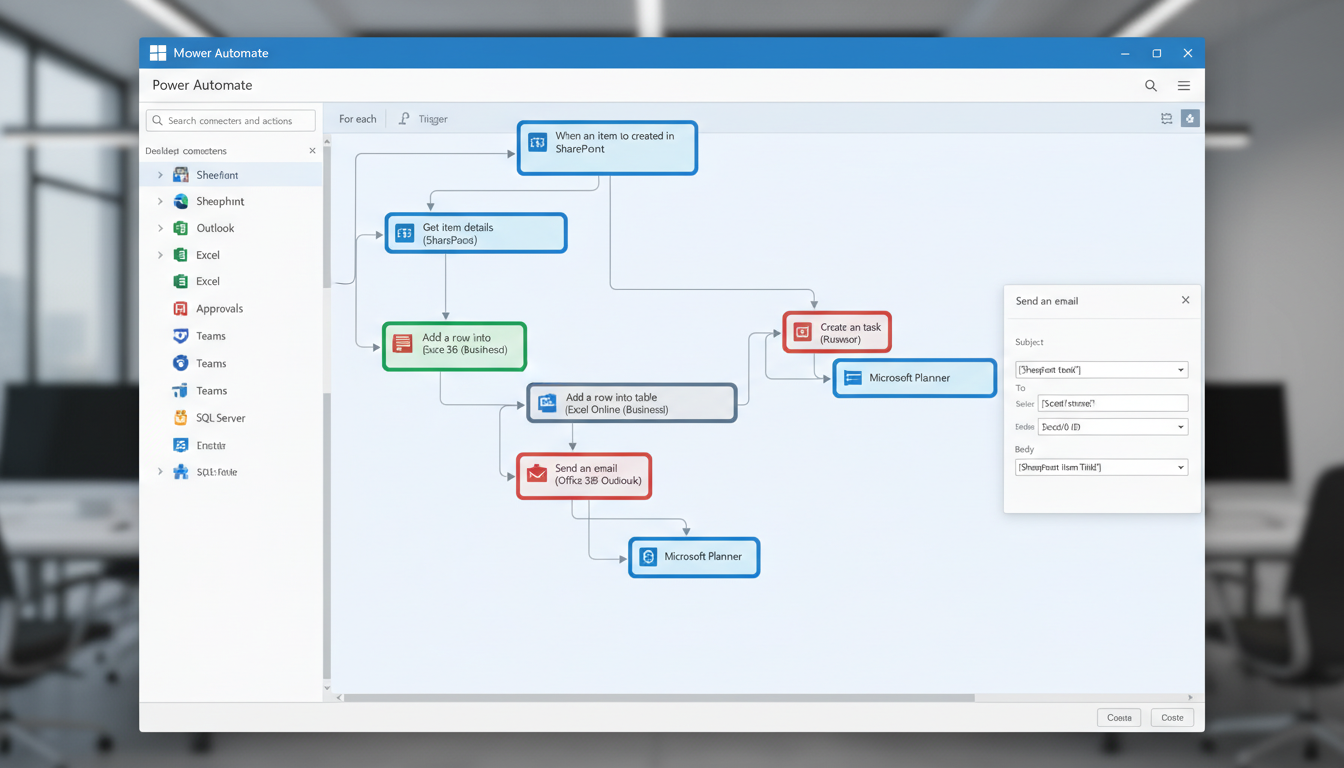
Every business has repetitive tasks that consume time, introduce errors, and distract skilled staff from higher-value work. Approval requests that sit in inboxes for days. Data that is manually copied between spreadsheets. Notifications that never get sent. Reports that someone has to compile every Friday afternoon. These are the kinds of tasks that Microsoft Power Automate was built to eliminate.
Power Automate is Microsoft's cloud-based automation platform, included with most Microsoft 365 business subscriptions. It allows you to create automated workflows - called flows - that connect your applications and services, trigger actions based on events, and handle routine processes without human intervention. For UK businesses already invested in the Microsoft ecosystem, it represents an enormous opportunity to improve efficiency, reduce errors, and free up staff time.
This guide explains what Power Automate is, what it can do for your business, how to get started, and how to avoid the common pitfalls that trip up first-time users. Whether you run a professional services firm in London, a manufacturing business in the Midlands, or a retail operation in Scotland, the principles and examples are directly applicable.
What Is Microsoft Power Automate?
Microsoft Power Automate - formerly known as Microsoft Flow - is a service that allows you to create automated workflows between your favourite apps and services. It is part of the Microsoft Power Platform, which also includes Power BI (business intelligence), Power Apps (custom applications), and Power Virtual Agents (chatbots).
At its core, Power Automate works on a simple principle: when something happens (a trigger), do something else (an action). For example, when a new email arrives with an attachment (trigger), save the attachment to SharePoint and send a notification to a Teams channel (actions). When a new row is added to an Excel spreadsheet (trigger), create a task in Planner and send an approval request (actions).
What makes Power Automate particularly powerful is its library of over 500 pre-built connectors - integrations with popular services including SharePoint, Outlook, Teams, Excel, OneDrive, Dynamics 365, Salesforce, Slack, Twitter, Dropbox, Google services, and hundreds more. This means you can automate workflows that span multiple systems without writing a single line of code.
If your business uses Microsoft 365 Business Basic, Business Standard, Business Premium, E3, or E5, you already have access to Power Automate at no additional cost. The included version allows you to create cloud flows with standard connectors. Premium connectors and advanced features such as robotic process automation (RPA) require a separate Power Automate licence, but most SMEs find the included version more than sufficient to get started.
Types of Flows You Can Create
Power Automate offers several types of flows, each suited to different automation scenarios. Understanding the differences helps you choose the right approach for each task you want to automate.
Cloud Flows
Cloud flows are the most common type. They run entirely in the cloud and are triggered by events in connected services. There are three subtypes: automated flows (triggered by an event such as receiving an email), instant flows (triggered manually by pressing a button), and scheduled flows (triggered at specific times or intervals). Most business automations use cloud flows.
Desktop Flows
Desktop flows use robotic process automation (RPA) to automate tasks in desktop applications and legacy systems that do not have modern APIs or connectors. If you have a process that involves logging into an old on-premise application, navigating menus, entering data, and clicking buttons, a desktop flow can replicate those mouse clicks and keystrokes automatically. This is particularly valuable for UK businesses that still rely on legacy systems that cannot easily be replaced.
Business Process Flows
Business process flows provide a guided experience for users, ensuring that data is entered consistently and processes are followed in the correct order. They are particularly useful for onboarding new customers, processing orders, or handling support cases where consistency is important.
| Flow Type | Trigger Method | Best For | Licence Needed |
|---|---|---|---|
| Automated Cloud Flow | Event-based (e.g., new email, new file) | Reactive automations that respond to changes | Included with M365 |
| Instant Cloud Flow | Manual button press | On-demand tasks like generating reports | Included with M365 |
| Scheduled Cloud Flow | Time-based (daily, weekly, monthly) | Regular tasks like data sync or reminders | Included with M365 |
| Desktop Flow (RPA) | Called from cloud flow or manual | Legacy application automation | Premium licence |
| Business Process Flow | User-initiated within Dataverse | Guided multi-step processes | Premium licence |
Practical Automation Examples for UK Businesses
The best way to understand Power Automate's potential is through real-world examples. Here are automations that UK businesses implement regularly, organised by department.
Finance and Accounting
Automate invoice approval workflows so that invoices received by email are automatically saved to SharePoint, relevant details are extracted, and approval requests are sent to the appropriate manager via Teams. Once approved, the data is entered into your accounting system automatically. This eliminates the paper trail, reduces processing time from days to hours, and creates a complete audit trail - something particularly valuable for businesses subject to HMRC scrutiny.
Human Resources
When a new employee joins the organisation, trigger an automated onboarding flow that creates their user account, assigns the appropriate Microsoft 365 licences, adds them to the correct Teams channels and SharePoint groups, sends welcome emails with links to policies and training materials, and notifies their manager and IT that setup is complete. What previously took an HR administrator half a day can be completed in minutes.
Sales and Marketing
When a new lead submits a form on your website, Power Automate can immediately create a record in your CRM, send a personalised acknowledgement email, notify the relevant sales person via Teams, add the lead to a nurture sequence, and log the activity in a shared Excel tracker. The speed of response to new enquiries has a direct impact on conversion rates, and automation ensures that no lead falls through the cracks.
Operations and Compliance
Schedule weekly flows that check for expiring contracts, overdue tasks, or compliance deadlines and send summary reports to the relevant managers. For businesses that need to demonstrate GDPR compliance, automate data subject access request workflows to ensure every request is acknowledged within the statutory timeframe and routed to the correct team for processing.
Getting Started with Power Automate
The fastest way to get started is with Power Automate's template library. Microsoft provides hundreds of pre-built templates for common automations, and you can customise them to suit your specific needs. To access Power Automate, go to flow.microsoft.com and sign in with your Microsoft 365 account.
Start with a simple automation that solves an immediate problem. Perhaps you want to save all email attachments from a specific sender to a SharePoint folder automatically. Or maybe you want to receive a Teams notification whenever a specific SharePoint list is updated. These simple flows take minutes to create and deliver immediate value, building confidence and enthusiasm for more complex automations later.
As you become more comfortable, move on to multi-step flows with conditions, loops, and error handling. Power Automate's visual designer makes it straightforward to build even complex workflows without coding, though having a logical, methodical approach to workflow design is essential.
Good First Automations
- Save email attachments to SharePoint automatically
- Send Teams notifications for SharePoint changes
- Create tasks from flagged emails
- Weekly summary emails from Excel data
- Approval workflows for leave requests
- Auto-respond to form submissions
Common Mistakes to Avoid
- Building overly complex flows before mastering basics
- Not testing flows with realistic data
- Ignoring error handling and failure notifications
- Creating flows in personal accounts instead of shared
- Not documenting what each flow does
- Automating a broken process rather than fixing it first
Governance and Best Practices
As Power Automate adoption grows within your organisation, governance becomes important. Without oversight, you can end up with dozens of flows created by different people, some of which may conflict, duplicate effort, or introduce security risks by connecting to unauthorised external services.
Consider establishing a centre of excellence - a small team or individual who becomes the internal expert on Power Automate, provides guidance to other departments, reviews flows before they go into production, and maintains a library of reusable flow templates. This does not need to be a full-time role; in most UK SMEs, a technically minded team member who dedicates a few hours per week to Power Automate governance and support is sufficient.
Establish clear policies about who can create flows, which connectors are approved for use, how flows should be named and documented, and who is responsible for maintaining them. Microsoft provides Data Loss Prevention (DLP) policies within the Power Platform admin centre that allow you to control which connectors can be used together, preventing flows that might inadvertently send sensitive business data to unauthorised external services.
For UK businesses subject to GDPR, pay particular attention to flows that process personal data. Ensure that automated workflows comply with your data protection policies, that data is not being sent to services hosted outside the UK without appropriate safeguards, and that automated processing of personal data has a lawful basis under UK GDPR.
Advanced Automation Techniques
Once your organisation has mastered basic flows, there are advanced techniques that unlock even greater value from Power Automate. These techniques require more careful planning but deliver exponential returns in efficiency and accuracy.
Approval Chains
Multi-level approval workflows route requests through a defined chain of approvers based on criteria such as value, department, or type. A purchase request under £1,000 might require only a line manager's approval, while one over £5,000 requires both a line manager and a finance director. Power Automate handles the routing, reminders, escalation, and record-keeping automatically, ensuring that no approval request stalls indefinitely in someone's inbox.
Error Handling and Monitoring
Production workflows need robust error handling. Power Automate supports try-catch-finally patterns that allow flows to handle failures gracefully - retrying failed operations, sending alerts to administrators, logging errors for investigation, and taking alternative actions when the primary path fails. Without error handling, a single API timeout or service outage can silently break a critical business process for days before anyone notices.
Integration with Power BI
Combining Power Automate with Power BI creates powerful automated reporting capabilities. Flows can refresh Power BI datasets on schedule, distribute reports to specific stakeholders, trigger alerts when KPIs breach defined thresholds, and even generate and email PDF snapshots of dashboards to executives who prefer not to log into the Power BI portal. For UK businesses that need to report regularly to boards, regulators, or clients, this combination eliminates hours of manual report preparation.
Measuring Automation ROI
To justify continued investment in automation and to prioritise which processes to automate next, you need to measure the return on investment of your existing flows. The calculation is straightforward: for each automated process, estimate the time it previously took to complete manually, multiply by the frequency, and multiply by the cost of the staff time involved. Compare this to the time invested in creating and maintaining the flow.
Most UK businesses find that their first few automations deliver ROI within weeks. A simple invoice processing flow that saves 30 minutes per day equates to over 120 hours per year - roughly three working weeks of a staff member's time. At an average UK salary cost of £35,000 per year, that single automation saves approximately £2,000 annually, and it continues to deliver savings year after year without any ongoing cost.
Track these savings centrally and report them to management. Demonstrating concrete, measurable value builds support for automation initiatives and secures budget for more ambitious projects. The businesses that achieve the greatest value from Power Automate are those that treat automation as a strategic programme rather than a series of ad hoc experiments.
When evaluating your organisation's automation maturity, it helps to benchmark against common readiness indicators. The following scores reflect typical starting positions for UK SMEs that have begun exploring Power Automate but have not yet formalised their automation programme.
Security Considerations for Power Automate
Automation introduces security considerations that must be addressed proactively. Flows often connect to sensitive systems, move data between applications, and execute actions with elevated permissions. Without proper security governance, Power Automate can become a vector for data leakage or unauthorised access.
Use service accounts rather than individual user accounts to own production flows. When a flow is owned by an employee who leaves the organisation, the flow breaks when their account is disabled. Service accounts with appropriate licensing ensure that critical business automations continue to function regardless of staff changes. Apply the principle of least privilege to all connections - grant flows only the minimum permissions they need to function, not broad administrative access.
Review connection permissions regularly. Power Automate connections store credentials that allow flows to access services on behalf of users. If a connection is compromised or if a user creates a malicious flow, these stored credentials could be exploited. Regular audits of connections, combined with DLP policies that restrict which connectors can be combined in a single flow, provide essential security guardrails.
For UK businesses handling personal data, ensure that automated workflows comply with UK GDPR. Flows that process personal data must have a documented lawful basis, and any data transfers between systems must respect data protection principles. The Data Protection Impact Assessment (DPIA) process should include automated data processing flows alongside manual processes, particularly if automation is being used for profiling or automated decision-making that affects individuals.
Building an Automation Roadmap
Rather than automating processes randomly, create a structured roadmap that prioritises automation opportunities based on impact and feasibility. Start by cataloguing the repetitive, manual processes across your organisation. For each process, estimate the time it currently takes, the frequency of execution, the error rate, and the potential business impact of automating it.
Plot these opportunities on a simple matrix with effort on one axis and value on the other. Quick wins - high-value automations that are easy to build - should be tackled first to build momentum and demonstrate value. Complex but high-value automations should be planned carefully and scheduled for later phases. Low-value automations, regardless of how easy they are, should be deprioritised in favour of work that delivers meaningful business outcomes.
Share the roadmap with stakeholders across the business. When department heads understand that automation opportunities have been identified for their teams and are scheduled for implementation, it builds anticipation and cooperation. Invite departments to suggest additional automation candidates - the people who perform manual processes every day often have the best ideas about what should be automated and how the automated workflow should function. This collaborative approach ensures automations are designed for real-world use rather than theoretical elegance, and it builds organisation-wide buy-in for the automation programme.
Ready to Automate Your Business Processes?
Cloudswitched helps UK businesses unlock the full potential of Microsoft Power Automate and the wider Power Platform. From identifying automation opportunities to designing, building, and managing flows, we help you eliminate repetitive tasks, reduce errors, and free your team to focus on what matters most. Get in touch to discuss your automation needs.
GET IN TOUCH
CloudSwitched
London-based managed IT services provider offering support, cloud solutions and cybersecurity for SMEs.


