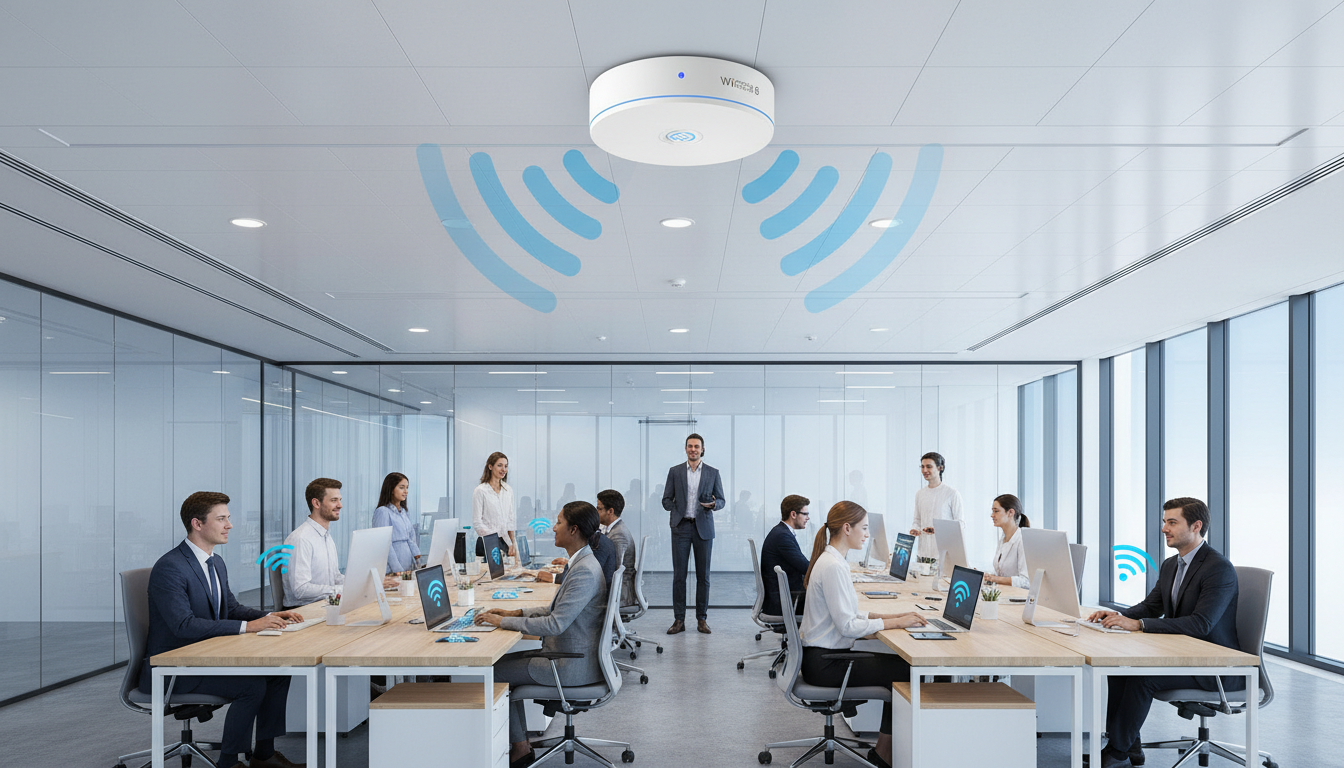
Wireless connectivity is no longer a convenience - it is the backbone of modern business operations. From cloud applications and VoIP telephony to IoT devices and video conferencing, every aspect of your organisation now depends on fast, reliable Wi-Fi. Yet many UK businesses are still running outdated Wi-Fi 5 (802.11ac) networks that were designed for a fraction of today’s device density and bandwidth demands.
Wi-Fi 6 (802.11ax) represents the most significant leap in wireless technology in over a decade. It isn’t simply about faster speeds - though those are certainly part of the picture. Wi-Fi 6 fundamentally re-engineers how access points communicate with multiple devices simultaneously, delivering higher throughput, lower latency, greater capacity, and dramatically improved performance in crowded environments. For UK businesses planning office refurbishments, expanding to new premises, or simply suffering from sluggish wireless performance, upgrading to Wi-Fi 6 is one of the highest-impact infrastructure investments you can make.
This comprehensive guide covers everything you need to know - from the underlying technology and key features to enterprise hardware selection, channel planning, security configuration, and a step-by-step implementation roadmap tailored for UK business environments.
Wi-Fi 6 vs Wi-Fi 5: Why the Upgrade Matters
Wi-Fi 5 (802.11ac) was ratified in 2014 and served businesses well for several years. However, the modern workplace has changed beyond recognition since then. The average UK office worker now connects three to four devices to the wireless network simultaneously - a laptop, a smartphone, a tablet, and increasingly a wearable or IoT sensor. Video conferencing platforms like Microsoft Teams and Zoom demand consistent, low-latency bandwidth that Wi-Fi 5 struggles to deliver when dozens of users compete for airtime.
Wi-Fi 6, ratified as IEEE 802.11ax in 2021, was designed from the ground up to address these challenges. Rather than focusing solely on peak speed for a single device, Wi-Fi 6 optimises aggregate network performance - ensuring every connected device gets a fair share of bandwidth even in the most congested environments. The result is a wireless network that feels fast and responsive for everyone, not just the person sitting closest to the access point.
| Specification | Wi-Fi 5 (802.11ac) | Wi-Fi 6 (802.11ax) |
|---|---|---|
| Maximum Throughput | 3.5 Gbps | 9.6 Gbps |
| Frequency Bands | 5 GHz only | 2.4 GHz & 5 GHz |
| Channel Width | Up to 160 MHz | Up to 160 MHz |
| MIMO Streams | 4×4 (Wave 2) | 8×8 |
| MU-MIMO | Downlink only | Uplink & Downlink |
| OFDMA | Not supported | Supported |
| BSS Colouring | Not supported | Supported |
| Target Wake Time | Not supported | Supported |
| Security Standard | WPA2 | WPA3 |
| Modulation | 256-QAM | 1024-QAM |
Key Wi-Fi 6 Features Every Business Should Understand
Wi-Fi 6 introduces several transformative technologies that work together to deliver a superior wireless experience. Understanding these features is essential for making informed decisions about your deployment.
OFDMA (Orthogonal Frequency Division Multiple Access)
OFDMA is arguably the most important innovation in Wi-Fi 6. In previous Wi-Fi generations, an access point could only communicate with one device at a time on a given channel. If 30 devices needed to send or receive small packets of data - think email notifications, chat messages, or IoT sensor readings - each had to wait its turn, creating latency and congestion.
OFDMA divides each Wi-Fi channel into smaller sub-channels called resource units (RUs). This allows the access point to serve multiple devices simultaneously within a single transmission cycle. Imagine a motorway where a single wide lane has been replaced by multiple narrower lanes - more vehicles (data packets) can travel at the same time, dramatically reducing queuing. For UK offices with high device density, OFDMA alone can reduce perceived latency by up to 75%.
MU-MIMO (Multi-User, Multiple Input, Multiple Output)
Wi-Fi 5 introduced downlink MU-MIMO, allowing an access point to transmit to multiple devices simultaneously. Wi-Fi 6 extends this to both uplink and downlink and increases the maximum number of simultaneous spatial streams from four to eight. In practical terms, this means your access point can send data to eight devices at once and receive data from multiple devices simultaneously - a critical improvement for environments where staff are constantly uploading files, sharing screens, or participating in video calls.
BSS Colouring (Basic Service Set Colouring)
In multi-access-point deployments - which describes virtually every business environment - neighbouring APs on the same channel can interfere with each other. Previous Wi-Fi standards handled this with a simple rule: if any device detects a signal on the same channel, it waits before transmitting. This conservative approach caused significant performance degradation in dense AP deployments.
BSS colouring assigns a unique “colour” (a numerical identifier between 0 and 7) to each access point’s basic service set. Devices can now distinguish between signals from their own AP and signals from neighbouring APs on the same channel. If the detected signal belongs to a different “colour,” the device can transmit simultaneously, dramatically improving spectrum reuse and overall network throughput in environments with overlapping coverage zones.
Target Wake Time (TWT)
TWT allows access points to schedule precisely when each connected device wakes up to send or receive data. This is particularly valuable for IoT devices - environmental sensors, smart lighting controls, security cameras, and building management systems - that only need to communicate periodically. By coordinating wake times, TWT reduces contention on the network and extends battery life for wireless devices by up to 70%, making large-scale IoT deployments far more practical.
1024-QAM (Quadrature Amplitude Modulation)
Wi-Fi 6 upgrades from 256-QAM to 1024-QAM, encoding more data bits into each wireless transmission. This translates to approximately a 25% throughput increase at close range. While 1024-QAM requires strong signal conditions to function effectively, in a well-designed office deployment where access points are properly positioned, this feature delivers a meaningful real-world speed boost.
When evaluating Wi-Fi 6 access points, pay close attention to OFDMA and MU-MIMO support rather than headline speed figures. A Wi-Fi 6 AP that handles 50 concurrent devices efficiently will outperform a faster-on-paper AP that bottlenecks under real-world multi-device loads. Ask your vendor about concurrent client capacity, not just maximum throughput.
Enterprise Access Points: Controller-Based vs Standalone
One of the most consequential decisions in any business Wi-Fi deployment is the management architecture. There are two primary approaches, each with distinct advantages depending on the scale and complexity of your environment.
Controller-Based Wi-Fi
In a controller-based architecture, a central hardware or virtual controller manages all access points across your network. The controller handles configuration, firmware updates, channel assignment, load balancing, roaming, and security policy enforcement from a single pane of glass. This is the traditional enterprise approach favoured by organisations with multiple floors, buildings, or sites.
Cloud-Managed Wi-Fi
Cloud-managed Wi-Fi replaces the on-premises controller with a cloud-based dashboard. Each access point connects to the vendor’s cloud platform for centralised management, monitoring, and configuration. This model has gained enormous traction among UK SMEs because it eliminates the upfront cost and complexity of dedicated controller hardware while still providing enterprise-grade management capabilities.
Standalone Access Points
Standalone APs operate independently without any central management. Each AP is configured individually via its own web interface. While this can work for very small deployments (one to three APs), it becomes impractical and error-prone at any meaningful scale. Features like seamless roaming, coordinated channel planning, and consistent security policies are difficult or impossible to achieve without centralised management.
Cloud-Managed Wi-Fi
On-Premises Controller
Channel Planning for Maximum Performance
Even the best Wi-Fi 6 hardware will underperform if channels are poorly assigned. Effective channel planning is arguably the single most important factor in wireless network performance - and it is where most DIY deployments fail.
Understanding the 2.4 GHz and 5 GHz Bands
Wi-Fi 6 operates on both the 2.4 GHz and 5 GHz frequency bands. In the UK, the 2.4 GHz band offers only three non-overlapping channels (1, 6, and 13), making it extremely congested in office environments where neighbouring businesses, Bluetooth devices, and microwave ovens all compete for the same spectrum. The 5 GHz band offers significantly more room, with up to 19 non-overlapping channels available in the UK under Ofcom regulations.
For business deployments, the 5 GHz band should carry the majority of your traffic. Use 2.4 GHz primarily for IoT devices, legacy equipment that doesn’t support 5 GHz, and areas where longer range is needed at the expense of speed. Most enterprise-grade APs support band steering, which automatically encourages dual-band devices to connect on 5 GHz.
Channel Width Selection
Wider channels deliver higher throughput but reduce the number of non-overlapping channels available. In the UK 5 GHz band:
- 20 MHz channels: 19 non-overlapping channels. Maximum reliability, lowest throughput per channel. Best for very high-density deployments.
- 40 MHz channels: 9 non-overlapping channels. Good balance of throughput and channel availability. Suitable for most office environments.
- 80 MHz channels: 4–5 non-overlapping channels. High throughput but limited channel reuse. Best for smaller deployments or areas with few neighbouring APs.
- 160 MHz channels: 2 non-overlapping channels. Maximum single-device throughput but almost no channel reuse. Rarely practical in multi-AP business deployments.
For most UK offices, 40 MHz channel widths on the 5 GHz band represent the optimal balance. This provides ample throughput for bandwidth-intensive applications while leaving enough non-overlapping channels for proper channel assignment across multiple access points.
Avoid using DFS (Dynamic Frequency Selection) channels - specifically channels 52–64 and 100–140 in the UK - for mission-critical applications like VoIP or video conferencing. DFS channels must vacate immediately if radar is detected, which can cause momentary disconnections. While DFS channels are useful for adding capacity, keep your primary business traffic on non-DFS channels (36, 40, 44, 48 and 149, 153, 157, 161, 165) where available.
Security: WPA3 and Enterprise Authentication
Wi-Fi 6 brings WPA3 as its native security standard, addressing several vulnerabilities that plagued WPA2 for years. For UK businesses subject to GDPR and Cyber Essentials requirements, proper wireless security is not optional - it is a compliance necessity.
WPA3-Personal vs WPA3-Enterprise
WPA3-Personal replaces WPA2’s Pre-Shared Key (PSK) authentication with Simultaneous Authentication of Equals (SAE). SAE provides protection against offline dictionary attacks - meaning an attacker who captures your wireless traffic cannot run brute-force password-cracking tools against it offline. It also delivers forward secrecy, ensuring that even if your password is eventually compromised, previously captured traffic remains encrypted.
WPA3-Enterprise provides 192-bit security mode for organisations handling sensitive data. It mandates the use of CNSA (Commercial National Security Algorithm) suite cryptographic protocols and requires 802.1X authentication with a RADIUS server. For businesses in regulated industries - financial services, legal, healthcare - WPA3-Enterprise with certificate-based authentication should be the baseline standard.
Network Segmentation with VLANs and SSIDs
Regardless of your WPA3 mode, proper network segmentation is essential. A well-designed business Wi-Fi deployment should include separate SSIDs mapped to different VLANs:
- Corporate SSID: WPA3-Enterprise with 802.1X authentication for company-managed devices. Full access to internal resources.
- BYOD SSID: WPA3-Personal or Enterprise with restricted access. Internet access and limited internal resources only.
- Guest SSID: Captive portal with internet-only access. Completely isolated from internal networks. Time-limited sessions.
- IoT SSID: Dedicated network for printers, sensors, smart displays, and building management devices. Heavily firewalled with no access to user networks.
Density Planning: How Many Access Points Do You Need?
One of the most common mistakes in business Wi-Fi deployment is under-provisioning access points. The old rule of “one AP per floor” is woefully inadequate for modern workplaces. Proper density planning considers device count, application requirements, physical environment, and desired user experience.
General Planning Guidelines
As a starting point for UK office environments, use these guidelines to estimate access point requirements:
These figures assume Wi-Fi 6 access points with OFDMA and MU-MIMO enabled. For Wi-Fi 5 equipment, reduce the device-per-AP ratios by approximately 40%. Remember that walls, glass partitions, metal fixtures, and even people absorb and reflect wireless signals - a professional wireless site survey is always recommended for deployments of five or more access points.
Cabling and PoE Considerations
Every access point requires a wired Ethernet backhaul - there is no substitute for this in a business environment. Wi-Fi 6 access points typically require PoE+ (802.3at, 30W) or in some cases PoE++ (802.3bt, 60W) for high-performance models with 4×4 or 8×8 MIMO arrays. Ensure your network switches support the appropriate PoE standard, and budget for Category 6A (Cat6a) cabling to each AP location to support multi-gigabit backhaul (2.5 Gbps or 5 Gbps uplinks).
UK Hardware Options: Enterprise-Grade Wi-Fi 6 Access Points
The UK enterprise wireless market offers several strong options from established vendors. Here are the leading platforms recommended for business deployments in 2026.
| Vendor & Model | Management | Typical UK Price | Best For | Key Features |
|---|---|---|---|---|
| Cisco Meraki MR46 | Cloud (Meraki Dashboard) | £550–£700 | Multi-site SMEs & enterprises | 4×4 MU-MIMO, integrated Bluetooth, analytics |
| Aruba Instant On AP25 | Cloud (Aruba Central) | £200–£280 | Cost-conscious SMEs | 2×2 MU-MIMO, Bluetooth 5, smart mesh |
| Ubiquiti U6 Enterprise | Self-Hosted (UniFi Controller) | £280–£350 | IT-savvy SMEs with in-house teams | 4×4 MIMO, 2.5 GbE uplink, no licence fees |
| Juniper Mist AP45 | Cloud (Mist AI) | £600–£800 | AI-driven enterprise deployments | AI-powered RF, virtual Bluetooth LE, 8 spatial streams |
| Ruckus R760 | Cloud or Controller | £500–£650 | High-density venues & hospitality | Patented BeamFlex+, 6 GHz ready, IoT/BLE |
| TP-Link Omada EAP670 | Cloud or Controller | £150–£200 | Budget-conscious small offices | 4×4 MIMO, 160 MHz, 2.5 GbE uplink |
When selecting hardware, consider the total cost of ownership - not just the AP price. Cloud-managed platforms like Cisco Meraki and Juniper Mist require annual subscription licences (£100–£200+ per AP per year), which adds up over a five-year lifecycle. Ubiquiti and TP-Link Omada have no ongoing licence fees but require more hands-on management expertise. For most UK SMEs with 10–50 employees, Aruba Instant On or Ubiquiti UniFi represent the best balance of capability, cost, and manageability.
Step-by-Step Implementation Guide
Deploying business Wi-Fi 6 properly requires methodical planning. Rushing the installation or skipping critical steps almost always results in performance problems, coverage gaps, and security vulnerabilities. Follow this implementation roadmap to get it right first time.
Step 1: Requirements Gathering and Site Assessment
Begin by documenting your wireless requirements. How many devices will connect? What applications must the network support (video conferencing, cloud applications, VoIP, large file transfers)? What are your security and compliance obligations? Walk the premises and note construction materials, ceiling heights, partition types, and potential sources of interference. For deployments larger than a single small office, commission a professional wireless site survey using tools like Ekahau or iBwave.
Step 2: Network Infrastructure Preparation
Ensure your wired network is ready to support Wi-Fi 6. This means PoE+ capable switches with sufficient power budget, Cat6a cabling to each planned AP location, and adequate internet bandwidth. A common mistake is deploying Wi-Fi 6 access points on a 100 Mbps broadband connection - the wireless network will only be as fast as its internet pipe. For offices with more than 20 users, consider a dedicated business leased line of at least 100 Mbps symmetric.
Step 3: Access Point Placement and Mounting
Mount access points on the ceiling wherever possible, facing downward into the workspace. Avoid placing APs inside ceiling voids or behind metal panels, as this significantly attenuates the signal. Maintain a minimum separation of 10–15 metres between APs on the same channel to avoid co-channel interference. In open-plan offices, a grid pattern with APs spaced approximately 12–18 metres apart provides optimal coverage for 40 MHz channels.
Step 4: Channel and Power Configuration
Assign non-overlapping channels to adjacent access points following a honeycomb pattern. On the 5 GHz band with 40 MHz channels, use channels 36, 44, 52, 60, 100, 108, 116, 124, and 132 (noting the DFS caveat above). Set transmit power to the minimum level necessary for your coverage goals - overpowering APs creates more co-channel interference than it solves. Most cloud-managed platforms handle channel and power assignment automatically using radio resource management (RRM) algorithms.
Step 5: SSID and Security Configuration
Create your SSID structure with appropriate security settings. Enable WPA3 where all client devices support it, or use WPA2/WPA3 transitional mode for environments with legacy devices. Configure RADIUS authentication for your corporate SSID if you have the infrastructure, or use strong WPA3-Personal passphrases of at least 20 characters. Set up guest network isolation and captive portal. Apply rate limiting to guest and BYOD SSIDs to protect corporate bandwidth.
Step 6: Testing and Optimisation
After installation, conduct a thorough post-deployment survey. Walk every area of the premises with a Wi-Fi analysis tool, checking signal strength, noise floor, channel utilisation, and throughput. Test critical applications - video calls, VoIP, file downloads - from multiple locations. Adjust AP power levels and channel assignments based on real-world measurements. Enable band steering and OFDMA in your AP configuration if not already active.
Step 7: Monitoring and Ongoing Management
A Wi-Fi network is not a “set and forget” system. Monitor client counts, channel utilisation, interference levels, and roaming events on an ongoing basis. Schedule firmware updates during maintenance windows. Review and adjust your channel plan quarterly, especially if the physical environment changes (new partitions, additional floors, neighbouring tenants deploying their own wireless). Cloud-managed platforms like Meraki and Aruba Central provide proactive alerts and AI-driven recommendations that simplify ongoing optimisation.
Common Mistakes to Avoid
Even experienced IT teams make preventable errors when deploying business Wi-Fi. Here are the most frequent pitfalls we see in UK deployments:
- Too few access points: Under-provisioning is the number one cause of poor Wi-Fi performance. More APs at lower power almost always outperform fewer APs at maximum power.
- Using consumer-grade equipment: Home routers and consumer access points lack enterprise features like OFDMA scheduling, proper MU-MIMO implementation, VLAN support, and centralised management. They have no place in a business environment.
- Ignoring the wired backbone: Wi-Fi 6 APs with 2.5 Gbps uplink ports connected to 100 Mbps switches create an immediate bottleneck. Your wired infrastructure must match your wireless capability.
- Broadcasting too many SSIDs: Each additional SSID consumes airtime for beacon frames. Limit your deployment to three or four SSIDs maximum. Use VLAN assignment via RADIUS rather than separate SSIDs for different user groups where possible.
- Neglecting firmware updates: Wi-Fi 6 is a complex standard, and early firmware releases often contain bugs or incomplete feature implementations. Keep your APs on the latest stable firmware at all times.
- Skipping the site survey: Guessing AP locations based on floor plans alone is unreliable. Wireless signals are affected by building materials, furniture, and environmental factors that cannot be predicted without physical measurement.
Return on Investment: Why Wi-Fi 6 Pays for Itself
Upgrading to Wi-Fi 6 is an investment, but one that delivers measurable returns. Reduced meeting disruptions from dropped video calls, faster file transfers, fewer helpdesk tickets related to connectivity issues, and improved staff satisfaction all contribute to tangible productivity gains.
For a typical 50-person UK office, a professional Wi-Fi 6 deployment with cloud-managed access points typically costs between £3,000 and £8,000 including hardware, cabling, installation, and configuration. Against an average cost of £30–£50 per employee per hour of lost productivity due to IT issues, the investment pays for itself within months if it eliminates even a few hours of wireless-related downtime per quarter.
Future-Proofing: Wi-Fi 6E and Wi-Fi 7
Wi-Fi 6E extends Wi-Fi 6 into the 6 GHz band, which became available in the UK following Ofcom’s regulatory approval. This opens up an additional 500 MHz of clean, uncongested spectrum - effectively tripling the available wireless capacity. Wi-Fi 7 (802.11be), expected to see broad enterprise adoption from 2026–2027, will introduce 320 MHz channels, multi-link operation, and even higher throughput.
However, for most UK businesses deploying today, Wi-Fi 6 remains the smart choice. Wi-Fi 6E access points carry a significant price premium (£600–£1,200+ per AP), and the majority of business laptops and devices currently in use support Wi-Fi 6 but not Wi-Fi 6E. Invest in a solid Wi-Fi 6 deployment now, design your cabling infrastructure to support future AP upgrades, and plan a refresh cycle to Wi-Fi 7 in three to five years when the device ecosystem has matured and prices have normalised.
How Cloudswitched Can Help
Deploying business Wi-Fi 6 for maximum performance requires expertise in wireless engineering, network design, and ongoing management - exactly the capabilities Cloudswitched provides to UK businesses every day. Our wireless networking services include:
- Professional Wireless Site Survey - Using industry-standard tools to map your premises, identify interference sources, and design optimal AP placement
- Hardware Selection & Procurement - Vendor-neutral recommendations based on your specific requirements and budget, sourced through UK distribution channels
- Installation & Configuration - Professional mounting, cabling, channel planning, security configuration, and SSID design
- WPA3 & RADIUS Setup - Enterprise-grade authentication integrated with your Active Directory or cloud identity provider
- Ongoing Monitoring & Management - Proactive monitoring, firmware management, and performance optimisation as part of our managed IT services
- Business Internet Solutions - Ensuring your broadband or leased line can deliver the bandwidth your new Wi-Fi 6 network deserves
Ready to Upgrade Your Business Wi-Fi?
Whether you’re replacing an ageing wireless network, fitting out new premises, or struggling with poor Wi-Fi performance, our team of certified network engineers will design and deploy a Wi-Fi 6 solution tailored to your business. Get in touch for a free wireless assessment and discover how much faster, more reliable, and more secure your connectivity can be.

CloudSwitched
London-based managed IT services provider offering support, cloud solutions and cybersecurity for SMEs.


