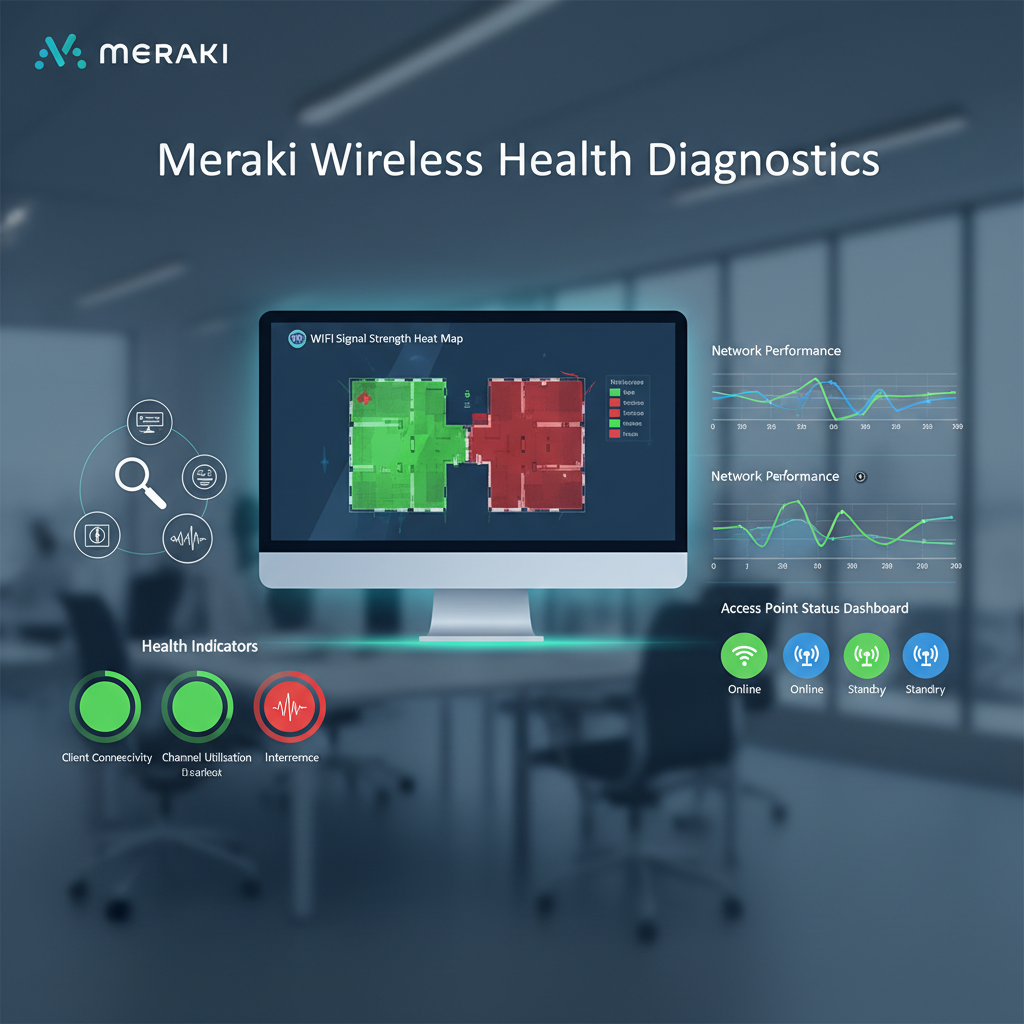
WiFi problems are among the most disruptive and frustrating technology issues any business can face. When wireless connectivity degrades, everything grinds to a halt - video calls freeze, cloud applications stall, VoIP quality collapses, and staff productivity plummets. Yet despite WiFi being the backbone of modern workplace connectivity, many UK businesses still rely on guesswork and user complaints to identify wireless issues. That reactive approach is expensive, slow, and entirely avoidable.
Cisco Meraki’s Wireless Health feature changes the game entirely. Built directly into the Meraki cloud dashboard, Wireless Health provides real-time visibility into every aspect of your wireless network - from individual client device health scores and access point performance metrics to channel utilisation patterns, roaming behaviour, and infrastructure service failures. It transforms WiFi troubleshooting from a frustrating guessing game into a data-driven, proactive discipline.
In this comprehensive guide, we’ll walk through every major capability of Meraki Wireless Health, explain how to interpret its metrics, and show you how to build proactive troubleshooting workflows that catch WiFi problems before your users ever notice them. Whether you’re managing a single office or a multi-site estate across the UK, the principles and techniques covered here will help you deliver consistently excellent wireless performance.
What Is Meraki Wireless Health?
Meraki Wireless Health is a diagnostic and analytics feature embedded within the Cisco Meraki cloud dashboard. It aggregates data from every access point and client device on your network, presenting it through intuitive visualisations that make it straightforward to identify, diagnose, and resolve wireless issues at scale.
Unlike traditional WiFi monitoring tools that require separate software installations, SNMP polling, or complex integrations, Wireless Health is available out of the box with every Meraki MR access point. There is no additional licensing cost, no separate management server, and no specialist training required to start using it. If you have Meraki access points with an active licence, you already have Wireless Health.
The feature operates across two primary dimensions: client health and network health. Client health focuses on the experience of individual devices connecting to your wireless network, tracking their journey through association, authentication, DHCP, and DNS stages. Network health monitors the performance and utilisation of your access points, radio channels, and the overall wireless environment.
Accessing the Wireless Health Dashboard
To access Wireless Health, navigate to Wireless > Monitor > Wireless Health in the Meraki dashboard. The overview page immediately presents a high-level summary of your network’s wireless health, broken down by connection stage, time period, and severity. From here, you can drill down into specific access points, individual clients, SSIDs, or failure categories to investigate issues in detail.
The dashboard supports flexible time-range selection - from the last two hours to the last 30 days - allowing you to identify both acute incidents and gradual degradation trends. This temporal flexibility is critical because many WiFi problems are intermittent, appearing only at certain times of day when occupancy patterns, interference sources, or bandwidth demands shift.
Understanding Client Device Health Scores
The client health score is the cornerstone of Meraki Wireless Health. It provides a simple, colour-coded percentage that represents the proportion of client connection attempts that completed successfully across all stages of the wireless connection process.
A healthy network will typically show a client health score of 90% or above. Scores between 75% and 90% indicate emerging issues that warrant investigation. Anything below 75% signals significant problems that are almost certainly affecting user experience and productivity.
The Connection Lifecycle
Meraki Wireless Health breaks down the client connection process into distinct stages, each of which can fail independently. Understanding these stages is essential for accurate diagnosis:
| Connection Stage | What Happens | Common Failure Causes | Impact of Failure |
|---|---|---|---|
| Association | Client device discovers and connects to an access point at the radio level | Weak signal, channel congestion, driver incompatibilities, AP capacity limits | Device cannot connect at all |
| Authentication | Client provides credentials and is verified (802.1X, PSK, or open) | Incorrect credentials, RADIUS server issues, certificate problems, timeout errors | Device associates but is rejected |
| DHCP | Client requests and receives an IP address from the DHCP server | DHCP scope exhaustion, server unreachable, VLAN misconfiguration, relay failures | Device authenticates but has no IP address |
| DNS | Client resolves domain names to access network resources and the internet | DNS server misconfiguration, firewall blocking, upstream DNS failures | Device has an IP but cannot reach websites or cloud services |
Each stage is tracked independently, which means you can immediately see whether failures are concentrated at a specific point in the connection lifecycle. For example, if association and authentication are both healthy but DHCP failures are spiking, you know the wireless infrastructure itself is fine and the problem lies with your DHCP service or the network path to it.
When investigating a sudden spike in connection failures, always check the timeline view first. If the spike correlates with a specific time, cross-reference it with any changes made to your network, DHCP server, firewall rules, or RADIUS configuration. In our experience, over 60% of sudden WiFi degradation events are caused by a recent configuration change somewhere in the infrastructure stack - not an access point fault.
Access Point Performance Monitoring
While client health tells you about the experience of connecting devices, AP performance monitoring reveals the health and utilisation of your wireless infrastructure itself. Meraki Wireless Health provides per-AP metrics that allow you to identify underperforming, overloaded, or misconfigured access points quickly.
Key AP Metrics to Monitor
The Wireless Health dashboard surfaces several critical metrics for each access point in your network. These metrics, when analysed together, provide a comprehensive picture of AP performance and capacity:
Client count per AP - the number of devices currently associated with each access point. Meraki MR access points can typically handle 30–50 concurrent clients comfortably in a standard office environment, though this varies by model and traffic patterns. If an AP consistently serves more than its comfortable capacity, users on that AP will experience degraded performance even if signal strength is excellent.
Channel utilisation - the percentage of available airtime being consumed on each radio channel. This is arguably the single most important metric for wireless performance. High channel utilisation (above 50%) indicates congestion that will manifest as slower speeds, higher latency, and increased packet retransmissions. We’ll cover this in detail in the next section.
Connection success rate - the percentage of connection attempts to each AP that complete successfully through all four stages. An AP with a significantly lower success rate than its neighbours indicates a localised issue - perhaps interference, a cabling problem, or a configuration anomaly.
Latency - the round-trip time for traffic passing through each AP. Elevated latency on a specific AP can indicate backhaul issues (the wired connection between the AP and the network switch), excessive client load, or interference-related retransmissions.
Identifying Problem Access Points
The AP performance view in Wireless Health allows you to sort and filter access points by any metric, making it straightforward to identify outliers. A common and effective approach is to sort by client health score in ascending order - the worst-performing APs appear at the top, immediately focusing your attention where it is needed most.
When you identify a problem AP, click through to its detail view for a timeline of performance metrics. Look for patterns: does the problem occur at the same time every day? Does it coincide with high client counts? Is it consistent across both 2.4 GHz and 5 GHz radios, or isolated to one band? These patterns provide crucial diagnostic clues.
Channel Utilisation Analysis
Channel utilisation is the most reliable indicator of wireless network congestion. It measures the percentage of time that a radio channel is occupied by transmissions - both from your own network and from neighbouring networks, Bluetooth devices, and other sources of RF interference.
Think of channel utilisation like a motorway: even if every car is capable of doing 70 mph, when the road is 80% full, everyone slows to a crawl. The same principle applies to WiFi - when channel utilisation is high, every device on that channel must wait longer for an opportunity to transmit, resulting in slower speeds and higher latency for all users.
Interpreting Channel Utilisation Levels
As a general guideline, aim to keep channel utilisation below 50% during peak usage periods. Here is how to interpret different levels:
0–25% utilisation - Excellent. Plenty of available airtime. Users should experience fast, responsive wireless performance with minimal contention.
25–50% utilisation - Acceptable. Performance remains good for most applications, though latency-sensitive services like VoIP and video conferencing may start to show occasional glitches during peak moments.
50–75% utilisation - Problematic. Users will notice slower file transfers, buffering on video streams, and increased latency on cloud applications. Action is needed - consider adding APs, adjusting channel assignments, or implementing band steering to redistribute clients.
75–100% utilisation - Critical. The channel is severely congested. Users experience frequent disconnections, extremely slow speeds, and unreliable connectivity. Immediate intervention is required.
Reducing Channel Utilisation
When channel utilisation is too high, Meraki provides several tools to address it. Auto Channel automatically selects the least congested channel for each AP based on real-time RF scanning. Band Steering encourages dual-band clients to connect on the less congested 5 GHz band rather than 2.4 GHz. Increasing the number of APs and reducing their power levels (a technique known as high-density deployment) creates more small cells with less contention per cell.
Roaming Issues and Sticky Clients
Roaming problems are among the most common and most difficult WiFi issues to diagnose without proper tooling. In a typical office environment with multiple access points, client devices should seamlessly transition from one AP to another as users move through the building. When roaming works correctly, the transition is invisible. When it fails, users experience momentary disconnections, call drops, and application timeouts.
The Sticky Client Problem
A “sticky client” is a device that remains connected to a distant access point even when a closer, stronger AP is available. This happens because the client device - not the network - ultimately decides when to roam. Many devices, particularly older laptops and IoT sensors, use conservative roaming algorithms that prioritise maintaining an existing connection over switching to a better one.
The result is a device clinging to an AP at the far edge of its coverage area, communicating at the lowest possible data rates, consuming excessive airtime, and degrading performance for itself and every other client on that AP. Sticky clients are particularly problematic in warehouses, hospitals, education campuses, and any environment where users move between coverage zones.
Meraki Wireless Health helps identify sticky clients by showing you the signal strength (RSSI) at which clients are connecting. If you see clients connected at very low signal strengths (below -75 dBm) to an AP when a closer AP is available, you have a sticky client problem.
Meraki’s Roaming Optimisation Tools
The Meraki dashboard offers several features to improve roaming behaviour. 802.11r (Fast BSS Transition) reduces the time required to roam between APs by pre-authenticating with the target AP before the actual transition. 802.11k provides clients with a list of neighbouring APs and their signal strengths, helping them make better roaming decisions. Minimum Bitrate settings can be configured to disconnect clients operating at very low data rates, effectively forcing them to roam to a closer AP.
Turning up AP transmit power to “solve” coverage complaints is one of the most counterproductive things you can do. Higher power means each AP’s coverage zone expands, creating more overlap and more co-channel interference between neighbouring APs. It also worsens sticky client problems because devices can hear the distant AP more clearly, reducing their incentive to roam. In most office environments, reducing AP power and adding more APs delivers far better results than cranking up the power on fewer units.
DHCP and DNS Failure Detection
DHCP and DNS failures are infrastructure issues that manifest as WiFi problems to end users. When a device successfully associates and authenticates but cannot obtain an IP address (DHCP) or resolve domain names (DNS), the user perceives the WiFi as “broken” even though the wireless layer is functioning correctly. These failures account for a significant proportion of WiFi support tickets and can be particularly difficult to diagnose without visibility into the connection lifecycle.
DHCP Failure Patterns
Meraki Wireless Health tracks DHCP success and failure rates across your network, broken down by SSID, AP, and time period. Common DHCP failure patterns include:
Scope exhaustion - the DHCP server has run out of available IP addresses. This typically manifests as a gradual increase in DHCP failures over time, peaking during high-occupancy periods. The solution is to expand the DHCP scope or reduce lease times to reclaim addresses from devices that have left the network.
Server unreachable - the DHCP server cannot be reached from the VLAN where wireless clients reside. This often occurs after network changes such as VLAN reconfigurations, firewall rule updates, or switch port changes that break the path between the wireless client VLAN and the DHCP server.
Relay failures - in networks where the DHCP server is on a different subnet from the wireless clients, a DHCP relay (or IP helper address) is required on the gateway. Misconfigured or missing relay settings are a frequent cause of DHCP failures, particularly after network equipment changes.
DNS Failure Patterns
DNS failures typically present as users reporting that “the internet is down” or specific websites are unreachable, even though the device has a valid IP address and can ping IP addresses directly. Wireless Health tracks DNS resolution success rates, helping you identify:
DNS server misconfiguration - incorrect DNS server addresses being distributed via DHCP, or DNS servers that are overloaded and timing out under heavy query loads.
Firewall blocking - security policies inadvertently blocking DNS traffic (UDP/TCP port 53) from wireless client VLANs to DNS servers.
Upstream DNS failures - issues with external DNS providers that are outside your direct control but still impact your users’ experience.
Configure your Meraki network to use multiple DNS servers from different providers (for example, your internal DNS server as primary and a public resolver like 1.1.1.1 or 8.8.8.8 as secondary). This provides resilience against single-provider DNS outages and gives you a comparison point when troubleshooting - if the secondary DNS is working but the primary is not, you know exactly where the problem lies.
Signal-to-Noise Ratio Optimisation
The signal-to-noise ratio (SNR) is the difference between the strength of your WiFi signal and the level of background radio frequency noise in the environment. It is measured in decibels (dB) and is one of the most fundamental determinants of wireless performance. A strong signal means nothing if the noise floor is equally high - it is the ratio that matters.
SNR Benchmarks
For reliable wireless performance across common business applications, aim for the following SNR levels:
| SNR Level | Performance Rating | Suitable Applications | Action Required |
|---|---|---|---|
| 40+ dB | Excellent | All applications including HD video, VoIP, large file transfers | None - optimal performance |
| 25–40 dB | Good | General office use, email, web browsing, standard video calls | Monitor for degradation trends |
| 15–25 dB | Marginal | Basic web browsing, email - real-time applications will suffer | Investigate interference sources or add coverage |
| Below 15 dB | Poor | Connectivity intermittent or unusable for most business purposes | Immediate remediation required |
Common Noise Sources in UK Offices
Identifying and mitigating noise sources is critical to maintaining healthy SNR. Common culprits in UK office environments include:
- Microwave ovens in kitchen areas - operate on the 2.4 GHz band and can completely saturate nearby channels during use
- Bluetooth devices - wireless headsets, keyboards, and mice all transmit on 2.4 GHz using frequency hopping
- Neighbouring office WiFi networks - particularly problematic in shared buildings and serviced offices where dozens of independent networks overlap
- Cordless phone systems (DECT) - some older systems operate on frequencies that can interfere with WiFi
- Video bridges and wireless presentation devices - devices like Barco ClickShare or wireless HDMI adapters can generate significant interference
- Industrial equipment - in warehouse or manufacturing environments, motors, inverters, and control systems can produce broadband RF noise
Meraki access points include built-in spectrum analysis capabilities that can detect and classify these interference sources. Combined with the Wireless Health data, you can correlate periods of poor performance with specific interference events and take targeted action.
Meraki Air Marshal: Detecting Rogue Access Points
Rogue access points represent both a security threat and a performance hazard. A rogue AP is any access point operating on your network or in your RF environment that is not under your administrative control. This includes everything from malicious devices planted by attackers to well-intentioned employees who bring in personal WiFi routers because they think the office WiFi is too slow.
How Air Marshal Works
Meraki Air Marshal is a wireless intrusion detection and prevention system (WIDS/WIPS) built into every Meraki MR access point. It continuously scans the RF environment for unauthorised wireless devices, classifying them by threat level and providing the tools to contain them.
Air Marshal identifies rogue APs through several detection methods:
- Wired network detection - identifies APs that are broadcasting SSIDs and are also connected to your wired network, confirming they are true rogues (not just neighbouring networks)
- SSID spoofing detection - flags devices broadcasting SSIDs that match your legitimate network names, which could indicate an evil twin attack
- Ad-hoc network detection - identifies peer-to-peer wireless connections that bypass your network security controls
- Client bridging detection - spots devices that are connected to your network and simultaneously sharing that connection via their own wireless hotspot
Containment and Response
When Air Marshal identifies a confirmed rogue AP, Meraki can automatically contain it by sending deauthentication frames to clients attempting to connect to the rogue device. This effectively prevents any client from associating with the unauthorised AP while your team investigates and physically locates the device.
For UK businesses subject to regulatory requirements such as PCI DSS (payment card industry), having rogue AP detection and containment capabilities is not just good practice - it is often a compliance requirement. Meraki Air Marshal provides the automated scanning and logging needed to demonstrate compliance during audits.
Reactive vs Proactive WiFi Management
The difference between reactive and proactive WiFi management is the difference between constantly fighting fires and preventing them. Meraki Wireless Health enables a fundamental shift from the former to the latter - but only if you build the right processes around it.
Reactive WiFi Management
Proactive WiFi Management
Building Proactive WiFi Troubleshooting Workflows
Having the data is only half the battle - you also need structured processes to act on it. Here are the proactive workflows that we implement for Cloudswitched clients to ensure their wireless networks remain healthy and performant.
Daily Health Check (5 Minutes)
Start each day with a quick glance at the Wireless Health overview dashboard. Check the overall client health score for the previous 24 hours. If it is above 90%, your network is performing well. If it has dropped, click through to identify which connection stage is responsible and which APs are affected.
This daily habit takes less than five minutes but catches emerging problems before they escalate into major incidents. Many WiFi issues develop gradually - a slowly filling DHCP scope, a deteriorating cable connection to an AP, or increasing interference from a new neighbouring network. Catching these early is dramatically cheaper and less disruptive than waiting for them to cause widespread outages.
Weekly Trend Review (15 Minutes)
Each week, review the seven-day trend data for channel utilisation, client count per AP, and connection failure rates. Look for patterns: are certain APs consistently overloaded at specific times? Is channel utilisation trending upward week over week? Are DHCP failures increasing as your organisation grows?
This weekly review feeds directly into capacity planning. If your busiest AP is averaging 45 clients during peak hours and trending upward by 2–3 clients per week, you can proactively plan for an additional AP before the overload causes performance problems.
Monthly Deep Dive (1 Hour)
Once a month, conduct a thorough review that includes RF environment analysis, rogue AP detection results, firmware status, and a review of any recurring issues from the previous month. This is also the time to evaluate whether any configuration changes - channel plans, power levels, band steering thresholds - should be adjusted based on observed data.
Incident Response Workflow
When a WiFi issue is reported, follow this structured diagnostic workflow using Wireless Health data:
Step 1: Scope the problem. Is it affecting one client, one AP, one SSID, or the entire network? The Wireless Health dashboard answers this immediately by showing health scores filtered by these dimensions.
Step 2: Identify the failure stage. Check whether failures are concentrated at association, authentication, DHCP, or DNS. This immediately narrows your investigation to the correct infrastructure component.
Step 3: Check the timeline. When did the problem start? Does it correlate with any known changes or events? The time-based view in Wireless Health is invaluable for establishing temporal correlations.
Step 4: Examine the affected AP(s). Check channel utilisation, client count, and any alerts or anomalies on the specific access points involved.
Step 5: Review client details. For individual client issues, examine the client’s connection history, signal strength, and roaming patterns. Meraki stores detailed per-client data that can reveal device-specific problems.
Step 6: Implement and verify. Make targeted changes based on your diagnosis and use Wireless Health to confirm the improvement. The before-and-after comparison capability is critical for validating that your fix actually worked.
Wireless Health Metrics: A Complete Reference
For quick reference, here is a comprehensive table of the key metrics available in Meraki Wireless Health, what they mean, and what action to take when they fall outside healthy ranges.
| Metric | Healthy Range | Warning Threshold | What It Tells You | Remediation Action |
|---|---|---|---|---|
| Client Health Score | 90–100% | Below 75% | Overall connection success rate across all stages | Drill down to identify failing stage and affected APs |
| Association Success | 95–100% | Below 90% | Radio-level connection success | Check signal coverage, AP capacity, driver compatibility |
| Authentication Success | 95–100% | Below 90% | Credential verification success | Check RADIUS server health, credentials, certificate validity |
| DHCP Success | 98–100% | Below 95% | IP address assignment success | Check DHCP scope, server reachability, VLAN routing |
| DNS Success | 98–100% | Below 95% | Name resolution success | Check DNS server configuration and reachability |
| Channel Utilisation | 0–40% | Above 50% | Airtime consumption on each channel | Add APs, adjust channels, enable band steering |
| Client Count per AP | 0–40 | Above 50 | Number of associated clients per access point | Add APs or adjust power to redistribute load |
| Signal Strength (RSSI) | -30 to -67 dBm | Below -75 dBm | Received signal strength at the client | Check AP placement, coverage gaps, sticky clients |
| SNR | 25+ dB | Below 20 dB | Signal quality relative to noise floor | Identify and mitigate interference sources |
| Rogue AP Count | Known and classified | New unclassified rogues | Unauthorised wireless devices in your environment | Investigate, contain, and physically locate rogue devices |
Advanced Tips for Meraki Wireless Health
Beyond the core diagnostic features, here are several advanced techniques that experienced Meraki administrators use to extract maximum value from Wireless Health.
Leverage the API for Custom Reporting
Meraki provides a comprehensive REST API that includes access to Wireless Health data. For organisations that need custom reporting, automated alerting, or integration with existing ITSM tools, the API enables you to pull health metrics programmatically and build tailored dashboards. This is particularly valuable for managed service providers and larger enterprises managing hundreds of APs across multiple sites.
Use Wireless Health with Location Analytics
When combined with Meraki’s location analytics capabilities, Wireless Health data becomes even more powerful. You can correlate wireless performance issues with physical locations within your building, identifying specific areas where coverage or performance is consistently poor. This spatial analysis is invaluable for planning AP additions or relocations.
Configure Alerts for Proactive Notification
Set up Meraki dashboard alerts to notify your IT team automatically when Wireless Health metrics fall below acceptable thresholds. Configure alerts for client health drops, AP disconnections, rogue AP detections, and channel utilisation spikes. These alerts, delivered via email or webhook to your team messaging platform, ensure that problems are surfaced immediately rather than waiting for the next scheduled review.
Baseline Before Changes
Before making any significant changes to your wireless configuration - adding APs, changing channel plans, modifying power settings, or enabling new features - take a snapshot of your current Wireless Health metrics. This baseline allows you to measure the impact of your changes objectively, confirming whether they improved or degraded performance.
Real-World Impact: What Proactive WiFi Management Delivers
The business case for investing in proactive WiFi management with Meraki Wireless Health is compelling. Across our client base at Cloudswitched, organisations that implement structured Wireless Health monitoring and proactive troubleshooting workflows consistently report:
- 70–80% reduction in WiFi-related support tickets - problems are caught and resolved before users need to report them
- 60% faster mean time to resolution - when issues do arise, the diagnostic data is immediately available, eliminating the guesswork phase
- Improved user satisfaction scores - reliable WiFi is consistently one of the top factors in employee technology satisfaction surveys
- Better capacity planning - trend data enables proactive investment in wireless infrastructure before performance degrades
- Stronger security posture - continuous rogue AP detection and containment reduces the wireless attack surface
For a typical 100-user UK office with Meraki wireless infrastructure, the cost of implementing these proactive monitoring practices is effectively zero - the tools are already included in your Meraki licence. The return, measured in reduced downtime, fewer support tickets, and improved productivity, typically runs into thousands of pounds annually.
Getting Started with Meraki Wireless Health
If you already have Meraki access points deployed, you can start using Wireless Health today. Log into your Meraki dashboard, navigate to the Wireless Health section, and familiarise yourself with the overview. Establish your baselines by observing normal metrics over a one-week period, then begin implementing the daily, weekly, and monthly review cadence described above.
If you are not yet on the Meraki platform but are considering it, Wireless Health alone can justify the investment. The visibility it provides into your wireless environment is simply not available with most competing solutions without purchasing additional monitoring tools. Combined with the rest of the Meraki dashboard’s capabilities - centralised management, automatic firmware updates, integrated security, and cloud-first architecture - it represents a compelling platform for businesses of all sizes.
For organisations that need help deploying, optimising, or troubleshooting their Meraki wireless infrastructure, working with a certified Meraki partner ensures you get the most from these powerful tools. At Cloudswitched, our team holds advanced Meraki certifications and has extensive experience designing and managing wireless networks for UK businesses across every sector - from dense open-plan offices and co-working spaces to warehouses, schools, and multi-site retail estates.
Fix Your WiFi Issues for Good
Whether you are struggling with persistent WiFi complaints, planning a wireless network upgrade, or looking to implement proactive monitoring with Meraki Wireless Health, our certified engineers can help. We offer free WiFi health assessments for UK businesses - we will review your current wireless environment, identify issues, and provide a clear roadmap to reliable, high-performance connectivity.

CloudSwitched
London-based managed IT services provider offering support, cloud solutions and cybersecurity for SMEs.


