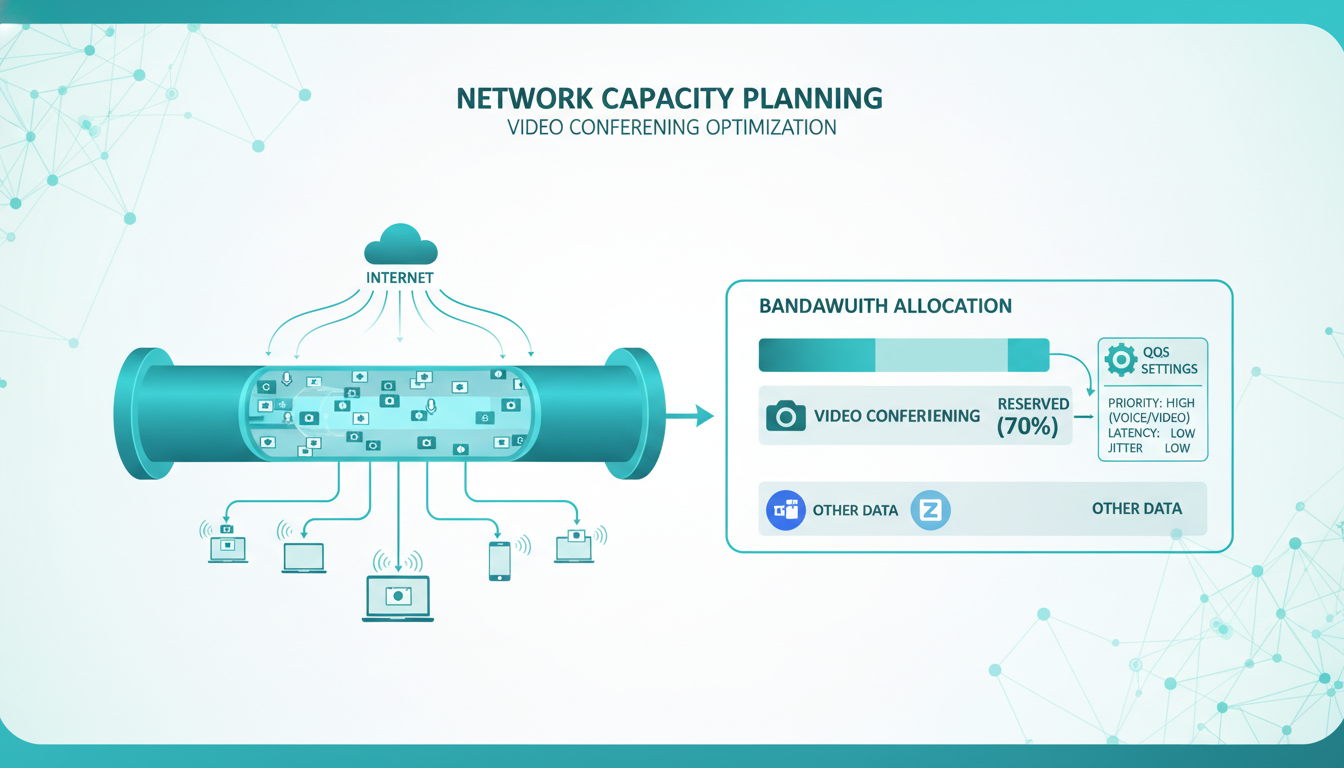
Video conferencing has transitioned from an occasional convenience to an essential daily tool for UK businesses. Microsoft Teams, Zoom, Google Meet, and other platforms are now the default communication method for internal meetings, client calls, interviews, and collaborative work sessions. Yet many businesses continue to struggle with poor video quality, dropped calls, audio delays, and frozen screens - problems that undermine productivity, frustrate staff, and project an unprofessional image to clients and partners.
The root cause of most video conferencing problems is not the software - it is the network. Video conferencing is one of the most bandwidth-intensive and latency-sensitive applications a business network carries. A single high-definition Teams call consumes 1.5 to 4 Mbps of bandwidth in each direction. When twenty employees are simultaneously on video calls, the aggregate demand can overwhelm networks that were designed for email and web browsing.
This guide explains how to assess, plan, and optimise your network capacity for reliable video conferencing, with practical guidance tailored to UK business environments.
Understanding Video Conferencing Bandwidth Requirements
Video conferencing bandwidth requirements depend on the platform, video quality, number of participants visible on screen, and whether screen sharing is active. Understanding these requirements is the first step toward planning adequate network capacity.
Microsoft Teams, the most widely used platform in UK business, requires approximately 1.5 Mbps upload and 1.5 Mbps download for a standard one-to-one video call. Group calls with multiple visible participants require up to 4 Mbps download and 2.5 Mbps upload. Adding screen sharing increases the requirement by an additional 1-2 Mbps. These are per-user figures - multiply by the number of simultaneous callers to calculate total demand.
Platform-Specific Considerations
Whilst the general bandwidth figures provide a useful planning baseline, each video conferencing platform handles network resources differently, and understanding these distinctions helps with capacity planning. Microsoft Teams employs adaptive bitrate streaming, dynamically adjusting video quality based on available bandwidth - this means quality degrades gracefully under network pressure rather than cutting out entirely, but it also means users may experience noticeably reduced resolution without realising the underlying cause is network congestion. Zoom uses similar adaptive techniques but tends to maintain higher perceived video quality at lower bandwidths through more aggressive compression algorithms, which can be advantageous for bandwidth-constrained environments.
Google Meet prioritises connection stability over visual quality, reducing video resolution earlier in the degradation curve to maintain a reliable connection. This design philosophy makes it somewhat more resilient on constrained networks but can result in visibly lower video quality compared to Teams or Zoom when bandwidth is limited. For UK businesses standardising on a single platform, understanding these behavioural differences helps set realistic expectations and informs the level of bandwidth headroom required to deliver a consistently professional experience.
Additional features compound bandwidth demands in ways that are often underestimated during initial capacity planning. Virtual backgrounds and background blur increase the complexity of the encoded video stream, raising bandwidth consumption by ten to fifteen per cent. Meeting recording to the cloud adds upload requirements. Screen sharing with a simultaneous video overlay - increasingly common during presentations and collaborative working sessions - effectively doubles the video bandwidth requirement as two distinct streams must be transmitted concurrently. When planning your network capacity, account for these features being in regular use rather than treating them as occasional exceptions that can be safely ignored.
| Call Type | Download | Upload | Recommended Bandwidth |
|---|---|---|---|
| Audio only (Teams/Zoom) | 60 Kbps | 60 Kbps | 130 Kbps per user |
| 1:1 video call (HD) | 1.5 Mbps | 1.5 Mbps | 3.5 Mbps per user |
| Group video (gallery view) | 4.0 Mbps | 2.5 Mbps | 8.0 Mbps per user |
| Video + screen sharing | 5.5 Mbps | 3.5 Mbps | 10 Mbps per user |
| Teams Town Hall (viewer) | 1.5 Mbps | Minimal | 2.0 Mbps per viewer |
Assessing Your Current Network Capacity
Before making changes, you need to understand your current network performance. This assessment should measure three key metrics: bandwidth, latency, and jitter.
Bandwidth is the total capacity of your internet connection - how much data it can carry per second. Latency is the time taken for data to travel between your network and the destination - measured in milliseconds. Jitter is the variation in latency over time - high jitter causes choppy audio and stuttering video even when bandwidth is sufficient.
For acceptable video conferencing quality, you need: sufficient bandwidth to support all simultaneous calls plus other business traffic, latency below 150 milliseconds (ideally below 50ms), jitter below 30 milliseconds (ideally below 15ms), and packet loss below 1% (ideally below 0.1%).
Conducting a Thorough Network Assessment
A meaningful network assessment must be conducted during peak usage hours, not during quiet periods when the network is underutilised and results paint a misleadingly positive picture. For most UK offices, peak video conferencing demand occurs between 9:00 and 11:00 in the morning, when team stand-ups, client calls, and collaborative working sessions overlap with routine email and cloud application traffic. Run speed tests and monitoring tools during these windows to capture realistic performance data that reflects actual working conditions. Free tools such as Speedtest by Ookla provide basic bandwidth measurements, but for a comprehensive assessment, use network monitoring software that captures sustained performance metrics over hours or days rather than momentary snapshots.
Professional network monitoring platforms such as PRTG Network Monitor, SolarWinds, or the built-in diagnostics available in enterprise-grade firewalls from vendors like Fortinet and SonicWall provide continuous visibility into bandwidth utilisation, latency, jitter, and packet loss across your entire network. These tools can identify patterns that explain intermittent quality issues - perhaps bandwidth saturates every morning at 10:00 when the all-hands video meeting coincides with the automated cloud backup schedule, or jitter spikes whenever a colleague initiates a large file transfer to a client via a cloud sharing platform.
Identifying Common Network Bottlenecks
The internet connection is the most obvious potential bottleneck, but it is far from the only one that can degrade video conferencing quality. Ageing network switches with 100 Mbps ports rather than Gigabit Ethernet create internal bottlenecks that no amount of internet bandwidth can resolve. Category 5 Ethernet cabling - still present in a surprising number of older UK office buildings, particularly those constructed or refurbished before 2005 - limits throughput to 100 Mbps per connection, whilst Category 5e or Category 6 cabling supports the full Gigabit speeds that modern video conferencing demands. A single misconfigured network switch, a degraded cable run behind a wall, or a consumer-grade router pressed into service in a meeting room can create localised quality problems that appear random and are extremely difficult to diagnose without systematic, methodical testing of the entire network path.
Calculating Your Required Bandwidth
To calculate the bandwidth your office needs for video conferencing, estimate the maximum number of simultaneous video calls during peak hours. For a typical UK office with 50 employees, you might have 15-20 users on video calls simultaneously during the morning meeting window.
If each of those 20 users is in a group video call requiring 8 Mbps, you need 160 Mbps of bandwidth just for video conferencing. Add bandwidth for email, web browsing, cloud application access, file transfers, and other traffic - typically 1-2 Mbps per user for general business use - and you need approximately 260 Mbps total for a 50-person office.
This is a peak demand calculation. Average demand will be lower, but your network must handle peak demand without degradation. Many UK businesses discover that their existing broadband connection, which seemed adequate for email and web browsing, is woefully insufficient for widespread video conferencing.
Planning for Growth and Peak Demand
Network capacity planning should account not only for current demand but for anticipated growth over the next two to three years. If your business is expanding, hiring additional staff, or increasing its adoption of cloud-based applications, bandwidth requirements will rise accordingly. A network that comfortably supports your current team may become inadequate within twelve months if a dozen new employees are onboarded or if the business adopts bandwidth-intensive tools such as cloud-based design software, virtual desktop infrastructure, or AI-powered collaboration features. Apply a growth multiplier of 1.5 to 2.0 times your current calculated peak requirement to provide sufficient headroom for organic expansion without necessitating an immediate and disruptive infrastructure upgrade.
Peak demand calculations should also factor in exceptional events that occur periodically within every organisation. Company-wide town halls, quarterly business reviews, large-scale training sessions, all-hands meetings, and client presentations can temporarily spike video conferencing demand far beyond normal daily levels. If your organisation regularly holds events where fifty or more participants join a video call simultaneously, the network must support this peak load without degrading quality for other users conducting their normal business in parallel. Consider scheduling bandwidth-intensive background tasks - such as cloud backups, operating system deployments, and large file synchronisations - outside of peak video conferencing hours to reduce contention for the available bandwidth.
The Hidden Bandwidth Consumers
Many UK businesses significantly underestimate the bandwidth consumed by non-video applications running concurrently alongside video conferencing. Cloud backup services such as Carbonite, Backblaze, or Microsoft OneDrive continuous sync can saturate upload bandwidth when synchronising large volumes of files, directly competing with the upload capacity required for outbound video streams. Automatic operating system and application updates - particularly the sizeable monthly Windows Update packages and Microsoft 365 feature updates - can consume substantial bandwidth across an entire office when multiple machines download and install updates simultaneously during working hours.
Shadow IT presents another frequently overlooked challenge. Personal cloud storage services, music and video streaming, social media platforms, and other unapproved applications used by staff during working hours add unpredictable bandwidth demand that erodes the capacity available for business-critical video conferencing. Whilst a draconian approach to internet usage is neither desirable nor productive, implementing basic traffic management policies that limit the bandwidth available to non-business applications during peak hours can significantly improve video conferencing reliability without unduly restricting staff.
Most consumer and basic business broadband in the UK is asymmetric - download speeds are much faster than upload speeds. A "fibre broadband" connection offering 80 Mbps download might only provide 20 Mbps upload. Video conferencing requires significant upload bandwidth (you are sending your video to other participants), so asymmetric connections can be a major bottleneck. For offices with heavy video conferencing use, a symmetric connection like an Ethernet leased line - offering equal upload and download speeds - is strongly recommended.
Network Optimisation Strategies
Quality of Service (QoS)
Quality of Service is a network configuration that prioritises certain types of traffic over others. By configuring QoS on your network switches and firewall, you can ensure that video conferencing traffic is given priority over less time-sensitive traffic like file downloads or software updates. Even when the network is heavily loaded, QoS ensures that video calls receive the bandwidth, latency, and jitter performance they need.
Microsoft Teams uses specific port ranges and protocols that can be identified and prioritised by QoS-capable network equipment. Configure your network to prioritise UDP traffic on ports 3478-3481, which carry Teams media (audio, video, and screen sharing). Most enterprise-grade firewalls and managed switches support QoS configuration.
Network Segmentation
Separating video conferencing traffic from other network traffic using VLANs can improve performance. Place video conferencing endpoints on a dedicated VLAN with QoS applied, ensuring they are not competing with file transfers, backups, or other bandwidth-intensive operations for network resources.
Wi-Fi Optimisation
Wi-Fi is often the weakest link in video conferencing quality. Wireless networks suffer from interference, contention, and signal degradation that wired connections avoid. For meeting rooms and areas where video conferencing is frequent, consider wired Ethernet connections rather than relying on Wi-Fi.
If Wi-Fi is unavoidable, ensure you are using Wi-Fi 6 (802.11ax) or newer access points, position access points to provide strong coverage in meeting rooms, use 5GHz bands rather than 2.4GHz for video traffic, and limit the number of devices per access point to avoid contention. In a busy UK office, a single consumer-grade Wi-Fi router is wholly inadequate - enterprise access points with proper site survey and placement are essential.
Local Area Network Infrastructure
Your internal network infrastructure deserves equal attention to your internet connection when optimising for video conferencing. Enterprise-grade managed switches with Gigabit Ethernet ports and 10-Gigabit uplinks ensure that internal traffic flows without creating bottlenecks between network segments. Power over Ethernet (PoE) switches simplify the deployment of IP telephones, dedicated video conferencing endpoints, and wireless access points by delivering both data connectivity and electrical power over a single Ethernet cable, reducing cabling complexity and installation costs.
Cabling infrastructure merits careful attention, particularly in older UK office buildings where the existing structured cabling may fall short of current performance standards. Category 6A cabling supports 10 Gigabit Ethernet at distances up to 100 metres and provides meaningfully superior noise immunity compared to older cable categories - an important consideration in environments with significant electromagnetic interference from lighting, power cables, or industrial equipment. When fitting out or refurbishing office space, specifying Category 6A cabling throughout the building represents a modest incremental cost that future-proofs the physical network infrastructure for many years. Critically, ensure that all patch panels, wall sockets, and patch cables match the category rating of the permanently installed cabling - a single Category 5 patch cable inserted into an otherwise Gigabit-capable network path will throttle that entire connection to 100 Mbps.
Firewall and Security Appliance Considerations
Firewalls and unified threat management appliances can become unexpected and significant bottlenecks for video conferencing traffic if not appropriately specified. Advanced security features such as deep packet inspection, intrusion prevention systems, SSL/TLS decryption, and content filtering all consume processing resources and add measurable latency to every packet passing through the device. A firewall marketed with a headline throughput of 1 Gbps may only achieve 200 to 400 Mbps of effective throughput with all security features enabled simultaneously - a critical distinction that is frequently overlooked during procurement.
Ensure your firewall is appropriately sized for your total bandwidth requirement with all intended security features active, not merely the headline throughput figure quoted in marketing materials. For organisations with heavy video conferencing usage, configuring the firewall to bypass deep packet inspection for trusted video conferencing traffic - identified by the destination IP address ranges published by Microsoft, Zoom, and Google in their official documentation - can meaningfully reduce latency and jitter without compromising your overall security posture. Most enterprise-grade firewalls support policy-based routing rules that enable this selective bypass for traffic destined for known, trusted cloud service endpoints.
Internet Connection Upgrades
If your current internet connection cannot support your video conferencing requirements, upgrading is the most impactful change you can make. For UK businesses, the options range from FTTP broadband to dedicated Ethernet leased lines.
For offices with up to 25 users, a FTTP connection of 300-500 Mbps may be sufficient, provided the upload speed is adequate. For offices with 25-100 users relying heavily on video conferencing, a symmetric Ethernet leased line of 100-500 Mbps is recommended. The cost of a leased line - typically £200-800 per month depending on speed and location - is modest compared to the productivity losses caused by poor video call quality.
Consider a dual-WAN setup with automatic failover. A primary leased line for business-critical traffic and a secondary broadband connection for failover ensures that video conferencing continues even if your primary connection fails. SD-WAN technology can manage this automatically, routing traffic intelligently across both connections.
Understanding UK Connectivity Options in Detail
The UK connectivity market offers a range of options suited to different business sizes, budgets, and performance requirements, and selecting the right combination is critical to achieving reliable video conferencing. Full Fibre to the Premises (FTTP) broadband, now available to over 60 per cent of UK premises following extensive infrastructure investment by Openreach and alternative network operators, provides download speeds of up to 1 Gbps. However, upload speeds on FTTP are typically limited to 100 to 220 Mbps depending on the provider and package selected, which can constrain businesses with heavy outbound video traffic. FTTP nonetheless represents excellent value for smaller offices where the available upload capacity is sufficient for the number of simultaneous video calls required.
Single Order Generic Ethernet Access (SOGEA) provides broadband connectivity without a traditional PSTN telephone line, reducing monthly costs for businesses that have moved entirely to Voice over IP telephony and mobile communications. For businesses requiring guaranteed, contractually backed performance levels, Ethernet leased lines remain the gold standard for UK business connectivity. Available in symmetric speeds ranging from 10 Mbps to 10 Gbps, leased lines provide equal upload and download bandwidth with formal service level agreements covering uptime guarantees, maximum latency and jitter thresholds, and committed repair timeframes. The typical installation lead time for a new leased line in the UK ranges from four to twelve weeks depending on whether existing duct infrastructure is available, so planning ahead is essential rather than waiting until your existing connection has already become inadequate.
As a complementary backup or interim solution, 5G business broadband from providers such as Three Business, EE, or Vodafone Business offers a rapidly deployable secondary connection capable of delivering 100 to 300 Mbps in areas with strong 5G coverage. This can serve as an effective failover solution during primary connection outages or as temporary bandwidth whilst a leased line installation is being completed. For organisations in areas where fixed-line options are limited - such as rural business parks or industrial estates on the periphery of UK towns - 5G or fixed wireless access may represent the primary connection, though latency and contention characteristics should be carefully evaluated against video conferencing requirements before committing.
Ethernet Leased Line
- Symmetric speeds (equal upload/download)
- Guaranteed bandwidth with SLA
- Low latency and jitter
- Dedicated connection, not shared
- Ideal for heavy video conferencing
- Business-grade support included
Standard Broadband
- Asymmetric (slow upload speeds)
- Best-effort bandwidth, no guarantees
- Variable latency during peak times
- Shared with other users in area
- Struggles with multiple video calls
- Consumer-grade support only
Monitoring and Ongoing Management
Network capacity management is not a one-time project - it requires ongoing monitoring. Implement network monitoring that tracks bandwidth utilisation, latency, jitter, and packet loss continuously. Set alerts for when metrics exceed thresholds that indicate potential video conferencing quality issues.
Microsoft Teams provides a Call Quality Dashboard that shows detailed metrics for every call made within your organisation. Use this data to identify users or locations experiencing quality problems, correlate issues with network events, and demonstrate the impact of network improvements. Regular review of call quality data helps you stay ahead of capacity problems before they affect users.
Training Staff for Optimal Video Conferencing
Even with a perfectly configured and generously provisioned network, poor user habits and practices can noticeably degrade video conferencing quality for the individual and for other users sharing the same network. Invest time in training staff on best practices that reduce unnecessary bandwidth consumption and improve overall call quality. Simple measures such as closing bandwidth-intensive applications and browser tabs during important video calls, using wired Ethernet connections in preference to Wi-Fi when a wall socket is available, positioning cameras and adjusting lighting for optimal image quality at lower bitrates, and consistently muting microphones when not actively speaking all contribute materially to better call quality across the entire organisation.
Provide clear guidance on when to use video versus audio-only calls. Not every internal meeting requires video - encouraging audio-only participation for brief status check-ins, one-to-one catch-ups, and informal discussions can significantly reduce aggregate peak bandwidth demand during busy morning periods. Create a simple, accessible troubleshooting guide that staff can follow independently when experiencing quality issues. Steps such as verifying their connection type, closing unnecessary background applications, switching from Wi-Fi to a wired connection, restarting their conferencing client, and running a quick speed test before escalating to the IT support team can resolve the substantial majority of individual quality complaints without requiring technical intervention or help desk resource.
Future-Proofing Your Network for Emerging Demands
Video conferencing technology continues to evolve at a rapid pace, with each successive generation of platforms and features placing greater demands on the underlying network infrastructure. The transition from standard HD to 4K ultra-high-definition video conferencing is already underway in boardrooms, executive meeting suites, and demonstration facilities, with per-user bandwidth requirements roughly quadrupling compared to current HD standards. AI-powered features such as real-time language translation, intelligent camera framing that tracks active speakers, automated meeting transcription with speaker identification, and AI-generated meeting summaries all generate additional data processing and network transmission overhead that must be accommodated.
Building network capacity with a five-year planning horizon ensures that your infrastructure investment remains relevant and capable as these technologies mature and enter mainstream business adoption. Overprovisioning bandwidth by a factor of two relative to current peak measured demand, deploying the latest generation of Wi-Fi 6E or Wi-Fi 7 access points that support higher throughput and greater device density, and investing in comprehensive network monitoring and management tools that provide real-time visibility into emerging usage patterns and trends all contribute to building a network infrastructure that can adapt gracefully to evolving demands without requiring premature wholesale replacement. The incremental cost of thoughtful overprovisioning at the point of initial deployment or upgrade is invariably modest compared to the expense and disruption of a forced infrastructure refresh driven by unanticipated capacity constraints just two or three years later.
Struggling With Video Call Quality?
Cloudswitched helps UK businesses optimise their networks for reliable video conferencing. From bandwidth assessments and QoS configuration to internet connection upgrades and Wi-Fi optimisation, we ensure your team can communicate effectively regardless of how many people are on calls simultaneously. Get in touch to discuss your network requirements.
GET IN TOUCH
CloudSwitched
London-based managed IT services provider offering support, cloud solutions and cybersecurity for SMEs.


