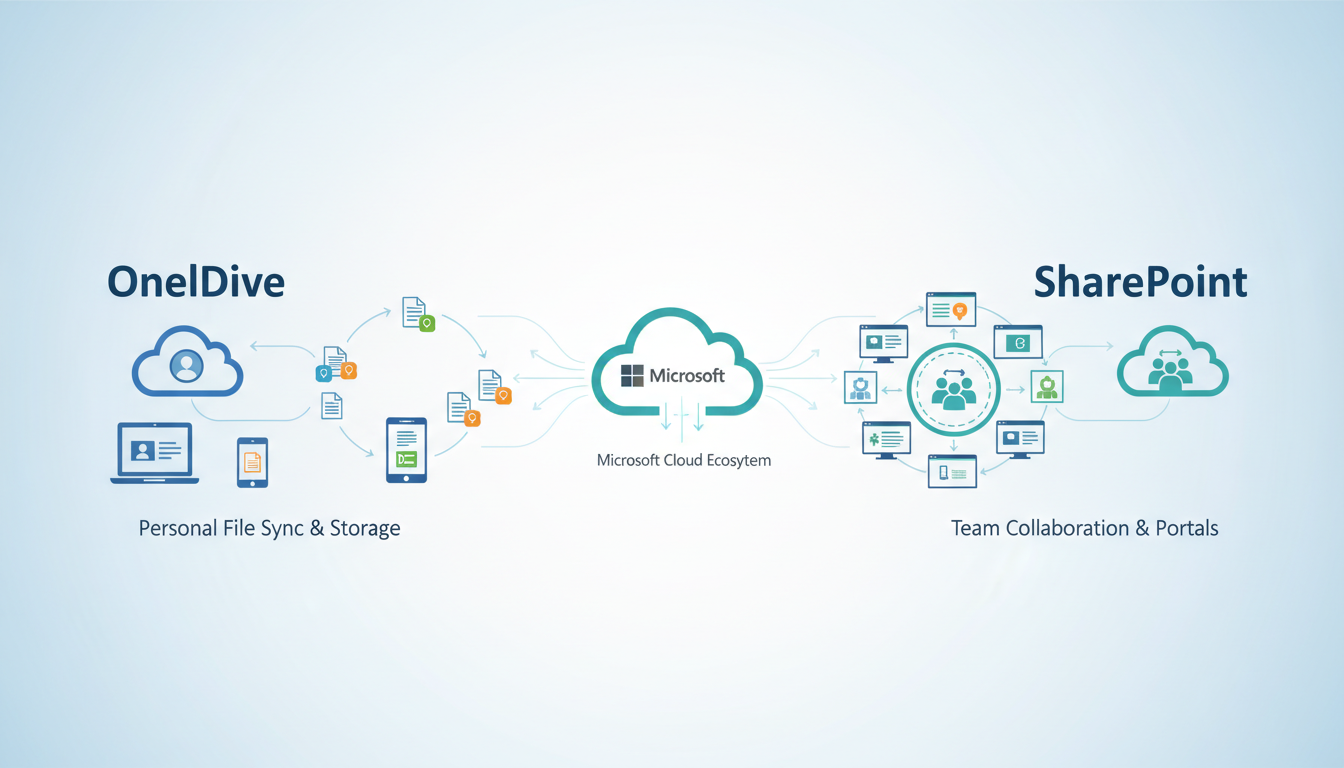
If your business uses Microsoft 365 - and the vast majority of UK businesses do - you have access to both OneDrive and SharePoint as part of your subscription. Yet despite being two of the most widely used tools in the Microsoft ecosystem, the difference between OneDrive and SharePoint remains one of the most common sources of confusion we encounter when working with UK businesses.
Staff save files to OneDrive when they should use SharePoint. Teams create shared folders in OneDrive instead of setting up proper SharePoint document libraries. Managers cannot find documents because they are scattered across individual OneDrives rather than centralised in a team SharePoint site. The result is disorganisation, duplication, inconsistent permissions, and frustrated employees who spend too long searching for the files they need.
This guide explains precisely what OneDrive and SharePoint are, how they differ, when to use each one, and how to set up a file management strategy that keeps your business organised, secure, and productive.
What Is OneDrive?
OneDrive for Business is Microsoft's cloud-based personal file storage service. Think of it as each employee's personal filing cabinet in the cloud. Every user with a Microsoft 365 licence gets their own OneDrive, which is private to them by default. Only the user can see and access their OneDrive files unless they explicitly choose to share specific files or folders with colleagues.
OneDrive syncs seamlessly with the desktop and mobile OneDrive apps, allowing users to access their files from any device, anywhere. Changes made on one device are automatically synced to all others. It integrates deeply with Microsoft Office applications, enabling real-time co-authoring of Word, Excel, and PowerPoint files without the need to email attachments back and forth.
The key characteristics of OneDrive are that it is personal (tied to an individual user account), private by default, and designed for files that primarily belong to one person - even if they are occasionally shared with others.
OneDrive Sync and Everyday File Access
One of OneDrive's most valuable features for UK businesses is its seamless synchronisation with the Windows desktop. Through the OneDrive sync client, which comes pre-installed with Windows 10 and 11, employees can access their cloud-stored files directly through File Explorer as though they were saved locally. The Files On-Demand feature means that files appear in the folder structure without consuming local disk space until they are actually opened, which is particularly beneficial for organisations issuing laptops with limited solid-state storage.
For businesses with remote or hybrid working arrangements - which now includes the majority of UK organisations - OneDrive provides reliable access to personal files from any device. The mobile apps for iOS and Android allow staff to view, edit, and share documents on the move, with changes synchronising back to the cloud automatically. This is especially useful for field-based employees, sales representatives visiting clients, and directors who need to review documents outside of office hours.
OneDrive also provides robust version history for individual files. Every time a document is edited and saved, OneDrive retains the previous version for up to 30 days (or longer, depending on your Microsoft 365 plan). This means that if an employee accidentally overwrites a critical spreadsheet or deletes content from a report, they can restore a previous version with a few clicks. For regulated industries such as financial services and healthcare, this version history can also serve as an informal audit trail of document changes.
Security is another area where OneDrive for Business distinguishes itself from consumer file-sharing services. Files stored in OneDrive for Business are encrypted both in transit and at rest using AES 256-bit encryption. Administrators can enforce additional protections through Microsoft Purview Information Protection, applying sensitivity labels that control who can access, copy, or forward specific documents. For UK businesses handling sensitive client data, financial information, or personal data subject to GDPR, these built-in security controls provide a level of protection that consumer-grade cloud storage simply cannot match.
What Is SharePoint?
SharePoint Online is Microsoft's cloud-based platform for team and organisational content management. Unlike OneDrive, which is personal, SharePoint is inherently collaborative and organisational. SharePoint sites are shared spaces where teams, departments, or the entire organisation can store, organise, and manage documents together.
A SharePoint site belongs to a team or function, not to an individual. When an employee leaves the business, their SharePoint contributions remain intact and accessible. Document libraries in SharePoint can be structured with metadata, content types, and custom views that make it easy to find and organise large volumes of files. SharePoint also provides powerful features like version history, approval workflows, retention policies, and integration with Microsoft Teams.
SharePoint Document Libraries and Metadata
Where OneDrive uses a simple folder structure, SharePoint document libraries offer far more sophisticated organisation through metadata columns and content types. Instead of relying solely on folder hierarchies to categorise documents, SharePoint allows you to tag each document with structured data - such as client name, document type, project phase, review status, or department. This metadata-driven approach means that the same set of documents can be filtered and viewed in multiple ways without duplicating files or creating complex nested folder structures.
For a UK accountancy practice, for example, a SharePoint document library might include columns for client name, tax year, document category (tax return, accounts, correspondence), and status (draft, under review, filed). Staff can then filter the library to show all draft documents for a specific client, or all filed tax returns for the current year, without navigating through dozens of folders. This approach scales far more effectively than traditional folder-based filing, particularly as the volume of documents grows.
SharePoint also supports retention policies that can be applied at the library or content-type level. Under UK law and HMRC requirements, businesses must retain certain financial records for at least six years. SharePoint retention policies can enforce this automatically, preventing documents from being deleted before the retention period expires and optionally triggering a disposition review when the period ends. This level of automated compliance management simply is not possible with OneDrive or a traditional file server.
Power Automate workflows integrate directly with SharePoint to automate routine document processes. Common examples include sending an approval request when a new document is uploaded, notifying a team when a contract is due for renewal, automatically moving completed project files to an archive library, or generating a PDF copy of a document when its status changes to approved. These workflows reduce manual administration and ensure that processes are followed consistently across the organisation.
Every Microsoft Teams team is backed by a SharePoint site. When you upload a file to a Teams channel, it is actually stored in the SharePoint document library associated with that channel. Understanding this connection is crucial because it means that files shared in Teams are inherently team-owned (via SharePoint), not personally owned (via OneDrive). This distinction matters for access control, data retention, and what happens when employees leave your organisation.
OneDrive vs SharePoint: Key Differences
| Feature | OneDrive for Business | SharePoint Online |
|---|---|---|
| Ownership | Personal (individual user) | Organisational (team/department) |
| Default access | Private to the user | Shared with site members |
| When employee leaves | Content orphaned (manager gets 30-day access) | Content remains accessible to the team |
| Storage | 1 TB per user | 1 TB + 10 GB per licenced user (pooled) |
| Organisation | Folders only | Libraries, metadata, content types, views |
| Permissions | File/folder level sharing | Site, library, folder, and item level |
| Best for | Personal work-in-progress, drafts | Team documents, policies, shared resources |
| Integration | Office apps, Windows Explorer | Teams, Power Automate, Power Apps, Office |
When to Use OneDrive
OneDrive is the right choice for files that are personal to a specific employee and do not need to be routinely accessed by the wider team. This includes personal notes and drafts, work-in-progress documents that are not yet ready for team review, individual reference materials, personal templates and working files, and training certificates or individual HR documents.
A useful rule of thumb: if only one person needs regular access to a file, it belongs in OneDrive. If two or more people need regular access, it belongs in SharePoint.
Practical OneDrive Scenarios for UK Businesses
To illustrate when OneDrive is the appropriate choice, consider a few common scenarios from UK workplaces. A marketing manager is drafting a new campaign brief. The document is still in the early stages - she is collecting her thoughts, pasting in rough ideas, and the content is not yet ready for colleagues to see. This draft belongs in her OneDrive. Once the brief reaches a state where she wants feedback from the wider marketing team, she would move it to the Marketing SharePoint site or share it through a Teams channel.
Similarly, an accountant preparing for their professional development review might store personal study notes, CPD records, and self-assessment documents in OneDrive. These are genuinely personal files that the wider team has no need to access. A project manager who keeps a personal task tracker in Excel - supplementing the official project management tool - would also store this in OneDrive, as it serves as an individual working aid rather than an official project document.
The critical distinction is between working files and business records. OneDrive is ideal for the working files that support an individual's productivity. The moment a document becomes a business record - something the organisation needs to retain, reference, or share - it should move to SharePoint where it benefits from team-level access controls, retention policies, and protection against loss when staff members leave.
When to Use SharePoint
SharePoint is the right choice for any content that belongs to the business rather than to an individual. This encompasses virtually all official business documents, including company policies and procedures, client files and project documentation, financial records and reports, marketing materials and brand assets, templates used across the team, meeting minutes and action items, contracts and legal documents, and training materials and standard operating procedures.
Store in OneDrive
- Personal drafts and work-in-progress
- Individual notes and reference materials
- Personal copies of shared documents
- Files you are editing before sharing
- Individual training or certification files
- Temporary files and working calculations
Store in SharePoint
- Company policies and procedures
- Client and project documentation
- Financial records and reports
- Marketing materials and brand assets
- Shared templates and SOPs
- Meeting minutes and team records
The Leaver Problem: Why This Matters for GDPR
One of the most critical reasons to get OneDrive-vs-SharePoint right is what happens when an employee leaves your organisation. When a user's Microsoft 365 account is deleted (typically 30 days after they leave), their OneDrive is also deleted - along with everything in it. Microsoft provides a grace period during which a manager can access the departing user's OneDrive, but if nobody acts within that window, the data is gone permanently.
If that departing employee had been storing client files, project documentation, or financial records in their personal OneDrive instead of the appropriate SharePoint site, the business loses access to critical information. Under GDPR, UK businesses have obligations to retain certain data for specified periods. If you cannot access that data because it was in a deleted OneDrive, you may find yourself in breach of your data retention obligations - with potential consequences from the Information Commissioner's Office (ICO).
By contrast, files stored in SharePoint remain accessible regardless of individual user account changes. When an employee leaves, their contributions to SharePoint document libraries, Teams files, and shared resources remain exactly where they are, accessible to the rest of the team without any intervention required.
Data Retention and Compliance Considerations
The implications of file storage decisions extend well beyond convenience. Under the UK GDPR and the Data Protection Act 2018, organisations must be able to demonstrate that they handle personal data responsibly, including being able to locate and retrieve data when required. If a subject access request (SAR) is received and the relevant documents are buried in a former employee's deleted OneDrive, the organisation cannot comply - and the ICO takes a dim view of such failures.
HMRC requires businesses to retain financial records for a minimum of six years. Employment records, contracts, and correspondence relating to disputes may need to be retained for even longer. If these records are stored in personal OneDrives rather than managed SharePoint libraries with retention policies, there is a genuine risk that they will be lost when employees leave, accounts are cleaned up, or storage limits are reached.
A SharePoint-first strategy, combined with appropriate retention labels and policies configured through the Microsoft Purview compliance centre, ensures that business records are retained for the legally required periods regardless of staff turnover. It also makes it straightforward to respond to subject access requests, regulatory inquiries, or legal discovery requirements, because documents are stored in predictable, searchable locations rather than scattered across dozens of individual OneDrives.
For UK businesses in regulated sectors - financial services, legal, healthcare, education - the case for a properly governed SharePoint environment is even stronger. The Financial Conduct Authority (FCA), Solicitors Regulation Authority (SRA), and Care Quality Commission (CQC) all expect organisations to maintain adequate records management practices, and relying on individual employees to manage business documents in personal storage does not meet that standard.
The impact of file storage strategy on data protection when employees leave
Setting Up a SharePoint-First File Strategy
The recommended approach for any UK business using Microsoft 365 is a SharePoint-first file strategy. This means that the default location for business documents is SharePoint (or Microsoft Teams, which stores files in SharePoint), with OneDrive reserved for genuinely personal working files.
Step 1: Define Your SharePoint Site Structure
Create SharePoint sites that mirror your organisational structure. Common approaches include a site per department (Finance, Marketing, Operations, HR), a site per client or project (useful for professional services firms), or a combination of both with a departmental structure plus project-specific sites. Each site should have clearly defined document libraries with logical folder structures and consistent naming conventions.
Step 2: Set Permissions Appropriately
SharePoint's permission model is powerful but can become complex if not managed carefully. Use Microsoft 365 groups to manage access at the site level, with more granular permissions applied only where genuinely needed. Avoid granting individual user permissions wherever possible - group-based access is far easier to manage as people join and leave the organisation.
Step 3: Train Your Team
The best SharePoint structure in the world is useless if your team does not understand how to use it. Provide clear guidance on where to save different types of files, how to use the search function to find documents, how to work with version history, and how to share files externally (with appropriate security controls). Short, focused training sessions are more effective than lengthy manuals that nobody reads.
Step 4: Establish Governance and Review Processes
A SharePoint-first strategy is not a one-time setup exercise - it requires ongoing governance to remain effective. Appoint a site owner for each SharePoint site who is responsible for maintaining the structure, reviewing permissions quarterly, and ensuring that naming conventions are followed. In larger organisations, consider establishing a SharePoint governance committee that meets quarterly to review site usage, address any emerging issues, and plan structural changes as the business evolves.
Regular audits of OneDrive usage can reveal whether staff are still storing business documents in personal storage. Microsoft 365 admin reports show storage consumption per user, and unusually high OneDrive usage may indicate that an employee is storing team documents personally rather than in the appropriate SharePoint location. These audits do not need to be invasive - simply reviewing storage statistics and having a conversation with heavy OneDrive users is often sufficient to redirect behaviour.
Consider creating a simple decision flowchart that employees can reference when deciding where to save a file. The flowchart might ask: Is this a personal working document that only I need? If yes, save to OneDrive. Will colleagues need to access this document? If yes, save to SharePoint. Is this an official business record? If yes, save to SharePoint with appropriate metadata. Making the decision process explicit removes ambiguity and reduces the likelihood of files ending up in the wrong location.
One of the most powerful features for user adoption is SharePoint's ability to sync document libraries to the Windows File Explorer (or Mac Finder) via the OneDrive sync client. This means users can access SharePoint files through a familiar folder structure on their desktop, without needing to open a web browser. Changes sync automatically in both directions. This removes the main barrier to SharePoint adoption - the perception that it requires using a web interface - and makes the transition from local file servers virtually seamless.
Common Mistakes to Avoid
Over the years, we have seen UK businesses make the same SharePoint and OneDrive mistakes repeatedly. The most common include storing all business files in individual OneDrives, creating a single massive SharePoint site instead of a logical site structure, over-complicating permissions until nobody can access what they need, failing to migrate data from the old file server properly, not establishing naming conventions resulting in chaotic file organisation, and ignoring the external sharing settings which can lead to data leaks if SharePoint is configured to allow anonymous sharing by default.
Each of these mistakes is avoidable with proper planning and configuration. The key is to invest time upfront in designing your file management strategy rather than allowing it to evolve organically, which invariably leads to chaos.
Addressing Existing OneDrive Sprawl
If your organisation has been using Microsoft 365 for some time without a clear file storage policy, you likely have significant amounts of business-critical data scattered across individual OneDrives. Addressing this sprawl requires a structured migration approach rather than a sudden mandate that disrupts daily work. Begin by identifying the most critical categories of documents - client files, financial records, active project documentation - and prioritise moving these to SharePoint first.
Work with each department to understand what they are currently storing in OneDrive and why. In many cases, staff use OneDrive because they find it simpler than navigating to the correct SharePoint site, or because they were never shown how to use SharePoint effectively. Addressing these root causes through improved SharePoint site design and targeted training is more effective than simply telling people to stop using OneDrive for shared files.
Microsoft provides migration tools, including the SharePoint Migration Tool and third-party solutions such as ShareGate, that can move files from OneDrive to SharePoint whilst preserving version history and metadata. For smaller organisations, manual migration may be more practical - but ensure that the process is documented and that staff understand the new file locations. A phased approach, migrating one department or document category at a time, is typically more manageable than attempting a wholesale migration across the entire organisation.
Finally, set a clear deadline after which business documents found in personal OneDrives will be flagged for migration. Communicate this deadline well in advance, provide support during the transition, and follow up consistently. Establishing the expectation that SharePoint is the default location for business documents - and reinforcing it through regular communication and gentle reminders - is the most effective way to change ingrained file storage habits across your organisation.
Get Your Microsoft 365 File Strategy Right
Cloudswitched helps UK businesses design and implement effective OneDrive and SharePoint strategies. From initial structure design and permission configuration through to data migration and staff training, we ensure your team can find, share, and collaborate on documents efficiently and securely. Contact us to discuss your file management needs.
OPTIMISE YOUR FILE MANAGEMENT
CloudSwitched
London-based managed IT services provider offering support, cloud solutions and cybersecurity for SMEs.


