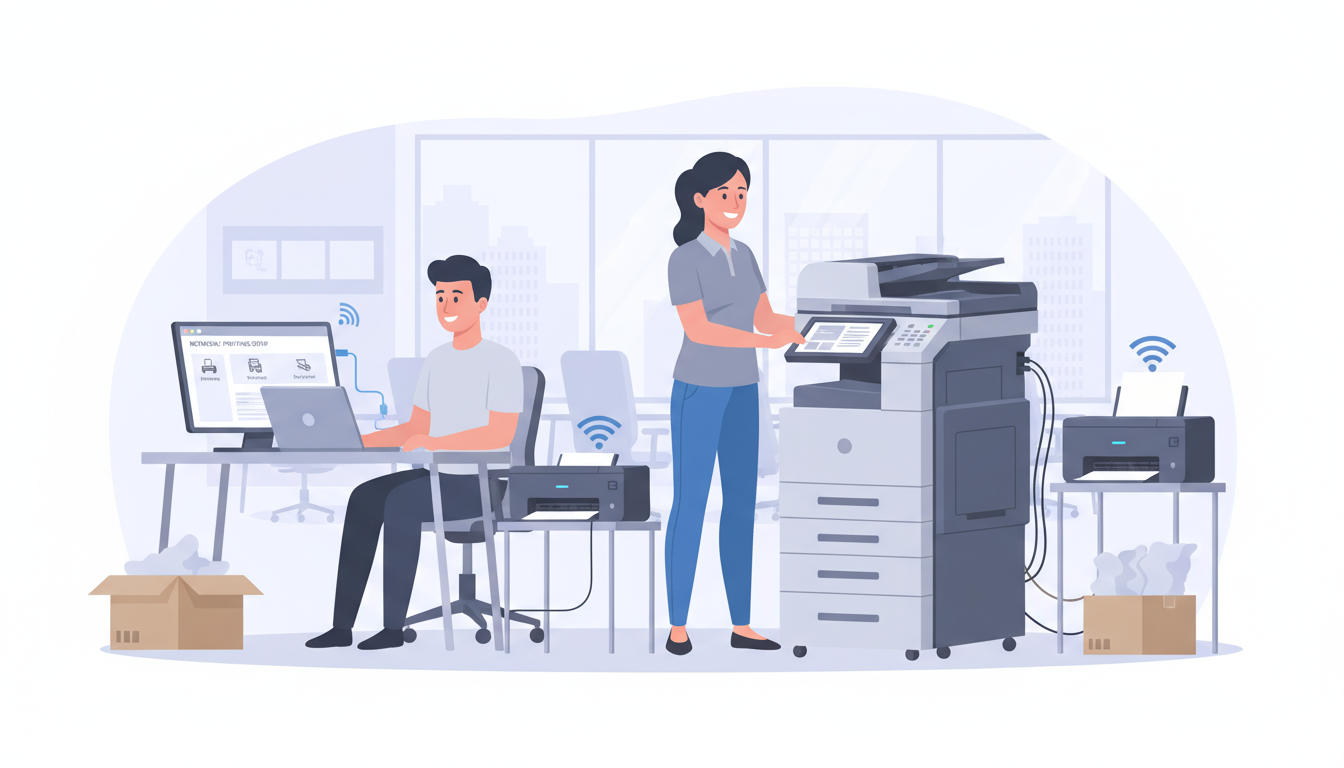
Moving to a new office is an exciting milestone for any business, but it comes with a long list of technology challenges. Among the most commonly overlooked is printer and scanner setup. It sounds simple enough - unplug the machines, move them, and plug them back in - but in practice, print and scan infrastructure is surprisingly complex. Network configurations, driver compatibility, queue management, security settings, and physical placement all play a role in whether your printing and scanning works smoothly from day one or becomes a source of endless frustration.
For UK businesses, where the average office move costs between £15,000 and £50,000, the last thing you want is to lose productive days because nobody can print invoices, scan contracts, or produce the documents your business depends on. This comprehensive guide covers everything you need to know about planning, executing, and verifying your printer and scanner setup in a new office, whether you are relocating within the same building, moving across town, or setting up an entirely new site.
The reality is that printing and scanning infrastructure sits at the intersection of hardware, networking, software, and user workflows. A printer is not just a box that puts ink on paper - it is a networked device with its own operating system, IP address, security settings, and integration points with your servers, cloud services, and user workstations. When any of these elements change, as they inevitably do during an office move, the entire print ecosystem can break down in ways that are surprisingly difficult to diagnose and resolve without systematic preparation.
Businesses that treat printer setup as an afterthought - something to sort out once the desks are in place - invariably find themselves in a reactive scramble on the first Monday morning at the new office. Employees cannot print contracts that need signing, invoices cannot be produced for the month-end run, and the finance team cannot scan the backlog of receipts that accumulated during the move. These are not minor inconveniences; they are operational disruptions that cost real money and damage staff morale at a time when the business needs everyone focused and productive.
Before the Move: Auditing Your Print Estate
The first step in any successful printer relocation is understanding exactly what you have. Many businesses are surprised to discover just how many print and scan devices they own, lease, or subscribe to. A thorough audit should catalogue every device, including its make and model, serial number, IP address, location, function (print, scan, copy, fax), connection type (USB, Ethernet, Wi-Fi), age and condition, lease or ownership status, and current monthly print volumes.
This audit serves multiple purposes. It tells you what needs to move, what should be replaced, and what can be retired. A printer that is seven years old and constantly jamming is not worth the cost of professional moving. Similarly, if your lease on a multifunction device is expiring in three months, it may make more sense to arrange for a new device at your new office rather than moving the old one.
Documenting Current Configurations
Beyond the physical inventory, take the time to document every configuration detail of your current print setup. This includes each printer's IP address, subnet mask, and default gateway; the print server queues and their associated share names; Group Policy settings that deploy printers to specific user groups or departments; scan-to-email SMTP settings including server address, port, authentication credentials, and sender address; scan-to-folder destinations with full UNC paths and the service accounts used for authentication; and any custom paper tray assignments, finishing options, or watermark configurations that departments rely upon.
This documentation becomes your reconstruction blueprint at the new office. Without it, your IT team will spend hours reverse-engineering settings that could have been recorded in minutes. Store this documentation in a shared location accessible to everyone involved in the move - not on a laptop that will be packed in a box and unavailable when you need it most.
If any of your printers or copiers are leased, check your lease agreement before moving them. Many lease contracts require you to notify the leasing company before relocating equipment, and some include clauses about professional installation at the new site. Moving a leased device without notification could void your service agreement or result in additional charges. Contact your leasing provider at least four weeks before your move date.
Planning Your New Print Layout
Where you place printers and scanners in your new office matters more than most people realise. Poor placement leads to bottlenecks, wasted time, and employee frustration. Good placement improves workflow, reduces walking time, and can even reduce your printing costs.
Calculating Capacity and Demand
Use your audit data to map printing demand across departments before deciding on device placement. If your finance team prints 5,000 pages per month whilst the marketing team prints 500, placing an identical device equidistant from both teams wastes resources. Instead, position a higher-capacity device near finance and consider whether marketing even needs a dedicated printer or could share with an adjacent team.
Factor in peak usage periods as well. Month-end, quarter-end, and annual reporting cycles can see print volumes spike dramatically. Ensure that your device placement and capacity planning accounts for these peaks, not just average daily usage. A printer that copes admirably with 200 pages per day may buckle under a month-end run of 2,000 pages, causing paper jams, overheating, and frustrated queues of staff waiting to collect their documents. If your business experiences significant seasonal variation, consider whether one or two additional devices in high-demand areas would pay for themselves in avoided downtime and frustration.
Consider the following principles when planning your layout. Place high-volume printers centrally, within easy reach of the teams that use them most. Position secure print devices near areas where confidential documents are handled, such as finance or HR. Ensure every printer location has appropriate power outlets and network points. Allow adequate space around devices for paper loading, toner replacement, and jam clearing. Keep printers away from direct sunlight and heat sources, which can damage toner and cause paper feeding issues.
Common Placement Mistakes
- Printers in server rooms with restricted access
- Devices placed far from the teams that use them
- Scanners in corridors with no desk space nearby
- Printers near kitchen areas exposed to moisture
- Devices blocking fire exits or access routes
- All printers in one corner of a large floor
Best Practice Placement
- Central locations within each department cluster
- Near power and network points, avoiding extensions
- Adjacent desk space for collating and stapling
- Away from heat, moisture, and direct sunlight
- Clear access for maintenance and paper loading
- Distributed across floor to minimise walking time
Network Configuration: The Technical Foundation
The most common cause of post-move printing failures is network misconfiguration. In your old office, printers were configured with specific IP addresses, connected to specific network segments, and registered in your print server or cloud print management system. When you move, all of this needs to be reconfigured for your new network.
If your new office has a different IP address scheme - which is almost always the case - every network printer needs a new static IP address assigned within your new range. These addresses must be reserved in your DHCP server to prevent conflicts, and your print server (if you use one) must be updated to point to the new addresses.
For businesses using Windows Server print management, this means updating the port configuration for each printer on the server, testing connectivity, and ensuring that Group Policy objects pushing printer connections to users are updated accordingly. For businesses using cloud print solutions such as Microsoft Universal Print or PaperCut, the cloud configuration needs to be updated to reflect the new network topology.
VLAN Segmentation and Print Traffic
If your new office network uses VLANs to segment traffic - which most modern business networks should - you need to plan which VLAN your printers will reside on and how print traffic will be routed between user VLANs and the printer VLAN. Placing printers on a dedicated VLAN improves security by isolating print devices from general user traffic, and it makes management easier by grouping all print devices in a single network segment.
However, VLAN segmentation introduces routing requirements. Users on the staff VLAN need to be able to reach printers on the printer VLAN, which means your firewall or layer-3 switch must have appropriate rules in place. If you use a print server, only the server needs direct access to the printer VLAN, and user machines communicate with the print server on their own VLAN - a cleaner and more secure architecture. Document these routing requirements and share them with your network team well before move day, as firewall rule changes often require change control approval and testing.
| Connection Method | Reconfiguration Needed | Complexity | Best For |
|---|---|---|---|
| USB Direct | Minimal - plug and play | Low | Single-user personal printers |
| Ethernet (Static IP) | New IP address, port update, DHCP reservation | Medium | Shared office printers |
| Wi-Fi | New SSID, password, IP configuration | Medium-High | Flexible placement, no cabling |
| Print Server (Windows) | Port updates, GPO changes, driver verification | High | Large offices with centralised management |
| Cloud Print (Universal Print) | Connector reconfiguration, network registration | Medium | Hybrid and remote-friendly offices |
Driver Management and Compatibility
Printer drivers are a perennial source of problems, and an office move is an opportunity to clean up driver issues that may have been lingering for years. Before your move, verify that all devices have current drivers installed. Check the manufacturer's website for the latest versions and ensure compatibility with your operating systems.
If your business has recently upgraded to Windows 11, or if you have a mix of Windows 10 and Windows 11 machines, pay particular attention to driver compatibility. Some older printers do not have native Windows 11 drivers, which means you may need to use compatibility mode or, in some cases, replace the device. It is far better to discover this before the move than on the morning everyone arrives at the new office and cannot print.
For businesses with Mac users, ensure that macOS-compatible drivers or AirPrint support is available for each device. Mixed operating system environments are particularly prone to print issues during moves because the configuration that worked in the old office may not translate directly to the new network.
Universal Print Drivers and Standardisation
An office move presents an excellent opportunity to standardise your driver environment. Rather than maintaining a different driver for every make and model of printer in your fleet, investigate whether your devices support a universal print driver from the manufacturer. HP, Canon, Ricoh, and Xerox all offer universal drivers that work across their product ranges, simplifying deployment and reducing the number of driver packages you need to maintain on your print server.
If you are deploying printers via Microsoft Intune or another endpoint management platform, universal drivers significantly simplify the process. Instead of creating a separate deployment package for each printer model, you deploy a single driver package and configure individual printer queues within it. This approach scales well as your print fleet changes over time and reduces the administrative overhead of managing printer connections across your user estate.
Test universal drivers thoroughly before the move, particularly for advanced features like stapling, hole-punching, booklet printing, and colour management. Universal drivers sometimes lack support for model-specific finishing options, and discovering this limitation on move day - when the finance team cannot produce their stapled, double-sided reports - is not the ideal time. Where a universal driver does not support a critical feature, maintain a model-specific driver for those devices and document the exception clearly.
Scanner Configuration and Workflows
Scanners require their own configuration attention, particularly network scanners and multifunction devices with scan-to-email or scan-to-folder capabilities. These features rely on specific network settings that will change with your move.
Scan-to-email typically uses an SMTP relay server. If your old office used an on-premises Exchange server for this purpose and your new office connects differently, the SMTP settings on every scanning device must be updated. For businesses using Microsoft 365, you may need to configure SMTP relay through Exchange Online, which requires specific authentication settings and possibly a dedicated connector.
Scan-to-folder requires the scanner to have network access to a shared folder on a file server or NAS device. If the server's IP address or hostname changes during the move, every scanner's folder destination must be updated. Test each scan destination after configuration - a scan that silently fails because it cannot reach the target folder is worse than an obvious error, because users may not realise their scans are not being saved.
OCR and Document Workflow Integration
If your business uses optical character recognition as part of its scanning workflow - converting scanned documents into searchable, editable text - verify that this functionality works correctly after the move. OCR processing may happen on the scanner itself, on a dedicated server, or in the cloud, and each scenario has its own reconfiguration requirements. Scanners with built-in OCR typically need no changes beyond the standard network reconfiguration, but server-based or cloud-based OCR workflows may need updated paths, credentials, or API endpoints.
For businesses using document management systems such as SharePoint, DocuWare, or M-Files, ensure that the scan-to-DMS integration is tested end-to-end. These integrations often involve multiple steps - scanning to a watched folder, processing via an OCR engine, applying metadata, and filing into the correct document library - and a failure at any point in the chain will cause documents to pile up in an unprocessed queue. Test with realistic documents, not just blank pages, to ensure that OCR accuracy and metadata extraction are working as expected.
Move Day: Execution Checklist
On move day itself, a structured approach prevents chaos. Your IT team or managed service provider should follow a clear sequence to ensure printers and scanners are operational as quickly as possible.
Before the movers disconnect anything, photograph the back of each device showing cable connections. Label each cable and its corresponding port. If devices are being moved by general movers rather than IT specialists, ensure they understand that printers must be kept upright to prevent toner spills, and that scanner glass and feed mechanisms are fragile.
At the new office, begin with network infrastructure verification. Confirm that network ports are active and patched to the correct switch. Then connect each printer, assign its new IP address, and verify basic network connectivity with a ping test. Next, update the print server or cloud print configuration, deploy updated settings to user machines, and run test prints from multiple workstations.
Prioritising Critical Devices
Not every printer is equally important on move day. Identify your business-critical print devices - typically the main departmental multifunction units used by finance, operations, and customer-facing teams - and prioritise their setup. These devices should be the first connected, configured, and tested. Secondary devices such as personal desk printers, label printers, and specialist equipment can follow once the primary fleet is operational.
Have a fallback plan for each critical device. If the main finance printer develops a fault during transit, which other device can temporarily handle the finance team's print volume? If the reception scanner is not working by opening time, can staff use a mobile scanning app as a temporary measure? Thinking through these scenarios in advance means you have immediate answers on move day rather than scrambling for solutions under pressure. Communicate the priority list and fallback plans to your IT team and departmental managers so everyone knows what to expect and when their devices will be available.
Post-Move Verification and Testing
Do not assume that a successful test print means everything is working. Thorough post-move testing should cover every function of every device: printing from different applications, duplex printing, colour printing, scanning to all configured destinations, copying, and faxing if applicable.
Create a simple test checklist for each device and have a member of each department run through it. This catches issues that a single test print might miss, such as incorrect paper tray assignments, wrong default settings, or scan destinations that only partially work.
Security Considerations for Print and Scan
Print security is often an afterthought, but it should be a priority during your move. Network printers are legitimate network devices with their own operating systems, web interfaces, and sometimes even hard drives containing cached documents. In the wrong hands, an unsecured printer can be an entry point into your network or a source of data leakage.
During setup, ensure that default administrator passwords on all devices are changed. Disable any protocols or services that are not needed, such as FTP, Telnet, or SNMP with default community strings. Enable encrypted communication where the device supports it. Configure access controls so that only authorised users can access sensitive functions like scan-to-email.
For businesses handling sensitive data - legal firms, medical practices, financial services - consider implementing secure print release, where documents are held in a queue until the user authenticates at the printer with a PIN or proximity card. This prevents confidential documents sitting uncollected in output trays. The NCSC recommends treating printers as potential attack vectors and applying the same security principles you would to any other network device.
Print Audit Trails and Compliance
For businesses in regulated industries, print audit trails are not optional - they are a compliance requirement. Healthcare organisations handling patient records, legal firms managing client documents, and financial services companies processing sensitive data all need to demonstrate who printed what, when, and where. Configure your print management system to maintain comprehensive audit logs from day one at the new office, and verify that these logs capture the required detail for your regulatory obligations.
Modern print management solutions can enforce print policies automatically - restricting colour printing to specific groups, requiring duplex by default to reduce paper waste, or routing large print jobs to high-capacity devices instead of desktop printers. An office move is the ideal time to implement these policies if you have not done so already, as users expect some changes to their printing experience when they move to a new building. Introducing sensible print policies alongside the move feels natural, whereas imposing the same policies in an established office often meets with resistance.
Considering a Print Refresh
An office move is the ideal time to evaluate whether your current print fleet still meets your needs. Print technology has advanced significantly in recent years, and devices that are five or more years old may be costing you more in consumables, energy, and maintenance than a modern replacement would.
Modern multifunction devices offer features like cloud printing, mobile print support, automatic document feeding for scanning, advanced security features, and significantly lower per-page costs. Many are available on managed print service agreements where you pay a fixed monthly cost that includes the device, all consumables, and maintenance - eliminating surprise repair bills and toner shortages.
Consider your actual print volumes as well. Many businesses discover during their move audit that they are maintaining far more printers than they need. Consolidating to fewer, higher-quality devices can reduce costs, simplify management, and free up valuable office space.
Planning an Office Move? Let Us Handle the IT
Cloudswitched specialises in IT relocation for businesses across the United Kingdom. From network infrastructure and printer setup to complete technology planning, we ensure your new office is fully operational from day one. Contact us to discuss your upcoming move.
Explore IT Office Move Services
CloudSwitched
London-based managed IT services provider offering support, cloud solutions and cybersecurity for SMEs.


