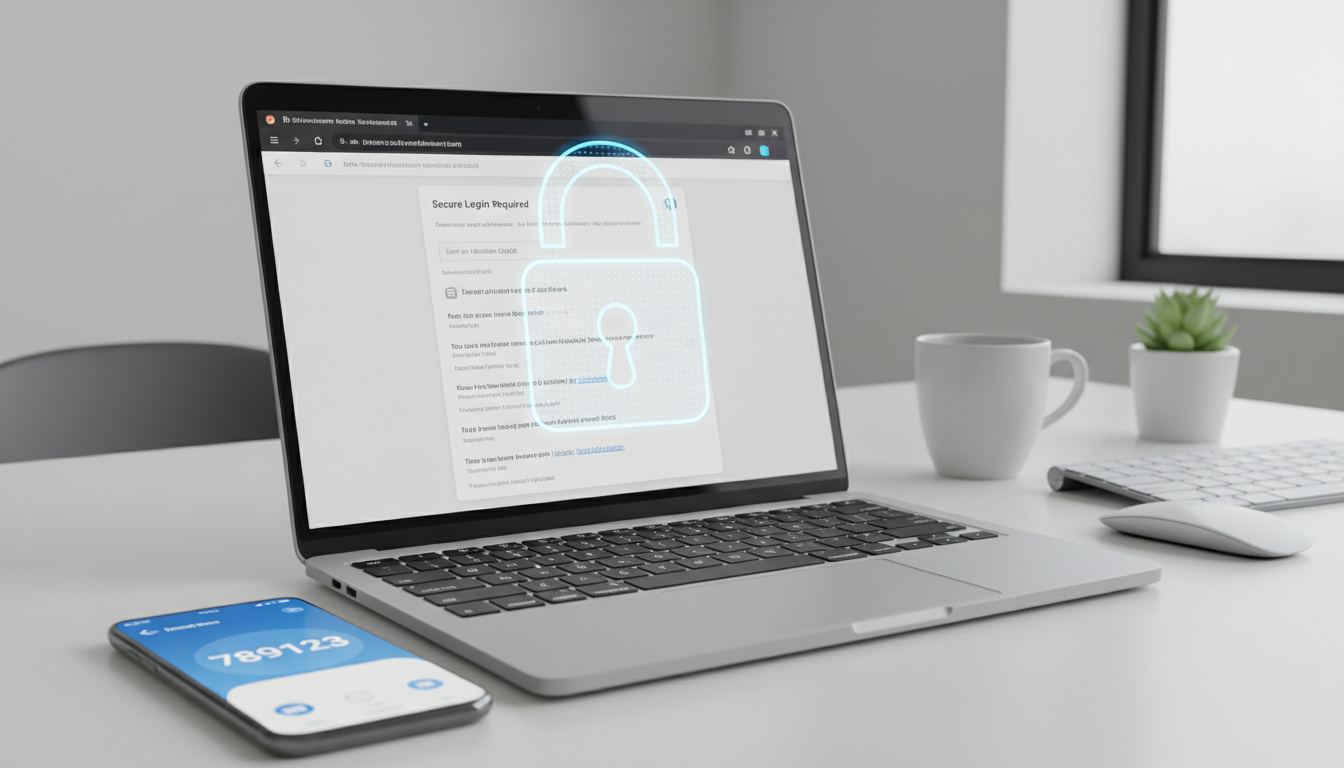
Business email is the single most targeted attack vector for cybercriminals. Across the United Kingdom, email accounts are compromised every day - not through sophisticated hacking techniques, but through stolen, guessed, or phished passwords. Once an attacker gains access to a business email account, they can read confidential correspondence, impersonate the account holder to send fraudulent messages, access connected cloud services, and use the compromised account as a launching pad for further attacks against colleagues, clients, and suppliers.
Multi-factor authentication (MFA) is the single most effective countermeasure against email account compromise. According to Microsoft, enabling MFA blocks over 99.9% of automated account attacks. Despite this, a significant proportion of UK businesses have not yet implemented MFA across all their email accounts - leaving themselves exposed to a threat that is both pervasive and entirely preventable.
This guide explains what MFA is, why it is essential for business email security, how to implement it properly, and how to address the common objections that prevent businesses from adopting it.
The scale of the email threat in the United Kingdom is difficult to overstate. According to the UK government's Cyber Security Breaches Survey, phishing attacks remain the most common type of breach or attack experienced by businesses, with 84% of organisations that reported an incident identifying phishing as the attack vector. Email compromise incidents are also among the most financially damaging, particularly when attackers gain access to accounts belonging to finance teams or senior executives. Business email compromise (BEC) scams - where attackers impersonate a trusted colleague or supplier to redirect payments - have cost UK businesses millions of pounds in recent years, and the average individual BEC loss continues to rise year on year.
What makes email such an attractive target is its role as the gateway to your broader digital infrastructure. A compromised email account does not just expose the contents of the inbox. It provides access to password reset flows for other services, shared documents and cloud storage linked to the account, internal directories and contact lists that can be used for further social engineering, and historical communications that reveal organisational structure, financial information, and business relationships. Protecting email accounts with MFA is therefore not merely about securing one application - it is about protecting the keys to your entire digital estate.
What Is Multi-Factor Authentication?
Multi-factor authentication is a security mechanism that requires users to provide two or more forms of verification before they can access an account. The principle is straightforward: even if an attacker steals your password, they still cannot access your account because they do not possess the second factor.
Authentication factors fall into three categories. Something you know - a password, PIN, or security question. Something you have - a mobile phone, hardware security key, or authentication app. Something you are - a fingerprint, facial recognition, or other biometric. MFA requires at least two factors from different categories. A password (something you know) combined with a code from an authentication app on your phone (something you have) is the most common implementation for business email.
The strength of MFA lies in its requirement for factors from different categories. A system that asks for two passwords, for instance, is not true multi-factor authentication because both are something you know. Similarly, a system that requires a PIN and a security question provides only the illusion of additional security. Genuine MFA combines fundamentally different proof types, which means an attacker must compromise two entirely separate systems or channels to gain access. Stealing a password from a phished login page is relatively straightforward; simultaneously obtaining the victim's physical phone or hardware key is a dramatically more difficult proposition.
It is worth understanding that MFA does not make accounts completely invulnerable. Sophisticated attackers have developed techniques such as real-time phishing proxies, which relay MFA codes as they are entered, and MFA fatigue attacks, which bombard users with authentication prompts until they approve one out of frustration. These advanced techniques are addressed by newer MFA methods such as number matching and FIDO2 hardware keys, which are discussed later in this guide. The key point is that MFA raises the cost and complexity of an attack by orders of magnitude, making the vast majority of automated and opportunistic attacks - which account for the overwhelming majority of email compromises - completely ineffective.
As of the latest Cyber Essentials technical requirements, multi-factor authentication is required for all cloud services and remote access where it is available. For UK businesses pursuing or maintaining Cyber Essentials certification - which is mandatory for many government contracts and increasingly expected by enterprise clients - implementing MFA on all email accounts is not optional. It is a certification requirement.
Why Passwords Alone Are Not Enough
To understand why MFA is essential, it helps to understand why passwords, by themselves, provide inadequate protection. There are several reasons passwords fail as a sole defence.
Password Reuse
Despite years of security awareness efforts, password reuse remains endemic. Studies consistently show that over 60% of people use the same password across multiple accounts. When a password is compromised in one data breach - perhaps from a social media platform or an online retailer - attackers try that same password against business email accounts. This technique, known as credential stuffing, is automated and highly effective.
Phishing Attacks
Phishing emails designed to steal login credentials are increasingly sophisticated. Attackers create convincing replicas of Microsoft 365 login pages, send emails that appear to come from IT support, or exploit current events to create urgency. Even security-conscious employees can be deceived by a well-crafted phishing email. Once the credentials are entered, the attacker has immediate access.
Dark Web Credential Markets
Stolen credentials are a commodity on the dark web. Databases containing billions of username and password combinations are traded openly on underground forums, and specialised marketplaces sell verified, working login credentials for business email accounts. The price for a working corporate email login can be as low as a few pounds, depending on the organisation and the level of access the account provides. These credentials typically originate from data breaches at other services where the user reused their password, from successful phishing campaigns, or from malware infections that capture keystrokes and stored passwords. Without MFA, each of these stolen credentials represents a direct, unimpeded path into your business email system.
The interconnected nature of modern cloud services amplifies this risk considerably. A single set of Microsoft 365 credentials does not just unlock email - it can provide access to SharePoint, OneDrive, Teams, and any other application integrated with Azure Active Directory. An attacker who obtains one password can potentially access your organisation's entire cloud ecosystem, download sensitive documents, read confidential Teams conversations, and establish persistent access by creating mail forwarding rules or registering their own devices. MFA breaks this chain at the authentication step, preventing stolen credentials from being used regardless of how they were originally obtained.
Brute Force and Spray Attacks
Automated tools allow attackers to try millions of password combinations against email accounts. Password spraying - where common passwords are tried against many accounts simultaneously - is particularly effective because it avoids account lockout thresholds. With MFA enabled, even a successfully guessed password is useless without the second factor.
MFA Methods Compared
Not all MFA methods provide the same level of security. Understanding the options helps you choose the right approach for your business.
| MFA Method | Security Level | User Experience | Cost | Recommended |
|---|---|---|---|---|
| SMS codes | Low-Medium | Familiar but slow | Free | Better than nothing, but avoid if possible |
| Authenticator app (TOTP) | Medium-High | Quick and reliable | Free | Good baseline for most businesses |
| Microsoft Authenticator push | High | Very convenient | Free | Recommended for Microsoft 365 users |
| Number matching (push) | Very High | Slightly more effort | Free | Strongly recommended - prevents MFA fatigue attacks |
| FIDO2 hardware key | Highest | Physical key required | £25-50 per key | Best for high-risk accounts (admins, finance) |
Why SMS Is the Weakest Option
SMS-based MFA, where a code is sent to your mobile phone via text message, is the weakest form of multi-factor authentication. SMS messages can be intercepted through SIM swapping attacks, where an attacker convinces your mobile provider to transfer your number to a new SIM. SMS messages are also delivered in plain text over the mobile network, making them vulnerable to interception. Whilst SMS MFA is significantly better than no MFA at all, authenticator apps and hardware keys provide meaningfully stronger protection.
Authenticator Apps: How They Work
Authenticator apps such as Microsoft Authenticator, Google Authenticator, and Authy generate time-based one-time passwords (TOTP) using a shared secret that is established during the initial setup process. The app and the server both use this secret, combined with the current time, to independently generate a six-digit code that changes every thirty seconds. Because the code generation happens entirely on the device - with no network communication required - authenticator apps are immune to the SIM swapping and network interception attacks that undermine SMS-based MFA. Push-based authentication, where the app displays a prompt that the user simply approves or denies, provides an even more convenient experience whilst maintaining strong security.
FIDO2 and Passwordless Authentication
FIDO2 hardware security keys, such as the YubiKey range, represent the current gold standard for authentication security. These small physical devices use public key cryptography to verify the user's identity without transmitting any secret information. The key generates a unique cryptographic response for each authentication request, and because this response is bound to the specific website domain, FIDO2 keys are completely immune to phishing attacks - even sophisticated real-time proxy attacks that can defeat other MFA methods. For businesses that want to go further, FIDO2 keys enable truly passwordless authentication, where the password is eliminated entirely and replaced by the physical key combined with a PIN or biometric. Microsoft 365 supports FIDO2-based passwordless authentication, and for high-value accounts such as global administrators and finance directors, this represents the most secure option available today.
Recommended MFA Configuration
- Microsoft Authenticator with number matching for all users
- FIDO2 hardware keys for administrator accounts
- Conditional access policies requiring MFA from untrusted locations
- MFA enforced on all cloud applications, not just email
- Legacy authentication protocols blocked entirely
- Regular review of MFA registration and compliance
Weak MFA Configuration
- SMS codes as the only MFA method
- MFA optional or self-service only
- Admin accounts using the same MFA as standard users
- MFA applied to email only, not other cloud apps
- Legacy authentication still permitted (bypasses MFA)
- No monitoring of MFA compliance or sign-in risks
Implementing MFA in Microsoft 365: A Step-by-Step Approach
For UK businesses using Microsoft 365 - which is the vast majority - implementing MFA is a structured process that, when done correctly, causes minimal disruption to your team.
Phase 1: Preparation
Before enabling MFA, communicate clearly with your team about what is changing and why. Provide written guidance on how to set up the Microsoft Authenticator app. Ensure all users have a compatible smartphone. Identify any shared mailboxes or service accounts that may need special handling. Plan the rollout in stages rather than enabling MFA for everyone simultaneously.
Phase 2: Pilot Group
Start with a small pilot group - typically IT staff and willing early adopters. This allows you to identify any issues, refine your support documentation, and build internal expertise before the wider rollout. Monitor the pilot group for a week or two, collecting feedback and resolving any problems.
During the pilot phase, pay particular attention to edge cases that may not be immediately obvious. Shared mailboxes and service accounts used by automated systems often cannot perform interactive MFA, and these accounts need to be handled differently - typically through app passwords, managed identities, or exclusion with compensating controls. Similarly, users who access email through older protocols such as IMAP or POP3 will find that these protocols do not support MFA at all. The correct approach is to disable these legacy protocols entirely and require all access through modern authentication - which is also a Cyber Essentials requirement. Identify these cases during the pilot phase rather than discovering them after full enforcement, when they can cause unexpected disruption to business operations.
It is also advisable to set up a dedicated support channel during the rollout - whether that is a Teams channel, a shared inbox, or scheduled drop-in sessions - where users can get immediate help if they encounter problems. The most common issues during MFA rollout are users who forget their phone when working remotely, users who change phones without first transferring their authenticator app, and users who accidentally deny legitimate MFA prompts. Having a clear, well-communicated process for handling these situations prevents frustration and reduces the risk of users developing a negative perception of MFA that undermines long-term compliance.
Phase 3: Staged Rollout
Roll out MFA department by department or team by team. Provide hands-on support during each wave, with IT staff available to help users configure their authenticator app. Allow a grace period (typically 14 days) during which users are prompted to register for MFA but can still sign in without it. After the grace period, enforce MFA for all users.
Phase 4: Enforcement and Monitoring
Once all users are enrolled, enforce MFA across the organisation and block legacy authentication protocols that bypass MFA. Monitor sign-in logs for users who have not completed MFA registration, failed MFA attempts that could indicate an attack, and unusual sign-in patterns that warrant investigation.
Addressing Common MFA Objections
Despite the clear security benefits, some businesses resist MFA implementation. Here are the most common objections and how to address them.
"It will slow my team down." With the Microsoft Authenticator app and number matching, the MFA prompt adds approximately five seconds to the sign-in process. Most users only encounter this once or twice a day, as Microsoft remembers trusted devices. The five seconds of inconvenience is vastly outweighed by the protection against account compromise.
"Not everyone has a smartphone." For the small number of users without a compatible smartphone, hardware security keys such as the YubiKey provide an excellent alternative. These are small USB devices that cost between £25 and £50 each and provide the highest level of MFA security available.
"We are too small to be targeted." Automated attacks do not discriminate by company size. Credential stuffing, password spraying, and mass phishing campaigns target every accessible email account regardless of the organisation behind it. Small businesses are often seen as easier targets precisely because they are less likely to have MFA enabled.
"It is too complicated to set up." For businesses using Microsoft 365, MFA can be configured and rolled out within a week with proper planning. A managed IT provider like Cloudswitched handles the entire process, from initial configuration to user training and ongoing support.
Beyond MFA: Conditional Access Policies
For businesses on Microsoft 365 Business Premium or higher, conditional access policies take email security further. These policies allow you to define rules that control access based on conditions such as user location, device compliance status, risk level, and application sensitivity. For example, you might allow MFA-authenticated access from the United Kingdom but block sign-in attempts from countries where your business has no operations. Or you might require MFA for all access from personal devices but allow trusted corporate devices to sign in with a single factor.
Conditional access policies can be layered to create a sophisticated, risk-based authentication framework that goes well beyond simple MFA enforcement. For example, a baseline policy might require MFA for all users accessing any cloud application from any location. A second policy might block access entirely from countries where your organisation has no business presence - immediately eliminating a large proportion of automated attacks that originate from overseas. A third policy might require a compliant, managed device for access to sensitive applications such as SharePoint sites containing financial data or HR records. And a fourth policy might enforce additional controls - such as preventing file downloads - when access occurs from an unmanaged personal device.
The power of conditional access lies in its ability to balance security with usability in a way that blanket MFA enforcement cannot. Rather than applying the same rigid authentication requirements to every access scenario, you can tailor the requirements to the risk level of each specific situation. A user signing in from a trusted corporate laptop on the office network presents a very different risk profile from the same user signing in from an unfamiliar device in a foreign country. Conditional access allows you to respond proportionately to each scenario, applying stronger controls where the risk is higher and reducing friction where the risk is lower. For UK businesses on Microsoft 365 Business Premium, configuring conditional access policies should be considered an essential complement to MFA rather than an optional enhancement - it is where genuine security maturity begins.
The Information Commissioner's Office (ICO) considers multi-factor authentication to be a standard security measure that organisations should implement to protect personal data. Failing to implement MFA when it is readily available - as it is for virtually all cloud email platforms - could be viewed as a failure to implement appropriate technical measures under UK GDPR Article 32. In the event of a data breach, the ICO may consider the absence of MFA as an aggravating factor when determining enforcement action.
How Cloudswitched Implements MFA for UK Businesses
At Cloudswitched, MFA implementation is a standard part of our security service for every client. We configure Microsoft 365 MFA with number matching enabled, set up conditional access policies tailored to your business, provide user-friendly documentation and hands-on support during rollout, monitor MFA compliance and sign-in risk continuously, and ensure your configuration meets Cyber Essentials requirements. We understand that security measures need to be balanced with usability. Our approach ensures your team is protected without creating unnecessary friction in their daily work.
Secure Your Business Email Today
Cloudswitched helps UK businesses implement MFA across Microsoft 365 with minimal disruption. From configuration and conditional access policies to user training and ongoing monitoring, we handle the entire process. If your business email is not yet protected by MFA, get in touch today - it is one of the most impactful security improvements you can make.
GET IN TOUCH
CloudSwitched
London-based managed IT services provider offering support, cloud solutions and cybersecurity for SMEs.


