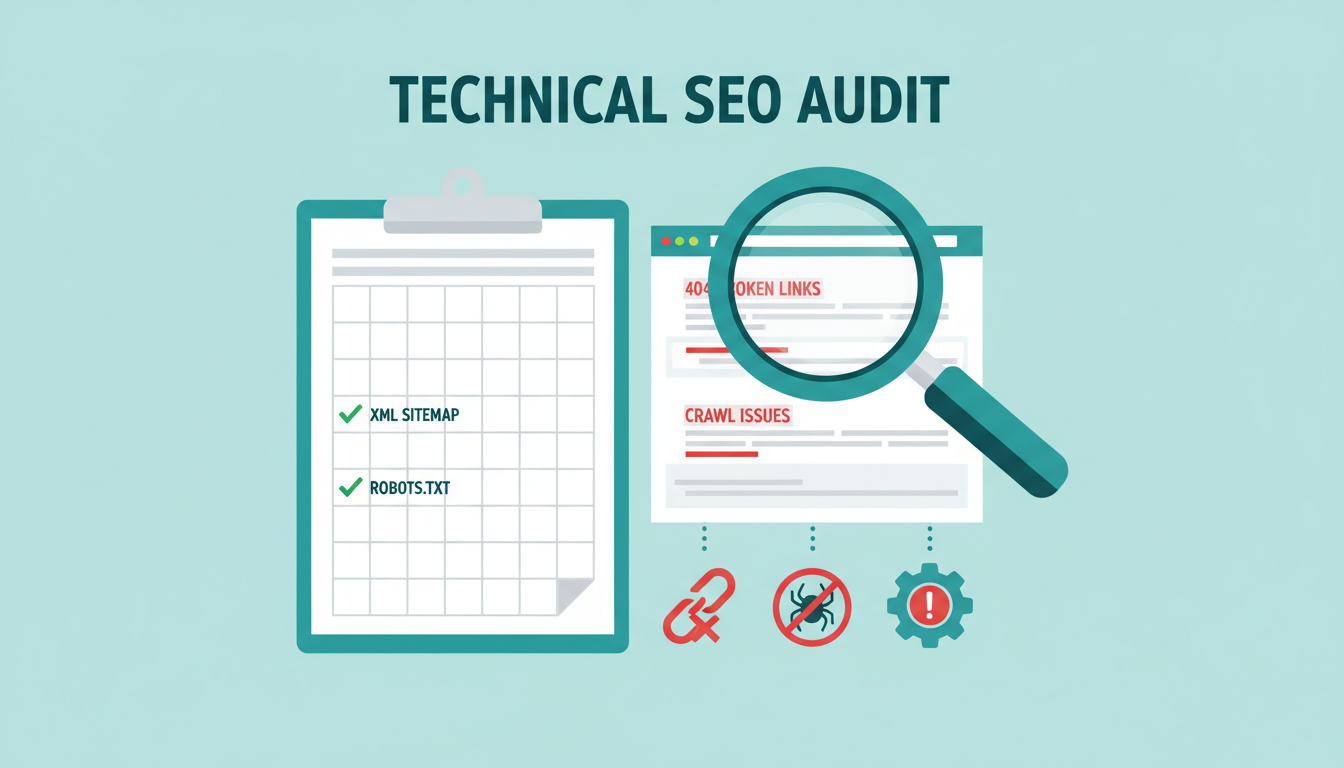
Technical SEO is the invisible backbone of your website's search performance. You can write the most compelling content in the world, but if search engines cannot properly crawl, index, and render your pages, that content will never reach its intended audience. For UK businesses competing in increasingly crowded digital markets, a solid technical foundation is not optional - it is essential.
This checklist covers twenty of the most common and impactful technical SEO issues we encounter when auditing UK business websites. Work through each one methodically, and you will remove the barriers preventing your site from achieving its full ranking potential.
Crawling and Indexing Issues
1. Blocked Resources in Robots.txt
Your robots.txt file acts as a set of instructions for search engine crawlers, telling them which parts of your site to access and which to avoid. Misconfigured robots.txt files are alarmingly common, and the consequences can be devastating - accidentally blocking your entire site from being crawled, or preventing important CSS and JavaScript files from loading, which means Google cannot render your pages properly.
How to check: Navigate to yoursite.co.uk/robots.txt and review the directives. Then use Google Search Console's URL Inspection tool to test critical pages. Look for any "Blocked by robots.txt" warnings.
How to fix: Ensure your robots.txt allows access to all important pages and resources. A basic robots.txt for most UK business sites should look something like this:
User-agent: *
Allow: /
Disallow: /admin/
Disallow: /private/
Sitemap: https://yoursite.co.uk/sitemap.xml
2. Missing or Incomplete XML Sitemap
An XML sitemap is a roadmap that helps search engines discover all the important pages on your site. Without one, crawlers must rely solely on following internal links, which means orphaned pages or deeply nested content may never be found.
How to check: Try accessing yoursite.co.uk/sitemap.xml. Verify it is submitted in Google Search Console under Sitemaps. Check that it includes all important pages and excludes noindex pages, redirects, and error pages.
How to fix: Generate a comprehensive XML sitemap using your CMS (WordPress, Shopify, and most modern platforms create these automatically) or use a tool like Screaming Frog. Submit it through Google Search Console and ensure it updates automatically when you add new content.
3. Pages Returning 4xx or 5xx Errors
Broken pages create a poor user experience and waste crawl budget - the limited number of pages Google will crawl on your site within a given timeframe. A site riddled with 404 errors signals neglect, and 5xx server errors indicate deeper infrastructure problems.
How to check: Run a site crawl with Screaming Frog (free for up to 500 URLs) or use Google Search Console's Coverage report. Both will identify pages returning error codes.
How to fix: For 404 errors, either restore the missing page, redirect it (301) to the most relevant alternative, or return a proper 410 (Gone) status if the content has been permanently removed. For 5xx errors, investigate server-side issues with your hosting provider.
4. Orphan Pages
Orphan pages are pages on your site that have no internal links pointing to them. Search engines discover pages primarily by following links, so orphaned content is effectively hidden. It may still get indexed if it appears in your sitemap, but without internal link equity, it will struggle to rank.
How to check: Compare your sitemap URLs against your site's internal link structure using Screaming Frog or a similar crawler. Any page in the sitemap that receives zero internal links is an orphan.
How to fix: Add relevant internal links from existing pages. If the orphan page is outdated or unnecessary, consider removing it or consolidating its content with another page.
Never delete pages that have external backlinks pointing to them without setting up 301 redirects first. Removing pages with inbound links throws away valuable link equity that you may have spent months or years building.
Site Speed and Performance
5. Slow Server Response Time (TTFB)
Time to First Byte (TTFB) measures how long it takes your server to respond to a browser's request. Google recommends a TTFB under 200 milliseconds. If your server is sluggish, every single page on your site suffers, regardless of how well it is optimised otherwise.
How to check: Use Google PageSpeed Insights or WebPageTest.org. Pay attention to the "server response time" or "waiting" metric in your browser's developer tools (Network tab).
How to fix: Upgrade your hosting if you are on a shared plan - many UK businesses outgrow budget hosting quickly. Consider a managed WordPress host or VPS. Implement server-side caching, optimise database queries, and consider using a content delivery network (CDN) like Cloudflare, which has UK-based edge servers.
6. Unoptimised Images
Images typically account for 50-80% of a page's total file size. Serving massive, uncompressed images is one of the most common performance issues on UK business websites, particularly those built by designers who prioritise visual quality over loading speed.
How to check: Run Google PageSpeed Insights and look for "Properly size images" and "Serve images in next-gen formats" opportunities. Check image file sizes manually - anything over 200KB for a standard web image warrants investigation.
How to fix: Convert images to WebP format (supported by all modern browsers), resize images to their display dimensions (do not serve a 4000px image in a 800px container), and implement lazy loading for images below the fold.
7. Render-Blocking Resources
When a browser loads your page, certain CSS and JavaScript files can block the rendering process, forcing the browser to download and process them before displaying any content. This creates a visible delay for users and harms your Core Web Vitals scores.
How to check: Google PageSpeed Insights specifically flags render-blocking resources. The Lighthouse audit in Chrome DevTools provides detailed recommendations.
How to fix: Inline critical CSS (the styles needed for above-the-fold content), defer non-critical JavaScript using the defer or async attributes, and consider removing unused CSS and JS entirely. Many WordPress sites load dozens of unnecessary scripts from plugins that are no longer in use.
8. Missing Browser Caching
Browser caching stores static resources (images, CSS, JavaScript) locally on the visitor's device so they do not need to be downloaded again on subsequent visits. Without proper caching headers, returning visitors experience the same slow load times as first-time visitors.
How to check: Use GTmetrix or Google PageSpeed Insights, which flag missing or short cache expiration headers.
How to fix: Configure your server to send appropriate Cache-Control and Expires headers. Static assets like images and fonts should be cached for at least one year. CSS and JavaScript files that change more frequently might use shorter durations with cache-busting techniques.
Mobile and Responsiveness
9. Non-Responsive Design
With Google's mobile-first indexing, the mobile version of your site is what Google primarily uses for ranking. A site that does not adapt gracefully to different screen sizes is not merely providing a poor user experience - it is actively undermining its own search visibility.
How to check: Use Google's Mobile-Friendly Test tool. Also physically test your site on various devices - smartphones, tablets, and different screen sizes. Pay attention to text readability, button sizes, and navigation functionality.
How to fix: Implement responsive design using CSS media queries. If your site is built on an older platform that does not support responsive design, it may be time for a rebuild. Most modern CMS themes and templates are responsive by default.
10. Intrusive Interstitials
Full-screen pop-ups, overlays, and interstitials that block content on mobile devices are a confirmed negative ranking factor. Google penalises pages that make content difficult to access, particularly on mobile devices where screen space is limited.
How to check: Visit your site on a mobile device and note any pop-ups or overlays that appear. Cookie consent banners required by UK GDPR regulations are exempt, but marketing pop-ups and newsletter sign-ups are not.
How to fix: Replace intrusive interstitials with less disruptive alternatives - slide-in banners, top bars, or inline calls to action. If you must use a pop-up, ensure it is easy to dismiss and does not cover more than a small portion of the screen on mobile.
11. Viewport Configuration Issues
The viewport meta tag tells browsers how to control the page's dimensions and scaling on different devices. A missing or incorrect viewport tag can cause your site to display at desktop size on mobile, forcing users to pinch and zoom.
How to check: View your page source and search for the viewport meta tag. It should be present in the <head> section.
How to fix: Ensure every page includes: <meta name="viewport" content="width=device-width, initial-scale=1">
On-Page Technical Elements
12. Duplicate Content Issues
Duplicate content confuses search engines because they must decide which version of a page to rank. Common causes include HTTP/HTTPS duplicates, www/non-www versions, URL parameters creating multiple versions of the same page, and printer-friendly page versions.
How to check: Search for site:yoursite.co.uk in Google and look for duplicate listings. Use Screaming Frog to identify pages with identical or near-identical title tags, meta descriptions, or body content.
How to fix: Implement canonical tags (<link rel="canonical" href="...">) on all pages to specify the preferred URL. Set up 301 redirects from non-preferred URL versions. Use the URL Parameters tool in Google Search Console to tell Google how to handle parameterised URLs.
Good Duplicate Content Practice
- Canonical tags on every page specifying the preferred URL
- 301 redirects from HTTP to HTTPS and www to non-www
- Consistent internal linking to canonical URLs only
- URL parameters handled via Search Console configuration
Poor Duplicate Content Practice
- No canonical tags leaving search engines to guess
- Both HTTP and HTTPS versions accessible simultaneously
- Multiple URL variations all returning 200 status codes
- Printer-friendly pages creating additional duplicates
13. Missing or Duplicate Title Tags
Every page needs a unique, descriptive title tag. Pages sharing identical titles compete against each other in search results, and pages with missing titles lose their most important ranking signal.
How to check: Crawl your site with Screaming Frog and filter for missing, duplicate, or overly long title tags. Google Search Console also flags these issues under the HTML Improvements section.
How to fix: Write unique title tags for every page, incorporating your primary keyword, keeping them under 60 characters, and including your brand name where space allows.
14. Missing Alt Text on Images
Alt text serves two crucial purposes: it provides a text alternative for screen readers (important for accessibility and UK equality legislation compliance) and helps search engines understand image content. Missing alt text represents a missed SEO opportunity and a potential accessibility legal risk.
How to check: Run a Screaming Frog crawl and check the Images tab for missing alt text. Most accessibility audit tools like WAVE or axe will also flag this.
How to fix: Add descriptive, concise alt text to every meaningful image. Decorative images should use empty alt attributes (alt="") to indicate they are presentational.
15. Broken Internal Links
Internal links that point to non-existent pages waste crawl budget, pass no link equity, and frustrate users. They often accumulate over time as content is reorganised, renamed, or deleted without updating all references.
How to check: Use Screaming Frog, Ahrefs Site Audit, or the free Broken Link Checker browser extension to identify broken internal links.
How to fix: Update or remove broken links. If a page has been moved, implement a 301 redirect and update the internal links to point directly to the new URL (redirects are fine as a safety net, but direct links are preferable).
Security and Protocol
16. Mixed Content Warnings
Mixed content occurs when an HTTPS page loads resources (images, scripts, stylesheets) over insecure HTTP connections. Browsers flag these pages as partially insecure, and some resources may be blocked entirely, breaking page functionality.
How to check: Look for the "Not Secure" indicator in Chrome's address bar on pages that should be fully HTTPS. Open Chrome DevTools (Console tab) to see mixed content warnings.
How to fix: Update all internal resource URLs to use HTTPS. For external resources, check if HTTPS versions are available. Use protocol-relative URLs (//example.com/resource.js) or, preferably, always use the full HTTPS URL.
17. Missing HTTPS Redirects
If your site has an SSL certificate but HTTP versions of your pages are still accessible, you effectively have two versions of every page. This splits link equity and can cause duplicate content issues.
How to check: Type your domain with http:// in the browser. Does it redirect to https://? Test both http://yoursite.co.uk and http://www.yoursite.co.uk as well as the non-www variants.
How to fix: Implement server-level 301 redirects from all HTTP URLs to their HTTPS equivalents. Also consolidate www and non-www versions - pick one and redirect the other.
Structured Data and Rich Results
18. Missing or Invalid Schema Markup
Structured data (schema markup) provides explicit context about your content to search engines, enabling rich results like star ratings, FAQ dropdowns, business hours, and event details directly in search results. UK businesses that implement schema correctly enjoy significantly higher click-through rates.
How to check: Use Google's Rich Results Test or the Schema Markup Validator. Check your pages in Google Search Console under the Enhancements section for any structured data errors.
How to fix: Implement relevant schema types for your business. At minimum, UK businesses should consider: LocalBusiness (with opening hours, address, phone), FAQ (for frequently asked questions pages), Product (for e-commerce), Review/AggregateRating, and BreadcrumbList for navigation.
19. Missing Hreflang Tags
If your UK business also targets other English-speaking markets or serves content in multiple languages, hreflang tags tell search engines which version of a page to show to users in different regions. Without them, Google may show your Australian page to UK users or vice versa.
How to check: View page source and search for hreflang. Use the Hreflang Tags Testing Tool by Merkle to validate implementation.
How to fix: Add hreflang tags to every page that has regional or language variants. For a UK-focused site with an American English version, you would use en-gb and en-us respectively. Always include a self-referencing hreflang and an x-default fallback.
Core Web Vitals
20. Poor Core Web Vitals Scores
Core Web Vitals (CWV) are Google's user experience metrics that directly influence rankings. They measure three aspects of page experience:
Largest Contentful Paint (LCP) measures loading performance - how quickly the largest visible content element renders. Target: under 2.5 seconds.
Interaction to Next Paint (INP) measures responsiveness - how quickly the page responds to user interactions like clicks and taps. Target: under 200 milliseconds.
Cumulative Layout Shift (CLS) measures visual stability - how much the page layout shifts unexpectedly during loading. Target: under 0.1.
How to check: Google Search Console's Core Web Vitals report provides field data (real user measurements). PageSpeed Insights offers both field data and lab data with specific improvement recommendations.
How to fix: LCP improvements include optimising server response times, preloading critical resources, and optimising images. INP improvements involve breaking up long JavaScript tasks, minimising main thread work, and optimising event handlers. CLS improvements include setting explicit dimensions for images and embeds, avoiding dynamically injected content above existing content, and using CSS contain properties.
| Metric | Good | Needs Improvement | Poor |
|---|---|---|---|
| LCP (Largest Contentful Paint) | ≤ 2.5s | 2.5s – 4.0s | > 4.0s |
| INP (Interaction to Next Paint) | ≤ 200ms | 200ms – 500ms | > 500ms |
| CLS (Cumulative Layout Shift) | ≤ 0.1 | 0.1 – 0.25 | > 0.25 |
Prioritising Your Fixes
With twenty potential issues to address, it helps to know where to start. Not all technical SEO problems carry equal weight, and some fixes deliver results far more quickly than others.
Critical priority (fix immediately): Blocked resources in robots.txt, missing HTTPS redirects, 5xx server errors, and pages blocked from indexing. These prevent Google from seeing your content at all.
High priority (fix within the first week): Slow server response, unoptimised images, missing XML sitemap, duplicate content, and broken internal links. These significantly impact crawling efficiency and user experience.
Medium priority (fix within the first month): Missing schema markup, poor Core Web Vitals, missing alt text, and render-blocking resources. These affect your competitiveness in search results but are less likely to prevent indexing.
Ongoing maintenance: Viewport configuration, hreflang tags, mixed content, and intrusive interstitials. Address these as part of your regular site maintenance and quality assurance processes.
The most effective approach is to work through these issues systematically, starting with the critical items and progressing through the list. Schedule a monthly technical audit to catch new issues before they compound, and consider setting up automated monitoring using tools like Google Search Console alerts, Ahrefs Site Audit, or ContentKing for real-time change detection.
Tools You Will Need
Conducting a thorough technical SEO audit requires the right tools. Here are our recommendations for UK businesses at various budget levels:
Free tools: Google Search Console, Google PageSpeed Insights, Google's Mobile-Friendly Test, Google's Rich Results Test, Screaming Frog SEO Spider (free for up to 500 URLs), WAVE accessibility evaluator, and Chrome DevTools.
Premium tools: Screaming Frog (full licence - approximately £149/year), Ahrefs (from $99/month), SEMrush (from $129.95/month), and ContentKing (for real-time monitoring). Many of these offer free trials, so you can test them before committing.
For most UK small businesses, the combination of Google Search Console and the free version of Screaming Frog covers the majority of technical auditing needs. As your SEO maturity grows, premium tools provide deeper insights and automation that justify their cost.
When to Call in the Experts
Some technical SEO issues are straightforward enough for a competent business owner or marketing manager to handle. Others require specialist knowledge - particularly those involving server configuration, JavaScript rendering, complex redirect chains, or international SEO setups.
If your audit reveals issues that feel beyond your expertise, it is better to engage a professional than to risk making changes that could cause further harm. A qualified technical SEO consultant can typically resolve even complex issues efficiently, and the investment pays for itself many times over through improved search visibility.
Remember: technical SEO is not a one-time task. Search engines evolve, your website changes, and new issues emerge continuously. Building regular technical audits into your workflow ensures your site remains healthy, fast, and fully accessible to the search engines that connect you with customers.
Need Help With Your Technical SEO?
Our technical SEO specialists audit and fix the issues holding your website back. From crawl errors to Core Web Vitals, we ensure your site is built on a solid foundation for search success.
Request a Technical SEO Audit
CloudSwitched
London-based managed IT services provider offering support, cloud solutions and cybersecurity for SMEs.


