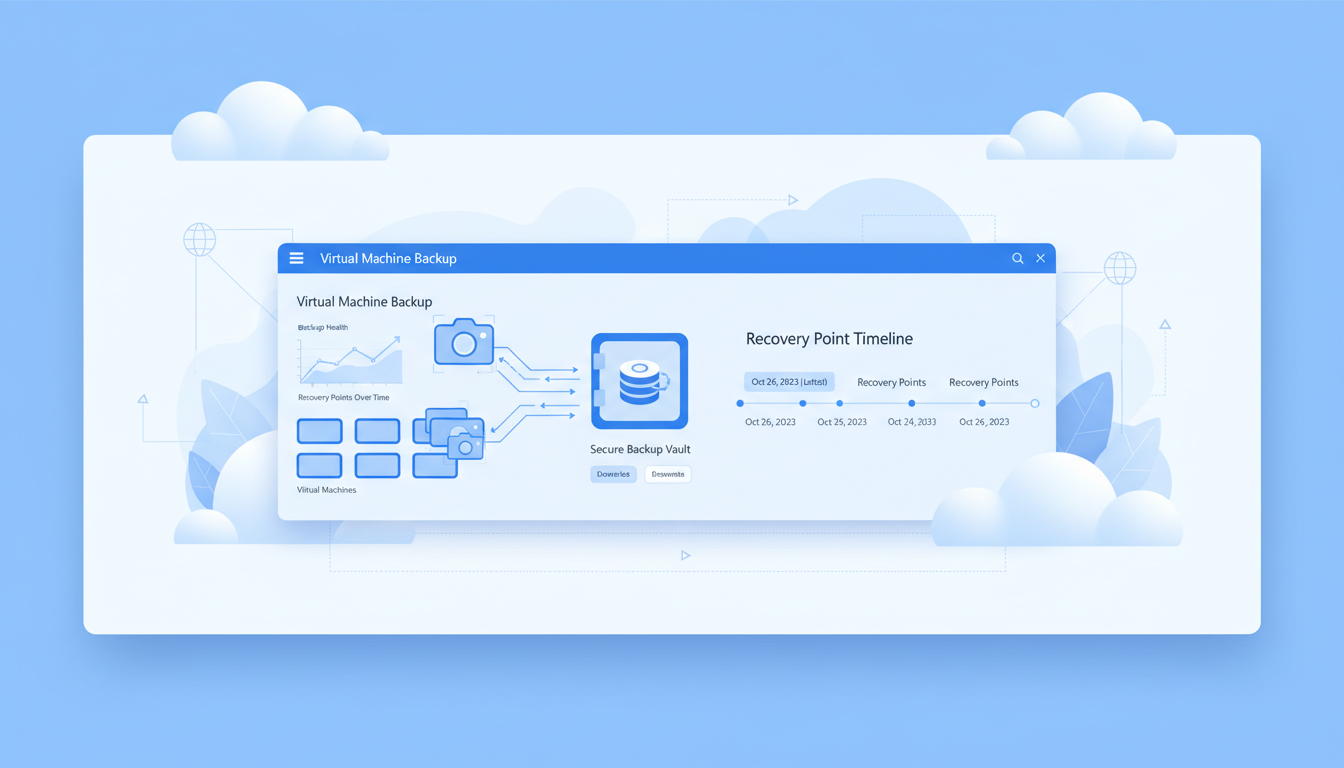
If your business runs virtual machines in Microsoft Azure, backing them up is not optional - it is an essential part of your operational and compliance obligations. Azure virtual machines can fail, be corrupted by software errors, be damaged by ransomware attacks, or be accidentally deleted by administrators. Without proper backups, any of these events could result in permanent data loss, extended downtime, and significant financial impact.
The good news is that Azure provides a native, integrated backup service - Azure Backup - that makes protecting your virtual machines straightforward, reliable, and cost-effective. Unlike third-party backup solutions that require separate infrastructure, Azure Backup is built into the Azure platform and integrates seamlessly with your existing virtual machines, storage accounts, and security configurations.
This guide provides a complete, practical walkthrough of Azure VM backup for UK businesses. It covers the concepts you need to understand, the decisions you need to make, the steps to set up backup, and the best practices that ensure your backups are reliable, secure, and compliant with UK data protection requirements including GDPR.
It is worth noting that Azure's shared responsibility model means that whilst Microsoft guarantees the availability and durability of the Azure platform itself, the responsibility for protecting your data - including implementing backups - falls squarely on you as the customer. Microsoft will not recover your data if a virtual machine is accidentally deleted, if ransomware encrypts your disks, or if a misconfigured script overwrites critical files. Azure Backup exists precisely to fill this gap, providing you with the tools to protect yourself against scenarios that fall outside Microsoft's platform-level guarantees.
For UK businesses that have migrated workloads to Azure - or are in the process of doing so - establishing a robust backup strategy should be one of the very first steps in your cloud deployment, not an afterthought addressed weeks or months later. The cost of implementing Azure Backup is trivial compared to the potential consequences of data loss, and the setup process is straightforward enough that there is genuinely no excuse for leaving production virtual machines unprotected.
Understanding Azure Backup Concepts
Before configuring Azure Backup, it is important to understand the key concepts that underpin the service. These concepts determine how your backups work, where they are stored, and how you restore from them.
Recovery Services Vault
The Recovery Services Vault is the central management entity for all your backups. It is a storage container in Azure that holds your backup data, backup policies, and recovery points. When you set up Azure VM backup, you create a vault (or use an existing one) and associate your virtual machines with it.
The vault should be in the same Azure region as your virtual machines for optimal performance and to ensure that backup operations do not traverse regions unnecessarily. For UK businesses, this typically means creating a vault in the UK South or UK West region. Importantly, the vault also controls the redundancy level of your backup storage - you can choose between locally redundant storage (LRS), zone-redundant storage (ZRS), or geo-redundant storage (GRS).
Backup Policies
A backup policy defines the schedule and retention rules for your backups. It specifies when backups are taken (daily, weekly, or a custom schedule), how long each backup is retained, and what type of backup is performed. Azure Backup supports both snapshot-based backups (fast, stored locally in the same region) and vault-tier backups (more durable, transferred to the Recovery Services Vault).
Azure VM backup supports three consistency levels. Application-consistent backups capture the VM in a fully consistent state, including all in-memory data and pending I/O operations - this is the gold standard and ensures applications like SQL Server resume without data loss. File-system-consistent backups ensure all files are written to disk but may not capture in-memory application state. Crash-consistent backups capture the disk state at the point in time, similar to an unexpected power-off - the VM will boot but applications may need to perform recovery. Always aim for application-consistent backups by ensuring the Azure Backup agent is properly installed and the VM extensions are functioning.
Recovery Point Objective and Recovery Time Objective
Two metrics that underpin every backup strategy are the Recovery Point Objective (RPO) and the Recovery Time Objective (RTO). RPO defines the maximum amount of data loss your business can tolerate, measured in time. If your RPO is four hours, your backups must run at least every four hours so that, in the worst case, you lose no more than four hours of data. RTO defines how quickly your systems must be restored after a failure. If your RTO is two hours, your backup solution must be capable of restoring your VMs within that timeframe.
For most UK SMEs, an RPO of 24 hours (achieved with daily backups) is acceptable for general file servers and application servers. However, business-critical systems such as databases, financial applications, and customer-facing platforms may require a much shorter RPO - sometimes as little as one hour. Azure Backup supports backup frequencies as low as every four hours for enhanced policies, and for tighter RPOs, Azure Site Recovery (ASR) can provide continuous replication with RPOs measured in seconds rather than hours. Understanding your RPO and RTO for each workload before configuring backup ensures that your protection matches the actual business impact of data loss.
Snapshot Tier vs Vault Tier
Azure Backup stores recovery points in two tiers. The snapshot tier retains a local copy of the backup in the same region as the VM, enabling rapid restores - typically within minutes. This tier is ideal for operational recovery scenarios such as accidental file deletion or application corruption where speed of restoration is paramount. The vault tier transfers backup data to the Recovery Services Vault, providing long-term retention with greater durability and lower cost per gigabyte. A well-designed backup policy uses both tiers: snapshot retention for fast recovery from recent incidents, and vault-tier retention for compliance, audit, and disaster recovery purposes.
Setting Up Azure VM Backup: Step by Step
The process of enabling Azure Backup for a virtual machine is straightforward. Here is the high-level process, along with the key decisions at each step.
First, create a Recovery Services Vault in the Azure portal. Choose the same region as your VMs (UK South is the primary Azure UK region), and select your storage redundancy option. For most UK SMEs, geo-redundant storage (GRS) is recommended because it replicates your backup data to a secondary Azure region (UK West), protecting against a complete regional outage.
Second, create a backup policy or use the default policy. The default policy takes a daily backup at a time you specify and retains daily backups for 30 days, weekly backups for 12 weeks, monthly backups for 36 months, and yearly backups for 10 years. For many businesses, this default is more than adequate, but you can customise it to match your specific retention requirements.
Third, associate your virtual machines with the vault and apply the backup policy. This can be done from the VM blade in the Azure portal (under Operations > Backup) or from the Recovery Services Vault blade. Azure automatically installs a backup extension on the VM, and backups begin according to the policy schedule.
Configuring Enhanced Backup Policies
For businesses with more demanding recovery requirements, Azure Backup offers enhanced policies that go beyond the standard daily backup schedule. Enhanced policies support multiple backups per day - every four, six, eight, or twelve hours - providing a tighter RPO for mission-critical workloads. They also offer more granular retention options, allowing you to specify exactly how many hourly, daily, weekly, monthly, and yearly recovery points to retain. Enhanced policies are available for VMs using managed disks, which covers the vast majority of modern Azure deployments.
When configuring your backup policy, consider the business hours and usage patterns of each VM. A database server that processes transactions throughout the business day would benefit from backups every four hours during working hours to minimise potential data loss. A development server used primarily during office hours might only need a single daily backup taken overnight. Tailoring your backup schedule to the actual usage pattern of each VM ensures you achieve the right balance between protection and cost, rather than applying a one-size-fits-all approach that either over-protects non-critical systems or under-protects vital ones.
Choosing the Right Storage Redundancy
| Redundancy Type | Data Copies | Protection Against | Cost | Recommended For |
|---|---|---|---|---|
| LRS (Locally Redundant) | 3 copies in one data centre | Hardware failure | Lowest | Non-critical workloads, dev/test |
| ZRS (Zone Redundant) | 3 copies across availability zones | Data centre failure | Medium | Production workloads in single region |
| GRS (Geo-Redundant) | 6 copies across two regions | Regional disaster | Highest | Business-critical, compliance-driven |
For UK businesses subject to GDPR, the choice of redundancy also has a data residency dimension. With GRS, your backup data is replicated from UK South to UK West (or vice versa), keeping all data within the United Kingdom. This satisfies the data residency requirements that many UK businesses need to meet, particularly those in regulated industries such as finance, healthcare, and legal services.
Cross-Region Restore and Disaster Recovery
For businesses using geo-redundant storage, Azure Backup enables cross-region restore - the ability to restore VMs in the paired secondary region (UK West if your primary is UK South) during a regional disaster. This capability is critical for businesses that must maintain operations even if an entire Azure region experiences an outage. Cross-region restore can be enabled on the Recovery Services Vault at any time, and it does not require any changes to the VMs themselves or the backup policy.
It is important to understand that cross-region restore uses vault-tier data, not snapshot-tier data. This means restore times will be longer than restoring from the primary region, and the most recent recovery point available in the secondary region may lag behind the primary by up to 12 hours. For businesses that need tighter cross-region recovery, Azure Site Recovery provides continuous replication with near-zero RPO and automated failover orchestration. Many UK businesses use Azure Backup for day-to-day operational recovery and Azure Site Recovery for their disaster recovery plan, creating a comprehensive protection strategy that covers everything from accidental deletion to regional catastrophe.
Backup Monitoring and Alerting
Setting up backups is only half the battle - you also need to ensure they are running successfully every day. A backup that has been silently failing for weeks is worse than no backup at all, because it creates a false sense of security.
Azure Backup provides built-in monitoring through the Recovery Services Vault dashboard, which shows the status of all backup jobs, alerts for failures, and compliance with your backup policy. However, you should also configure email alerts for backup failures so that someone is notified immediately when a backup does not complete successfully.
Additionally, you should perform regular test restores - at least quarterly - to verify that your backups can actually be restored successfully. A backup that cannot be restored is worthless. Test restores also help you measure your actual recovery time, which is critical for business continuity planning.
Integrating Backup Monitoring with Your IT Operations
Azure Monitor and Azure Backup Reports provide deeper analytics for organisations that need comprehensive visibility into their backup estate. Backup Reports, powered by Azure Monitor Logs, allow you to track backup storage consumption trends, identify VMs with consistently failing backups, and generate compliance reports for auditors. For UK businesses subject to regulatory oversight - particularly those in financial services, healthcare, or the legal sector - these reporting capabilities can streamline the evidence-gathering process during audits and demonstrate that adequate data protection measures are in place and functioning correctly.
Consider integrating backup alerting into your existing IT operations workflow. If your business uses a ticketing system or a managed IT provider's monitoring platform, configure Azure Backup alerts to feed directly into that system. This ensures that backup failures are treated with the same urgency as any other infrastructure incident, rather than languishing in an email inbox until someone happens to notice. A backup failure that is not investigated and resolved within 24 hours should be escalated automatically - every day without a successful backup is a day your business is exposed to unrecoverable data loss should a disaster occur during that window.
Restoring Azure Virtual Machines
When you need to restore a VM, Azure Backup provides several options depending on what you need to achieve. You can create a new VM from a recovery point, which is the most common scenario for replacing a failed or corrupted VM. You can restore the VM disks to a storage account, then attach them to a new or existing VM - useful when you need to restore specific data files rather than the entire VM. You can replace existing VM disks, which swaps the current disks with the backed-up versions in place. Or you can use cross-region restore (if using GRS) to restore a VM in the secondary region during a regional disaster.
Restore times depend on the size of the VM and its disks. A typical VM with a 128 GB OS disk and a 256 GB data disk can be restored from the snapshot tier in 10 to 30 minutes, or from the vault tier in one to four hours. These timescales should be factored into your business continuity planning when defining your Recovery Time Objective (RTO).
Planning and Documenting Your Restore Procedures
Having backups is only valuable if your team knows how to use them when a crisis strikes. Document your restore procedures step by step, including who has the authority to initiate a restore, which Azure portal or CLI commands to use, how to verify the restored VM is functioning correctly, and how to redirect users and services to the restored system. This documentation should be stored outside of Azure - if Azure itself is the problem, you need to access your recovery plan from an independent location such as a printed runbook or a separate cloud storage service.
Test restores should be scheduled at least quarterly and treated as a genuine drill rather than a checkbox exercise. During a test restore, measure the actual time taken from initiating the restore to having a fully functional VM, and compare this against your RTO target. If the test reveals that your actual restore time exceeds your RTO, you need to take action - whether that means upgrading to faster storage, pre-staging restore configurations, or switching to snapshot-tier restores for critical workloads. A documented restore test with measured results is also valuable evidence for regulators, auditors, and cyber insurance underwriters who increasingly ask businesses to demonstrate that their backup and recovery capabilities have been validated in practice.
Azure Backup Best Practices
- Use geo-redundant storage for business-critical VMs
- Enable backup before deploying production workloads
- Configure email alerts for backup failures
- Perform quarterly test restores
- Document your recovery procedures
- Use application-consistent backup settings
- Review retention policies annually
- Enable soft delete for ransomware protection
Common Backup Mistakes
- Assuming Azure handles backup automatically
- Never testing restores until a real disaster strikes
- Ignoring backup failure alerts
- Insufficient retention for compliance requirements
- Using LRS for production data (no regional protection)
- No documented recovery procedures
- Backup policy not reviewed after VM changes
- Soft delete disabled, leaving backups vulnerable
Azure Backup Security
Protecting your backups is as important as creating them. Ransomware attackers increasingly target backup infrastructure, knowing that if they can encrypt or delete backups as well as production data, the victim has no choice but to pay the ransom. Azure Backup includes several features specifically designed to defend against this threat.
Soft delete is enabled by default on Recovery Services Vaults and retains deleted backup data for 14 additional days. If an attacker (or an accidental action) deletes a backup, it can be recovered within this window. Multi-user authorisation (MUA) requires approval from a designated security administrator before critical operations like disabling backup or reducing retention - preventing a compromised admin account from destroying backups. And immutable vaults, available in preview, prevent backup data from being deleted before its retention period expires, regardless of who requests the deletion.
For UK businesses subject to GDPR, the ICO recommends that backup data is encrypted and protected with access controls. Azure Backup encrypts all data at rest using 256-bit AES encryption and in transit using TLS 1.2. Access to backup operations is controlled through Azure Role-Based Access Control (RBAC), allowing you to grant backup operators the minimum permissions they need.
Separation of Duties and Access Governance
A particularly important security measure for UK businesses is the separation of backup administration from general IT administration. The person or team responsible for managing day-to-day Azure resources should not necessarily have the ability to delete or modify backup configurations. By using dedicated RBAC roles - such as Backup Operator for daily operations and Backup Contributor for configuration changes - you create an effective segregation of duties that reduces the risk of both accidental and malicious backup destruction. For businesses working with a managed IT provider, this separation is typically built into the access model as standard practice.
Regular security reviews of your backup configuration should be part of your wider cybersecurity hygiene. At least quarterly, verify that soft delete remains enabled, review who has access to modify backup policies, confirm that multi-user authorisation is configured for critical operations, and check that no backup policies have been silently modified. Ransomware operators are sophisticated - they often spend weeks inside a compromised network, quietly disabling security controls and deleting backups before launching their encryption attack. Proactive monitoring of your backup security posture is one of the most effective defences against this increasingly common tactic.
Cost Management
Azure Backup costs are based on two components: the size of the protected data (per GB per month for vault-tier storage) and the number of protected instances. As of current pricing for the UK South region, a standard VM backup instance costs approximately £8 per month, plus storage costs of around £0.02 to £0.05 per GB per month depending on the redundancy level chosen.
It is important to note that Azure Backup costs scale with the amount of data that changes between backups, not the total size of the VM's disks. Azure Backup uses incremental backups after the initial full backup, meaning that only the blocks that have changed since the last backup are transferred and stored. For most business workloads, this results in significantly lower storage costs than you might expect based on the total disk size alone. A 500 GB data disk that changes by only 5 GB per day will consume far less backup storage than its raw size would suggest, making Azure Backup remarkably cost-efficient for typical enterprise workloads.
Azure also provides built-in cost analysis tools within the Recovery Services Vault that show you exactly how much each protected VM is costing in backup storage. Use these tools to identify any VMs that are consuming disproportionate backup storage - this can sometimes indicate an underlying issue, such as a database transaction log that is growing unchecked or a temporary file directory that is being backed up unnecessarily. Addressing these issues not only reduces backup costs but also improves backup performance and reliability.
For a typical UK SME running five Azure VMs with an average of 200 GB of data each, the monthly backup cost would be approximately £40 for instances plus £50 to £100 for storage, totalling £90 to £140 per month for full geo-redundant protection. This is a remarkably small price to pay for the peace of mind that your business can recover from any disaster.
To optimise costs, review your retention policies to ensure you are not retaining backups longer than necessary. Use tiered storage options where available to move older recovery points to cheaper archive storage. And tag your VMs consistently so that backup costs can be tracked and allocated to the appropriate cost centre.
For businesses that lack in-house Azure expertise, the most cost-effective approach is often to engage a managed IT provider to handle backup configuration, monitoring, and testing on your behalf. A managed service ensures that backups are configured correctly from the outset, monitored continuously for failures, tested regularly through documented restore drills, and adjusted as your Azure estate evolves. The monthly cost of managed backup oversight is typically far less than the salary cost of maintaining the in-house expertise required to manage Azure Backup to the standard that a production environment demands.
Ultimately, the question is not whether you can afford to implement Azure Backup - the costs are modest by any measure - but whether you can afford not to. Every Azure virtual machine running a production workload without backup protection represents an unacceptable business risk. The data stored on those VMs - your applications, databases, configurations, and business records - is often irreplaceable, and the cost of losing it permanently would dwarf any amount you might spend on backup infrastructure over the lifetime of your business.
Need Help with Azure Backup?
Cloudswitched provides Azure backup configuration and management for UK businesses. From initial setup and policy design to ongoing monitoring, test restores, and disaster recovery planning, we ensure your Azure virtual machines are fully protected. Contact us to discuss your backup requirements.
GET IN TOUCH
CloudSwitched
London-based managed IT services provider offering support, cloud solutions and cybersecurity for SMEs.


