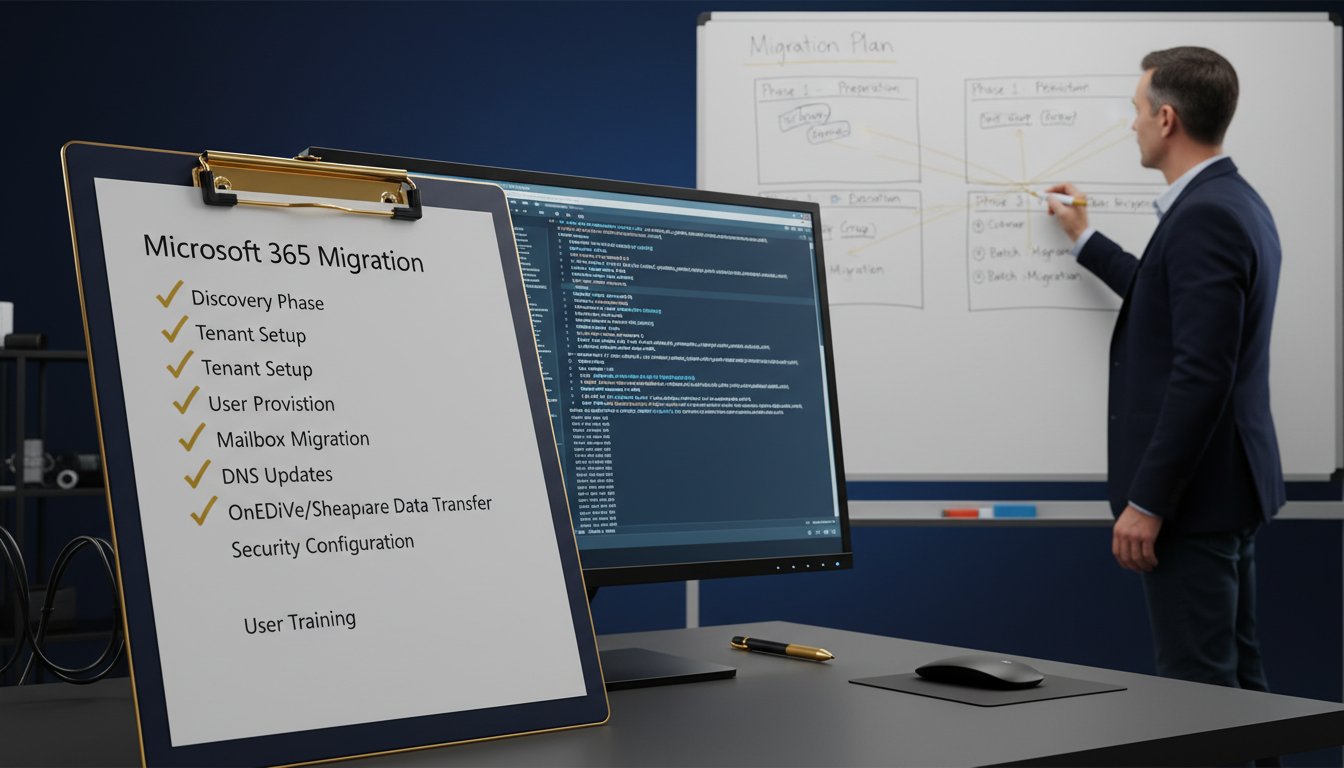
Migrating to Microsoft 365 is one of the most consequential technology decisions a UK business can make - and one that, when handled correctly, transforms productivity, strengthens security, and reduces operational costs for years to come. But when handled without a proper plan, the same migration can cause days of email downtime, lost data, broken authentication, and a flood of support tickets that leaves your IT team firefighting instead of delivering value.
This Microsoft 365 migration checklist is designed specifically for British businesses - whether you are a 10-person firm in Manchester, a 500-seat organisation in London, or a multi-site enterprise with offices across the UK. We cover every phase of the migration lifecycle in granular, actionable detail: from the initial pre-migration audit and licensing decisions, through DNS configuration and SPF DKIM DMARC setup, to user provisioning, data migration, testing, go-live, and post-migration verification. Every step is informed by real-world experience, not theoretical best practice.
At Cloudswitched, a London-based managed service provider, we have guided hundreds of UK organisations through the full Microsoft 365 email setup process - from five-person startups to 2,000-seat enterprises. This checklist distils that experience into a practical, step-by-step resource you can follow whether you are managing the migration internally or working with an MSP like us. We address the specific compliance, regulatory, and technical considerations that British businesses face, including UK GDPR, ICO requirements, and data residency expectations.
The reality is that a Microsoft 365 migration involves far more than pointing your MX records at Microsoft's servers. Email is not just messages - it is calendars, contacts, shared mailboxes, distribution lists, transport rules, retention policies, mobile device configurations, third-party integrations, and years of institutional knowledge stored in folder structures your users depend on every single day. A properly executed migration preserves all of this whilst simultaneously improving the user experience. A poorly executed one creates weeks of chaos.
This guide follows a ten-phase structure that mirrors the approach we use at Cloudswitched for every email migration project. Each phase builds on the previous one, and skipping phases is the single most common cause of migration failures we see when organisations come to us for remediation after an unsuccessful attempt. Follow every step, and your migration will be smooth. Cut corners, and you will pay for it later - usually at the worst possible moment.
Phase 1: Pre-Migration Audit and Assessment
Every successful migration to Microsoft 365 begins with a thorough audit of your current environment. This phase is not optional and it is not a formality - it is the single most important determinant of whether your migration will proceed smoothly or descend into chaos. At Cloudswitched, we typically spend more time on assessment than on the actual data migration itself, because the work done here prevents the problems that would otherwise surface at the worst possible moment.
Inventory Your Current Email Environment
The first step is building a comprehensive inventory of everything that currently exists in your email environment. This goes far beyond simply counting mailboxes. You need to document every component that will need to be migrated, recreated, or retired.
User mailboxes: Count every active user mailbox and record the current size, number of items, any special permissions (delegate access, send-as, send-on-behalf), and whether the user has mobile devices connected. Pay particular attention to oversized mailboxes - any mailbox exceeding 50 GB will require special handling during migration, and mailboxes over 100 GB may need to be archived before migration can begin.
Shared mailboxes: Document every shared mailbox, who has full-access permissions, who has send-as rights, and the current size. In Microsoft 365, shared mailboxes under 50 GB do not require a licence, but those exceeding 50 GB need an Exchange Online Plan 2 licence. This is a cost consideration many organisations miss during planning.
Resource mailboxes: Meeting rooms and equipment mailboxes need to be recreated in Exchange Online. Document the booking policies, delegates, and any custom properties configured on each resource.
Distribution groups and mail-enabled security groups: A typical 200-user Exchange environment may have 50 to 150 distribution groups, some nested inside each other, some with external members, and some with specific sender restrictions. All of these need to be recreated or migrated, and nested groups with circular references will cause migration failures if not identified in advance.
Public folders: If your organisation uses Exchange public folders - and many long-established UK businesses do - you need to understand what data they contain, who accesses them, how large they are, and how they will be represented in Microsoft 365. Public folder migration is one of the most challenging aspects of any migration project and deserves its own dedicated planning effort.
| Assessment Area | What to Document | Common Pitfalls |
|---|---|---|
| User mailboxes | Count, sizes, permissions, delegates, mobile devices, archive mailboxes | Oversized mailboxes exceeding 50 GB migration limits; orphaned accounts |
| Shared mailboxes | Ownership, full-access permissions, send-as/send-on-behalf, current sizes | Shared mailboxes over 50 GB need Exchange Online Plan 2 licence |
| Distribution lists | Members, nesting, sender restrictions, external members, moderation | Nested groups with circular references cause migration failures |
| Resource mailboxes | Rooms, equipment, booking policies, delegates, custom properties | Custom booking policies not replicating correctly in Exchange Online |
| Public folders | Hierarchy, sizes, permissions, mail-enabled status, usage patterns | Large hierarchies exceeding Microsoft 365 limits; stale data inflating size |
| Transport rules | Conditions, actions, exceptions, priority order, connector dependencies | On-premises rules relying on features unavailable in Exchange Online |
| Third-party integrations | SMTP relay devices, CRM, helpdesk, scanners, monitoring systems | Applications using basic authentication that Microsoft has deprecated |
| DNS records | Current MX, SPF, DKIM, DMARC, autodiscover, CNAME records | Forgotten DNS records at old providers; split-brain DNS configurations |
Assess Network Readiness
Microsoft 365 is a cloud service, which means your internet connectivity becomes a critical dependency. Before migrating, assess your network bandwidth, latency, and reliability. Microsoft publishes bandwidth requirements - as a rule of thumb, plan for approximately 1 Mbps per 10 concurrent users for general Microsoft 365 usage, with additional bandwidth during the migration itself.
For UK organisations with multiple sites, consider whether each site has adequate internet connectivity for cloud-based email. Branch offices that previously relied on MPLS links to reach a central Exchange server may now need direct internet breakout to reach Microsoft 365 efficiently. This is a common issue we see with multi-site UK businesses - the migration succeeds technically, but users at branch offices experience poor performance because all their traffic is being backhauled through the head office.
Run the Microsoft 365 network connectivity test (connectivity.office.com) from each of your UK office locations before migration. This free tool measures latency to the nearest Microsoft front-door service and identifies potential network bottlenecks. For organisations with branch offices, test from every site - not just head office. Poor connectivity at one site can generate disproportionate support tickets post-migration.
Assess Security and Compliance Requirements
UK businesses face specific regulatory requirements that must be considered during migration planning. UK GDPR and the Data Protection Act 2018 impose obligations around data processing, retention, and cross-border transfers. The ICO (Information Commissioner's Office) expects organisations to maintain appropriate technical and organisational measures to protect personal data, and a migration that fails to account for these requirements can create compliance gaps.
Document your current email retention policies, litigation hold requirements, data loss prevention rules, and any industry-specific compliance obligations (such as FCA regulations for financial services firms, or NHS Data Security and Protection Toolkit requirements for healthcare organisations). These will need to be replicated - and ideally improved - in Microsoft 365.
Phase 2: Licensing Strategy and Procurement
Choosing the right Microsoft 365 licensing is a critical decision that affects both cost and capability. Microsoft's licensing structure is notoriously complex, and selecting the wrong plan can either leave your organisation paying for features you do not need or, worse, lacking capabilities you require for compliance or security.
Understanding the Licensing Landscape
Microsoft 365 licensing for UK businesses falls into two main categories: Business plans (for organisations with up to 300 users) and Enterprise plans (for organisations of any size, but typically used by those with more than 300 users or specific compliance requirements).
Microsoft 365 Business Premium
Microsoft 365 Business Standard
For most UK SMBs, we recommend Microsoft 365 Business Premium. The security features it includes - Defender for Office 365, Intune, Conditional Access, and Azure AD Premium P1 - are not luxuries for British businesses operating under UK GDPR. They are essential tools for meeting your obligation to implement "appropriate technical measures" to protect personal data. The additional £7.20 per user per month compared to Business Standard is a trivial cost relative to the security gap it closes.
Licence Procurement and Assignment
Purchase your licences before beginning any technical migration work. You can purchase directly from Microsoft, through a Cloud Solution Provider (CSP) like Cloudswitched, or through an Enterprise Agreement for larger organisations. CSP purchasing typically offers more flexibility, dedicated support, and often better pricing for UK businesses.
When assigning licences, consider that not every user needs the same plan. Microsoft allows mixed licensing within a tenant, so you might assign Business Premium to your office-based knowledge workers, Exchange Online Plan 1 to warehouse staff who only need email, and Microsoft 365 F3 (Frontline) to shift workers who need basic access on shared devices. A thoughtful licensing strategy can significantly reduce your annual spend without compromising functionality.
Always purchase at least 10% more licences than your current headcount to accommodate new starters during the migration period. Microsoft 365 licences purchased through a CSP can typically be adjusted monthly, so you are not locked into a fixed quantity. Ask your CSP about "licence true-up" flexibility - most good UK CSPs offer this as standard.
Phase 3: Microsoft 365 Tenant Configuration
With licences procured, the next phase is configuring your Microsoft 365 tenant - the foundational environment that will host your email, identity, and collaboration services. Getting the tenant configuration right from the start prevents costly reconfiguration later.
Tenant Creation and Initial Setup
If you do not already have a Microsoft 365 tenant, create one at admin.microsoft.com. During creation, you will choose your initial domain (typically yourcompany.onmicrosoft.com - this cannot be changed later and serves as a fallback domain). Select the United Kingdom as your data location to ensure your data is stored in Microsoft's UK data centres in London and Cardiff.
Once the tenant is created, configure the following settings before proceeding with any user creation or migration:
Organisation profile: Set your organisation name, address, and contact information. This information appears in various admin communications and compliance reports.
Security defaults or Conditional Access: Enable multi-factor authentication (MFA) for all administrator accounts immediately. For Business Premium licences, disable Security Defaults and configure Conditional Access policies instead - they offer granular control over authentication requirements based on user, device, location, and risk level.
Password policies: The National Cyber Security Centre (NCSC) - the UK government's authority on cyber security - recommends against forced periodic password changes. Configure your tenant's password policy to require strong passwords but not force regular changes, in line with NCSC guidance.
Audit logging: Enable unified audit logging in the Microsoft Purview compliance portal. Under UK GDPR, you may need to demonstrate what actions were taken on personal data - audit logs provide this evidence. Enable them before migration so that all migration activity is captured.
Domain Verification
Before you can use your custom domain (e.g., yourcompany.co.uk) with Microsoft 365, you must verify ownership. Microsoft will ask you to add a TXT record to your domain's DNS zone. This is a verification step only - it does not affect your current mail flow.
For UK businesses, common domain registrars include Nominet (for .uk domains), 123 Reg, GoDaddy, Fasthosts, and Cloudflare. The process for adding TXT records varies by registrar, but the general steps are consistent: log in to your DNS management panel, add a TXT record with the value Microsoft provides, and wait for DNS propagation (typically 15 minutes to 1 hour, though some UK registrars can take up to 24 hours).
Important: Do not change your MX records at this stage. Domain verification does not require MX record changes, and modifying MX records prematurely will redirect your email to Microsoft 365 before your mailboxes are ready - causing email delivery failures.
Phase 4: DNS Configuration and Email Authentication
DNS configuration is the technical backbone of your Microsoft 365 email setup, and email DNS configuration services are among the most critical - and most frequently misconfigured - aspects of any migration. Getting your DNS records right ensures reliable email delivery, protects your domain against spoofing and phishing, and establishes the authentication framework that receiving mail servers use to verify your messages are legitimate.
Understanding the DNS Records You Need
A complete email DNS configuration for Microsoft 365 requires multiple record types working together. Each serves a distinct purpose, and missing any one of them can cause delivery problems, security vulnerabilities, or both.
MX records tell other mail servers where to deliver email for your domain. For Microsoft 365, your MX record will point to yourcompany-co-uk.mail.protection.outlook.com (the exact value is provided in the Microsoft 365 admin centre). This is the record that actually redirects mail flow to Microsoft - and it should be the last DNS record you change during migration, not the first.
Autodiscover CNAME record enables automatic client configuration. When a user adds their email account to Outlook, Thunderbird, or a mobile device, the autodiscover record tells the client where to find the server settings. Without this record, users will need to manually configure server addresses - a support burden you want to avoid.
SPF record (Sender Policy Framework) declares which servers are authorised to send email on behalf of your domain. For Microsoft 365, your SPF record must include include:spf.protection.outlook.com. If you also send email from other services (marketing platforms, CRM systems, helpdesk tools), those services' SPF entries must be included as well.
DKIM records (DomainKeys Identified Mail) add a cryptographic signature to outbound emails, allowing receiving servers to verify the message was not modified in transit. Microsoft 365 uses two CNAME records for DKIM, which point to Microsoft's key-hosting infrastructure.
DMARC record ties SPF and DKIM together with a policy that tells receiving servers what to do when authentication fails - monitor, quarantine, or reject. DMARC also enables reporting, so you can see who is sending email using your domain (including unauthorised senders).
SPF DKIM DMARC Setup: The Complete Guide
Proper SPF DKIM DMARC setup is non-negotiable for UK businesses. Email spoofing - where attackers send messages that appear to come from your domain - is one of the most common attack vectors used against British organisations. Without proper authentication records, your domain is an open invitation for phishing attacks, and your legitimate emails are more likely to be flagged as spam by receiving servers.
Step 1: Configure SPF
Your SPF record is a TXT record in your domain's DNS zone. For a Microsoft 365-only configuration, the record is straightforward:
v=spf1 include:spf.protection.outlook.com -all
The -all (hard fail) suffix tells receiving servers to reject any email claiming to be from your domain that does not come from an authorised source. Some organisations use ~all (soft fail) during migration as a safety net, then switch to -all once they are confident all legitimate sending sources are included. At Cloudswitched, we recommend starting with ~all during the migration period and moving to -all within two weeks of go-live.
If your organisation uses additional services that send email on your behalf, your SPF record must include them all. A typical UK business might have:
v=spf1 include:spf.protection.outlook.com include:_spf.google.com include:servers.mcsv.net include:sendgrid.net ~all
Critical limitation: SPF records are limited to 10 DNS lookups. Each include: directive counts as one lookup, and the included records may contain further lookups. Exceeding the 10-lookup limit causes SPF validation to fail entirely - effectively rendering your SPF record useless. For organisations with many sending sources, SPF flattening (replacing include directives with the actual IP addresses) or using an SPF management service may be necessary.
Step 2: Configure DKIM
DKIM for Microsoft 365 requires two CNAME records in your DNS zone:
selector1._domainkey.yourcompany.co.uk → selector1-yourcompany-co-uk._domainkey.yourcompanytenant.onmicrosoft.com
selector2._domainkey.yourcompany.co.uk → selector2-yourcompany-co-uk._domainkey.yourcompanytenant.onmicrosoft.com
After adding these CNAME records and waiting for DNS propagation, enable DKIM signing in the Microsoft 365 Defender portal (security.microsoft.com → Email & collaboration → Policies & rules → Threat policies → DKIM). Select your domain and toggle DKIM signing to enabled. Microsoft will use the CNAME records to publish and rotate DKIM keys automatically.
Step 3: Configure DMARC
DMARC is a TXT record that references your SPF and DKIM configuration and defines how receiving servers should handle failures. A recommended starting configuration for UK businesses:
v=DMARC1; p=none; rua=mailto:dmarc-reports@yourcompany.co.uk; ruf=mailto:dmarc-forensic@yourcompany.co.uk; adkim=r; aspf=r; pct=100;
Start with p=none (monitoring only) to collect data without affecting mail delivery. After reviewing DMARC reports for two to four weeks and confirming all legitimate email sources pass authentication, move to p=quarantine, then finally to p=reject. This phased approach prevents legitimate emails from being blocked due to configuration gaps you did not know about.
Week 1–2: Deploy DMARC with p=none
Add the DMARC TXT record with a policy of "none" to begin collecting aggregate and forensic reports without affecting mail delivery. Monitor incoming reports to identify all legitimate sending sources for your domain.
Week 3–4: Analyse Reports and Fix Gaps
Review DMARC aggregate reports to identify any legitimate services failing SPF or DKIM checks. Update your SPF record and configure DKIM for any additional sending sources. Resolve all alignment issues before progressing.
Week 5–6: Move to p=quarantine
Update your DMARC policy to "quarantine" so that emails failing authentication are delivered to recipients' junk folders rather than their inbox. Monitor for any increase in support queries about missing emails.
Week 7–8: Advance to p=reject
Once you are confident all legitimate email passes authentication, move to "reject" - the strongest policy. Receiving servers will now refuse delivery of any email claiming to be from your domain that fails SPF and DKIM checks. Your domain is now fully protected against spoofing.
Use a free DMARC report analyser like DMARCian, Postmark's DMARC tool, or Valimail Monitor to parse the XML-format aggregate reports that DMARC generates. Reading raw DMARC XML is impractical - these tools visualise the data and highlight issues. For UK businesses handling sensitive data, choose an analyser that stores data within the UK or EU.
Phase 5: User Provisioning and Identity Setup
With your tenant configured and DNS records prepared (but MX records not yet changed), the next phase is creating user accounts in Microsoft 365 and assigning licences. This phase establishes the identity framework that your users will use to access all Microsoft 365 services.
User Account Creation Methods
There are several approaches to creating user accounts in Microsoft 365, and the right choice depends on your organisation's size and existing infrastructure:
Manual creation via the admin centre: Suitable for organisations with fewer than 20 users. Create each user individually in the Microsoft 365 admin centre, assign a licence, and set a temporary password. This method is simple but time-consuming for larger organisations.
CSV bulk import: For organisations with 20 to 500 users, preparing a CSV file and using the bulk-import feature in the admin centre is significantly faster. The CSV must include display name, username, initial password, and licence assignment. Prepare the CSV carefully - errors in formatting will cause the import to fail.
Azure AD Connect (hybrid identity): For organisations that run on-premises Active Directory and want to maintain a hybrid identity model, Azure AD Connect synchronises your on-premises directory with Azure AD. This approach means users keep their existing passwords and any on-premises group memberships are reflected in Microsoft 365. It is the recommended approach for organisations with more than 100 users or those that plan to maintain on-premises AD alongside Microsoft 365.
PowerShell scripting: For complex provisioning requirements - such as assigning different licence plans to different departments, setting specific mailbox properties, or creating accounts with particular regional settings - PowerShell offers the most flexibility. The Microsoft Graph PowerShell module (which replaces the deprecated Azure AD and MSOnline modules) is the recommended toolset.
| Provisioning Method | Best For | Effort Level | Password Handling |
|---|---|---|---|
| Manual (admin centre) | 1–20 users | Low (but slow per user) | Temporary password, force change at first login |
| CSV bulk import | 20–500 users | Medium (CSV preparation) | Temporary passwords in CSV, force change at first login |
| Azure AD Connect | 100+ users with on-premises AD | High (initial setup) | Syncs on-premises passwords via hash sync or passthrough |
| PowerShell / Graph API | Complex requirements, automation | High (scripting expertise) | Fully customisable |
Multi-Factor Authentication
Enable MFA for all accounts before migration. In the current threat landscape, MFA is not optional - it is the single most effective measure you can take to prevent account compromise. Microsoft reports that MFA blocks over 99.9% of account compromise attacks.
For Business Premium licences, configure Conditional Access policies that require MFA for all users, with sensible exceptions for trusted locations (such as your office IP ranges) to reduce friction for users working from your premises. For standard licences without Conditional Access, enable per-user MFA through the Microsoft 365 admin centre.
The NCSC specifically recommends MFA for all cloud services used by UK organisations. For businesses in regulated sectors (financial services, healthcare, legal), MFA may be a regulatory requirement rather than just a best practice.
Phase 6: Data Migration - Moving Your Email
The data migration phase is where your emails, calendars, contacts, and other mailbox data physically move from your current environment to Microsoft 365. This is the phase that most people think of as "the migration," but as you can see from the preceding phases, considerable groundwork must be laid before you reach this point.
Choosing a Migration Method
Microsoft supports several migration methods, and the right choice depends on your source environment, the volume of data, and your tolerance for downtime:
Cutover migration: Moves all mailboxes in a single batch. Suitable for organisations with fewer than 150 mailboxes migrating from Exchange 2010 or later. Simple but inflexible - everything moves at once, and you cannot selectively migrate users in phases.
Staged migration: Moves mailboxes in batches over a period of days or weeks. Suitable for larger organisations migrating from Exchange 2003 or 2007. Allows you to migrate departments or teams sequentially, reducing risk and spreading the support burden.
Hybrid migration: Establishes coexistence between your on-premises Exchange server and Exchange Online. Mailboxes can be moved individually or in batches with free/busy sharing between on-premises and cloud users. This is the recommended approach for organisations with 150+ mailboxes or those that need an extended coexistence period.
IMAP migration: For organisations migrating from non-Exchange email systems (Google Workspace, Zimbra, generic IMAP providers). Moves email only - not calendars, contacts, or rules. Supplementary tools are needed for non-email data.
Third-party migration tools: Tools like BitTitan MigrationWiz, Quest On Demand Migration, and SkyKick provide enhanced migration capabilities - including scheduling, delta sync, and better error handling - compared to Microsoft's native tools. At Cloudswitched, we use third-party tools for the majority of our email DNS configuration services and migration projects because they offer significantly better control and reporting.
Pre-Stage Data Before Cutover
Regardless of the migration method you choose, always pre-stage mailbox data before the final cutover. Pre-staging involves running an initial synchronisation that copies the bulk of your email data to Microsoft 365 whilst your current email system remains live. This can be run days or even weeks before the actual cutover.
The benefit of pre-staging is that it dramatically reduces the time required for the final cutover. If a 10 GB mailbox takes 4 hours to migrate from scratch, pre-staging might move 9.5 GB over the preceding week, leaving only 0.5 GB of new data to synchronise during the cutover window - which might take just 15 minutes. For organisations that need to minimise downtime, pre-staging is essential.
Schedule the initial pre-stage synchronisation during off-peak hours (evenings or weekends for most UK businesses) to minimise the impact on your internet bandwidth. Monitor the synchronisation progress and address any errors - particularly permissions errors, oversized items, or corrupted messages - before the cutover date.
Migration Data Integrity
Data integrity during migration is paramount. Before beginning any data movement, establish baseline metrics for your source environment:
Record the total number of items and total size of each mailbox in your source environment. After migration, compare these figures against the destination mailboxes in Microsoft 365. Discrepancies should be investigated - common causes include items exceeding size limits (Microsoft 365 has a 150 MB message size limit), calendar items with unsupported recurrence patterns, and messages with embedded objects that fail to convert correctly.
Create a spreadsheet tracking each mailbox's source item count, source size, destination item count, and destination size. For critical mailboxes (executives, legal, finance), verify specific items - such as the most recent sent email and the oldest email in the archive - to confirm that both the newest and oldest data migrated successfully.
Phase 7: Testing and Validation
Before cutting over your production mail flow, conduct thorough testing to verify that your Microsoft 365 environment is correctly configured and ready to receive live email. Rushing through this phase is one of the most common mistakes we see in Microsoft 365 migration projects - and one of the most costly.
Pilot Group Testing
Select a pilot group of 5 to 10 users who are technically confident and willing to report issues. These users should represent a cross-section of your organisation - different departments, different devices (Windows, Mac, iOS, Android), and different usage patterns (heavy email users, calendar-intensive users, users with many shared mailbox permissions).
Migrate the pilot group's mailboxes first (in a hybrid or staged migration) or configure them to access Microsoft 365 before the general rollout. Ask them to test the following scenarios over a period of at least 3 to 5 business days:
Email send and receive: Internal messages (between pilot users), messages to and from external contacts, messages with attachments of various sizes, and messages with inline images.
Calendar functionality: Creating appointments, sending meeting invitations to internal and external recipients, accepting and declining invitations, recurring meetings, and room booking (if resource mailboxes have been migrated).
Mobile device access: Configuring email on iOS and Android devices using the Outlook app and native mail clients. Verify that push notifications work, calendar sync is functional, and contacts are available.
Shared mailbox access: Accessing shared mailboxes, sending as the shared mailbox, and verifying that permissions work correctly.
Historical email access: Searching for old emails, accessing archive folders, and verifying that folder structures migrated correctly.
Third-Party Integration Testing
Test every third-party system that sends or receives email through your domain. This includes CRM platforms, helpdesk systems, marketing automation tools, accounting software, printers with scan-to-email functionality, CCTV systems that send alert emails, and any other application that uses SMTP relay.
For systems that use SMTP relay, you will need to configure them to authenticate against Microsoft 365 or use an SMTP relay connector. Microsoft 365 offers three SMTP relay methods for devices and applications: SMTP client submission (authenticated, recommended for applications that can authenticate), direct send (unauthenticated to your own mailboxes only), and SMTP relay via a connector (for high-volume sending that exceeds the standard sending limits).
Test each integration individually and confirm that emails are delivered correctly, sender addresses appear as expected, and any automated workflows that depend on incoming email continue to function.
Phase 8: Go-Live - The MX Record Cutover
The go-live phase is the moment of truth - when you change your MX records to point at Microsoft 365, redirecting all incoming email to your new environment. With proper preparation in the preceding phases, this should be an anticlimactic event. The goal is for users to arrive at work, open Outlook, and notice nothing different except perhaps a faster, more modern experience.
Timing the Cutover
Choose your cutover timing carefully. For most UK businesses, the optimal window is a Friday evening or Saturday morning. This provides the weekend for DNS propagation, final data synchronisation, and issue resolution before the full workforce returns on Monday. Avoid cutover during month-end periods (particularly for finance and accounting teams), immediately before or during holidays, or during any period when email is business-critical (such as the week before a major deadline or tender submission).
The Cutover Sequence
Execute the following steps in order during your cutover window:
1. Run final delta synchronisation: Trigger a final synchronisation pass to capture any emails sent or received since your last pre-stage sync. This should complete relatively quickly if you have been running regular pre-stage syncs.
2. Update MX records: Change your MX record to point to Microsoft 365 (yourcompany-co-uk.mail.protection.outlook.com). Set the TTL (Time to Live) to a low value (300 seconds / 5 minutes) at least 24 hours before the cutover, so that the old MX record expires quickly from DNS caches worldwide.
3. Update SPF record: If you have not already done so, ensure your SPF record includes include:spf.protection.outlook.com. If you are running SPF in soft-fail mode (~all) during migration, consider maintaining this for the first week after cutover before switching to hard-fail (-all).
4. Verify autodiscover: Confirm that the autodiscover CNAME record is in place and resolving correctly. This enables automatic client configuration for Outlook and mobile devices.
5. Send test emails: Send test emails from external accounts (Gmail, personal email) to verify they arrive in Microsoft 365 mailboxes. Test from multiple external sources to confirm MX record propagation.
6. Decommission old mail server routing: Once MX records have propagated (typically 1–4 hours, though some DNS providers take longer), verify that no new email is arriving at your old mail server. Do not shut down the old server immediately - keep it running in receive-only mode for at least 48 hours to catch any email from servers that have cached your old MX records.
Reduce your MX record TTL to 300 seconds (5 minutes) at least 48 hours before your planned cutover. This ensures that when you change the MX record, remote DNS servers will pick up the new record within minutes rather than hours. After the cutover is complete and verified (give it a full week), increase the TTL back to a standard value (3600 seconds / 1 hour) to reduce DNS query load.
Phase 9: Post-Migration Verification
The migration does not end when the MX records are changed. Post-migration verification is a critical phase that confirms everything is working correctly and identifies any issues that need resolution. At Cloudswitched, we maintain an active monitoring posture for at least two weeks after every migrate to Microsoft 365 project.
Immediate Verification (First 24–48 Hours)
During the first 48 hours after cutover, actively monitor the following:
Mail flow: Verify that email is flowing correctly in both directions - inbound from external senders and outbound from your users. Check the Exchange Online message trace (in the Exchange admin centre) to identify any delivery failures, deferrals, or rejected messages. Pay particular attention to emails from high-priority external contacts (key clients, suppliers, regulatory bodies).
NDR (Non-Delivery Report) monitoring: Watch for bounce-back messages. Common post-cutover NDRs include 550 5.7.1 (SPF/authentication failures), 550 5.1.1 (recipient not found - indicating a mailbox that was not migrated), and 452 4.5.3 (mailbox full). Each NDR type indicates a different issue that needs targeted resolution.
Client connectivity: Monitor helpdesk tickets for users unable to connect to their email. The most common post-cutover issue is Outlook prompting for credentials repeatedly - typically caused by cached credentials from the old server or Outlook profiles that need to be recreated.
Mobile device re-configuration: Some mobile devices will automatically detect the new server settings via autodiscover. Others - particularly older Android devices or devices using the native mail client instead of the Outlook app - may need manual reconfiguration.
Extended Verification (First Two Weeks)
Over the first two weeks, verify the following less immediately obvious aspects of your environment:
Calendar sharing: Confirm that free/busy information is available between all users. Test booking meeting rooms and equipment. Verify that recurring meetings created in the old system display correctly in the new system.
Retention policies: Verify that any retention policies you configured in Microsoft 365 are being applied correctly. Check that litigation hold (if required) is functioning and that deleted items retention is set appropriately.
Transport rules: Confirm that mail flow rules recreated in Exchange Online are functioning as expected. Test each rule with sample messages to verify conditions and actions are applied correctly.
DMARC report review: After two weeks, review your first batch of DMARC aggregate reports. These will show whether your SPF and DKIM records are correctly authenticating your outbound email and whether any legitimate sending sources are failing authentication.
Decommission the Old Environment
Once you are confident that Microsoft 365 is functioning correctly and all data has been verified, you can begin decommissioning your old email environment. Do not rush this - we recommend keeping the old server powered on (but not accepting mail) for at least 30 days after cutover. This provides a safety net in case any data needs to be retrieved that was missed during migration.
Before shutting down the old server, take a final backup of the entire mail database. Store this backup securely for at least the duration of your organisation's data retention requirements - under UK GDPR, you should retain personal data only as long as necessary for its stated purpose, but email archives may need to be kept for contractual, legal, or regulatory reasons.
Phase 10: Optimisation and Ongoing Management
With the migration complete and verified, the final phase focuses on optimising your Microsoft 365 environment and establishing ongoing management processes. This phase transforms a successful migration into a platform for long-term productivity and security improvements.
Security Hardening
Now that your environment is stable, implement additional security measures that were deferred during the migration to avoid complexity:
Finalise DMARC policy: If you started with p=none, progress through p=quarantine to p=reject based on your DMARC report analysis. A p=reject DMARC policy is the gold standard for domain protection and is increasingly expected by UK financial institutions and government bodies.
Configure anti-phishing policies: In Microsoft 365 Defender, configure anti-phishing policies that protect against impersonation of your executives, your domain, and your key external contacts. Enable mailbox intelligence and spoof intelligence to detect anomalous sending patterns.
Implement data loss prevention (DLP): Configure DLP policies to prevent sensitive data - National Insurance numbers, bank account details, NHS numbers - from being sent outside your organisation via email. Microsoft 365 includes predefined DLP templates for UK regulatory requirements.
Enable sensitivity labels: For organisations handling confidential data, configure sensitivity labels that allow users to classify and protect emails and documents. Labels can enforce encryption, restrict forwarding, and apply watermarks to sensitive content.
User Training and Adoption
A successful migration is not just a technical achievement - it is a change management project. Invest in user training to ensure your team gets the full benefit of Microsoft 365's capabilities. Focus on the features that will have the greatest impact on productivity: Teams for real-time collaboration, OneDrive for file storage and sharing, and the advanced features of Outlook (focused inbox, scheduling assistant, @mentions in email).
For UK organisations, Microsoft offers free training resources through the Microsoft 365 Learning Pathways platform, which can be deployed as a SharePoint site within your tenant. Supplement this with organisation-specific training that addresses your workflows, policies, and common use cases.
Ongoing Monitoring and Maintenance
Microsoft 365 is a managed service, but that does not mean it is maintenance-free. Establish ongoing processes for:
Licence management: Review licence assignments quarterly. Remove licences from departed employees promptly (within 30 days of their leaving), reassign unused licences to new starters, and evaluate whether your current licence mix is still optimal as your organisation's needs evolve.
Security monitoring: Review the Microsoft 365 Secure Score regularly and work towards improving it. The Secure Score provides a numerical assessment of your security posture and recommends specific actions to improve it. Most UK SMBs should target a Secure Score of 60% or above.
DMARC monitoring: Continue reviewing DMARC reports monthly to detect any new sending sources, identify spoofing attempts, and maintain the health of your email authentication configuration.
Update management: Microsoft regularly introduces new features and retires old ones. Stay informed about changes that affect your organisation - particularly security-related changes like the deprecation of basic authentication (now fully enforced) and the introduction of new compliance features.
The Complete Microsoft 365 Migration Checklist
Below is the consolidated Microsoft 365 migration checklist that summarises every critical task across all ten phases. Use this as your master reference document throughout your migration project. Print it, share it with your team, and tick off each item as it is completed.
| Phase | Task | Owner | Status |
|---|---|---|---|
| 1. Audit | Complete mailbox inventory (users, shared, resource) | IT Admin | ☐ |
| 1. Audit | Document distribution groups and membership | IT Admin | ☐ |
| 1. Audit | Catalogue public folders, sizes, and permissions | IT Admin | ☐ |
| 1. Audit | Map third-party integrations and SMTP relay devices | IT Admin | ☐ |
| 1. Audit | Run network connectivity assessment from all sites | Network | ☐ |
| 1. Audit | Document compliance and retention requirements | Compliance | ☐ |
| 2. Licensing | Select licence plans per user group | IT Manager | ☐ |
| 2. Licensing | Procure licences (CSP or direct) | Procurement | ☐ |
| 3. Tenant | Create tenant with UK data location | IT Admin | ☐ |
| 3. Tenant | Enable MFA for all admin accounts | Security | ☐ |
| 3. Tenant | Verify custom domain via DNS TXT record | IT Admin | ☐ |
| 3. Tenant | Enable unified audit logging | Compliance | ☐ |
| 4. DNS | Configure SPF TXT record | IT Admin | ☐ |
| 4. DNS | Add DKIM CNAME records and enable signing | IT Admin | ☐ |
| 4. DNS | Add DMARC TXT record (p=none initially) | IT Admin | ☐ |
| 4. DNS | Add autodiscover CNAME record | IT Admin | ☐ |
| 5. Users | Create user accounts and assign licences | IT Admin | ☐ |
| 5. Users | Enable MFA for all user accounts | Security | ☐ |
| 5. Users | Configure Conditional Access policies | Security | ☐ |
| 6. Migration | Select migration method and configure tooling | IT Admin | ☐ |
| 6. Migration | Run pre-stage data synchronisation | IT Admin | ☐ |
| 6. Migration | Record baseline mailbox metrics (items/sizes) | IT Admin | ☐ |
| 7. Testing | Migrate pilot group and validate | IT Admin | ☐ |
| 7. Testing | Test all third-party integrations | IT Admin | ☐ |
| 8. Go-Live | Reduce MX TTL to 300 seconds (48 hours before) | IT Admin | ☐ |
| 8. Go-Live | Run final delta synchronisation | IT Admin | ☐ |
| 8. Go-Live | Update MX records to Microsoft 365 | IT Admin | ☐ |
| 8. Go-Live | Verify inbound email delivery from external sources | IT Admin | ☐ |
| 9. Verify | Monitor mail flow and NDRs for 48 hours | IT Admin | ☐ |
| 9. Verify | Verify calendar sharing and free/busy | IT Admin | ☐ |
| 9. Verify | Review first DMARC aggregate reports | Security | ☐ |
| 10. Optimise | Progress DMARC to p=quarantine then p=reject | Security | ☐ |
| 10. Optimise | Configure anti-phishing and DLP policies | Security | ☐ |
| 10. Optimise | Decommission old mail server (after 30 days) | IT Admin | ☐ |
Common Migration Pitfalls and How to Avoid Them
Having managed hundreds of Microsoft 365 migration projects for UK businesses, we have seen the same mistakes repeated time and again. Understanding these common pitfalls - and knowing how to avoid them - can save your organisation days of troubleshooting and countless support tickets.
Pitfall 1: Changing MX Records Before Mailboxes Are Ready
This is the single most common and most damaging mistake in any migrate to Microsoft 365 project. When you change your MX records before your Microsoft 365 mailboxes are properly configured and populated, incoming email is delivered to empty mailboxes - or worse, bounced back to senders because the mailbox does not exist yet. We have seen organisations lose 24 to 48 hours of incoming email due to premature MX record changes. Always complete phases 1 through 7 before touching your MX records.
Pitfall 2: Forgetting to Update SMTP Relay Devices
Printers, scanners, CRM systems, monitoring tools, and other devices that send email via SMTP relay will stop working when you change your mail server. These devices are easy to overlook because they operate silently in the background. Create a comprehensive inventory during Phase 1 and reconfigure each device before cutover.
Pitfall 3: Neglecting SPF DKIM DMARC Setup
We regularly see organisations that complete their Microsoft 365 email setup without properly configuring email authentication records. The result is emails landing in recipients' spam folders, legitimate messages being rejected, and - critically - the organisation's domain being left vulnerable to spoofing attacks. Complete your SPF DKIM DMARC setup as part of the migration, not as an afterthought.
Pitfall 4: Underestimating Public Folder Complexity
Public folders that have accumulated years of data in on-premises Exchange environments are consistently the most problematic aspect of migration. Microsoft 365 supports public folders, but with limitations on size and hierarchy depth. Audit your public folders early and consider whether some data should be migrated to SharePoint or Teams channels instead.
Pitfall 5: Skipping User Communication
A technically perfect migration can still be perceived as a failure if users are not properly informed about what to expect. Communicate the migration timeline, what users need to do (if anything), and who to contact if they experience issues. Provide simple, clear instructions for reconfiguring Outlook and mobile devices. Silence breeds anxiety - and anxious users flood the helpdesk.
Successful Migration
Failed Migration
Cost Analysis: What UK Businesses Should Budget
Understanding the full cost of a Microsoft 365 migration helps UK businesses budget accurately and avoid surprises. The total cost includes licensing, migration tooling, professional services (if using an MSP), and internal staff time.
Licensing Costs
Microsoft 365 licensing is the ongoing cost that defines your monthly expenditure. For a typical 100-user UK SMB choosing Business Premium at £16.60 per user per month, the annual licensing cost is approximately £19,920. For organisations that mix licence types - perhaps 60 knowledge workers on Business Premium and 40 operational staff on Exchange Online Plan 1 (£3.00/user/month) - the annual cost drops to approximately £13,392.
Migration Costs
One-off migration costs depend on complexity. A straightforward cutover migration for a 50-user organisation using a managed service provider like Cloudswitched typically costs between £2,500 and £5,000, including planning, execution, testing, and two weeks of post-migration support. A complex hybrid migration for a 500-user enterprise with multiple sites, public folders, and extensive third-party integrations can cost £15,000 to £30,000 or more.
Third-party migration tools (BitTitan MigrationWiz, SkyKick, etc.) add a per-mailbox cost, typically £8 to £15 per mailbox depending on the tool and the volume of data being migrated.
UK-Specific Compliance Considerations
British businesses face a unique regulatory landscape that must be addressed during any Microsoft 365 migration. Unlike generic migration guides, this section addresses the specific requirements that apply to UK organisations.
UK GDPR and Data Protection Act 2018
The UK General Data Protection Regulation (UK GDPR) and the Data Protection Act 2018 govern how personal data is processed, stored, and transferred. Email systems are inherently rich in personal data - names, addresses, telephone numbers, and often sensitive information like financial details or health data.
When migrating to Microsoft 365, you are effectively changing your data processor (from your current hosting provider or in-house infrastructure to Microsoft). Under UK GDPR Article 28, data controllers must use processors that provide "sufficient guarantees to implement appropriate technical and organisational measures." Microsoft's Data Processing Addendum (DPA) and compliance certifications (ISO 27001, SOC 2, Cyber Essentials Plus) satisfy this requirement for most use cases.
However, you should still conduct a Data Protection Impact Assessment (DPIA) if your migration involves large-scale processing of personal data or if you are a public authority. The ICO provides a screening checklist and DPIA template on their website.
Data Residency
Microsoft's UK data centres (London and Cardiff) ensure that core Microsoft 365 data - including Exchange Online mailboxes - is stored on UK soil. This is important for organisations that have contractual obligations to keep data within the UK, or that are subject to sector-specific regulations requiring UK data residency.
Verify your tenant's data location in the Microsoft 365 admin centre (Settings → Org settings → Organisation profile → Data location). If your tenant was created before Microsoft opened its UK data centres, your data may be stored in EU data centres - in which case you may need to request a data migration to the UK region.
Cyber Essentials
The UK government's Cyber Essentials scheme is a certification that demonstrates basic cyber security hygiene. For organisations that supply to the UK government, Cyber Essentials certification is often a contractual requirement. Microsoft 365, when properly configured, supports all five Cyber Essentials controls: boundary firewalls and internet gateways, secure configuration, access control, malware protection, and patch management.
Ensure your Microsoft 365 tenant configuration aligns with Cyber Essentials requirements - particularly around MFA (access control), conditional access policies (boundary controls), and Defender for Office 365 (malware protection). If you hold or are pursuing Cyber Essentials Plus certification, document your Microsoft 365 configuration as part of your evidence pack.
Why UK Businesses Choose Cloudswitched for Microsoft 365 Migration
Managing a Microsoft 365 migration internally is entirely possible for organisations with experienced IT teams and the time to dedicate to the project. But for many UK businesses, partnering with a specialist MSP like Cloudswitched reduces risk, accelerates the timeline, and ensures that nothing falls through the cracks.
As a London-based managed service provider specialising in email DNS configuration services and Microsoft 365 deployments, Cloudswitched brings several advantages to your migration project:
Hundreds of migrations completed: We have migrated organisations from virtually every source platform - on-premises Exchange (2003 through 2019), Google Workspace, Zimbra, cPanel, Plesk, and countless IMAP providers. This breadth of experience means we have already encountered and solved the specific issues your migration will present.
UK compliance expertise: We understand the regulatory requirements that British businesses face. Our migration process includes UK GDPR compliance verification, Cyber Essentials alignment, and sector-specific considerations for financial services, healthcare, legal, and government organisations.
Complete DNS and email authentication management: Our email DNS configuration services cover the full spectrum of DNS management - from initial domain verification through to complete SPF DKIM DMARC setup, ongoing DMARC monitoring, and DNS health management. We do not just configure your records and walk away - we monitor their effectiveness and adjust them as your email ecosystem evolves.
Zero-downtime commitment: Our migration methodology, refined over hundreds of projects, is designed to achieve zero email downtime. We pre-stage data, test thoroughly with pilot groups, and time MX record changes to minimise the propagation window. Most of our clients' users notice the migration only because their email starts working faster.
Post-migration support: Every Cloudswitched migration includes two weeks of active post-migration monitoring and support, followed by ongoing managed services if required. We do not consider a migration complete until every user is working productively on the new platform.
Frequently Asked Questions
How long does a Microsoft 365 migration take for a UK business?
The total timeline depends on your organisation's size and complexity. For a straightforward 50-user migration, allow 2 to 3 weeks from initial planning to go-live. For a 200+ user migration with public folders, multiple sites, and complex integrations, plan for 6 to 12 weeks. The actual data migration (Phase 6) typically takes 1 to 3 days, but the planning, configuration, and testing phases that surround it take significantly longer.
Will we lose any emails during migration?
With proper planning and pre-staging - no. Our methodology at Cloudswitched achieves zero data loss on every migration. The key is pre-staging data before the MX cutover, maintaining dual delivery during the propagation window, and verifying mailbox contents after migration. The only scenario where data loss occurs is when migrations are rushed without adequate planning.
Do we need to reconfigure Outlook on every computer?
In most cases, no. If your autodiscover CNAME record is correctly configured, Outlook will automatically detect the new server settings and reconfigure itself. Users may be prompted to re-enter their password, but the server settings should update automatically. The exception is very old Outlook versions (2013 and earlier) or non-standard Outlook profile configurations, which may require manual reconfiguration.
What happens to our email during the DNS propagation period?
During DNS propagation (typically 1 to 4 hours, depending on your DNS provider), some incoming email may be delivered to your old server whilst other messages arrive at Microsoft 365. This is why we keep your old server running during the propagation window - any email it receives is forwarded to Microsoft 365. By reducing your MX record TTL to 300 seconds before cutover, you minimise the propagation window.
Is Microsoft 365 GDPR compliant for UK businesses?
Yes. Microsoft 365 is designed to comply with UK GDPR requirements. Microsoft acts as a data processor under its Data Processing Addendum, maintains ISO 27001 and SOC 2 certifications, and stores core data in UK data centres for UK tenants. However, GDPR compliance is a shared responsibility - Microsoft provides the platform, but your organisation is responsible for configuring it correctly (access controls, retention policies, DLP rules) and using it in a compliant manner.
Can we migrate from Google Workspace to Microsoft 365?
Yes, absolutely. Google Workspace to Microsoft 365 migrations are among the most common projects we handle at Cloudswitched. Microsoft provides native Google Workspace migration tools in the Exchange admin centre, and third-party tools like BitTitan MigrationWiz offer enhanced capabilities for migrating email, contacts, calendars, and Drive files. The process follows the same ten-phase structure outlined in this guide, with Google Workspace-specific considerations in the data migration phase.
Ready to Migrate to Microsoft 365?
A well-planned Microsoft 365 migration transforms your organisation's email, productivity, and security posture - all whilst reducing operational costs and IT management burden. But as this guide illustrates, the difference between a smooth migration and a painful one comes down to planning, preparation, and attention to detail.
Whether you choose to manage your migration internally using this Microsoft 365 migration checklist or partner with a specialist like Cloudswitched, the key principle is the same: follow every phase, test thoroughly, and never rush the process. Your email is too important to your business to get this wrong.
If you would like expert help with your migration - from initial assessment through to complete Microsoft 365 email setup, SPF DKIM DMARC setup, and email DNS configuration services - our team is ready to help. Every Cloudswitched migration starts with a free, no-obligation consultation where we assess your current environment, recommend the optimal migration approach, and provide a fixed-price quote with no hidden costs.
Get Expert Help With Your Microsoft 365 Migration
Cloudswitched has helped hundreds of UK businesses migrate to Microsoft 365 with zero downtime and zero data loss. Book a free consultation to discuss your migration project with our London-based team of Microsoft 365 specialists.

CloudSwitched
London-based managed IT services provider offering support, cloud solutions and cybersecurity for SMEs.


