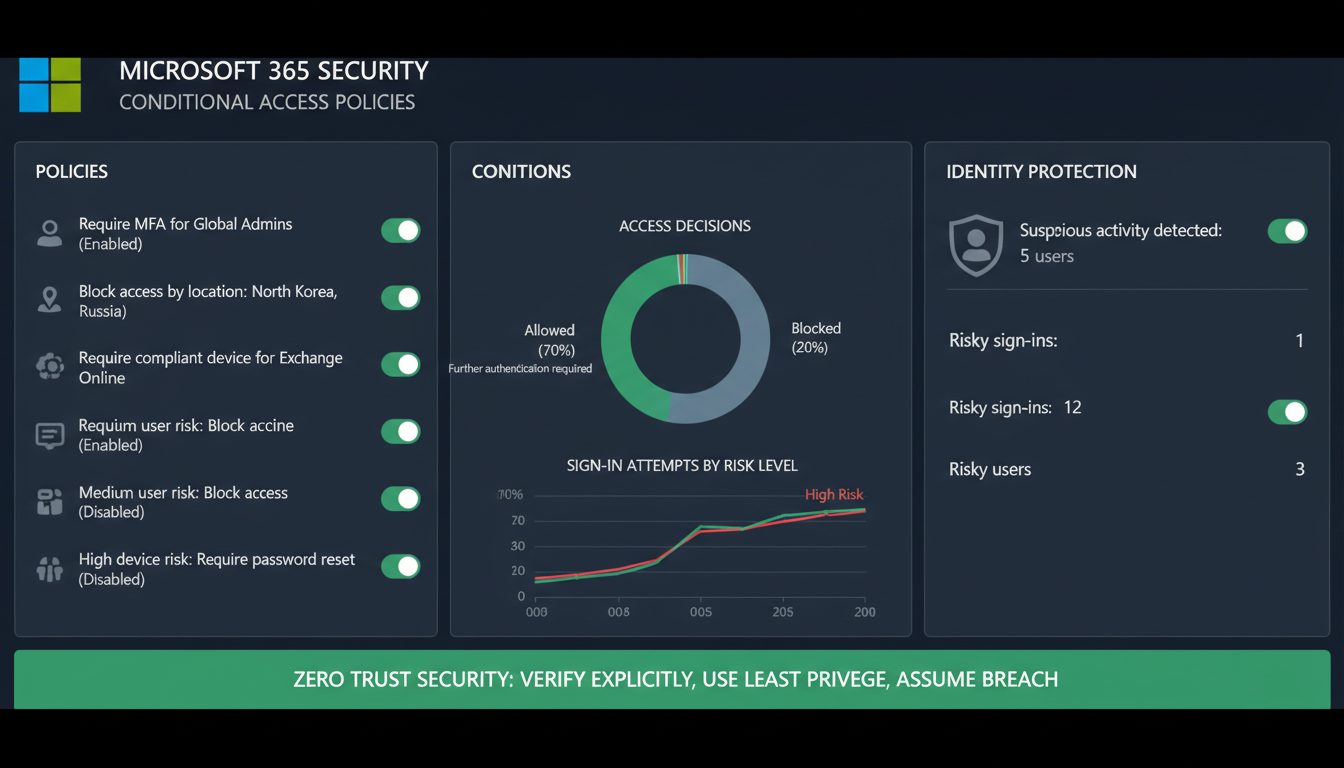
Microsoft 365 is the backbone of productivity for hundreds of thousands of UK businesses. From Outlook and Teams to SharePoint and OneDrive, these tools contain your organisation's most sensitive communications, documents, and data. Yet many businesses rely on nothing more than a username and password to protect access to this treasure trove of information. In an era where credential theft, phishing attacks, and account compromise are daily occurrences, this is simply not enough.
Conditional Access is Microsoft's answer to this challenge. It is a powerful policy engine built into Azure Active Directory (now Microsoft Entra ID) that allows you to define precisely who can access your Microsoft 365 environment, from where, on what devices, and under what conditions. Think of it as an intelligent gatekeeper that evaluates every login attempt against a set of rules you define and either grants access, blocks access, or requires additional verification depending on the risk level.
This guide walks you through everything you need to know about setting up Conditional Access policies for your UK business, from the fundamentals through to advanced configurations.
What Is Conditional Access?
Conditional Access policies work on a simple principle: if a certain condition is true, then apply a certain control. For example: if a user is logging in from outside the United Kingdom, then require multi-factor authentication. Or: if a device is not enrolled in Intune, then block access to SharePoint. Or: if a sign-in risk is detected as high, then block access completely.
These policies are evaluated in real time every time someone attempts to access a Microsoft 365 resource. Multiple policies can apply simultaneously, and the most restrictive outcome always wins. This layered approach allows you to create sophisticated access rules that adapt to the context of each login attempt.
Before you can create Conditional Access policies, you need the appropriate Microsoft licensing. Conditional Access is included with Microsoft 365 Business Premium, Microsoft 365 E3/E5, Azure AD Premium P1/P2 (now Microsoft Entra ID P1/P2), and Enterprise Mobility + Security E3/E5. If you are on Microsoft 365 Business Basic or Standard, you will need to upgrade to Business Premium or add Azure AD Premium P1 licences to use Conditional Access. You also need Global Administrator or Conditional Access Administrator privileges in your Microsoft 365 tenant.
How Conditional Access Evaluates Sign-In Signals
Understanding how Conditional Access evaluates sign-in attempts is crucial for designing effective policies. Every time a user or application attempts to access a Microsoft 365 resource, the Conditional Access engine collects and analyses a range of signals before making an access decision. These signals form the intelligence layer that enables context-aware security.
User and group membership. The engine identifies who is attempting to sign in and which Azure AD groups they belong to. This allows you to create policies that target specific departments, roles, or teams. For example, your finance team might face stricter access controls than your marketing team because they handle sensitive financial data.
IP location and named locations. Every sign-in attempt carries an IP address, which the engine resolves to a geographic location. You can define named locations in the Entra admin centre - marking your office IP ranges as trusted, identifying countries where your business operates, and flagging regions with elevated risk. According to the UK National Cyber Security Centre, a significant proportion of credential-based attacks originate from IP addresses outside the United Kingdom, making location-based policies particularly effective for UK businesses.
Device platform and compliance state. The engine evaluates the device being used - its operating system, whether it is enrolled in Microsoft Intune, and whether it meets your compliance policies. A fully managed, encrypted Windows device with up-to-date patches represents a vastly different risk profile than an unknown Android device connecting from a public Wi-Fi network. This signal is essential for organisations supporting bring-your-own-device (BYOD) arrangements.
Application sensitivity. Not all Microsoft 365 applications carry the same risk. Accessing a general-purpose Teams meeting is lower risk than downloading confidential documents from SharePoint. Conditional Access allows you to target specific cloud applications or groups of applications, enabling you to apply proportionate controls based on what the user is trying to access.
Real-time sign-in risk. With Azure AD Premium P2 licensing, the engine evaluates real-time risk signals using machine learning. It analyses factors such as impossible travel (a user signing in from London and then from Singapore thirty minutes later), sign-ins from IP addresses associated with malware or bot networks, unfamiliar sign-in properties, and whether the user's credentials have appeared in known data breaches. These risk scores - low, medium, or high - can trigger different policy responses automatically.
Client application type. The engine distinguishes between modern authentication clients (such as Outlook desktop app, Teams, and browser-based access) and legacy authentication clients (such as POP3 and IMAP email clients). This distinction is critical because legacy clients cannot respond to MFA challenges, making them a primary attack vector if left unblocked.
UK Cyber Threat Landscape: Why Conditional Access Matters
The scale of cyber threats facing UK businesses makes Conditional Access not just advisable but essential. The UK Government's Cyber Security Breaches Survey consistently reveals that businesses of all sizes face persistent and evolving threats. Understanding the specific threat categories that Conditional Access mitigates helps justify the investment in proper policy configuration.
Phishing remains the dominant attack vector for UK businesses, with the vast majority of successful breaches beginning with a fraudulent email designed to harvest credentials. Credential stuffing attacks - where attackers use username and password combinations leaked from other breaches - have surged as billions of compromised credentials circulate on dark web marketplaces. Brute force attacks systematically attempt common passwords against known email addresses. Legacy protocol exploits target older authentication methods that bypass modern security controls. Session hijacking intercepts or replays authentication tokens to gain unauthorised access.
Each of these attack categories is directly addressed by one or more Conditional Access policies. MFA requirements neutralise phishing and credential stuffing by ensuring a stolen password alone is insufficient. Blocking legacy authentication eliminates the protocol-level bypass that attackers exploit. Location and risk-based policies catch anomalous sign-in patterns before they result in data access. Together, a well-configured set of Conditional Access policies creates overlapping defensive layers that address the full spectrum of identity-based threats facing UK organisations.
The Five Essential Policies Every UK Business Should Implement
While Conditional Access supports virtually unlimited policy combinations, there are five policies that every UK business should implement as a minimum baseline. These policies address the most common attack vectors and provide substantial security improvement with minimal user impact.
Policy 1: Require MFA for All Users
Multi-factor authentication is the single most effective security control you can implement. Microsoft's own research shows that MFA blocks 99.9% of account compromise attacks. Your first Conditional Access policy should require MFA for all users accessing any Microsoft 365 application. To configure this, navigate to the Microsoft Entra admin centre, select Conditional Access under Protection, create a new policy, set the target to all users (excluding your break-glass emergency access account), set the target cloud apps to All cloud apps, and under Grant, select Require multifactor authentication.
Policy 2: Block Legacy Authentication
Legacy authentication protocols such as POP3, IMAP, and SMTP Basic Auth do not support MFA, making them a favourite target for attackers. Even with MFA enforced, if legacy authentication is not blocked, attackers can bypass MFA entirely using these older protocols. Create a policy that targets all users, sets the condition to Client apps with Legacy authentication clients selected, and sets the grant control to Block access. This single policy eliminates one of the most exploited attack vectors in Microsoft 365 environments.
Policy 3: Require Compliant Devices for Sensitive Data
If you use Microsoft Intune for device management, you can create a policy that requires devices to be enrolled and compliant before they can access sensitive applications such as SharePoint and OneDrive. This ensures that company data can only be accessed from devices that meet your security standards - devices with up-to-date antivirus, enabled firewalls, current operating system patches, and disk encryption.
Policy 4: Block Access from High-Risk Locations
While legitimate business travel occurs, the reality is that most UK small businesses operate primarily within the United Kingdom. Creating a policy that requires additional verification - or blocks access entirely - for sign-ins from countries where your business has no operations significantly reduces your attack surface. You can define named locations in the Entra admin centre and use them as conditions in your Conditional Access policies.
Policy 5: Require MFA for Administrative Actions
Administrative accounts - Global Administrators, Exchange Administrators, SharePoint Administrators - have elevated privileges that make them high-value targets. Create a specific policy that targets users in administrative roles and requires MFA plus a compliant device for every sign-in, regardless of location or other factors. Consider also requiring re-authentication every four hours for administrative sessions.
| Policy | Target Users | Target Apps | Conditions | Grant Control |
|---|---|---|---|---|
| Require MFA for All | All users (excl. break-glass) | All cloud apps | None | Require MFA |
| Block Legacy Auth | All users | All cloud apps | Legacy auth clients | Block |
| Compliant Devices | All users | SharePoint, OneDrive | None | Require compliant device |
| Block Risky Locations | All users | All cloud apps | Outside UK + trusted | Block or require MFA |
| Admin Protection | Admin roles | All cloud apps | None | MFA + compliant device |
Step-by-Step Implementation Guide
Implementing Conditional Access policies should be done carefully and methodically. A misconfigured policy can lock users out of their accounts or, worse, lock you out of your own admin portal. Follow this process to implement safely.
Create a Break-Glass Account
Before creating any Conditional Access policies, ensure you have a break-glass (emergency access) account. This is a Global Administrator account that is excluded from all Conditional Access policies. It should use a very long, complex password stored securely (such as in a physical safe), should not have MFA configured, and should be monitored for any sign-in activity. This account exists solely as a recovery mechanism in case a misconfigured policy locks all administrators out of the tenant.
Use Report-Only Mode First
Every Conditional Access policy should be deployed in Report-Only mode before being enforced. In this mode, the policy evaluates every sign-in and logs what would have happened if the policy were active, but does not actually block or challenge anyone. Leave policies in Report-Only mode for at least one week, then review the sign-in logs in the Entra admin centre to understand the impact. Look for legitimate users or scenarios that would be blocked, and adjust your policies accordingly before switching to On.
Best Practices
- Always create a break-glass account first
- Deploy in Report-Only mode before enforcing
- Start with the least disruptive policies
- Communicate changes to staff in advance
- Exclude service accounts where appropriate
- Monitor sign-in logs after each change
- Document all policies and their purpose
- Review and update policies quarterly
Common Mistakes
- No break-glass account (risking lockout)
- Enforcing policies without testing
- Blocking legacy auth before migrating apps
- Not communicating changes to users
- Forgetting about service accounts and apps
- Creating too many overlapping policies
- Not monitoring policy impact after deployment
- Setting policies and never reviewing them
Advanced Conditional Access Scenarios
Once you have the five essential policies in place, you can explore more advanced scenarios that further tighten your security posture.
Risk-Based Conditional Access
If you have Azure AD Premium P2 licences, you can leverage Microsoft's Identity Protection to create risk-based policies. These policies evaluate the risk level of each sign-in in real time - considering factors such as unfamiliar locations, impossible travel, malware-linked IP addresses, and leaked credentials - and automatically respond. A medium-risk sign-in might trigger MFA, whilst a high-risk sign-in is blocked entirely and the user is required to reset their password.
Session Controls
Conditional Access can also control what happens during a session, not just at the point of sign-in. You can limit the session duration, prevent users from downloading files when accessing from unmanaged devices, and integrate with Microsoft Defender for Cloud Apps to provide real-time monitoring of user activity within Microsoft 365 applications.
Terms of Use
You can require users to accept a Terms of Use document before accessing Microsoft 365 resources. This is particularly useful for GDPR compliance, contractor access, and BYOD scenarios where you need documented acknowledgement that users understand their responsibilities regarding company data.
Conditional Access for Hybrid and Remote Workforces
The shift toward hybrid and remote working has fundamentally changed how UK businesses must think about access security. According to the Office for National Statistics, approximately 28% of UK workers now operate in a hybrid pattern, splitting time between home and office, whilst around 16% work entirely from home. This means that a significant portion of your Microsoft 365 access is now occurring from home networks, personal devices, and occasionally from co-working spaces, cafes, and other shared environments.
Conditional Access is uniquely suited to securing hybrid work because it evaluates context rather than simply relying on network perimeter controls. Traditional security models assumed that anyone inside the office network was trusted and anyone outside was blocked. Hybrid work makes this model obsolete. Conditional Access replaces the network perimeter with an identity perimeter, evaluating each access attempt individually based on who, what, where, and how.
Home worker policies. For employees who work regularly from home, create named locations for their home IP addresses (if static) or define a policy that allows access from UK-based IP addresses with MFA, whilst requiring both MFA and a compliant device for access from non-UK locations. This provides a balance between security and convenience - home workers are not constantly challenged but are still protected.
BYOD policies. Many UK SMEs allow employees to use personal devices for email and Teams access. Conditional Access can require app protection policies on personal devices, which encrypt company data within managed applications without taking control of the entire device. This protects company data whilst respecting employee privacy - an important consideration under UK employment law and GDPR. You can allow personal devices to access email and Teams but block them from downloading SharePoint files, ensuring sensitive documents remain on managed devices only.
Contractor and guest access. External contractors, consultants, and partner organisations who need access to your Microsoft 365 environment represent a unique risk. They use their own devices and networks, which you do not control. Create Conditional Access policies specifically for guest users that require MFA on every sign-in, restrict access to only the specific applications they need, enforce session time limits, and prevent file downloads from unmanaged devices. Azure AD B2B collaboration combined with Conditional Access gives you granular control over external access without compromising security.
Conditional Access and UK Compliance
For UK businesses, Conditional Access policies directly support compliance with several regulatory frameworks. Under UK GDPR, Article 32 requires appropriate technical measures to ensure the security of personal data processing. Conditional Access demonstrates that you have implemented granular access controls and authentication requirements. The ICO has specifically cited multi-factor authentication and access controls as expected security measures in its enforcement guidance.
For Cyber Essentials certification, Conditional Access supports the access control and secure configuration requirements. Being able to demonstrate that you enforce MFA, block legacy protocols, and require device compliance puts you in a strong position for certification.
Businesses in regulated sectors face additional requirements. Financial services firms regulated by the FCA must demonstrate robust access controls under the Senior Managers and Certification Regime. Healthcare organisations handling NHS patient data must comply with the Data Security and Protection Toolkit, which includes specific requirements around access control and authentication. Legal firms subject to SRA regulations must protect client confidentiality with appropriate technical measures. In all these cases, Conditional Access policies provide demonstrable, auditable evidence of access control enforcement that satisfies regulatory expectations.
The UK National Cyber Security Centre (NCSC) actively recommends the use of multi-factor authentication and conditional access controls as part of its guidance for organisations of all sizes. Their advice on securing Microsoft 365 specifically references Conditional Access as a key protective measure, and their guidance on mitigating phishing attacks identifies MFA enforcement as one of the most effective countermeasures available.
Common Deployment Challenges and How to Overcome Them
Even well-planned Conditional Access deployments encounter challenges. Understanding these common issues in advance helps you prepare and respond effectively.
Service account disruption. Many businesses use service accounts for automated processes - backup tools that connect via IMAP, CRM systems that send email via SMTP, or monitoring tools that access Azure AD. These accounts often rely on legacy authentication or cannot respond to MFA challenges. Before blocking legacy authentication, audit all service accounts and either migrate them to modern authentication with application passwords or certificates, or create targeted exclusions with compensating controls such as IP-based restrictions.
User pushback on MFA. Some users resist the additional step of MFA authentication, particularly if they sign in frequently throughout the day. Address this by configuring appropriate token lifetime policies - for example, remembering MFA for trusted devices for 14 days - and by choosing user-friendly MFA methods such as the Microsoft Authenticator app with push notifications rather than SMS codes. Explain to users that the few seconds spent on MFA could prevent weeks of disruption from a compromised account.
Third-party application compatibility. Some line-of-business applications may not support modern authentication or Conditional Access. Identify these applications during the Report-Only phase and work with vendors to upgrade or find alternatives. Where upgrading is not possible, create targeted exceptions with additional compensating controls such as network-based restrictions and enhanced monitoring.
Overly complex policy sets. As organisations add more Conditional Access policies, the interactions between them can become difficult to predict. Remember that the most restrictive outcome always applies - if one policy grants access and another blocks it, access is blocked. Keep your policy set as simple as possible, document the purpose and expected behaviour of each policy, and use the What If tool in the Entra admin centre to test how multiple policies interact before enforcing them. A well-designed set of six to eight policies is far more effective than twenty overlapping rules.
Monitoring and Troubleshooting
After deploying Conditional Access policies, ongoing monitoring is essential. The Entra admin centre provides detailed sign-in logs that show which policies were applied to each sign-in attempt, whether access was granted or blocked, and why. Use these logs to identify issues, spot patterns, and continuously refine your policies.
Common troubleshooting scenarios include users unable to sign in from legitimate locations (adjust your named locations), applications failing to authenticate because they use legacy protocols (investigate and update the application or create an exception), and service accounts being blocked (exclude them from relevant policies with compensating controls).
Strengthen Your Microsoft 365 Security with Cloudswitched
Cloudswitched helps UK businesses implement and manage Conditional Access policies that protect sensitive data, enforce compliance, and support secure hybrid working. Our Microsoft-certified engineers configure, test, and maintain your policies so your organisation stays protected against evolving cyber threats.
Key Takeaways
Conditional Access is one of the most powerful security features available to UK businesses using Microsoft 365, and it is included at no additional cost with Business Premium and Enterprise licences. By implementing the five essential policies described in this guide - requiring MFA for all users, blocking legacy authentication, requiring compliant devices, restricting risky locations, and protecting admin accounts - you dramatically reduce your attack surface and bring your security posture in line with UK regulatory expectations.
The threat landscape facing UK businesses is real and growing. Phishing, credential theft, and account compromise are not theoretical risks - they are daily occurrences that affect organisations of every size. Conditional Access provides the intelligent, context-aware security layer that modern cloud environments demand. It evaluates every sign-in attempt against your rules, adapts to real-time risk signals, and enforces appropriate controls automatically.
Start with Report-Only mode, test thoroughly, and enforce methodically. Communicate changes to your team, monitor the impact, and review your policies quarterly. The investment of time pays dividends in protection, compliance confidence, and the peace of mind that comes from knowing your Microsoft 365 environment is properly secured.

CloudSwitched
London-based managed IT services provider offering support, cloud solutions and cybersecurity for SMEs.


