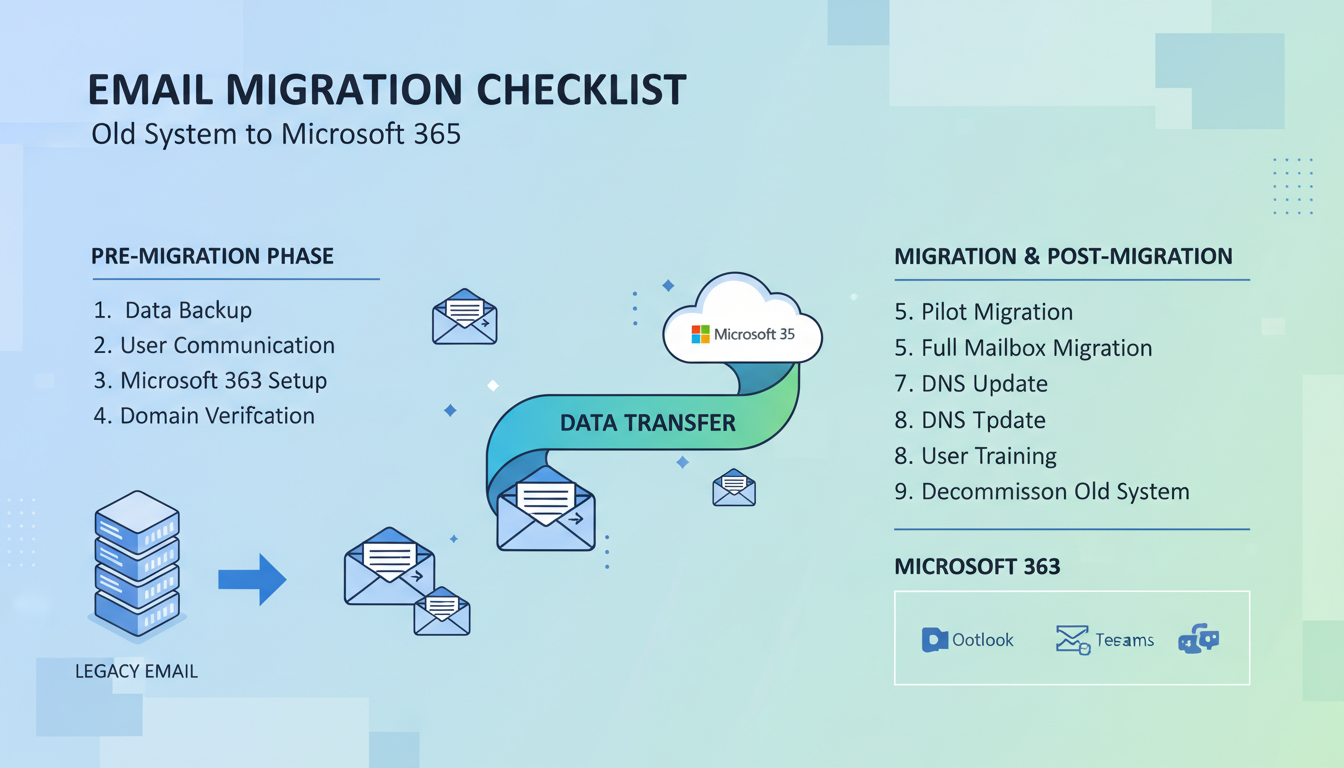
Migrating your business email to a new platform is one of the most consequential IT projects a UK business can undertake. Email is the communication backbone of virtually every organisation - it carries contracts, client correspondence, internal decisions, financial data, and compliance-sensitive information. A botched email migration can mean lost messages, days of disruption, broken client relationships, and even regulatory consequences under UK GDPR if personal data is compromised in the process.
Yet email migrations are performed routinely and successfully by thousands of UK businesses every year. The difference between a smooth migration and a disastrous one almost always comes down to preparation. Businesses that invest time in thorough planning, testing, and communication before the migration date experience minimal disruption. Those that rush the process inevitably encounter problems that could have been prevented.
The complexity of an email migration depends on several factors: the size of your organisation, the volume of historical email data, the source platform, the number of ancillary services connected to your email system, and the technical expertise available in-house. A small business with fifteen users migrating from a basic IMAP hosting provider to Microsoft 365 faces a relatively straightforward project. A mid-sized firm with two hundred users migrating from on-premises Exchange with public folders, shared calendars, and custom transport rules faces a significantly more complex undertaking that may require weeks of planning and careful execution.
Regardless of scale, the fundamental principles remain the same. Every successful email migration follows a structured process: assess what you have, plan what you need, prepare the technical infrastructure, test thoroughly, execute during a controlled window, and verify everything works afterwards. Skipping any of these steps - particularly the assessment and testing phases - dramatically increases the risk of problems that are far more costly to resolve after the fact than they would have been to prevent.
It is also worth recognising that email migration is not solely a technical exercise. It affects every person in your organisation who uses email - which is typically everyone. Communication, training, and change management are just as important as the technical migration itself. The most technically flawless migration will still be perceived as a failure if staff are confused, unable to access their email on their devices, or unsure how to use the new platform's features effectively. Planning for the human side of the migration is every bit as important as planning for the technical side.
This comprehensive checklist covers everything you need to plan, prepare, and execute a successful email migration, with a focus on the most common scenario for UK SMEs: migrating to Microsoft 365.
Phase 1: Pre-Migration Assessment
Before touching a single mailbox, you need to understand exactly what you are migrating, from where, to where, and why. This assessment phase is the foundation of a successful migration and should not be rushed.
Audit Your Current Email Environment
Document every aspect of your existing email system. How many mailboxes do you have? What are their sizes? Which email platform are you currently using - on-premises Exchange, hosted Exchange, Google Workspace, IMAP, or something else? Are there shared mailboxes, distribution lists, or aliases that need to be recreated? Do you have any email forwarding rules that must be preserved?
Identify all the ancillary services connected to your email. Calendar sharing, contacts, tasks, public folders, room booking systems, email signatures, disclaimers, transport rules, and archive solutions all need to be accounted for. Missing any of these during planning will cause problems during or after the migration.
Shared mailboxes (such as info@, sales@, accounts@) and email aliases are frequently overlooked during migration planning. Every shared mailbox needs to be recreated in the new environment with the same permissions and access rights. Every alias must be configured to ensure email continues to be received. Create a complete inventory of all shared mailboxes, distribution lists, and aliases before migration begins - discovering missing ones after the switchover causes confusion and lost email.
Define Your Migration Scope
Decide exactly what data you are migrating. For most businesses, this includes emails, calendars, contacts, and tasks. However, you also need to decide how far back to migrate historical email. Migrating ten years of email for every user takes significantly longer and costs more than migrating the last two years. Consider archiving older data separately rather than migrating everything.
| Migration Component | Complexity | Common Issues | Planning Required |
|---|---|---|---|
| User Mailboxes | Medium | Large mailboxes, corrupted items | Size audit, user communication |
| Shared Mailboxes | Medium | Permission mapping, access rights | Permission documentation |
| Distribution Lists | Low | Nested groups, external members | Membership verification |
| Calendars | Medium | Recurring events, shared calendars | Calendar sharing audit |
| Public Folders | High | Complex permissions, large data volumes | Migration tool selection, restructuring |
| Email Signatures | Low | Formatting differences between platforms | Template redesign for new platform |
| Transport Rules | Medium | Platform-specific syntax | Rule documentation and recreation |
Phase 2: Technical Preparation
DNS and Domain Verification
Your email domain (the part after the @ symbol) is controlled by DNS records. Before migration, you need to verify domain ownership in Microsoft 365 by adding a TXT record to your domain's DNS. You should also identify your current MX records, SPF records, DKIM configuration, and DMARC policy - all of which will need to be updated during the migration.
It is critical to understand that changing MX records is the point of no return - once you redirect email delivery to Microsoft 365, the new system must be ready to receive it. Plan this DNS change carefully, ideally reducing the TTL (Time to Live) on your MX records to 300 seconds several days before migration so the switch propagates quickly.
Licencing and Account Setup
Ensure you have the correct Microsoft 365 licences for every user. For most UK SMEs, Microsoft 365 Business Premium provides the best combination of email, productivity tools, and security features. Create all user accounts in Microsoft 365 before migration begins, and assign the appropriate licences. Pre-creating accounts allows you to configure settings, test access, and resolve any issues before the migration window.
Prepare Your Migration Tooling
The choice of migration tool is critical to the success of your project. Microsoft provides several built-in migration options within the Exchange admin centre, including cutover migration suitable for smaller businesses, staged migration for larger on-premises Exchange environments, and the Google Workspace migration tool. For more complex scenarios - particularly migrations from IMAP-based systems or multi-source environments - third-party tools such as BitTitan MigrationWiz or Quest On Demand Migration provide additional flexibility, reporting, and error handling capabilities.
Whichever tool you choose, perform a dry run before the actual migration. Most migration tools offer a verification or pre-staging option that checks connectivity, validates credentials, and identifies potential issues without actually moving data. This pre-flight check can reveal problems such as invalid mailbox formats, oversized items that cannot be migrated, corrupted messages, or permission issues that would otherwise cause the migration to fail or produce incomplete results on the day.
Consider also the bandwidth requirements of your migration. Migrating hundreds of gigabytes of email data over a standard business internet connection can take significantly longer than expected, particularly if your broadband service imposes upload speed limits or fair usage throttling. For large migrations, scheduling the data transfer to run overnight or over a weekend - and using incremental synchronisation to keep the destination up to date with changes made in the source during the migration period - ensures that the final cutover is quick and minimal data is at risk of being missed.
It is also advisable to establish a clear naming convention and folder structure in the new environment before migrating. If you are taking the opportunity to reorganise shared mailboxes, rationalise distribution lists, or update email address conventions, plan these changes before migration rather than attempting to restructure during or after the move. Combining a migration with a reorganisation without adequate planning is a recipe for confusion and mistakes that are difficult to unpick once the new system is live.
Pre-Migration Essentials (Complete These First)
- Full mailbox inventory with sizes
- Shared mailbox and alias documentation
- Distribution list membership records
- DNS access and current record documentation
- Microsoft 365 tenant setup and domain verification
- User accounts created and licenced
- Migration tool selected and tested
- Staff communication plan prepared
Common Mistakes (Avoid These)
- Starting migration without a full audit
- Forgetting shared mailboxes and aliases
- Not reducing DNS TTL before switchover
- Changing MX records before mailboxes are ready
- No backup of existing email data
- Migrating during peak business hours
- No test migration with pilot users
- No rollback plan if migration fails
Phase 3: Migration Execution
Choose Your Migration Method
The migration method depends on your source platform. For on-premises Exchange, a hybrid migration or cutover migration is typical. For Google Workspace, Microsoft provides a dedicated migration tool. For IMAP-based systems, IMAP migration or a third-party tool like BitTitan MigrationWiz is commonly used.
Regardless of method, always perform a test migration first. Migrate a small number of pilot users - ideally technically confident staff who can identify and report issues - and verify that emails, calendars, and contacts have transferred correctly. Only proceed with the full migration once the pilot is successful.
The Migration Window
Schedule the migration during a period of low email activity - evenings, weekends, or bank holidays. Communicate the schedule to all staff well in advance, explaining what to expect, how long the disruption might last, and who to contact if they experience problems. Provide clear instructions for setting up email on their devices after migration.
Staff Communication and Training
Effective communication is one of the most overlooked aspects of email migration. Staff need to understand what is happening, when it is happening, how it affects them personally, and what they need to do. Send a series of communications in the weeks leading up to the migration: an initial announcement explaining the change and why it is being made, a detailed guide covering the timeline and what to expect, and a final reminder the day before with specific instructions for accessing email after the switch.
For migrations that involve a change of email client - such as moving from Google Workspace to Microsoft 365, which means switching from Gmail to Outlook - training becomes essential. Even experienced email users can struggle with an unfamiliar interface, and the frustration of not being able to find basic functions reduces productivity and generates a flood of support requests. Consider providing short video tutorials, a written quick-start guide, and drop-in support sessions during the first week after migration to help staff acclimatise to the new environment.
Pay particular attention to mobile device configuration. Many employees access email primarily on their smartphones, and reconfiguring email accounts on mobile devices is where the majority of post-migration support requests originate. Prepare step-by-step instructions with screenshots for both iOS and Android devices. If your organisation uses a mobile device management solution such as Microsoft Intune, you can push email profiles to managed devices automatically, significantly reducing the burden on both staff and IT support during the transition.
For larger organisations, designate migration ambassadors - technically confident staff in each department who receive additional training and can provide first-line support to their colleagues during the transition period. This distributed support model is far more effective than relying solely on a central IT team to handle every query, and it ensures that help is available immediately within each team rather than requiring staff to join a support queue.
Phase 4: Post-Migration Verification
After migration, verify that every mailbox has been transferred completely. Check that emails are being received at the new platform, that sent mail works correctly, that calendars and contacts are intact, and that shared mailboxes and distribution lists function as expected.
Update SPF, DKIM, and DMARC DNS records to authenticate email sent from Microsoft 365. Without these records, your outgoing email may be flagged as spam by recipients' email systems. SPF tells receiving servers which systems are authorised to send email on behalf of your domain. DKIM adds a cryptographic signature to your outgoing messages. DMARC ties SPF and DKIM together and tells receiving servers what to do with messages that fail authentication.
Monitor for bounced emails, delivery delays, and user-reported issues for at least two weeks after migration. Some problems - such as emails from specific senders being rejected, or calendar sync issues with particular devices - may only surface over time as different scenarios are encountered.
Decommissioning the Old Platform
Do not rush to decommission your old email platform immediately after migration. Maintain the old system in a read-only or receiving state for at least two to four weeks after the cutover. This provides a safety net - if any emails were not migrated, if specific senders are still directing mail to the old system due to cached DNS records, or if users discover they need access to historical data that was not included in the migration scope, the old system remains available as a reference and fallback.
During this overlap period, configure the old system to forward any incoming email to the new Microsoft 365 environment. This ensures that emails sent to your old mail server - for example, by external senders whose DNS caches have not yet updated with your new MX records - are still delivered to the correct destination. Monitor the forwarding logs to understand the volume of email still being routed through the old system, and only decommission it once this volume drops to zero or near-zero over a sustained period.
Before final decommissioning, export a complete backup of the old email system and store it securely. Under UK GDPR and various sector-specific regulations, you may be required to retain email records for specified periods. Having a complete archive of your pre-migration email ensures you can respond to subject access requests, legal discovery requirements, or regulatory inquiries that reference historical correspondence. Store the backup in a secure, accessible format and document its location and contents for future reference.
Finally, cancel any licences or subscriptions associated with the old email platform once you are satisfied that the migration is complete and all data has been preserved. Review your DNS records one final time to ensure all references to the old system have been removed and that your SPF, DKIM, and DMARC records accurately reflect your new Microsoft 365 configuration. This final housekeeping step is easily forgotten but is important for both security and cost management - continuing to pay for an old email platform that is no longer in use is an unnecessary expense that can persist for months if not actively addressed.
Security Considerations
An email migration is an opportunity to improve your security posture. Configure Microsoft 365 security features from day one: enable multi-factor authentication for all users, configure anti-phishing policies, set up Safe Attachments and Safe Links, establish data loss prevention rules for sensitive information, and enable audit logging.
Under UK GDPR, email containing personal data must be protected with appropriate security measures. Microsoft 365 Business Premium includes features like email encryption, sensitivity labels, and information barriers that help you meet these obligations. Configure them as part of your migration rather than as an afterthought.
Need Help With Your Email Migration?
Cloudswitched manages email migrations for UK businesses every week, from small firms with 10 mailboxes to organisations with hundreds of users. We handle the planning, technical setup, migration execution, and post-migration support so you can focus on running your business. Contact us for a free migration assessment.
GET IN TOUCH
CloudSwitched
London-based managed IT services provider offering support, cloud solutions and cybersecurity for SMEs.


