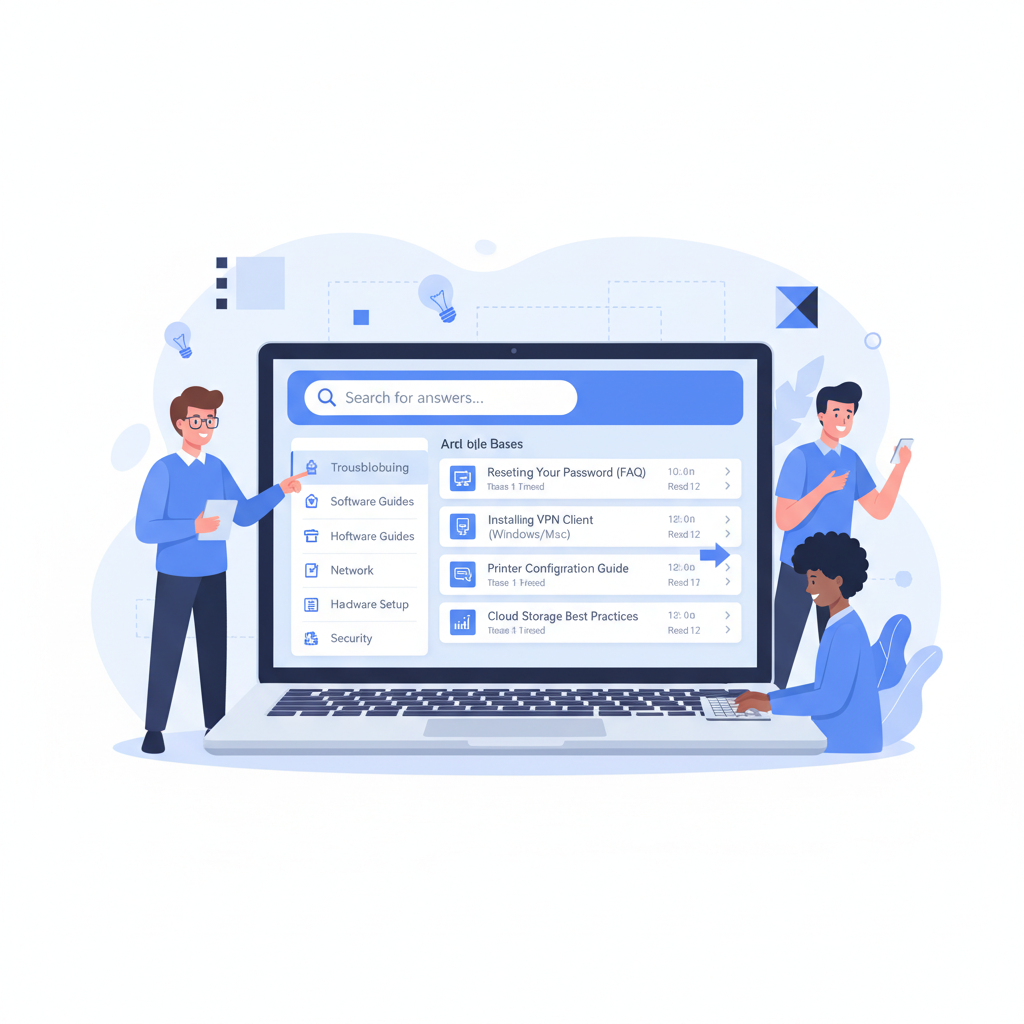
Every IT department reaches a point where answering the same questions repeatedly becomes unsustainable. Password resets, VPN setup instructions, printer troubleshooting, software installation guides - these are the requests that consume hours of technician time each week. An internal IT knowledge base transforms this cycle by giving employees the power to solve common problems themselves, while freeing your IT team to focus on strategic work that actually moves the business forward.
Whether you’re a growing SME with a small IT team or an enterprise managing thousands of endpoints, building an effective knowledge base is one of the highest-return investments you can make. This guide walks you through every step - from choosing the right platform to measuring long-term success.
Why Your Organisation Needs an Internal IT Knowledge Base
The benefits of an internal IT knowledge base extend well beyond simply deflecting support tickets. When implemented properly, a knowledge base becomes the single source of truth for your entire IT operation - a living, searchable repository that improves over time.
Faster Resolution Times
When employees can search for answers themselves, resolution times plummet. Instead of logging a ticket, waiting in a queue, and exchanging messages with a technician, staff can find step-by-step instructions in minutes. For common issues like connecting to Wi-Fi on a new device or resetting multi-factor authentication, self-service resolution typically takes under five minutes - compared to an average of 45 minutes through the traditional ticket route.
Reduced IT Workload
Repeat tickets are the silent killer of IT productivity. Studies consistently show that between 40% and 60% of all helpdesk tickets are for issues that have been resolved before. A well-maintained knowledge base intercepts these requests before they ever reach your team, allowing technicians to dedicate their expertise to complex infrastructure projects, security improvements, and strategic initiatives.
Consistent Support Quality
Without a knowledge base, the quality of IT support depends entirely on which technician picks up the ticket. One might provide a thorough, step-by-step walkthrough; another might offer a terse one-liner. A knowledge base standardises the response quality, ensuring every employee receives the same clear, tested instructions regardless of when they need help or who wrote the article.
Faster Onboarding
New starters often generate a disproportionate number of IT tickets during their first weeks. A comprehensive knowledge base - covering everything from email setup to accessing shared drives - drastically reduces this burden. New employees can work through setup guides at their own pace, and IT teams spend less time repeating the same onboarding walkthrough for every new hire.
Institutional Knowledge Preservation
When experienced IT staff leave, they take years of accumulated knowledge with them. A knowledge base captures this expertise in a structured, searchable format. Documented procedures for niche systems, workarounds for legacy applications, and configuration details for bespoke setups - all preserved for the team that follows.
Without a Knowledge Base
- IT staff answer the same questions repeatedly
- Resolution times average 30–60 minutes per ticket
- New starters overwhelm the helpdesk in week one
- Knowledge leaves when experienced staff resign
- Support quality varies by technician
- No data on which issues occur most frequently
- After-hours support is virtually non-existent
With a Knowledge Base
- Self-service handles 40–70% of common requests
- Average self-service resolution under 5 minutes
- New starters follow guided setup documentation
- Procedures and expertise are permanently documented
- Every employee gets the same tested instructions
- Analytics reveal top issues for proactive improvement
- 24/7 access to troubleshooting guides and how-tos
Choosing the Right Knowledge Base Platform
Selecting the right platform is a critical early decision. The best choice depends on your organisation’s size, existing technology stack, budget, and how much customisation you need. Here are the most popular options for UK businesses.
| Platform | Best For | Starting Price | Key Strengths | Limitations |
|---|---|---|---|---|
| Confluence | Atlassian-stack teams | £4.40/user/month | Deep Jira integration, powerful macros, strong search | Steep learning curve, can feel cluttered without governance |
| Notion | Small to mid-sized teams | £6.50/user/month | Intuitive interface, flexible databases, easy to start | Limited permissions granularity, search can be inconsistent |
| SharePoint | Microsoft 365 organisations | Included with M365 | Seamless Microsoft integration, enterprise permissions | Complex setup, dated UI without customisation effort |
| BookStack | Budget-conscious teams | Free (self-hosted) | Open-source, simple structure, low overhead | Requires server management, limited integrations |
| Document360 | Dedicated KB needs | £119/project/month | Purpose-built for knowledge bases, excellent analytics | Higher cost, may be overkill for small teams |
| IT Glue | MSPs and IT departments | £29/user/month | IT-specific features, asset documentation, SOPs | Pricey for large teams, rigid structure |
Key Selection Criteria
When evaluating platforms, consider these factors carefully:
Integration with existing tools. If your organisation runs Microsoft 365, SharePoint is already included in your licensing and integrates natively with Teams, Outlook, and Active Directory. Atlassian shops will benefit enormously from Confluence’s Jira integration, which can automatically link knowledge articles to ticket types.
Ease of contribution. The best knowledge base is one that people actually use - and contribute to. If your chosen platform requires extensive training before someone can write an article, adoption will suffer. Notion excels here with its intuitive block-based editor, while SharePoint often requires more onboarding effort.
Search capability. Internal search is arguably the most important feature of any knowledge base. If employees cannot find what they need within 30 seconds, they will default to logging a ticket. Test search thoroughly during your evaluation, including misspellings and colloquial terms.
Permissions and access control. Not all IT documentation should be visible to all staff. Sensitive procedures, security configurations, and admin credentials need restricted access. Ensure your chosen platform supports granular, role-based permissions without excessive administrative overhead.
Cost at scale. Per-user pricing models can escalate quickly. A platform costing £6 per user per month seems reasonable for 50 staff, but at 500 employees, you’re looking at £3,000 monthly - or £36,000 annually. Factor in your growth plans when calculating total cost of ownership.
Start with your top 20 most-filed ticket types. These articles alone will typically deflect 30–40% of incoming requests. Use your helpdesk’s reporting to identify these categories, then prioritise writing guides for the highest-volume, lowest-complexity issues first. Each article should follow a consistent template: problem statement, prerequisites, step-by-step solution, verification steps, and links to related articles. Include screenshots for every step that involves a user interface - visual guides reduce confusion dramatically.
Structuring Your IT Documentation
A knowledge base is only as good as its organisation. Without a clear, intuitive structure, articles become impossible to find and the entire investment loses value. The goal is to create a hierarchy that mirrors how employees think about IT problems - not how your IT team categorises them internally.
Recommended Top-Level Categories
Most IT knowledge bases benefit from a structure organised around user needs rather than technical domains:
Getting Started - New starter guides, account setup, device configuration, first-day checklists. This section is the most frequently accessed during onboarding and should be the most polished.
Email & Communication - Outlook/Gmail setup, Teams/Slack configuration, email signature templates, calendar sharing, distribution list management.
Network & Connectivity - Wi-Fi setup, VPN configuration, remote desktop access, guest network instructions, troubleshooting slow connections.
Hardware & Devices - Printer setup, monitor configuration, laptop docking stations, peripheral troubleshooting, equipment request procedures.
Software & Applications - Installation guides, licence requests, common error fixes, approved software list, update procedures.
Security & Compliance - Password policies, MFA setup, phishing awareness, data handling procedures, incident reporting.
IT Policies & Procedures - Acceptable use policies, BYOD guidelines, data retention, backup procedures, change management.
Article Naming Conventions
Consistency in article titles is crucial for searchability. Adopt a standard format and enforce it across all contributors. A proven pattern is: Action + Object + Context. For example: “Connect to VPN on Windows 11”, “Reset Password for Microsoft 365”, “Install Approved Software via Company Portal”. Avoid vague titles like “VPN Issues” or “Printer Help” - these tell the searcher nothing about what the article actually covers.
Tagging and Metadata
Beyond categories, use tags to create cross-cutting connections between articles. An article about setting up Outlook on a new laptop might sit in “Email & Communication” but should also be tagged with “onboarding”, “new starter”, and “laptop setup”. This creates multiple pathways to the same content, improving discoverability regardless of how the employee phrases their search.
Writing Effective Troubleshooting Guides
The quality of individual articles determines whether employees trust and return to the knowledge base. Poorly written guides - those missing steps, using jargon, or assuming too much technical knowledge - drive users straight back to the helpdesk.
The Anatomy of a Great Troubleshooting Article
Every troubleshooting guide should follow a consistent structure:
1. Clear problem statement. Start with a plain-English description of the symptom. “You see an error message saying ‘Your connection is not private’ when opening internal websites in Chrome.” This helps users confirm they’re reading the right article before investing time in the steps.
2. Prerequisites. List anything the user needs before starting: admin rights, specific software versions, network connectivity, or particular hardware. Nothing derails a troubleshooting flow faster than discovering halfway through that you need something you don’t have.
3. Step-by-step instructions. Number every step. Use short, direct sentences. One action per step - never combine “Click Settings, then navigate to Accounts, and select your profile” into a single step. Each step should include a screenshot showing exactly what the user should see.
4. Verification. Tell the user how to confirm the fix worked. “You should now see the dashboard loading without errors. Try refreshing the page to confirm.”
5. Escalation path. If the steps don’t resolve the issue, provide a clear next action: “If you still see the error after completing these steps, please log a ticket with the IT Service Desk, referencing article KB-0234.”
Writing for Non-Technical Users
Remember that your audience is not your IT team - it’s everyone else. Avoid acronyms without explanation. Don’t assume users know where to find Settings, Control Panel, or Terminal. Use the exact names of buttons, menus, and options as they appear on screen, formatted in bold. Write as if you’re guiding someone who has never performed this task before, because many of your readers haven’t.
The number one reason internal knowledge bases fail is stale content. Articles written for Windows 10 that haven’t been updated for Windows 11. VPN guides referencing a client your organisation replaced six months ago. Procedures for systems that no longer exist. Stale content doesn’t just fail to help - it actively damages trust. If an employee follows an outdated guide and it doesn’t work, they’re unlikely to try the knowledge base again. Implement mandatory review cycles (quarterly at minimum) and assign article owners who are accountable for keeping content current. Remove or archive articles for decommissioned systems immediately.
Knowledge Base Governance and Ownership
Without clear governance, knowledge bases quickly devolve into disorganised dumps of outdated information. Governance defines who can create, edit, review, and archive content - and how often these activities must happen.
Roles and Responsibilities
Knowledge Base Owner. A single person (typically an IT manager or senior technician) who has overall accountability for the knowledge base’s health. They set standards, approve structural changes, and report on usage metrics.
Content Authors. IT staff who write and update articles. Every article should have a named author who serves as the primary point of contact for questions and updates.
Reviewers. Experienced team members who review articles before publication. They verify technical accuracy, check for clarity, and ensure adherence to style guidelines.
Contributors. Non-IT staff who can suggest new articles, flag outdated content, or provide feedback on existing guides. This distributed model ensures the knowledge base reflects real user needs, not just what IT thinks is important.
Review Cycles
Every article should have a scheduled review date. High-traffic articles (those viewed more than 50 times per month) should be reviewed monthly. Standard articles should be reviewed quarterly. Low-traffic or niche articles can be reviewed semi-annually. During each review, the assigned author should verify that all steps still work, screenshots are current, and links are not broken.
Content Lifecycle
Articles should move through defined stages: Draft (being written), In Review (awaiting technical and editorial review), Published (live and accessible), Under Revision (being updated), and Archived (no longer relevant but retained for reference). Never delete articles outright - archive them. You may need to reference historical procedures during audits or when troubleshooting legacy systems.
Search Optimisation for Internal Documentation
If employees can’t find your articles, they don’t exist. Internal search optimisation is fundamentally different from SEO for public websites, but the principle is the same: make content discoverable using the language your audience actually uses.
Write Titles and Summaries in Plain Language
Your IT team might call it “RADIUS authentication failure”, but your employees will search for “can’t connect to Wi-Fi”. Include both technical terms and colloquial descriptions in your articles. Many platforms allow you to add synonyms or alternative keywords that improve search matching without cluttering the article itself.
Use Consistent Terminology
Decide on standard terms and use them everywhere. Is it “laptop” or “notebook”? “Wi-Fi” or “wireless”? “Password” or “passcode”? Create a terminology guide and ensure all authors follow it. Where users commonly use alternative terms, add those as tags or keywords.
Structured Metadata
Rich metadata dramatically improves search relevance. Tag every article with: the operating system(s) it applies to, the department(s) most likely to need it, the difficulty level (basic, intermediate, advanced), and the related systems or applications. This allows for filtered search, helping users narrow results quickly.
Search Analytics
Most knowledge base platforms provide search analytics showing what terms users search for and whether they find results. Monitor this data weekly. Searches that return zero results are direct signals telling you what content to create next. Searches where users click an article but immediately return to search results suggest the article doesn’t match expectations - update the title or content accordingly.
Integrating with Your Helpdesk and Ticketing System
A knowledge base reaches its full potential when it’s tightly integrated with your helpdesk. Rather than existing as a separate silo, the knowledge base should be woven into the support workflow at every touchpoint.
Ticket Deflection
Configure your helpdesk portal to suggest relevant knowledge base articles as users type their ticket description. If someone begins typing “VPN not connecting”, the system should immediately surface your VPN troubleshooting guide. Many helpdesk platforms - including Freshdesk, Zendesk, and ServiceNow - support this natively. Effective deflection can reduce ticket volume by 25–40% within the first quarter.
Agent-Side Integration
When technicians pick up tickets, the knowledge base should be searchable directly within the helpdesk interface. This ensures consistent responses and reduces the time technicians spend searching for solutions. Some platforms allow technicians to insert knowledge base articles directly into ticket replies, maintaining formatting and including all steps.
Automatic Article Suggestions
Advanced integrations can analyse incoming tickets using keywords or AI classification, then automatically attach relevant knowledge base articles to the ticket. Even if the article doesn’t fully resolve the issue, it gives the technician a starting point and provides context about what the user may have already tried.
Feedback Loops
When a technician resolves a ticket for an issue that lacks a knowledge base article, the system should flag this as a content gap. Build a workflow where resolved tickets without corresponding articles are automatically added to a content creation queue. This creates a virtuous cycle: every new ticket type eventually becomes a self-service article.
Measuring Knowledge Base Effectiveness
You cannot improve what you don’t measure. Establish clear metrics from day one and report on them regularly to demonstrate ROI and identify areas for improvement.
Key Metrics to Track
Ticket deflection rate. The percentage of support requests resolved through self-service before a ticket is created. Track this by comparing ticket volumes before and after knowledge base launch, and by monitoring how many users view a knowledge base article and don’t subsequently log a ticket for the same issue.
Article views and unique visitors. High-traffic articles confirm you’re addressing the right topics. Low-traffic articles might indicate poor search optimisation, irrelevant content, or discoverability issues.
Search success rate. The percentage of searches that result in a user clicking an article. Aim for 70% or higher. Below 50% signals serious content gaps or search configuration problems.
Article helpfulness ratings. Add a simple “Was this article helpful?” prompt at the bottom of every article. Track the ratio over time and prioritise rewriting articles with low ratings.
Time to resolution. Compare average resolution times for issues covered by knowledge base articles versus those that aren’t. The difference quantifies the knowledge base’s impact in concrete terms.
Content freshness. Track what percentage of articles have been reviewed within their scheduled cycle. Aim for 90% or higher. Articles past their review date should be flagged automatically.
Calculating ROI
To calculate the financial return on your knowledge base investment, use this formula: multiply the number of deflected tickets per month by the average cost per ticket (typically £15–£25 for UK businesses). Subtract the ongoing costs of maintaining the knowledge base (platform licensing, staff time for content creation and review). For a mid-sized organisation deflecting 200 tickets per month at £20 per ticket, that’s £4,000 in monthly savings - or £48,000 annually - against typical platform costs of £3,000–£5,000 per year.
Training Staff to Use and Contribute
Even the best-organised, beautifully written knowledge base fails if nobody knows it exists or how to use it. Adoption requires deliberate, ongoing effort across three audiences: end users, IT staff, and management.
End User Training
Make the knowledge base impossible to miss. Add a prominent link to your intranet homepage, include it in email signatures from the IT department, and embed it into your helpdesk portal. During onboarding, walk new starters through how to search the knowledge base as part of their IT induction. Create a short (under two minutes) video tutorial showing how to find and use articles.
Most importantly, make the first experience positive. If a user’s first attempt at using the knowledge base results in outdated or unhelpful content, you’ve likely lost them permanently. Ensure your highest-traffic articles are impeccable before launching.
IT Staff Training
Every member of the IT team should be comfortable both using and contributing to the knowledge base. Provide a style guide covering article templates, naming conventions, screenshot standards, and the review process. Allocate dedicated time for content creation - if writing articles is always deprioritised in favour of ticket work, the knowledge base will stagnate.
Consider gamification: track contributions per team member, celebrate milestones (“Sarah’s VPN guide deflected 150 tickets this month”), and include knowledge base contributions in performance reviews.
Management Buy-In
Present the knowledge base as a business efficiency tool, not an IT project. Share metrics in terms leadership cares about: cost savings, employee productivity, and reduced downtime. Monthly reports showing ticket deflection rates and estimated savings keep the knowledge base visible and funded. When budget discussions arise, concrete ROI figures make the case far more effectively than abstract promises of “better documentation”.
Reducing Repeat IT Tickets Through Self-Service
The ultimate goal of any IT knowledge base is to break the cycle of repetitive support requests. Here’s how to maximise self-service adoption and systematically reduce your ticket volume.
Identify Your “Top 20” Repeat Offenders
Pull a report from your helpdesk showing the most common ticket categories over the past six months. Rank them by volume and focus your initial content creation on the top 20 issues. These articles alone will typically address 60–70% of your total repeat ticket volume.
Proactive Knowledge Delivery
Don’t wait for employees to search - push knowledge to them at the right moment. Send targeted emails before known disruption events: “We’re upgrading the VPN client this weekend. Here’s how to reconnect on Monday.” Include knowledge base links in automated system notifications. When a user logs into a new device for the first time, present them with relevant setup guides automatically.
Chatbot Integration
An AI-powered chatbot that searches your knowledge base and presents answers conversationally can dramatically increase self-service adoption. Employees who wouldn’t bother searching a knowledge base will happily ask a chatbot. Tools like Microsoft Copilot (included with certain M365 licences) or dedicated solutions starting from around £500 per month can serve as an intelligent front-end to your documentation.
Continuous Improvement Loop
Build a weekly process: review new tickets, identify which could have been deflected, create or update the corresponding knowledge base articles, and monitor the impact. Over time, this process systematically closes every content gap. Organisations that commit to this loop typically achieve a 50–70% reduction in repeat tickets within 12 months.
Self-Service Metrics That Matter
Track self-service score: the ratio of knowledge base views to tickets filed. A score of 10:1 (ten article views for every ticket filed) suggests strong adoption. Below 3:1 indicates users are bypassing the knowledge base entirely. Also monitor first-contact resolution rate for tickets that do get filed - a good knowledge base should increase this metric too, as technicians use documented solutions for faster, more consistent resolutions.
Implementation Timeline
Building an effective knowledge base is not an overnight project, but neither does it need to take months before delivering value. A phased approach works best:
Weeks 1–2: Foundation. Select your platform, define your category structure, create templates, and establish governance roles. Set up the platform and configure permissions.
Weeks 3–4: Core content. Write articles for your top 20 ticket categories. Focus on quality over quantity - 20 excellent articles outperform 100 mediocre ones.
Weeks 5–6: Integration. Connect the knowledge base to your helpdesk portal. Configure ticket deflection suggestions. Set up search analytics.
Weeks 7–8: Launch and training. Announce the knowledge base to the organisation. Conduct training sessions. Monitor usage and gather early feedback.
Months 3–6: Expansion. Expand content based on search analytics and ticket analysis. Refine articles based on helpfulness ratings. Establish the weekly improvement loop.
Months 6–12: Maturity. Aim for comprehensive coverage of all common IT issues. Integrate with chatbot or AI assistant. Achieve target ticket deflection rates. Begin tracking ROI formally.
Getting It Right from Day One
An internal IT knowledge base is not just a collection of articles - it’s a fundamental shift in how your organisation approaches IT support. It moves you from a reactive, ticket-driven model to a proactive, self-service culture where employees are empowered to solve problems independently.
The organisations that succeed with knowledge bases are those that treat them as living systems, not one-off projects. They invest in governance, measure results, and continuously improve content based on real user behaviour. The technology is straightforward; the discipline of maintaining quality content over time is what separates the knowledge bases that transform IT operations from those that gather digital dust.
Start small, start with your most common tickets, and build from there. The compounding effect of each new article - reducing tickets, saving time, improving satisfaction - makes the knowledge base more valuable with every week that passes.
Build Your IT Knowledge Base
Ready to reduce repeat tickets and empower your team with self-service IT support? Our consultants can help you select the right platform, structure your documentation, and implement a knowledge base that delivers measurable ROI from week one.
Get in Touch
CloudSwitched
London-based managed IT services provider offering support, cloud solutions and cybersecurity for SMEs.


