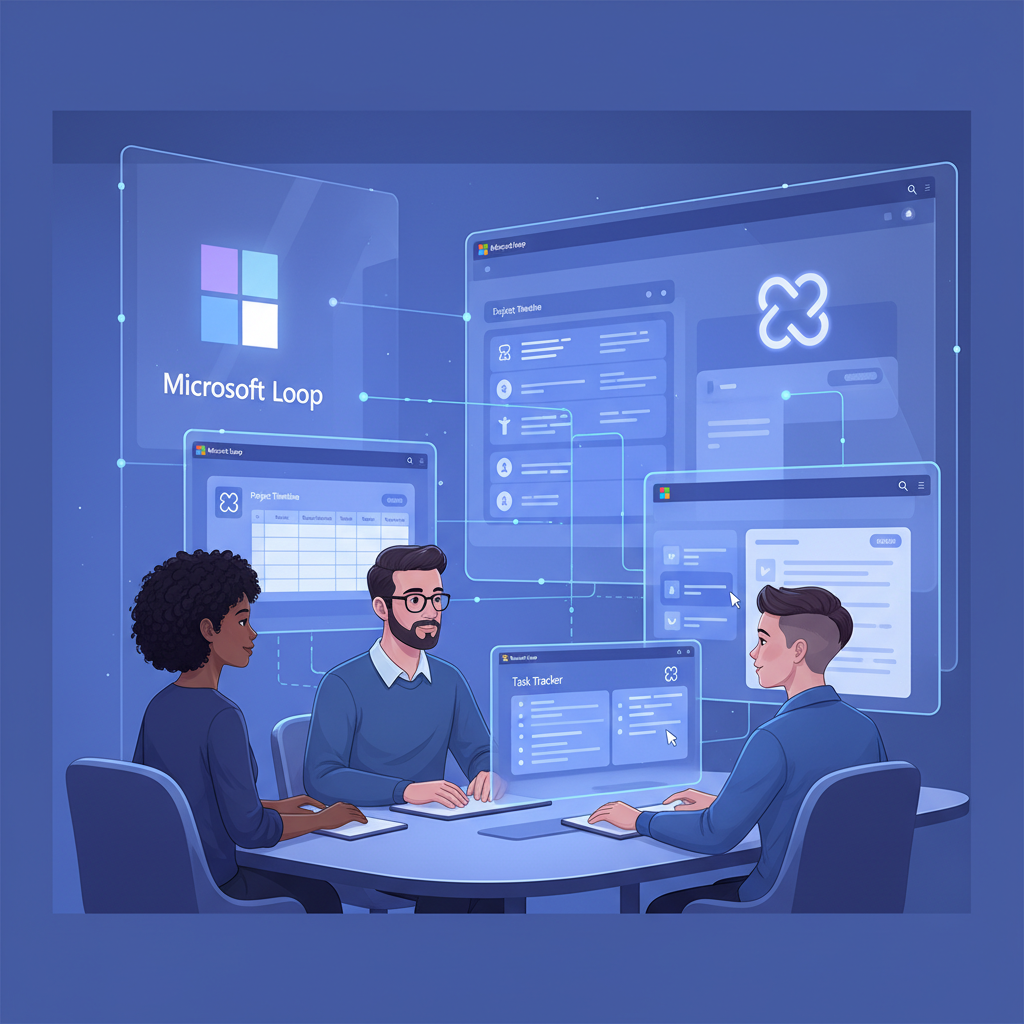
Microsoft Loop is one of the most significant additions to the Microsoft 365 ecosystem in recent years - yet many UK businesses have barely scratched the surface of what it can do. Designed as a flexible, collaborative workspace that works seamlessly across Teams, Outlook, Word, and other Microsoft 365 applications, Loop fundamentally changes how teams create, share, and manage content together in real time. If your organisation is already paying for Microsoft 365 Business Standard or above, you have access to Loop right now - and setting it up correctly can transform how your teams collaborate.
At Cloudswitched, we’ve helped hundreds of UK businesses adopt Microsoft Loop as part of their broader Microsoft 365 strategy. From small marketing teams to large enterprise departments, the impact has been consistent: fewer meetings, faster decisions, and content that actually stays up to date. This comprehensive guide walks you through everything you need to know - from understanding Loop’s core concepts to configuring permissions, integrating with your existing tools, and deploying it effectively across your organisation.
What Is Microsoft Loop?
Microsoft Loop is a collaborative platform that brings together content, tasks, and people in a single, fluid experience. Unlike traditional document-based collaboration - where you create a Word document, share it, and hope everyone edits the right version - Loop introduces a fundamentally different approach. Content in Loop is modular, portable, and always synchronised. A table you create in Loop can appear simultaneously in a Teams chat, an Outlook email, and a Loop workspace, and changes made in any of those locations are instantly reflected everywhere.
Think of Loop as the connective tissue between your Microsoft 365 applications. Rather than switching between apps to find information, Loop keeps content alive and current wherever your team needs it. It’s not a replacement for Word, Excel, or OneNote - it’s a new layer that sits above them, enabling a more dynamic and interconnected way of working.
Loop was first previewed in late 2021 and has evolved significantly since then. As of 2026, it’s a fully-featured platform available to all Microsoft 365 Business Standard, Business Premium, E3, and E5 subscribers. Microsoft continues to add capabilities at a rapid pace, making it one of the most actively developed products in the entire 365 portfolio.
Loop is not just another app - it’s a new way of thinking about content. The key insight is that Loop components are “live” objects that stay synchronised across every surface where they appear. Once your team grasps this concept, adoption tends to accelerate rapidly because the productivity benefits are immediately obvious.
Understanding Loop’s Three Building Blocks
Microsoft Loop is built around three core concepts that work together in a hierarchy: components, pages, and workspaces. Understanding how these relate to each other is essential for setting up Loop effectively in your organisation.
Loop Components
Loop components are the smallest and most powerful unit in the Loop ecosystem. A component is a portable, live piece of content - a table, a task list, a checklist, a paragraph of text, a voting table, or any other content block. What makes components special is their portability: you can create a Loop component in one place and share it in another, and it stays perfectly synchronised across every location.
For example, imagine you create a task list component in a Loop page. You then paste that component into a Teams channel message. A colleague opens the Teams message and ticks off a task. That change is instantly visible in the original Loop page, in the Teams message, and in any other location where that component has been shared. There is no “master copy” - every instance is the live version.
Available component types include:
- Paragraph - Rich text content with formatting, headings, and links
- Task list - Assignable tasks with due dates that sync with Microsoft Planner and To Do
- Table - Structured data with columns, sorting, and filtering
- Voting table - Collect team preferences and decisions quickly
- Checklist - Simple tick-box lists for tracking progress
- Bulleted and numbered lists - Standard list formatting
- Progress tracker - Visual status indicators for projects
- Q&A - Structured question-and-answer format
- Divider and heading - Structural elements for organising content
Loop Pages
Loop pages are flexible canvases that contain one or more components. Think of a page as a lightweight document - but far more dynamic than a traditional Word file. Pages can contain any combination of text, components, images, and embedded content. They’re designed for collaboration: multiple team members can edit the same page simultaneously with real-time cursor tracking and presence indicators.
Pages live inside workspaces (see below), and they can be organised, reordered, and nested to create logical structures. Unlike traditional documents, Loop pages are designed to evolve - they’re working documents that grow and change as your project progresses, rather than static files that get versioned and emailed around.
Loop Workspaces
Workspaces are the top-level organisational container in Loop. A workspace groups related pages together around a project, team, or topic. Each workspace has its own set of members with configurable permissions, making it easy to control who can view and edit content.
Workspaces are where your team comes together. You might create a workspace for a product launch, a client project, a department, or a recurring process like weekly planning. Inside each workspace, you organise pages for different aspects of the work - meeting notes, task tracking, decision logs, reference materials, and more.
Loop Components
Loop Pages
How Loop Integrates with Microsoft 365 Apps
One of Loop’s greatest strengths is how deeply it integrates with the Microsoft 365 applications your team already uses. This isn’t a standalone tool that requires people to learn a new interface from scratch - it meets your team where they already work.
Loop in Microsoft Teams
Teams is where most organisations first encounter Loop components. You can create and insert Loop components directly within a Teams chat or channel message. When you type “/” in a Teams message compose box, you’ll see Loop component options in the menu. The component appears inline in the message, and anyone in the conversation can edit it in real time.
This is transformational for meetings. Instead of someone taking notes in a separate document that gets shared afterwards, you create a Loop component directly in the Teams meeting chat. Everyone sees the notes being written in real time, can contribute simultaneously, and the notes remain permanently accessible in the chat history - always current, always live.
Common Teams + Loop use cases include:
- Meeting agendas that participants can add to before the meeting starts
- Action item lists that sync with Planner and To Do
- Decision logs that capture outcomes and rationale
- Brainstorming tables where everyone contributes ideas simultaneously
- Status updates that team leads edit weekly without creating new messages
Loop in Microsoft Outlook
Loop components work directly within Outlook emails. You can insert a Loop component into an email, and recipients can edit it without leaving their inbox. This transforms email from a one-way broadcast into a collaborative medium. Instead of sending an email asking for input and receiving fifteen separate replies that you need to consolidate, you send a single email with a Loop table or checklist that everyone edits directly.
This capability is particularly powerful for:
- Collecting availability or preferences from a group
- Gathering feedback on proposals without endless reply chains
- Distributing task lists that recipients can update with progress
- Maintaining shared reference documents that evolve over time
Loop in Word for the Web and Microsoft Whiteboard
Loop components can also be embedded in Word for the web documents and Microsoft Whiteboard sessions. In Word, this allows you to insert live, updating content into otherwise static documents - for example, embedding a live task list that reflects current project status without manual updates. In Whiteboard, Loop components bring structured content into visual brainstorming sessions.
| Microsoft 365 App | Loop Integration | Best Use Case |
|---|---|---|
| Microsoft Teams | Create & edit components in chat/channels | Meeting notes, action items, team decisions |
| Outlook | Insert components into emails | Collecting feedback, shared task lists |
| Word for the Web | Embed live components in documents | Dynamic reports with live data |
| Microsoft Whiteboard | Add structured content to boards | Brainstorming with actionable outputs |
| Loop App | Full workspace, pages, and components | Project hubs, team knowledge bases |
| Microsoft Planner | Task components sync with Planner boards | Unified task management across surfaces |
Setting Up Microsoft Loop for Your Organisation
Getting Loop up and running for your UK business involves a combination of admin configuration, user enablement, and thoughtful planning around structure and permissions. Here’s a step-by-step guide to deploying Loop effectively.
Step 1: Verify Your Microsoft 365 Licensing
Loop is included in several Microsoft 365 plans, but not all of them. Before you begin, confirm that your organisation’s licensing includes Loop access. The full Loop app (with workspaces and pages) requires Microsoft 365 Business Standard or above, while basic Loop components in Teams and Outlook are available on Business Basic.
Step 2: Configure Loop in the Microsoft 365 Admin Centre
As a Microsoft 365 administrator, you control Loop access and behaviour through the Microsoft 365 admin centre and SharePoint admin centre. Loop content is stored in users’ OneDrive for Business (for components created in chats) and in SharePoint Embedded containers (for workspace content).
To enable or configure Loop:
- Sign in to the Microsoft 365 admin centre (admin.microsoft.com)
- Navigate to Settings > Org settings > Microsoft Loop
- Review and configure the following options:
- Loop workspaces - Enable or disable the full Loop app with workspaces
- Loop components in Teams - Control whether users can create Loop components in Teams chats and channels
- Loop components in Outlook - Control Loop component availability in email
- Loop components for external collaborators - Allow or restrict guest access to Loop content
- Click Save to apply your configuration
Changes to Loop settings in the admin centre can take up to 24 hours to propagate across your tenant. Do not repeatedly toggle settings if changes don’t appear immediately. Plan your configuration changes in advance and communicate expected timelines to your team.
Step 3: Configure SharePoint and OneDrive Settings
Because Loop content is stored in SharePoint and OneDrive, your SharePoint sharing and access policies directly affect Loop behaviour. In the SharePoint admin centre:
- Ensure OneDrive sharing is set appropriately - Loop components created in Teams chats are stored in the creator’s OneDrive
- Review external sharing policies if you want guests to collaborate on Loop content
- Check conditional access policies to ensure they don’t inadvertently block Loop access from required devices or locations
- Verify retention and DLP policies cover Loop content if you’re in a regulated industry
Step 4: Set Up Your First Workspace
Once admin configuration is complete, it’s time to create your first Loop workspace. We recommend starting with a pilot team before rolling out organisation-wide:
- Open loop.microsoft.com in your browser or launch the Loop app
- Click Create a workspace and give it a descriptive name (e.g., “Marketing Q2 Campaign” or “IT Project Tracker”)
- Add members by typing names or email addresses - only added members can see the workspace
- Create your first page within the workspace
- Add components to the page - start with a task list or table to demonstrate the collaborative features
- Share a component into a Teams channel to show the cross-app synchronisation
Start your Loop rollout with a team that has frequent meetings and collaborative workflows - such as marketing, project management, or product development. These teams see immediate value from live meeting notes, shared task lists, and real-time content editing. Their enthusiasm will help drive adoption across the wider organisation.
Permissions and Governance
Managing who can access, edit, and share Loop content is critical - especially for UK businesses subject to GDPR and industry regulations. Loop’s permission model is built on the same foundation as SharePoint and OneDrive, which means your existing governance policies largely apply.
Workspace-Level Permissions
Each Loop workspace has its own membership list. When you create a workspace, you choose who has access. Members can be assigned one of two roles:
- Owner - Can manage workspace settings, add/remove members, delete the workspace, and edit all content
- Member - Can create, edit, and delete pages and components within the workspace
Only people explicitly added to a workspace can see its contents. This provides a clear security boundary that administrators can audit through the SharePoint admin centre.
Component-Level Sharing
When a user shares a Loop component in Teams or Outlook, the sharing permissions of that component are governed by your organisation’s OneDrive sharing policies. By default, anyone in the organisation who receives a shared component link can edit it. Administrators can restrict this to specific people only, or enable external sharing for guest collaboration.
| Permission Level | Scope | Who Controls It | Default Behaviour |
|---|---|---|---|
| Workspace Access | Entire workspace | Workspace owner | Members only - explicitly invited |
| Page Sharing | Individual page | Any workspace member | Accessible to workspace members |
| Component Sharing | Single component | Component creator + org policy | Organisation-wide edit access via link |
| External Guest Access | Components shared externally | SharePoint/OneDrive admin | Disabled by default - admin must enable |
| Data Retention | All Loop content | Compliance admin | Follows SharePoint/OneDrive retention policies |
| DLP Policies | All Loop content | Security admin | Covered by existing M365 DLP rules |
Loop content is stored in SharePoint Embedded and OneDrive, both of which support UK data residency. However, if your organisation has strict data classification requirements, ensure your Microsoft Purview sensitivity labels and DLP policies are configured to cover Loop content. Loop supports sensitivity labelling at the workspace level, allowing you to enforce classification and protection policies consistently.
Real-Time Collaboration in Practice
Real-time collaboration is Loop’s defining feature, and it works differently from the co-authoring you may have experienced in Word or Google Docs. Here’s what makes it distinctive.
Simultaneous Editing Without Conflicts
Loop uses operational transformation technology to ensure that multiple users can edit the same content simultaneously without conflicts. You’ll see coloured cursors showing where each collaborator is working, and changes appear in real time - typically within one to two seconds. There are no “save” buttons and no version conflicts. Every change is automatically saved and synchronised.
Cross-App Synchronisation
This is where Loop truly differentiates itself. A component edited in Teams is instantly updated in the Loop app, in Outlook, and anywhere else it appears. This eliminates the problem of stale information that plagues traditional document sharing. When someone updates a status in a Loop table, everyone who can see that table - regardless of which app they’re viewing it in - sees the update immediately.
Presence and Awareness
Loop shows you who else is currently viewing or editing a page or component. Presence indicators appear as avatar icons, and active cursors are colour-coded per user. This awareness reduces duplicate work and enables spontaneous collaboration - you can see that a colleague is working on the same page and jump in to help without needing to schedule a meeting.
Comments and @Mentions
Loop supports inline comments and @mentions within pages and components. When you @mention someone, they receive a notification in Teams and can navigate directly to the relevant content. Comments create threaded discussions attached to specific content, keeping feedback contextual and organised.
Practical Use Cases for UK Businesses
Loop’s flexibility means it can serve a wide range of collaborative workflows. Here are the use cases we see most frequently among our UK clients.
Meeting Management
This is the single most popular Loop use case. Create a Loop page for each recurring meeting with an agenda template, action items from previous meetings, and a notes section. Share the page link in the Teams meeting invite. During the meeting, everyone contributes notes simultaneously. Action items are assigned in real time, and they sync to Planner and To Do for follow-up. After the meeting, there’s nothing to send around - the notes are already shared and always current.
Project Tracking
Create a Loop workspace for each project. Use pages for different workstreams, with task list components tracking deliverables. Project managers can share individual components into Teams channels for team visibility, while the workspace provides the comprehensive view. Status updates happen in real time, eliminating the need for weekly status report emails.
Knowledge Bases and Wikis
Loop workspaces make excellent lightweight wikis for teams. Create pages for processes, policies, FAQs, and reference materials. Because Loop pages support rich formatting, embedded tables, and nested structures, they’re well-suited for documentation that needs to be collaboratively maintained and easily discoverable.
Cross-Departmental Collaboration
When multiple departments need to collaborate - for example, marketing and sales coordinating on a campaign, or IT and HR managing an employee onboarding process - a shared Loop workspace provides a neutral ground. Rather than emailing documents back and forth between departments, everyone works in the same live environment.
Client-Facing Collaboration
If your organisation’s admin has enabled external sharing, Loop components can be shared with clients and partners. This is particularly useful for agencies, consultancies, and professional services firms that need to co-create content or track deliverables with external stakeholders.
Microsoft Loop vs Notion vs Confluence
Loop enters a market already served by established tools like Notion and Atlassian Confluence. Understanding how Loop compares helps you decide whether it’s the right choice for your organisation - or whether an alternative better suits your needs.
Microsoft Loop
Notion
| Feature | Microsoft Loop | Notion | Confluence |
|---|---|---|---|
| Primary Audience | M365 organisations | Startups, small teams | Jira-using dev teams |
| Pricing (per user/month) | Included in M365 (£9.40+) | £6–£12 (separate) | £4.50–£8.15 (separate) |
| Real-Time Co-Editing | ✓ | ✓ | ✓ (limited) |
| Cross-App Live Components | ✓ Teams, Outlook, Word | ✗ | ✗ |
| Database / Structured Data | Tables, task lists | Full databases with relations | Macros, structured pages |
| Enterprise Compliance | Purview, DLP, eDiscovery | Enterprise plan only | Atlassian Guard Premium |
| Jira Integration | Third-party connector | Third-party connector | Native deep integration |
| Best For | M365-centric UK businesses | Web-first creative teams | Software development teams |
If your organisation already pays for Microsoft 365 Business Standard or above, Loop represents exceptional value because there’s no additional cost. Adding Notion or Confluence on top of an existing M365 subscription means paying twice for overlapping functionality. For most UK businesses already in the Microsoft ecosystem, Loop is the logical choice unless you have specific requirements (like Notion’s relational databases or Confluence’s Jira integration) that Loop doesn’t yet match.
Microsoft 365 Licensing for Loop
Understanding exactly which Loop features are available on each Microsoft 365 plan helps you make informed licensing decisions. Here’s a detailed breakdown of Loop availability across the most common UK business plans.
| Microsoft 365 Plan | Price (Per User/Month) | Loop Components | Loop Pages | Loop Workspaces | Copilot in Loop |
|---|---|---|---|---|---|
| Business Basic | £4.60 | ✓ In Teams & Outlook | ✗ | ✗ | ✗ |
| Business Standard | £9.40 | ✓ | ✓ | ✓ | Add-on (£25/user/mo) |
| Business Premium | £16.60 | ✓ | ✓ | ✓ | Add-on (£25/user/mo) |
| E3 | £28.10 | ✓ | ✓ | ✓ | Add-on (£25/user/mo) |
| E5 | £46.40 | ✓ | ✓ | ✓ | Add-on (£25/user/mo) |
Many UK businesses can save money by mixing licence tiers. Users who only need to view and edit Loop components in Teams and Outlook (such as frontline workers or occasional collaborators) may only need Business Basic licences (£4.60/user/month). Reserve Business Standard or Premium licences for knowledge workers who need full Loop workspaces, pages, and desktop Office applications.
Best Practices for Deploying Loop
After helping dozens of UK organisations deploy Loop, we’ve identified the practices that separate successful rollouts from stalled adoptions. Follow these guidelines to maximise your return on investment.
1. Start with a Pilot Team
Don’t enable Loop for your entire organisation on day one. Select a team of 10–20 enthusiastic early adopters - ideally from a collaborative function like marketing, project management, or product development. Let them use Loop for four to six weeks, gather feedback, and refine your workspace structure and governance policies before expanding.
2. Define a Clear Workspace Structure
Decide upfront how workspaces will map to your organisation. Common approaches include:
- Per-project workspaces - One workspace per major project or initiative, archived when complete
- Per-team workspaces - One persistent workspace per department or team for ongoing collaboration
- Hybrid approach - Team workspaces for ongoing work plus project workspaces for time-bound initiatives
3. Establish Naming Conventions
As Loop usage grows, consistent naming becomes critical. Establish conventions for workspace names, page titles, and component labels. For example: “[Team] – [Purpose]” for workspaces (e.g., “Marketing – Q2 Campaign 2026”) and “[Date] – [Meeting Name]” for meeting note pages.
4. Integrate with Existing Workflows
Loop works best when it’s woven into existing habits rather than imposed as a separate tool. Encourage teams to create Loop components within Teams meetings rather than asking them to open a separate app. Use Power Automate to connect Loop with other business processes - for example, automatically creating a Loop page when a new project is created in Planner.
5. Train on Components First, Workspaces Second
The fastest path to adoption is teaching people to use Loop components in Teams and Outlook - the apps they already live in. Once users understand the power of live, synchronised components, they naturally progress to creating full pages and workspaces. Don’t lead with workspaces; lead with the immediate value of components.
6. Configure Governance Before Scaling
Before rolling Loop out organisation-wide, ensure your governance policies are in place:
- Set appropriate sharing defaults in the SharePoint admin centre
- Configure sensitivity labels for Loop workspaces if required
- Ensure DLP policies cover Loop content
- Define retention policies for Loop content
- Establish clear guidelines for external sharing
7. Monitor Adoption and Iterate
Use the Microsoft 365 admin centre’s usage reports to track Loop adoption across your organisation. Monitor metrics like active users, workspaces created, components shared, and cross-app usage patterns. Use this data to identify teams that need additional support and to demonstrate ROI to leadership.
Loop Adoption Readiness Scorecard
Before scaling Loop across your organisation, evaluate your readiness in these key areas. Scores above 80 indicate you are well-prepared; anything below 70 suggests further groundwork is needed before a wider rollout.
Common Challenges and How to Overcome Them
No technology rollout is without its hurdles. Here are the most common challenges UK businesses face when deploying Loop, along with proven solutions.
Challenge: Users Don’t See the Point
Some team members may question why they need “another app” when they already have Teams, OneNote, and SharePoint. The solution is to demonstrate Loop in context - create a Loop component live during a team meeting and show how it synchronises across apps. Once people experience the real-time, cross-app sync firsthand, resistance typically melts away.
Challenge: Workspace Sprawl
Without governance, teams may create excessive workspaces that become difficult to manage. Establish clear guidelines for when a workspace is appropriate (projects with three or more collaborators, lasting more than two weeks) versus when a simple Loop component in a Teams message suffices.
Challenge: Content Discoverability
As Loop usage grows, finding specific content can become difficult. Encourage consistent naming conventions, use Loop’s search functionality, and consider creating an index page within each workspace that links to key pages and components.
Challenge: External Collaboration Limitations
If your organisation’s sharing policies are restrictive, external guests may struggle to access Loop content. Work with your IT admin to create appropriate conditional access policies that balance security with collaboration needs for external stakeholders.
The Future of Microsoft Loop
Microsoft continues to invest heavily in Loop, with a roadmap that includes deeper Copilot AI integration, enhanced template capabilities, improved offline support, and tighter connections with Power Platform. For UK businesses already in the Microsoft 365 ecosystem, Loop’s trajectory suggests it will become an increasingly central part of how teams collaborate - making early adoption a strategic advantage.
Key upcoming features on the Microsoft 365 roadmap include:
- Copilot-powered page generation - Create entire pages from natural language prompts
- Advanced analytics - Workspace-level insights into collaboration patterns
- Enhanced external sharing - More granular controls for guest collaborators
- Improved mobile experience - Full-featured Loop app on iOS and Android
- Power Automate connectors - Deeper workflow integration with Loop events as triggers
Getting Started with Loop Today
Microsoft Loop represents a genuine step forward in how teams collaborate within the Microsoft 365 ecosystem. Its unique combination of portable, live components; flexible workspaces; and deep integration with Teams, Outlook, and other M365 apps makes it a compelling tool for any UK business already invested in Microsoft’s platform. The fact that it’s included at no extra cost with Business Standard and above makes the decision to adopt it straightforward.
The key to success is thoughtful deployment: start with a pilot team, establish governance early, lead with components rather than workspaces, and iterate based on real usage data. Organisations that follow this approach consistently report fewer status meetings, faster decisions, and better-informed teams within the first quarter of adoption.
Whether you’re a 10-person startup or a 500-person enterprise, Microsoft Loop has the flexibility to adapt to your collaborative workflows. The question isn’t whether to adopt Loop - it’s how quickly you can get started.
Want to Deploy Microsoft Loop?
Our team of certified Microsoft 365 experts will configure Loop for your organisation, set up governance policies, train your team, and ensure you get maximum value from day one. Whether you need a fresh Microsoft 365 deployment or want to enable Loop on your existing tenant, Cloudswitched makes it seamless.

CloudSwitched
London-based managed IT services provider offering support, cloud solutions and cybersecurity for SMEs.


