Microsoft 365 is the backbone of business productivity for hundreds of thousands of UK organisations. From email and document storage to video conferencing and collaboration, the platform touches virtually every aspect of daily work. Yet despite paying for licences every month - often £10 to £30 per user - many business owners have never logged into the Microsoft 365 Admin Centre, leaving its management entirely to an IT provider or a technically inclined member of staff.
While delegating day-to-day administration is perfectly sensible, understanding the Admin Centre at a high level gives business owners valuable oversight. It allows you to verify what you are paying for, understand how your team uses the platform, ensure security settings are appropriate, and make informed decisions about licence allocation and service configuration. You do not need to become a Microsoft administrator, but knowing your way around the dashboard is a business advantage.
The Admin Centre has evolved significantly over the past few years, and Microsoft continues to refine its interface regularly. If you last looked at the Admin Centre two or three years ago, you will find that it has changed considerably - the layout is cleaner, the navigation is more intuitive, and Microsoft has added numerous features aimed at helping administrators manage their environments more efficiently. For business owners, this means the Admin Centre is more accessible than ever, even if you do not have a deep technical background.
It is worth noting that the Admin Centre is not the only management portal within the Microsoft 365 ecosystem. There are separate, specialised admin centres for Exchange (email), SharePoint (document management), Teams (collaboration), and Security and Compliance. The main Admin Centre serves as the central hub, providing access to the most common administrative tasks and linking out to these specialised portals when deeper configuration is needed. For the purposes of this guide, we focus on the main Admin Centre, as this is where business owners will find the most immediately useful information.
One important consideration before diving in: every action taken in the Admin Centre is logged in the audit trail. This means that if multiple people have administrative access, you can track who made changes and when. This audit capability is valuable for governance and accountability, particularly in organisations where administrative responsibilities are shared between internal staff and external IT providers.
This guide walks business owners through the key areas of the Microsoft 365 Admin Centre, explaining what each section does, what to look for, and what questions to ask your IT provider.
Accessing the Admin Centre
The Microsoft 365 Admin Centre is accessed through your web browser at admin.microsoft.com. You will need a Global Administrator account or an account with specific admin roles assigned. If you are the business owner, you should have - or have access to - a Global Administrator account. If you do not, this is something to discuss with your IT provider immediately, as it means you may not have full control over your own platform.
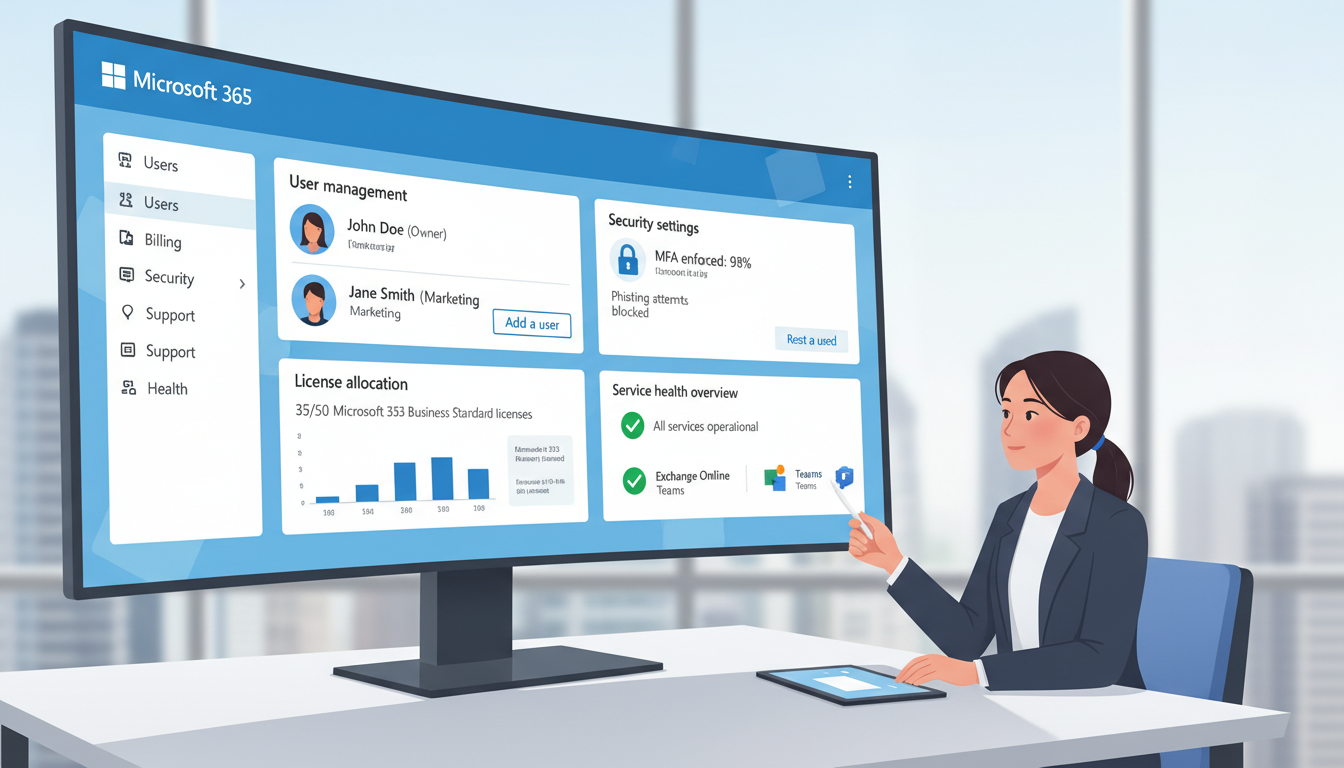
Upon logging in, you will see the Admin Centre dashboard, which provides an overview of your organisation's Microsoft 365 environment. The dashboard shows service health status, recent alerts, recommended tasks, and quick links to common administrative functions. The left-hand navigation menu provides access to all administrative sections.
Understanding the Dashboard Layout
The Admin Centre dashboard is designed to surface the most important information immediately upon login. At the top of the page, you will typically see service health alerts - if any Microsoft 365 service is experiencing issues, a prominent banner will notify you. Below this, the dashboard is organised into cards that can be customised to show the information most relevant to your organisation.
The default dashboard cards include a user management summary showing your total user count and any recently added or deleted users, a billing summary with your current subscription status and next payment date, a service health overview with the status of key services, and a message centre showing announcements and upcoming changes from Microsoft. You can customise which cards appear on your dashboard and rearrange them to suit your preferences. For business owners who check the Admin Centre periodically rather than daily, we recommend keeping the service health, billing, and user count cards prominent, as these provide the quickest overview of your environment's status.
The left-hand navigation is organised into logical sections: Users, Groups, Billing, Settings, Setup, Reports, Health, and Admin Centres. Each section expands to reveal sub-pages with specific functionality. You do not need to explore every section - for business owner oversight, the Users, Billing, Health, and Reports sections are the most valuable, and we shall focus on these throughout this guide.
As a business owner, you must ensure that your organisation retains at least one Global Administrator account that is not controlled exclusively by an external IT provider. This is your platform - your data, your licences, your users. If your relationship with your IT provider were to end, you need the ability to manage your own environment. It is good practice to have a break-glass Global Admin account with a strong password stored securely, separate from day-to-day admin accounts.
User Management: Your Most Valuable Section
The Users section is where you manage every person in your organisation who has a Microsoft 365 account. This is arguably the most important section for a business owner to understand, because it directly relates to your costs and your security.
Active Users
The Active Users page shows every person with a Microsoft 365 account, their assigned licences, their sign-in status, and their last activity date. As a business owner, this page answers several critical questions: How many licences am I paying for? Are there accounts for people who have left the organisation? Are there unused licences consuming budget? A quick scan of this page can often reveal cost savings - it is not uncommon to find that businesses are paying for licences assigned to former employees, contractors whose engagements ended months ago, or shared accounts that nobody actually uses.
Guest Users
Guest users are external people - clients, contractors, suppliers - who have been given access to your Microsoft 365 environment, typically to collaborate on shared documents or Teams channels. While guest access is a valuable collaboration feature, it also represents a security consideration. Review your guest user list periodically to ensure that access is still appropriate and that former collaborators have been removed.
Deleted Users and Offboarding
The Deleted Users page shows accounts that have been removed but are still within the 30-day recovery window. This page is particularly important during employee offboarding. When a member of staff leaves your organisation, their account should be handled through a proper offboarding process - not simply deleted immediately. Best practice involves first converting the account to a shared mailbox (which does not require a licence) so that colleagues can access the departed employee's email, transferring ownership of important OneDrive files and SharePoint content, removing the account from any Teams channels and distribution lists, and then deleting the account once all data has been properly transitioned.
Many UK businesses do not have a formal offboarding process for Microsoft 365, which leads to one of two problems: either accounts are deleted too quickly, resulting in data loss when colleagues later discover they need access to the departed employee's files or emails; or accounts are left active indefinitely, consuming expensive licences for users who are no longer with the organisation. A well-documented offboarding procedure that involves both HR and IT ensures that data is preserved, licences are recovered, and security is maintained.
Groups and Distribution Lists
The Groups section of the Admin Centre manages Microsoft 365 Groups, distribution lists, mail-enabled security groups, and shared mailboxes. For business owners, the key consideration here is understanding how groups affect your organisation's collaboration structure. Microsoft 365 Groups are particularly powerful because creating a group automatically provisions a shared mailbox, a SharePoint site, a Planner board, and a Teams channel. This tight integration makes groups an efficient way to set up collaboration spaces for projects or departments, but it also means that group creation should be managed carefully to avoid sprawl - dozens of unused groups cluttering your environment and consuming storage.
| Licence Plan | Monthly Cost (per user) | Includes | Best For |
|---|---|---|---|
| Business Basic | £4.50 | Web apps, Teams, 1TB OneDrive, Exchange | Frontline workers, light users |
| Business Standard | £9.40 | Desktop apps, web apps, Teams, Exchange | Most office workers |
| Business Premium | £16.60 | Everything in Standard plus Intune, Defender | Security-conscious organisations |
| Apps for Business | £7.80 | Desktop apps, 1TB OneDrive, no Exchange | Users who do not need email |
Licence Management and Cost Optimisation
The Billing section of the Admin Centre shows your subscriptions, licence counts, and payment history. For a business owner, this is where financial oversight happens. Review this section quarterly at minimum to ensure you are not paying for more licences than you need and that you are on the most cost-effective plan for each user's requirements.
A common mistake is assigning every user the same licence tier. In reality, different roles have different needs. A receptionist who only uses email and basic documents does not need the same licence as a project manager who uses the full desktop Office suite, Teams with advanced features, and Power BI. Right-sizing licences across your organisation can generate meaningful savings - for a 50-person business, optimising licence allocation can save £2,000 to £5,000 per year.
Security and Compliance Settings
The Security section (accessible from the Admin Centre or directly at security.microsoft.com) is where your organisation's security posture is configured and monitored. As a business owner, you should be aware of several key security settings and ensure they are enabled.
Multi-Factor Authentication
Multi-factor authentication (MFA) requires users to verify their identity using a second factor - typically a code from the Microsoft Authenticator app on their phone - in addition to their password. This single setting prevents the vast majority of account compromise attacks. The NCSC strongly recommends MFA for all cloud services. If your organisation has not enabled MFA for all users, this should be your number one security priority.
Conditional Access Policies
Available with Business Premium and Enterprise plans, Conditional Access policies allow you to define rules about when and how users can access your environment. For example, you can require MFA only when users sign in from outside the UK, block access from countries where your business has no operations, or require a compliant device for access to sensitive data. These policies provide powerful security without significantly impacting user experience.
Microsoft Secure Score
Microsoft Secure Score provides a numerical rating of your organisation's security posture, along with recommendations for improvement. As a business owner, ask your IT provider to share your Secure Score regularly and explain the key recommendations. A typical UK SME scores between 30% and 50% on first assessment - there is almost always room for improvement.
Data Loss Prevention and Information Protection
Beyond authentication and access controls, Microsoft 365 includes data protection features that prevent sensitive information from leaving your organisation inadvertently. Data Loss Prevention (DLP) policies can scan emails, documents, and Teams messages for sensitive content - such as National Insurance numbers, credit card details, or confidential project names - and either block the transmission, warn the user, or generate an alert for administrators. For UK businesses handling personal data, financial information, or intellectual property, DLP policies provide a critical safety net against accidental data leakage.
Sensitivity labels, part of Microsoft Information Protection, allow you to classify and protect documents based on their content. A document labelled as confidential can be automatically encrypted, restricted from being forwarded or printed, and tracked throughout its lifecycle. These labels can be applied manually by users or automatically based on the document's content. Whilst these features require some initial configuration, they provide powerful protection against both accidental and deliberate data exposure.
Email Security and Anti-Phishing
Microsoft 365 includes built-in email security through Exchange Online Protection, which filters spam, malware, and known phishing attempts. However, the default configuration provides only baseline protection. Businesses handling sensitive data or operating in targeted industries should consider enabling advanced anti-phishing policies, Safe Links (which scan URLs in emails at the time of click), and Safe Attachments (which open attachments in a sandboxed environment to detect malicious content). These advanced features are included in the Business Premium licence tier or available as add-ons for lower tiers. Given that phishing remains the most common attack vector for UK businesses, investing in enhanced email security is a prudent decision for any organisation.
Service Health and Reports
The Service Health section shows the current status of all Microsoft 365 services - Exchange Online, SharePoint, Teams, OneDrive, and others. When users report problems, checking Service Health should be your first step. Microsoft experiences service incidents from time to time, and knowing whether the problem is on Microsoft's side or within your own environment saves significant troubleshooting time.
The Reports section provides usage analytics across the platform. You can see which applications your team uses most, how many active users you have for each service, email activity levels, OneDrive storage usage, and Teams adoption metrics. These reports are valuable for understanding whether you are getting value from your Microsoft 365 investment and identifying areas where additional training could improve adoption.
Key Reports for Business Owners
Whilst the Reports section contains dozens of individual reports, several are particularly valuable for business owner oversight. The Email Activity report shows the volume of emails sent, received, and read across your organisation - useful for identifying communication patterns and verifying that email is functioning normally. The OneDrive Usage report shows storage consumption by user, which helps identify users who may be approaching their storage limits or who have particularly large file collections that might benefit from archiving.
The Microsoft Teams Activity report is increasingly important as Teams becomes the primary collaboration tool for many UK businesses. This report shows active users, channel messages, chat messages, calls, and meetings - providing a comprehensive picture of how your team uses the platform. Low adoption figures may indicate that staff need additional training or that the platform has not been configured optimally for your organisation's workflows.
The Message Centre: Staying Ahead of Changes
The Message Centre, accessible from the Health section of the navigation menu, is where Microsoft announces upcoming changes to the platform. These messages include new features being rolled out, existing features being deprecated, changes to licensing or pricing, and administrative actions required by a specific deadline. For business owners, the Message Centre is valuable because it provides advance notice of changes that may affect your organisation. Microsoft typically provides 30 to 90 days' notice before significant changes take effect, giving you time to prepare, communicate with staff, or adjust your configuration.
We recommend reviewing the Message Centre at least monthly, or asking your IT provider to summarise significant announcements in their regular reporting. Staying ahead of platform changes ensures that your organisation is never caught off guard by a feature removal, a security requirement, or a pricing adjustment.
Questions Every Business Owner Should Ask Their IT Provider
Armed with an understanding of the Admin Centre, there are several questions you should regularly ask your IT provider about your Microsoft 365 environment. How many active licences do we have and are any unused? Is MFA enabled for all users? What is our Microsoft Secure Score? Are we on the most cost-effective licence plan for each user? When was the last time guest access was reviewed? Are there any service advisories we should be aware of? A good IT provider will welcome these questions and provide clear, transparent answers.
Building a Regular Review Cadence
Rather than treating the Admin Centre as something you check only when there is a problem, we recommend establishing a regular review cadence. A monthly review should take no more than 30 minutes and should cover the key areas: a quick scan of user accounts for any anomalies, a check of the billing section for unexpected charges, a review of service health for any ongoing issues, and a glance at usage reports to ensure adoption remains healthy. Quarterly, supplement this with a deeper licence audit and a security review including your Secure Score.
This regular cadence serves two purposes. First, it ensures that you maintain oversight of a business-critical platform that directly impacts your costs and your security. Second, it demonstrates to your IT provider that you are engaged and informed - which, in our experience, leads to a higher standard of service. IT providers naturally prioritise clients who ask informed questions and hold them accountable for the management of their environment.
Working Effectively with Your IT Provider
Understanding the Admin Centre does not mean you need to manage Microsoft 365 yourself - far from it. The goal is to be an informed client who can have productive conversations with your IT provider about the platform. When your IT provider recommends a security change, you will understand the context. When they suggest a licence optimisation, you can evaluate whether it makes sense. When an incident occurs, you can understand the impact and ask the right questions about resolution and prevention.
The most effective client-provider relationships are built on shared visibility. Ask your IT provider for regular reports covering licence utilisation, security posture (including Secure Score), user activity trends, and any incidents or changes made during the reporting period. These reports should be straightforward and jargon-free, providing you with the information you need to make informed business decisions about your Microsoft 365 investment.
Signs of Good M365 Management
- MFA enforced for every user account
- Regular licence reviews and optimisation
- Prompt offboarding when staff leave
- Secure Score above 60% and improving
- Conditional Access policies configured
- Regular usage reports shared with you
- Break-glass admin account documented
- Data loss prevention policies enabled
Warning Signs to Watch For
- No MFA or only partial MFA deployment
- Licences for former employees still active
- You do not have Global Admin access
- No idea what your Secure Score is
- Everyone on the same licence regardless of role
- No regular reporting or reviews
- Guest users never cleaned up
- No conditional access or security policies
Get More From Your Microsoft 365 Investment
Cloudswitched manages Microsoft 365 environments for businesses across the United Kingdom. From licence optimisation and security hardening to user training and ongoing administration, we ensure you get maximum value from your subscription. Contact us for a free Microsoft 365 health check.
GET IN TOUCH
CloudSwitched
London-based managed IT services provider offering support, cloud solutions and cybersecurity for SMEs.


