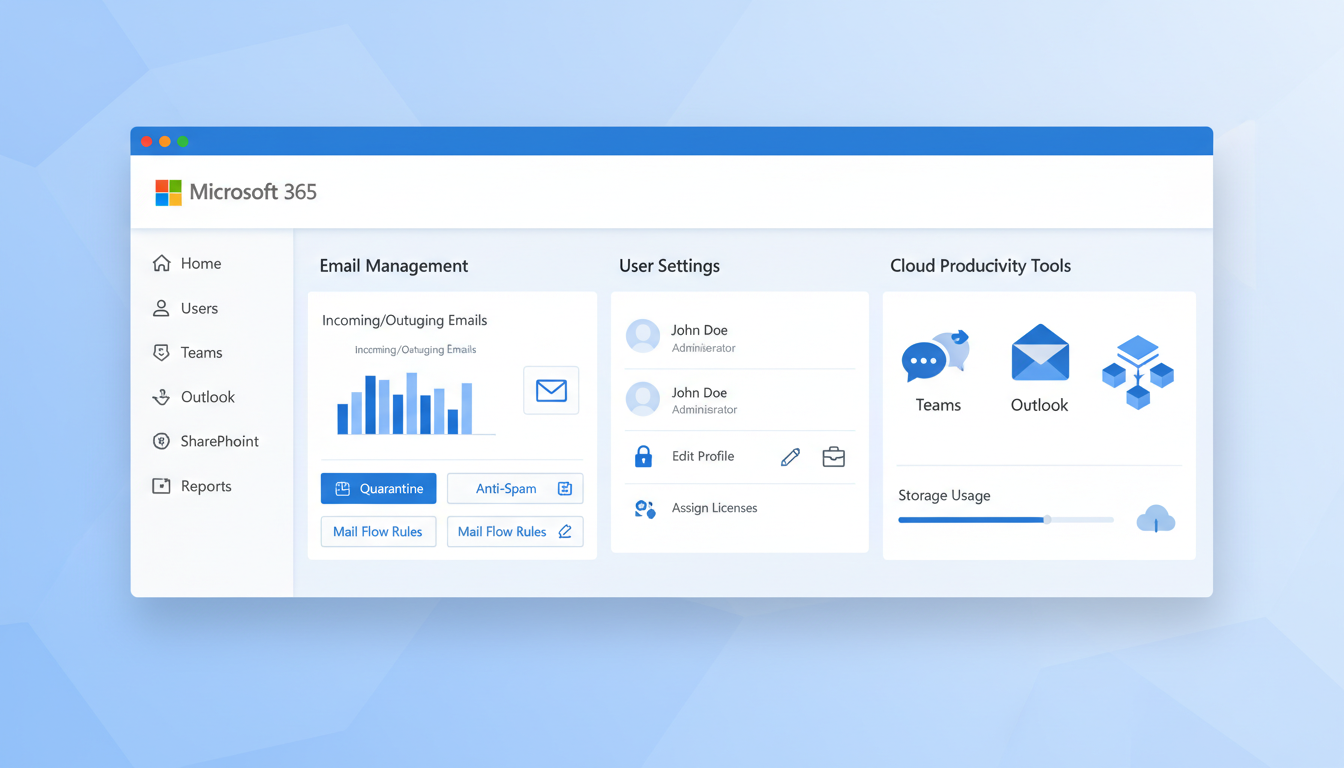
Managing Microsoft 365 effectively is the difference between a well-oiled business operation and a constant stream of support tickets, security incidents, and wasted licences. Yet many UK businesses treat their Microsoft 365 admin centre as something to visit only when problems arise, missing opportunities to optimise performance, strengthen security, and reduce costs.
Whether you're an IT administrator managing Microsoft 365 for a growing company or a business owner who's ended up as the default admin, these practical tips will help you get more value from your subscription whilst keeping your environment secure and well-governed.
These tips assume you have Global Administrator or at least Exchange, SharePoint, and Teams administrator roles in your Microsoft 365 tenant. If you're unsure about your permissions, check your role assignments in the Microsoft 365 admin centre under Users > Active users > select your account > Roles.
Licence Management: Stop Paying for What You Don't Use
Licence waste is one of the most common and costly problems in Microsoft 365 environments. UK businesses of all sizes regularly pay for licences assigned to former employees, inactive accounts, or users who don't need the licence tier they've been given.
Start with a licence audit. Navigate to the Microsoft 365 admin centre, then Billing > Licences, to see your current allocation. Compare this against your active user list. In our experience, the average UK SME has 10-15% licence waste - for a company with 100 E3 licences at approximately £265 per user per year, that's over £2,600 wasted annually.
A particularly common mistake is licensing shared mailboxes. In Microsoft 365, shared mailboxes with less than 50 GB of storage do not require a licence. Yet we frequently see organisations assigning full E3 or Business Standard licences to every shared mailbox. If you have 20 shared mailboxes with unnecessary licences, that could be over £5,000 per year in savings.
Consider whether all users genuinely need the same licence tier. A receptionist who only uses email and basic Office apps doesn't need an E5 licence with Power BI Pro, advanced compliance features, and phone system capabilities. Microsoft 365 Business Basic (£4.50/month) or Business Standard (£9.40/month) may be perfectly adequate for many users, compared to E3 at approximately £22/month.
Choosing the Right Licence Tier: Business Premium vs Enterprise E3
For many UK small and medium businesses, the choice between Microsoft 365 Business Premium and Enterprise E3 is pivotal. Both plans include the core Office applications and Exchange Online, but they differ significantly in their security capabilities, compliance tools, and management features. Making the right choice can save thousands of pounds annually while actually improving your security posture. Business Premium is capped at 300 users, which makes it an SME-focused product, whereas E3 has no user limit and is designed for larger enterprises. However, the security features bundled into Business Premium often surprise administrators who assume the more expensive E3 licence automatically includes everything.
Business Premium
Enterprise E3
This comparison surprises many IT administrators. Business Premium actually bundles several security features - Defender for Office 365 Plan 1, Intune for device management, and Azure AD Premium P1 with Conditional Access - that are not included in the more expensive Enterprise E3 licence. For UK businesses with fewer than 300 users, Business Premium often provides superior security capabilities at a lower per-user cost. The Enterprise plans become necessary primarily when you exceed the 300-user limit, require advanced compliance features such as eDiscovery or information barriers, or need the full E5 security and analytics stack.
Before automatically choosing E3 because it sounds more capable, evaluate whether Business Premium might deliver better value for your organisation. We regularly audit UK businesses that are paying E3 prices but would benefit from the security tools that come standard with Business Premium. The per-user savings - typically around 15 to 20 percent - compound quickly across your entire user base and can be redirected towards additional security investments such as a third-party backup solution or security awareness training for staff.
Security Hardening: Quick Wins That Make a Real Difference
Security configuration is where many Microsoft 365 environments fall short. The default settings are designed for broad compatibility, not maximum security. A few targeted changes can dramatically improve your security posture.
Enable Security Defaults or Conditional Access. If you're not using Conditional Access policies (which require Azure AD Premium P1 or higher), enable Security Defaults at minimum. This enforces MFA for all users, blocks legacy authentication protocols, and requires MFA for administrative actions. It's a single toggle in Azure AD that significantly reduces your attack surface.
Block legacy authentication. Legacy authentication protocols (IMAP, POP3, SMTP AUTH, Exchange Web Services with basic auth) don't support MFA, making them a prime target for credential stuffing attacks. Block these protocols unless you have a specific, documented business need. Check which users are still using legacy protocols via Azure AD sign-in logs before blocking.
Configure anti-phishing policies. Microsoft Defender for Office 365 (included in E5 and available as an add-on) provides advanced anti-phishing protection. Configure impersonation protection for your executives and key suppliers, enable mailbox intelligence, and set up anti-spoofing policies. Even without Defender, Exchange Online Protection provides basic anti-phishing that should be reviewed and optimised.
| Security Action | Effort | Impact | Licence Required |
|---|---|---|---|
| Enable Security Defaults / MFA | Low (15 minutes) | Critical | Any M365 plan |
| Block legacy authentication | Low (30 minutes) | High | Any M365 plan |
| Configure anti-phishing policies | Medium (1-2 hours) | High | EOP (any plan) / Defender (E5) |
| Enable audit logging | Low (15 minutes) | High | Any M365 plan |
| Review admin role assignments | Low (30 minutes) | High | Any M365 plan |
| Configure DLP policies | High (4-8 hours) | Medium | E3+ or Compliance add-on |
| Deploy Conditional Access | High (4-8 hours) | Critical | Azure AD P1+ |
Admin Role Best Practices
The principle of least privilege is critical in Microsoft 365 administration. Too many UK businesses have multiple Global Administrators when most tasks can be performed with more limited roles.
Audit your current role assignments. Navigate to Azure Active Directory > Roles and administrators to see who holds each role. You should have no more than 2-4 Global Administrators (for redundancy, not convenience). All other admins should use specific roles matching their responsibilities.
Exchange Administrator for anyone managing email, mailboxes, and mail flow rules. SharePoint Administrator for managing sites, storage, and external sharing. Teams Administrator for managing Teams settings, policies, and devices. User Administrator for managing user accounts, password resets, and group memberships.
Every Global Administrator account should use a strong, unique password and be protected by MFA using a hardware security key or authenticator app (not SMS). Create at least one "break glass" emergency access account with Global Admin rights - this account should have a very strong password stored securely offline, no MFA requirement, and be excluded from Conditional Access policies. Test it quarterly.
Consider using Azure AD Privileged Identity Management (PIM) if you have Azure AD Premium P2 licences. PIM enables just-in-time admin access - administrators request elevated permissions when needed and the access automatically expires after a set period. This dramatically reduces the window of exposure from compromised admin accounts.
Exchange Online: Beyond Basic Email
Exchange Online is far more than just email hosting. Several features are frequently underutilised by UK businesses.
Transport rules (mail flow rules) can automate email handling in powerful ways. Create rules to add disclaimers to external emails, redirect specific message types, apply encryption to emails containing sensitive data, or block emails with certain attachment types. A well-configured set of transport rules reduces manual work and improves security.
Shared mailboxes for teams. Instead of distributing emails via forwarding rules or distribution lists, create shared mailboxes for functions like info@, sales@, and support@. Shared mailboxes allow multiple users to read, respond, and manage the same mailbox without sharing credentials. They support delegated access and maintain a single conversation thread visible to all team members.
Email signatures and disclaimers. Use transport rules or a third-party tool to deploy consistent email signatures across your organisation. Consistent branding in email signatures reinforces professionalism and ensures legal disclaimers (important for UK businesses) are always included.
SharePoint and OneDrive: Storage and Sharing Controls
SharePoint and OneDrive are where your business data lives. Misconfigured sharing settings are one of the most common causes of accidental data exposure in Microsoft 365 environments.
Review external sharing settings. In the SharePoint admin centre, check your organisation-wide sharing settings and the settings for each site collection. The safest default is "New and existing guests" - this allows external sharing but requires guests to authenticate. Avoid "Anyone" links unless you have a specific, controlled use case, as these create publicly accessible links that don't expire.
Set default link types. Configure the default sharing link to "People in your organisation" rather than "Anyone with the link." Users can still change this when sharing, but the safer default prevents accidental external sharing.
Monitor storage usage. SharePoint storage is shared across the tenant, and OneDrive allocates 1 TB per user by default. Monitor usage trends to avoid running out of space unexpectedly. The SharePoint admin centre provides storage metrics, and you can set storage limits on individual sites to prevent any single team from consuming a disproportionate share.
Teams Administration: Keeping Collaboration Productive
Microsoft Teams can become chaotic without governance. Left unmanaged, users create teams prolifically, resulting in abandoned teams, duplicate content, and confused employees who can't find information.
Control team creation. Consider restricting who can create new teams. By default, every user can create teams, which leads to sprawl. You can limit creation to specific security groups, ensuring that every new team has a clear purpose and owner. Alternatively, implement a request process using Power Automate and Microsoft Forms.
Naming conventions. Implement naming policies for Microsoft 365 Groups (which underpin Teams) to enforce consistent naming. For example, prefix department names: "Sales - UK Enterprise," "HR - Recruitment." This makes teams discoverable and sortable. Azure AD Premium supports automated naming policies.
Guest access governance. If you allow guests in Teams, implement regular access reviews. Configure Azure AD to require team owners to review guest access periodically - quarterly is a sensible minimum for most UK businesses. Automatically remove guests who aren't confirmed as still needing access.
Meeting policies. Configure meeting policies in the Teams admin centre to match your business needs. Consider whether external participants should be able to bypass the lobby, whether meetings should be recorded by default, and who should be able to present in meetings. For UK businesses handling sensitive information, restricting these settings prevents inadvertent data exposure.
Microsoft 365 Security Posture Benchmarks
Microsoft provides a built-in tool called Secure Score that quantifies your security posture on a scale from zero to one hundred. Most UK small and medium businesses score between 30 and 50 when first assessed, leaving significant room for improvement. The following benchmarks represent the key areas that contribute to your overall Secure Score, along with the targets that well-managed environments typically achieve after implementing the recommendations outlined in this guide.
Improving your Secure Score is not about reaching the absolute maximum - some recommendations may not be appropriate for every organisation. Instead, focus on the high-impact actions that align with your risk profile and business requirements. Each percentage point improvement represents a measurable reduction in your attack surface and a tangible step towards a more resilient Microsoft 365 environment. We recommend tracking your score monthly and setting incremental improvement targets that your team can work towards systematically.
Application governance is frequently the weakest area in UK business environments. Users routinely connect third-party applications to Microsoft 365 without IT oversight, creating shadow IT risks that go undetected for months or even years. To address this vulnerability, regularly review the Enterprise Applications section in Azure Active Directory to identify and manage these connections. Restrict user consent settings so that only administrators can approve new application integrations, and establish a lightweight request process for users who need to connect legitimate business applications. Combined with regular access reviews and proper monitoring, these measures significantly strengthen your overall Microsoft 365 security posture and help maintain the high Secure Score targets shown above.
Reporting and Monitoring
The Microsoft 365 admin centre provides usage reports that reveal how your organisation actually uses the platform. These insights inform licence decisions, adoption strategies, and security monitoring.
Usage reports: Navigate to Reports > Usage in the admin centre. Key reports include email activity (who's sending and receiving email, and how much), OneDrive and SharePoint usage (who's active, how much storage is used), Teams activity (messages, calls, meetings), and Microsoft 365 activations (which devices are used).
Security reports: The Security & Compliance centre provides reports on malware detections, phishing attempts, DLP policy matches, and audit log activities. Review these regularly - weekly for security reports, monthly for usage reports.
Alert policies: Configure alert policies to notify you of important events automatically. Create alerts for unusual email forwarding rules (a common indicator of compromised accounts), large file downloads, and admin role assignments. These alerts provide early warning of potential security incidents.
Automation with Power Automate
Power Automate (formerly Microsoft Flow) is included in most Microsoft 365 plans and can automate repetitive administrative tasks. Many UK businesses underutilise this powerful tool.
Automated onboarding: Create a flow that triggers when a new user is added to Azure AD. The flow can automatically assign the user to appropriate groups, send a welcome email with onboarding resources, create a OneDrive folder structure, and notify IT support to provision additional access.
Automated offboarding: Trigger a flow when a user is disabled in Azure AD. The flow can revoke app access, forward the user's email to their manager, export and archive their OneDrive contents, and create a support ticket for licence reclamation.
Compliance reporting: Schedule regular flows that generate compliance reports, pulling data from audit logs and usage reports, formatting it into a readable document, and emailing it to the compliance team. This ensures regular oversight without manual effort.
Create a "Weekly Admin Digest" flow that automatically compiles key metrics - new users added, licences consumed, security alerts triggered, and storage usage - into an email summary sent every Monday morning. This gives you a consistent pulse check on your environment without having to log into multiple admin centres.
Backup and Recovery: Microsoft's Responsibility vs Yours
One of the most dangerous misconceptions about Microsoft 365 is that Microsoft backs up your data. They don't - at least not in the way most businesses expect. Microsoft provides infrastructure-level redundancy (protecting against hardware failure and datacentre disasters) but limited protection against accidental deletion, malicious insiders, or ransomware affecting your data.
The native retention and recovery options are limited. Deleted items are recoverable for 14-30 days depending on the service, and deleted user accounts can be restored within 30 days. After these windows close, data is permanently lost.
For UK businesses, especially those in regulated industries, this is insufficient. Consider implementing a third-party backup solution (such as Veeam for Microsoft 365, Acronis, or Druva) that provides independent backups with longer retention, granular restore capabilities, and protection against ransomware. The cost - typically £2-4 per user per month - is trivial compared to the cost of data loss.
Staying Current: Updates and Change Management
Microsoft 365 is constantly evolving, with new features, deprecations, and security updates rolling out continuously. Staying informed about changes that affect your environment is an essential admin responsibility.
Message Centre: Check the Message Centre in the admin centre regularly (at least weekly). Microsoft posts advance notices of changes, new features, and deprecations here. Filter by service (Exchange, Teams, SharePoint) and priority to focus on what's relevant to your organisation.
Release channels: Configure your Office app update channels appropriately. Use the Current Channel (Preview) for a small group of early adopters to test new features before they reach the broader organisation on the Current Channel. This gives you advance warning of any issues.
Microsoft 365 Roadmap: The public Microsoft 365 Roadmap website shows what's in development, rolling out, and recently launched. Review it monthly to anticipate changes that may require communication, training, or configuration adjustments.
Effective Microsoft 365 administration is an ongoing discipline, not a one-time setup. By implementing these tips systematically - starting with licence optimisation and security hardening, then progressing to governance and automation - you'll build an environment that's secure, cost-effective, and well-governed. The investment in proper administration pays dividends in reduced support tickets, lower licensing costs, and a more secure business operation.
Need Expert Microsoft 365 Administration?
Our managed services team handles Microsoft 365 administration for UK businesses of all sizes. From security hardening to licence optimisation, we ensure your environment is running at peak efficiency and fully protected.
Explore Cloud Email Solutions
CloudSwitched
London-based managed IT services provider offering support, cloud solutions and cybersecurity for SMEs.


