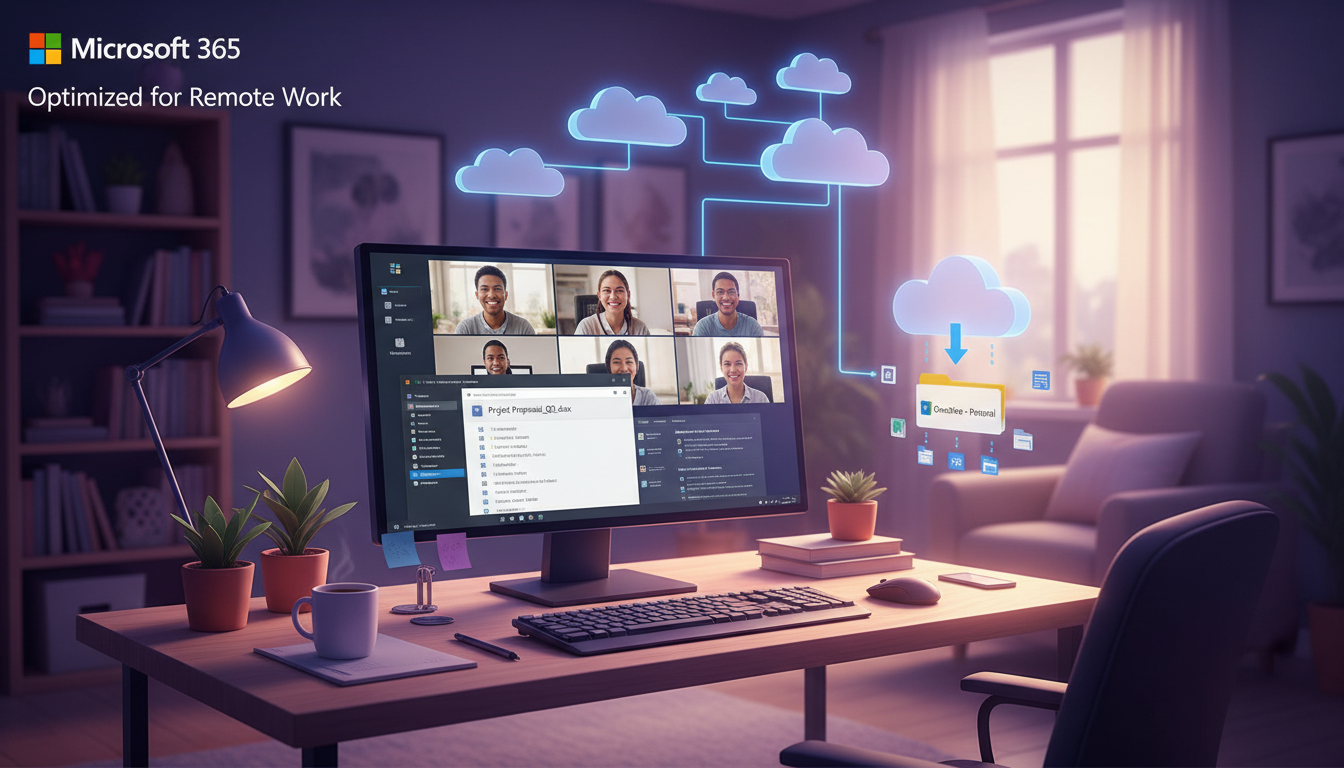
Microsoft 365 has become the backbone of remote working for UK businesses. From Teams meetings and SharePoint collaboration to Outlook email and OneDrive file storage, the platform provides virtually everything a remote worker needs to stay productive. But there is a significant difference between simply having Microsoft 365 licences and having the platform properly optimised for remote work.
Many UK businesses rushed to deploy Microsoft 365 during the pandemic without taking the time to configure it properly. The result is a patchwork of suboptimal settings, underused features, and security gaps that cost productivity and create unnecessary risk. With hybrid and remote working now a permanent fixture of the UK business landscape, it is time to optimise your Microsoft 365 environment so that remote workers can perform at their best.
This guide covers the practical steps to optimise every aspect of Microsoft 365 for remote workers, from network performance and security settings to collaboration tools and user experience.
The challenge for many UK organisations is that Microsoft 365 is a sprawling platform with hundreds of features and configuration options. Without a structured approach to optimisation, it is easy to become overwhelmed or to make changes in one area that create problems in another. The most effective approach is to treat M365 optimisation as a layered exercise: first ensure the network foundations are solid, then configure the collaboration tools properly, then layer on security policies, and finally review licensing to ensure you are getting value for money.
It is also important to recognise that optimisation is not a one-time exercise. Microsoft releases new features and updates to Microsoft 365 on a continuous basis, with major updates arriving monthly and smaller changes rolling out weekly. A configuration that was optimal six months ago may no longer be the best approach today. UK businesses that get the most from their M365 investment treat it as a living platform that requires regular review and adjustment, not a static product that can be configured once and forgotten.
Optimising Network Performance for Remote Access
The single biggest factor affecting Microsoft 365 performance for remote workers is network connectivity. Unlike office-based staff who benefit from your business's dedicated internet connection and optimised network, remote workers rely on their home broadband, which varies enormously in quality across the United Kingdom.
Start by ensuring your Microsoft 365 tenant is configured to use optimal network routing. Microsoft operates a global network of Points of Presence (PoPs), and your traffic should be reaching the nearest one as directly as possible. In the UK, Microsoft has data centres in London and Cardiff, plus numerous edge locations. Enabling "direct connectivity" in your network configuration ensures remote workers connect to the nearest Microsoft endpoint rather than routing through your corporate network unnecessarily.
For organisations using VPN connections, this is particularly important. Traditional VPN configurations route all traffic - including Microsoft 365 traffic - through the corporate network and out via the office internet connection. This creates a bottleneck that degrades performance for remote workers. Implement split tunnelling for Microsoft 365 traffic, allowing it to travel directly from the remote worker's device to Microsoft's network while still routing sensitive corporate traffic through the VPN.
DNS Configuration and Endpoint Optimisation
DNS resolution plays a critical role in Microsoft 365 performance that is frequently overlooked. Remote workers whose devices use their ISP default DNS servers may experience slower resolution times for Microsoft 365 endpoints. Configuring devices to use fast, reliable DNS providers can reduce initial connection times noticeably. More importantly, ensuring that DNS resolves Microsoft 365 service endpoints to the geographically nearest Microsoft data centre prevents traffic from being routed inefficiently across the network.
Microsoft publishes and regularly updates a list of IP addresses and URLs used by Microsoft 365 services. Your firewall and proxy configurations should ensure that traffic to these endpoints is allowed without inspection or throttling. Many UK businesses use web filtering proxies that inspect HTTPS traffic, which adds latency to every Microsoft 365 request. Excluding Microsoft 365 traffic from proxy inspection can produce a dramatic improvement in application responsiveness for remote workers.
For organisations with a significant number of remote workers, consider implementing Microsoft 365 network monitoring through the Microsoft 365 admin centre. The Network Connectivity dashboard provides visibility into how your users are connecting to Microsoft services, highlights connectivity issues, and benchmarks your performance against similar organisations. This data is invaluable for identifying and resolving performance problems before they become widespread complaints from your remote workforce.
Microsoft provides a free Network Connectivity Test tool at connectivity.office.com that analyses your connection to Microsoft 365 services and provides specific recommendations for improvement. Run this tool from your office network and ask remote workers to run it from their home connections. The results often reveal quick wins - such as DNS configuration changes or proxy adjustments - that can significantly improve performance with minimal effort.
Configuring Teams for Optimal Remote Collaboration
Microsoft Teams is the hub of remote collaboration, but its default configuration is rarely optimal. Proper configuration ensures meetings run smoothly, channels stay organised, and remote workers can collaborate as effectively as if they were in the same office.
Meeting Quality Settings
Video call quality is the most visible performance indicator for remote workers. In the Teams admin centre, configure meeting policies to allow up to 1080p video quality for users with sufficient bandwidth, while setting lower defaults for users on constrained connections. Enable Network Quality of Service (QoS) markings so that routers and firewalls can prioritise Teams traffic. Configure bandwidth policies that adapt to available bandwidth rather than using fixed rates.
Audio quality deserves particular attention, as it is often more important than video for productive meetings. Enable noise suppression in Teams settings - this feature uses AI to filter out background noise such as dogs barking, children playing, or construction work, which are common disruptions for home workers. Encourage remote workers to use quality headsets with built-in microphones rather than relying on laptop speakers and microphones, which produce echo and pick up ambient noise. The investment in a good headset for each remote worker - typically £50 to £150 - delivers an outsized return in meeting quality and productivity.
For organisations that conduct large meetings or webinars, configure Teams Live Events or Town Hall features. These are designed for one-to-many broadcasting and handle hundreds or thousands of participants far more efficiently than standard Teams meetings. They include features such as Q&A panels, moderation tools, and automatic recording with transcription, making them ideal for all-hands meetings, training sessions, and company announcements.
Channel Organisation
Teams channels can quickly become chaotic without governance. Establish a clear naming convention for teams and channels. Create a standard structure for each department or project, with dedicated channels for general discussion, announcements, and specific workstreams. Use private channels sparingly - they create information silos that can hinder collaboration. Pin important documents and links at the top of each channel so remote workers can find what they need quickly.
External Collaboration
Remote workers frequently need to collaborate with external clients, suppliers, and partners. Configure Teams external access and guest access policies to allow this while maintaining security. Enable guest access so external collaborators can join specific teams without needing a full Microsoft 365 licence. Set appropriate permissions so guests can access the files and channels they need without seeing anything they should not.
Teams Apps and Workflow Automation
Beyond meetings and chat, Microsoft Teams serves as an extensible platform that can centralise many of the tools remote workers use daily. The Teams app store contains hundreds of integrations, from project management tools like Planner and Microsoft Project to third-party applications that connect directly into the Teams interface. Curating a set of approved apps for your organisation prevents the sprawl of shadow IT tools that remote workers often adopt when their core platform feels limited.
Power Automate integration with Teams enables workflow automation that is particularly valuable for remote teams. Common automations include sending notifications to a Teams channel when a SharePoint document is modified, creating approval workflows for purchase orders or holiday requests directly within Teams, and automatically posting summaries of Forms responses to relevant channels. These automations reduce the manual communication overhead that remote workers often struggle with, ensuring that important updates reach the right people without relying on someone remembering to send an email.
Teams meeting policies should also be reviewed to support the specific needs of remote workers. Features such as meeting transcription, automatic recording to SharePoint, and AI-generated meeting notes can significantly reduce the administrative burden on remote staff who need to stay aligned with colleagues across different time zones or working patterns. For UK businesses with flexible working arrangements, these features ensure that important decisions and discussions are captured and accessible to staff who could not attend in real time.
| Teams Setting | Default | Recommended for Remote | Impact |
|---|---|---|---|
| Video Quality | 720p | Up to 1080p (adaptive) | Better meeting experience |
| Background Effects | Enabled | Enabled with custom backgrounds | Professional appearance |
| Meeting Recording | Disabled | Enabled for organisers | Catch-up for absent staff |
| Live Captions | Disabled | Enabled | Accessibility and comprehension |
| Together Mode | Available | Promoted for large meetings | Reduces meeting fatigue |
| Breakout Rooms | Available | Pre-configured templates | Better workshop facilitation |
SharePoint and OneDrive Optimisation
For remote workers, file access is critical. SharePoint and OneDrive are the primary file storage and collaboration platforms in Microsoft 365, and their configuration directly affects how efficiently remote workers can access, edit, and share documents.
Enable the OneDrive sync client on all remote worker devices. This creates local copies of frequently accessed files, allowing staff to work offline and sync changes when connectivity is restored. Configure Known Folder Move (KFM) to automatically redirect Desktop, Documents, and Pictures folders to OneDrive, ensuring that important files are always backed up to the cloud and accessible from any device.
Structure your SharePoint sites logically. Each department or team should have a dedicated SharePoint site with a clear folder hierarchy. Avoid the common mistake of creating a single, monolithic SharePoint site with hundreds of nested folders - this makes navigation difficult and search unreliable. Instead, use multiple sites with clear purposes and use the SharePoint hub site feature to connect related sites together.
Configure versioning on all document libraries. This allows remote workers to recover previous versions of documents if changes need to be undone, and it provides an audit trail of who changed what and when. Set a reasonable version limit - 50 major versions is typically sufficient - to prevent storage from growing excessively.
Search, Permissions, and Information Architecture
SharePoint search is one of the most underutilised features in Microsoft 365, yet for remote workers it is arguably one of the most important. When staff cannot walk to a colleague and ask where a file is, they depend on search to find what they need. Optimise SharePoint search by ensuring that document libraries use consistent metadata columns, encouraging staff to add descriptions and tags to documents, and configuring search result sources so that the most relevant content appears at the top of results.
Permissions management in SharePoint requires particular attention when supporting remote workers. The principle of least privilege should apply: users should have access to the sites and libraries they need for their role, and no more. SharePoint provides granular permission controls at the site, library, folder, and individual document level, but over-reliance on fine-grained permissions creates administrative complexity and can lead to access issues that are difficult to diagnose remotely. The best practice for most UK businesses is to manage permissions at the site and library level using SharePoint groups, with item-level permissions reserved for genuinely sensitive documents.
For organisations migrating from traditional file servers to SharePoint, the information architecture deserves careful planning. A common mistake is to replicate the old file server folder structure directly in SharePoint, which ignores the platform strengths of metadata-driven organisation, search, and dynamic views. Instead, design your SharePoint information architecture around how remote workers actually need to find and use documents, using metadata columns to categorise content and views to present it in context.
Security Settings for Remote Workers
Remote working expands your attack surface significantly. Workers accessing corporate data from home networks, personal devices, and public Wi-Fi create security risks that must be addressed through proper Microsoft 365 configuration.
Conditional Access Policies
Conditional Access is one of the most powerful security features in Microsoft 365, and it is essential for remote working. Create policies that require multi-factor authentication for all external access, block sign-ins from countries where your business does not operate, require compliant devices for access to sensitive data, and limit session durations for unmanaged devices.
Data Loss Prevention
Configure Data Loss Prevention (DLP) policies to prevent sensitive information from being shared inappropriately. Create rules that detect and block the sharing of National Insurance numbers, credit card numbers, financial data, and other sensitive information via email, Teams, or SharePoint. DLP policies can warn users before they share sensitive data accidentally or block the action entirely for highly classified information.
Mobile Device Management
If remote workers access Microsoft 365 from mobile devices, implement Intune Mobile Device Management (MDM) or at minimum, Mobile Application Management (MAM). MAM allows you to protect corporate data within Microsoft 365 apps without managing the entire personal device, which is more acceptable to staff and avoids the privacy concerns associated with full MDM on personal phones.
Email Security and Phishing Protection
Remote workers are disproportionately targeted by phishing attacks because they operate outside the immediate support network of an office environment. When a suspicious email arrives, an office-based worker might turn to a colleague and ask whether it looks legitimate. A remote worker is more likely to make a judgement in isolation, increasing the risk of falling victim to a convincing phishing attempt.
Microsoft 365 includes several layers of email security that should be enabled and properly configured for remote teams. Exchange Online Protection provides baseline anti-spam and anti-malware filtering, but organisations on Business Premium or E5 licences should also enable Microsoft Defender for Office 365, which adds advanced threat protection including safe links that scan URLs at the time of click rather than just at delivery, safe attachments that open files in a sandbox to detect malicious content, and anti-phishing policies that use machine learning to detect impersonation attempts targeting your executives and finance team.
Beyond technical controls, regular security awareness training is essential for remote workers. Microsoft provides Attack Simulation Training through Defender for Office 365, which allows you to send simulated phishing emails to your staff and track who clicks on them. This is not about punishing staff who fall for simulations but about identifying knowledge gaps and providing targeted training. UK businesses that combine technical email security controls with regular awareness training see significantly lower rates of successful phishing attacks against their remote workforce.
Essential Remote Security Settings
- Multi-factor authentication for all users
- Conditional Access policies enforced
- DLP policies for sensitive data types
- Session timeout for inactive users
- Encrypted email for external communications
- Audit logging enabled across all services
Common Security Gaps in Remote M365
- MFA not enforced for all accounts
- No Conditional Access policies configured
- External sharing unrestricted
- No DLP policies for sensitive data
- Legacy authentication protocols enabled
- Admin accounts without dedicated MFA
Licence Optimisation for Remote Teams
Many UK businesses are paying for Microsoft 365 licences that do not match their actual needs. A remote workforce review often reveals opportunities to save money while actually improving the tools available to staff.
Audit your current licence assignments. Microsoft 365 Business Basic (£4.50 per user per month) provides web and mobile apps plus Teams, which is sufficient for many roles. Business Standard (£9.40 per user per month) adds desktop apps, which most remote workers need. Business Premium (£16.60 per user per month) includes advanced security features like Intune and Azure AD P1, which are essential for managing remote devices securely.
The most common mistake is assigning Business Premium to every user when many would be better served by Business Standard with selective security add-ons. Conversely, some businesses use Business Basic for all users, then wonder why staff cannot open documents offline - desktop apps are not included in that plan.
Conducting a Licence Audit
A structured licence review should begin with an export of your current licence assignments from the Microsoft 365 admin centre. Compare this against the actual usage data available in the Microsoft 365 usage reports, which show which applications each user is actively using. You may discover that some users with Business Premium licences rarely use the advanced security features they are paying for, whilst others on Business Basic are frustrated by the lack of desktop applications.
Consider the specific needs of different roles within your organisation. Finance and HR staff who handle sensitive data may genuinely need the advanced security features of Business Premium. Sales staff who spend most of their time in Outlook and Teams may be well served by Business Standard. Reception or warehouse staff who only need occasional email access might only require Business Basic or even Exchange Online Plan 1 at a lower cost. This role-based approach to licensing ensures that every pound spent on Microsoft 365 delivers tangible value to the business.
It is also worth reviewing your add-on subscriptions. Many UK businesses accumulate add-on licences over time without tracking whether they are still being used. The Microsoft 365 admin centre provides licence utilisation reports that highlight unassigned and inactive licences. Reclaiming unused licences and cancelling unnecessary add-ons can produce immediate cost savings that fund optimisation efforts elsewhere in the platform.
Optimise Your Microsoft 365 for Remote Working
Cloudswitched is a Microsoft Solutions Partner helping UK businesses get the most from their Microsoft 365 investment. From network optimisation and security hardening to licence reviews and Teams configuration, we ensure your remote workers have the tools and performance they need. Contact us for a free Microsoft 365 assessment.
GET IN TOUCH
CloudSwitched
London-based managed IT services provider offering support, cloud solutions and cybersecurity for SMEs.


