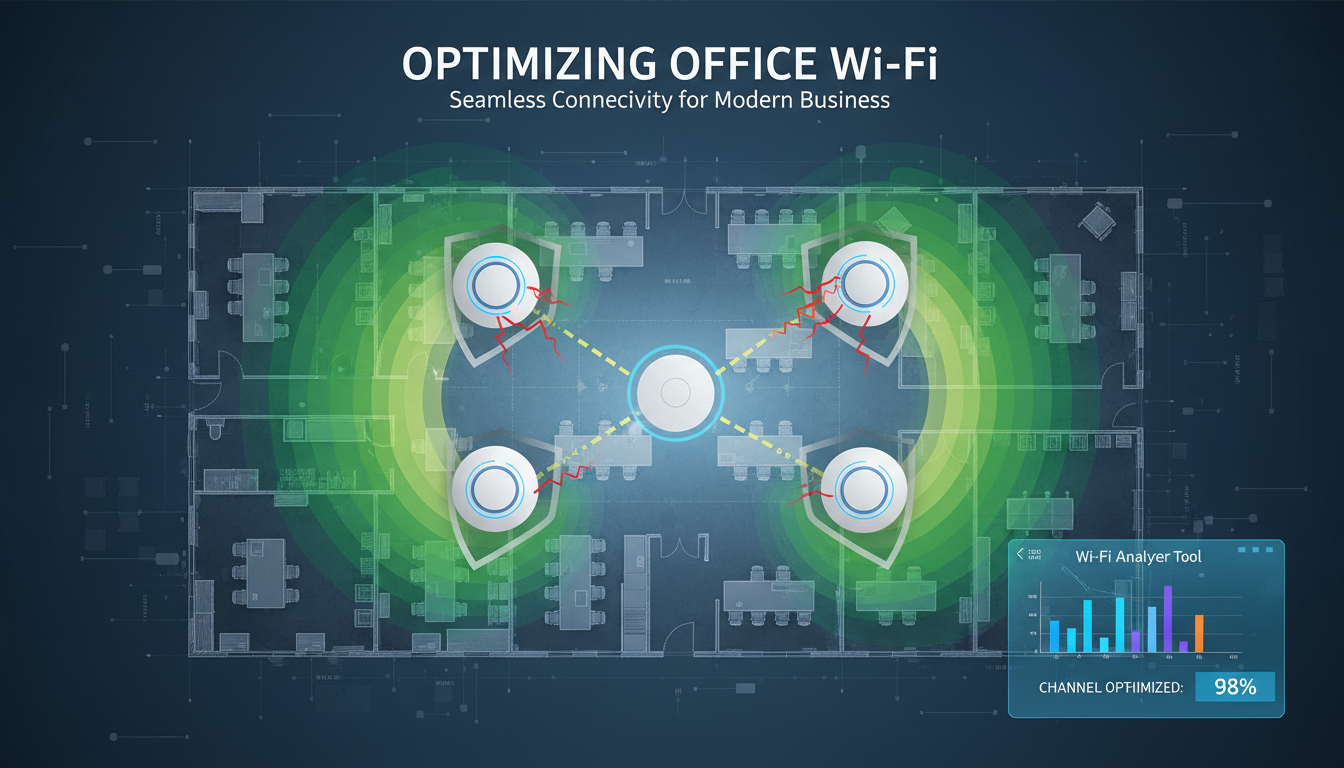
Wi-Fi has become the primary connectivity method in modern offices. Where businesses once relied almost exclusively on wired Ethernet connections, today's workplaces demand robust wireless coverage for laptops, smartphones, tablets, wireless printers, video conferencing equipment, and an ever-growing array of IoT devices. When your Wi-Fi works well, nobody notices it. When it does not - when calls drop, files take minutes to download, and cloud applications crawl - productivity grinds to a halt and frustration builds rapidly.
For UK businesses in particular, where hybrid working patterns mean that staff frequently move between meeting rooms, hot desks, and collaborative spaces, reliable Wi-Fi is not a convenience - it is essential infrastructure. Yet many offices across London, Birmingham, Manchester, Edinburgh, and beyond are operating with poorly configured, under-specified, or outdated wireless networks that were never designed for the demands being placed on them.
The financial impact of poor Wi-Fi extends well beyond lost productivity. When your network is unreliable, staff develop workarounds that create their own risks - connecting to personal mobile hotspots that bypass your security controls, downloading files locally rather than working from cloud storage, or simply avoiding video calls altogether. These behavioural adaptations undermine your IT security posture and your collaborative working culture simultaneously.
For businesses considering or already operating hybrid working arrangements, the stakes are even higher. When remote staff join video meetings with colleagues in the office, any Wi-Fi issues in the office are experienced by everyone on the call. The perception of your organisation's professionalism is directly tied to the quality of your connectivity. Clients dialling into meetings where the host's audio keeps cutting out or screen sharing freezes repeatedly will form impressions that no amount of good work can easily overcome.
This guide provides a practical, actionable approach to optimising your office Wi-Fi network, covering everything from fundamental design principles to advanced configuration techniques that can transform your wireless experience.
Understanding Why Your Wi-Fi Is Slow
Before you can optimise your Wi-Fi, you need to understand the common causes of poor wireless performance in office environments. Unlike a home network where a single router serves a handful of devices, an office network must support dozens or hundreds of concurrent connections across a larger physical space with more obstacles and interference sources.
Insufficient Access Point Coverage
The most common cause of poor office Wi-Fi is simply not having enough access points. Many businesses install one or two access points and expect them to cover an entire floor plate. In reality, a single enterprise access point typically provides reliable coverage for 150 to 250 square metres, depending on the building construction. Open-plan offices with plasterboard partitions are more forgiving than older buildings with thick brick or concrete walls, which severely attenuate wireless signals.
Channel Congestion and Interference
Wi-Fi operates on shared radio frequencies - primarily the 2.4 GHz and 5 GHz bands, with the newer Wi-Fi 6E adding the 6 GHz band. In a busy urban office environment, your access points are competing not just with each other but with neighbouring businesses, Bluetooth devices, microwave ovens, cordless phones, and even some LED lighting systems. Without proper channel planning, your access points may be transmitting on the same channels as each other or as neighbouring networks, creating interference that degrades performance for everyone.
Too Many Devices Per Access Point
Even a high-end enterprise access point has limits on the number of devices it can serve simultaneously. When a modern office worker arrives with a laptop, a smartphone, and perhaps a tablet - each connecting to Wi-Fi automatically - you can quickly reach 100 or more active devices per access point. At this density, performance degrades significantly unless you have enough access points to distribute the load and the right configuration to manage client distribution.
Outdated Firmware and End-of-Life Equipment
An often-overlooked cause of Wi-Fi problems is outdated firmware on access points and wireless controllers. Manufacturers regularly release firmware updates that fix bugs, improve performance, patch security vulnerabilities, and add support for newer client devices. Running outdated firmware can cause compatibility issues with modern laptops and smartphones, leading to random disconnections, slow speeds, and failed authentication attempts that are extremely difficult to diagnose without checking the firmware version first.
Equally problematic is equipment that has reached end-of-life and no longer receives any updates from the manufacturer. Many UK offices are still running access points purchased five or more years ago that have known vulnerabilities, lack support for modern Wi-Fi standards, and cannot handle the density of devices found in today's workplaces. If your access points do not support at least Wi-Fi 5 (802.11ac Wave 2), they are almost certainly a significant contributor to your performance problems and should be prioritised for replacement.
Many businesses underestimate the number of devices on their wireless network. Beyond laptops and phones, modern offices may have wireless printers, smart displays, video conferencing units, temperature sensors, digital signage, smart lighting controls, and wireless security cameras - all competing for Wi-Fi bandwidth. A thorough device audit before optimisation ensures your network is designed for the actual number of connected clients, not just the number of staff.
Step 1: Conduct a Professional Wi-Fi Site Survey
The foundation of any Wi-Fi optimisation project is a professional site survey. This is not a matter of walking around your office with a smartphone app - it requires specialist survey tools, training, and experience to produce meaningful results.
A proper Wi-Fi site survey involves two phases. The first is a passive survey, where the engineer walks the entire premises with survey equipment, measuring existing signal strength, noise levels, and interference sources at multiple points. This reveals dead spots, areas of excessive interference, and the current performance baseline. The second is a predictive survey, where the engineer uses specialised software to model the building layout, wall materials, and access point positions to predict coverage and capacity before any equipment is installed or moved.
The output of a professional site survey is a heat map showing signal coverage, a channel plan specifying the optimal frequency and power settings for each access point, and a recommended access point count and placement plan. This document becomes the blueprint for your optimisation project.
Common Mistakes in Wi-Fi Assessment
Many businesses attempt to assess their Wi-Fi using consumer tools - smartphone apps that show signal strength or browser-based speed tests. Whilst these can identify the most obvious problems, they miss the nuances that separate a functional network from an optimised one. Signal strength alone does not tell you about noise levels, channel utilisation, co-channel interference, or the quality of the connection under load. A strong signal with high interference will still deliver poor performance, and no consumer app will reveal why.
Another common mistake is testing Wi-Fi performance only in areas where problems have been reported. A comprehensive survey covers every part of your premises, including corridors, kitchens, outdoor areas, and spaces that may seem unimportant but where staff regularly take phone calls or check email on their devices. It also tests at different times of day, since the wireless environment changes as neighbouring businesses come and go and as your own device density fluctuates throughout the working day.
Professional site survey tools such as Ekahau and iBwave produce detailed heat maps and capacity models that consumer tools simply cannot replicate. The investment in a professional survey - typically between five hundred and two thousand pounds depending on the size of your premises - pays for itself many times over by ensuring that your optimisation efforts are targeted at the right problems and that your access point deployment is efficient rather than based on guesswork.
Step 2: Choose the Right Hardware
Consumer-grade routers and access points have no place in a business environment. They lack the management features, security capabilities, and performance specifications needed for professional use. Enterprise-grade access points from manufacturers like Cisco Meraki, Aruba, Ubiquiti, and Ruckus are designed for high-density office environments and provide features that are essential for business Wi-Fi.
Key Considerations When Selecting Access Points
Beyond the headline specifications, several practical factors should influence your choice of access points. Mounting options matter - ceiling-mounted access points generally provide better coverage patterns than wall-mounted units, but your ceiling type and height will determine which mounting brackets and enclosures you need. Aesthetic considerations are relevant too, particularly in client-facing spaces where a bulky access point with external antennas may look out of place.
Power requirements are often overlooked until installation day. Different access point models draw different amounts of power over PoE, and your switches must provide sufficient power budget for all connected devices. High-specification Wi-Fi 6E access points can draw 25 to 30 watts each - significantly more than older models. If you are reusing existing PoE switches, verify that they can supply adequate power before committing to a particular access point model, or you may find that not all of your access points will power on once connected.
Finally, consider the management ecosystem. Mixing access points from different manufacturers creates management complexity and prevents features like seamless roaming from working optimally. Standardising on a single vendor across your entire wireless estate simplifies management, improves interoperability, and reduces the breadth of expertise your IT team needs to maintain. If you have multiple office locations, a cloud-managed platform allows your IT provider to manage all sites from a single dashboard without needing to visit each premises individually.
| Feature | Consumer-Grade | Enterprise-Grade |
|---|---|---|
| Concurrent clients | 10-30 before degradation | 100-200+ per access point |
| Central management | None - each device configured individually | Cloud or on-premises dashboard for all APs |
| Roaming | Poor - devices often cling to distant APs | Seamless with 802.11r/k/v fast roaming |
| Security | WPA2/3 Personal only | WPA3 Enterprise, RADIUS, 802.1X, guest isolation |
| Band steering | Basic or none | Intelligent client steering to optimal band |
| VLAN support | None | Multiple SSIDs mapped to separate VLANs |
| PoE powered | Rarely | Standard - single cable for power and data |
Step 3: Optimise Your Channel Plan
One of the most impactful optimisations you can make is ensuring your access points are using the right channels with the right power levels. On the 2.4 GHz band, only channels 1, 6, and 11 are non-overlapping in the UK, so every access point on 2.4 GHz should use one of these three channels. On the 5 GHz band, there are significantly more non-overlapping channels available, but you still need to avoid having adjacent access points on the same channel.
Power levels should be carefully tuned so that each access point covers its intended area without bleeding excessively into adjacent zones. Overpowered access points cause as many problems as underpowered ones - devices may connect to a distant high-power AP when a closer low-power AP would provide better service, and the overlapping coverage creates unnecessary interference.
Step 4: Segment Your Network with VLANs
A well-optimised office Wi-Fi network should not run everything on a single flat network. Using VLANs (Virtual Local Area Networks), you can create separate network segments for different purposes - each with its own security policies, bandwidth allocations, and access controls.
At minimum, most offices should have a corporate VLAN for company-owned devices that need full network access, a guest VLAN providing internet-only access isolated from your internal network, and a device VLAN for IoT equipment, printers, and building systems that should not have access to user data. Larger organisations may add additional VLANs for specific departments, contractors, or high-security systems.
Each VLAN is typically mapped to a separate SSID (network name), so users and devices connect to the appropriate network automatically. This segmentation dramatically improves security by ensuring that a compromised guest device cannot access your corporate file servers, and it improves performance by reducing unnecessary broadcast traffic.
Practical VLAN Configuration for Office Wi-Fi
When implementing VLANs on your wireless network, the configuration spans several components that must all work together. Your access points must be configured with the correct VLAN tags for each SSID, your switches must be configured to carry those VLANs as tagged traffic on the ports connecting to access points, and your firewall or router must have interfaces configured for each VLAN with appropriate DHCP scopes and routing rules.
A common pitfall is forgetting to configure DHCP for a new VLAN. When a device connects to an SSID mapped to a VLAN that has no DHCP scope, it will receive a self-assigned address and have no network connectivity - leading to confused users who can see the network name but cannot access anything. Test each VLAN thoroughly from a client device before rolling out to all staff, verifying that devices receive the correct IP address, can reach the internet where permitted, and can access only the resources appropriate to that particular network segment.
For guest networks specifically, consider implementing a captive portal that presents terms of acceptable use before granting internet access. This provides a legal safeguard for your business and ensures that visitors acknowledge their responsibilities when using your network. Most enterprise wireless platforms include built-in captive portal functionality, and some integrate with social media login options for a more streamlined guest experience. Bandwidth limiting on the guest VLAN is also advisable - you do not want a visitor streaming video to consume bandwidth that your staff need for their work.
Optimised Office Wi-Fi
- Professional site survey informs AP placement
- Enterprise access points with central management
- Channel plan eliminates co-channel interference
- VLANs separate corporate, guest, and IoT traffic
- WPA3 Enterprise with 802.1X authentication
- Seamless roaming between access points
- Monitoring dashboards flag issues before users notice
Typical Unmanaged Office Wi-Fi
- Access points placed wherever is convenient
- Consumer routers with no central oversight
- Default channel settings cause constant interference
- Everything on one flat network with no isolation
- Simple password shared with everyone including visitors
- Devices cling to distant APs causing poor speeds
- Problems only discovered when staff complain
Step 5: Secure Your Wireless Network
Wi-Fi security is not optional - an insecure wireless network is an open invitation to data theft, network intrusion, and regulatory breaches. For business environments, WPA3 Enterprise with 802.1X authentication is the gold standard. This uses individual credentials for each user, authenticated against your directory service (such as Microsoft Entra ID or Active Directory), ensuring that only authorised devices and users can connect and that all traffic is individually encrypted.
Wireless Intrusion Detection and Rogue Access Point Prevention
Enterprise wireless platforms include wireless intrusion detection systems that continuously scan the radio environment for unauthorised access points - commonly known as rogue APs. A rogue AP might be a well-meaning employee who has brought a personal router into the office to improve their own coverage, or it could be a malicious device planted to intercept network traffic. Either scenario represents a security risk that needs to be identified and addressed promptly.
Your wireless management platform should alert your IT team whenever a new access point is detected in or near your premises that is not part of your managed infrastructure. Some platforms can also contain rogue APs by sending deauthentication frames that prevent client devices from connecting to them, although this capability should be used cautiously and in compliance with Ofcom regulations governing the use of wireless spectrum in the United Kingdom.
Regular wireless security assessments - ideally conducted annually by your IT provider - should test the effectiveness of your wireless security controls. This includes verifying that WPA3 Enterprise authentication is working correctly, that guest network isolation is properly enforced, that rogue access point detection is functioning, and that your wireless network cannot be exploited to gain access to sensitive corporate resources. These assessments often reveal configuration drift that has occurred since the initial deployment and provide an opportunity to tighten controls before vulnerabilities are exploited by malicious actors.
If WPA3 Enterprise is not feasible for your environment, WPA2 Enterprise with strong certificates is the next best option. WPA2/3 Personal (pre-shared key) should be reserved for guest networks only, and the key should be rotated regularly. Never use the same pre-shared key for corporate and guest access.
Step 6: Monitor, Measure, and Maintain
Wi-Fi optimisation is not a one-off project. Wireless environments change constantly - new devices connect, furniture is rearranged, neighbouring networks change their configurations, and your team's working patterns evolve. Without ongoing monitoring, your carefully optimised network will gradually degrade.
Enterprise wireless platforms provide real-time dashboards showing connection counts, throughput, client health scores, channel utilisation, and alert notifications. Your IT team or managed service provider should review these dashboards regularly, investigate anomalies, and make adjustments as needed. Periodic re-surveys - typically annually or after significant office changes - ensure your coverage model remains accurate.
Firmware Management and Lifecycle Planning
Keeping your wireless infrastructure up to date requires a disciplined approach to firmware management. Cloud-managed platforms simplify this significantly - Cisco Meraki, for example, allows you to schedule firmware updates across all access points during off-hours with a single action from the management dashboard. For controller-based or standalone deployments, your IT provider should have a documented process for testing and deploying firmware updates on a regular schedule, typically quarterly or whenever critical security patches are released by the manufacturer.
Beyond firmware, plan for the complete lifecycle of your wireless infrastructure. Enterprise access points typically have a useful life of five to seven years, after which they should be replaced regardless of whether they are still physically functioning. Older equipment lacks support for current Wi-Fi standards, consumes more power, has higher failure rates, and eventually falls out of manufacturer support, leaving you unable to obtain security patches or technical assistance when problems arise.
Build a replacement schedule into your IT budget so that wireless infrastructure refreshes are planned and funded rather than reactive. Stagger replacements across years if budget constraints require it, prioritising the highest-density areas and client-facing spaces first. A rolling replacement programme ensures that your wireless network continuously improves rather than degrading slowly until a costly emergency replacement becomes unavoidable. When planning replacements, engage your IT provider early - lead times for enterprise networking equipment can be several weeks, and a proactive approach avoids the premium costs associated with urgent procurement.
Struggling with Office Wi-Fi Performance?
Cloudswitched designs, deploys, and manages enterprise Wi-Fi networks for businesses across the United Kingdom. From initial site survey to ongoing monitoring and optimisation, we ensure your wireless infrastructure delivers the performance and reliability your team demands. Get in touch to arrange a Wi-Fi assessment.
GET IN TOUCH
CloudSwitched
London-based managed IT services provider offering support, cloud solutions and cybersecurity for SMEs.


