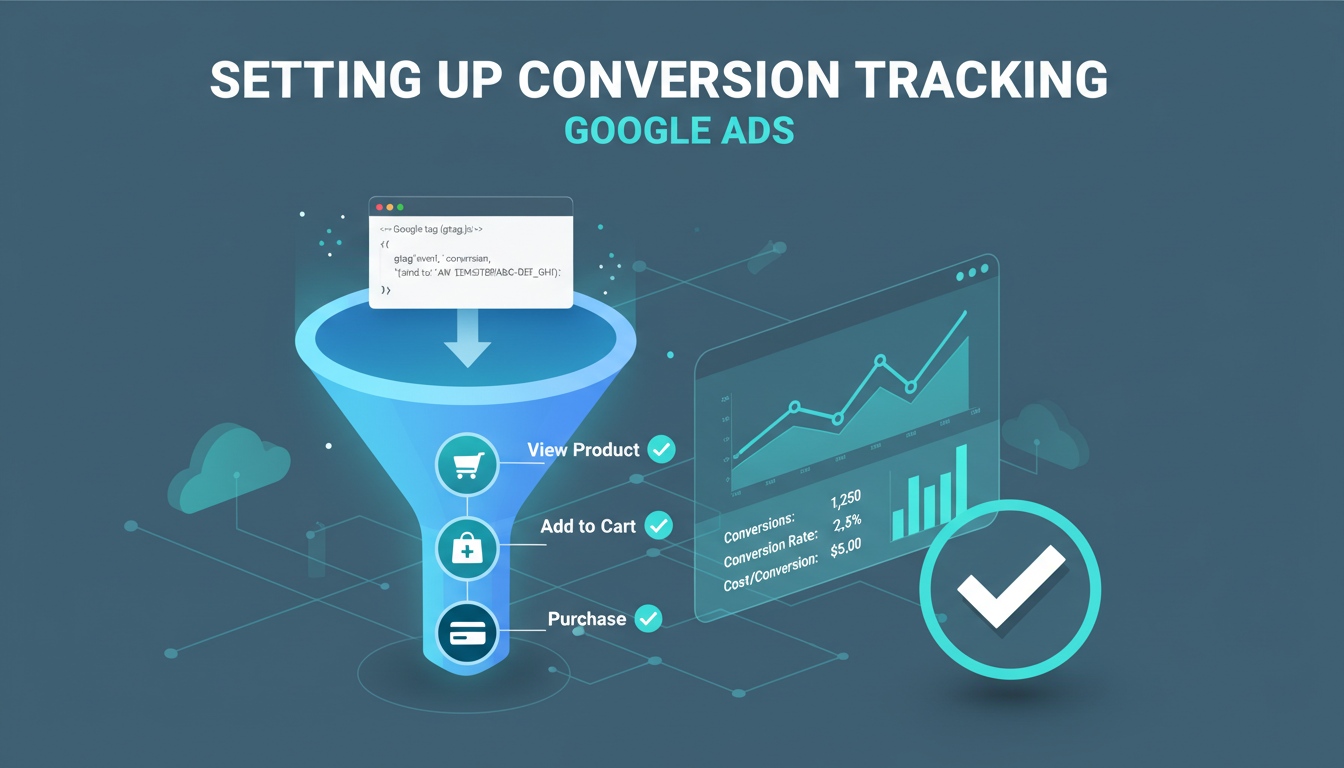
Conversion tracking is the single most important setup task in Google Ads - and it's the one that gets skipped or misconfigured most often. Without accurate conversion tracking, you're flying blind. You have no way to know which keywords, ads, or campaigns are generating actual business results, and Google's Smart Bidding algorithms have no data to optimise towards.
We've audited hundreds of Google Ads accounts and found that approximately 40% have tracking errors - missing conversions, duplicate counting, or tracking the wrong actions. This guide walks you through setting up conversion tracking correctly from the start, covering every method from simple tag installation to advanced Google Tag Manager setups.
£29.6B
UK digital advertising spend in 2024 (IAB UK Digital Adspend Report)
72%
Of UK marketers cite Google Ads as their highest-ROI paid channel
5–15%
Conversion accuracy improvement with Enhanced Conversions enabled
£4.7K
Average monthly Google Ads spend for UK small and medium enterprises
The United Kingdom represents one of the most competitive digital advertising markets in the world, with businesses across every sector vying for visibility on Google’s search results pages. For UK businesses investing in Google Ads - whether spending £500 per month or £50,000 - the difference between accurate and inaccurate conversion tracking is often the difference between profitable growth and wasted budget. In our experience managing campaigns for UK clients across professional services, e-commerce, healthcare, education, and trades, the single greatest improvement in campaign performance consistently comes not from better ad copy or keyword selection, but from fixing the tracking foundations. When Google’s algorithms can see exactly which clicks generate revenue, they optimise towards more of those clicks. When they cannot, they optimise towards vanity metrics that do not pay the bills.
font-weight: 700; color: #111827; margin: 40px 0 16px;">Why Conversion Tracking MattersConversion tracking tells Google Ads which clicks resulted in valuable actions on your website - form submissions, phone calls, purchases, bookings, or any other action that matters to your business. Without it, you only know how many people clicked your ad, not how many became customers.
But conversion tracking isn't just for your reporting. It's essential for Smart Bidding - Google's automated bidding strategies like Target CPA, Target ROAS, and Maximise Conversions. These strategies use your conversion data to automatically adjust bids for each auction in real-time. Without accurate conversion data, Smart Bidding has nothing to learn from and will waste your budget.
Always set up conversion tracking before launching any Google Ads campaign. Smart Bidding strategies need a minimum of 15–30 conversions within 30 days to begin optimising effectively. Starting campaigns without tracking means you lose those critical early conversions, delaying the point at which automated bidding can deliver meaningful results.
Types of Conversions to Track
Before setting up tracking, identify which actions on your website constitute a conversion. Not every action is equally valuable - you need to distinguish between primary conversions (direct business value) and secondary conversions (engagement signals).
| Conversion Type | Examples | Category | Use in Bidding? |
|---|---|---|---|
| Form Submission | Contact forms, quote requests | Primary | Yes |
| Phone Call | Calls from ads, calls from website | Primary | Yes |
| Purchase | E-commerce transactions | Primary | Yes |
| Booking / Appointment | Calendar bookings, reservations | Primary | Yes |
| Newsletter Sign-Up | Email list subscriptions | Secondary | No (observe only) |
| Page View | Visited pricing page, watched video | Secondary | No (observe only) |
For UK businesses, it is essential to consider the UK GDPR and Privacy and Electronic Communications Regulations (PECR) when implementing conversion tracking. Since the introduction of stricter cookie consent requirements, websites must obtain informed, affirmative consent from visitors before firing tracking tags. This means your conversion tracking setup should be integrated with a compliant cookie consent management platform (CMP) such as Cookiebot, OneTrust, or Complianz. Google Tag Manager makes this significantly easier, as you can configure tags to fire only after consent has been granted, ensuring both tracking accuracy and legal compliance. Failing to implement consent-based tracking correctly can result in inflated conversion numbers or, conversely, under-reported conversions if tags are blocked entirely.
Method 1: Google Ads Tag (Direct Installation)
The simplest method is installing the Google Ads conversion tag directly on your website. This involves two pieces of code: the Global Site Tag (goes on every page) and the Event Snippet (goes on your thank-you or confirmation page).
Here's the step-by-step process:
Google Tag Manager
Recommended for most UK businesses
No Code Changes for New Tags✓
Version Control & Rollback✓
Built-In Debugging Tools✓
Advanced Tag Firing Rules✓
Multi-Platform Tag Support✓
Team Collaboration Features✓
Cookie Consent Integration✓
Lower Page Speed Impact✓
Direct Tag Installation
Manual code-based approach
No Code Changes for New Tags✗
Version Control & Rollback✗
Built-In Debugging Tools✗
Advanced Tag Firing Rules✗
Multi-Platform Tag Support✗
Team Collaboration Features✗
Cookie Consent Integration✗
Lower Page Speed Impact✗
Google Tag Manager
Direct Tag Installation
Google Tag Manager (GTM) is a free tool that lets you manage all your tracking tags from a single interface without editing your website's source code directly. It's the recommended approach for most businesses because it's more flexible, easier to maintain, and less prone to errors.
With GTM, you install the Tag Manager container code on your website once, then add, edit, and manage all tracking tags through GTM's web interface. This is particularly valuable when you need to track multiple conversion actions, make changes without involving a developer, or manage tags for Google Ads alongside Google Analytics and other platforms.
The GTM setup involves creating a Tag (what fires - the Google Ads conversion tag), a Trigger (when it fires - form submission, page view, button click), and optionally Variables (dynamic data like transaction value). This separation makes it easy to adjust what you track without touching your website code.
Method 3: Import from Google Analytics
If you already have Google Analytics 4 (GA4) set up with events and conversions, you can import those conversions directly into Google Ads. This is convenient because GA4 offers more flexible event tracking than the Google Ads tag alone, and it ensures consistency between your analytics and ads reporting.
To import GA4 conversions: link your GA4 and Google Ads accounts (Admin > Product Links in GA4), then in Google Ads go to Tools > Conversions > New Conversion Action > Import > Google Analytics 4 and select the events you want to track.
Use UTM parameters alongside conversion tracking to gain deeper insight into which specific campaigns, ad groups, and keywords are driving conversions. While Google Ads tracks this automatically for paid clicks, UTM parameters provide a consistent tracking framework that works across Google Analytics as well, giving you a unified view of performance across all your marketing channels.
Setting Up Phone Call Tracking
For many service businesses, phone calls are the primary conversion action. Google Ads offers three types of call tracking:
Calls from Ads
Tracks calls made directly from your call extension or call-only ads. Google provides a forwarding number - no website changes needed. Easiest to set up.
Calls from Website
Dynamically replaces your phone number on your website with a Google forwarding number for visitors who clicked your ad. Tracks calls that happen after the initial click.
Call Import
For businesses using third-party call tracking (CallRail, etc.), you can import call data into Google Ads. More complex but offers the most detailed call analytics.
Configuring Conversion Settings
When creating each conversion action, you'll need to configure several important settings. Getting these right ensures accurate data:
Conversion Value: Assign a monetary value to each conversion. For e-commerce, this should be the dynamic transaction value. For lead gen, estimate the average value of a lead (e.g., if 1 in 5 leads becomes a £500 client, each lead is worth £100).
Count: Choose "One" for lead generation (one form submission per click = one conversion) or "Every" for e-commerce (multiple purchases from the same user should each be counted).
Conversion Window: How many days after a click can a conversion be attributed? Default is 30 days. For short buying cycles, 7–14 days works. For longer cycles (B2B, property), consider 60–90 days.
Attribution Model: Choose how credit is distributed across multiple interactions. "Last Click" is simplest, but "Data-Driven" (when available) uses machine learning to distribute credit more accurately across the customer journey.
Testing and Verifying Your Tracking
After installation, always verify that your tracking is working correctly. Here's a systematic testing process:
Conversion Tracking Health Scorecard
Use this scorecard to assess the current state of your conversion tracking setup. Based on our audits of hundreds of UK Google Ads accounts, these are the typical scores we see across key tracking dimensions. A score below 60 in any area indicates a significant gap that is likely costing you conversions and budget efficiency.
The most commonly neglected areas are offline conversion integration and phone call tracking - both of which provide critical data that Smart Bidding algorithms use to identify high-value click patterns. Addressing these gaps typically delivers measurable ROAS improvement within the first 30–60 days.
font-weight: 700; color: #111827; margin: 40px 0 16px;">Common Tracking Mistakes and How to Fix ThemCommon Mistakes
- Tag on wrong page (homepage vs. thank-you)
- Counting every conversion as primary
- Not tracking phone calls
- Duplicate tags firing twice
- No test submission to verify
- Wrong conversion window
Best Practices
- Event snippet on confirmation page only
- Separate primary and secondary actions
- Track all call types (ads + website)
- Use GTM to control tag firing
- Test every conversion thoroughly
- Match window to your sales cycle
ROAS by Tracking Setup Sophistication
The correlation between tracking sophistication and return on ad spend is striking. Based on anonymised data from our UK client portfolio, businesses with comprehensive tracking setups consistently achieve significantly higher returns on their Google Ads investment.
The data tells a clear story: businesses operating without conversion tracking are, on average, losing money on their Google Ads investment (95% ROAS means spending £1 to generate £0.95 in revenue). Each incremental improvement in tracking sophistication delivers a measurable uplift in returns, with the most comprehensive setups achieving over three times their ad spend in revenue.
font-weight: 700; color: #111827; margin: 40px 0 16px;">Enhanced ConversionsEnhanced Conversions is a relatively new Google feature that improves tracking accuracy in a privacy-first world. As browsers restrict third-party cookies, traditional conversion tracking becomes less reliable. Enhanced Conversions supplements your tracking by sending hashed first-party data (email addresses, phone numbers) from your conversion forms to Google, allowing it to match conversions even when cookies are blocked.
Setting up Enhanced Conversions is straightforward in Google Tag Manager and typically improves conversion measurement accuracy by 5–15%. Google reports that advertisers using Enhanced Conversions see more accurate attribution and better Smart Bidding performance. We strongly recommend enabling this for all accounts.
When implementing Enhanced Conversions, start by enabling it for your highest-volume conversion action first. This gives Google the largest dataset to work with and allows you to validate accuracy before rolling out to other actions. Monitor the “Diagnostics” tab in your conversion settings to ensure hashed data is being matched successfully - a match rate above 60% is considered healthy.
Server-Side Tracking: The Future-Proof Approach
As browser privacy restrictions continue to tighten - with Safari and Firefox already blocking most third-party cookies and Chrome following suit - server-side tracking is emerging as the gold standard for conversion measurement. Unlike traditional client-side tracking (where tags fire in the user’s browser), server-side tracking sends conversion data directly from your server to Google’s servers. This approach is immune to ad blockers, browser privacy restrictions, and cookie consent limitations that can cause standard tags to under-report conversions.
Google Tag Manager offers a server-side container that can be deployed on Google Cloud Platform or any cloud hosting provider. For UK businesses spending more than £5,000 per month on Google Ads, the investment in server-side tracking typically pays for itself within the first month through improved conversion data quality and subsequent Smart Bidding performance gains. The setup is more technical than standard GTM, but the long-term benefits - including more accurate attribution, better data control, and compliance with evolving UK privacy regulations - make it a worthwhile investment for serious advertisers.
Offline Conversion Tracking
For many UK businesses - particularly those in professional services, B2B, property, automotive, and education - the most valuable conversions happen offline. A solicitor’s enquiry form leads to a phone consultation; an estate agent’s viewing request results in an offer; a university’s prospectus download culminates in an application. If you only track the initial online action, you are optimising for form fills rather than actual revenue.
Google Ads supports offline conversion imports that allow you to feed back actual business outcomes - qualified leads, closed deals, completed projects - and attribute them to the original click. This requires capturing the Google Click ID (GCLID) when a user submits a form, storing it in your CRM alongside the lead record, and periodically uploading conversion data back to Google Ads. The process can be automated using tools such as Zapier, HubSpot, or direct API integration. For UK businesses with average deal values above £1,000, offline conversion tracking is arguably the single most impactful optimisation available, as it allows Smart Bidding to optimise for revenue rather than lead volume.
Need Help Setting Up Conversion Tracking?
Cloudswitched Google Ads management includes full conversion tracking setup and verification. We ensure every valuable action on your website is tracked accurately so your campaigns can optimise for real business results.
View Google Ads ServicesGet Your Conversion Tracking Right, First Time
Cloudswitched provides expert Google Ads management with comprehensive conversion tracking setup and verification, ensuring every valuable action on your website is tracked accurately for maximum return on ad spend.

CloudSwitched
London-based managed IT services provider offering support, cloud solutions and cybersecurity for SMEs.


