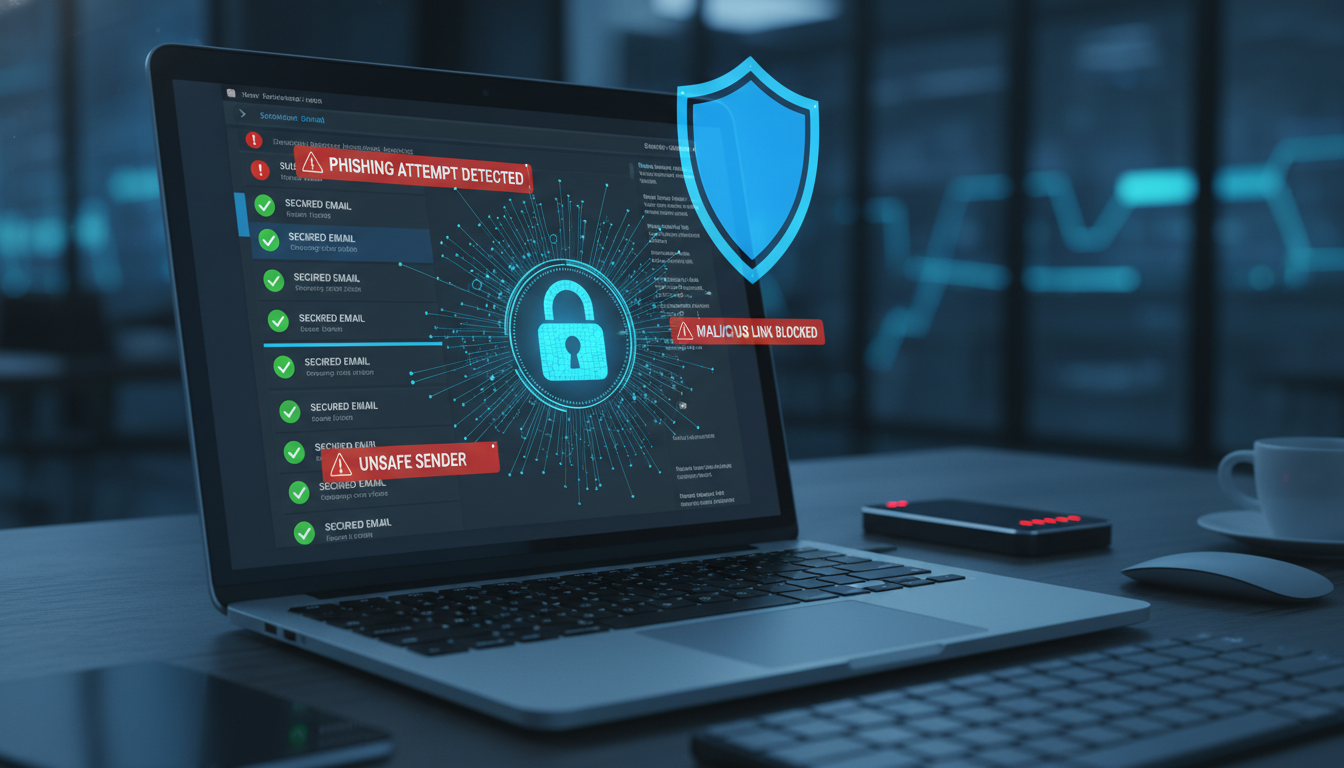
Email is the primary communication tool for businesses, making it the single biggest target for hackers and fraudsters. With phishing attacks increasing by 61% year-on-year and AI making scam emails virtually indistinguishable from genuine messages, securing your email infrastructure has never been more critical.
The good news? Office 365 provides the same security framework used by Microsoft themselves - protecting over 345 million paid users worldwide. But these tools are only effective if they are properly configured. Here are six essential steps to lock down your business email, explained in detail with practical implementation guidance.
The Email Threat Landscape in 2025
Before diving into the solutions, it is important to understand what you are defending against. Email threats have evolved dramatically:
| Threat Type | Description | Prevalence | Damage Potential |
|---|---|---|---|
| Phishing | Fake emails impersonating trusted brands or colleagues | Very High | High |
| Spear Phishing | Targeted attacks using personal information | High | Very High |
| Business Email Compromise | CEO/CFO impersonation requesting payments | Growing | Extreme (£100K+ losses) |
| Ransomware via Email | Malicious attachments encrypting your files | High | Catastrophic |
| Credential Harvesting | Fake login pages capturing passwords | Very High | High |
| Invoice Fraud | Modified payment details on legitimate-looking invoices | Growing | Very High |
| AI-Generated Phishing | Perfectly written, context-aware scam emails | Rapidly Growing | Very High |
In 2025, AI-generated phishing emails have eliminated the spelling mistakes and poor grammar that were once reliable warning signs. Modern phishing emails are grammatically perfect, contextually relevant, and increasingly use information scraped from LinkedIn and company websites to appear legitimate.
The 6-Step Email Security Framework
The following framework provides a structured, layered approach to email security that any UK business can implement regardless of size or in-house technical expertise. Each step builds upon the previous one, creating multiple barriers that an attacker must overcome to compromise your email systems. Whilst no single measure is completely foolproof on its own, the combination of all six steps creates a robust defence-in-depth posture that dramatically reduces your exposure to email-based threats. We recommend implementing them in order, starting with the foundational password controls that deliver immediate protection and progressing through to the more technical DNS-based authentication mechanisms that provide comprehensive defence against spoofing and impersonation attacks.
| Step | Action | Protection Level | Difficulty | Time to Implement |
|---|---|---|---|---|
| 1 | Complex Passwords | Basic | Easy | Immediate |
| 2 | Unique Passwords | Basic | Easy | 1 hour |
| 3 | Regular Password Changes | Moderate | Easy | 5 minutes (policy) |
| 4 | Multi-Factor Authentication | High | Easy | 30 minutes |
| 5 | SPF Record Setup | High | Technical | 15 minutes |
| 6 | DKIM & DMARC Records | Very High | Technical | 30-60 minutes |
Step 1: Use Complex Passwords
Weak passwords are the first vulnerability in any email system. Despite decades of warnings, password-related breaches remain the most common entry point for attackers.
Password Strength Comparison
Password Policy Best Practices
- Minimum 14 characters - length is more important than complexity
- Use passphrases - four or more random words are stronger and easier to remember than short complex passwords
- Avoid personal information - no names, dates of birth, pet names, or football teams
- Check against breach databases - use haveibeenpwned.com to verify passwords have not been compromised
- Use a password manager - LastPass, 1Password, or Bitwarden generate and store complex passwords
Step 2: Never Share or Reuse Passwords
Never use the same password across multiple platforms. If one platform is compromised, every account using that password is at risk. This is known as credential stuffing, and it is one of the most common attack vectors.
Deploy a business password manager (like 1Password Business or Bitwarden) across your organisation. It generates unique passwords for every service, securely shares credentials between team members, and provides admin visibility into password health across the company. Typical cost: £3-5 per user per month.
Step 3: Password Change Policy
Microsoft's latest guidance has evolved. Rather than forcing regular password changes (which leads to predictable patterns like "Summer2025!"), the focus is now on:
| Approach | Old Guidance | Current Best Practice |
|---|---|---|
| Change Frequency | Every 90 days | Only when compromised (with MFA enabled) |
| Complexity | 8 chars, upper/lower/number/symbol | 14+ chars, passphrase preferred |
| Reuse Prevention | Remember last 5 passwords | Remember last 24 passwords |
| Lockout Policy | 3 failed attempts | 10 failed attempts + Smart Lockout |
Step 4: Enable Multi-Factor Authentication (MFA)
MFA requires a second verification step beyond your password - typically a code from the Microsoft Authenticator app or a push notification. This single step blocks 99.9% of automated attacks, making it the single most impactful security measure you can implement.
MFA Methods Ranked
| Method | Security Level | Convenience | Recommendation |
|---|---|---|---|
| Microsoft Authenticator App | Very High | High | Recommended |
| Hardware Security Key (FIDO2) | Highest | Medium | Best for admins |
| SMS Code | Medium | High | Acceptable fallback |
| Phone Call | Medium | Low | Not recommended |
If you implement only one security measure from this article, make it MFA. Microsoft reports that MFA prevents 99.9% of account compromise attacks. There is no single step with a bigger impact. And it is free with every Office 365 plan.
Step 5: Set Up a Sender Policy Framework (SPF)
An SPF record is a DNS entry that tells receiving email servers which mail servers are authorised to send emails on behalf of your domain. This prevents spammers from spoofing your email address to send fraudulent messages that appear to come from your business.
How SPF Works
- Without SPF: Anyone can send an email that appears to come from @yourdomain.co.uk
- With SPF: Only your authorised email servers (Microsoft 365) can send from your domain
- Result: Spoofed emails are flagged as spam or rejected entirely
SPF Implementation
For Office 365, your SPF record should include:
v=spf1 include:spf.protection.outlook.com -all
This record tells email servers: "Only Microsoft 365 servers are authorised to send email from our domain. Reject everything else." Add this as a TXT record in your domain's DNS settings.
Step 6: Configure DKIM & DMARC
DKIM (DomainKeys Identified Mail) adds a digital signature to your outgoing emails, verifying that the content was not altered in transit. DMARC (Domain-based Message Authentication, Reporting & Conformance) ties SPF and DKIM together and provides compliance reporting.
The Email Authentication Stack
DMARC Policy Levels
| Policy | Setting | What Happens to Failing Emails | Recommended Phase |
|---|---|---|---|
| Monitor | p=none | Delivered normally, reports sent to you | Start here (2-4 weeks) |
| Quarantine | p=quarantine | Sent to spam/junk folder | After reviewing reports |
| Reject | p=reject | Blocked entirely, never delivered | Final goal (maximum protection) |
Always start with DMARC p=none (monitor mode) and review the reports for 2-4 weeks before tightening the policy. Jumping straight to p=reject can block legitimate emails from marketing platforms, CRM systems, or other services that send email on your behalf.
Managed vs DIY Email Security
When it comes to implementing these six security steps, businesses face a fundamental choice: manage email security internally or partner with a specialist provider. For organisations without dedicated IT security expertise, the difference in outcomes can be dramatic. A managed approach ensures that every layer of protection is correctly configured from day one, continuously monitored for emerging threats, and updated as the threat landscape evolves. Internal teams, even well-intentioned ones, often achieve partial implementation but struggle to maintain configurations over time, leading to security drift that leaves gaps for attackers to exploit.
The comparison below highlights the key differences between a professionally managed email security deployment and a typical self-managed approach. Consider where your organisation currently sits and whether the gaps in your current configuration represent acceptable risk for your business.
Managed Email Security
Self-Managed Security
Beyond the 6 Steps: Advanced Email Security
For businesses handling sensitive data or operating in regulated industries, consider these additional measures:
Advanced Threat Protection (ATP)
Included in Business Premium, ATP provides:
- Safe Links: Scans URLs in emails at time of click (not just at delivery)
- Safe Attachments: Opens attachments in a sandbox to detect malware
- Anti-Phishing AI: Machine learning detects impersonation attempts
- Real-Time Reports: See exactly what threats are being blocked
Email Encryption
Office 365 Message Encryption allows you to send encrypted emails to anyone - even recipients who do not use Office 365. This is essential for sending sensitive information like contracts, financial data, or personal details.
Conditional Access Policies
Control where and how email can be accessed. For example:
- Block access from countries where your business does not operate
- Require MFA when accessing from new or unrecognised devices
- Block access from personal (unmanaged) devices
- Require compliant devices with up-to-date antivirus
Email Security Audit Checklist
Use this checklist to assess your current email security posture:
Frequently Asked Questions
How do I know if my email has been compromised?
Warning signs include: emails in your Sent folder you did not write, password reset requests you did not initiate, colleagues or clients receiving strange emails from your address, and unexpected MFA prompts. If you suspect a compromise, change your password immediately, enable MFA, and contact your IT provider.
Is Office 365 email secure by default?
Office 365 includes basic spam filtering and malware scanning by default, but MFA, SPF, DKIM, DMARC, and Advanced Threat Protection all require manual configuration. Out of the box, your account is better protected than a basic email service, but far from fully secured.
Should we use email encryption for all messages?
Encryption for every email is unnecessary and adds friction. Use it for messages containing sensitive data: financial information, personal data (GDPR), contracts, or anything you would not want read if intercepted. Office 365 can be configured to automatically encrypt emails containing specific keywords or data patterns.
What is the cost of implementing these email security measures?
The majority of these security measures are included at no additional cost with your existing Office 365 subscription. MFA, password policies, SPF, DKIM, and DMARC are all free to configure. The primary investment is the time required for proper setup and testing, which typically takes two to four hours for an experienced administrator. Advanced Threat Protection is included with Business Premium licences or can be added to Business Standard for approximately two pounds per user per month. When you consider that the average cost of a data breach for UK businesses exceeds three million pounds, the return on investment for proper email security configuration is extraordinary. Many businesses find that engaging a specialist for the initial configuration is significantly more cost-effective than attempting it internally, particularly given the potential consequences of a misconfigured email authentication stack leaving your domain vulnerable to spoofing and impersonation.
How often should we run phishing simulations?
Monthly simulations are ideal. Microsoft Defender includes a built-in attack simulation tool that sends realistic (but harmless) phishing emails to your staff and tracks who clicks. This identifies employees who need additional training and keeps security awareness top of mind.
Secure Your Email Today
"After Cloudswitched configured our email security, we went from receiving dozens of phishing emails per week to virtually none reaching our inboxes. The MFA rollout was painless and our team adapted within a day." - Accounting firm, Mayfair
There is no way to totally eliminate email risk, but these six steps will dramatically reduce your exposure. Cloudswitched is a Microsoft Gold Partner specialising in email security and Office 365 deployment. Whether you need a full security audit, MFA rollout, or SPF/DKIM/DMARC configuration, our team handles the technical complexity so you do not have to.
Protect Your Business Email Today
Cloudswitched is a Microsoft Gold Partner specialising in email security for UK businesses. Our team handles SPF, DKIM, DMARC configuration, MFA deployment, Advanced Threat Protection setup, and ongoing threat monitoring, so your organisation stays protected against the ever-evolving landscape of email-based threats.
If you think your account has been compromised, or you want a professional email security audit, contact us immediately.

CloudSwitched
London-based managed IT services provider offering support, cloud solutions and cybersecurity for SMEs.


