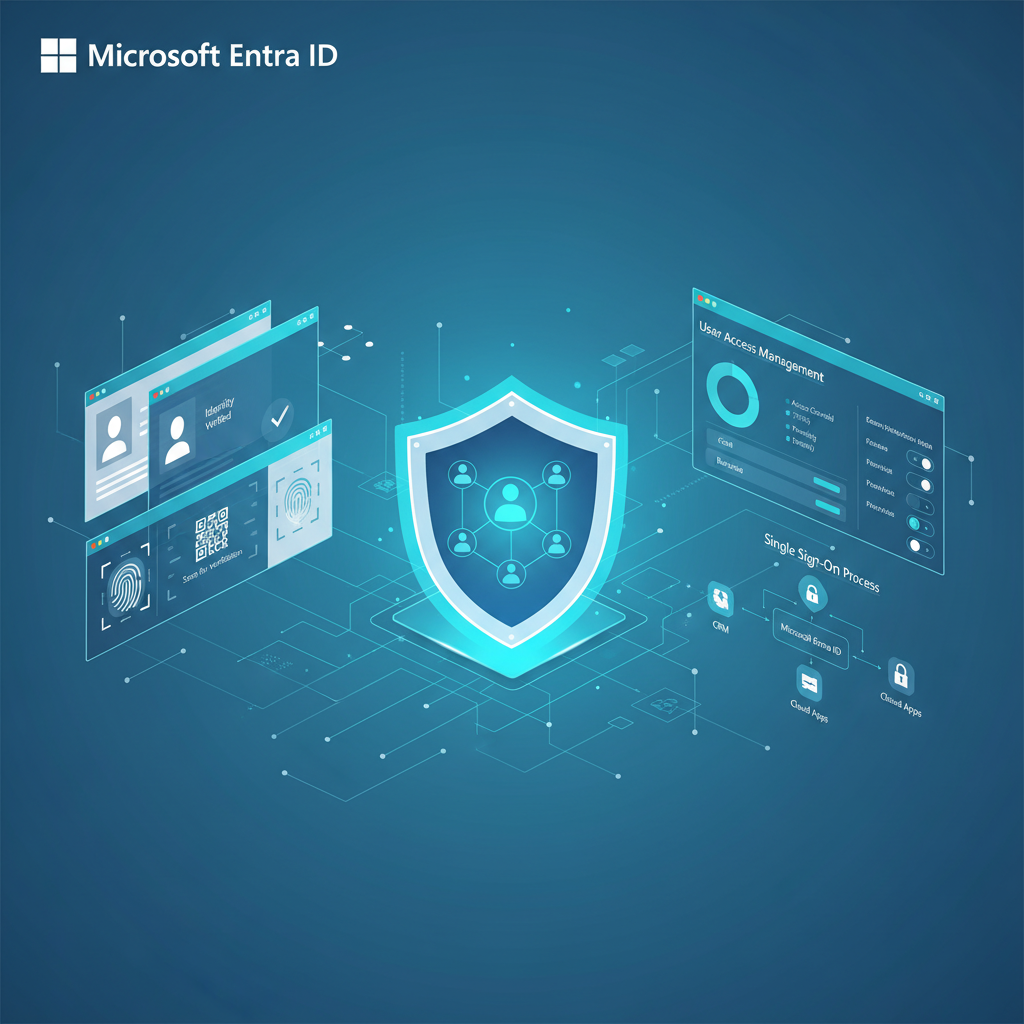
Identity is the new security perimeter. As UK businesses accelerate their adoption of cloud services, remote working, and hybrid infrastructure, the question of who can access what, from where, and under which conditions has become the single most critical factor in organisational security. Microsoft Entra ID - formerly known as Azure Active Directory - sits at the centre of this transformation, providing the identity and access management fabric that underpins Microsoft 365, Azure, and thousands of third-party applications used by businesses across Britain every day.
Yet despite its importance, Entra ID remains widely misunderstood. Many IT decision-makers still think of it as “just the login system for Office 365,” unaware of its capabilities in conditional access, automated governance, device management, and external identity federation. Others confuse it with on-premises Active Directory, not realising that the two serve fundamentally different purposes in a modern IT environment.
This guide cuts through the confusion. Whether you’re a managing director trying to understand what your IT team is recommending, an IT manager evaluating licensing options, or a business owner considering migration from on-premises infrastructure, this article provides a comprehensive, jargon-free exploration of everything Microsoft Entra ID offers - and what it means for your business in practical terms.
What Is Microsoft Entra ID?
Microsoft Entra ID is Microsoft’s cloud-based identity and access management (IAM) service. It authenticates users, authorises access to applications and resources, enforces security policies, and manages the full lifecycle of user identities - from onboarding to offboarding. If you use Microsoft 365, Azure, or Dynamics 365, your organisation already uses Entra ID, whether you realise it or not.
The Rebrand: From Azure AD to Entra ID
In July 2023, Microsoft renamed Azure Active Directory to Microsoft Entra ID. The change was more than cosmetic. It reflected Microsoft’s strategic decision to position Entra as a comprehensive identity family that goes beyond Azure. The Entra product family now includes Entra ID (the core IAM service), Entra ID Governance (lifecycle and access management), Entra External ID (B2B and B2C identity), Entra Permissions Management (multi-cloud permissions), Entra Verified ID (decentralised identity credentials), and Entra Internet Access and Private Access (identity-centric network security).
Critically, the underlying technology did not change. Every API, PowerShell cmdlet, configuration, and licence that worked with Azure AD continues to work identically with Entra ID. Existing integrations, conditional access policies, and user configurations were preserved entirely. The rebrand simply gave Microsoft a unified naming convention for its growing identity portfolio.
If your IT provider or internal team still refers to “Azure AD,” don’t panic - it’s the same service with a new name. However, Microsoft is actively updating all documentation, admin portals, and licensing pages to use the Entra ID branding. When reviewing proposals, contracts, or technical documentation, treat “Azure Active Directory” and “Microsoft Entra ID” as interchangeable.
Entra ID vs On-Premises Active Directory
One of the most common sources of confusion is the relationship between Entra ID and traditional on-premises Active Directory Domain Services (AD DS). Despite sharing the “Active Directory” heritage, they are fundamentally different technologies designed for different environments.
On-premises Active Directory uses protocols like LDAP, Kerberos, and NTLM to manage identities within a local network. It relies on domain controllers - physical or virtual servers running on your premises - and is tightly coupled with Windows Server, Group Policy, and network infrastructure like DNS and DHCP. It excels at managing devices and users within a corporate LAN.
Microsoft Entra ID is a cloud-native service that uses modern protocols like SAML 2.0, OAuth 2.0, OpenID Connect, and SCIM. It operates entirely in the cloud with no on-premises servers required. It is designed for a world where users access SaaS applications from any device, any network, and any location. It manages identities through the Microsoft Graph API rather than LDAP.
Most UK businesses today operate in a hybrid model, running both on-premises AD and Entra ID simultaneously, with Microsoft Entra Connect (formerly Azure AD Connect) synchronising identities between the two. This hybrid approach allows organisations to maintain legacy applications that require traditional AD while progressively adopting cloud-first identity management.
Single Sign-On: One Login, Every Application
Single sign-on (SSO) is one of the most immediately valuable features of Entra ID, and one that every employee in your organisation interacts with daily - often without realising it. SSO allows users to authenticate once with their Entra ID credentials and then access multiple applications without being prompted to log in again.
How SSO Works in Practice
When an employee opens their laptop in the morning and signs into Windows with their work account, they are authenticating against Entra ID. From that point forward, they can open Microsoft 365 apps (Outlook, Teams, SharePoint), navigate to integrated SaaS applications (Salesforce, ServiceNow, Slack, Zoom, Adobe Creative Cloud), and access internal web applications - all without entering another password. Entra ID handles the authentication handshake with each application using secure tokens.
The Entra ID application gallery contains thousands of pre-integrated applications with one-click SSO configuration. For applications not in the gallery, Entra ID supports custom SAML, OpenID Connect, and password-based SSO configurations, meaning virtually any modern web application can be integrated.
The Business Case for SSO
The productivity impact of SSO is substantial and measurable. Research consistently shows that the average employee manages between 70 and 100 passwords, spending approximately 12 minutes per week on password-related tasks - entering credentials, resetting forgotten passwords, and navigating login screens. For an organisation with 50 employees, that equates to roughly 520 hours of lost productivity per year.
Beyond productivity, SSO dramatically improves security posture. When employees don’t need to remember dozens of passwords, they stop writing them on sticky notes, storing them in spreadsheets, or reusing the same password across multiple services. Every application accessed through Entra ID SSO benefits from centralised MFA enforcement, conditional access policies, and real-time sign-in risk detection.
Multi-Factor Authentication: Beyond the Password
Passwords alone are no longer sufficient to protect business accounts. Microsoft’s own data shows that MFA prevents more than 99.2% of account compromise attacks. Entra ID provides multiple MFA methods, allowing businesses to choose the right balance of security and usability for their workforce.
Available MFA Methods
Microsoft Authenticator app is the recommended default for most organisations. It supports push notifications (approve or deny on your phone), time-based one-time passwords (TOTP), and passwordless sign-in using biometrics or PIN. The app is free for iOS and Android and provides the best combination of security and user experience.
FIDO2 security keys - physical USB or NFC devices from manufacturers like YubiKey - offer the highest level of phishing resistance. Because authentication requires physical possession of the key and a PIN or biometric, it is virtually impossible for an attacker to compromise remotely. FIDO2 keys are particularly recommended for privileged accounts such as global administrators, finance directors, and IT managers.
Windows Hello for Business uses the device’s built-in biometric sensors (fingerprint reader or facial recognition camera) or a PIN that is cryptographically bound to the specific device. It provides passwordless authentication that is both highly secure and completely frictionless for the user.
SMS and voice call verification remain available but are considered the weakest MFA methods due to their vulnerability to SIM-swapping attacks and SS7 protocol exploits. Microsoft and the UK National Cyber Security Centre (NCSC) both recommend migrating away from SMS-based MFA wherever possible.
If your organisation still relies on SMS-based MFA as its primary second factor, you should prioritise migrating to the Microsoft Authenticator app or FIDO2 security keys. The NCSC has issued guidance specifically warning against SMS-based verification for high-value accounts. Entra ID makes it straightforward to enforce stronger MFA methods through authentication method policies - you can disable SMS verification entirely and require app-based or hardware token authentication.
Passwordless Authentication
Entra ID is at the forefront of the industry-wide shift toward passwordless authentication. With passwordless methods enabled, users never enter a password at all - they authenticate using biometrics, a security key, or the Authenticator app. This eliminates the entire category of password-based attacks, including phishing, credential stuffing, brute force, and password spraying.
For UK businesses, the practical benefits extend beyond security. Passwordless authentication reduces IT support burden (no more password resets), improves the employee experience (no more forgotten passwords on Monday mornings), and streamlines onboarding (new employees are productive faster). Microsoft reports that organisations deploying passwordless authentication see a 50% reduction in IT helpdesk costs related to credential management.
Conditional Access: Context-Aware Security Policies
Conditional access is arguably the most powerful feature in Entra ID’s security arsenal, and the one that most clearly demonstrates the difference between cloud-native and traditional identity management. Conditional access policies act as intelligent gatekeepers, evaluating a range of signals in real time before deciding whether to grant, deny, or restrict access to a resource.
How Conditional Access Works
Every time a user attempts to sign in to an Entra ID-protected resource, the conditional access engine evaluates the request against configured policies. The signals it considers include:
User and group membership - who is trying to sign in? Policies can target specific users, groups, or roles. You might require MFA for all users but apply stricter controls (such as compliant device requirement) specifically to the finance team or global administrators.
Location - where is the sign-in attempt coming from? Named locations allow you to define trusted IP ranges (your office network) and block or restrict sign-ins from specific countries. A UK-based business with no international operations might block sign-ins from countries where they have no staff.
Device state - is the device compliant, hybrid Azure AD joined, or unmanaged? Policies can require that corporate data is only accessed from devices that meet your security baseline (encrypted, up to date, running approved software).
Application sensitivity - what is the user trying to access? Low-sensitivity applications might require only basic authentication, while access to financial systems or HR databases could demand MFA plus a compliant device plus location verification.
Real-time risk - is this sign-in attempt suspicious? Entra ID Protection (included with P2 licences) uses machine learning to detect anomalies such as sign-ins from unfamiliar locations, impossible travel scenarios, sign-ins from known botnet IP addresses, or credentials found in data breach dumps. Policies can automatically respond to elevated risk by requiring MFA, blocking access, or forcing a password reset.
Practical Conditional Access Scenarios for UK Businesses
Consider a typical UK professional services firm with 80 employees. Their conditional access policies might include:
- Policy 1: Require MFA for all users, all applications, from all locations - the baseline security policy
- Policy 2: Block sign-ins from outside the UK, EU, and USA - the firm has no employees or clients elsewhere
- Policy 3: Require a compliant device (managed by Intune) to access SharePoint, OneDrive, and the firm’s practice management system - preventing data access from personal devices
- Policy 4: Block legacy authentication protocols entirely - older protocols like IMAP, POP3, and SMTP AUTH cannot support MFA and are commonly exploited
- Policy 5: Require phishing-resistant MFA (FIDO2 or Windows Hello) for all users assigned the Global Administrator, Exchange Administrator, or SharePoint Administrator role
- Policy 6: Automatically block sign-ins assessed as high risk by Entra ID Protection - no human intervention required
These six policies, which take perhaps an hour to configure, provide a level of access control that would have required expensive third-party products and weeks of implementation just a few years ago.
Device Management with Microsoft Intune
Entra ID integrates tightly with Microsoft Intune (now part of the Microsoft Intune Suite) to provide comprehensive device management capabilities. This integration is essential for businesses that want to enforce the “compliant device” conditional access policies described above - you need a way to define what “compliant” means and verify that devices meet those standards.
Mobile Device Management (MDM)
Intune’s MDM capabilities allow businesses to manage the full lifecycle of corporate devices - Windows laptops, macOS devices, iOS phones and tablets, and Android devices. When a device is enrolled in Intune, the organisation can:
- Deploy applications automatically (including Microsoft 365 apps, line-of-business applications, and security tools)
- Configure device settings (Wi-Fi profiles, VPN configurations, email accounts, security baselines)
- Enforce compliance policies (require encryption, minimum OS version, PIN complexity, screen lock timeout)
- Remotely wipe or retire devices if they are lost, stolen, or when an employee leaves the organisation
- Deploy Windows updates on a controlled schedule with ring-based deployment (pilot group first, then broader rollout)
Mobile Application Management (MAM)
For organisations that allow employees to use personal devices for work (bring your own device, or BYOD), Intune’s MAM capabilities provide a compelling middle ground. MAM policies control corporate data at the application level without managing the entire device. This means an employee’s personal phone can access Outlook and Teams with full data protection - copy/paste restrictions, encryption of corporate data at rest, PIN required to open work apps - while their personal apps and data remain completely untouched and private.
This distinction matters enormously for UK businesses navigating data protection requirements. Under UK GDPR, organisations must protect personal data processed by employees, but employees also have a reasonable expectation of privacy on their personal devices. MAM policies allow businesses to protect corporate data without intruding on employee privacy - a balance that full MDM on personal devices struggles to achieve.
External Identities: B2B and B2C Collaboration
Modern businesses rarely operate in isolation. They collaborate with suppliers, partners, contractors, and customers - all of whom may need some level of access to your digital resources. Entra External ID (formerly Azure AD B2B and Azure AD B2C) provides two distinct solutions for these scenarios.
Entra External ID (B2B)
Entra External ID (B2C)
B2B Collaboration in Practice
With Entra External ID for B2B, you invite external users as guests into your Entra ID tenant. They authenticate using their own organisation’s identity (if they also use Entra ID or a compatible identity provider) or a one-time passcode sent to their email. Once authenticated, they can access the specific resources you’ve shared with them - a Teams channel, a SharePoint site, a specific application - governed by the same conditional access policies that protect your internal users.
For a UK accounting firm collaborating with clients on year-end audits, this means the client’s finance director can access a dedicated SharePoint document library using their own work email, without needing a separate username and password, and without the accounting firm creating and managing a separate user account. When the engagement ends, automated access reviews (covered below) can prompt the firm to confirm or revoke the guest’s access.
B2C for Customer-Facing Applications
Entra External ID for B2C is designed for entirely different scenarios - customer-facing applications where users create their own accounts, sign in with social identities, and interact with your services at scale. A UK e-commerce business, an online banking platform, a membership organisation, or an NHS digital health service might use B2C to manage customer authentication for their web and mobile applications.
B2C provides fully customisable sign-up and sign-in experiences, progressive profiling (collecting additional user information over multiple sessions), and integration with social identity providers including Google, Facebook, Apple, and any standards-compliant OpenID Connect provider.
Entra ID Licensing Tiers: What You Get at Each Level
One of the most common questions UK businesses ask about Entra ID is “what do we actually need to pay for?” The answer depends on which features your organisation requires. Entra ID is available in four tiers, each building on the previous one.
| Feature | Free | P1 (£4.50/user/mo) | P2 (£6.80/user/mo) |
|---|---|---|---|
| User & group management | ✓ | ✓ | ✓ |
| SSO (cloud apps) | ✓ (10 apps) | Unlimited | Unlimited |
| Multi-factor authentication | Security defaults only | Conditional access-driven | Conditional access-driven |
| Conditional access | ✗ | ✓ | ✓ |
| Self-service password reset | Cloud users only | Cloud + on-prem writeback | Cloud + on-prem writeback |
| Device management (Intune) | ✗ | ✓ (with M365 BP/E3+) | ✓ (with M365 BP/E3+) |
| Dynamic groups | ✗ | ✓ | ✓ |
| Application proxy (on-prem apps) | ✗ | ✓ | ✓ |
| Identity Protection (risk-based CA) | ✗ | ✗ | ✓ |
| Access reviews | ✗ | ✗ | ✓ |
| Entitlement management | ✗ | ✗ | ✓ |
| Privileged Identity Management (PIM) | ✗ | ✗ | ✓ |
Many UK businesses already have Entra ID P1 included in their Microsoft 365 Business Premium (£16.60/user/month) or Microsoft 365 E3 licences without realising it. Before purchasing standalone Entra ID P1 or P2 licences, check your existing Microsoft 365 subscription - you may already have access to conditional access, dynamic groups, and self-service password reset. Entra ID P2 features (Identity Protection, PIM, access reviews) are included in Microsoft 365 E5 (£51.40/user/month).
Which Tier Do You Need?
Free tier is automatically included with any Microsoft cloud subscription. It provides basic user management and limited SSO. For very small businesses with simple needs and no compliance requirements, this may suffice - but most organisations will quickly find its limitations frustrating.
P1 is the sweet spot for the majority of UK SMEs. Conditional access alone justifies the cost - the ability to enforce MFA based on location, device compliance, and application sensitivity transforms your security posture. Dynamic groups automate user management (automatically add users to groups based on department, job title, or location attributes), and application proxy allows secure remote access to on-premises web applications without a VPN.
P2 is essential for organisations with regulatory compliance requirements, those handling sensitive data, or businesses that want automated identity governance. Access reviews, entitlement management, and Privileged Identity Management provide the controls that auditors and regulators increasingly expect. For UK businesses subject to FCA regulation, NHS data security standards, or ISO 27001 certification, P2 features are often a practical necessity.
Migrating from On-Premises Active Directory to Entra ID
For the thousands of UK businesses still running on-premises Active Directory as their primary identity platform, migration to Entra ID is not a question of whether but when and how. The trajectory is clear: Microsoft’s investment is overwhelmingly focused on cloud-native identity, and on-premises AD, while still supported, receives comparatively little innovation.
Migration Approaches
There is no single “right” migration path. The appropriate approach depends on your organisation’s size, complexity, existing infrastructure, and appetite for change.
Hybrid identity (most common) - This is where the vast majority of UK businesses start. You install Microsoft Entra Connect (a lightweight synchronisation tool) on a server in your on-premises environment. It synchronises user accounts, groups, and (optionally) password hashes from your local Active Directory to Entra ID. Users get a single identity that works for both on-premises resources (file servers, printers, legacy applications) and cloud services (Microsoft 365, SaaS apps). This approach carries minimal disruption and can be implemented in days.
Cloud-first with on-premises access - organisations that have already migrated most workloads to the cloud may choose to make Entra ID the primary identity source. New users are created directly in Entra ID, and access to remaining on-premises resources is provided through Entra ID Application Proxy, Microsoft Entra Domain Services (a managed domain service in Azure), or VPN with cloud-based authentication. This model works well for businesses with a clear timeline for decommissioning on-premises servers.
Full cloud migration - Some organisations, particularly smaller businesses replacing an aging Small Business Server or Windows Server Essentials deployment, may choose to eliminate on-premises AD entirely. All devices are joined directly to Entra ID (Entra Join), managed through Intune, and authenticated exclusively against cloud services. File storage moves to SharePoint and OneDrive, print management moves to Universal Print, and legacy applications are either replaced with SaaS equivalents or accessed through application proxy.
Migration Planning Checklist
A structured migration requires careful planning. The following areas demand attention before beginning any identity migration project:
- Application inventory - catalogue every application in your environment and determine how it authenticates. Applications using LDAP bind, NTLM, or Kerberos will need special consideration. Many can be modernised to use SAML or OIDC; others may require Entra ID Application Proxy or Domain Services.
- Group Policy audit - document all Group Policy Objects (GPOs) currently applied to users and devices. These will need to be replicated using Intune configuration profiles and compliance policies. This is often the most time-consuming part of the migration.
- DNS and network infrastructure - on-premises AD is deeply integrated with DNS. Plan how name resolution will work post-migration, particularly if you maintain any on-premises services.
- Service accounts - identify all service accounts used for automated tasks, scheduled scripts, and application integrations. These need careful handling during migration to avoid service disruption.
- User communication - prepare employees for any changes to their sign-in experience. Even minor changes (a new MFA prompt, a slightly different login screen) generate helpdesk calls if not communicated in advance.
If you’re running on-premises AD and haven’t yet set up Entra Connect, this should be your first step regardless of your long-term migration strategy. It takes approximately 2–4 hours to deploy, has minimal impact on existing infrastructure, and immediately gives your users SSO to Microsoft 365 and other cloud services. It also enables self-service password reset with on-premises writeback, which typically reduces helpdesk calls by 30–50% within the first month.
Identity Governance and Access Reviews
As organisations grow and evolve, the accumulation of unnecessary access permissions - known as permission creep - becomes one of the most significant and least visible security risks. Employees change roles but retain access from their previous position. Contractors finish their engagement but their guest accounts remain active. Temporary elevated permissions granted for a specific project are never revoked. Over time, the gap between the access users should have and the access they actually have widens considerably.
Entra ID Governance (available with P2 licences or as a standalone add-on) provides a suite of tools designed to automate and enforce the principle of least privilege throughout the identity lifecycle.
Access Reviews
Access reviews are periodic, structured evaluations of who has access to what. You configure review campaigns that prompt designated reviewers (typically resource owners or managers) to confirm or deny continued access for specific users to specific resources. Reviews can be configured for:
- Group memberships - does each member of the “Finance Team” security group still belong there?
- Application assignments - does every user assigned to the CRM application still need access?
- Privileged role assignments - should this user still have the Global Administrator role?
- Guest user access - are external collaborators still actively engaged, or should their access be revoked?
Reviews can run on a schedule (monthly, quarterly, annually) and include automatic actions for non-response - if a reviewer doesn’t respond within the defined period, access can be automatically revoked. For UK businesses subject to audit requirements, access review reports provide documented evidence that access permissions are regularly validated.
Entitlement Management
Entitlement management allows you to create access packages - bundled collections of group memberships, application assignments, and SharePoint site access that are appropriate for a specific role or project. When a new employee joins the marketing team, for example, a single access package can grant them membership in the marketing security group, access to the marketing SharePoint site, assignment to HubSpot and Canva through SSO, and a Microsoft 365 E3 licence - all through a single approval workflow.
Access packages can include expiration dates (access automatically revoked after 90 days unless renewed), approval workflows (requiring manager or resource owner sign-off), and access reviews (periodic re-confirmation of continued need). This dramatically reduces both the time to provision new users and the risk of orphaned permissions when access is no longer needed.
Privileged Identity Management (PIM)
PIM addresses one of the most dangerous aspects of identity management: standing administrative access. In many organisations, IT staff have permanent Global Administrator, Exchange Administrator, or other highly privileged roles assigned to their accounts 24 hours a day, 7 days a week. If those accounts are compromised, the attacker inherits those privileges immediately.
PIM replaces standing access with just-in-time (JIT) activation. Privileged roles are assigned as “eligible” rather than “active.” When an administrator needs to perform a privileged task, they activate the role through PIM, which can require MFA verification, a business justification, and approval from another administrator. The activation is time-limited (typically 1–8 hours), after which the privileges are automatically revoked.
For UK businesses pursuing Cyber Essentials Plus certification or ISO 27001, PIM provides auditable evidence of privileged access controls that satisfies common assessment requirements.
Security Features and Threat Protection
Beyond the core identity management capabilities, Entra ID includes sophisticated security features that actively detect and respond to identity-based threats.
Entra ID Protection
Entra ID Protection (P2 licence required) uses Microsoft’s vast threat intelligence network - processing over 65 trillion signals daily - to assess risk in real time. Every sign-in attempt is evaluated against multiple risk indicators:
- Anonymous IP address detection - sign-ins originating from known Tor exit nodes, anonymous proxies, or VPN services commonly used by attackers
- Atypical travel - two sign-ins from geographically distant locations within an impossibly short timeframe (e.g., London and Singapore within 30 minutes)
- Malware-linked IP addresses - sign-ins from IP addresses known to be associated with bot activity or malware command-and-control infrastructure
- Leaked credentials - detection of user credentials found in publicly available data breach dumps on the dark web
- Password spray detection - identification of distributed attacks that try common passwords across many accounts to avoid account lockout thresholds
When elevated risk is detected, conditional access policies can automatically respond: requiring MFA for medium-risk sign-ins, forcing a secure password change for users with leaked credentials, or blocking high-risk sign-ins entirely. This automated response capability means threats are neutralised in seconds, without waiting for a security analyst to investigate and act.
Continuous Access Evaluation
Traditional token-based authentication has a weakness: once a user authenticates and receives an access token, that token is valid for its full lifetime (typically one hour) regardless of changes in the user’s security state. If an administrator disables a user account, revokes a session, or changes a conditional access policy, the user retains access until their current token expires.
Continuous Access Evaluation (CAE) addresses this by enabling near-real-time communication between Entra ID and supported applications (currently Microsoft 365 services). When a critical security event occurs - account disabled, password changed, high-risk sign-in detected, network location changed - the application is notified immediately and can revoke the session within minutes rather than waiting for token expiry. For UK businesses concerned about the window of exposure after security events, CAE provides a meaningful improvement.
Planning Your Entra ID Strategy
Implementing Entra ID effectively requires more than simply enabling features. It demands a coherent strategy that aligns identity management with your organisation’s security requirements, compliance obligations, and operational workflows. Here is a recommended approach for UK businesses at different stages of maturity.
For Businesses New to Entra ID
If your organisation is just beginning its cloud journey - perhaps migrating from Google Workspace, adopting Microsoft 365 for the first time, or replacing a legacy email system - focus on getting the fundamentals right:
- Enable Security Defaults - Microsoft’s pre-configured set of security policies that enforce MFA registration for all users and require MFA for administrative actions. This is free and takes minutes to enable.
- Configure self-service password reset - reduce helpdesk burden from day one by allowing users to reset their own passwords securely.
- Integrate your most-used applications with SSO - start with the five or ten applications your team uses daily. The productivity and security benefits are immediate.
- Plan your conditional access baseline - even a simple policy set (require MFA everywhere, block legacy authentication, restrict access by country) dramatically improves your security posture.
For Businesses Expanding Their Deployment
If you already use Microsoft 365 and basic Entra ID features but haven’t fully leveraged the platform:
- Audit your current conditional access policies - are there gaps? Common oversights include failing to protect Azure management portals, not restricting legacy authentication, and not requiring MFA for guest users.
- Deploy Intune for device management - even if you start with a BYOD-only MAM policy, controlling corporate data on mobile devices closes a significant risk gap.
- Enable Entra ID Protection - if you have P2 licences, configure risk-based conditional access policies to automate threat response.
- Implement access reviews for guest users - if you use B2B collaboration, quarterly reviews of guest access prevent the accumulation of stale external accounts.
For Businesses with Mature Deployments
If your organisation already has a comprehensive Entra ID deployment:
- Deploy Privileged Identity Management - eliminate standing administrative access for all privileged roles.
- Implement entitlement management with access packages - automate user lifecycle management for common role transitions.
- Evaluate passwordless authentication - begin piloting Windows Hello for Business or FIDO2 security keys with your most security-conscious user groups.
- Explore Entra Internet Access and Private Access - Microsoft’s identity-centric approach to network security, replacing traditional VPN and web proxy architectures with Zero Trust network access.
Cost Considerations for UK Businesses
Understanding the true cost of Entra ID requires looking beyond the per-user licence price to consider the broader value proposition. The following comparison illustrates the cost structure for a typical 50-user UK business.
Traditional On-Premises AD
Entra ID P1 (Cloud-Native)
Common Mistakes to Avoid
Having helped hundreds of UK businesses implement and optimise their Entra ID environments, we consistently see the same mistakes repeated. Avoiding these pitfalls will save your organisation time, money, and security exposure.
Ignoring legacy authentication protocols. Many organisations enable conditional access policies requiring MFA but forget to block legacy protocols like POP3, IMAP, and SMTP AUTH. These protocols cannot support MFA, meaning any account accessible via legacy authentication bypasses your MFA policies entirely. Always include a conditional access policy that blocks legacy authentication for all users.
Over-assigning Global Administrator roles. We routinely encounter organisations where five, ten, or even twenty users hold the Global Administrator role. This is the most powerful role in your Microsoft 365 environment - it can read all email, delete all data, and reconfigure every security setting. Best practice limits Global Administrators to two or three break-glass accounts, with all other admin tasks performed through scoped roles like Exchange Administrator, SharePoint Administrator, or User Administrator.
Neglecting guest user lifecycle management. Every guest user invited into your Entra ID tenant represents a potential access point for external threats. Without regular access reviews, guest accounts accumulate indefinitely. Configure quarterly access reviews for all guest users, with automatic removal for guests whose access is not confirmed by a reviewer.
Failing to monitor sign-in logs. Entra ID generates rich sign-in and audit logs that provide visibility into authentication patterns, failed sign-in attempts, risky sign-ins, and policy changes. Many organisations never review these logs. At minimum, configure alerts for critical events: new Global Administrator assignments, conditional access policy changes, and high-risk sign-in detections.
Treating Entra ID as a one-time project. Identity management is an ongoing operational responsibility, not a project with a defined end date. Conditional access policies need updating as your business evolves. New applications need SSO integration. Access reviews need regular attention. Allocate ongoing time and resources for identity management, or engage a managed service provider to handle it on your behalf.
Every Entra ID environment must have at least one break-glass (emergency access) account - a cloud-only Global Administrator account that is excluded from all conditional access policies, uses a very long complex password stored securely offline, and has no MFA requirement. This account exists solely to recover access if all other administrative accounts are locked out by a misconfigured policy. Without it, a conditional access misconfiguration could lock every administrator out of your entire Microsoft 365 environment.
The Road Ahead: What’s Coming to Entra ID
Microsoft continues to invest heavily in the Entra product family. Several developments are particularly relevant for UK businesses:
Microsoft Entra Internet Access and Private Access - these services, now generally available, extend Entra ID’s identity-centric security model to network access. Internet Access provides a secure web gateway that enforces conditional access policies on all internet traffic, while Private Access replaces traditional VPN with Zero Trust network access to on-premises applications. Together, they represent Microsoft’s vision of a fully converged identity and network security platform.
Expanded verified ID capabilities - Entra Verified ID allows organisations to issue and verify digital credentials based on open standards. As the UK government progresses its digital identity framework, verified credentials may become increasingly relevant for businesses that need to verify customer identity, employee qualifications, or supplier certifications.
AI-powered identity security - Microsoft Security Copilot integration with Entra ID will increasingly automate threat investigation, policy recommendations, and identity governance decisions. Early capabilities include natural language queries for sign-in logs and automated summaries of risky user behaviour.
Need Help with Entra ID?
Whether you’re planning a migration from on-premises Active Directory, optimising your conditional access policies, or implementing identity governance, our team of Microsoft-certified engineers can help. We work with UK businesses of all sizes to design, deploy, and manage Entra ID environments that balance security with usability.
Get in TouchSummary
Microsoft Entra ID is far more than a login system. It is the identity fabric that connects your users to your applications, enforces your security policies, manages the lifecycle of every identity in your environment, and provides the intelligence needed to detect and respond to identity-based threats. For UK businesses operating in an increasingly cloud-first, remote-enabled, and regulation-heavy landscape, a well-implemented Entra ID environment is not optional - it is foundational.
The key takeaways from this guide are clear. First, every UK business using Microsoft 365 already has Entra ID - the question is whether you’re using it to its full potential. Second, conditional access and MFA are non-negotiable baseline security controls that every organisation should implement immediately. Third, the choice between P1 and P2 licensing depends on your governance and compliance requirements - P1 covers most SMEs, while regulated industries and larger organisations benefit significantly from P2’s governance capabilities. Fourth, migration from on-premises AD is a journey, not a single event - start with hybrid identity through Entra Connect and progressively move toward cloud-native management. Finally, identity management is an ongoing operational discipline that requires continuous attention, not a one-time project to be completed and forgotten.
The organisations that invest in their identity infrastructure today will be the ones best positioned to adopt new technologies, meet evolving compliance requirements, and protect their people and data against the increasingly sophisticated threats of tomorrow.

CloudSwitched
London-based managed IT services provider offering support, cloud solutions and cybersecurity for SMEs.


